Almost every framework that touches your security or resilience program expects you to test your disaster recovery and business continuity plans on a regular cadence — not just write them. SOC 2 calls it out in CC9.1, ISO 27001:2022 lays it down in A.5.30 (ICT readiness for business continuity), and FFIEC’s Business Continuity Management booklet dedicates an entire section to it. Auditors want to see the test happened, who participated, what evidence each participant produced, and what got signed off at the end.
Most teams handle this once a year with email threads, a shared drive, and a frantic week of chasing partners. Talarity treats it as a recurring, structured workflow — the same primitives that drive your assessments, attestations, and security questionnaires.
Who’s involved
- Coordinator — designs the questionnaire, schedules the campaign, attaches the DR runbook, and certifies the final report.
- Internal tester — owns one or more recovery components. Answers questions, attaches evidence (logs, screenshots, post-test reports).
- External partner / guest — cloud vendor, MSSP, or hot-site provider who has a piece of your recovery. Gets a real Talarity guest account scoped only to their task.
- Reviewer — compliance lead or BCM champion who signs the final attestation alongside the campaign owner.
What’s on the page
This walkthrough spans a few screens — each does one job in the annual cycle:
- Form Builder (
/app/form-templates) — author the DR-exercise questionnaire (ten response types; flag the questions that require evidence). - Tasks (
/app/tasks) — schedule the recurring campaign in a single screen. - Recurring Tasks (
/app/tasks?tab=recurring) — the ACTIVE rule and its next-fire date. - Task Campaigns (
/app/tasks?tab=campaigns) — one row per recipient with live-updating progress. - Attestation report — the signed evidence artifact the completed run produces.
Step 1 — Build the DR question template
The Form Builder at /app/form-templates is where every recurring questionnaire in Talarity is authored. Pick the DR exercise category and add the questions you want every tester to answer. Ten response types are available — yes/no, single or multiple choice, free text, file upload, acknowledgement, and more. Mark the ones that require evidence, and the platform will block submission until a file is attached.
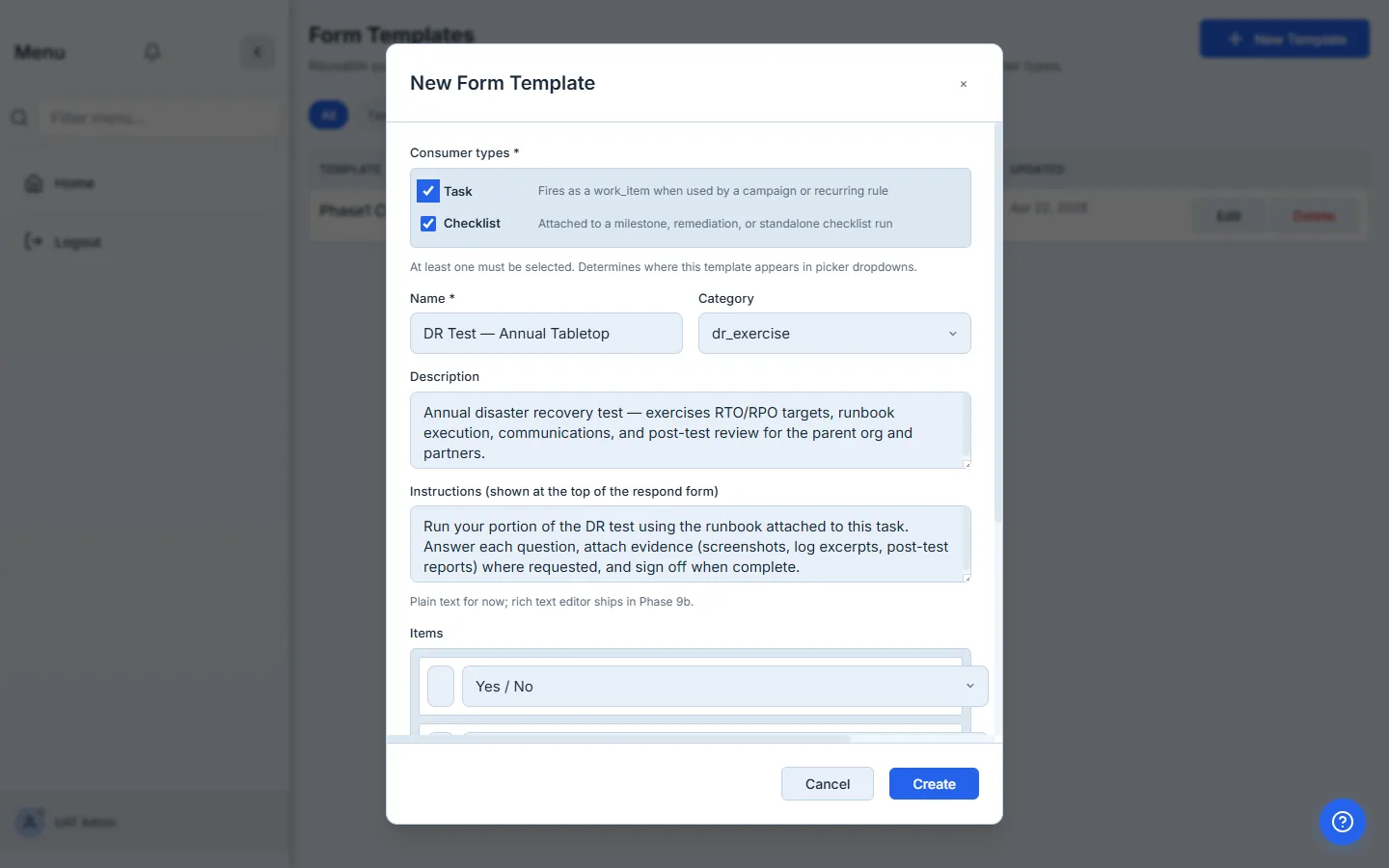
Tip: One template can power any number of campaigns. Build it once for your annual program and reuse it for tabletops, post-incident reviews, and partner attestations.
Step 2 — Schedule the recurring campaign
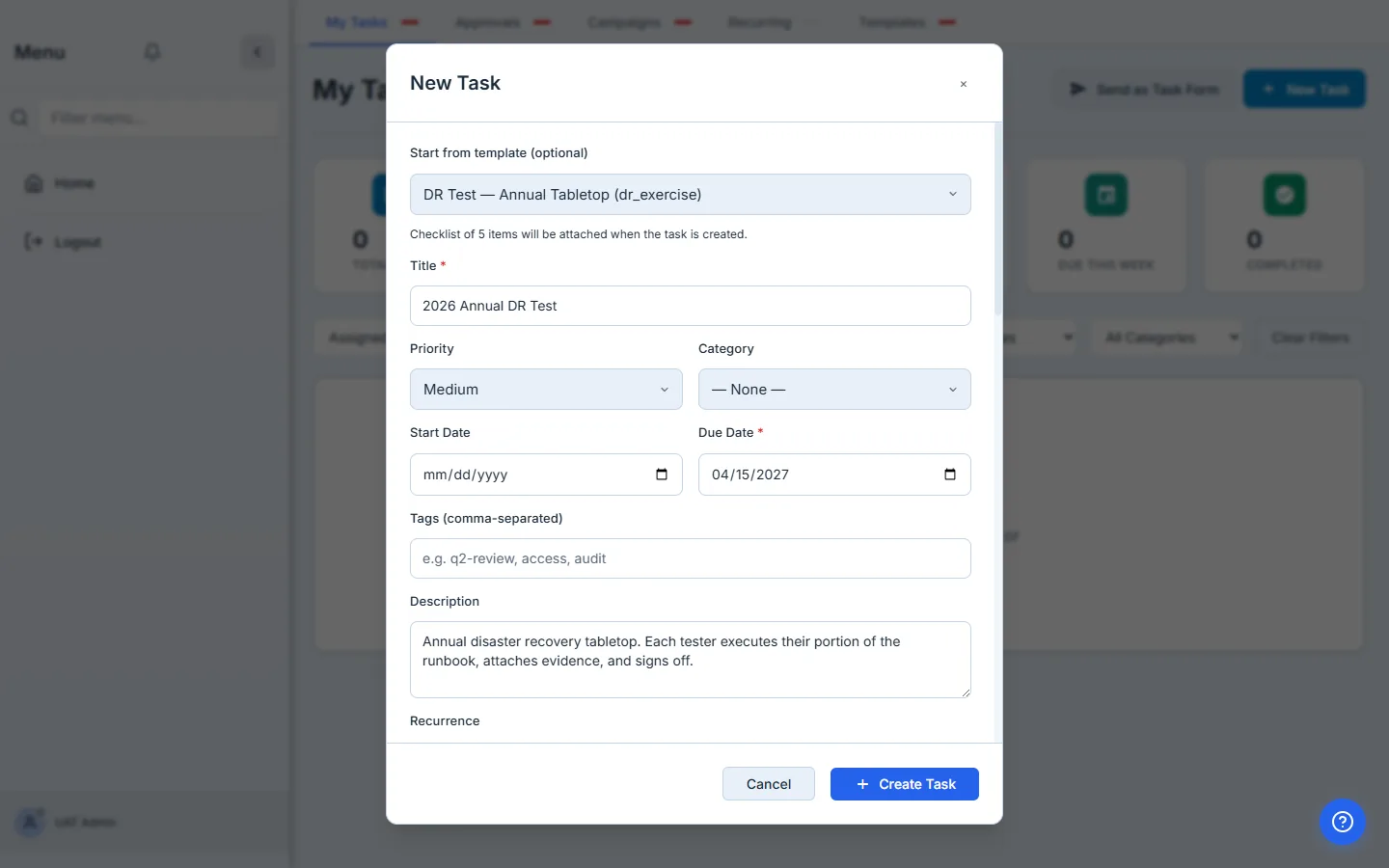
Open /app/tasks, click + New Task, and configure the campaign in a single screen:
- Title and description for what testers will see (“2026 Annual DR Test”).
- The DR template you just built.
- The recurrence pattern — Yearly on April 15, for example. Talarity handles weekend shifts automatically.
- Recipients — mix internal email addresses, an entire linked-account org, and external partners on the same line.
Attach your DR procedures, runbooks, and reference materials
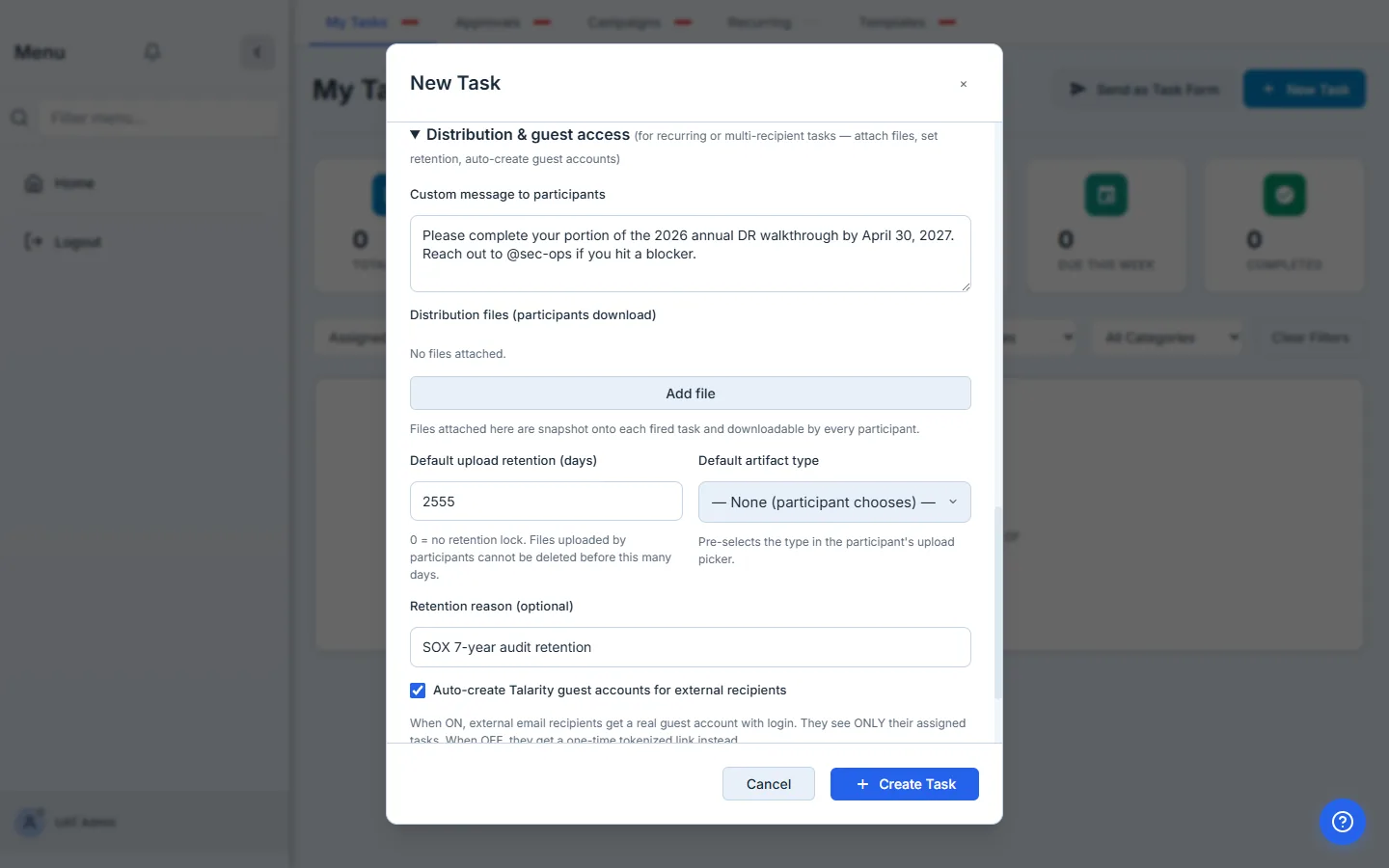
This is the part most teams under-use. Expand the Distribution & guest access section and attach every reference document a tester needs to do the work — the DR plan PDF, recovery runbooks, escalation/contact lists, system architecture diagrams, last year’s after-action report, vendor failover procedures, anything your testers should be reading before they answer a question.
Every recipient — internal or external — sees the full file list as downloadable attachments on their task page. Same files, same distribution snapshot, no separate “here’s the runbook” emails. Auditors love this because the report later cites the exact files that were in force during the test, not “the latest copy on SharePoint.”
In the same section you can also set a custom message that ships in every assignment email, lock down upload retention (7 years for SOC 2 / FFIEC), and turn on automatic guest-account provisioning for external recipients — the magic toggle for partner participation. When it’s on, external email addresses get a real Firebase guest login scoped only to their task — no shared inboxes, no token URLs forwarded around.
Once it’s saved
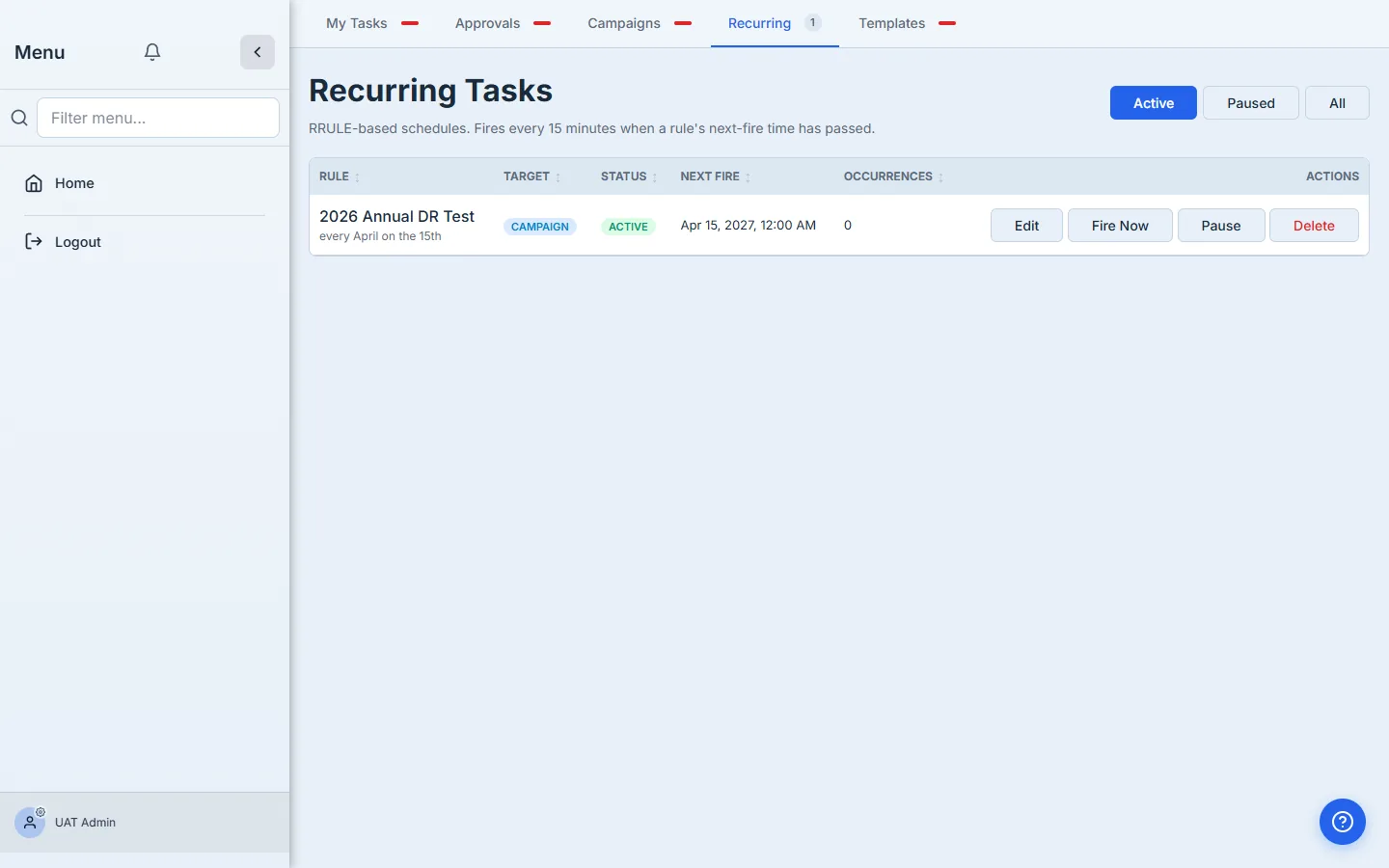
The rule lands on /app/tasks?tab=recurring with a green ACTIVE pill and the next-fire date. Talarity’s scheduler checks for due rules every hour, so when April 15 rolls around, the campaign fans out automatically.
Step 3 — Trigger the run (manually or automatically)
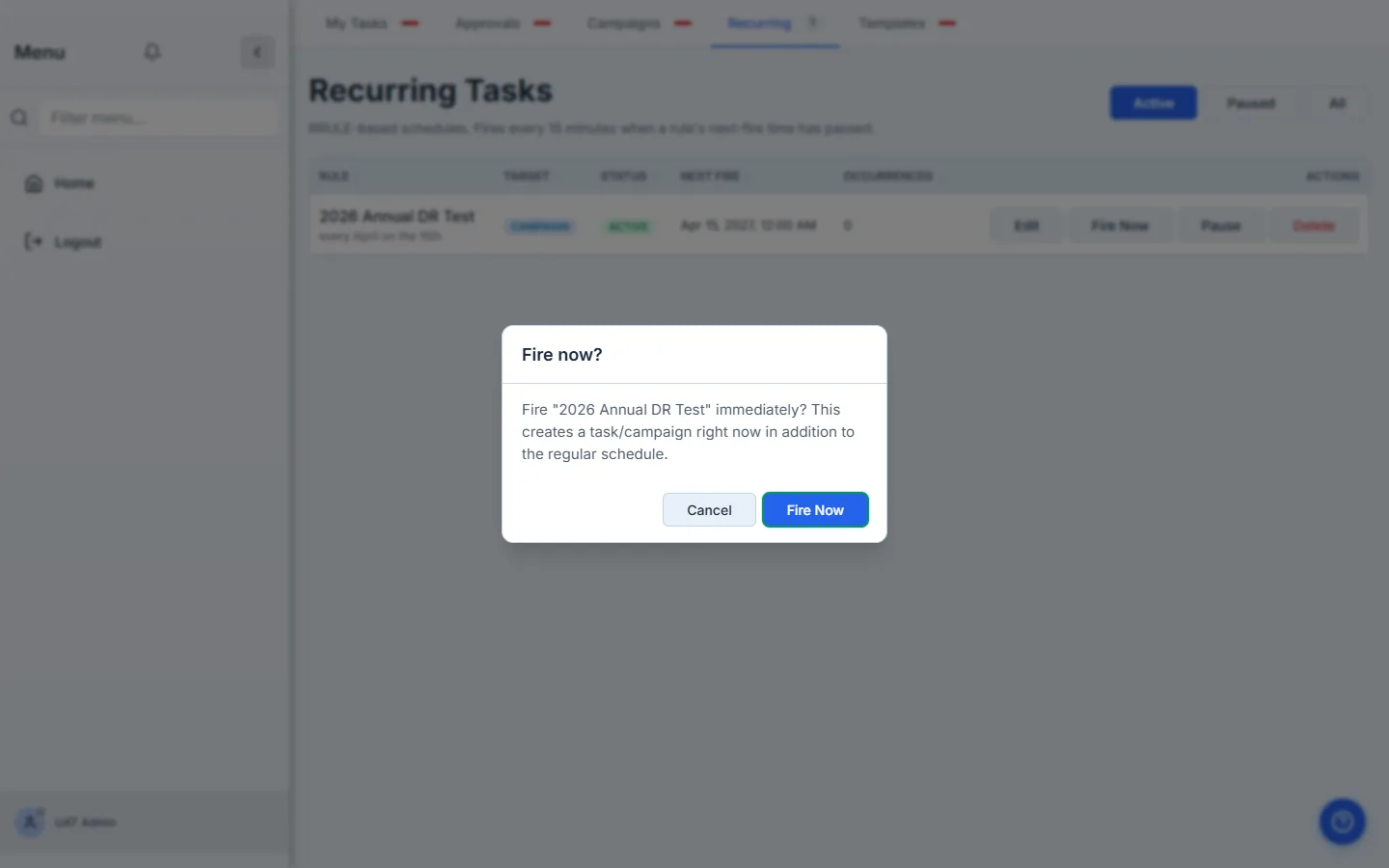
You don’t have to wait for the scheduler the first time. Click Fire Now on any rule and Talarity creates the campaign, generates per-recipient work items, and sends every invitation email immediately.
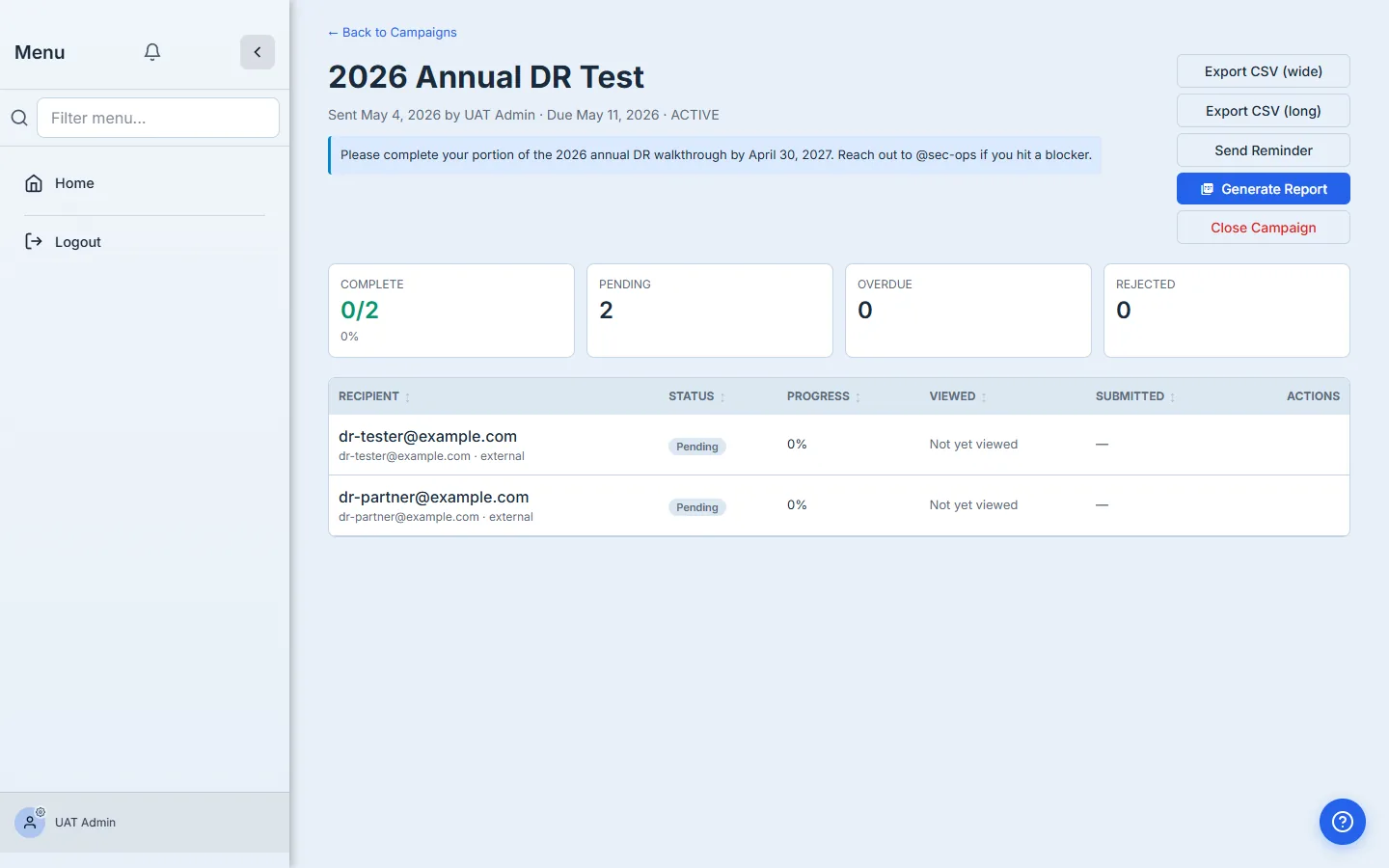
Whether you fire it manually or it auto-fires, the campaign appears in /app/tasks?tab=campaigns with one row per recipient and live-updating progress.
Step 4 — Recipients receive and respond
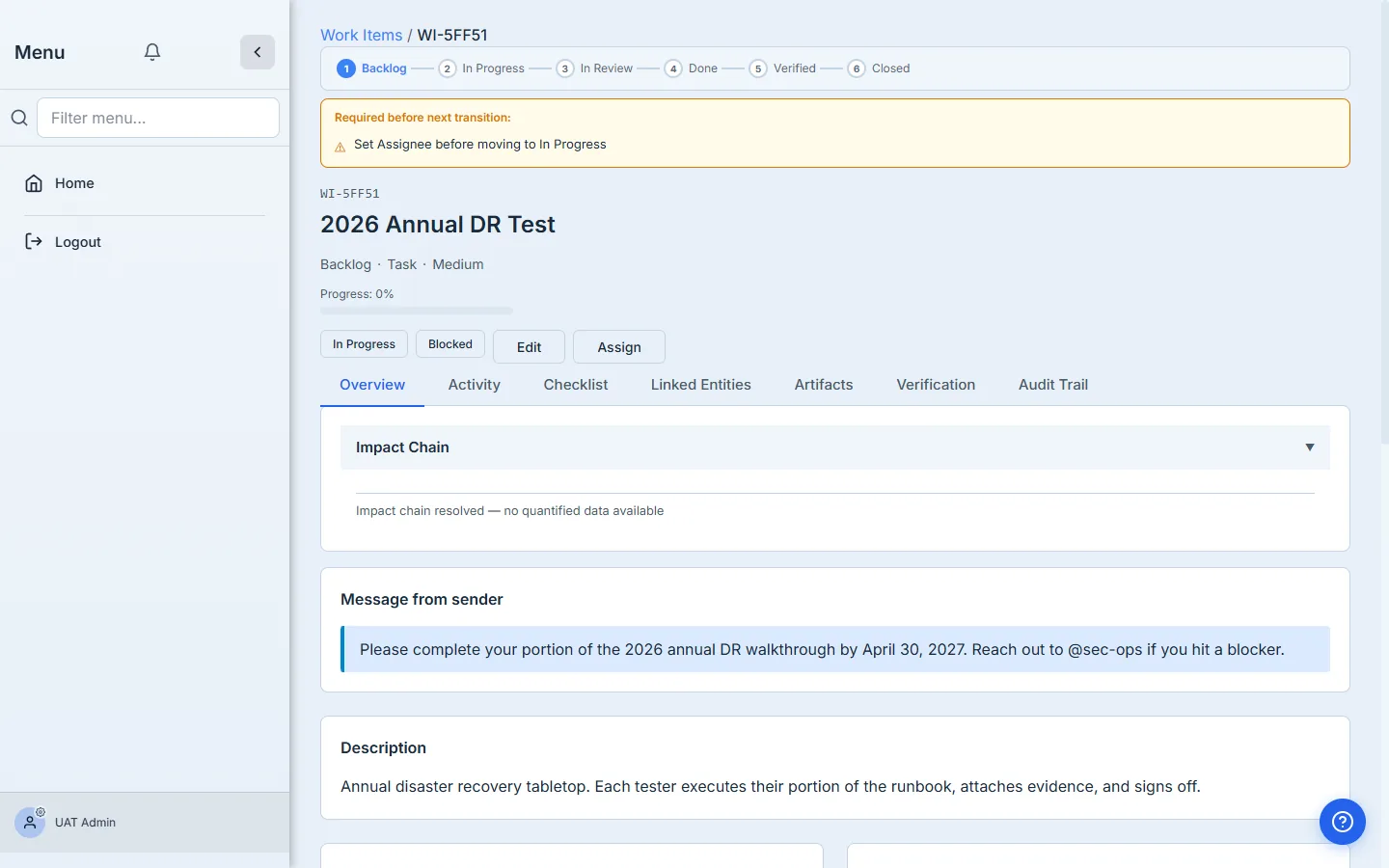
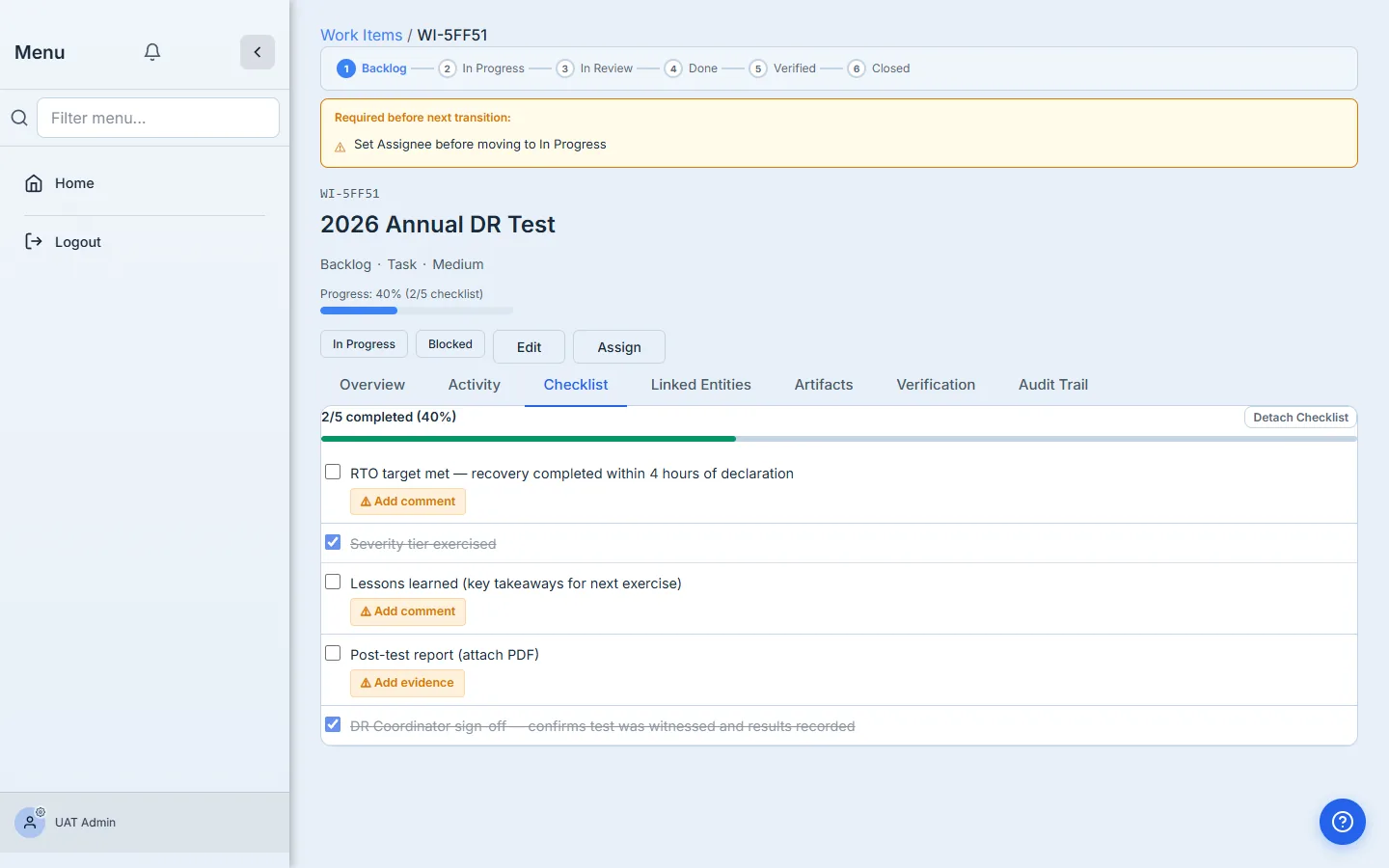
Internal users see the task in their dashboard the next time they log in. They open it, download the DR plan, answer the questionnaire, and upload evidence directly against the questions that require it.
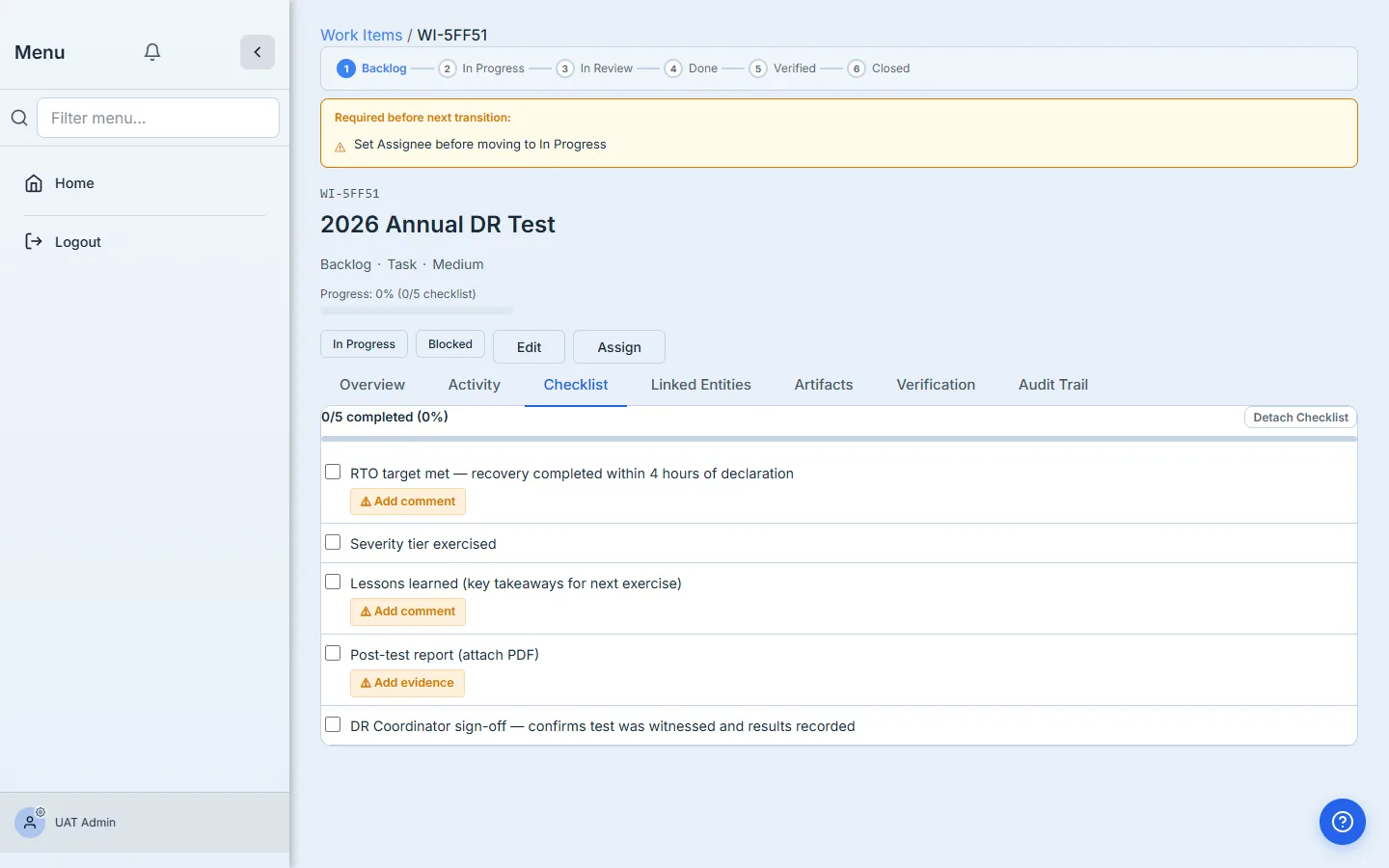
For every external email on the recipient list, Talarity creates a guest Firebase user, scopes them to only their task, and emails them a single-click invitation to set their password and open their task. The guest experience is identical to an internal tester’s — same template, same evidence requirements, same distribution files. Just a smaller scope.
Step 5 — Coordinator monitors progress
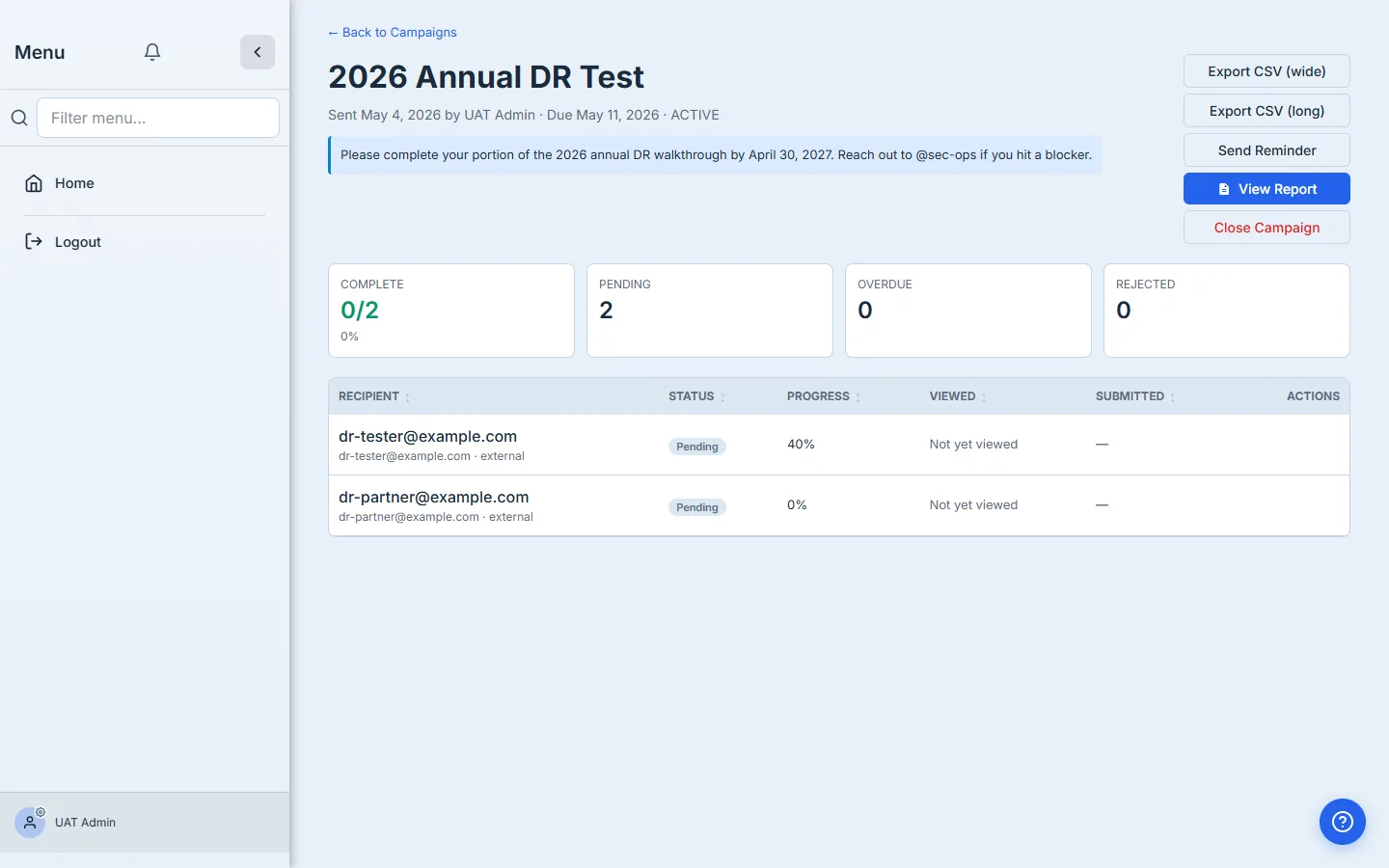
The campaign detail view is the coordinator’s dashboard for the run. Status pills, first-viewed timestamps, and submission times are all live. Send batched reminders to anyone still pending, export a CSV for offline analysis, or close the campaign when the window ends.
Step 6 — Generate the attestation report
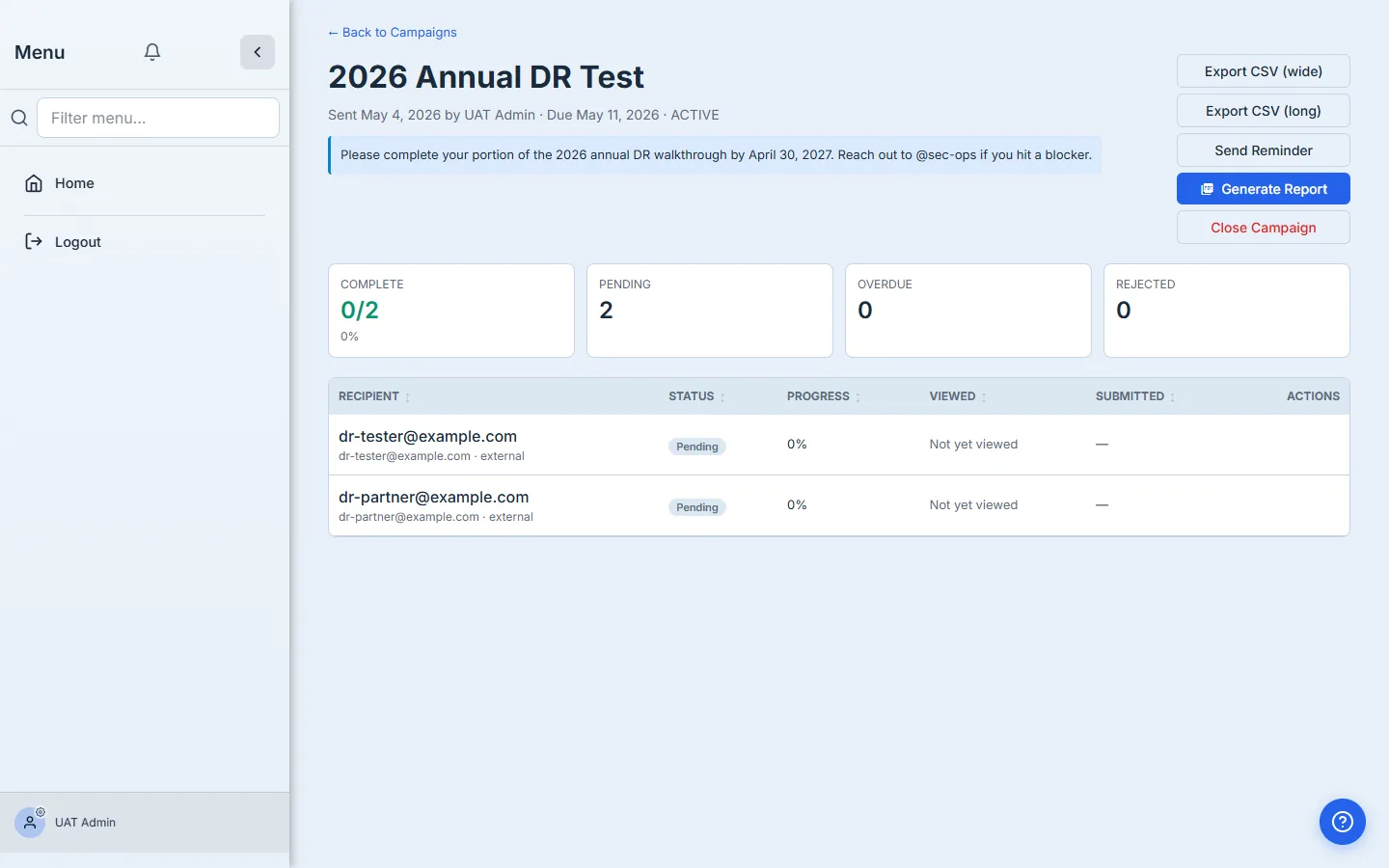
When the window closes (or the coordinator closes it manually) and every recipient has reached a terminal state, Talarity automatically drafts the attestation report. If some recipients are still outstanding at close, use the Generate Report button on the campaign page to draft it on demand — that button is available at any point in the run.
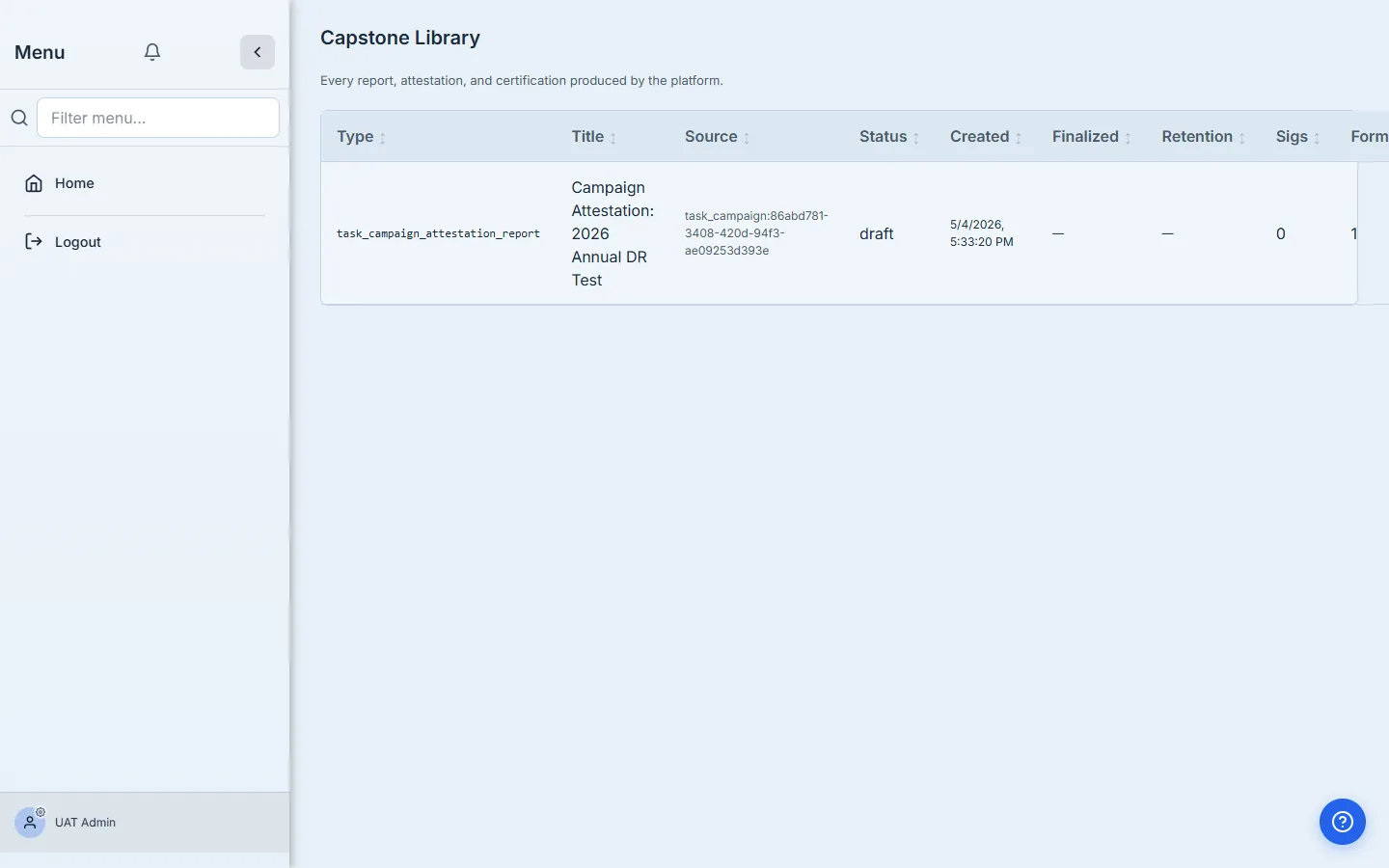
The draft lands in the Capstone Library — the same queue that holds your audit reports, governance packages, and SEC filings.
What the report contains
The finalized PDF is structured for auditors and stakeholders alike:
- Cover & engagement scope — org name, campaign title, period, generated/finalized timestamps, recurrence rule, dispatcher.
- Distribution package — the DR plan and any other files that went out with the campaign.
- Aggregate stats — total recipients, completion rate, mean response time, evidence count, overdue / rejected counters.
- Recipient roster — one row per tester (name, email, internal/cross-org/guest classification, status, first viewed, submitted).
- Per-tester evidence matrix — for every respondent: the questions they answered, the responses they gave, and a deep link to every artifact they uploaded.
- Compliance citations — SOC 2 CC9.1, ISO 27001:2022 A.5.28/5.29/5.30, NIST CSF 2.0 RC.RP-1, NIST SP 800-34 §3.5, plus FFIEC / HIPAA / PCI when relevant.
- Sign-offs — campaign owner and a second compliance signer, resolved through Talarity’s responsibility ledger.
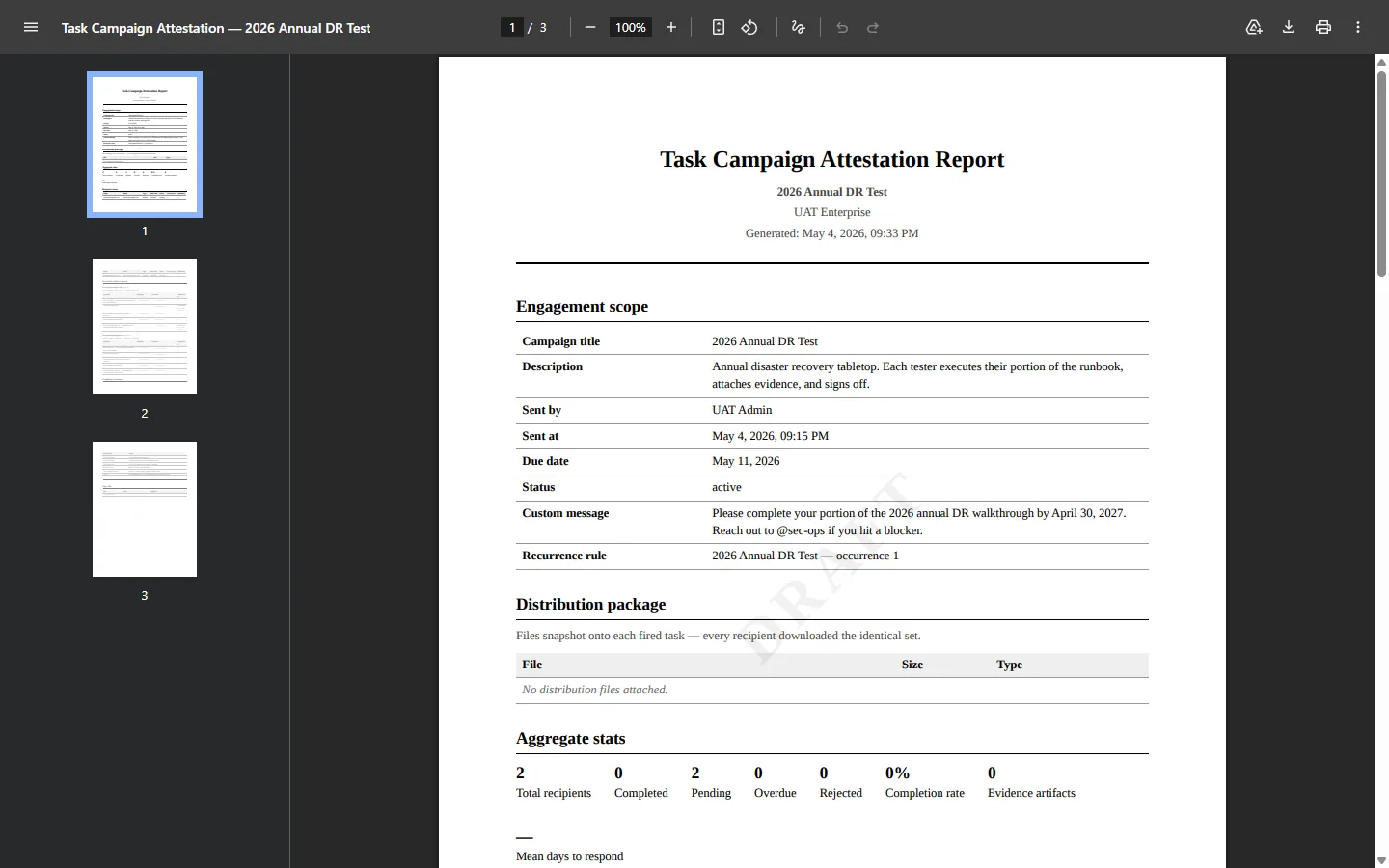
The watermark switches from DRAFT to FINAL on finalize, and seven-year retention is locked in.
Two ways to run your annual DR test — and how to choose
Everything above is the campaign path: you author a questionnaire, schedule it on a recurrence, and Talarity fans it out to people. The unit of work is a tester answering questions, and the output is one attestation report covering the whole run.
Talarity has a second path built on a different unit of work. A DR exercise tests assets rather than questionnaires: you scope part of your estate, assign a tester to each application or system, and each tester records an outcome — Passed, Partial or Failed — along with the actual RTO and RPO they measured. That difference in unit changes what the platform can do with the result:
- Each test stamps the asset itself, so an application’s record shows when it was last recovery-tested and how that went — not just that a campaign ran.
- Every failure opens a tracked remediation work-item automatically, and failures at or above the severity threshold you set also open a scored risk in your register, linked back to the asset.
- Because the scope is a list of assets, you get coverage as a first-class number: how much of your critical estate has actually been exercised.
Neither path is a lesser version of the other. Choose by what you need to be able to say afterwards:
| You need to show… | Use |
|---|---|
| That a scheduled test happened every year, who participated, and what evidence each person produced | The campaign path above |
| That each critical system was exercised, how long recovery actually took, and what work the failures opened | A DR exercise |
| Both | Run the exercise for estate coverage, and the recurring campaign for the annual attestation — they write to the same evidence repository |
Plenty of programs run both, and for a reason: auditors asking about ISO 22301 §8.5 or NIST SP 800-34 §3.5 want evidence that recovery was exercised and acted on, while SOC 2 CC9.1 is satisfied by a documented, repeatable annual cadence. The exercise path answers the first well; the campaign path answers the second well.
What you walk away with
- One recurring rule that fires every year on the date you chose — no calendar reminders, no spreadsheets.
- One campaign per occurrence, with one work item per recipient and a complete activity ledger.
- Per-question evidence from every internal owner and every external partner, stored in the same repository as your other audit artifacts.
- A finalized PDF report with seven-year retention, watermarked, signed, and citation-mapped.
- A full audit trail — who fired the campaign, who viewed each task, who submitted what, who signed the report, and when.
Run yours this year. Open Talarity, head to /app/tasks, and click + New Task. The first one takes about ten minutes; every year after that takes zero.