Almost every framework that touches your security program expects you to keep an accurate, current inventory of assets — not just laptops, but the software running on them and the people they’re assigned to. SOC 2 lays it out across CC6.1 (logical access) and CC7.1 (system monitoring). ISO 27001:2022 hits it head-on in A.5.9 (Inventory of information and other associated assets). NIST CSF 2.0 dedicates the entire ID.AM (Asset Management) category to it — ID.AM-1 (hardware), ID.AM-2 (software), ID.AM-3 (data flows). FFIEC’s IT Booklet treats it as the foundation for every downstream control.
Most teams handle this with three spreadsheets and a quarterly fire-drill. The HR spreadsheet has the people, the IT spreadsheet has the devices, the procurement spreadsheet has the software — none of them join. By the time an auditor asks “who owns server srv-prod-04 and what’s on it?” the data is already stale. Talarity treats your asset inventory as a live, joined graph — the same primitive that drives control coverage, work items, and risk aggregation — sourced from systems you already trust. Microsoft Intune is the canonical first connector for everyone running Microsoft 365.
This article covers standing up the Intune connector, triggering your first sync, and viewing and editing the synced assets in the Asset Manager. The Azure-side app registration is briefly summarized — full Microsoft Learn documentation is linked at each step.
Who’s involved
- IT admin — owns the Microsoft Entra tenant. Registers the app, grants the API permissions, hands the credentials to the compliance team. Done once.
- Compliance lead — configures the connection in Talarity, runs the first sync, validates the synced inventory looks right, and assigns business owners + custodians.
- Asset owner / custodian — picks up the synced devices and apps that fall under their scope. They’re the human accountable for the row that comes from Intune.
- Auditor — pulls “show me your asset inventory, owners, last-sync date, and the system of record” at audit time. Talarity hands them one screen.
What’s on the page
This setup spans two consoles — but almost all the work lives in Talarity’s Asset Manager (/app/grc/assets):
- Microsoft Entra admin center (entra.microsoft.com) — a one-time app registration that yields three values: tenant ID, client ID, and a client secret (Steps 1–3).
- Administration → Integrations → Asset Sources tab — where you wire it up: Configure Source (provider dropdown + the three credential fields + sync schedule), Test Connection, and Sync Now.
- Asset Manager → Inventory tab — the synced data across a category tab-strip (All · Needs Attention · Hardware · Software · Data · Network · Cloud · People · Facilities · SaaS Apps · Catalog), with stat cards above the grid (Total Assets · Critical · Classified % · No Custodian).
- The asset detail page — click any row to set the fields Intune doesn’t own (criticality, classification, lifecycle state, custodian, tags).
Before you start — grant Asset Inventory access in your org
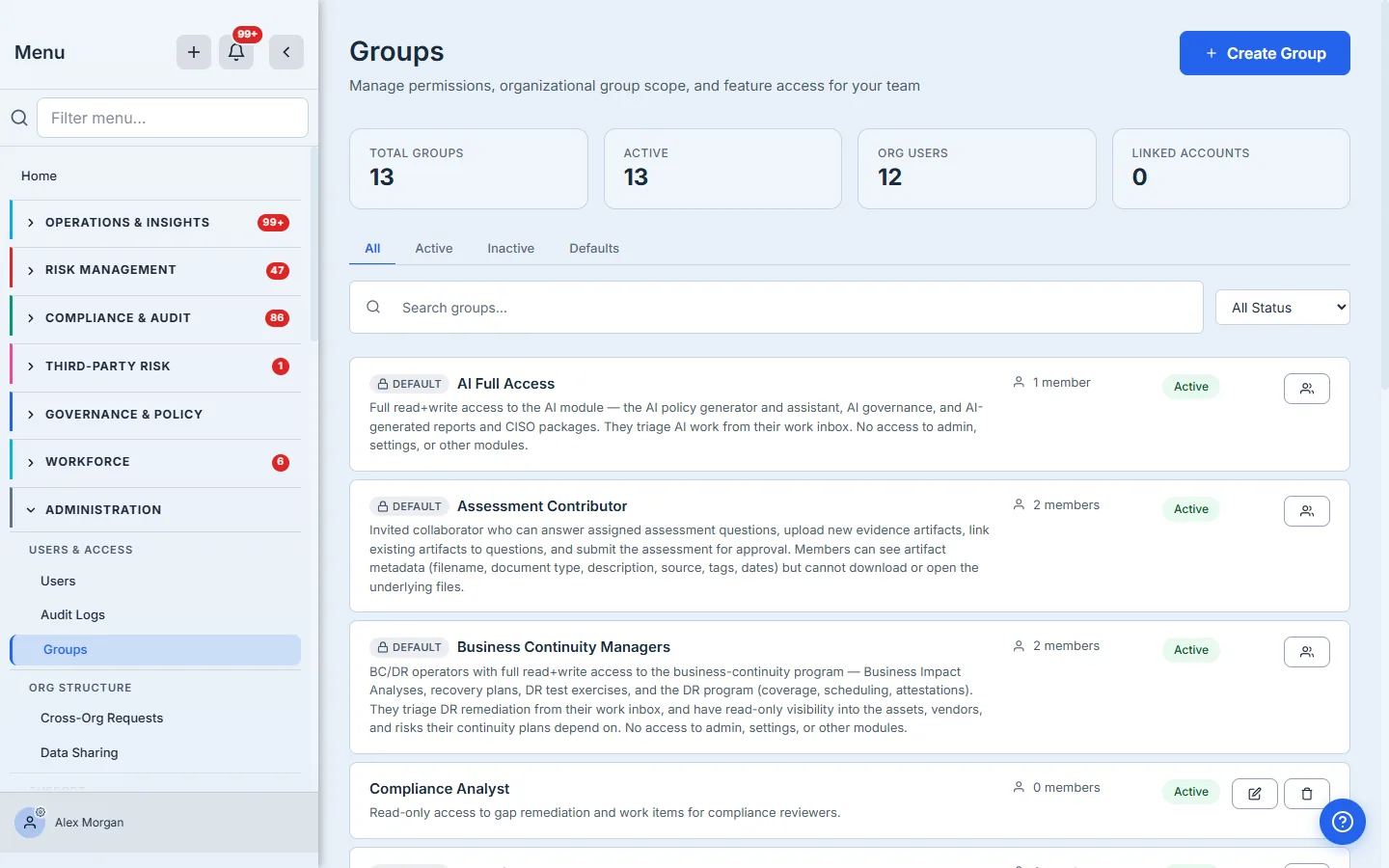
The Asset Manager lives at /app/grc/assets and is part of the Asset Inventory page section. The default Full Access group already includes the page; if your operators sit in a custom group, an admin opens Groups (/app/groups), edits their group, and confirms Asset Inventory is checked. This is also where you’d add the Workforce and Vendor Inventory sections if your responders span those areas — they all share the same physical Asset Manager tabs.
Step 1 — Register an app in Microsoft Entra
In your Microsoft Entra admin center (https://entra.microsoft.com), expand Identity → Applications → App registrations, click New registration, give the app a name like “Talarity Asset Sync”, leave Supported account types at Accounts in this organizational directory only, leave Redirect URI blank, and click Register. On the resulting app overview page, copy the Application (client) ID and the Directory (tenant) ID — Talarity needs both. (Microsoft’s canonical walkthrough lives at the Intune Graph API access guide — it has annotated screenshots of every screen in this flow.)
Behind the scenes, this app registration is what Talarity will impersonate when it calls Microsoft Graph. It’s a service identity scoped to your tenant — no end-user has to be online when the sync runs, and revoking access is a single click in Entra.
Step 2 — Grant the Graph permissions
From the app’s navigation menu, click API permissions → Add a permission → Microsoft Graph → Application permissions and add these two:
DeviceManagementManagedDevices.Read.All— required. Read access to Intune-managed devices, device categories, and detected apps. This is what populates Hardware and Software in Talarity.User.Read.All— required, and it earns more than the People tab. Read access to directory users populates the People inventory (who exists in your tenant, separate from “who has a Talarity account”) — but the same users feed the Workforce dashboard’s Departments panel, the org chart (via the manager expansion this scope also covers), and department-targeted policy attestation audiences. Declining it does not merely thin out a list: a policy sent to “everyone in Engineering” silently resolves to nobody, because the department field it matches against is never populated. This is a consent decision worth making on the full picture, not just the tab it obviously fills.- SaaS Apps note — the SaaS Apps tab is not populated by the Intune connector. Cloud-app discovery comes from the separate Microsoft Entra ID connector (configurable in Step 4); the Intune device sync never reads app registrations or service principals, so
Application.Read.Allis unnecessary here.
Then click Grant admin consent for <your tenant> at the top of the permissions list and accept the confirmation. Until admin consent is granted, the application can authenticate but every Graph call returns 403.
Pick the read-only scope, not the read-write one. Talarity never needs to write back to Intune. There’s a
DeviceManagementManagedDevices.ReadWrite.Allpermission Microsoft offers as the “more powerful” option — don’t grant it. The whole point of the read-only scope is that an audit later can confirm Talarity could not, by construction, have wiped a laptop.
Step 3 — Create a client secret
From the same app’s navigation menu, click Certificates & secrets → Client secrets → New client secret. Give it a description like “Talarity sync — rotation due 2027-05” and pick an expiration (Microsoft caps secrets at 24 months — pick the longest available unless you have a rotation policy that says otherwise). Click Add. Copy the secret Value immediately — Microsoft never displays it again, and the Talarity connector has no way to recover it for you. Paste it somewhere safe alongside the tenant ID and client ID.
Step 4 — Configure the connection in Talarity
Now you’ve got three values — tenant ID, client ID, client secret — and you’re ready to wire them up.
In Talarity, navigate to Asset Inventory (/app/grc/assets), click the Asset Sources tab at the far right of the tab strip, and click Configure Source. The modal opens to a provider dropdown grouped by category:
- MDM / UEM — Microsoft Intune (GA)
- Identity / Directory — Microsoft Entra ID (GA)
- CMDB — ServiceNow CMDB, Freshservice, Jira Assets (Insight) (beta)
- Cloud — Microsoft Azure Resources (beta)
- Custom — Custom API (beta)
Intune and Entra are generally available to every org; the CMDB, Cloud, and Custom providers are currently in beta and may not appear in your dropdown.
Pick Microsoft Intune. The form below the dropdown changes to show three required fields:
- Tenant ID — paste your Directory (tenant) ID from Step 1.
- Client ID — paste your Application (client) ID from Step 1.
- Client Secret — paste the secret value from Step 3.
Set the Sync Schedule to Manual for the first run (you’ll switch it to Daily or Hourly once you’ve validated the data looks right), leave Conflict Resolution at Source wins (Intune is the authority on device facts like osVersion, lastSyncDateTime, manufacturer), and click Save Configuration.
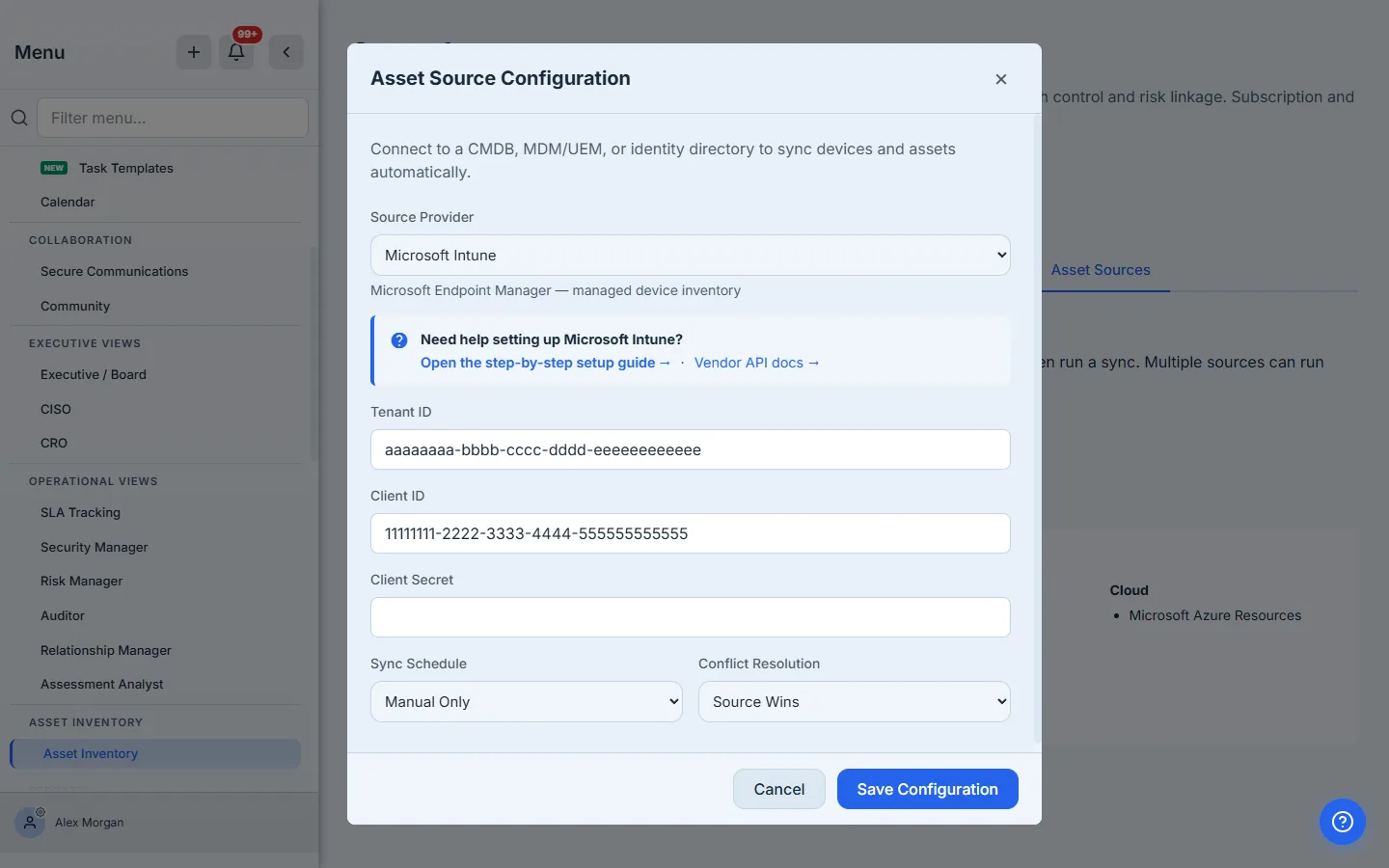
Behind the scenes Talarity encrypts the client secret with a per-org data-encryption key before persisting it, then strips the credential from every response — the field never round-trips back to your browser. The UI shows ******** (unchanged — leave empty to keep) next time you open the modal, which means the stored secret survives any re-save where you leave the field blank. There’s no plaintext secret in Firestore, no plaintext secret in PG, no plaintext secret in the network log.
Step 5 — Test the connection, then run your first sync
The Asset Sources tab has three buttons: Configure Source (which you just used), Test Connection, and Sync Now.
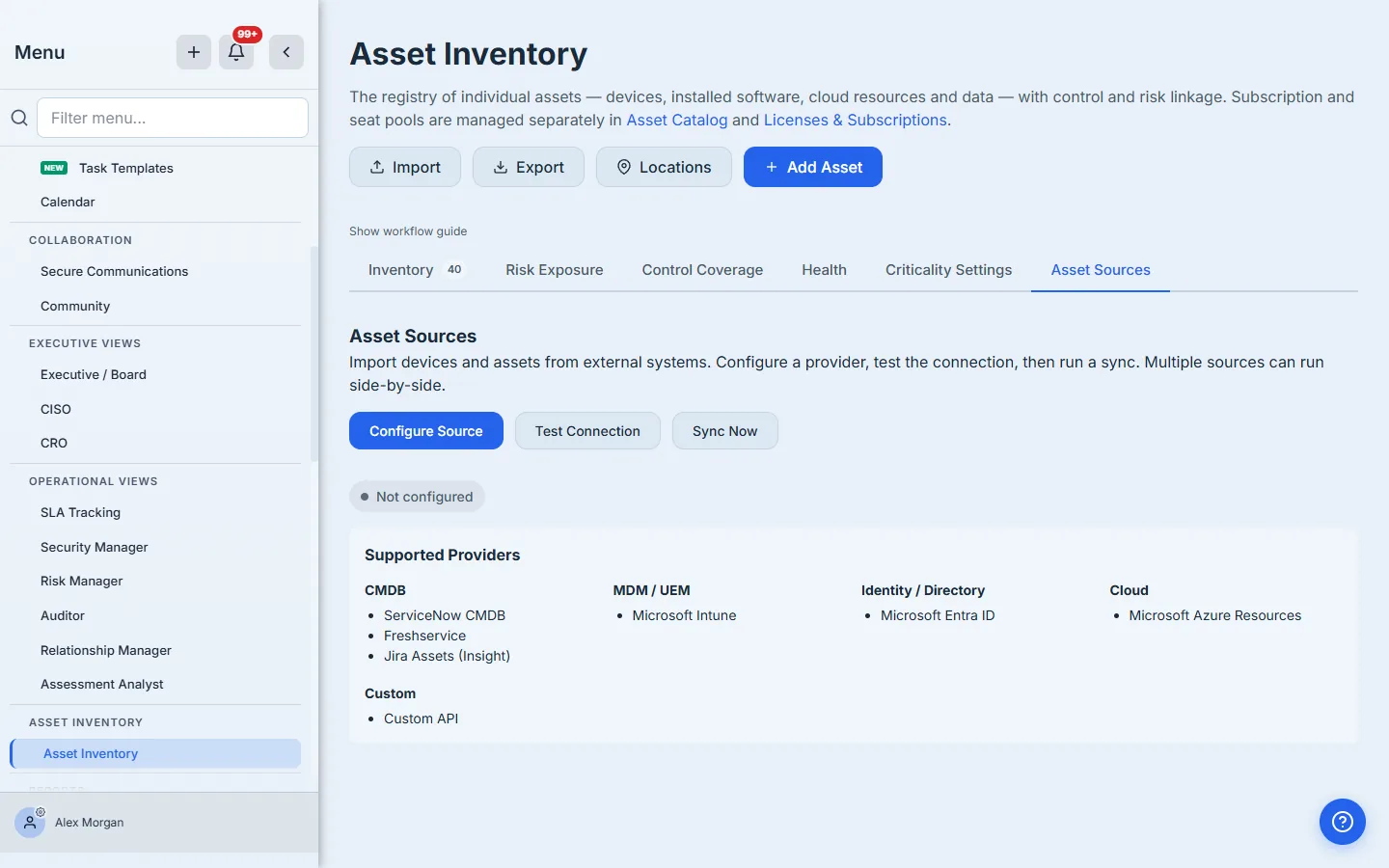
Click Test Connection first. Talarity issues a single read against Microsoft Graph’s /v1.0/organization endpoint — the canonical “can we auth” call for app-only tokens. A green check — with the HTTP status and round-trip latency — means the credential is good and the API permissions cover the basic call. A 401 / 403 means one of three things: the secret was mis-pasted, admin consent wasn’t granted in Step 2, or the secret already expired (re-create it).
When the test passes, click Sync Now. Talarity creates a background_jobs row with type: 'asset_source_sync', enqueues a Cloud Task to the asset-sync-queue for immediate dispatch, and shows the job status next to the button. Behind the scenes the sync iterates three Graph endpoints:
/v1.0/deviceManagement/managedDevices→ maps toassetswithcategory='hardware', stampssource_type='MDM_UEM',source_provider='intune', andsource_external_id=<device.id>. Per-row fields land in first-class PG columns:name(fromdeviceName),owner(fromuserPrincipalName),manufacturer,model,serialNumber,osVersion,source_last_synced_at./v1.0/deviceManagement/detectedApps→ maps toassetswithcategory='software', populatesvendor,version,publisher. Each(displayName, version, publisher)tuple becomes one asset row./v1.0/users→ maps to theemployeestable (people are not technically assets in the CMDB sense, but Talarity surfaces them on the same screen for joining: an asset’sowneris a person, and the People tab is the directory you join against). This is not just a name feed — the directory user maps onto the roster’s own typed columns:
| From your directory | Lands as |
|---|---|
displayName, givenName, surname | Name |
jobTitle | Job title |
department | Department — what the Workforce dashboard groups by, and what a policy sent to “everyone in Engineering” resolves against |
officeLocation | Location |
mobilePhone | Work phone (there is no separate phone column; the directory’s mobile number is the authoritative contact, so it lands in work_phone) |
accountEnabled | Status (a disabled account maps to terminated) |
userType | Member vs Guest, so you can filter Entra B2B guests out |
manager (via $expand) | Reports-to, which draws the org chart |
The unique key (org_id, source_provider, source_external_id) means a second sync over the same device updates the existing row instead of duplicating — Intune’s id is the canonical primary key.
manageris expanded on the same call, and an empty org chart is usually a permissions answer, not a bug. The user fetch requests$expand=manageron the sameUser.Read.Allscope — no extra permission — so the reporting hierarchy comes back inline. But Microsoft does not expose the manager relationship to app-only tokens in every tenant; when it withholds it, Talarity records no manager rather than inventing a hierarchy, and the org chart stays empty until the relationship is readable. On a populated tenant that returns zero managers, look at the app registration’s Graph consent, not the sync.
Step 6 — View your synced inventory
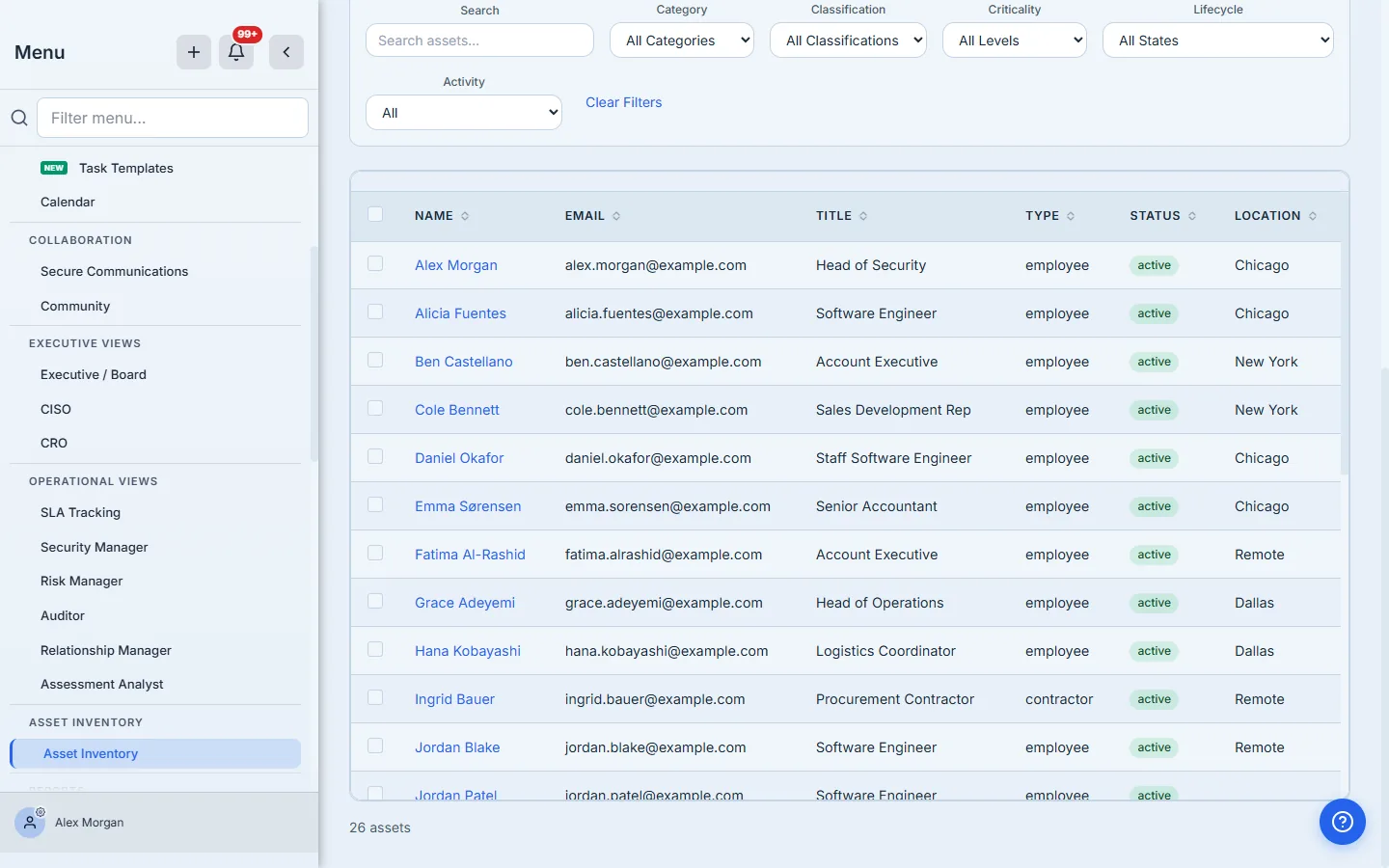
When the job flips to completed, navigate to the Inventory tab on the same page. The category tab-strip across the top — All | Needs Attention | Hardware | Software | Data | Network | Cloud | People | Facilities | SaaS Apps | Catalog — is where you read the synced data. Each tab has columns tuned for its category:
- Hardware — name, type, manufacturer, model, serial, IP, location, custodian, criticality, lifecycle. The
serialcolumn is your auditor’s join key — it’s the field a procurement record references. - Software — name, vendor, version, OS/platform, licenses, next expiry, custodian, criticality, lifecycle. Each row is a
(name, version)combination. A single product across two versions is two rows. - People — name, email, title, employment type, status, location. The status column is where Intune’s
accountEnabledlands (a disabled directory account maps to terminated employment status) — an easy cross-check against payroll for offboarding gaps. Department, org chart and directory-source badge are not shown on this asset-side grid; for those, open the full Workforce roster (/app/workforce), which is the same people seen through a workforce lens rather than an asset one.
Stat cards above the grid show Total Assets, Critical, Classified %, and No Custodian. The No Custodian count is the one to chase first — Intune knows the device’s primary user, but Talarity also tracks a separate Custodian field for the human accountable for the asset record itself (the person who’ll update lifecycle state, fix tags, set criticality). Most newly-synced devices come in without a custodian; assigning them is the second step of the onboarding flow.
The custodian field is the most under-used field in this entire module. Intune tells you who’s using the laptop today. Talarity’s custodian tells you who’s responsible for managing the record going forward — when the device gets re-imaged, when the OS drifts past end-of-support, when the asset is decommissioned. They’re often different people. Don’t leave it blank.
Step 7 — Edit the details Intune doesn’t know
Click any asset row to open the asset detail page. Talarity merges three classes of data:
- Source fields —
manufacturer,model,serialNumber,osVersion,lastSyncDateTime. These arrive from Intune but are editable: if you change one, Talarity keeps your value and flags it with a source-override marker, and the next sync preserves your edit instead of overwriting it (edit-wins). - Talarity fields —
criticality(low / medium / high / critical),classification(public / internal / confidential / restricted),lifecycleState(a guided state machine — the detail page shows the current state and only the legal next transitions, e.g. active → maintenance / renewal_due / decommissioning),description, andtags. These are yours. Intune doesn’t know them; you set them once and Talarity keeps them across syncs. - Relationship fields —
ownerandownerEmail(defaulted from Intune’suserPrincipalName, editable),custodianEmployeeId(optional — points at the People row of the person responsible for the asset record; left blank, it inherits from the category/sub-type custodian rule),custodianTeamText(free-text fallback for teams that aren’t in the directory yet),location.
Save the page and Talarity writes the change through risk.asset.update. Source fields and your Talarity-only fields are both accepted — and because sync is edit-wins, a value you’ve corrected stays corrected (the source-override marker shows which fields you’ve pinned). Intune proposes the device facts; you can always override them, and your override sticks across syncs.
When the same physical machine is also a vulnerability scanner target
If you also have a vulnerability scanner connector (Tenable, Qualys, Rapid7 — /app/settings/scanner-config), the scanner imports its findings against the same assets table, joined on the device’s serial number. Above the Hardware (and Software) grid, a vulnerability summary widget — Total / Critical / Open >30d — deep-links into the Vulnerability Management module scoped to that category; per-asset counts appear on each asset’s detail page. This is the load-bearing reason to keep the serial number column populated — without it, the joins fall back to name-matching, which fails the moment Intune renames a device.
Step 8 — Schedule the sync so this stays current
Reopen Configure Source and switch Sync Schedule from Manual to Daily (or Hourly for large fleets where decommissioning windows are short). Save. Talarity’s recurring-sync sweep runs hourly and dispatches the next due sync automatically — you don’t have to think about it again (so the finest real cadence is hourly). If a sync fails mid-run (a transient Graph 503, an expired secret), the next scheduled run picks up where it left off; the unique key on (org_id, source_provider, source_external_id) means re-running the same fetch is idempotent.
Behind the scenes there are two safety nets: a single-flight guard prevents two pending jobs for the same provider from being created (rapid-click protection), and an atomic CAS on the status column ensures the Cloud Task and the 15-minute scheduler can’t both claim the same job. The 15-minute scheduler is the safety net for the Cloud Task; the Cloud Task is the fast path. Either alone is correct.
What you walk away with
- One encrypted Intune connection stored in your org’s
integrationConfigdocument, owned by your compliance team, scoped to read-only Graph permissions you can revoke from Entra in a single click. - A populated Asset Manager with hardware, software, and people rows refreshed on whatever cadence you chose — the
source_last_synced_atcolumn on every row tells your auditor exactly when each fact was true. - Source-of-truth split that holds up to an audit — Intune owns device facts, Talarity owns business facts (owner, custodian, criticality, lifecycle, tags) — and the schema enforces the split so a UI bug can’t corrupt either side.
- Joinable assets that your controls, work items, vulnerabilities, and risks can finally reference by ID — not by spreadsheet lookup, not by free-text name. This is what makes “show me every critical Windows server that’s missing a patch” a SQL query instead of a manual cross-reference.
- A full sync ledger under
background_jobs— every dispatch, every completion, every failure timestamped with the row count. Auditors love this because the report later says “the inventory was refreshed on 2026-05-13 at 14:22:08 UTC, pulled 247 devices, 1,134 detected apps, and 89 users.”
Run yours this afternoon. Open Microsoft Entra, register an app, copy the three values, then open Talarity’s /app/grc/assets, click Asset Sources → Configure Source → Microsoft Intune, paste, Test Connection, Sync Now. The first run takes about ten minutes from app-registration-start to populated-inventory-end; every refresh after that is automatic.