Almost every framework that touches your security or compliance program expects you to prove you have policies — not just write them once and forget. SOC 2 calls it out across CC1.4 (commitment to integrity & ethical values) and CC2.3 (the entity communicates information). ISO 27001:2022 lays it down in A.5.1 (policies for information security must be approved, communicated, and reviewed). FFIEC’s IT Booklet dedicates a whole section to policy ownership and review cadence. Auditors want to see the policy exists, who owns it, when it was last reviewed, and what the cadence will be going forward.
Most teams handle this with a SharePoint folder and a calendar reminder for the compliance lead. Renewals get missed. Owners turn over. The policy survives but the program around it doesn’t. Talarity treats every imported policy as a first-class artifact — the same primitive that runs your DR tests, attestation drives, and audit reports — so the whole lifecycle is visible in one place.
This article covers importing an existing policy (a PDF or DOCX you already have), setting an owner, configuring review reminders, and walking the cross-link between the Policies tab and the Artifact Repository. Authoring a policy from a template is a separate workflow — covered in another article.
Who’s involved
- Compliance lead — uploads the policy, picks the owner, sets the review cadence.
- Policy owner — typically the CISO, Privacy Officer, or HR Director. Gets the review-due reminders. On the hook for keeping the policy current.
- Auditor — pulls the policy + linked artifact + review history at audit time. Confirms the policy was reviewed within cadence.
What’s on the page
This flow lives across the Policies tab and the Artifact Repository — here’s what you’ll touch:
- Policies & Controls (
/app/grc/governance) — the policy register, with + Import Policy (and + New Policy for the author-from-template path) in the header. - The Import Policy modal — File, Title/Version, Category, Effective Date, Next Review / Expiration (the date that drives every reminder), Owner, Description, and an attestation-cadence toggle.
- The policy detail — Overview metadata (Owner, Cadence, Published / Tracker Artifact deep-links) plus Activity and History tabs.
- The Artifact Repository (
/app/artifact-repository) — the same file under All Artifacts, the per-artifact Configure reminders (bell) modal, the Reminder Defaults tab, the Expiring tab (Expired / Critical / Warning / Upcoming buckets), and the Dashboard KPIs.
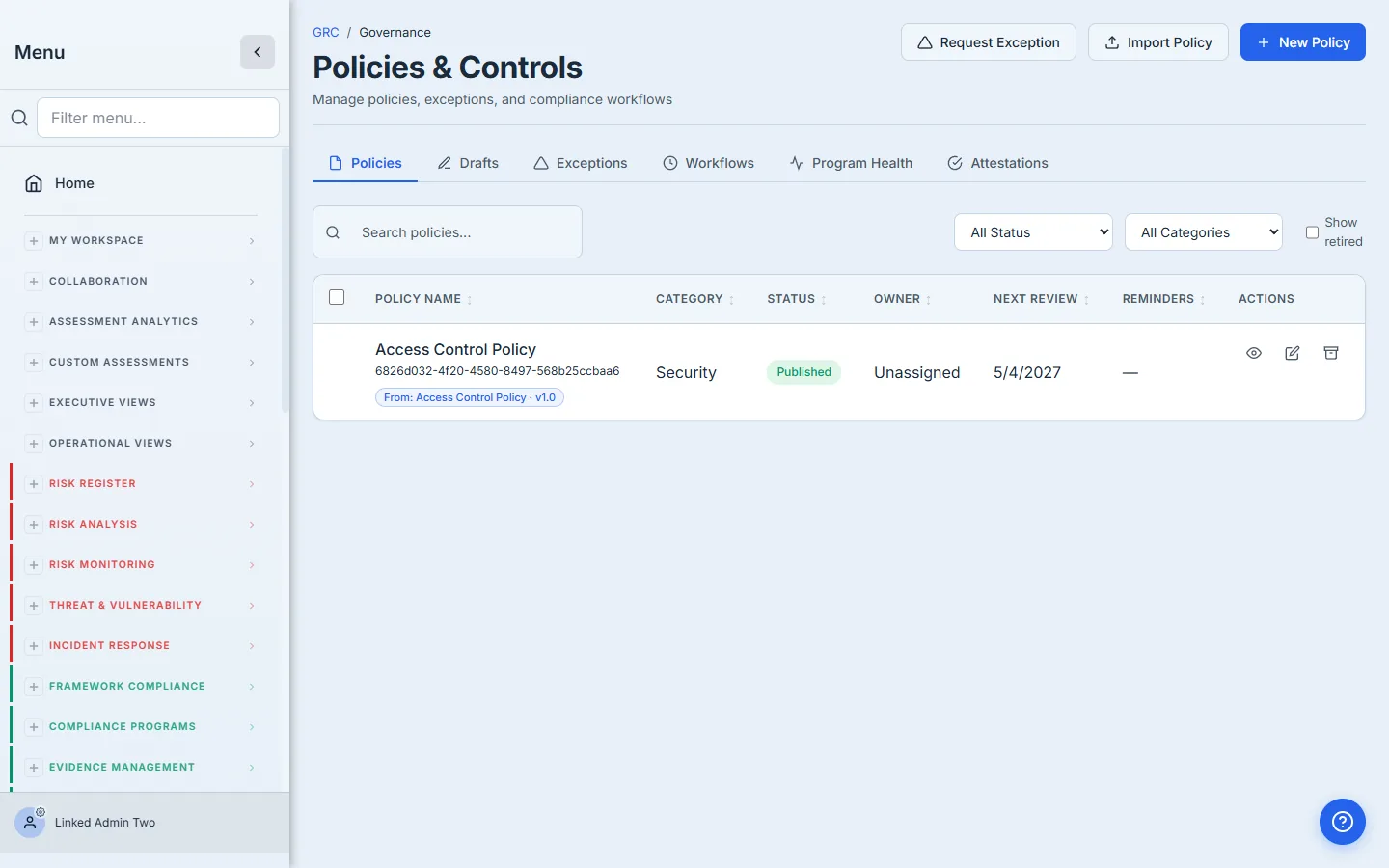
Step 1 — Click ”+ Import Policy”
Open /app/grc/governance and click + Import Policy in the header. The same screen also surfaces + New Policy — that’s the author from a template path. Use Import when you already have a finalized PDF or DOCX you want to bring under management.
Step 2 — Fill the import form
The form gives you everything an audit needs in one screen:
- File — PDF, DOCX, or any readable format. Talarity stores it in GCS and computes a SHA-256 fingerprint so you don’t accidentally double-upload the same document.
- Title and Version — what shows up in lists, searches, and reports.
- Category — picks the canonical 8-value taxonomy (Security, Privacy, Access, Incident Response, BC/DR, Vendor / Third-Party, HR / Acceptable Use, General). Same taxonomy used for KPI rollups.
- Effective Date — the date the policy takes effect.
- Next Review / Expiration — the date that drives every reminder downstream. Set it now. You can change it later, but every reminder cadence anchors to this field.
- Owner — the person on the hook for keeping this policy current. Reminders go to this user. Defaults to you, but pick the right owner if it isn’t.
- Description — what the policy covers. Free-form, but write something — the auditor reads this column first.
- Requires user attestation + Cadence — if your team needs every employee to acknowledge the policy on a cadence (annual, semi-annual, quarterly, monthly, or on-change), flip the toggle and pick the cadence.
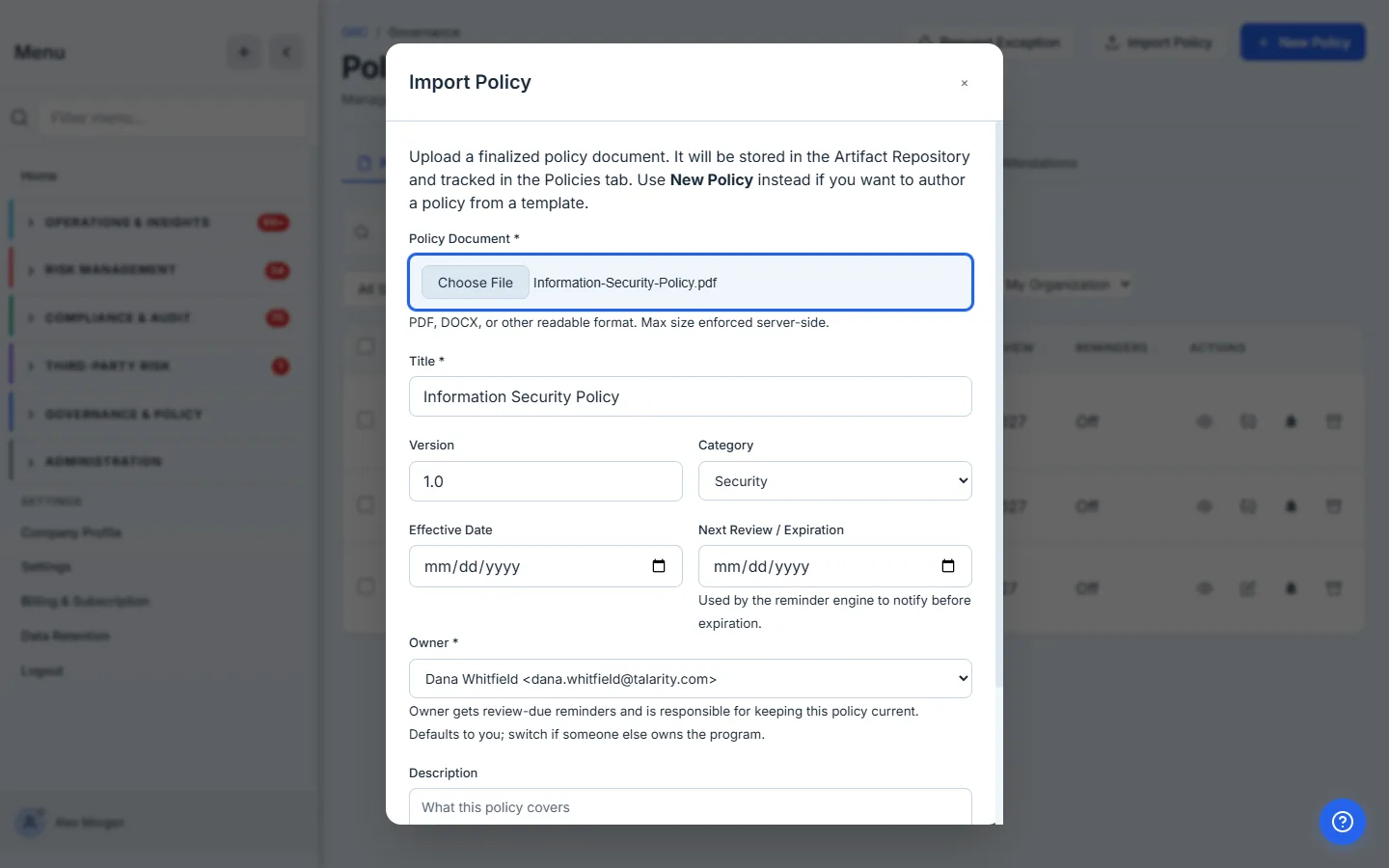
The owner picker is the most under-used field in this form. Most teams default it to themselves and forget. Three months later the reminder fires to the wrong inbox. Pick the right owner — the person who will actually update this policy when it next changes.
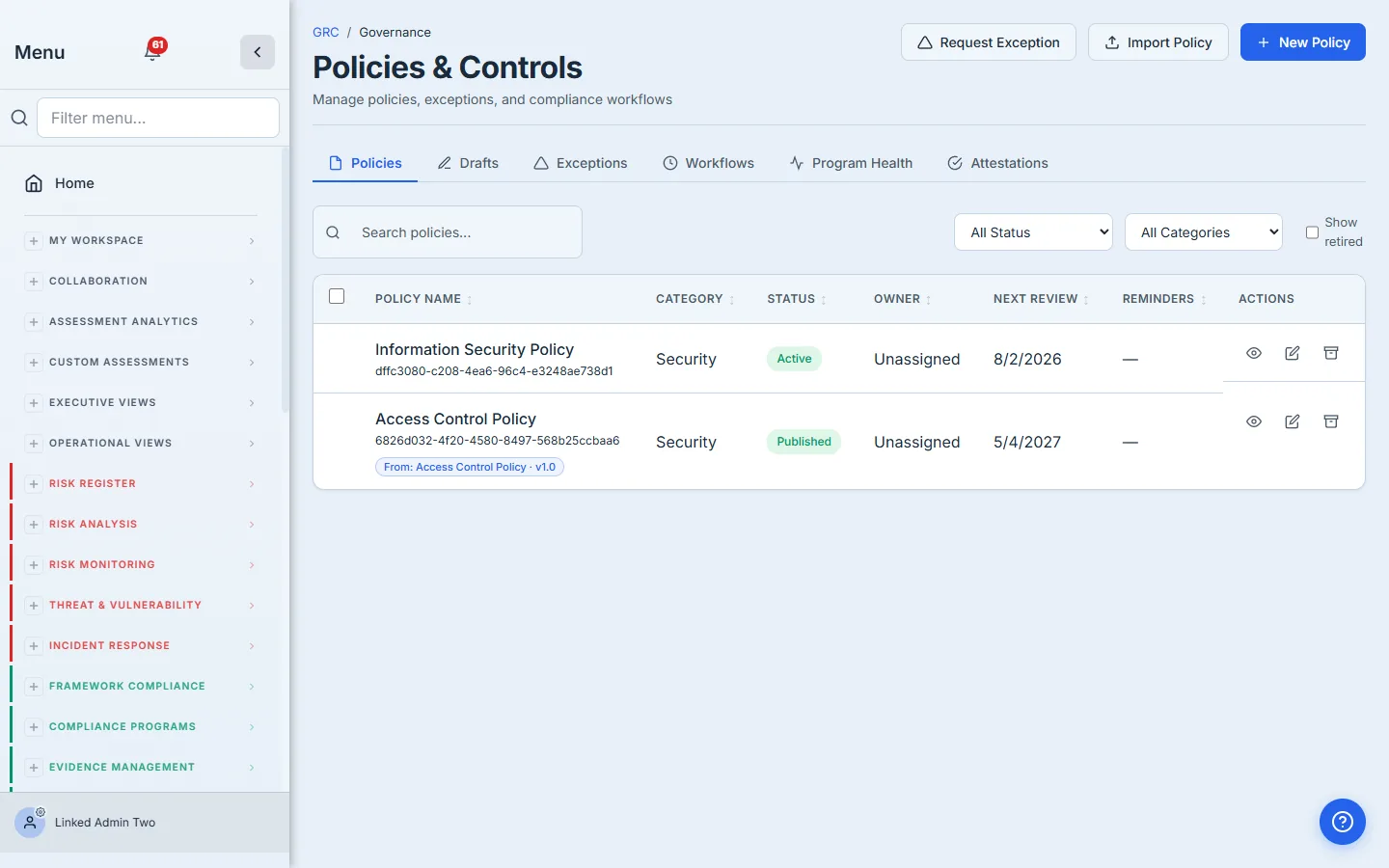
Step 3 — Submit. The policy lands in two places at once.
Click Import. If Talarity finds an identical file already in your Artifact Repository (same SHA-256), you get a “Link to Existing Artifact?” prompt — pick Link As-Is and the policy registers against the existing artifact instead of duplicating the upload. Otherwise the file uploads, the artifact is created, and the policy registers in one atomic write.
Behind the scenes Talarity:
- Stores the file in your Artifact Repository (
/app/artifact-repository) withdocumentType: 'policy-doc'. - Creates a policies row in the Policies tab with
status: 'published'(it shows as “Published”), the owner you picked, the review date, the attestation cadence, and a tracker link to the artifact. - Writes an
entity_linksrow with(source_kind=policy, source_id=policyId) ↔ (target_kind=artifact, target_id=artifactId, link_role=tracker). That tracker row is the canonical join — read by reminder logic, audit reports, and the cross-link affordance described below. - Logs a
policy.importedaudit event with the importer, the title, the artifact id, and the chosen owner.
Step 4 — Find the policy in the Policies tab
The policy appears immediately under Policies & Controls as Published. Category, owner, next review date, and reminder status are all surfaced in the table. Click the row to open the policy detail.
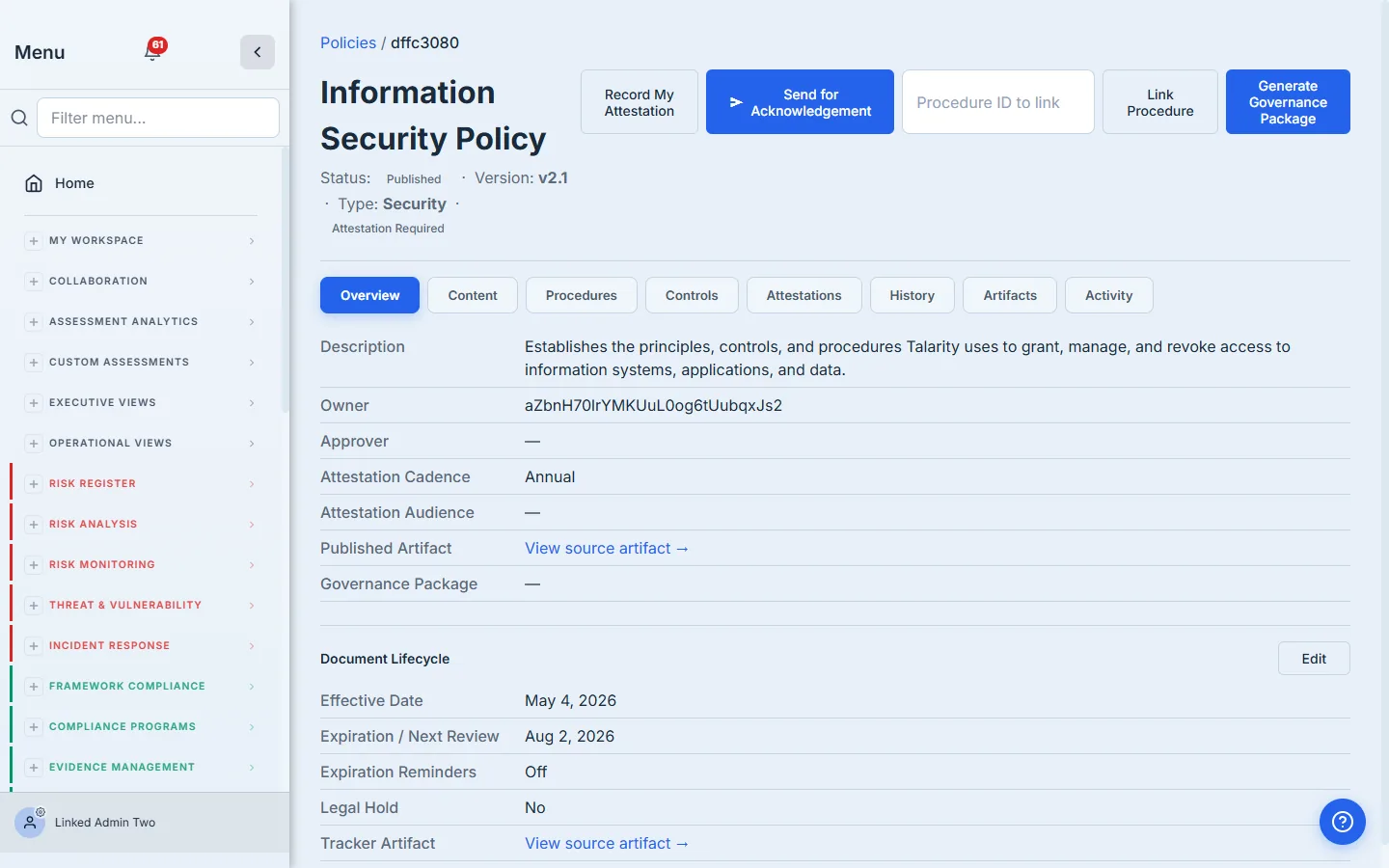
Look closely at the Overview metadata block. Two new affordances:
- Published Artifact → “View source artifact” — deep-link to the artifact in the Artifact Repository. Useful when an auditor asks “where’s the source file.”
- Tracker Artifact → “View source artifact” — second link in the Document Lifecycle section. Same destination; surfaced in two places because users approach the cross-link from both metadata blocks.
Step 5 — Click through to the Artifact Repository
Click either “View source artifact →” link. Talarity opens /app/artifact-repository on the All Artifacts tab, scrolls to the artifact, and pulses the row briefly so you don’t lose it in the list.
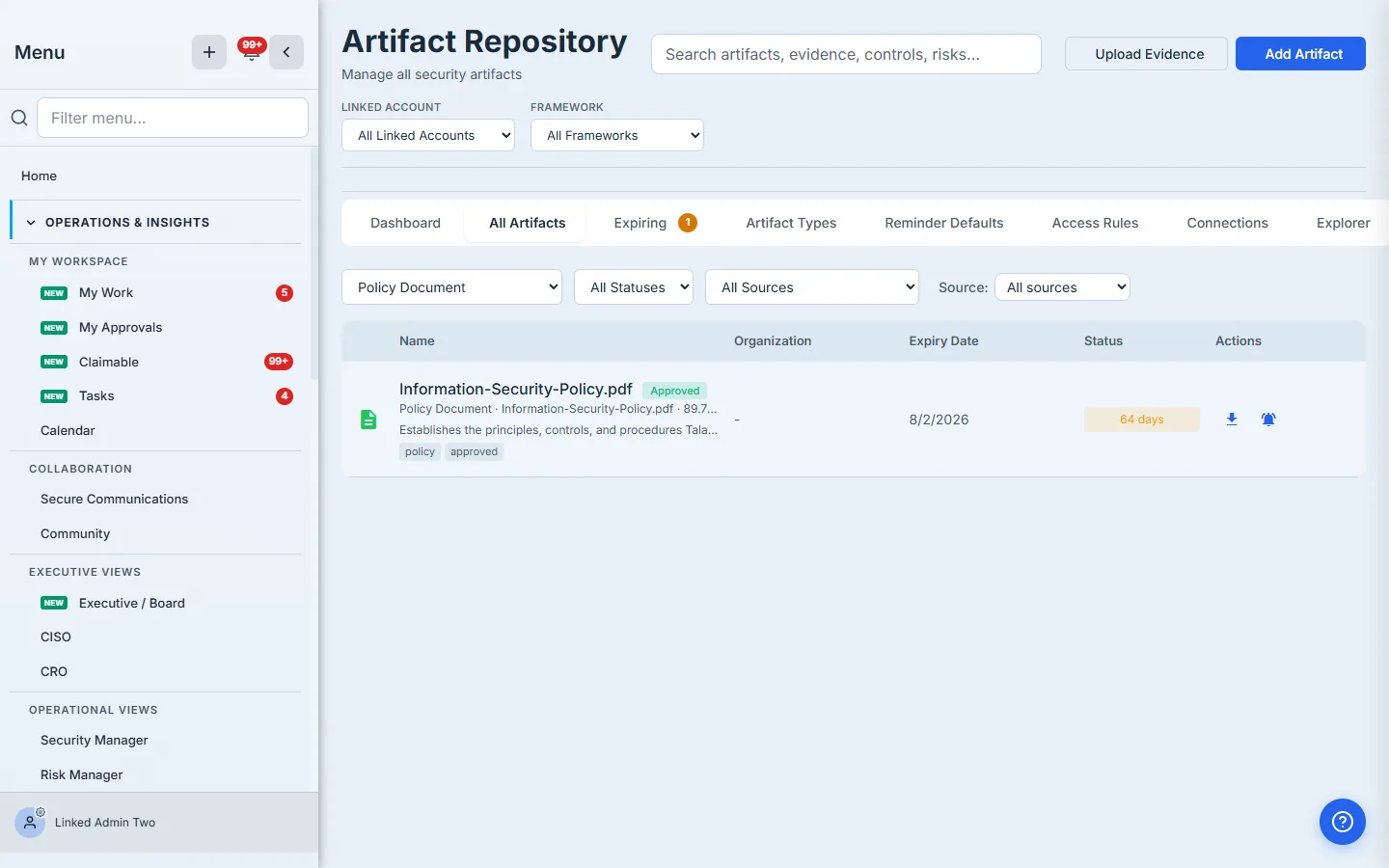
This is the cross-link in action. The same physical document is reachable from the Policies tab (where compliance leads live) and the Artifact Repository (where auditors and evidence collectors live). They’re two views of one thing — joined by the tracker link, not duplicated.
Step 6 — Configure review reminders
On the artifact row, click the bell icon to open Configure reminders. Here’s where the policy program goes from “we have this somewhere” to “we’ll never miss a review.”
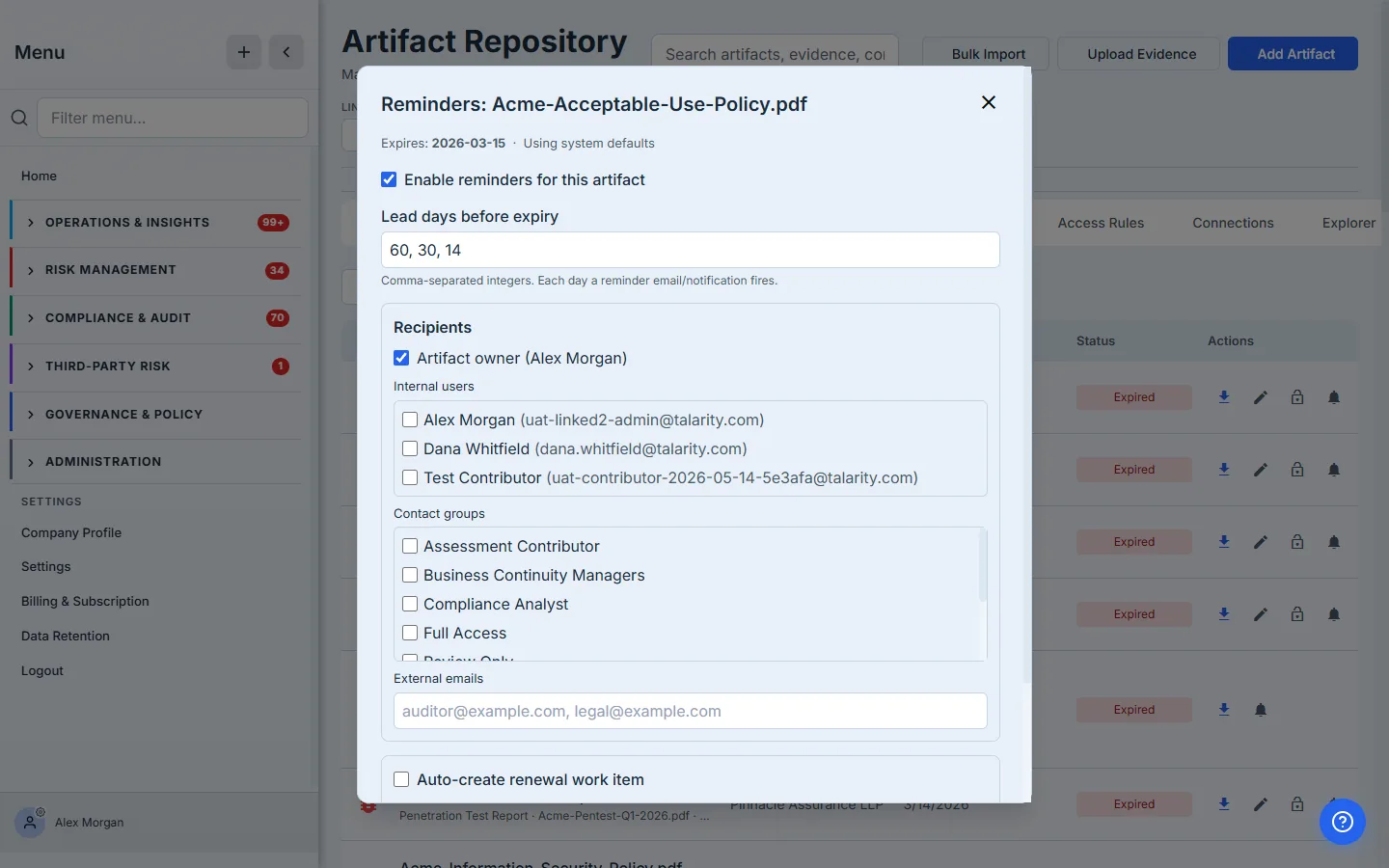
The defaults are good for most policies:
- Lead days before expiry: 60, 30, 14 — the Security-Policy default. (Other artifact types carry their own tiers, e.g. SOC 2 and ISO certificates add 90- and 7-day reminders.) Talarity fires a notification at each tier. Don’t want the early heads-up? Drop the 60 — 30 and 14 stay.
- Recipients: the artifact owner is checked by default. You can also notify specific internal users, your org’s contact groups, or external auditor emails. The owner gets the email + in-app notification at every tier.
- Auto-create renewal work item. Flip this on and Talarity spawns a real renewal task N days before expiry, assigned to the owner and linked to the artifact. The owner sees it in their My Work queue, can’t forget it, can’t claim “no one told me.”
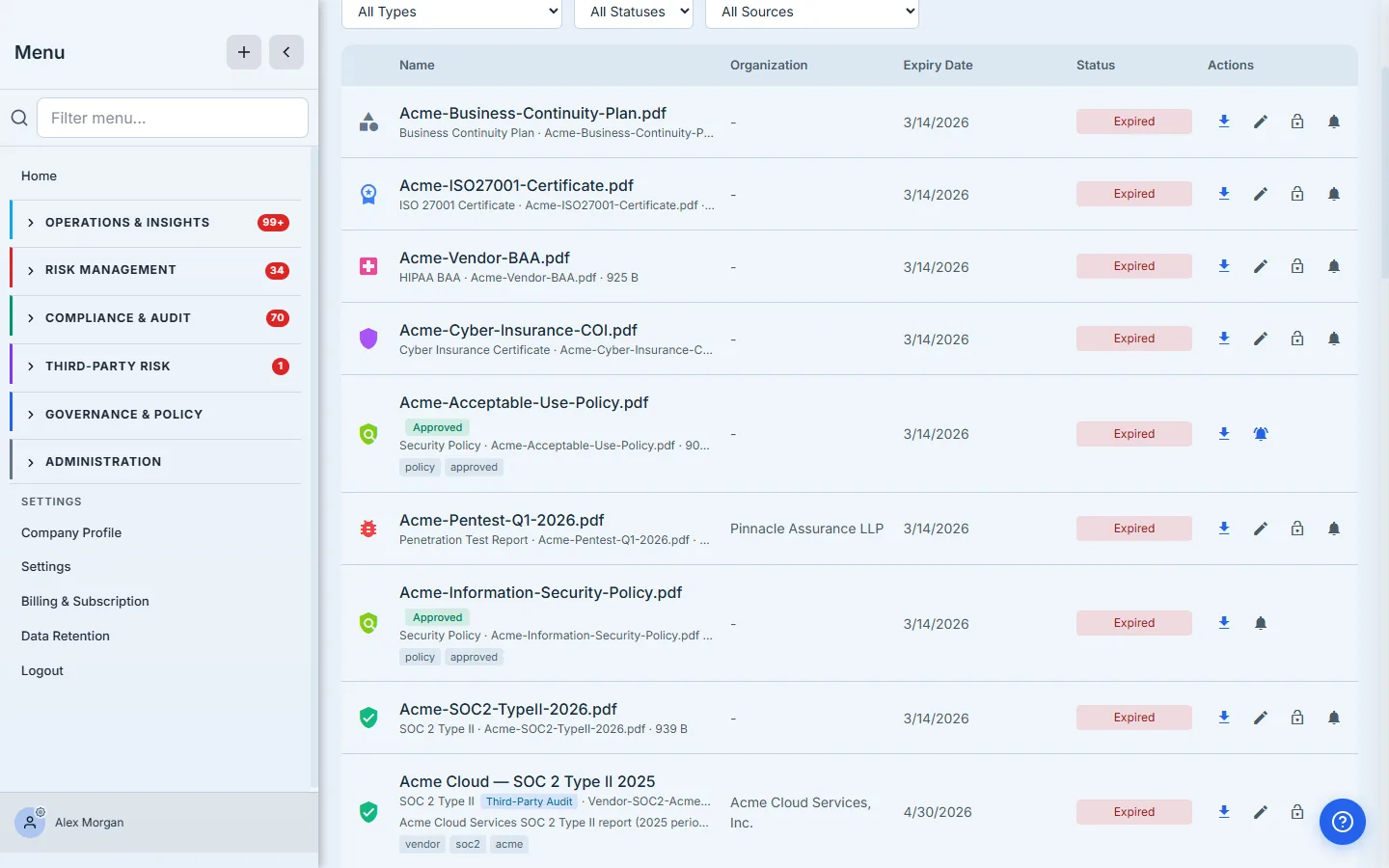
The bell icon on the artifact row turns blue once reminders are active. Audit-side: the reminder dispatcher records every fire in the artifact’s reminder history (the reminderType tier + sentAt timestamp), so an auditor reading the report can confirm the cadence actually ran.
Step 7 — Set defaults so you don’t have to do this 50 times
If your org has more than a handful of policies, configure once at the artifact-type level and let new uploads inherit. Open Reminder Defaults on the Artifact Repository:
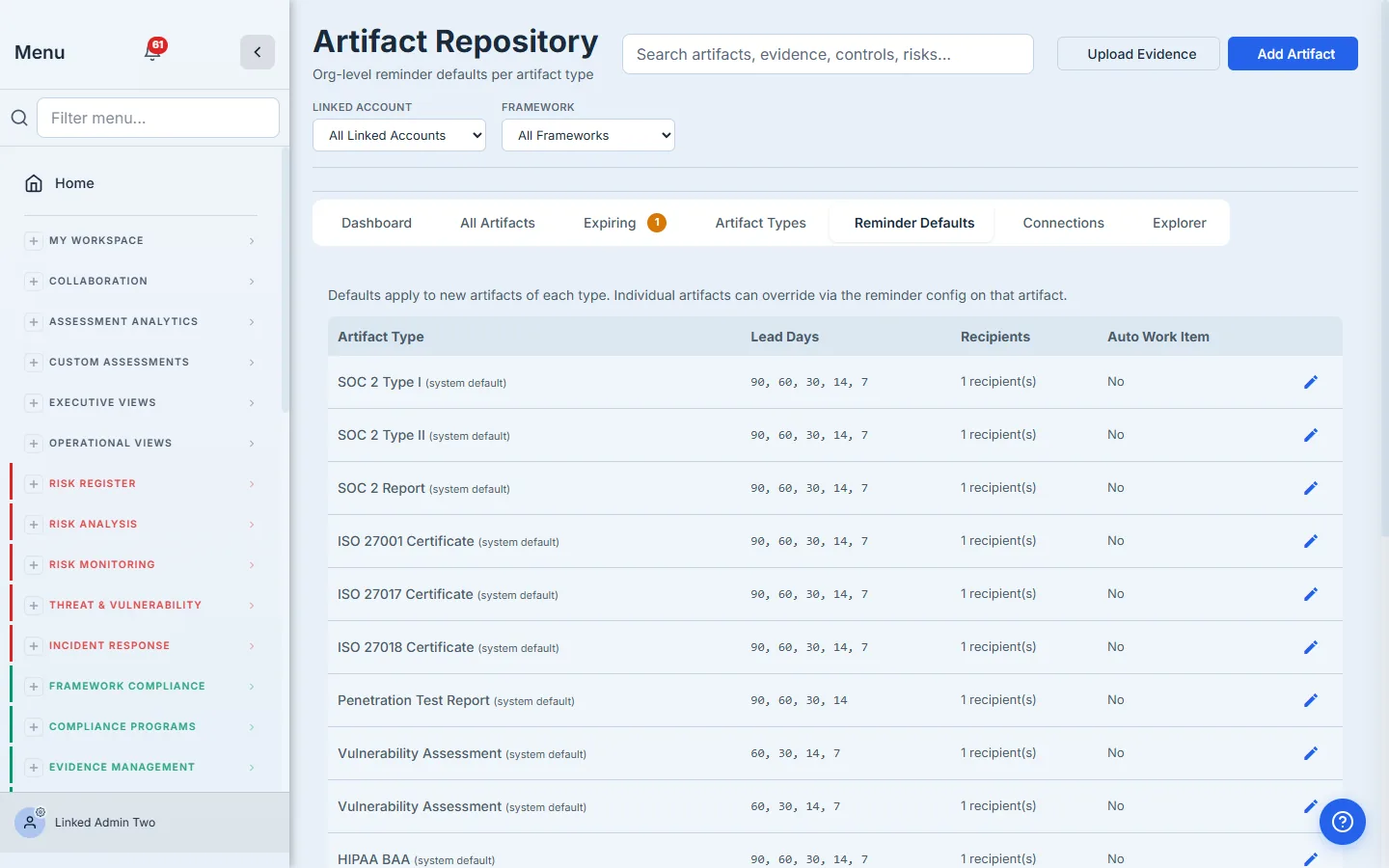
Edit the row for Security Policy once: set the lead days, the default recipients, the auto-renewal-work-item behavior. Every future policy import inherits them automatically. Individual artifacts can override on a case-by-case basis (Step 6 still works).
Step 8 — Track expirations program-wide
The Expiring tab gives you a single screen for “what’s due across the next 180 days”:
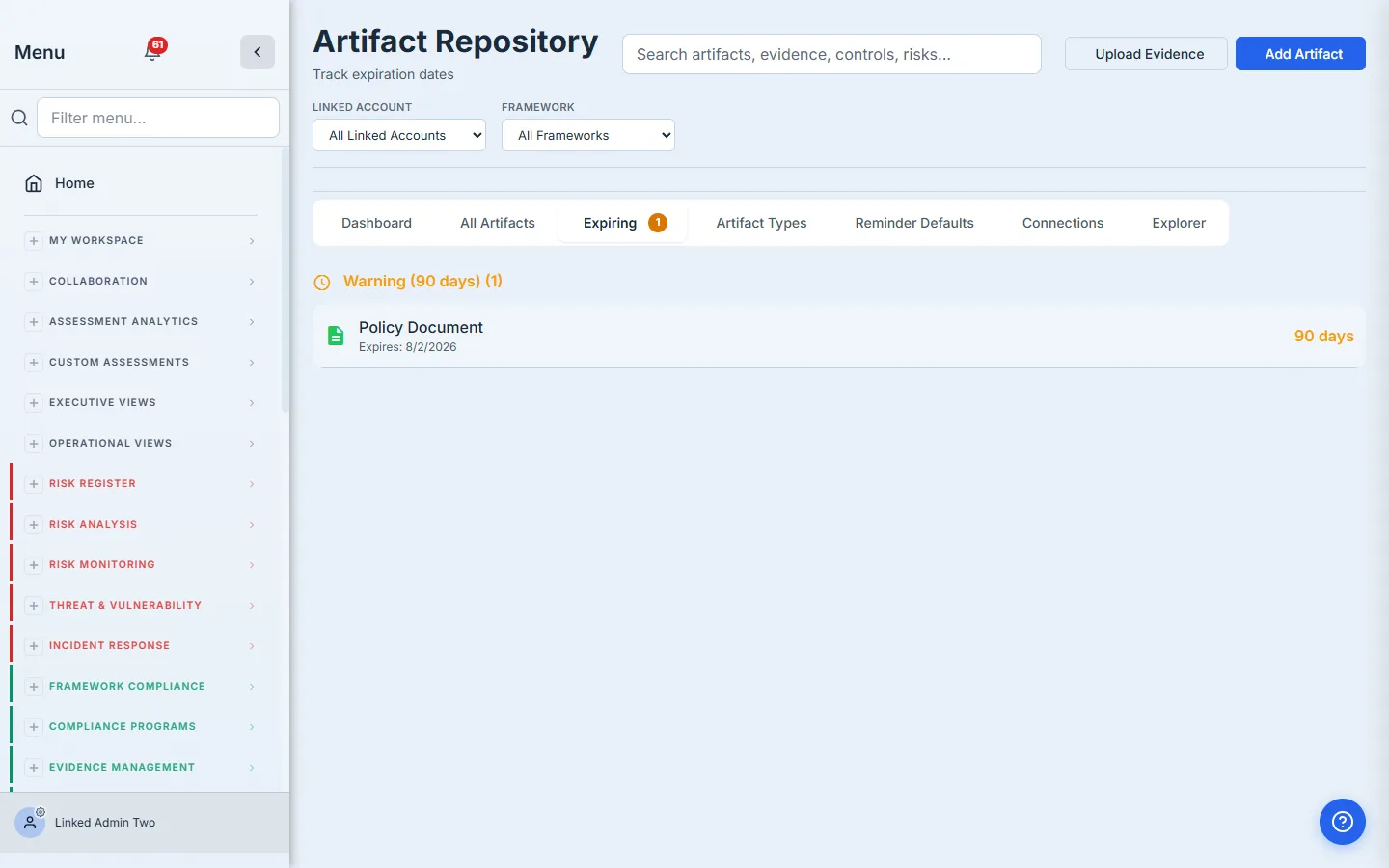
Bucket logic:
- Expired — already past expiry. Auditors care.
- Critical — within 30 days. Act now.
- Warning — within 90 days. Owners should be acting.
- Upcoming — within 180 days. On the radar.
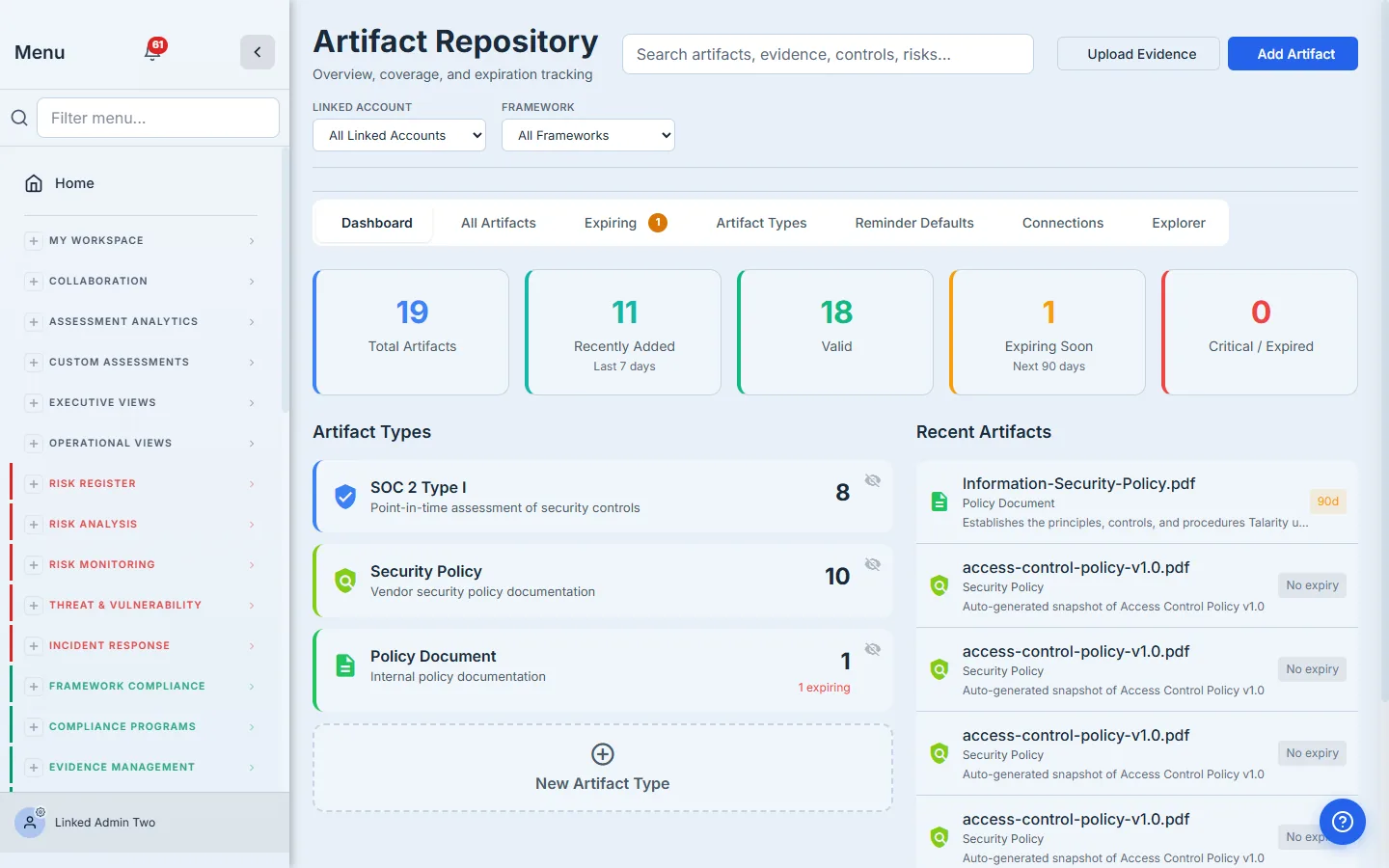
The Dashboard tab gives you the same data as KPIs: total artifacts, recently added, valid, expiring soon, critical/expired. Trend over time, not just point-in-time.
Step 9 — Audit trail on every policy
Open the Activity tab on the policy detail. Every state-change event lands here: created, imported, updated, submitted / approved / rejected, published, and new version created.
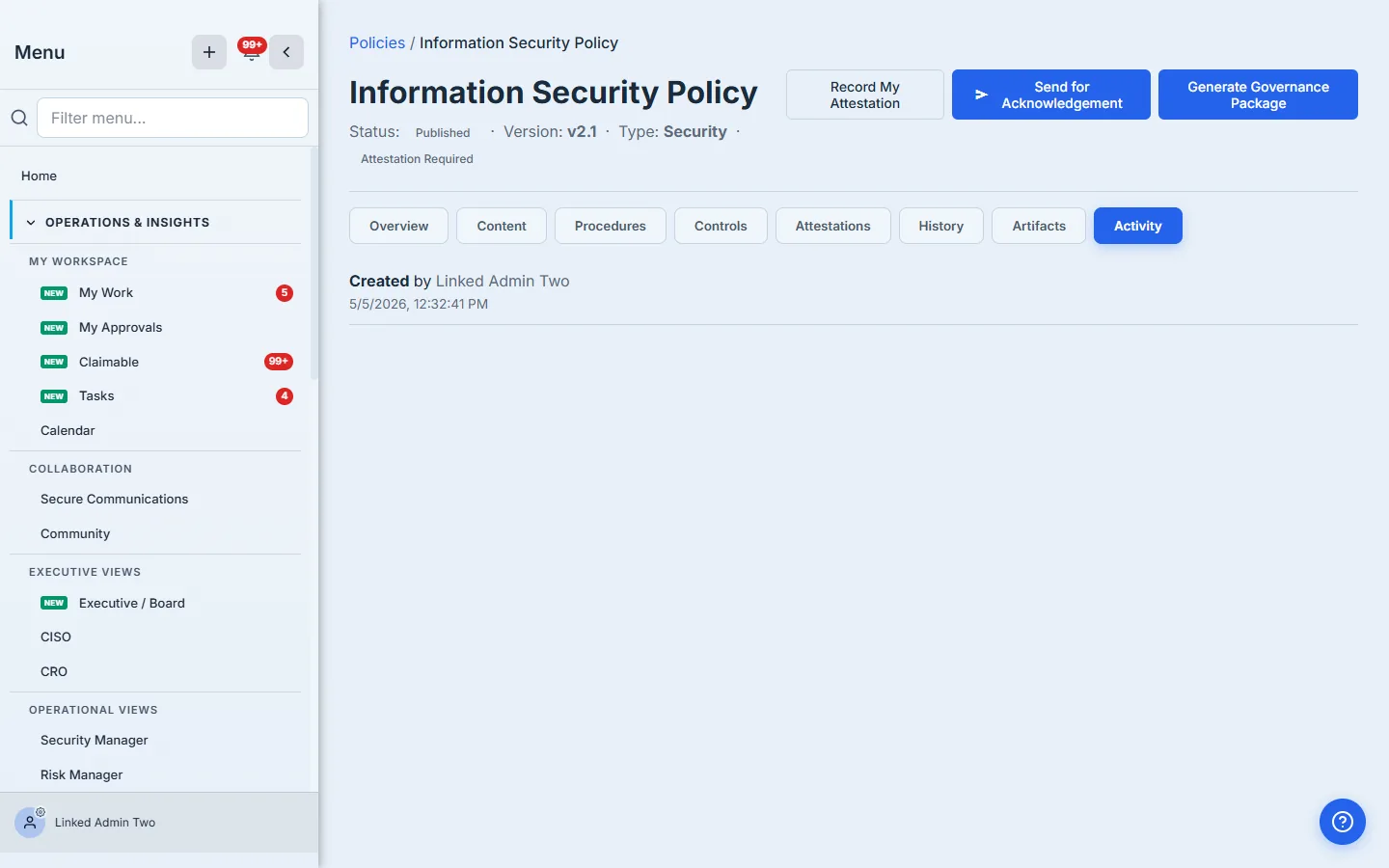
The History tab tracks predecessor / successor versions when you re-upload — so when v2.0 supersedes v1.0, the trail says so explicitly. Auditors love this because the report later says “v2.0 was reviewed on 2026-08-02 by Dana Whitfield, replacing v1.0 which was effective 2025-04-15 to 2026-05-04,” and they can click straight through to either version.
What you walk away with
- One uploaded policy stored in two places — the Policies tab (program view) and the Artifact Repository (evidence view) — joined by an immutable tracker link, never duplicated.
- One owner picked at upload time, on the hook for review reminders that fire 60 / 30 / 14 days before expiry.
- One default reminder cadence per artifact type so future uploads inherit without manual setup.
- Optional auto-create renewal work item so the owner can’t forget — a real task lands in their My Work queue, linked to the artifact.
- A full audit trail on every policy: who imported, who owns, when reviews ran, when reminders fired.
Run yours this afternoon. Open /app/grc/governance, hit + Import Policy, drag in your Information Security Policy PDF. The first one takes about three minutes. Every renewal cycle after that — Talarity keeps the cadence so you don’t have to.