Almost every framework that touches your security or compliance program demands that information access be restricted by need-to-know, not granted by default to every member of the org. SOC 2 lays it out in CC6.1 (logical access controls restrict the entity’s assets to authorized users). ISO 27001:2022 captures it in two places — A.5.12 (information must be classified so its sensitivity is visible) and A.8.3 (access to information is restricted in accordance with the classification). GDPR Article 32 requires “appropriate technical measures” to restrict personal data; PCI DSS 7.2 mandates access limits by job function. An auditor reading your evidence repository expects to see those gates enforced, not just policy.
Most teams handle this with folder hierarchies in a shared drive, a brittle SharePoint permission set, or a passed-around assumption that “only Finance will open that one.” Talarity treats access on every artifact as a first-class, queryable property — set the org-wide default once, write rules that match artifacts by classification or category or tag, override a single document directly when you need to, and let the repository hide everything else from the people who shouldn’t see it.
Who’s involved
- Repository admin / compliance lead — picks the org’s default posture, writes the access rules, locks individual artifacts when a rule isn’t the right shape.
- Finance team member — sees the customer credit applications and revenue forecasts the rule grants them.
- Everyone else — never sees the restricted artifact in their list. No “request access” friction, no leaked filename — the row simply doesn’t appear.
- Auditor — pulls the rule list, the per-item overrides, and the audit log; confirms least-privilege is in force on the repository they’re reviewing.
What’s on the page
This walkthrough lives in the Artifact Repository (/app/artifact-repository) — Step 1 tours all nine tabs; the access controls this guide uses are:
- The Access Rules tab — the Open / Locked mode toggle, the + New Rule editor (rule name, the artifact-matching filter, group + people grants, and an access level), and the saved-rules list.
- The per-artifact lock icon — opens the per-item Artifact Access override on any row, which is authoritative over the rules.
Step 1 — Open the Artifact Repository
Head to /app/artifact-repository. The repository carries nine tabs across the top — each a different lens on the same artifact set:
- Dashboard — overview, coverage, and expiration tracking. Lands first: total counts, recent uploads, type breakdown.
- All Artifacts — the full list of every artifact you can see, with Type / Status / Source filters above it.
- Expiring — artifacts approaching their expiry date, carrying a count badge so a renewal never sneaks up on you.
- Artifact Types — configure the document types artifacts can be filed under.
- Reminder Defaults — org-level reminder cadences per artifact type (when expiry warnings fire, and to whom).
- Access Rules — control who can see and manage artifacts. This article’s subject.
- Type Permissions — set who can see each document type — a coarser, type-level companion to the per-artifact Access Rules.
- Connections — explore the entity relationships an artifact participates in (which control, policy, or assessment it evidences).
- Explorer — drill down the framework hierarchy to find the artifacts that evidence each control.
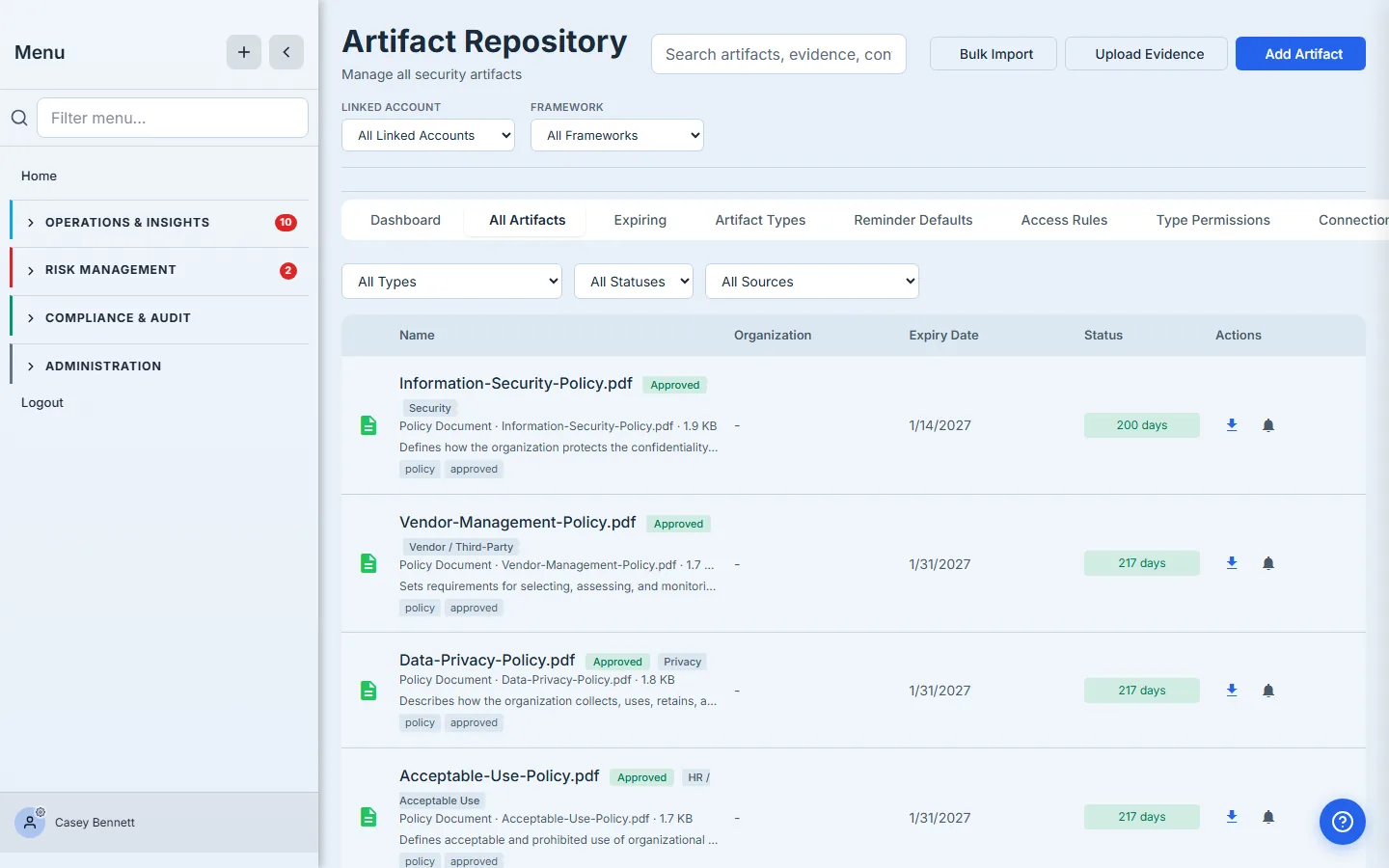
With no access rule and no per-item override in force, every member sees every row. That’s the Open default — fine for many artifacts, wrong for the ones that carry PII or financial detail.
Step 2 — Set the repository’s posture
Click the Access Rules tab. The first thing you see is the Repository access mode toggle — two buttons, Open and Locked.
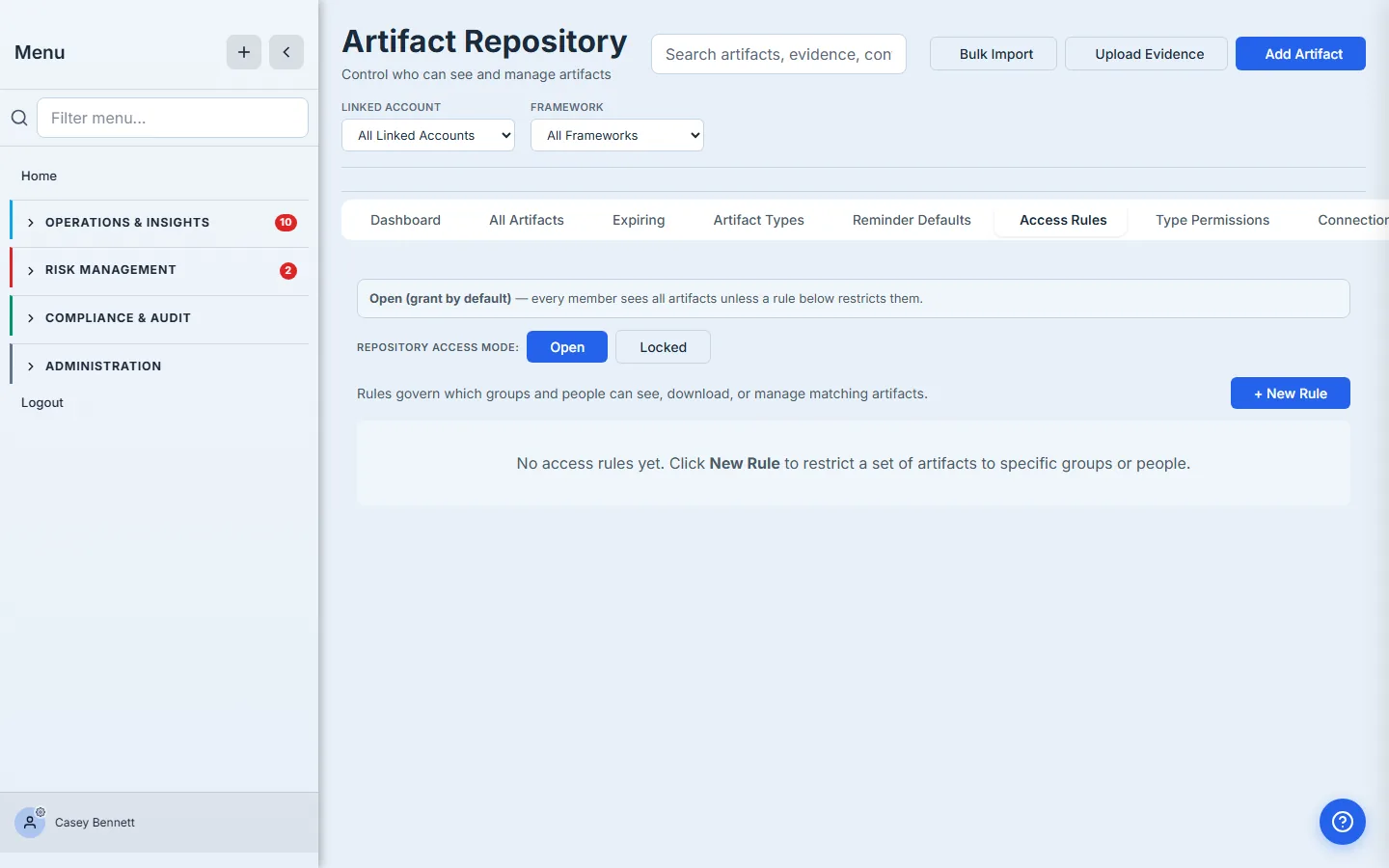
The two modes pick what happens when no rule matches an artifact:
- Open (grant by default) — every member sees every artifact unless a rule below restricts them. The right default for repositories that hold mostly published policies, framework artifacts, and audit reports.
- Locked (deny by default) — artifacts are hidden from non-admin members unless a grant rule below allows access. The right default for a repository that holds payroll detail, customer PII, board materials, and only opens up case by case.
The mode choice frames every rule you’ll write. Open mode means rules restrict; Locked mode means rules grant. You can flip the mode any time — but flipping from Open to Locked instantly hides every artifact that isn’t named on a grant rule. Don’t flip blind; flip after the rules that should keep access in place are already written.
Leave the toggle on Open for this walkthrough — the org’s policies should stay broadly visible, and we’ll restrict the customer credit application explicitly.
Step 3 — Write the rule
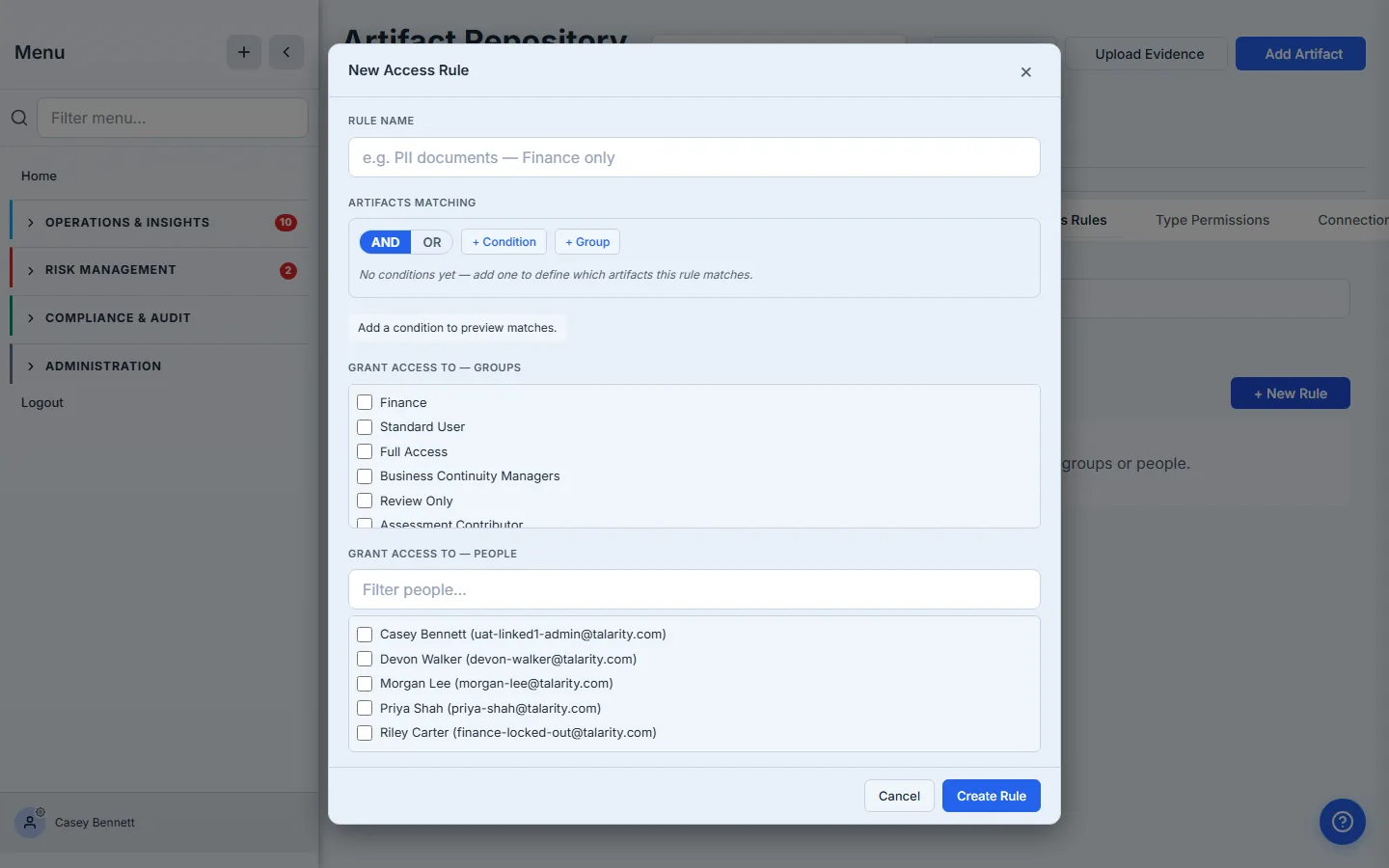
Click + New Rule. The rule editor opens with the fields you’ll fill out:
- Rule name — what the rule is for. Use a sentence an auditor can read in one line (“Restricted financial records — Finance team only”).
- Artifacts matching — which artifacts this rule governs. Built with the same filter-rule builder you use for employee filter views, against 17 artifact metadata fields (classification, category, tags, document type, owner, expiry date, and the rest).
- Grant access to — Groups and Grant access to — People — the groups and individual people who get access. At least one is required; a rule with no principals is rejected.
- Access level — what the named principals get when they match: View, View + Download, or View + Download + Manage.
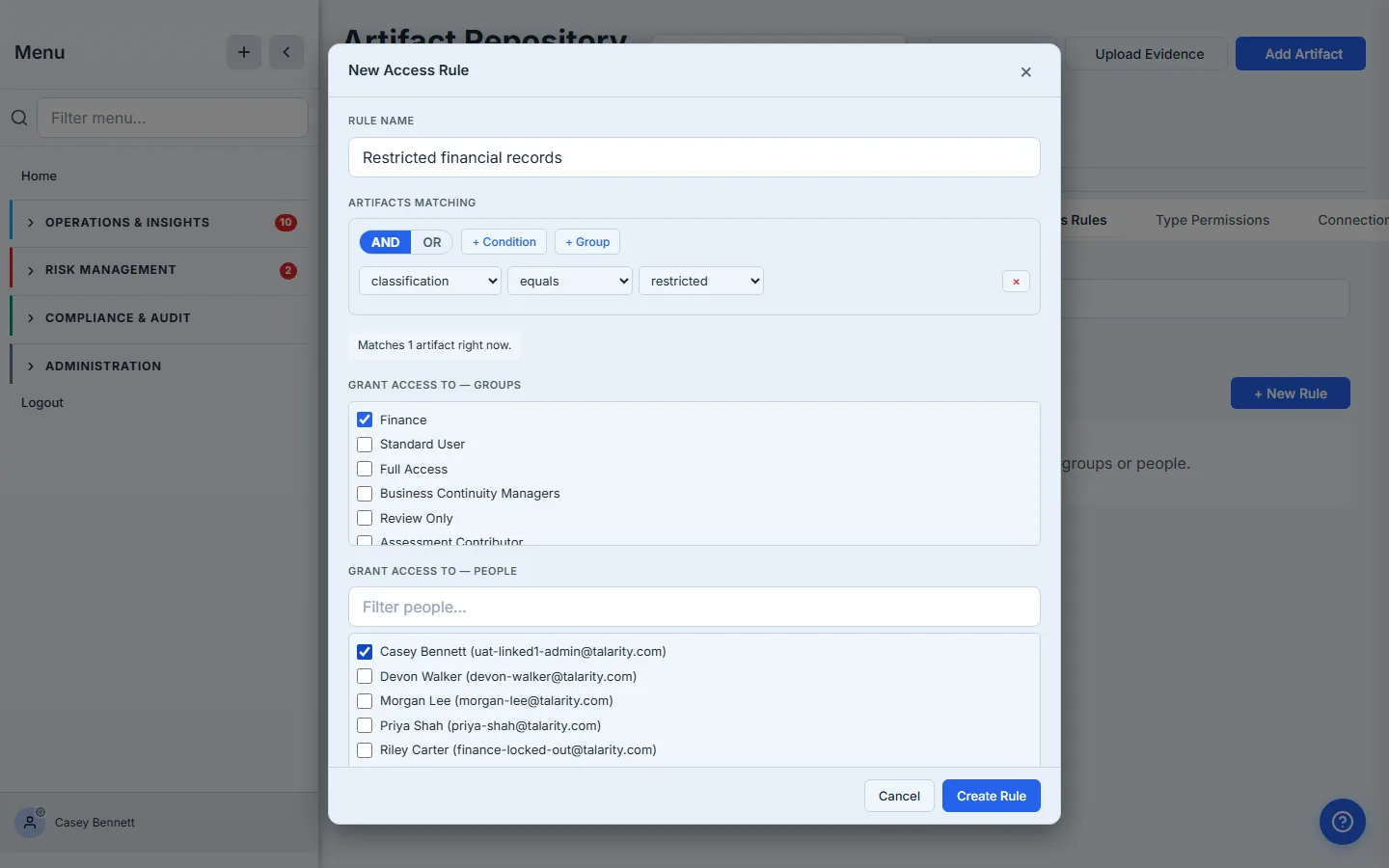
Fill in:
- Rule name: Restricted financial records
- Condition:
classificationequalsrestricted - Grant access to — Groups: Finance
- Grant access to — People: Casey Bennett (the org’s compliance lead — granted individually so they retain visibility for audit oversight)
- Access level: View (Finance can see the artifact but not download the file — downloading is the separate View + Download level — and can’t change ACLs or delete)
As you build the filter, the modal does a live preview — “Matches N artifact right now” — so you can confirm the predicate is selecting what you think it is before you save.
The match is compiled to a parameterized SQL WHERE clause against the evidence_library table, and the same predicate is used by every read path — the All Artifacts list, the search, the framework drill-downs, and the deep links from policies and assessments. The rule and the list cannot drift.
Click Create Rule. The rule lands in the Access Rules tab with its match count visible.
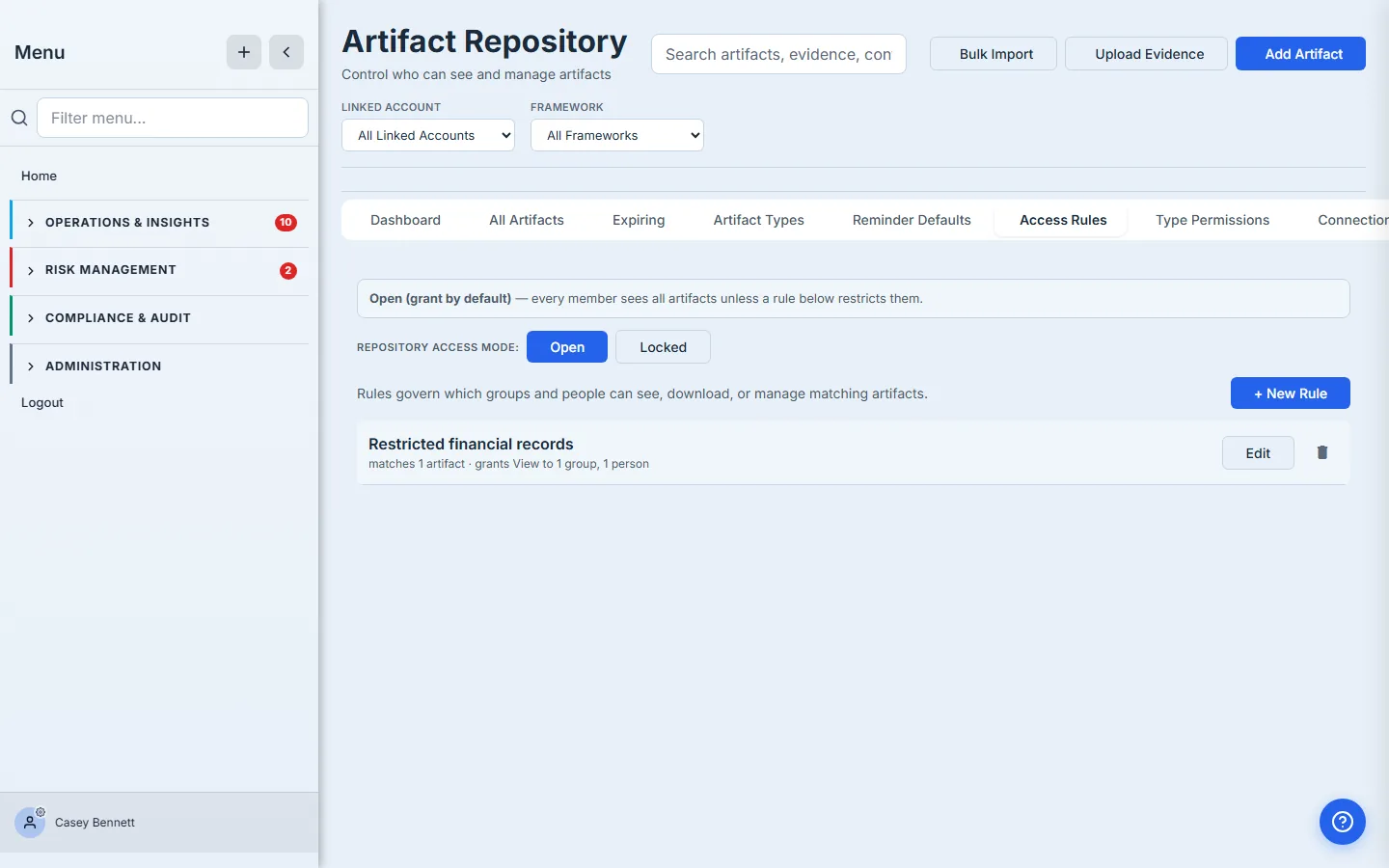
Full Access is not a bypass. A Full Access group has wildcard permissions for managing rules — but no implicit grant on the artifacts those rules cover. If the rule only names Finance and you aren’t in Finance, you lose visibility along with everyone else. The Access Rules tab stays editable (that’s a separate permission), so you can always recover by editing the rule or adding yourself to a granted group. We named the compliance lead on the rule above precisely so they keep oversight without joining Finance.
Step 4 — What the admin sees now
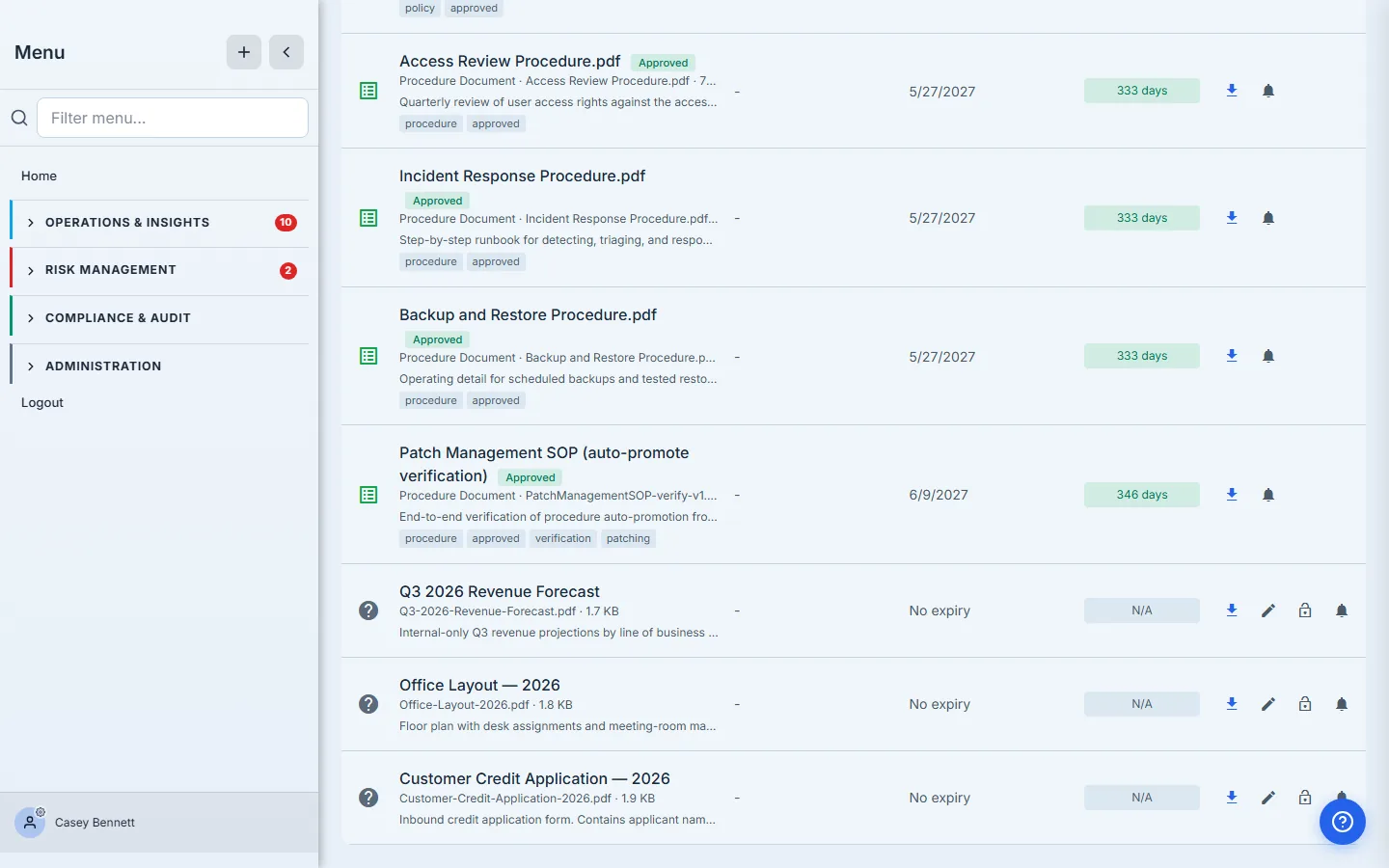
Switch back to All Artifacts. The Customer Credit Application row now carries a filled-in lock icon in the actions column — the access affordance tells you at a glance that this artifact is access-controlled, not open. Every other row keeps the lock_open icon.
Step 5 — Lock a single artifact directly
Sometimes a rule is the wrong tool. A single sensitive contract, a board pack for one quarter, a payroll snapshot — these don’t share a classification with anything else, and writing a filter against one row’s title feels wrong. Use per-item access instead.
On the artifact row, click the lock icon to open the Artifact Access modal — a focused dialog scoped to that single artifact.
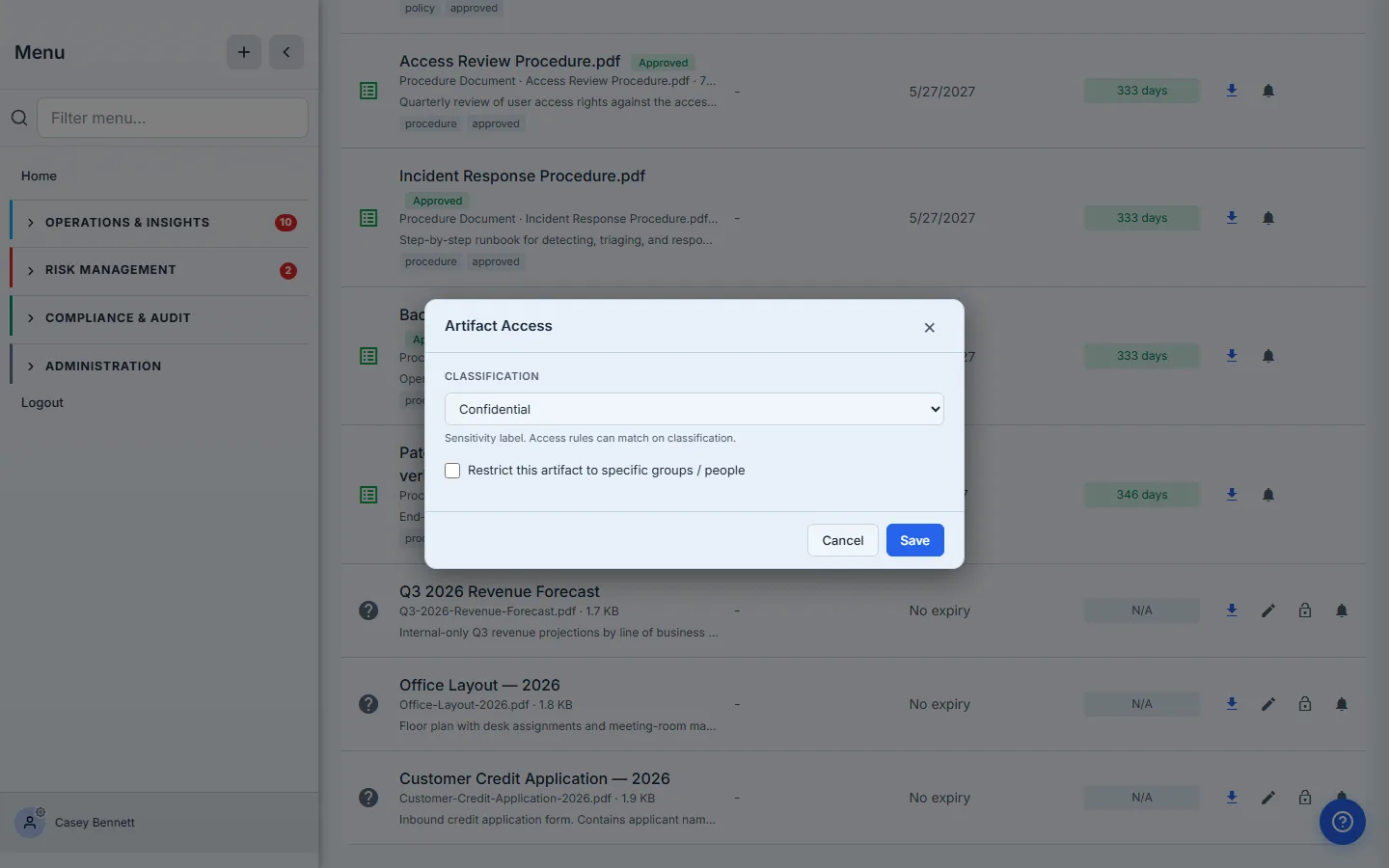
Two controls live here together:
- Classification — the artifact’s sensitivity label, settable in one place. Access rules can match on it (Step 3’s rule matched on
classification = restricted). - Restrict this artifact to specific groups / people — a per-item ACL builder. Flip it on and the dialog expands to a level picker, a Groups picker, and a People picker. The per-item override is authoritative — once set, rules are skipped entirely for that artifact.
Configure the Q3 forecast:
- Restrict this artifact — on
- Access level: View + Download (Finance gets the file, not just the metadata)
- Groups: Finance
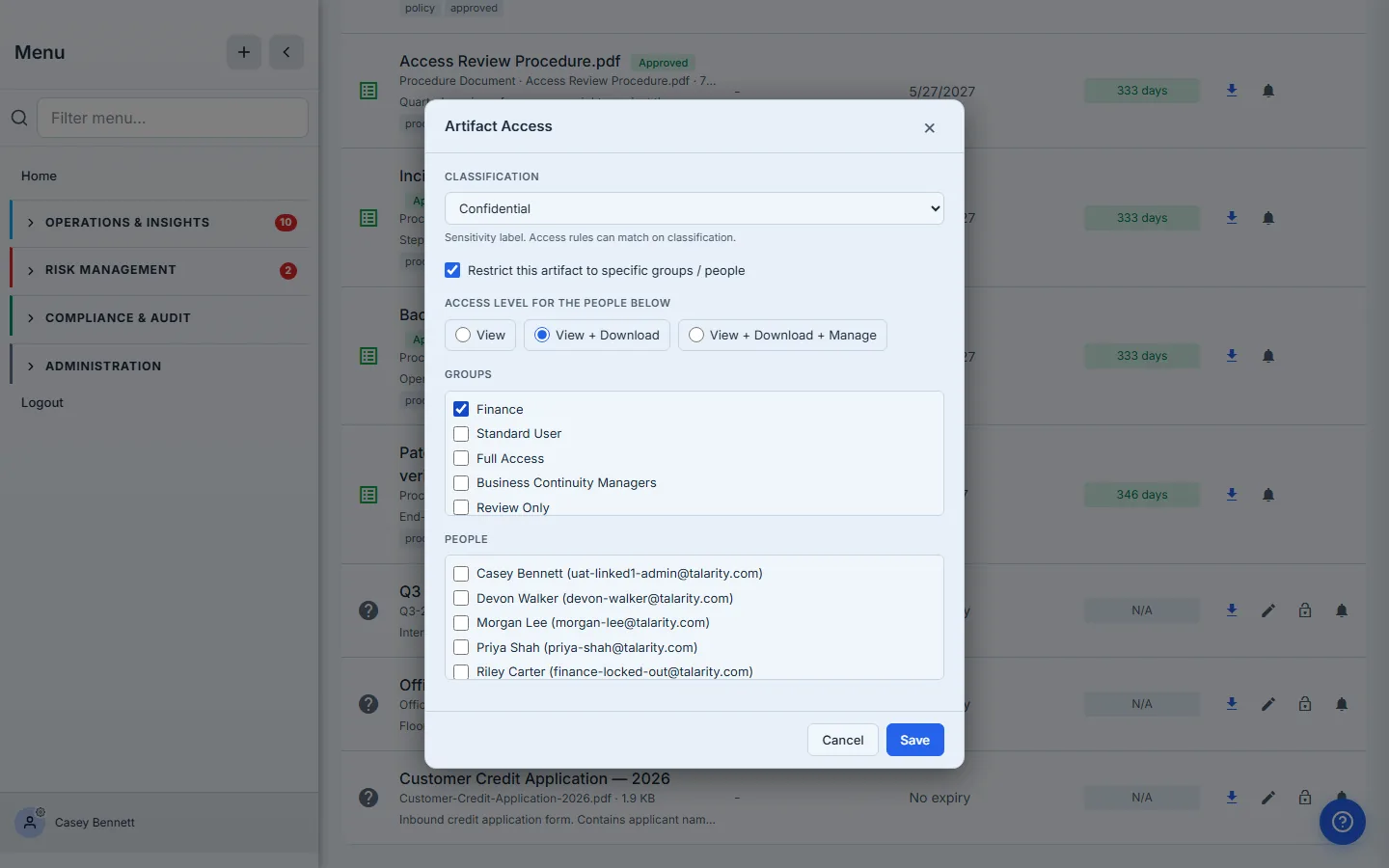
Per-item is authoritative — and unforgiving. This override grants only Finance. The compliance lead isn’t named here, so once you save, they lose visibility too — even though they wrote the override. That’s the point of access control: it applies uniformly. The Access Rules tab stays editable, so the override can always be revised; the artifact list just won’t include this row until a principal is added. Every change is recorded in the audit log with the actor, the timestamp, the before/after state, and a
selfGrantflag if the caller granted themselves access they didn’t have a moment ago.
Click Save. The artifact list refreshes — the Q3 row vanishes from the admin’s view (they aren’t in Finance, aren’t named individually). The Customer Credit Application is still visible to them (they were named on its rule).
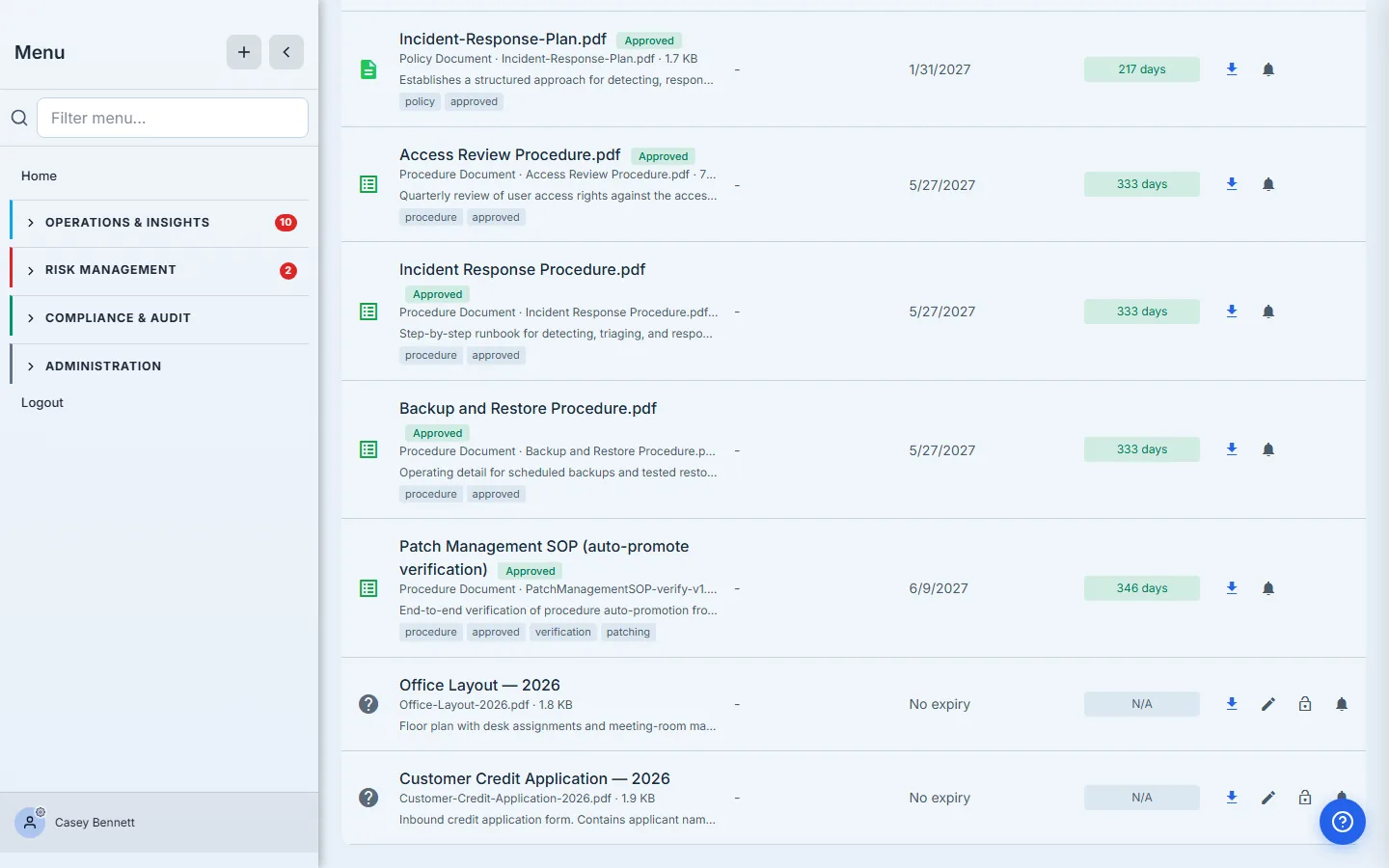
Step 6 — What a non-Finance member sees
The interesting half of access control is what’s missing, not what’s present. Sign in as a member of Standard User (no Full Access, no Finance) and head to the same Artifact Repository.
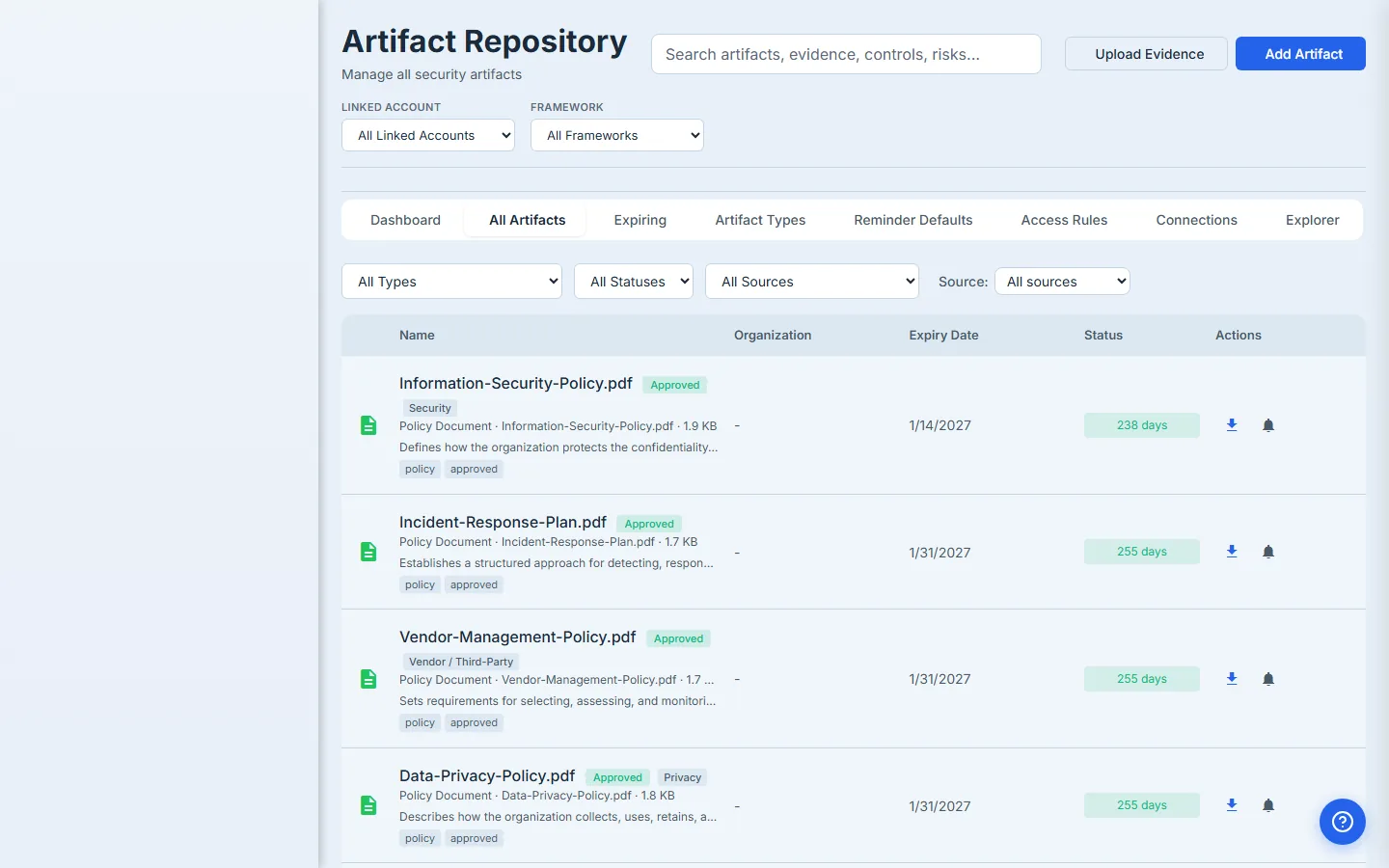
Two artifacts have disappeared from her list — not greyed out, not “locked, request access,” not even a count badge. They are filtered out at the SQL layer before any row leaves the database. Riley can search every artifact title in the org and never know the credit application exists.
That’s the load-bearing behaviour. A row that shows up as “restricted — request access” already leaks its filename, its category, and its existence; least-privilege means the restricted rows are invisible, not hidden behind a tooltip. The artifact list, the search index, the dashboard tile that counts artifacts by type, and the framework drill-downs all read the same access-scope predicate — none of them can leak the restricted rows by accident.
What you walk away with
- One org-wide posture — Open or Locked — that frames every rule you write.
- Rules that match by 17 typed fields — classification, category, tags, owner, expiry date, document type, and more — compiled to SQL and applied uniformly across list, search, dashboards, and deep links.
- Group + named-individual grants on every rule — at least one principal required; no rule grants access to nobody.
- Per-item overrides for one-off documents — authoritative, full chain coverage, audited, and uniform: even the user who set the override loses visibility if they don’t name themselves.
- Restricted artifacts genuinely invisible to members who aren’t named — not “locked, request access” but missing from the list entirely.
- A full audit trail — every grant change recorded with actor + before/after, including self-grant detection.
Run yours this afternoon. Open /app/artifact-repository, click Access Rules, and ask the obvious question: if a non-admin member opened this repository right now, which rows should they not see? Write the first rule against that answer — the next time someone uploads an artifact that matches it, the gate is already in place.