Most teams run a framework assessment, get a maturity score, and stop there. The score lands in a slide, the gaps get a nod, and three months later nobody can say which gap became tracked work. The assessment was a measurement, not a starting point.
Talarity treats a completed assessment as the starting point. When you finish a CIS, NIST CSF, or any other framework assessment, the platform reads the low-scoring domains and proposes the risks, remediation work items, and monitoring KRIs those gaps imply — as real, reviewable suggestions. You accept, edit, or reject each one, click Apply All Decisions, and your risk register, work-item queue, and KRI set populate themselves. The thread from “we scored 48%” to “here is the owned, tracked work that closes the gap” is unbroken.
This is the workflow auditors keep asking for: SOC 2 CC3/CC4 (risk identification and analysis), ISO 27001 Clause 6.1 (assessment feeding treatment), and the NIST RMF Assess → Authorize step all assume the assessment drives the program. Here is how it works.
Who this is for
- Compliance lead — runs the assessment and turns the result into a defensible program of work.
- Risk owner — receives the generated risks already scored and categorised by domain.
- Auditor — sees an unbroken line from assessment response to risk to remediation.
What’s on the page
Open the Assessment Center (/app/assessment-center).
- Overview tab — program-health KPIs (Active assessments, Average Score, Completion Rate, Frameworks Used, Overdue) and a Start New Assessment row of framework cards.
- The run case file (
/app/assessments/:runId/results) — a score gauge, an Areas Needing Attention list, and tabs: Results, Overview, Scope, Responses, Evidence, Remediations, Work Items, Activity, Change Log. - Response Viewer (
/app/unified-responses) — the cross-run, question-level companion view.
Step 1 — Start at the Assessment Center
The Assessment Center (/app/assessment-center) is the hub. The Overview tab surfaces what needs attention, your program health KPIs — Active assessments, Average Score, Completion Rate, Frameworks Used, Overdue — and a Start New Assessment row of framework cards.
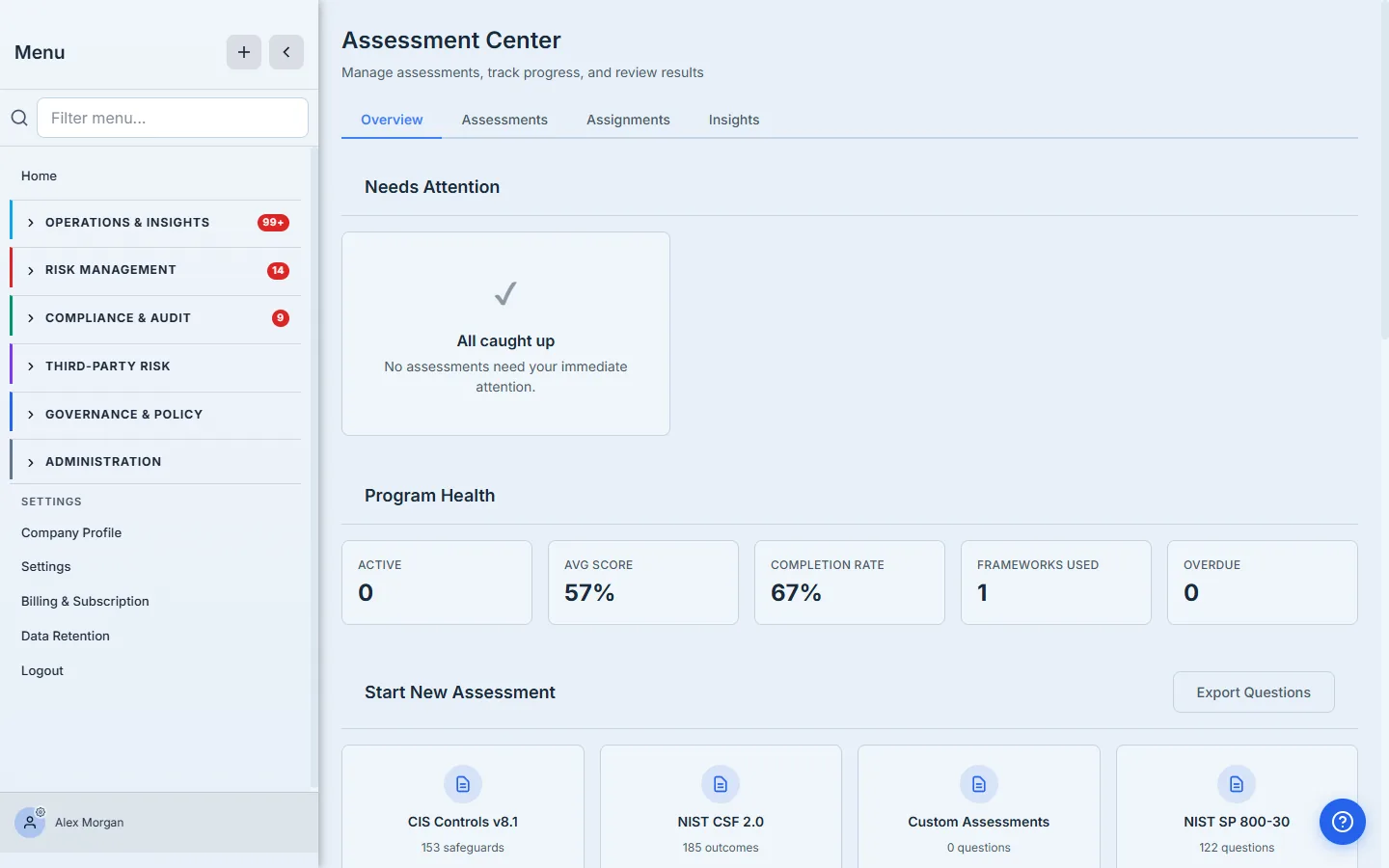
The Assessments, Assignments, and Insights tabs are where in-flight work, delegated assessments, and cross-framework trends live. For this workflow, start a new one.
Step 2 — Pick a framework
The framework picker is a catalog, not a single default. Each card carries the scope — CIS Controls v8.1 (153 safeguards across 18 control domains), NIST CSF 2.0 (185 outcomes), NIST SP 800-30, PCI-DSS, your own Custom Assessments — and a one-line “best for” so the choice is informed.
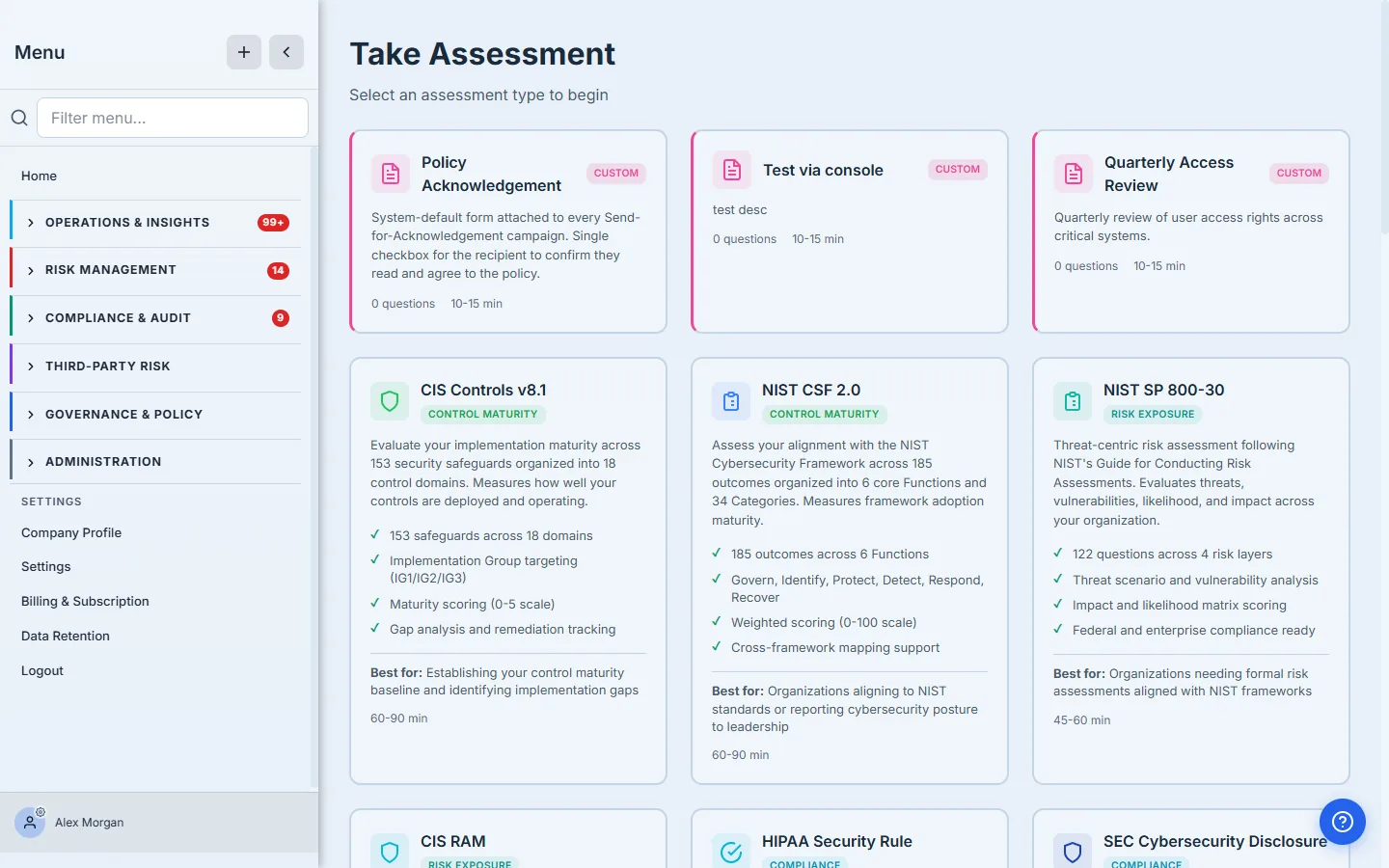
The framework you pick decides the shape of everything downstream. A CIS assessment scores by Implementation Group and control domain; the suggestions that come out are grouped by those same domains. Pick the framework your gaps are measured against, not the one with the fewest questions.
Step 3 — Take the assessment
Inside the runner, the 18 control domains sit in the left rail and each safeguard asks for an implementation-maturity answer. A live progress counter and running score sit at the top, and Save Progress means you can put it down and pick it up later — the run persists.
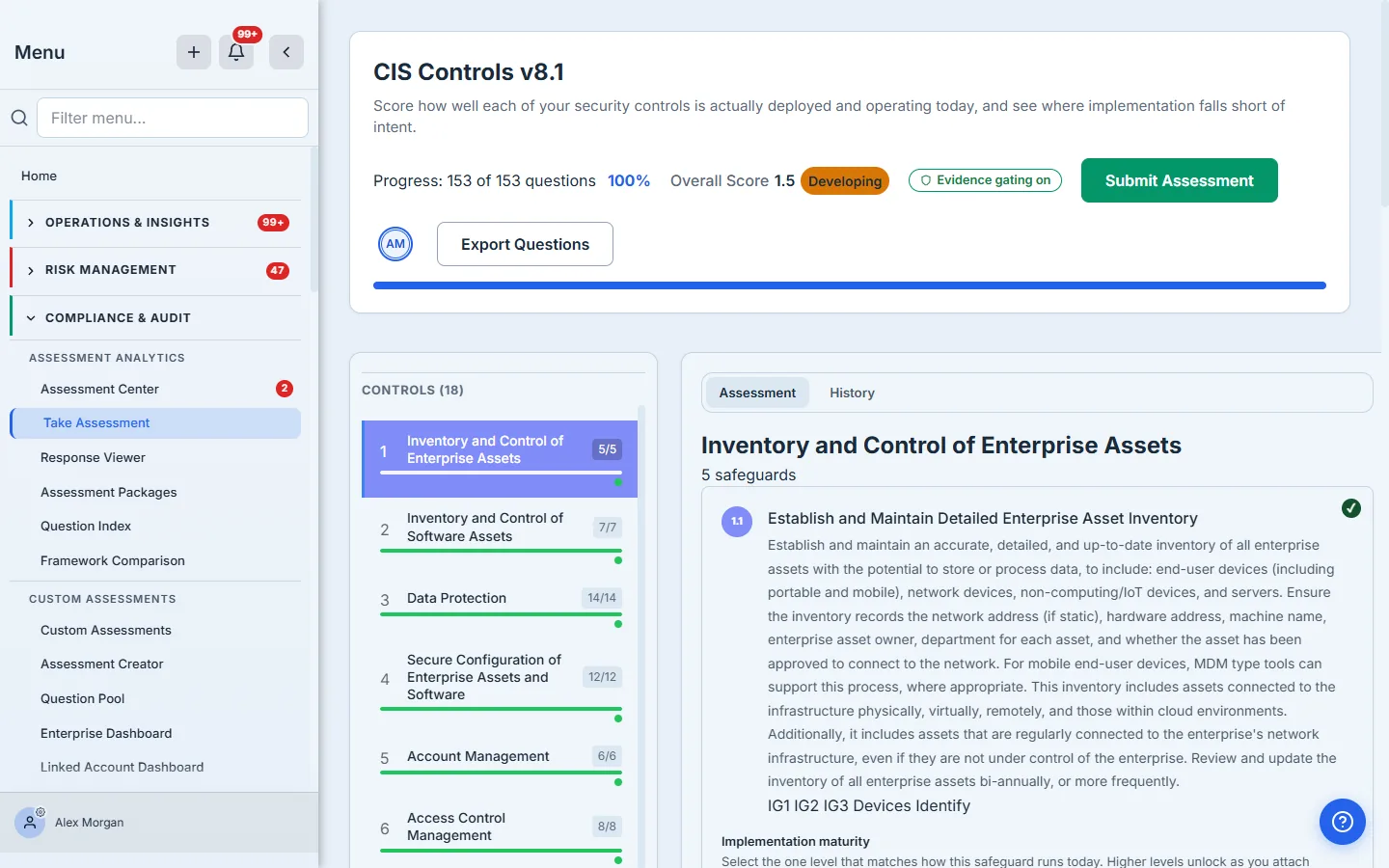
You answer honestly, domain by domain. Where a safeguard is genuinely out of scope you can mark it Not Applicable with a justification — that decision is recorded, not silently dropped. When every in-scope safeguard is answered, you complete the run.
Step 4 — Complete it, and read the case file
Completing the run opens its case file (/app/assessments/:runId/results): a score gauge, an Areas Needing Attention list, and a row of tabs — Results, Overview, Scope, Responses, Evidence, Remediations, Work Items, Activity, Change Log.
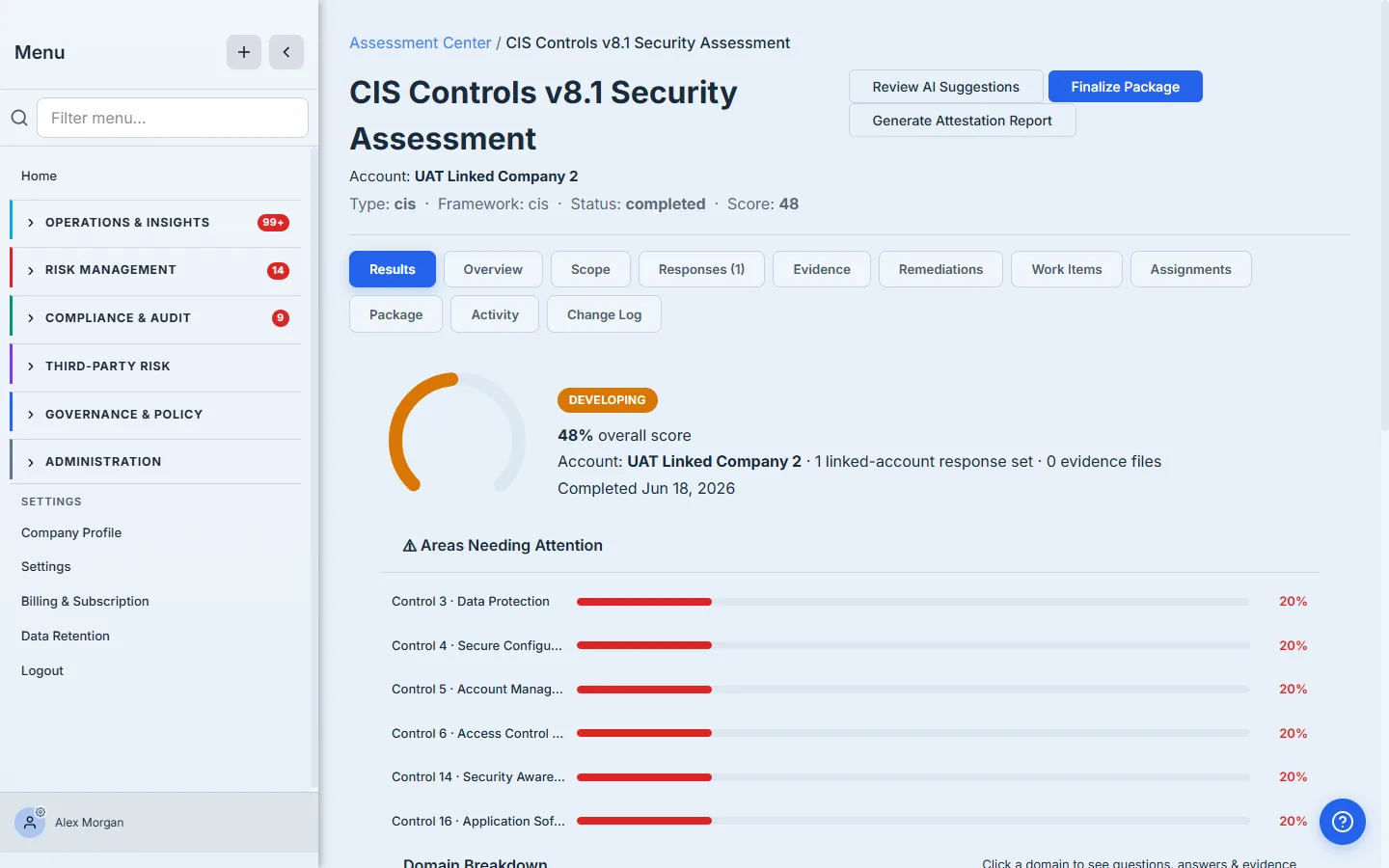
The case file is honest about where you stand: in this run the six weakest controls — Data Protection, Secure Configuration, Account Management, Access Control Management, Security Awareness Training, and Application Software Security — all land at 20%. That is the gap. The button that turns it into work sits top-right: Review AI Suggestions.
Step 5 — Review the suggestions
This is the payoff. The Configuration Review screen reads every low-scoring domain and proposes a set of GRC entities, organised into four tabs with counts — Risks, Controls, Work Items, KRIs. Each weak domain becomes a scored Risk, a remediation Work Item, and a monitoring KRI; control suggestions appear where your control library maps to the gap.
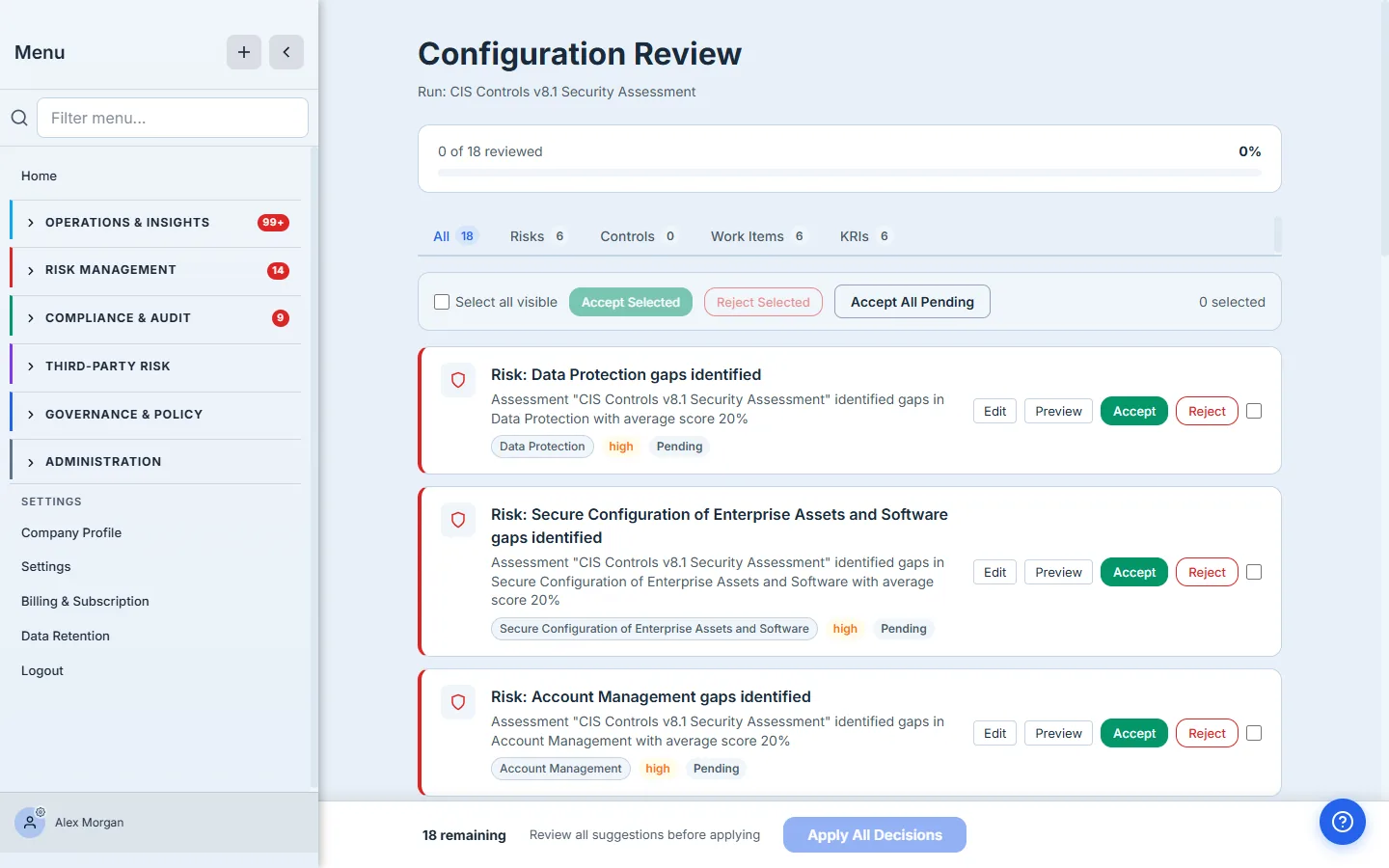
Every card is a real, editable proposal — “Risk: Data Protection gaps identified”, “Risk: Access Control Management gaps identified”, and so on — carrying the domain, a priority derived from the score, and the assessment it came from. You work them three ways:
- Accept — take the suggestion as-is.
- Edit — open it, adjust the title, owner, or scoring, then accept your version.
- Reject — discard suggestions that don’t apply, with the rest untouched.
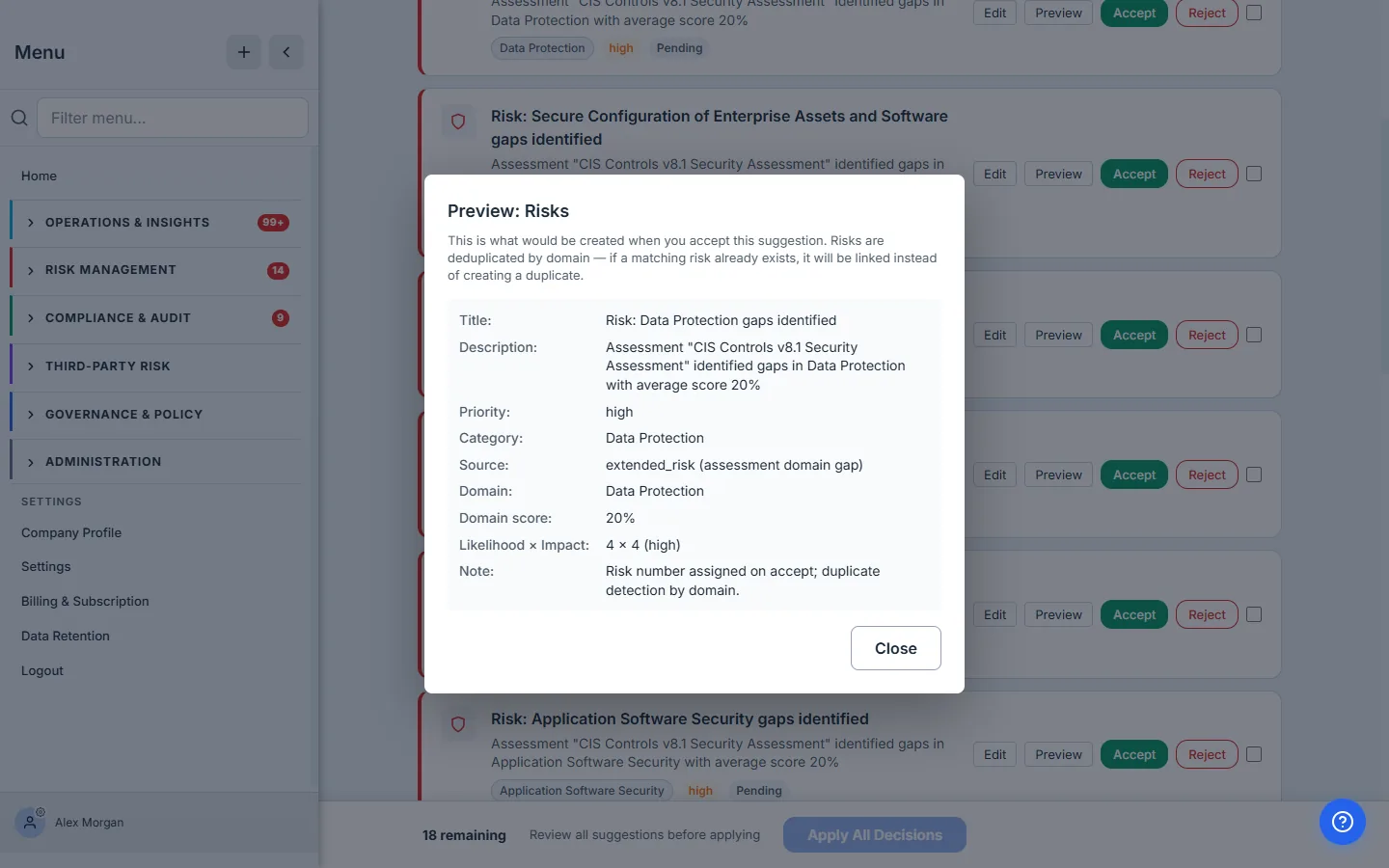
Preview shows exactly what a suggestion becomes before you commit — the proposed risk’s title, description, priority, category, and the domain score it came from — with a note that risks are deduplicated by domain, so a matching existing risk gets linked rather than duplicated.
Bulk controls — Select all visible, Accept Selected, Accept All Pending — let you clear an obvious batch in one move, while the progress bar tracks how many of the set you’ve decided.
The suggestions are derived, not generic. Each one is built from the actual failing safeguards in a domain and names that domain explicitly — so “Account Management gaps identified” traces back to the specific safeguards you scored low, not a boilerplate risk. Editing before you accept is the norm, not the exception: the suggestion is a strong first draft of the risk, and you own the final wording.
Step 6 — Apply, and watch your program populate
When your decisions are made, Apply All Decisions creates every accepted suggestion as a real entity — risks in the register, work items in the queue, KRIs in monitoring — each linked back to the assessment run that produced it. The screen confirms every decision has been applied; the proof is one click away.
Open Risk & Resilience → Risk Register and the risks you just accepted are there — scored, categorised by control domain, and traceable to the assessment that surfaced them.
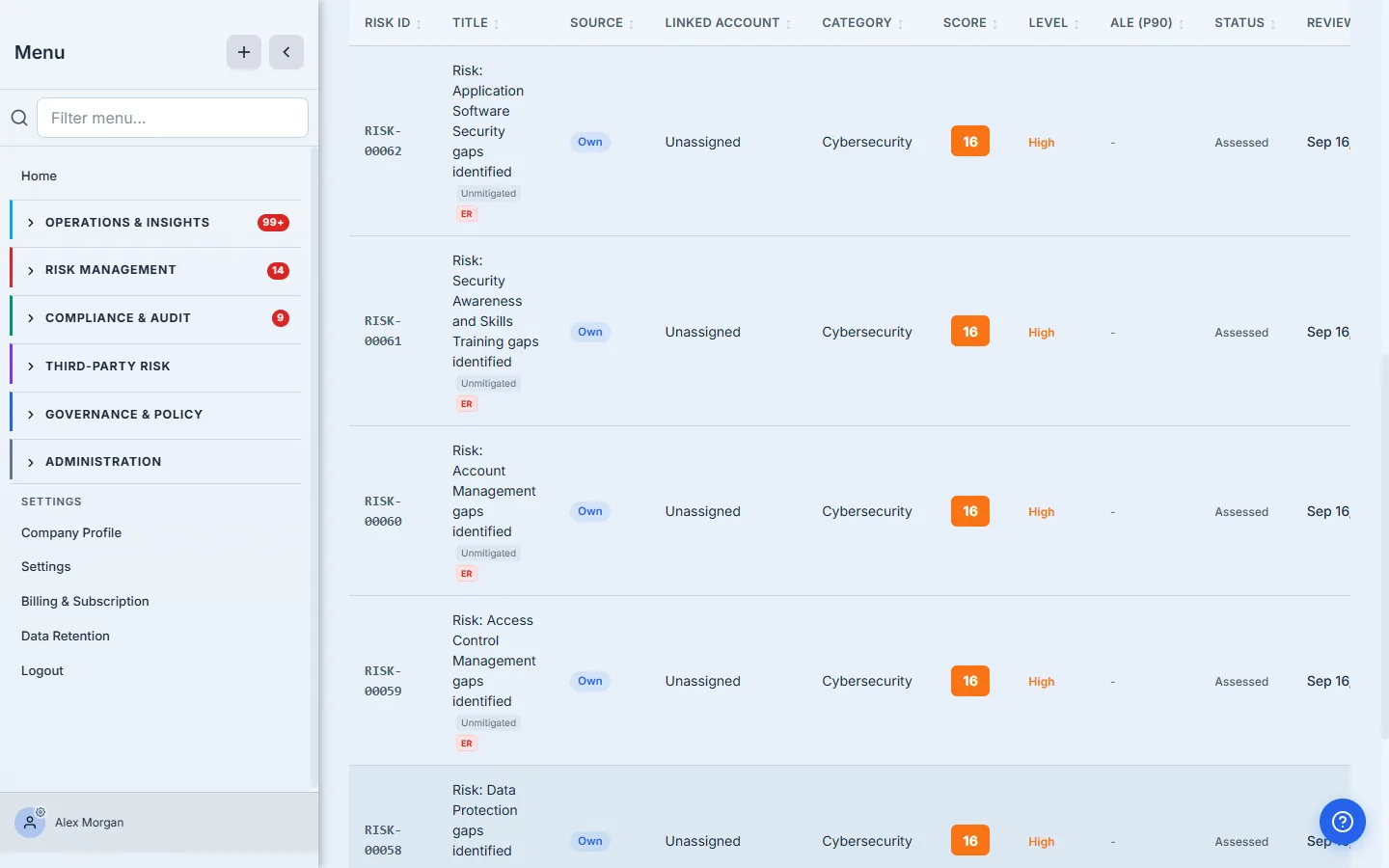
One assessment, and the register went from a list of gaps to a set of owned, tracked risks — with the remediation work items and KRIs to match.
Where it ends
This workflow covers the assessment → suggestions → applied-program loop. A few adjacent doors, deliberately out of scope here:
- Delegating an assessment to a linked account or business unit, and the submit-for-approval / release cycle, live in their own workflow.
- Evidence gating — requiring an artifact before a high-maturity claim counts — is covered in the gated-assessment guide.
- The Response Viewer (
/app/unified-responses) gives a cross-run, question-level view with its own bulk actions; reach for it when you’re analysing responses across many runs rather than building a program from one.
What you walk away with
- A completed framework assessment that produced a score and a program of work, not just a score.
- A risk register, work-item queue, and KRI set populated from real gaps, each entity traceable to the assessment.
- A defensible CC3/CC4 / Clause 6.1 story: assessment → identified risk → tracked remediation, with nothing lost in between.
Run yours this afternoon. Open the Assessment Center, pick a framework, and answer one domain. The moment you complete it, the Review AI Suggestions button is waiting — and the program builds itself from there.