An audit almost always spans two conversations your company runs in two different rooms. One is compliance: did your controls hold this period — the SOC 2 readiness, the ISO 27001 statement of applicability, the framework attestation. The other is resilience: can you actually recover — the business impact analysis, the recovery plan, the disaster-recovery test you ran and signed off. SOC 2 reads them together (CC9.1 expects you to mitigate disruptions; the control attestation assumes the business survives one). ISO 27001:2022 pairs Annex A controls with ISO 22301 continuity. The auditor on the other side wants one defensible record — not a compliance bundle from the GRC team and a separate continuity bundle from the BC/DR owner, stapled together in an email thread.
Most teams hand that over as two folders of PDFs, exported from two tools, on two days. Talarity hands it over as one evidence package: a finished assessment attestation and a finished DR attestation, included in the same package, finalized once, watermarked once, and shared to the auditor as a single secure link. The mechanism that makes it one package instead of two is small and deliberate — the report picker doesn’t ask which domain a report came from.
Who’s involved
- Compliance / audit lead — owns the handoff: assembles the package, decides what’s in scope, finalizes it, and shares it with the external auditor.
- Assessment owner — produces the framework-readiness attestation (the assessment capstone) that goes in.
- BC/DR owner — produces the DR-test attestation (the resilience capstone) that goes in.
- External auditor — receives one watermarked bundle — the cover plus the actual reports — on one secure login, redacted exactly as the sender chose, and reads the control story and the recovery story side by side.
This article is the cross-domain handoff. Building a general evidence package and sharing it securely is covered in Package your audit evidence once; producing the BC/DR side — BIAs, recovery plans, the DR-test attestation — is covered in Hand your auditor one BC/DR evidence package. This one is about the seam between them: putting both in a single package, and why the product lets you.
What’s on the page
Open Evidence Packages (/app/evidence-packages).
- The register — one row per distribution package, each showing title, type (audit / customer / regulator / internal), status (draft / finalized), and content counts; filtered by status and type.
- The package case file (
/app/evidence-packages/:packageId) — five tabs: Overview, Capstones, Evidence, Findings, Recipients. - Key actions — New Package, Finalize (freezes contents), the Distribution Packet, and Share-with-redaction.
Step 1 — Open the evidence-package register
Open Evidence Packages (/app/evidence-packages). This is the register of every distribution package your org has assembled — each row showing its title, type (audit distribution, customer distribution, regulator submission, internal review), status (draft / finalized), and counts of what’s inside. Filters across the top narrow by status and type, so “the packages I still have in draft” is one click.
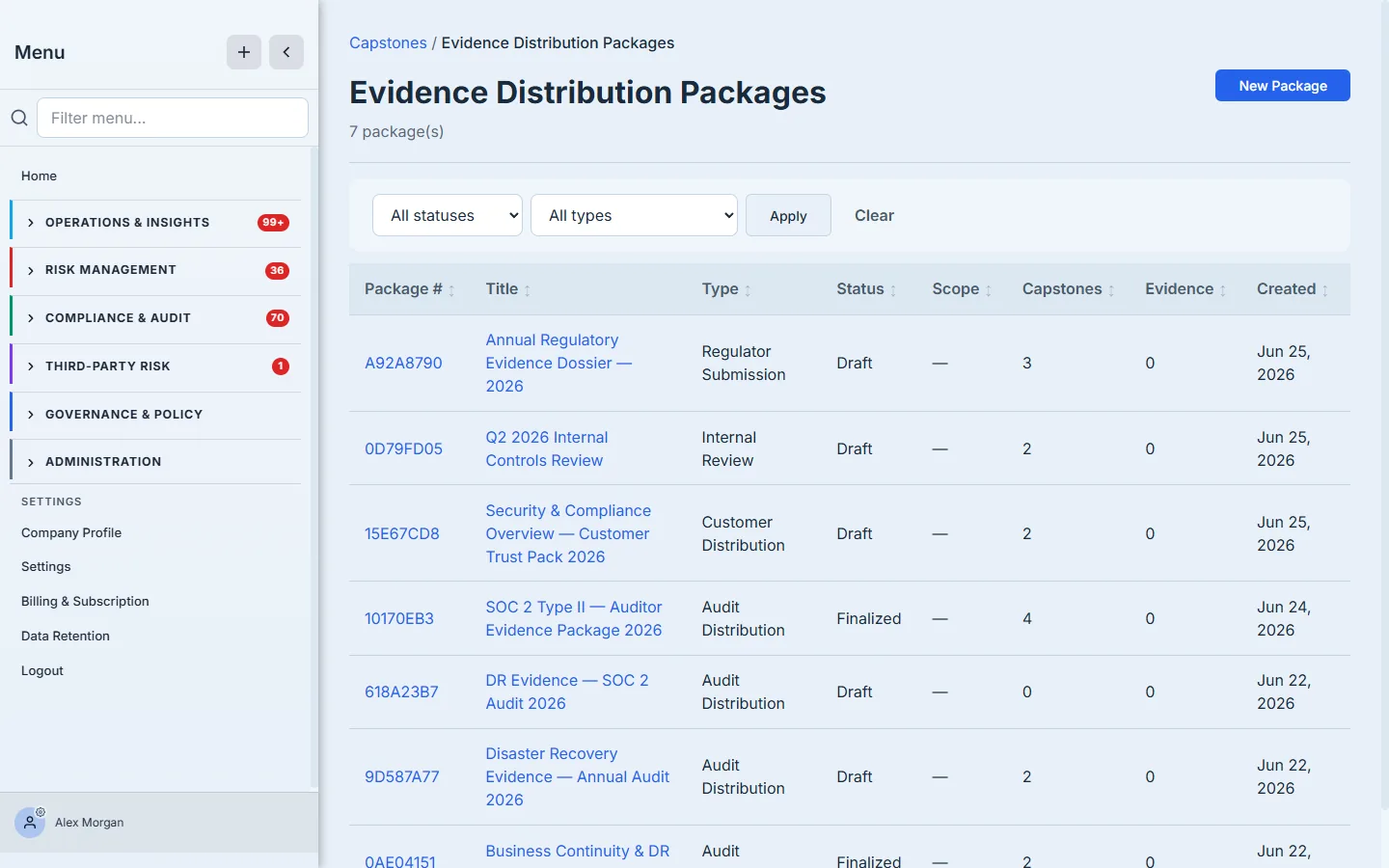
A package is a container with a lifecycle, not a zip file. While it’s a draft you add and remove what’s inside; once you finalize it, the contents freeze and the package becomes the record you actually hand over.
Step 2 — Create the package
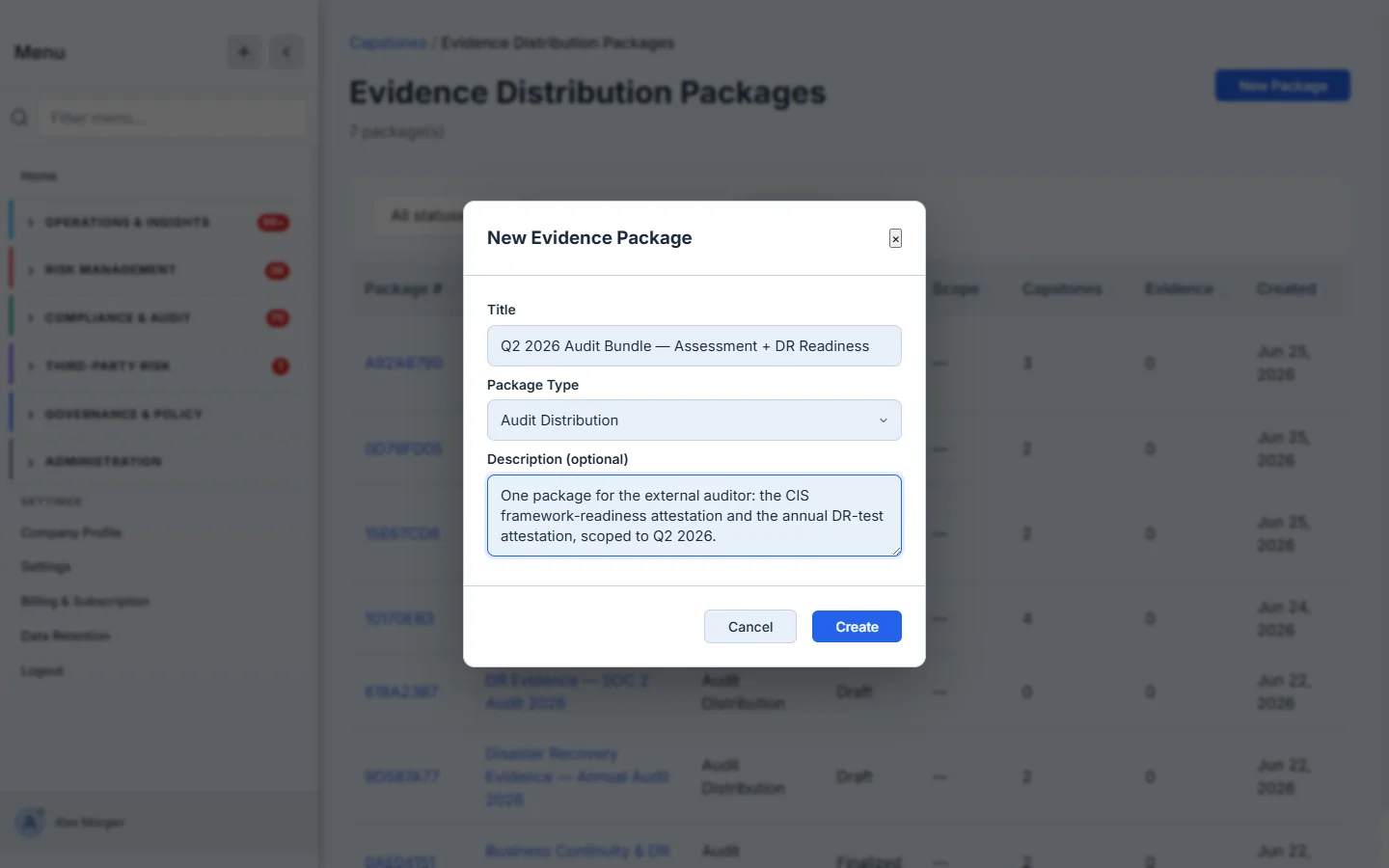
Click New Package. You give it a title, pick a type (for an external audit, audit distribution), and optionally a description and scope. The type isn’t cosmetic — it seeds the default audience preset in the share step, so a regulator submission and a customer distribution start from different redaction defaults that you then fine-tune, field by field, per recipient.
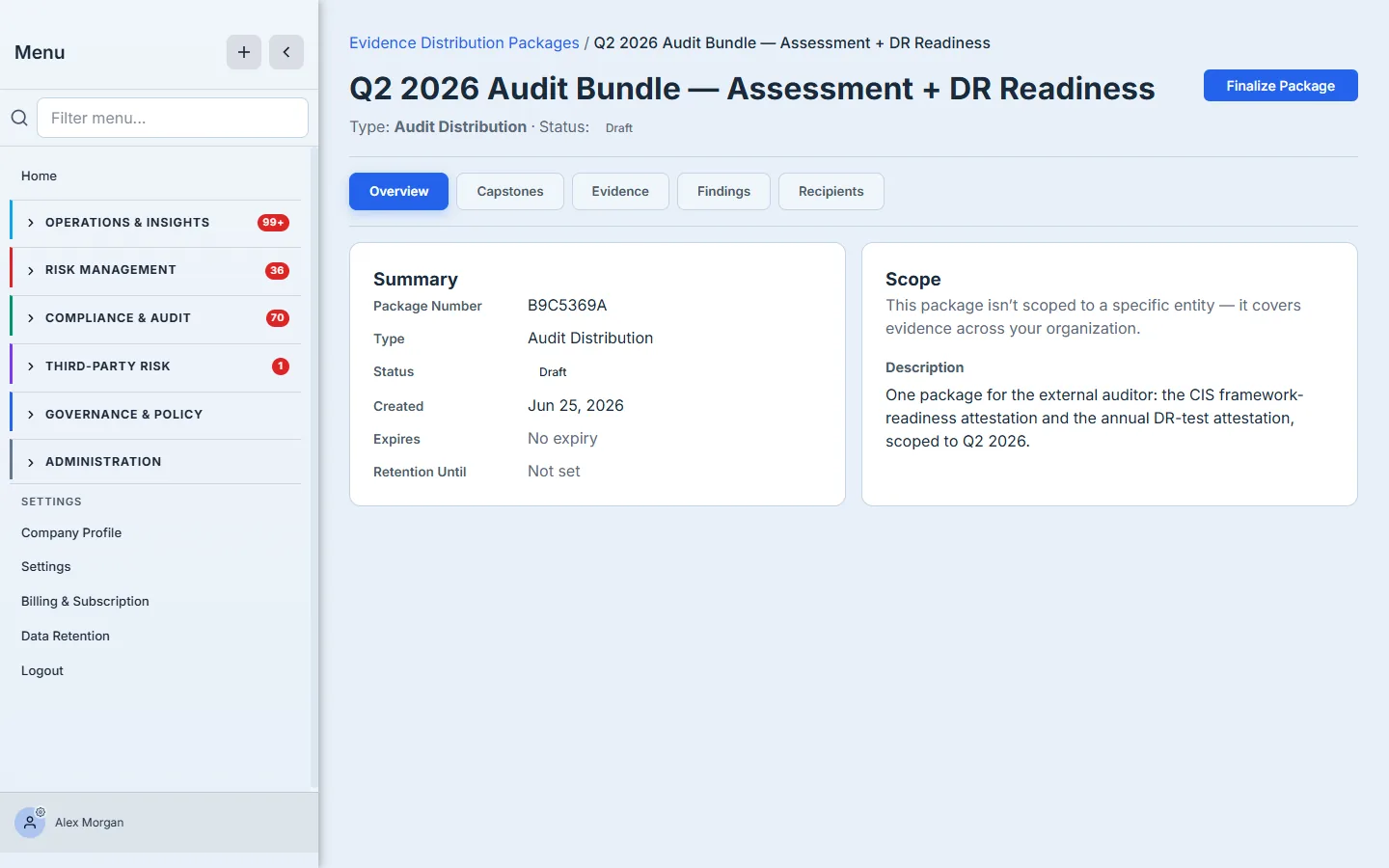
Save, and Talarity drops you on the package’s case file at /app/evidence-packages/:packageId — a five-tab surface (Overview, Capstones, Evidence, Findings, Recipients) that is the hub for everything that follows.
Step 3 — Add to the package: browse by category, pull from two domains
This is the step the article exists for. Go to the Capstones tab and click Add to package. The picker isn’t a flat list — it’s a browser. A category rail runs down the left (Assessments · Compliance & Frameworks · Business Continuity & DR · Vendor & Third-Party · Governance & Policy · Risk · Audit · Regulatory…), each with a live count, and a search box sits across the top. Open Compliance & Frameworks and tick your CIS framework-readiness package; open Business Continuity & DR and tick your DR-test attestation. Both collect in the staging tray on the right, where you review the selection before committing it. Click Add selected.
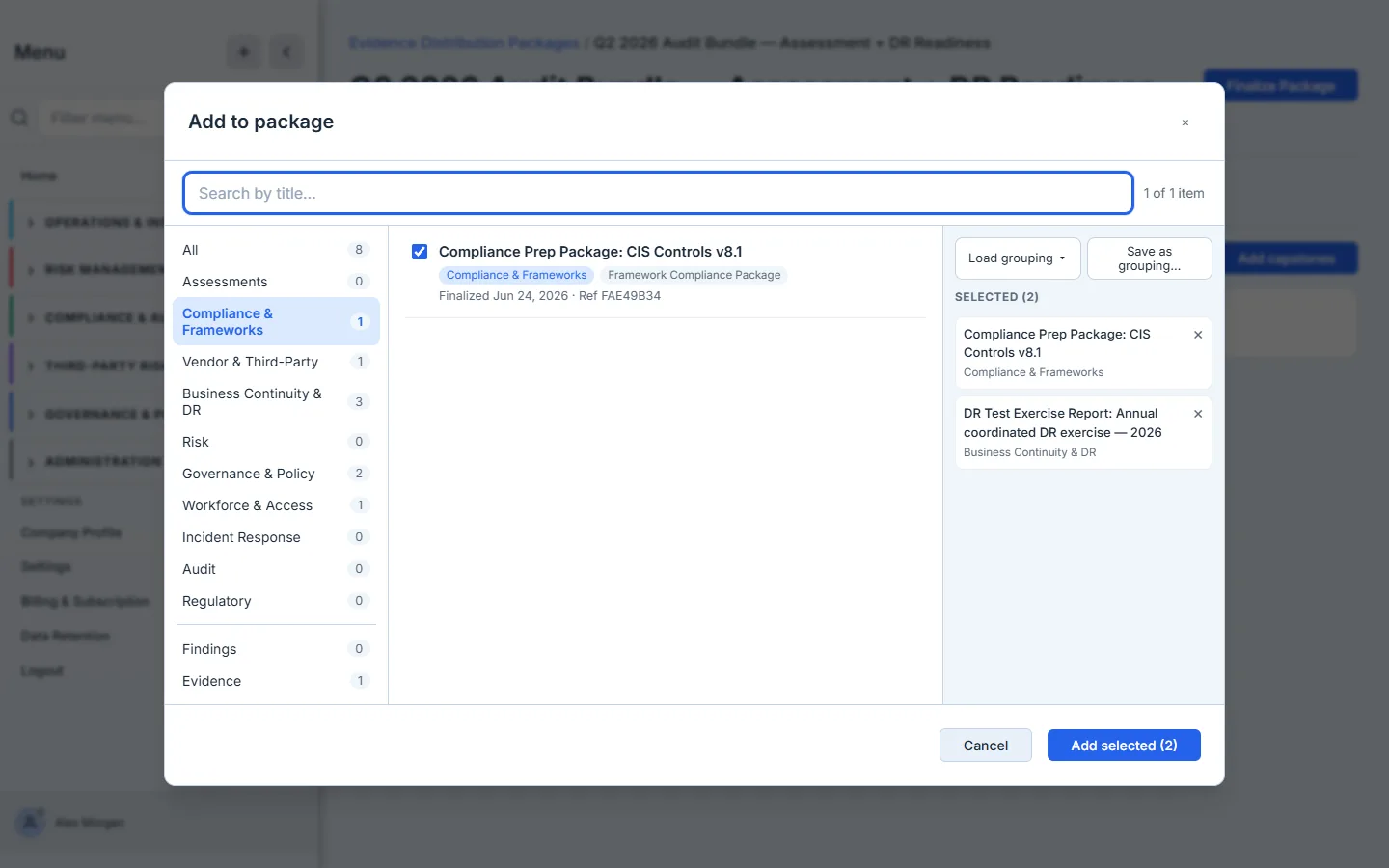
The point isn’t that the two reports live in different categories — it’s that they land in the same package from one browser. You never answer the wrong question (“which package type do I use for mixed evidence?”), because the picker treats a report as a report regardless of the domain that produced it — and the same browser holds evidence files and audit findings under their own categories when you want them too. It also scales: an org with a hundred vendor attestations opens the Vendor & Third-Party category or searches by name instead of scrolling one giant list. The same picker serves a five-report startup and a thousand-artifact enterprise.
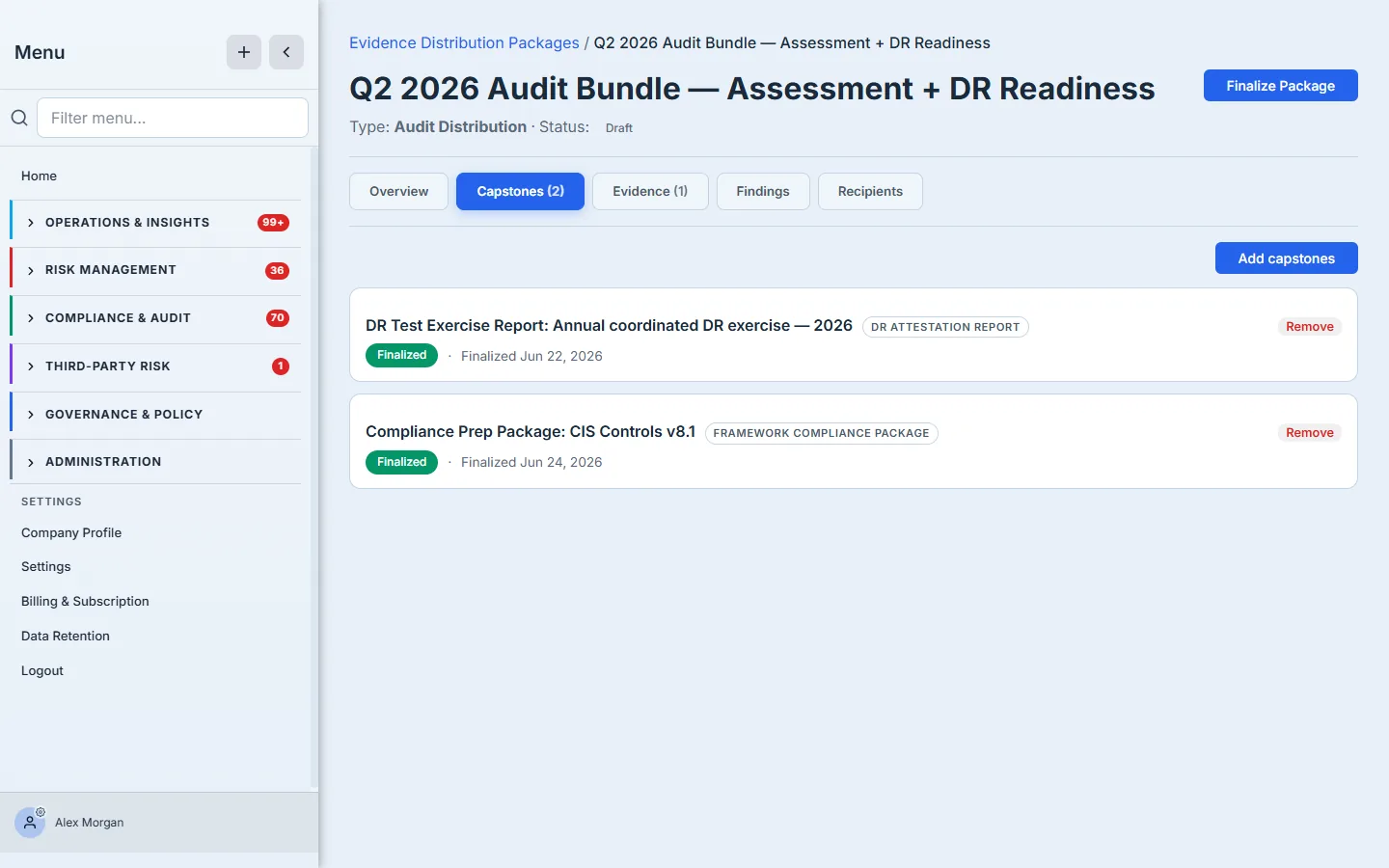
Two domains, one record, is the whole point. A separate assessment package and a separate DR package make the auditor reconcile two artifacts and trust that they describe the same company on the same dates. One package with both removes that seam — the control attestation and the recovery attestation were finalized into the same immutable record, scoped to the same period, shared on the same link.
Save the package once, reuse it every year. Click Save as template on the package and name it — “Annual SOC 2 audit.” Next year, Use rebuilds the same cross-domain package in one click, resolving each item to its latest finalized version automatically: the handoff you assemble in three minutes this year takes thirty seconds the next. A template can also carry rules — “every current SOC 2 report” — so the certificate you upload in March is in the package by default, without anyone remembering to add it. Package Templates walks the whole path, with screenshots.
Step 4 — Read the Overview before you lock it
Back on Overview, the summary card now shows what the package holds — the capstone count, plus the evidence and findings counts if you’ve linked any — alongside the scope (the entity, framework, and period the package attests to) and any expiry or retention dates. This is your last look before the contents freeze.
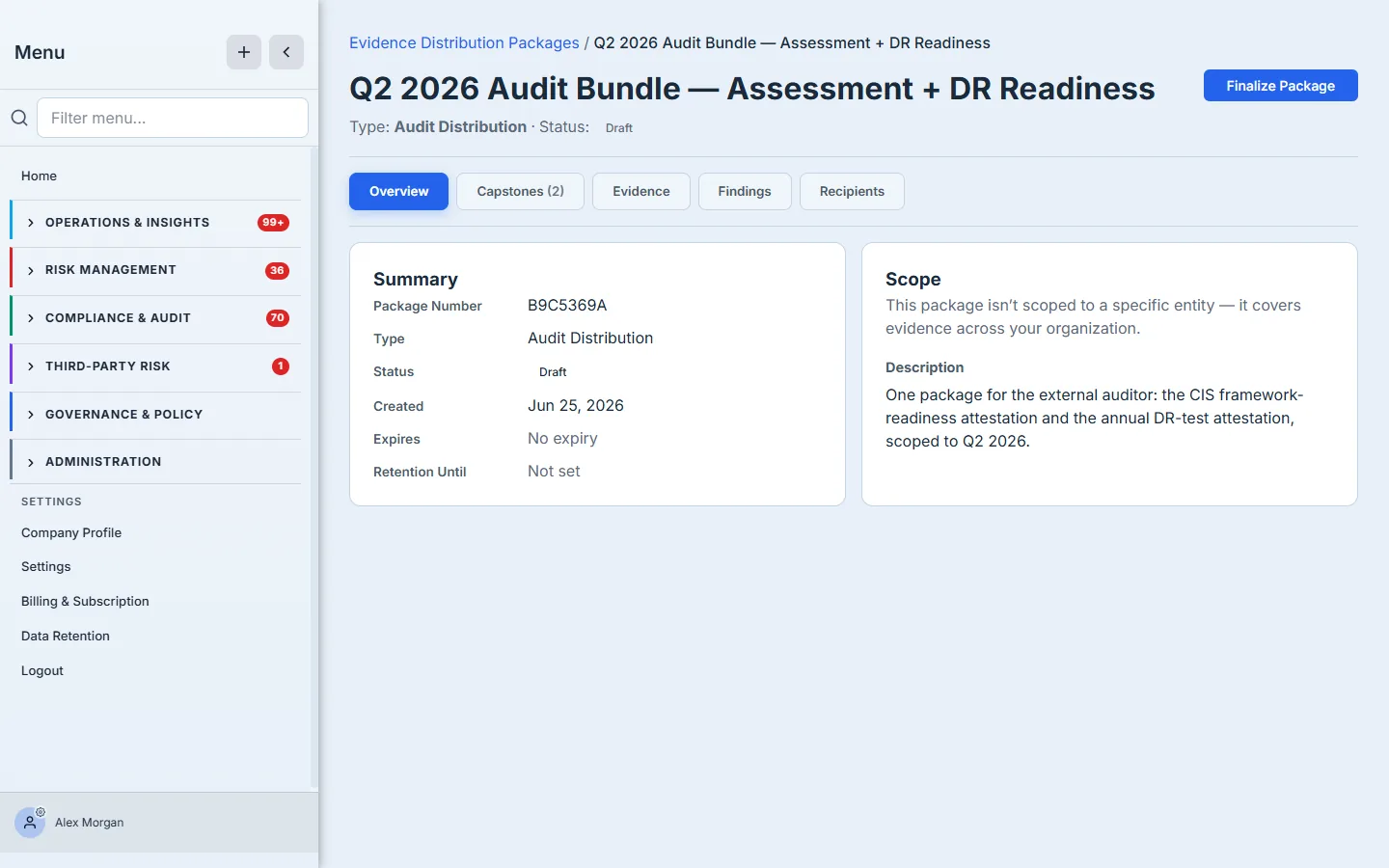
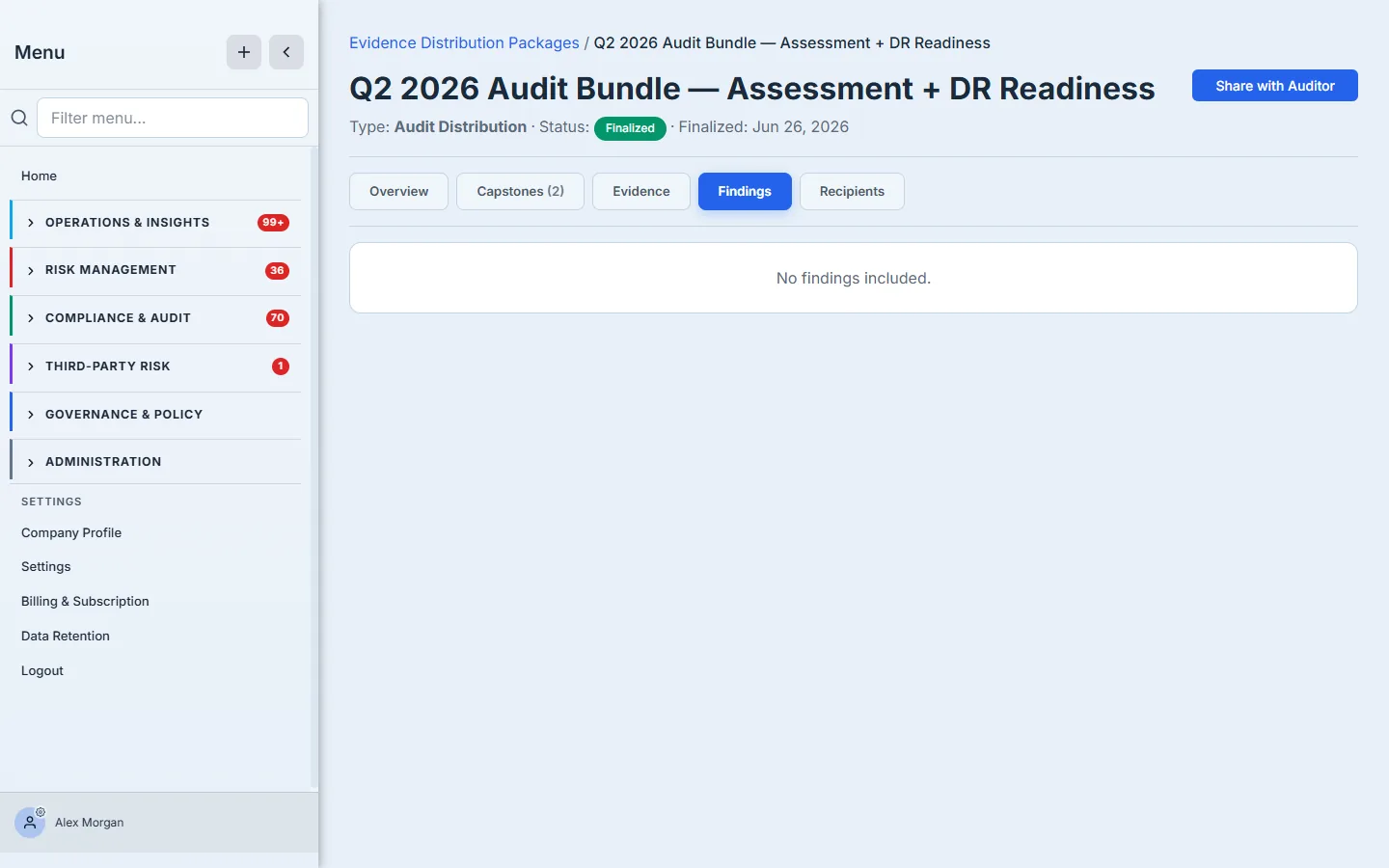
The Evidence and Findings tabs hold the supporting layer — linked evidence artifacts and any audit findings tied to the package — so an auditor following a thread from a finding to its proof stays inside the one package. They’re optional for a clean readiness handoff; the two attestations carry the story.
Step 5 — Finalize: the contents freeze
Click Finalize Package. Talarity warns you, because this is the point of no return: finalizing snapshots the included capstones into an immutable record and flips the package out of draft. A finalized package is the thing you can defend — its contents can’t drift after the auditor has seen them.
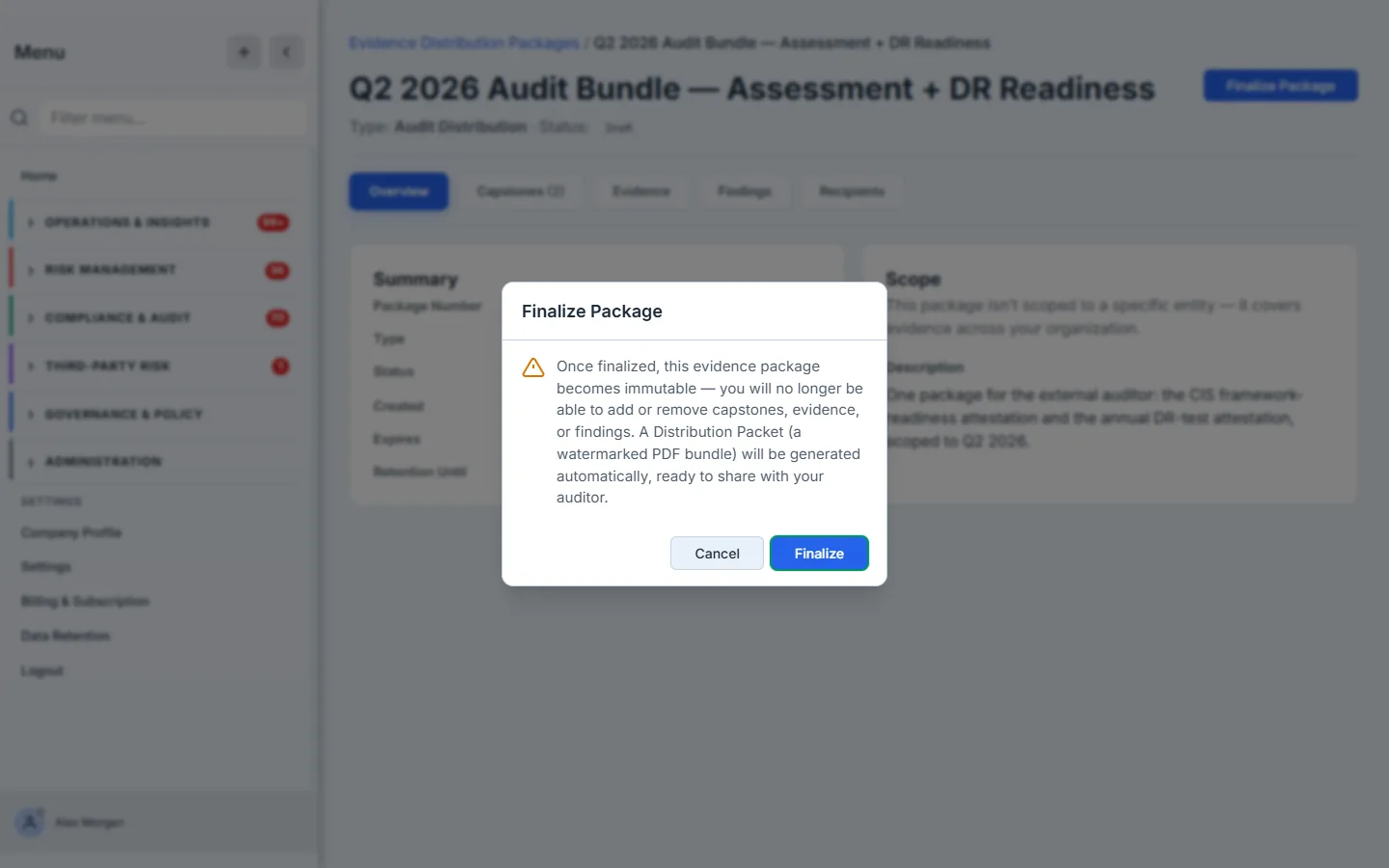
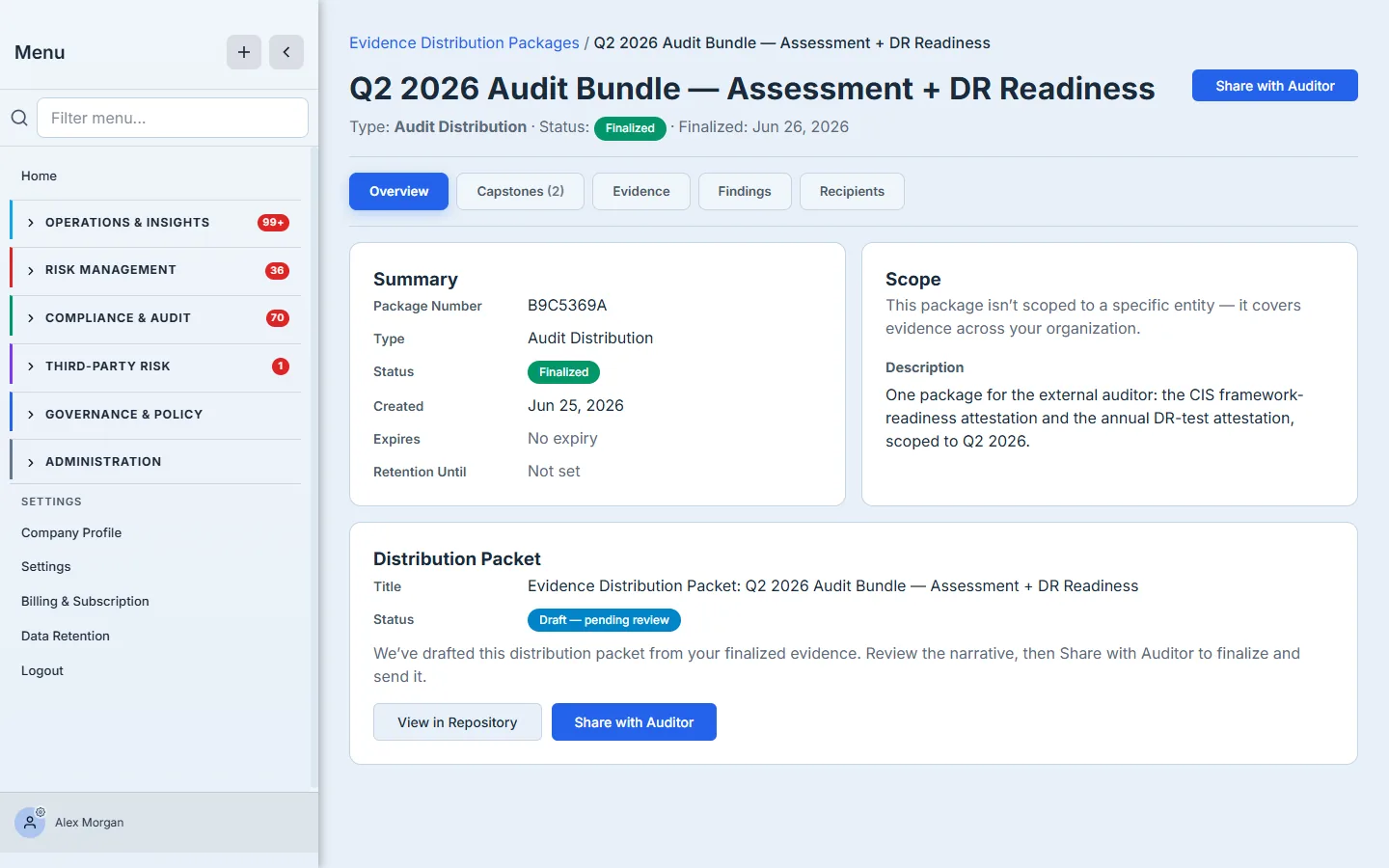
Finalizing does one more thing: it auto-drafts the Distribution Packet — the single combined PDF of everything inside — so you’re not left to remember a second button. The package status badge turns over to Finalized, and the Remove controls on the capstone rows disappear.
Step 6 — The Distribution Packet
The Distribution Packet is the cover document: a cover letter, an inclusions narrative, and a manifest of everything in the package. It’s drafted automatically at finalize; you review it, and Generate Distribution Packet (or the share step) finalizes it. When you share, this cover is bundled with the actual reports — the assessment attestation and the DR attestation themselves — into the single watermarked PDF the auditor opens, so they get the summary and the underlying evidence in one file, not a cover letter that points at documents they don’t have.
Step 7 — Share with the auditor — and decide exactly what they see
Click Share with Auditor. Enter the auditor’s email (or several, comma-separated) and pick an audience preset — external auditor, regulator, customer, or vendor. The preset seeds a checklist of exactly what gets hidden from this copy: reviewer notes, internal staff identities, per-question answers, scores, the remediation register, the evidence register — every group that actually exists in the reports you’re sending, each one you can tick or untick. A live count (“3 of 3 sensitive field groups hidden”) tells you precisely what leaves the building before you send it.
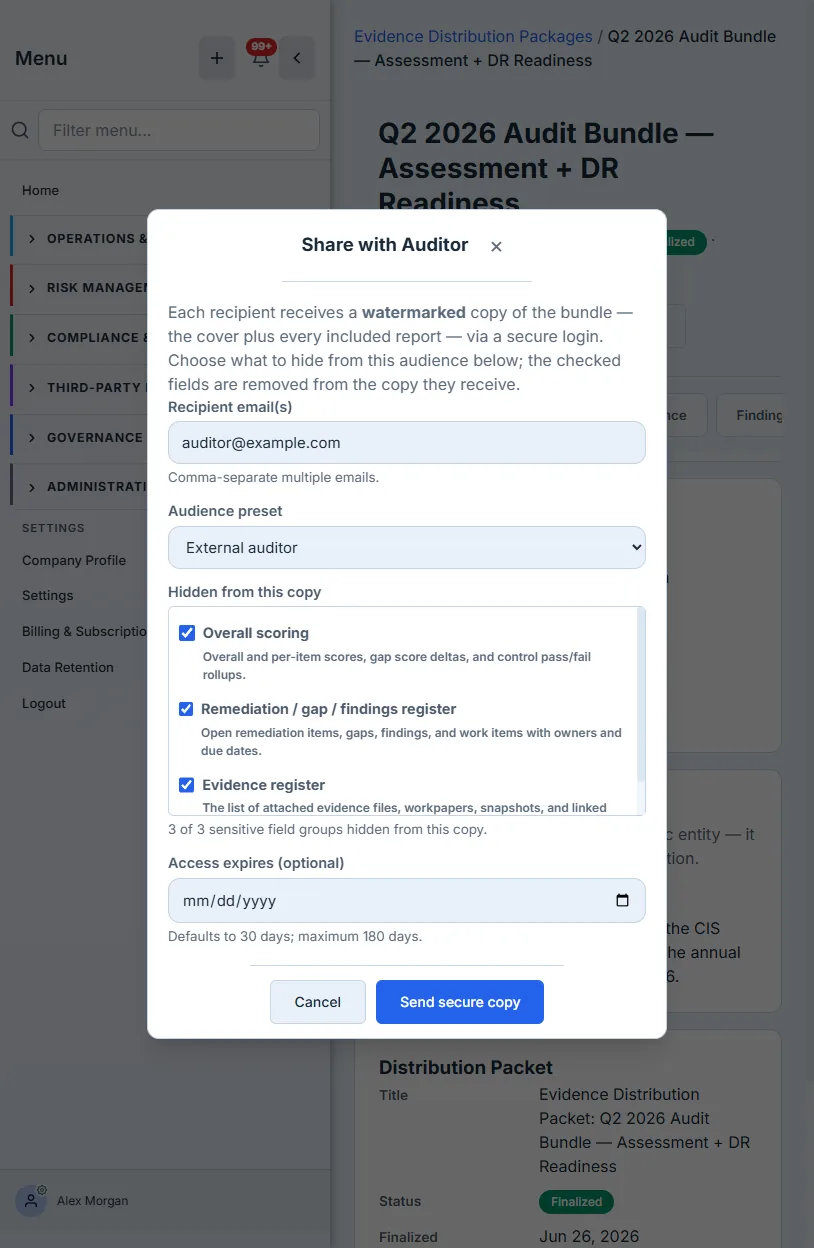
This is real, per-recipient redaction you control and can verify — not a black box. Each recipient receives their own watermarked copy of the full bundle (the cover plus every included report) through a secure login, with exactly the fields you unchecked removed from every report in it. The auditor reads the control story and the recovery story; your internal commentary and staff names stay out unless you choose to leave them in. Nothing is masked silently, and nothing internal goes out by accident. If the packet is still a draft when you share, Talarity finalizes it first, so you can’t send an unfinalized record by mistake.
Step 8 — The Recipients trail closes the loop
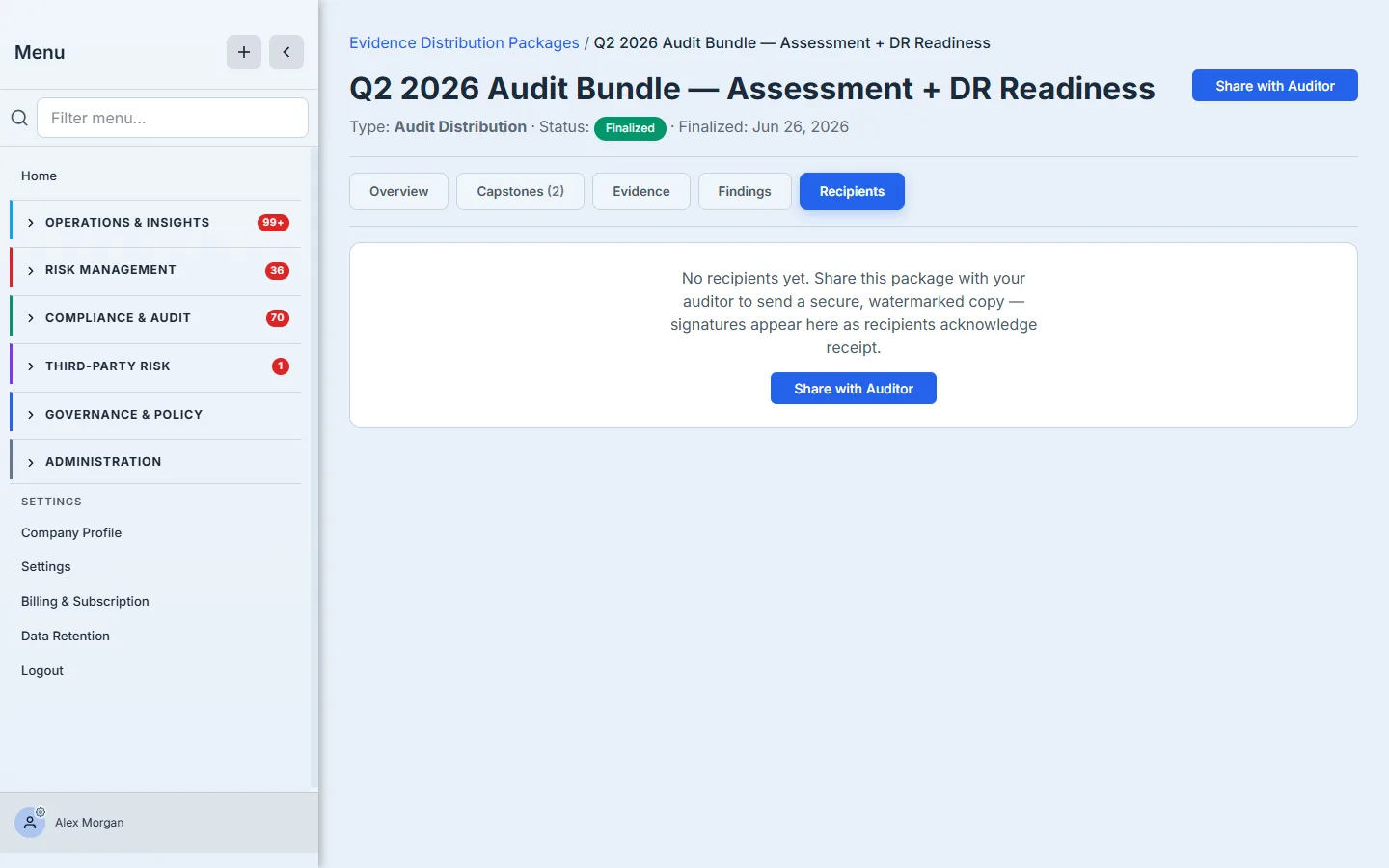
The Recipients tab is the chain-of-custody record an auditor’s own working papers expect — not just “we sent it,” but who received this exact watermarked, redacted copy and when they acknowledged it. Before you share, the tab explains itself rather than sitting blank, and the Share action is right there. Once you send, each recipient appears by name with a Signed badge and the date they countersigned — the proof that this specific copy reached this specific auditor.
Where the two domains came from
The two attestations in the package aren’t authored here — they’re produced in their own surfaces and simply included. The assessment attestation is generated from a completed assessment run (/app/assessment-center); the DR attestation is generated from a disaster-recovery test (/app/grc/bcdr/exercises). Each is generated as a report and then published — the step that seals it, after which it can be signed but no longer edited. By the time you’re assembling the package, both already live in your Capstone Library as published reports — which is exactly why the one picker can offer them together.
What you walk away with
- One package, both domains — a control attestation and a recovery attestation in a single immutable record, scoped to the same period and shared on one link, instead of two folders the auditor has to reconcile.
- A picker that doesn’t make you choose a domain — browse every finalized report by category, search across thousands, and save the whole cross-domain package as a reusable template; mixed evidence is the default, not a special case.
- Per-recipient redaction you control and can verify — a checklist of exactly which sensitive field groups (reviewer notes, staff identities, scores, the remediation and evidence registers) are removed from each recipient’s copy, with a live count, applied to every report in the bundle. Nothing is masked silently, and nothing internal leaves unless you leave it checked.
- A chain-of-custody trail — the Recipients tab records who received which copy and when, the way an auditor’s working papers expect.
Open /app/evidence-packages, click New Package, and add the last assessment attestation you finalized and the last DR-test attestation you finalized to the same package. Finalize it, share it to yourself as a test recipient, and you’ll have handed over your compliance story and your resilience story as one defensible record — which is how the auditor wanted to read them anyway.