Every production change is a small bet. Most pay off; the ones that don’t are how you end up explaining an outage to a customer — or an auditor. SOC 2 CC8.1 and ISO 27001 A.8.32 both want the same thing: evidence that changes are requested, risk-assessed, reviewed, and approved before they ship. The usual answer is a ticket queue and a chat thread, which is exactly the evidence that doesn’t survive an audit.
Talarity’s Change Advisory Board makes that process a first-class object: a register of change requests, each risk-scored, moved through a submit → CAB-review → approval workflow, with the approval decisions recorded by role. The record is the audit trail.
The change register
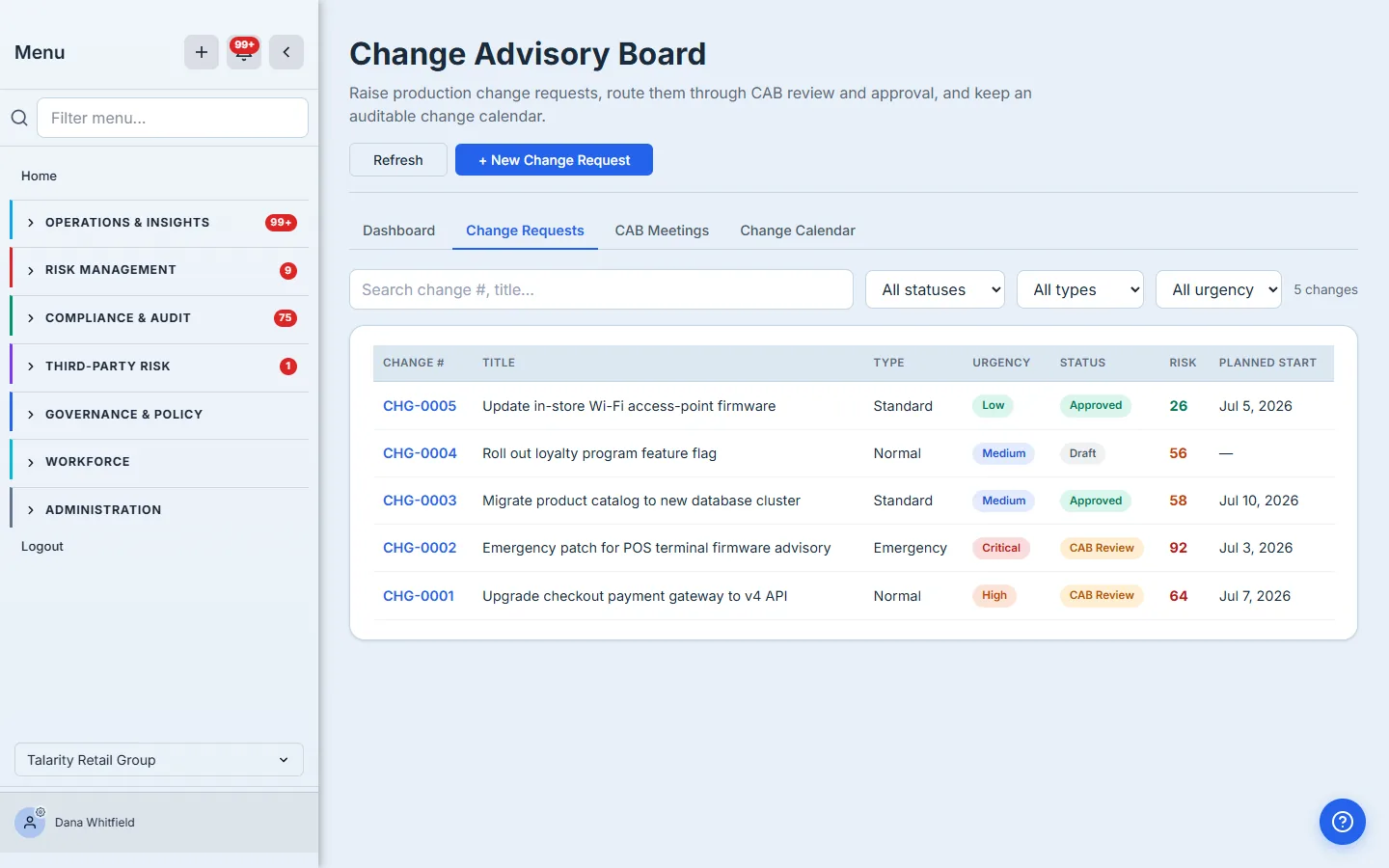
The Change Requests tab is the register. Every change carries a change number, its type (standard, normal, emergency, major), urgency, status, and a risk score — plus its planned start. It’s searchable and filterable by status, type, and urgency, so it stays usable whether you run five changes a month or five hundred.
Raising a change
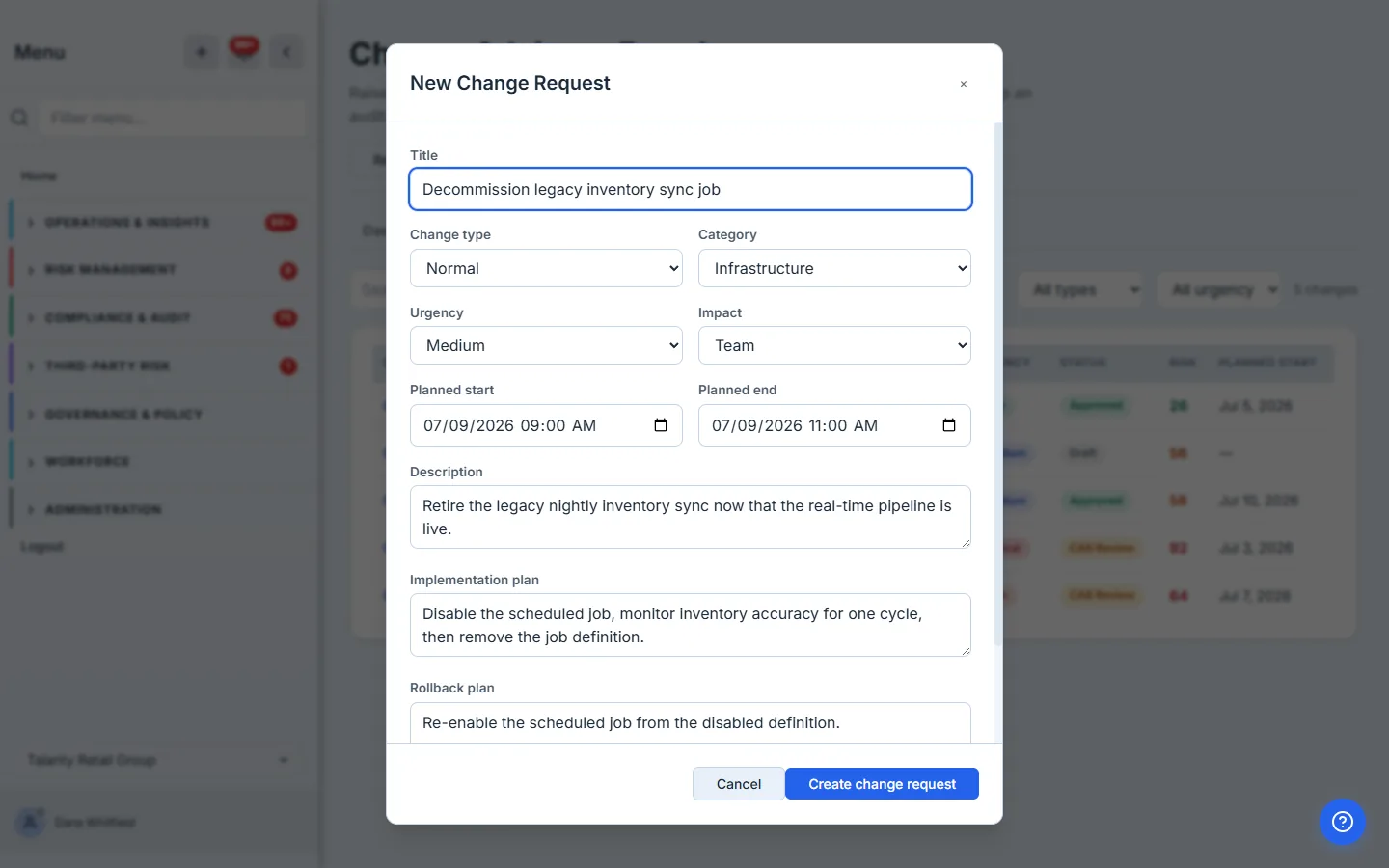
Raising a change captures what a CAB actually needs to make a decision: the type and category, the urgency and blast radius (impact), the planned window, and — critically — the implementation plan and rollback plan. Those aren’t optional niceties: a change can’t be submitted for review until it has them, which is the point. The risk score is derived automatically from urgency, impact, and change type, so a critical org-wide emergency scores higher than a low-urgency team change without anyone arguing about it.
The change in detail — risk, plans, and the CAB decision
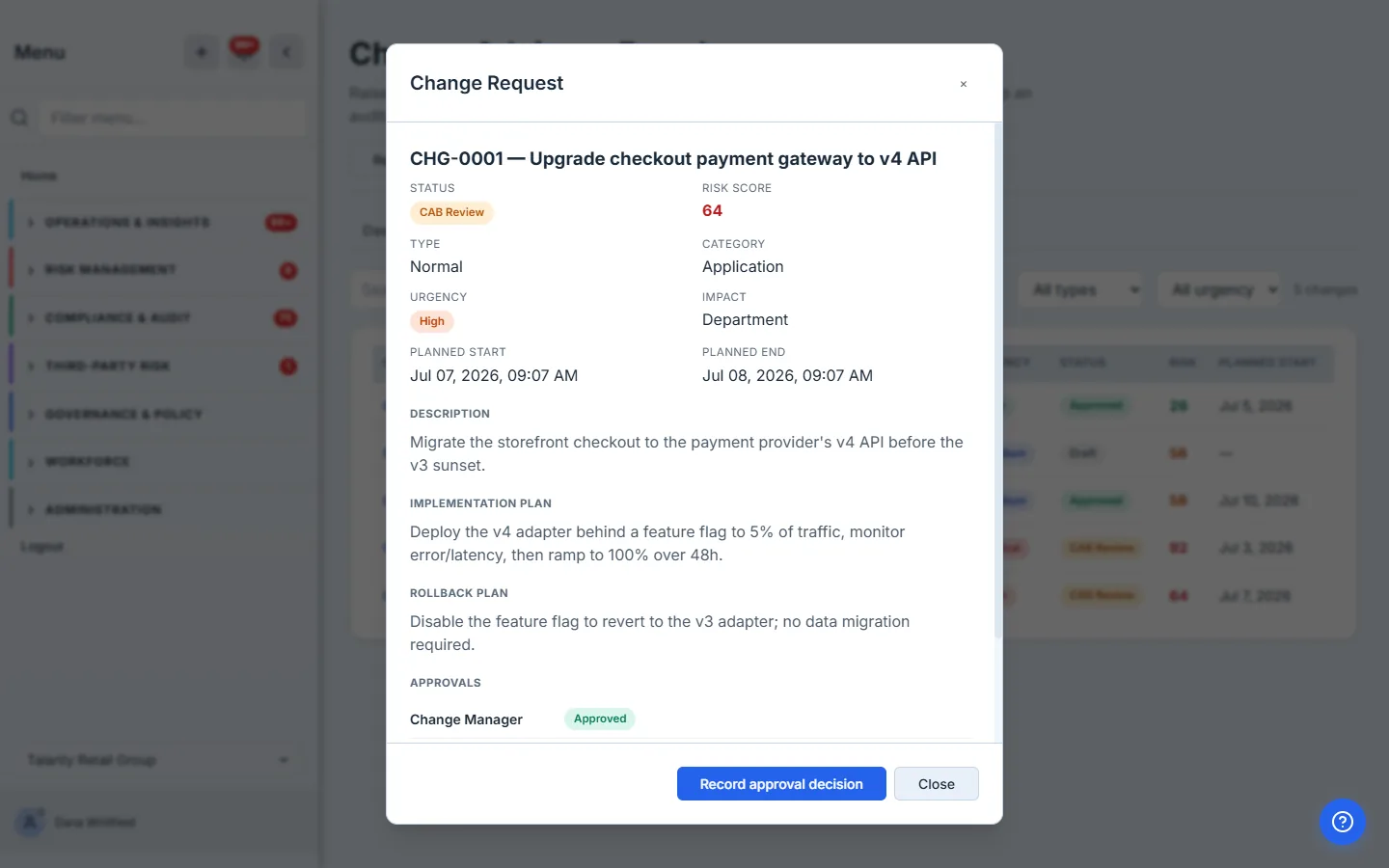
Open any change to see everything a reviewer weighs in one place: its risk score, type/category/urgency/impact, the planned window, the full implementation and rollback plans, and the approvals collected so far. A draft shows a Submit for CAB review button; a change in review shows Record approval decision.
Recording a CAB decision
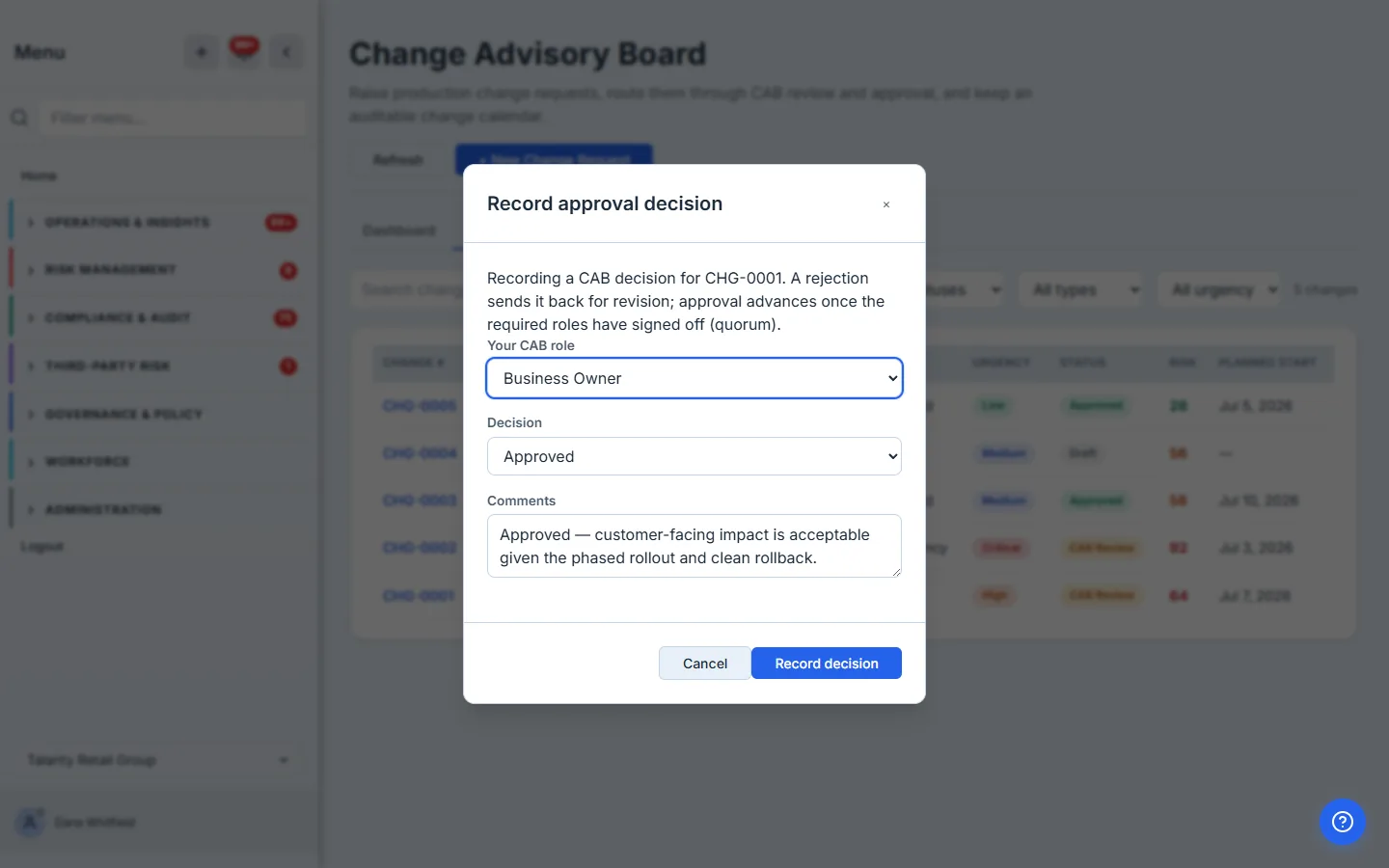
CAB approval isn’t one signature — it’s a quorum. Each reviewer records their decision in their role (change manager, CAB member, security, business owner, technical owner) as approved, rejected, more-info, or abstain, with a comment. A rejection sends the change back for revision; the change advances to approved only once the required roles have signed off. Every decision is stamped and kept, so “who approved this, and when” is never a mystery.
The board at a glance
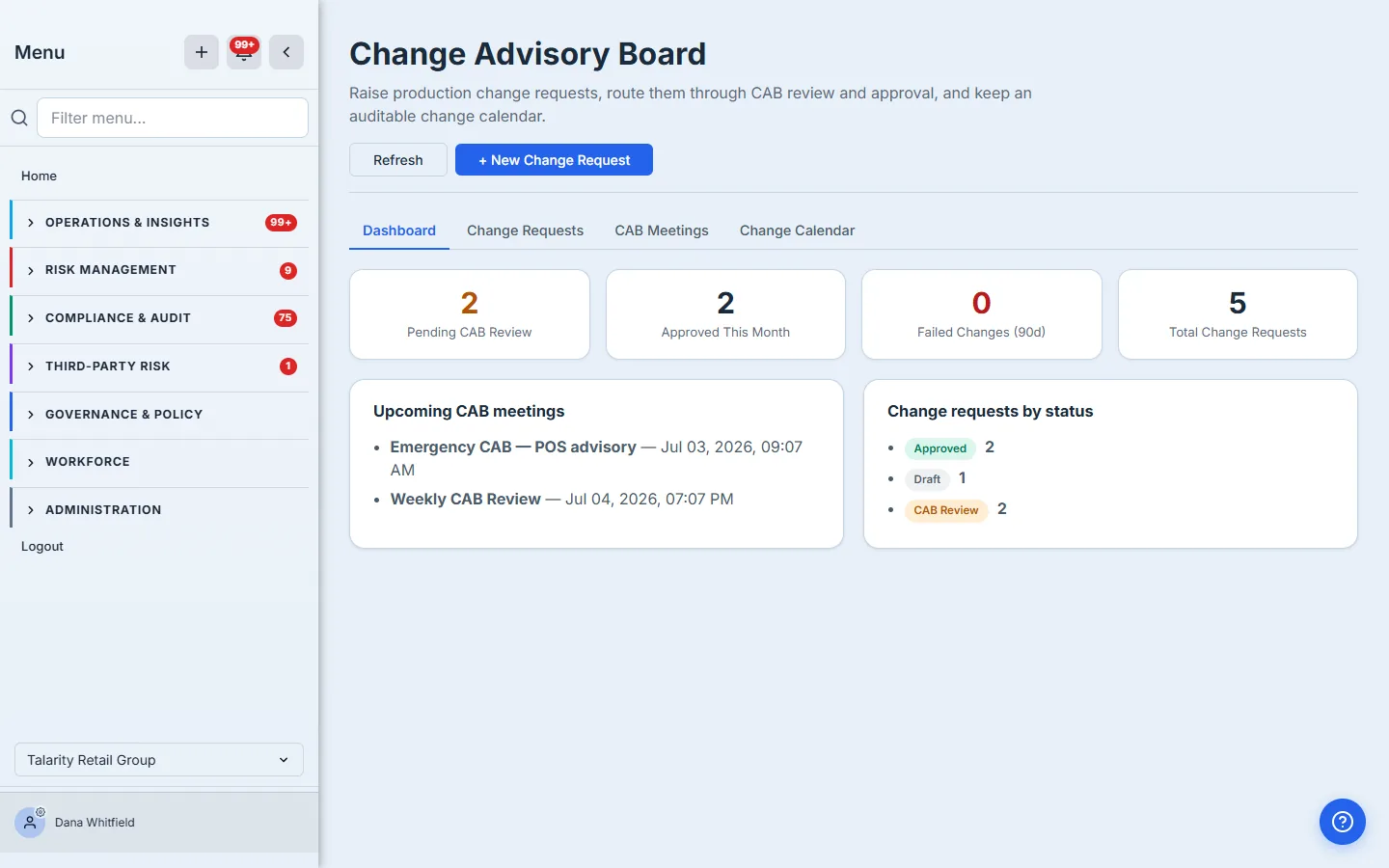
The Dashboard answers the questions a change manager opens the day with: how many changes are pending CAB review, how many were approved this month, how many failed in the last quarter, the total on the books — plus the next CAB meetings and a breakdown of every change by status.
The change calendar
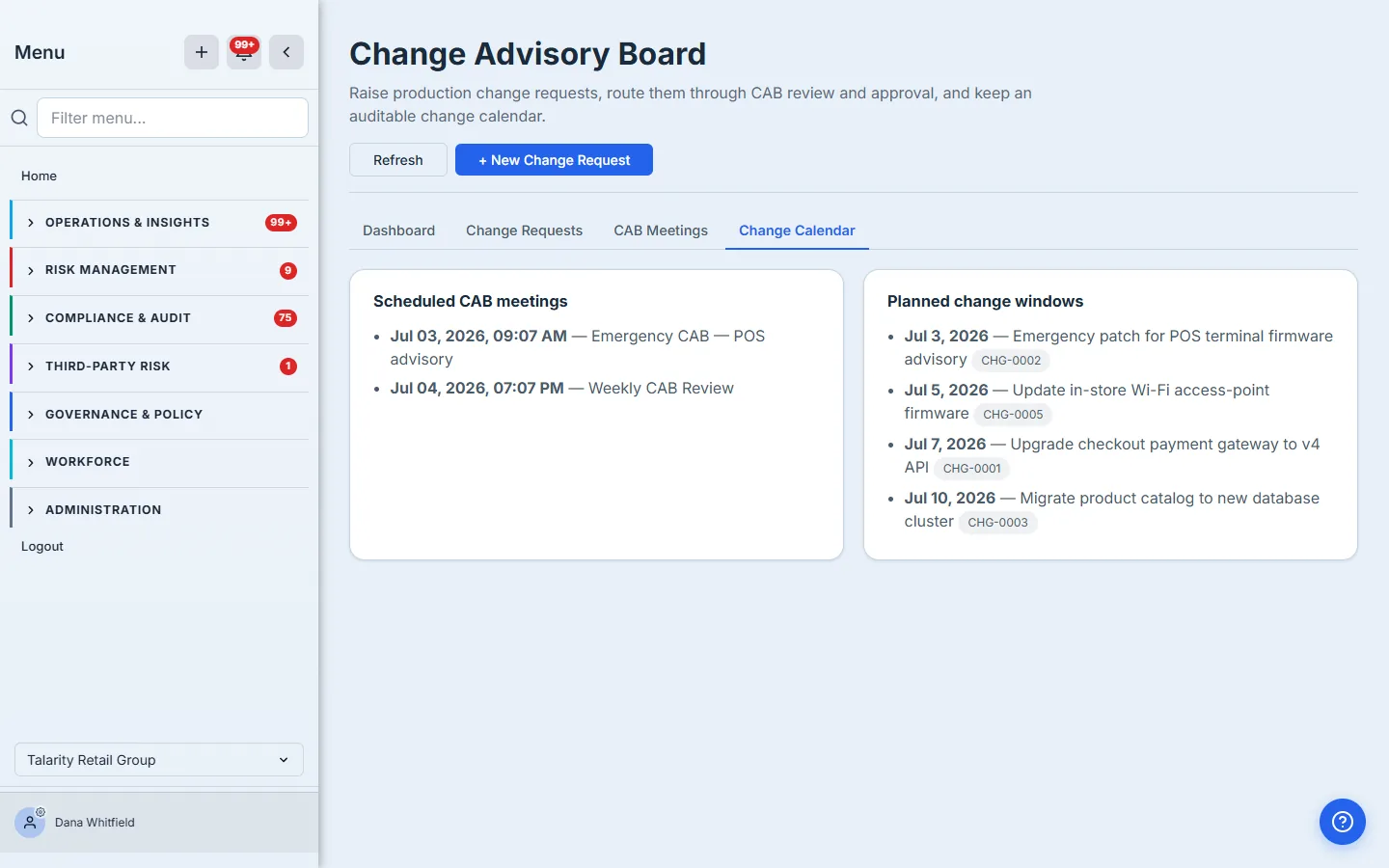
The Change Calendar puts your scheduled CAB meetings and your planned change windows side by side, so you can see what’s landing when — and spot two risky changes stacked on the same night before they collide.
What you walk away with
- A change register where every production change is risk-scored and tracked from draft to closed.
- A submit-to-CAB workflow with a completeness gate — no change reaches review without an implementation and rollback plan.
- A multi-role approval quorum, recorded decision-by-decision, that advances a change only when the required roles have signed off — a rejection sends it back.
- A change calendar of meetings and planned windows, and a dashboard of what’s pending, approved, and failed.
When your SOC 2 auditor asks for CC8.1 evidence, you won’t be reconstructing a chat thread. You’ll be exporting the record.