Every framework that touches policy management agrees that policy content has to be reviewed, dated, and version-controlled — and that every version an auditor inspects must be the version that was in force at the moment in question. SOC 2 calls it out across CC2.3 (information communicated to internal stakeholders) and CC1.4 (commitment to integrity, operationalised through cyclical review). ISO 27001:2022 A.5.1 mandates that policies are approved, communicated, and reviewed at planned intervals or when significant changes occur. NIST SP 800-53 PM-1 / PL-1 carry the same expectation. The auditor asks “what version of the BCP was in force on the day of the incident?” and expects you to produce the exact bytes that were live then — not the current draft.
Most teams overwrite. The “Information Security Policy.docx” in the shared drive is the policy — there’s no v1.0 because there’s no v1.1 to compare it to, and the only audit trail is whatever Word’s Track Changes happened to capture. Talarity treats every change as one of three explicit operations — edit a draft, version a published policy, or author a new policy — and keeps the history of every prior version queryable. Customers regularly conflate these three; this article is the map.
Who’s involved
- Compliance lead / policy owner — picks the right operation for the change at hand; editing a draft before publish is different work from shipping a new version after.
- Approver(s) — re-approval is automatic when a major version ships; a minor edit doesn’t trigger it.
- Auditor — pulls any historical version directly from the policy’s History tab, with the same provenance the live version has.
What’s on the page
Open /app/grc/governance. The header carries two buttons that look similar but do very different things: + New Policy and + Import Policy. Both create a policy that didn’t exist yesterday. The list below shows every policy you already have — that’s where you go when you want to change one, not create one.
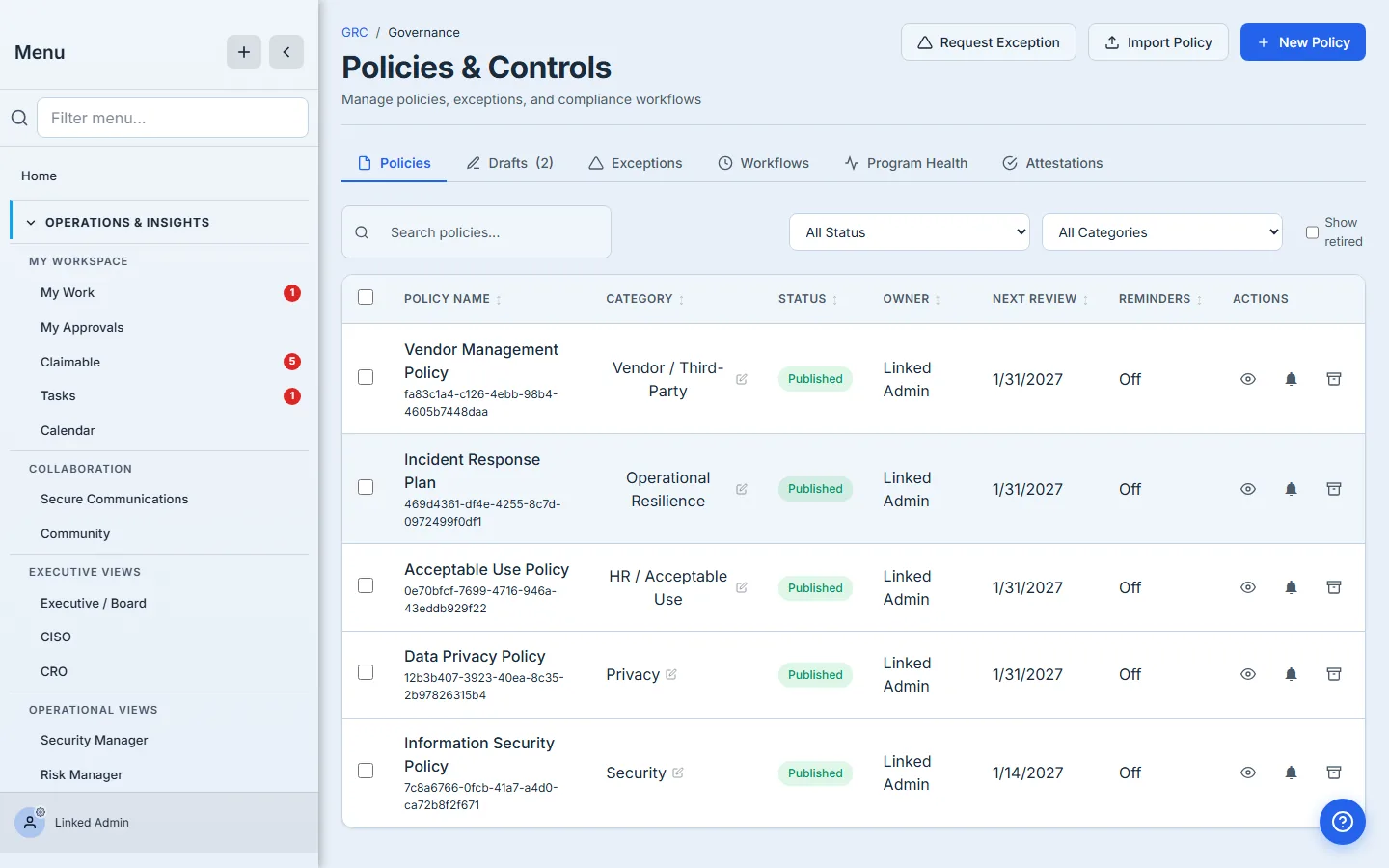
The split below is the right mental model:
- I’m creating a policy I didn’t have yesterday → use one of the two header buttons.
- I’m changing a policy I already have → click into its row.
Both halves write to the same place — the policies table — and both produce rows the History tab can show as immutable per-version snapshots. The difference is which path.
Path 1 — Author a brand-new policy from a template
Click + New Policy. Talarity navigates to its Policy Templates picker — a curated library of starting points categorised by framework (Security, Compliance, AI, Vendor, HR, Privacy, Operational).
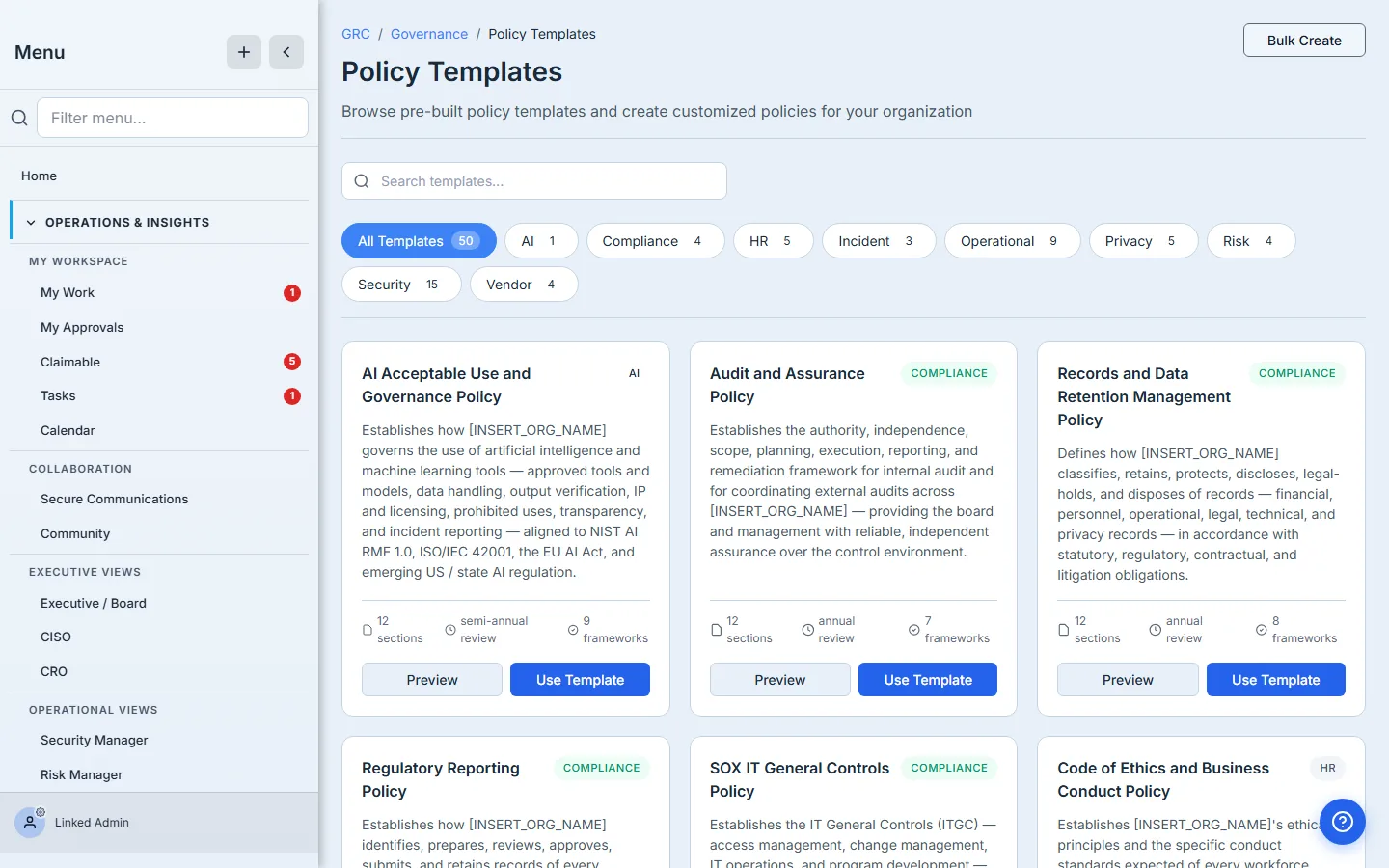
Pick a template, fill in the placeholders the template asks for, and Talarity produces a draft policy with structured content fields the Content tab can edit in place. You’re free to edit the draft as many times as you want before submitting it for approval — there’s no version chain yet because nothing is published.
Once you publish, the policy lands at v1.0 with an immutable chain row, and any further change goes through path 3 (version) below.
The approval gate — a draft isn’t live until someone signs off
The draft you just authored is not a published policy. Most frameworks expect a policy to be approved before it takes effect — SOC 2 CC1.1 and ISO 27001:2022 A.5.1 both want documented management approval, with evidence of who signed off and when. Talarity makes that approval a gate the draft has to pass, not a box you tick afterwards.
On a draft, the header carries a Submit for Approval button. Click it and you pick the approvers — in order. The chain is sequential: each approver must approve before the next is even notified, and self-approval is blocked, so whoever wrote the policy can’t be the one who rubber-stamps it. Add an optional submission note, and the draft becomes a real policy in pending review.
From there the Approvals tab is the system of record. It shows the chain in submission order — who has approved, who is the current approver, and who is still pending — alongside an approval history that captures every submit / approve / reject with its timestamp and reason. The current approver (and only the current approver) gets an Approve / Reject panel; approving advances the chain, rejecting returns the policy to draft with the history intact so it can be cleanly re-submitted.
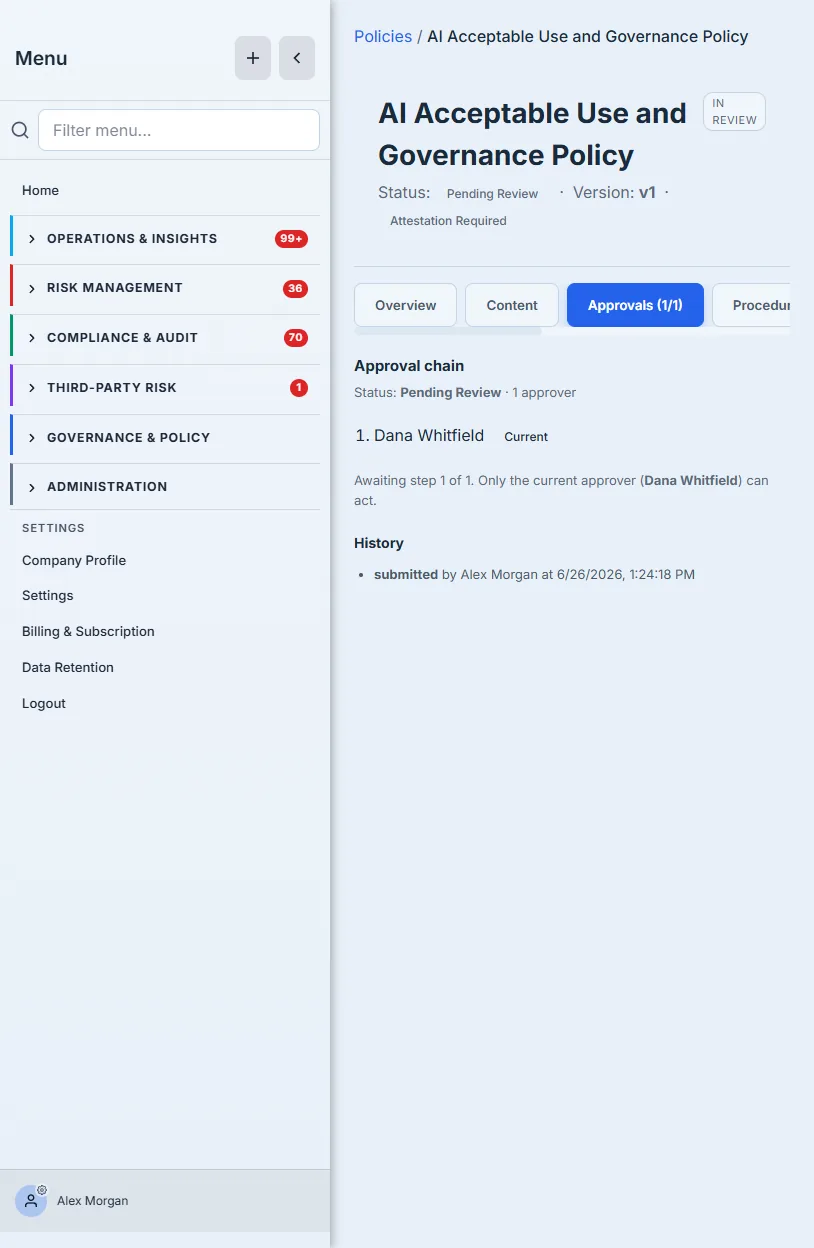
Only when every approver has signed off does the policy turn Approved and the Publish Policy button appear in the header. Publishing is the moment it goes live at v1.0; from then on, changing it means a new version (path 4 below), not a quiet edit. The gate, the ordered chain, and the immutable history are exactly the documented, approved, with evidence trail an auditor asks for — produced as a by-product of shipping the policy, not assembled afterwards.
Path 2 — Import a policy you already have as a file
You already have your Information Security Policy as a Word doc. You don’t want to retype it into a template — you want to bring the file under management.
Click + Import Policy instead. The modal collects the file plus the metadata an audit needs:
- Policy Document — PDF, DOCX, or any readable format. Talarity stores it in your Artifact Repository and computes a SHA-256 fingerprint so you don’t accidentally double-upload the same file later.
- Title, Version, Category — what shows up in lists, searches, and the History rollup.
- Effective Date + Next Review / Expiration — drives every renewal reminder downstream.
- Owner — the person on the hook for keeping this policy current. Reminders fire to this user. Defaults to you, but pick the right owner if it isn’t.
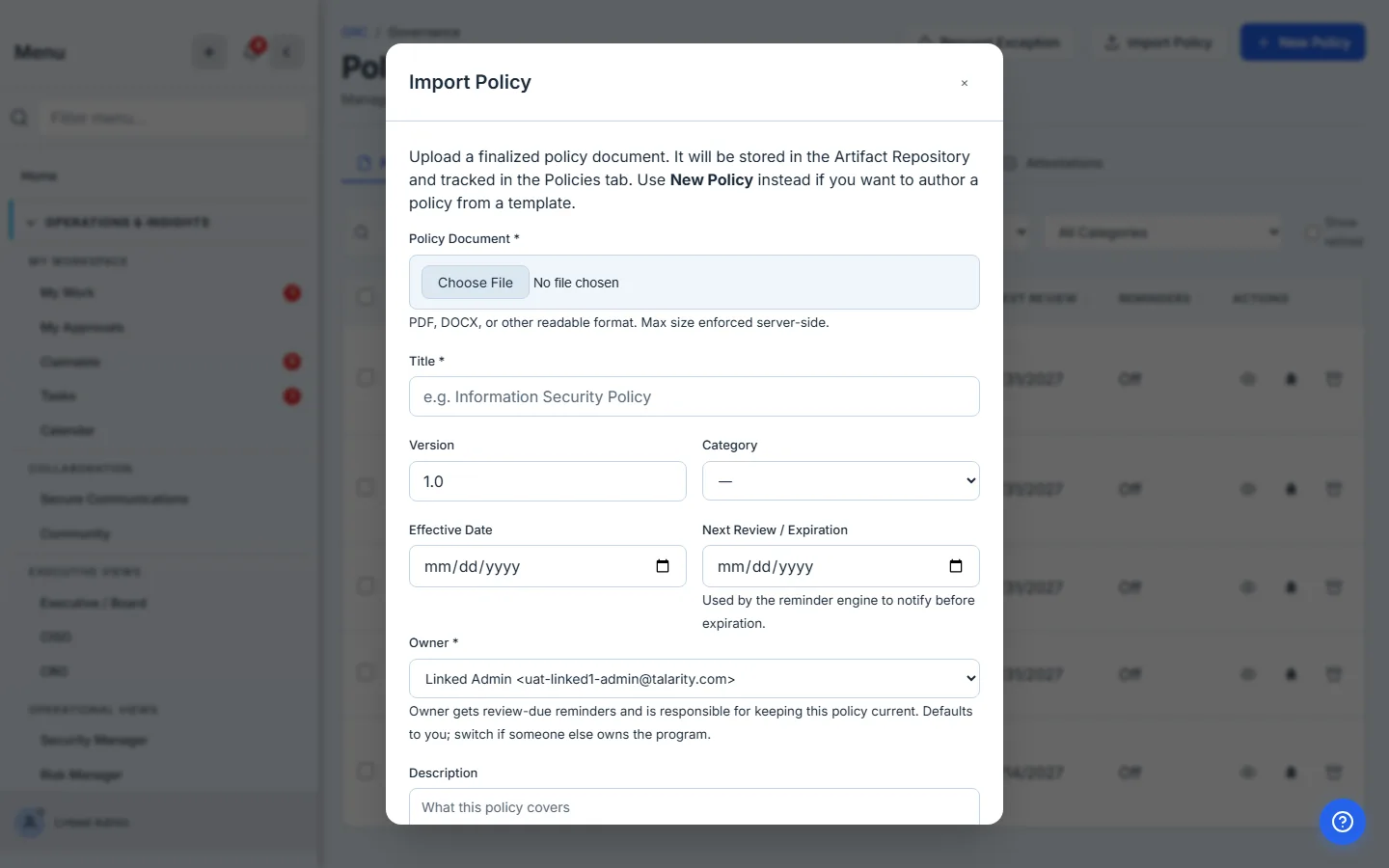
Submit and the policy registers as Published with v1.0, pointing at the imported PDF as its source-of-truth artifact. Imported policies don’t have structured content fields the Content tab can edit — the content lives in the file. Updates go through Upload New Version (path 4 below) rather than in-place editing.
The choice between New Policy and Import Policy is a one-time call. Template-authored policies live with their content inside Talarity (editable on the Content tab); imported policies live with their content in the file. Once you’ve picked, the change paths diverge — authored ones get content edits and createVersion semantics, imported ones get file replacements through Upload New Version. The shape of your policies should follow the workflow that fits the way your team writes them, not the other way round.
Path 3 — Edit a draft (no version bump)
The “edit a draft” path applies only before publish. Open a draft policy, switch to Content, and the section editor is live. Anything you change saves as you go — no version chain, no re-approval, no notifications. The auditor doesn’t see drafts; only published versions land in the History tab.
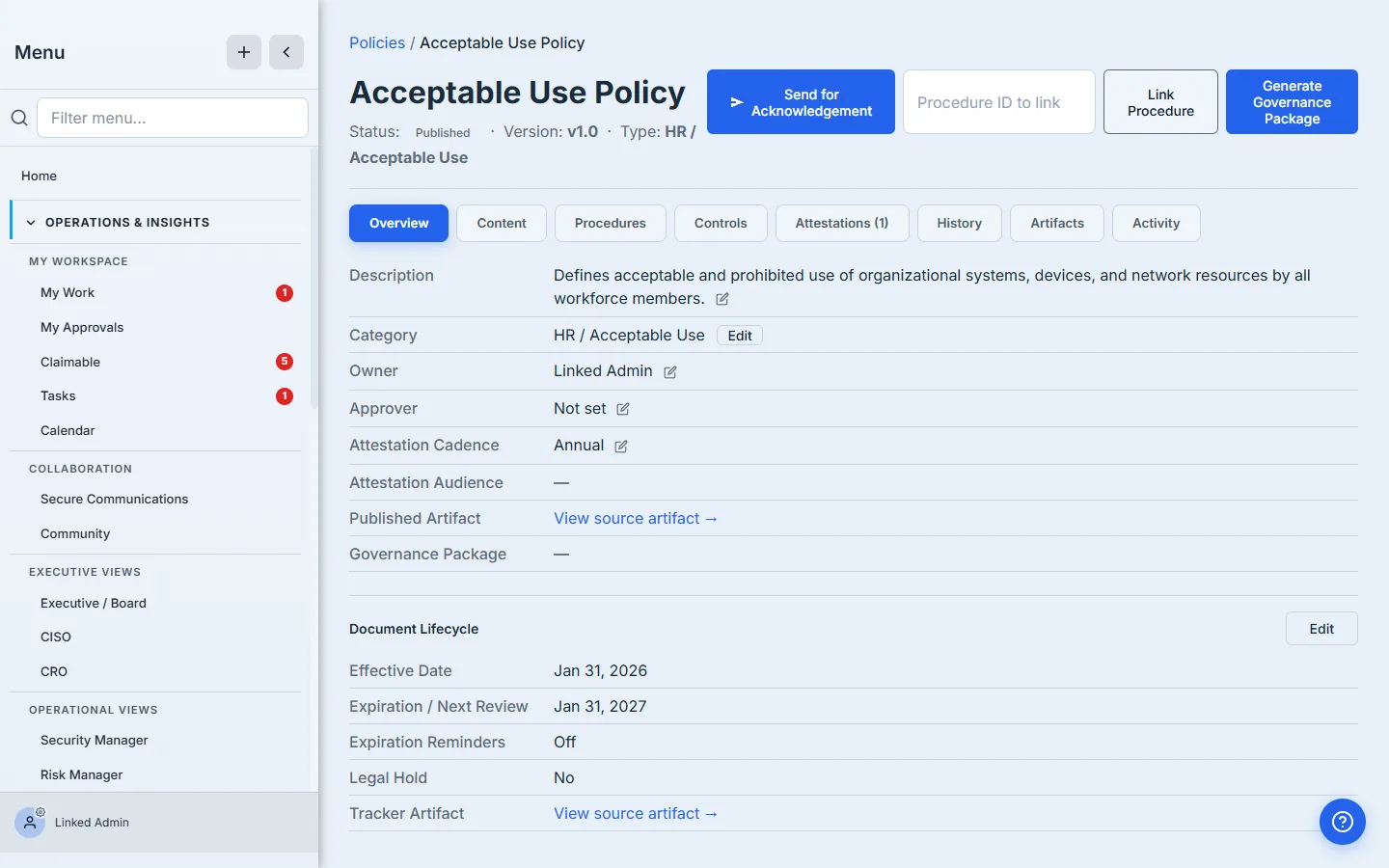
For an imported policy like the Acceptable Use Policy above — already published, content backed by a file — the Content tab shows the upload affordance rather than a section editor. There’s no draft to edit in place; the next change goes through a new file (path 4).
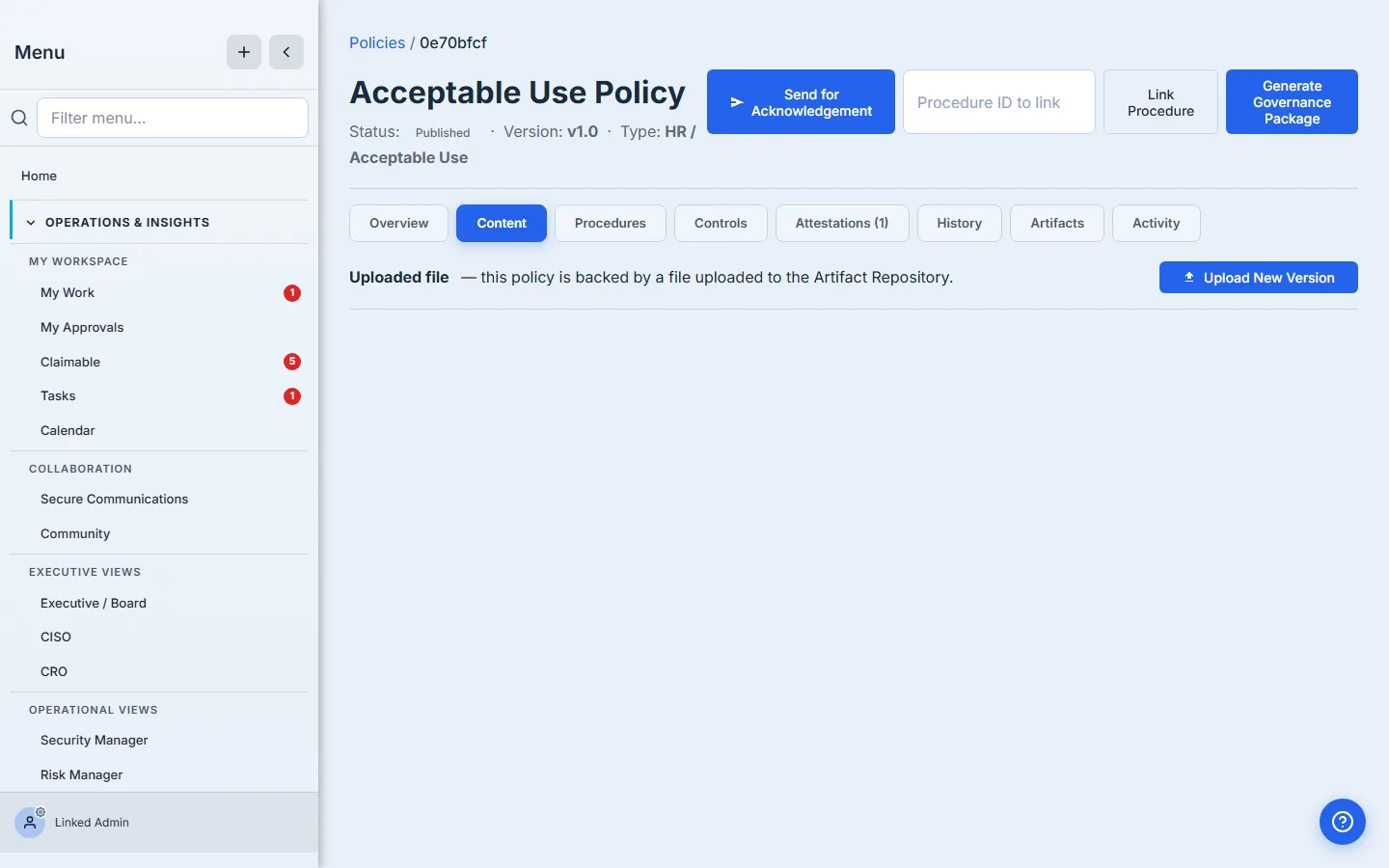
Path 4 — Ship a new version of a policy that’s already live
You’ve published v1.0. Three months in, the BCP needs an update; the WISP needs the new vendor section; the IR plan needs the new incident reporting steps. You’re not writing a new policy — you’re shipping v1.1 (or v2.0) of the one you already have.
Click Upload New Version on the Content tab.
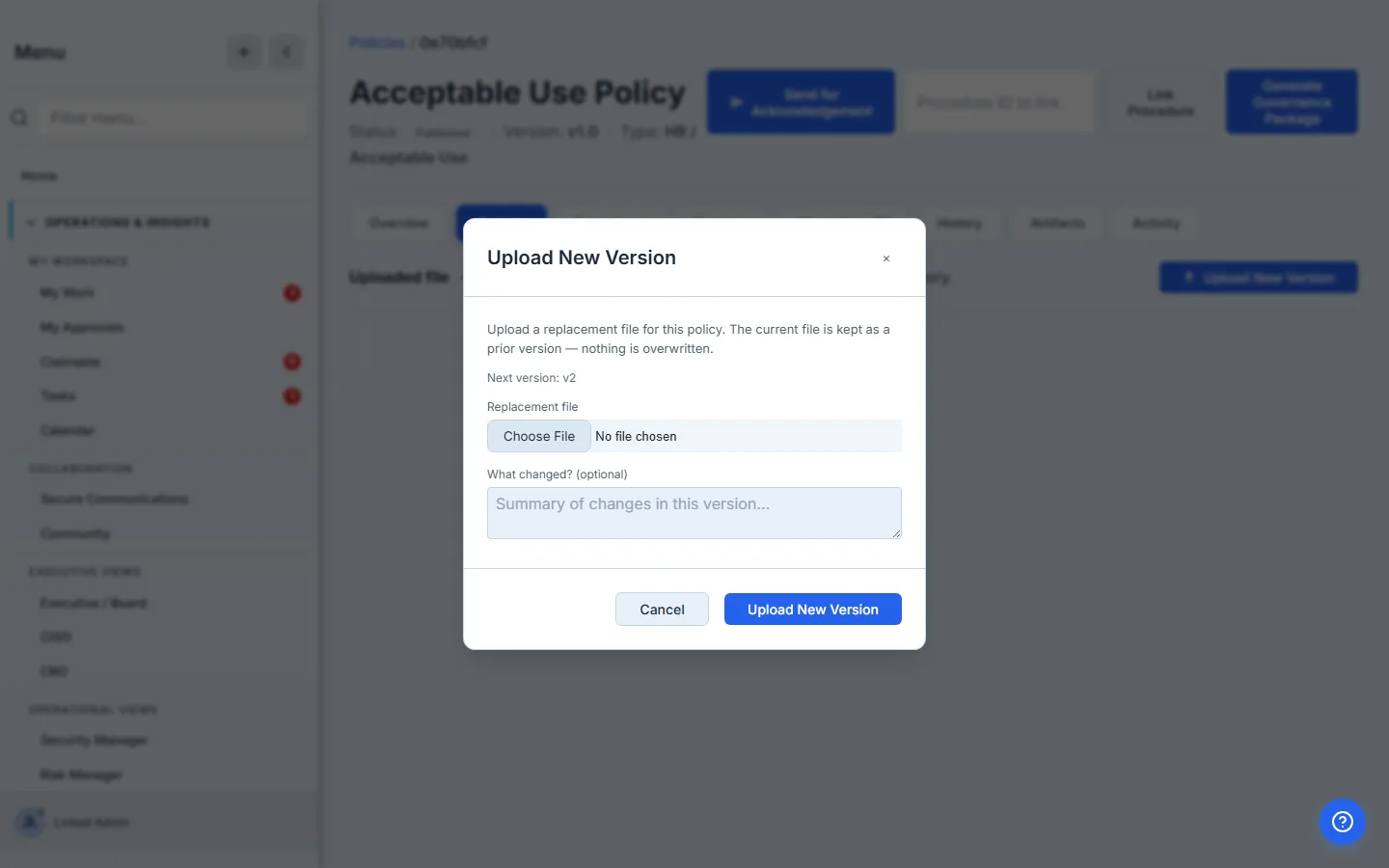
The modal tells you the load-bearing fact: the current file is kept as a prior version — nothing is overwritten. When you upload, Talarity:
- Stores the new file as a fresh artifact next to the old one (same
chainRootId, incrementedversionNumber). - Updates the policy’s HEAD to point at the new version.
- Captures the “What changed?” note as immutable provenance on the new version row.
- Keeps the prior version’s bytes queryable forever — an auditor pulling “what version was in force on day X” gets the exact PDF that was live then.
Step 5 — The History tab is the auditor’s view
Switch to History on any policy that’s been through more than one upload. The tab lists every version with its publishedAt, publishedBy, version string, and the diff note you wrote. Click into any prior version and you get a deep link to the immutable artifact for that version — not the head.
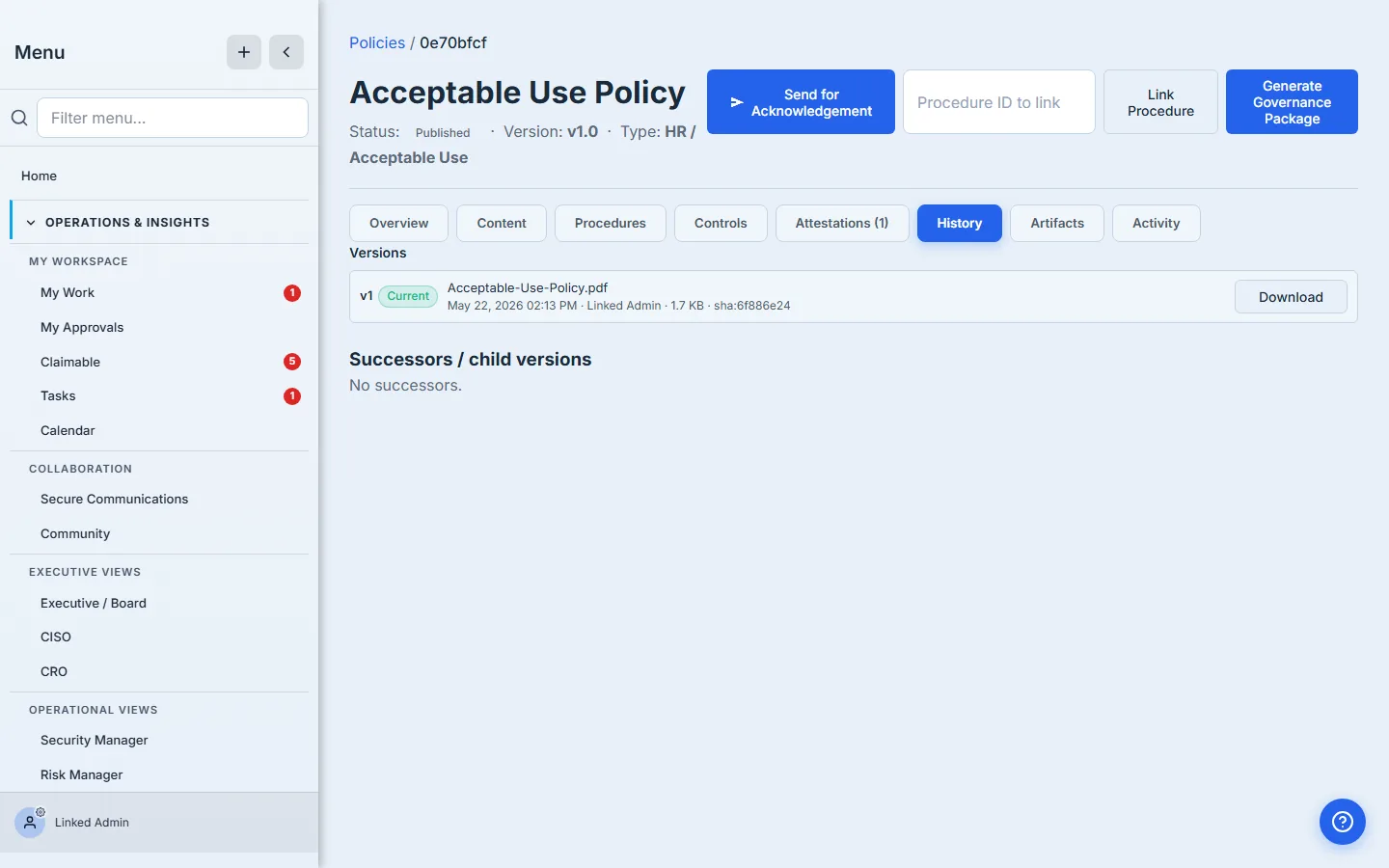
This is why path 4 (“upload a replacement file”) isn’t the same as “open the Word doc and save over the old one.” Save-over erases history. Upload New Version captures it.
The three paths, side by side
| Operation | When | Where | Touches |
|---|---|---|---|
| Edit a draft in place | Before publish | Content tab on a draft | Nothing snapshots; live editing of the draft row. |
| Upload a new version (imported policies) | After publish, file-backed | Content tab → Upload New Version | Prior file kept as immutable version; HEAD moves to the new file; History tab grows by one row. |
| Create a new version (authored policies) | After publish, template-backed | The version-control path on authored policies (today: the backend risk.governance.createVersion action; a first-class UI button is on the roadmap). | Minor (1.x → 1.x+1) or major (x.0 → x+1.0); major + requiresReapproval re-enters the approval chain; chain row snapshots the old version. |
| Author a new policy | New policy that didn’t exist yesterday | + New Policy → template picker | Fresh policy, status Draft, no version chain yet. Publishes at v1.0. |
| Import a new policy | New policy from a file you already have | + Import Policy → file modal | Fresh policy, status Published, points at the imported file as its v1.0 artifact. |
What you walk away with
- A clean separation between “create a new policy” (two paths, both
New Policy/Import Policy) and “change an existing one” (Content tab + Upload New Version). - A versioning model where every prior version is queryable forever — Upload New Version keeps the old file; nothing is overwritten.
- A History tab on every policy that an auditor can walk chronologically, with deep links to the bytes that were in force at each point in time.
- A decision rule for the policy-review backlog: edits to BCP / WISP / IR / Handbook go through Upload New Version on the existing policies; the missing Confidentiality Agreement and ESG Policy are new policies → + Import Policy (if you have the file ready) or + New Policy (if you want a template starting point).
Open /app/grc/governance and look at the policies that need attention this quarter. For each one, write a one-sentence answer to “edit a draft, upload a new version, or write a new policy?” — that’s the work plan. The first one takes a few minutes; the next one is the same shape.