Plenty of GRC tools let you define key risk indicators. Far fewer close the loop when one actually breaches. A KRI that turns red and then sits there — unacknowledged, un-owned, un-remediated — is just a worse version of no KRI at all, because now you’ve documented that you saw the warning and did nothing. Talarity is built around the breach, not the definition: it watches each indicator against its thresholds, alerts the moment one crosses, and converts that alert into a tracked remediation tied back to the indicator.
What’s on the page
KRI Alerts lives under Risk, as one tab of the unified KRI workspace (its sibling is the Indicators register, below). The page is built top-to-bottom for triage:
- The workflow bar across the top frames the whole lifecycle so you know where this screen sits: Define KRIs → Set Thresholds → Monitor Values → Review Alerts → Report to Board.
- Four stat cards give the at-a-glance posture: Critical, Warning, Unacknowledged, and Resolved (30d). The Unacknowledged count is also the badge that rides the KRI tab in the sidebar.
- Three response metrics — Avg. Acknowledge Time, Avg. Resolve Time (in hours), and New This Week — keep the queue honest: they measure how fast breaches actually get looked at and closed, not just how many there are.
- Two alert tabs — Active and Resolved — each carrying a count badge, plus Severity, Status, and Category filters above the list.
- The alert list itself: one row per breach, each with its KRI name, current value against threshold (“36 (threshold: 9)”), severity, category, age, and three action verbs — Acknowledge, Create Work Item, Resolve — with an Acknowledge All for clearing a wave at once.
The alert — a breach in context
Open KRI Alerts (under Risk). The page frames the whole lifecycle up top — Define KRIs → Set Thresholds → Monitor Values → Review Alerts → Report to Board — then leads with what needs attention now: critical and warning counts, how many are unacknowledged, and the active alert list.
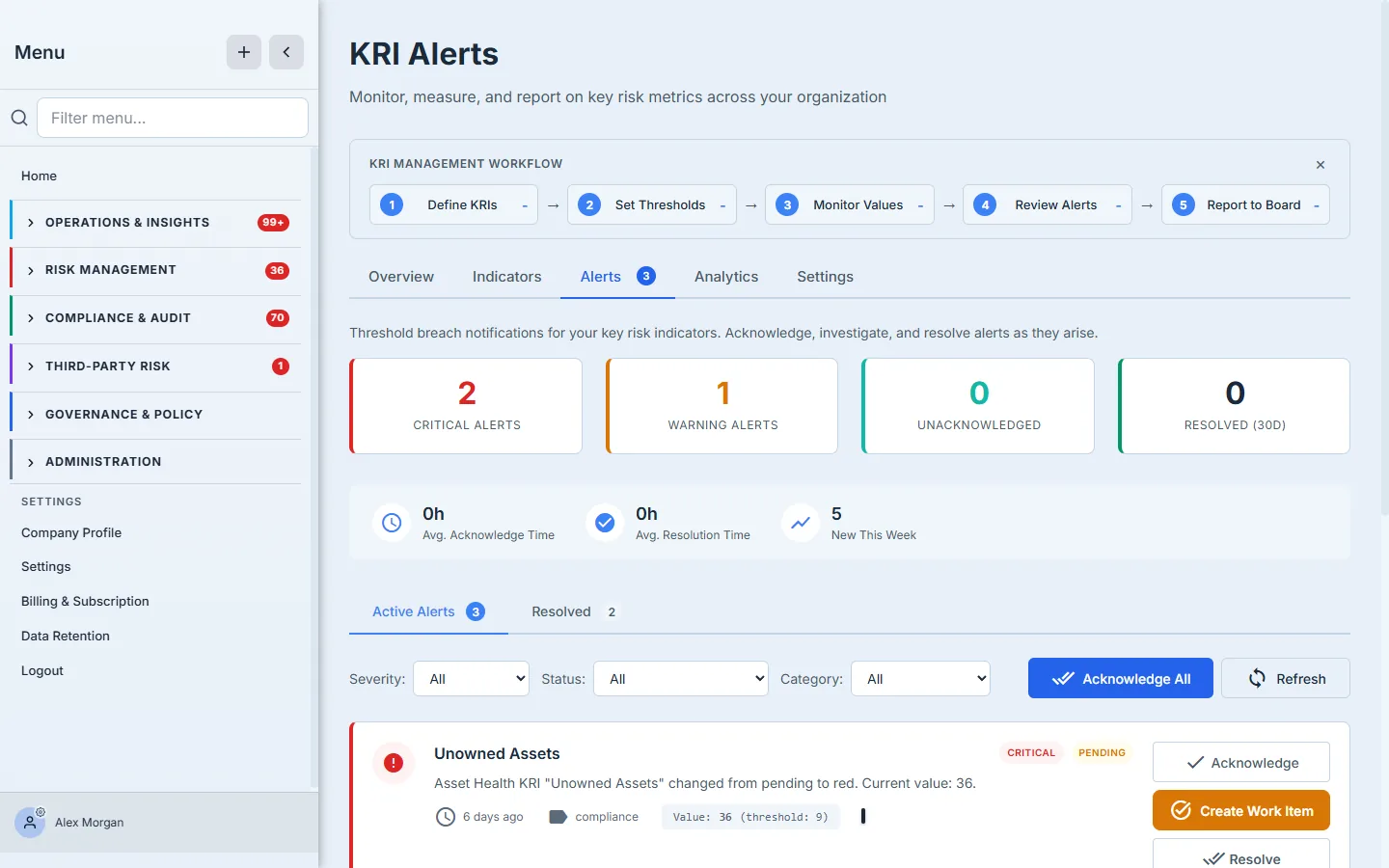
Each alert carries the facts you need to triage without leaving the screen: which KRI breached, the current value against the threshold (“36 (threshold: 9)”), the severity, the category, and how long it’s been open. And it carries the verbs — Acknowledge, Create Work Item, Resolve — so reviewing a breach and acting on it happen in the same place. The average acknowledge/resolve times and the “new this week” count keep the review queue honest.
What’s being watched — the indicators
A breach only means something against a well-defined indicator. The Indicators tab is the register of every KRI: its current value, status, trend, owner, and when it was last updated.
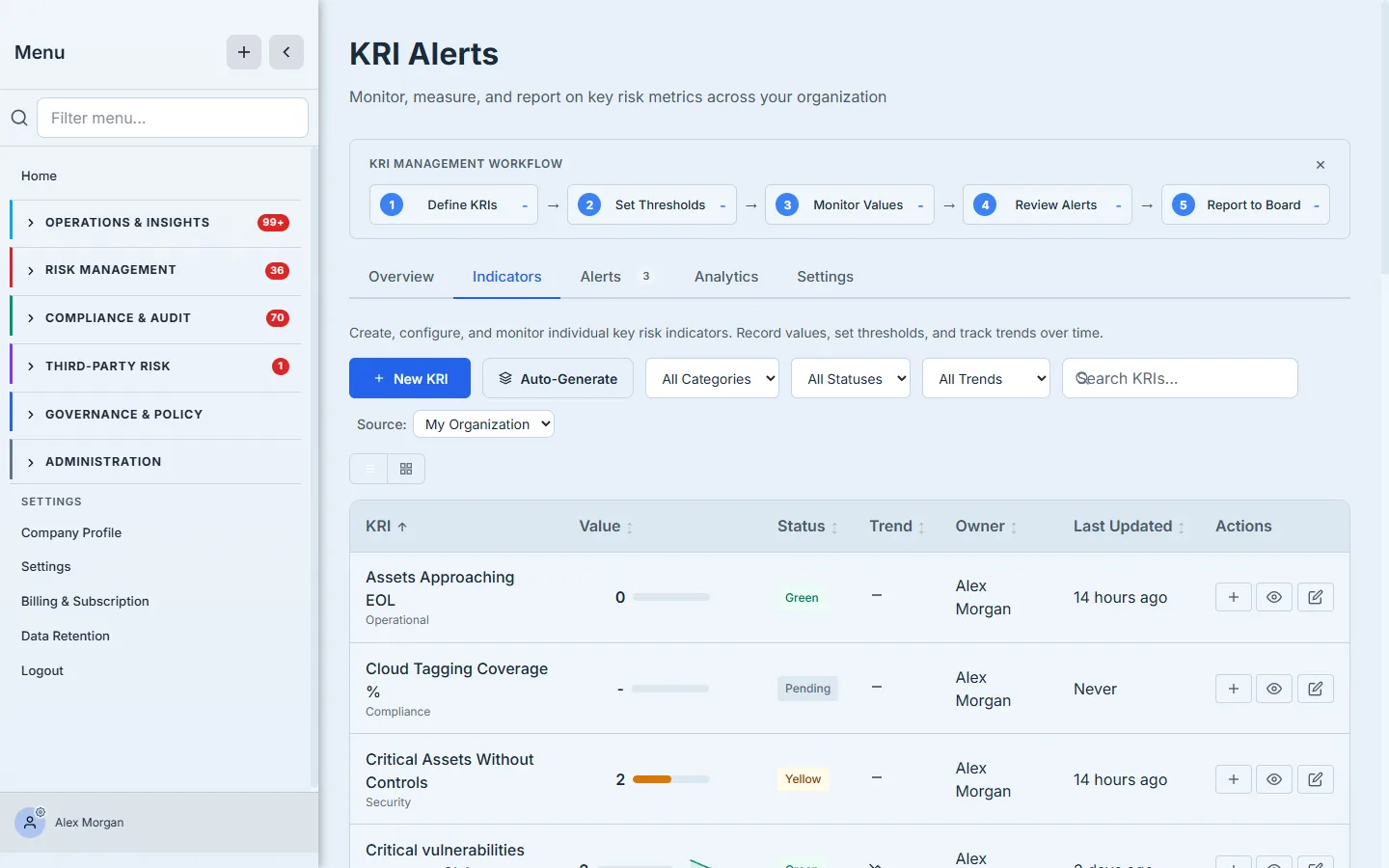
This is where the thresholds that drive the alerts live. Each indicator has an owner (so a breach has someone accountable), a category (operational, security, compliance…), and a status that’s computed from its value against its bands — green, yellow, or red. When a recorded value crosses a band, the alert on the previous screen is what you get. You can author indicators by hand or Auto-Generate a starter set from the risks and controls you already track.
How the page works
A few mechanics explain why the alerts behave the way they do:
- Status is computed from value against bands, not set by hand. Each indicator stores its threshold as a band definition (the boundaries for green / yellow / red). When a recorded value crosses a band boundary, the indicator’s status flips and — if it crosses into warning or critical — an alert is raised automatically. The “36 (threshold: 9)” you see on the alert is the recorded value next to the band boundary it broke.
- Unacknowledged is a state, and it’s the badge. An alert is unacknowledged until someone clicks Acknowledge; that running count is what the sidebar KRI badge shows, so the badge clears as the queue is worked, not on a timer.
- The response metrics are derived from timestamps. Avg. Acknowledge / Resolve Time are computed from when each alert was raised vs acknowledged vs resolved — so letting breaches sit visibly drags the averages up.
- Create Work Item is a real link, not a copy. It spawns a remediation whose Parent is the KRI, so the breach is queryable from the indicator and the work queue alike (see below). To carry the underlying risk onto the work item too, link it explicitly under Linked Entities.
- Auto-Generate seeds the register. On the Indicators tab, Auto-Generate proposes a starter set of KRIs derived from the risks and controls you already track, so you’re not authoring every indicator from a blank field.
The response — a remediation linked to the risk
Acknowledging a breach isn’t the point; fixing it is. Create Work Item on an alert turns the breach into a tracked remediation — and crucially, that work item is linked straight back to the indicator that spawned it.
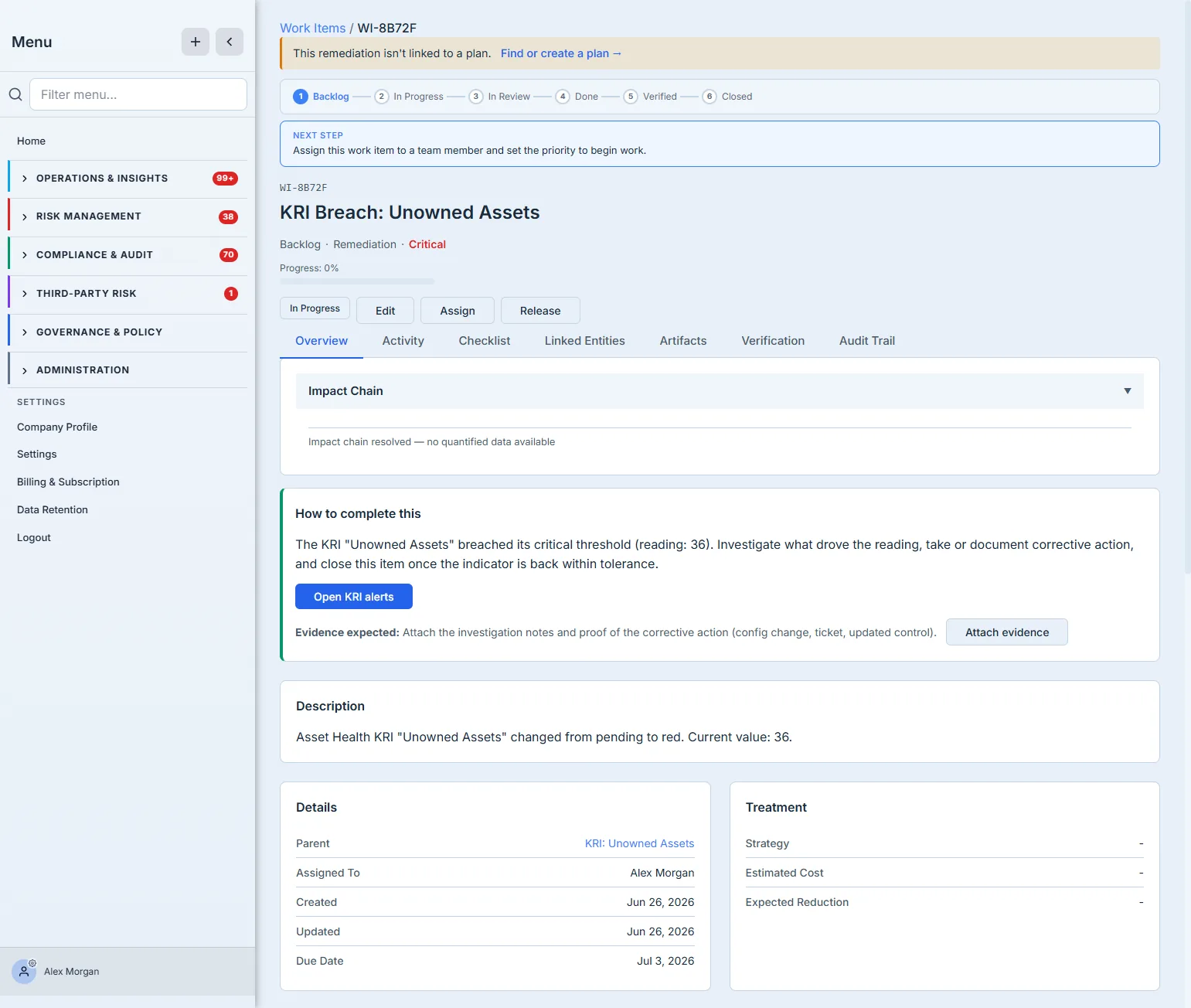
The work item isn’t a blank task — it’s pre-loaded with the context an assignee needs: a “How to complete this” brief (“the KRI breached its critical threshold at 36 — investigate what drove the reading, take corrective action, and close once the indicator is back within tolerance”), a one-click Open KRI alerts link back to the source, and an Evidence expected prompt so the investigation notes and corrective action are captured as artifacts. Its Parent is the KRI itself, so the remediation is queryable from the indicator and the work queue alike; if you want the risk the indicator signals on the work item too, add it under Linked Entities. From here it runs the normal work-item lifecycle (In Progress → In Review → Closed) with a verification step and an audit trail.
How to handle a breach
The page is a worklist; a single red alert walks through it in three moves:
- Acknowledge the alert to claim it — this stops the breach reading as “seen by nobody” and starts the acknowledge-time clock. (Use Acknowledge All only when you’re genuinely clearing a wave you’ve already triaged.)
- Create Work Item to turn the breach into tracked remediation. The work item opens pre-loaded with the breach context, a “How to complete this” brief, an Open KRI alerts link back to the source, and an evidence prompt — assign it and set a due date.
- Resolve the alert once the indicator is back within tolerance — and let the linked work item carry the proof (investigation notes + corrective action) through its verification step.
To tune what fires in the first place, open the Indicators tab, set or adjust each KRI’s threshold bands, and assign an owner so every future breach lands on someone. Filter the alert list by Severity to work Criticals first.
What you walk away with
- The breach is the trigger, not the dashboard. A KRI crossing its threshold raises a real alert with severity, value-vs-threshold, and action verbs — no hunting a dashboard for a red cell.
- Accountability built in. Every indicator has an owner and a category; every alert tracks acknowledge/resolve time, so breaches can’t quietly age.
- A breach becomes tracked work. Create Work Item turns an alert into a remediation pre-loaded with the breach context, an evidence prompt, and a lifecycle — assigned, due-dated, and verifiable.
- Linked, not stranded. The remediation’s parent is the KRI, so the response is connected to the indicator it came from — not stranded in a separate task list; link the underlying risk explicitly if you want it on the work item too.
Define the indicators once; from then on, a breach walks itself from a red status to an owned, evidenced, closed-out remediation.