A single GRC program is the easy case. The hard case is the one most enterprises actually live in: a parent organization that has to govern many child organizations — subsidiaries under a holding company, clients under an MSP, or locations under a franchisor. Each child needs its own workspace, its own admin, and its own data — but the parent needs oversight across all of them, without logging into a dozen separate tenants. Talarity’s Linked Accounts is exactly that: a parent org creates and oversees child workspaces, each with a primary admin and a parent-side reviewer whose read-only access is scoped to just that account.
Who’s involved
- Parent-org admin — the holding company / MSP / head office; creates linked accounts and oversees the portfolio.
- Child-account admin — runs their own linked workspace day to day.
- Reviewer — someone on the parent side who needs visibility into a specific child account, with read-only access scoped to that account alone.
What’s on the page
Open Linked Accounts (/app/linked-accounts). The console is one register plus two drill-ins:
- The linked-accounts register — one row per child organization: Company name, Primary user (and email), Last login, and the assigned Reviewer, with a search box, a table/card view toggle, and an Add Company action.
- The “Add New Company” modal — a Details block (Name, Industry, Employee Count) and a Company Profile block (Website, Phone, Description, Address) that provisions a real child workspace.
- A linked account’s Contacts tab — three role cards (Primary Contact → becomes the child’s admin, Manager, and Reviewer → read-only “Review Only” access scoped to that account), plus an Additional reviewers section.
Step 1 — One register for every linked account
Open Linked Accounts (/app/linked-accounts). Every child organization is listed with its company name, its primary user (the account’s admin), last login, and the reviewer assigned to it — with a search box and a table/card toggle for larger portfolios.
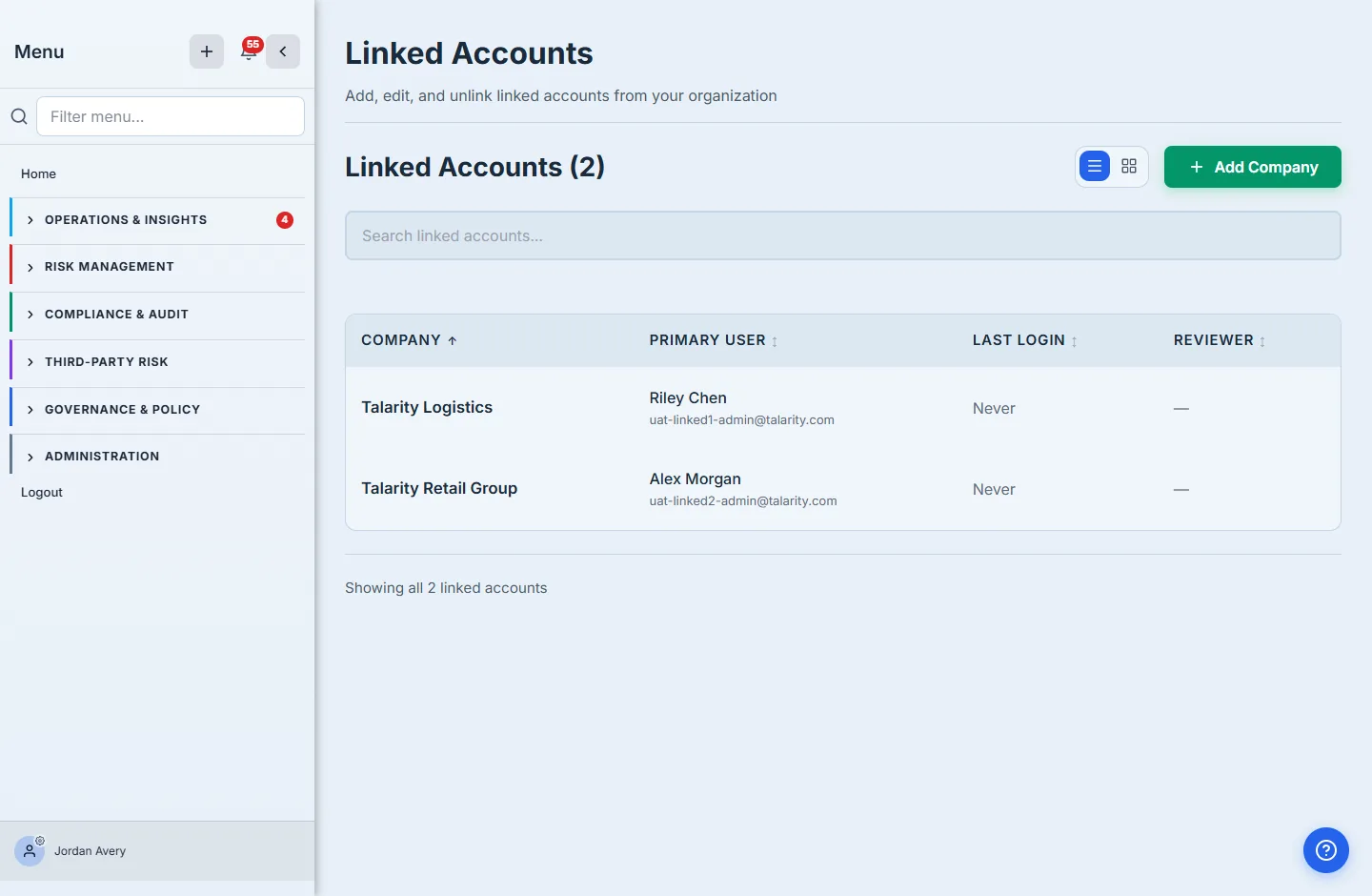
This is the parent’s portfolio at a glance: which child organizations exist, who administers each, and who reviews them — without switching tenants. The search and the table/card toggle keep it usable whether you have two linked accounts or two hundred.
Step 2 — Add a linked company
Click Add Company and you describe the new child organization: its name, industry, size, and company profile (website, description, address). Creating the linked account provisions the child its own workspace — not a folder inside yours, a real linked organization.
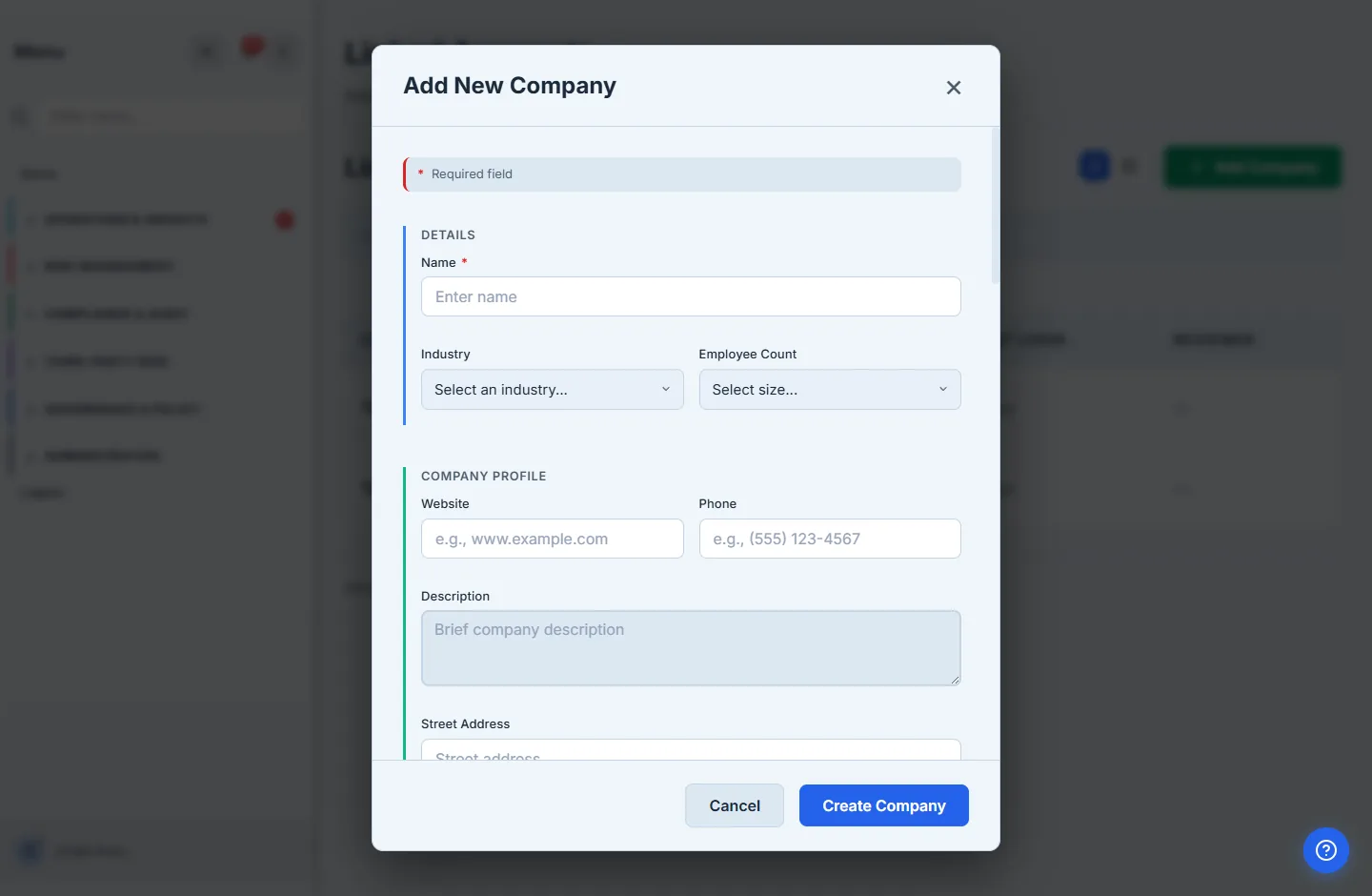
The point of the wizard is that a linked account isn’t just a label — it captures the child organization’s identity (industry, size, profile) up front, so the parent’s register is a real directory of who’s in the portfolio, not a list of names.
Step 3 — Three roles, scoped access
Open a linked account and the Contacts tab defines the three roles tied to it — Primary Contact, Manager, and Reviewer — and, crucially, each is invited with the appropriate access. The primary contact becomes the admin of the child’s workspace; the reviewer is invited as a Standard User with read-only access via the “Review Only” group, scoped to this account.
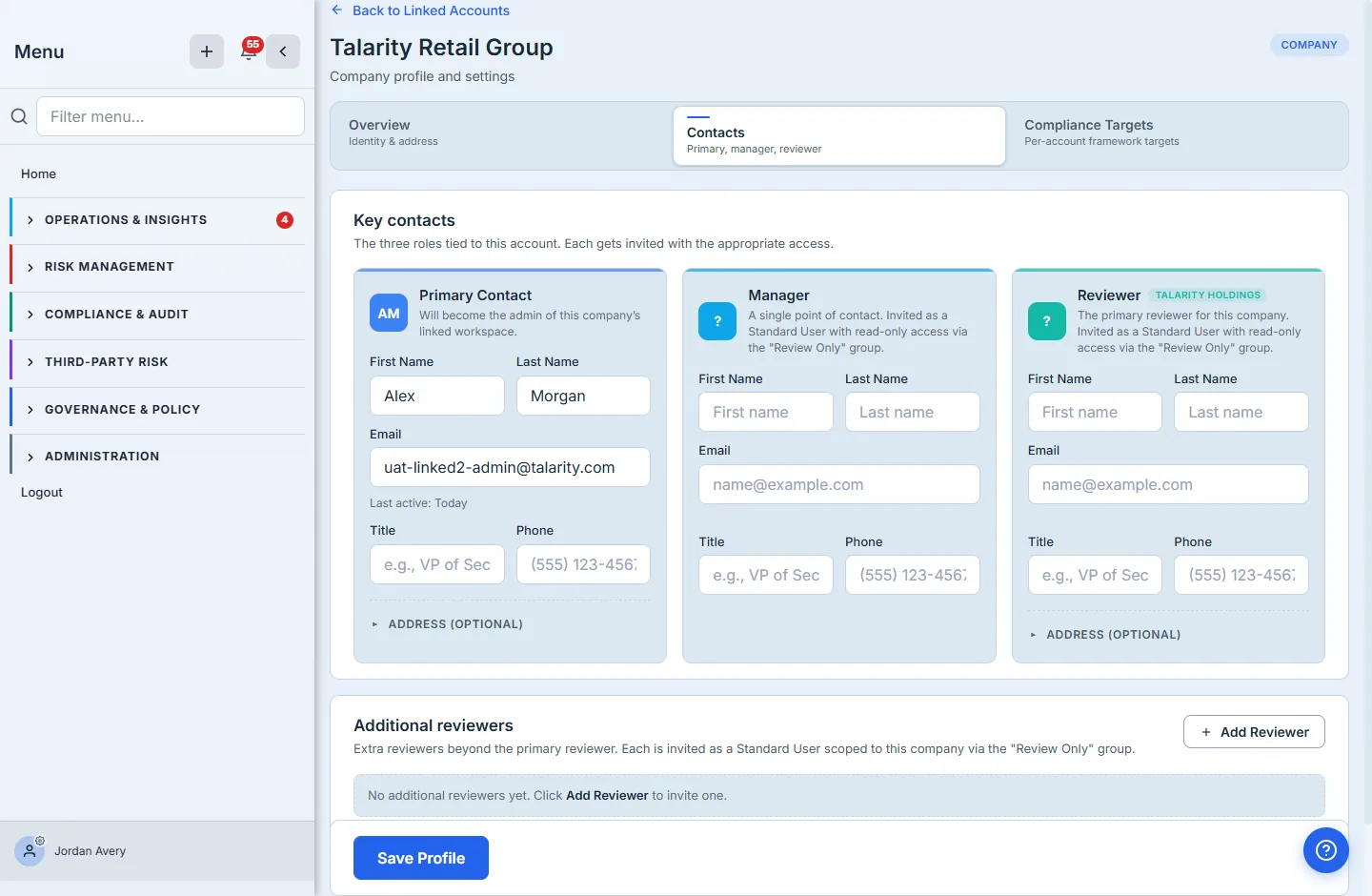
This is what makes linked accounts governed rather than just grouped: the reviewer model means a parent-side analyst can see a child account’s posture without being able to change it, and without seeing the other children. Access is scoped per account, by role, at invitation time — exactly the separation an auditor (and a nervous subsidiary) wants.
How the page works
The mechanics behind the convenience are what make this safe to hand a subsidiary:
- Adding a company provisions a real linked organization. “Add Company” doesn’t create a folder or a tag — it stands up a genuine child workspace with its own data, its own admin, and its own identity (the industry/size/profile you captured), linked to the parent for oversight.
- Each role is invited with its access, not granted it afterward. When you set the Primary Contact, they become the admin of the child workspace. When you set a Manager or Reviewer (or add one under Additional reviewers), Talarity invites them as a Standard User with read-only access via the “Review Only” group, scoped to that account — so the access and the invitation are the same act. There’s no window where someone is invited but un-scoped.
- Scope is per-account, so reviewers are blind to siblings. A Review-Only reviewer on this child sees only this child’s posture — not the parent’s other linked accounts. That’s the separation that lets a parent-side analyst review a subsidiary without the subsidiary worrying they can see (or change) anything else.
- Re-inviting is idempotent. Add a reviewer who’s already scoped and the page tells you the truth — already scoped or notified and scoped rather than silently creating a duplicate — so the contact list stays honest no matter how many times you click.
What you walk away with
- A portfolio register — every child organization, its primary admin, last login, and reviewer, in one place with search and card/table views.
- Real child workspaces — adding a linked account provisions a genuine linked organization with its own identity, not a folder inside the parent.
- Role-scoped access — Primary Contact (child admin), Manager, and Reviewer, each invited with the right access; reviewers get read-only access scoped to a single account.
- Oversight without tenant-switching — the parent governs the whole portfolio from one console.
Open /app/linked-accounts, add a company, and open its Contacts tab. The next time someone asks “who can see this subsidiary’s data, and who can change it?”, the answer is a role, scoped to that account — not a shrug.