A governance platform that does its job generates a lot of events: a work item approaching its deadline, a policy waiting on approval, a vendor contract up for renewal, a control test due, another organization requesting your data. Left unmanaged, that becomes noise — and noise is how teams learn to ignore the one alert that mattered.
Talarity’s answer is two settings surfaces an admin configures once: org notification defaults (who hears about what, on which channel, how often) and SLA configuration (what counts as “late,” and when reminders and escalations fire). Both ship with sensible defaults; both are an admin’s lever for fitting the platform’s cadence to how the team actually works. And neither traps the individual — every user can override the org defaults on their own page.
Who’s involved
- The org admin — sets the organization-wide defaults: which categories notify, on email vs. in-app, at what frequency, and the SLA windows that define “on time.”
- Every user — inherits those defaults, and can fine-tune their own notifications without affecting anyone else.
- The platform — does the work: it batches, reminds, and escalates according to the rules you set, so nobody has to chase deadlines manually.
What’s on the page
This walkthrough spans two admin surfaces plus the per-user mirror — here’s the lay of the land before the steps:
- Org Notification Settings — the master switches: org-wide Email and In-app toggles, a secure-messaging email-frequency choice (Every message / Every 30 min / Every hour / Every 4 hours / Never), then a category defaults table — one row per notification category (Admin, linked-account updates, SLA breach, contract renewal, license expiration, SLA escalation, and more) with its own in-app toggle, email toggle, and frequency selector. Below that, cross-org notification recipients — who hears inbound requests from linked orgs (empty state: notifications go to your org admins).
- SLA Configuration — what “late” means: Warning Thresholds (warning window in days, reminder cooldown in hours) and Business Hours (start/end time, timezone, Mon–Fri work-day selector). The Create SLA Policy modal pairs an Item Type + Priority with an independently-enabled Response SLA (target hours, business-hours-only) and Resolution SLA (target days, business-days-only).
- My Notification Preferences — the per-user mirror: each user’s own Email / In-app toggles (annotated with the Org default) and secure-messaging frequency, overriding the org default for themselves only.
Step 1 — Set the org-wide notification defaults
Open Administration → Workflow Settings → Policies & Thresholds, on the Org Notifications tab. The top of the page is the master switch every new user starts from: Email and In-app notifications, plus a secure-messaging email frequency — whether missed-message emails arrive immediately, batched every 30 minutes / hour / 4 hours, or never.
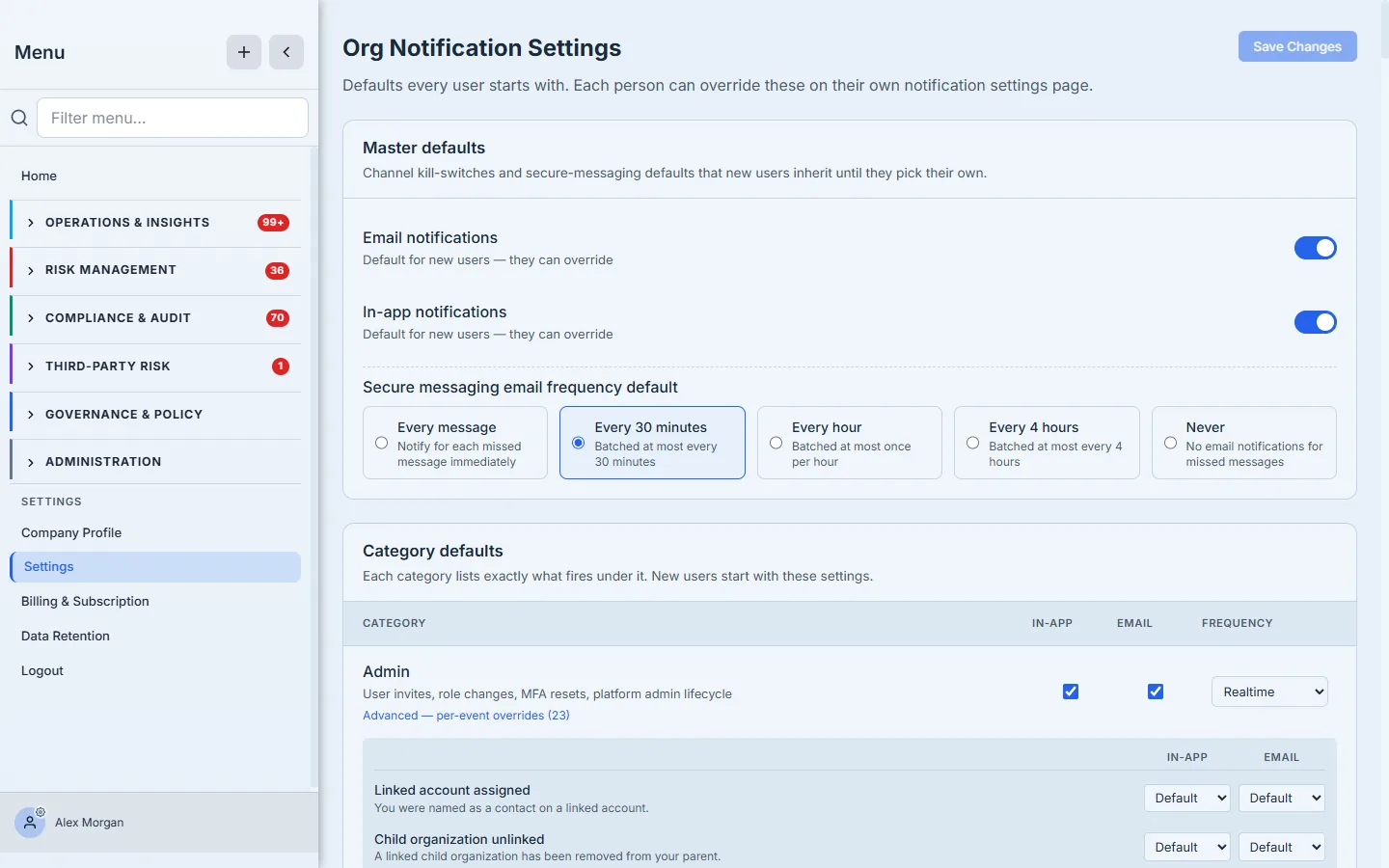
These are defaults, not mandates — the copy says so plainly: “Defaults every user starts with. Each person can override these on their own settings page.” Turning the email master off doesn’t gag the platform; it sets the starting point a new hire inherits until they decide otherwise.
Step 2 — Tune each category
Below the master switches is the category defaults table — the real policy surface. Talarity groups every notification into categories (Admin, Assessment, Audit, Compliance, Governance, Risk, Vendor, Tasks & work items, Cross-org data sharing, and more), and each gets its own In-app, Email, and Frequency (Realtime / Hourly digest / Daily digest) control.
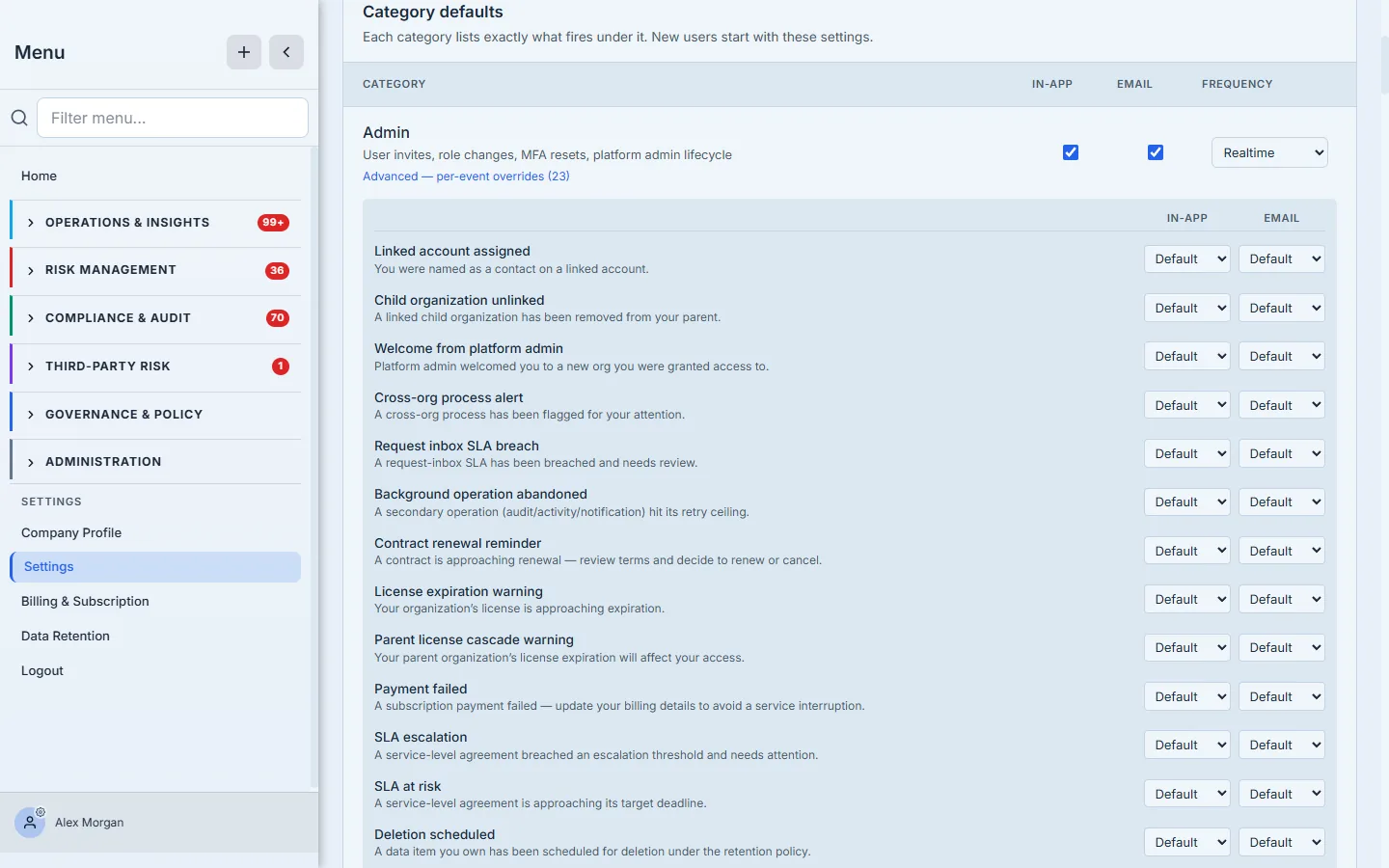
This is where org policy lives. A compliance team might keep Risk and Governance on realtime email (an SLA breach or an overdue attestation can’t wait for a digest), while routing chatty General reminders to a once-a-day rollup. Each category lists the events it carries, so you’re never guessing what a toggle governs — the Risk category, for instance, carries SLA escalations, KRI breaches, and vendor-risk changes. For the rare case where one event in a category needs different handling than the rest, an Advanced expander exposes per-event overrides.
Step 3 — Name who hears cross-org requests
One category deserves its own section. When another organization requests data sharing or consent from yours, someone needs to see it — and the default (“it goes to your org admins”) isn’t always who you want. The cross-org notification recipients list lets you name the exact people or groups who get those alerts.
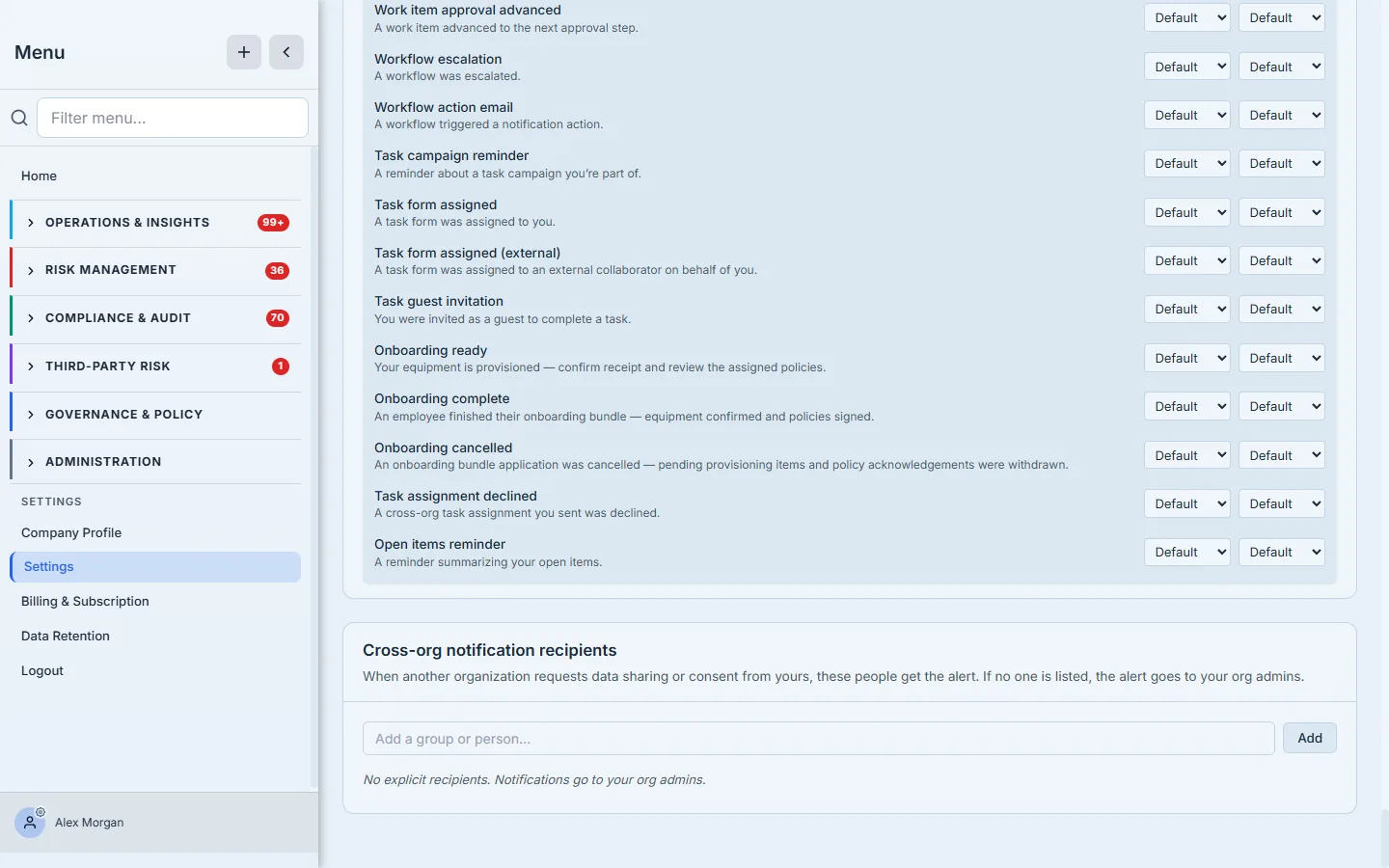
The empty state explains itself: with no one listed, the alert falls back to your org admins. Add your compliance lead or a “Data Sharing” group, and inbound requests route straight to the people who can act on them — no admin playing switchboard.
Step 4 — Define what “late” means
Notifications decide who hears; SLAs decide when. Open Administration → Workflow Settings → Policies & Thresholds, on the SLA Policies tab. Two things live here. Warning Thresholds set when reminders start and how often they repeat: a Warning Window (start reminding this many days before a deadline) and a Reminder Cooldown (the minimum gap between reminders for the same item, so a looming deadline doesn’t spam an inbox).
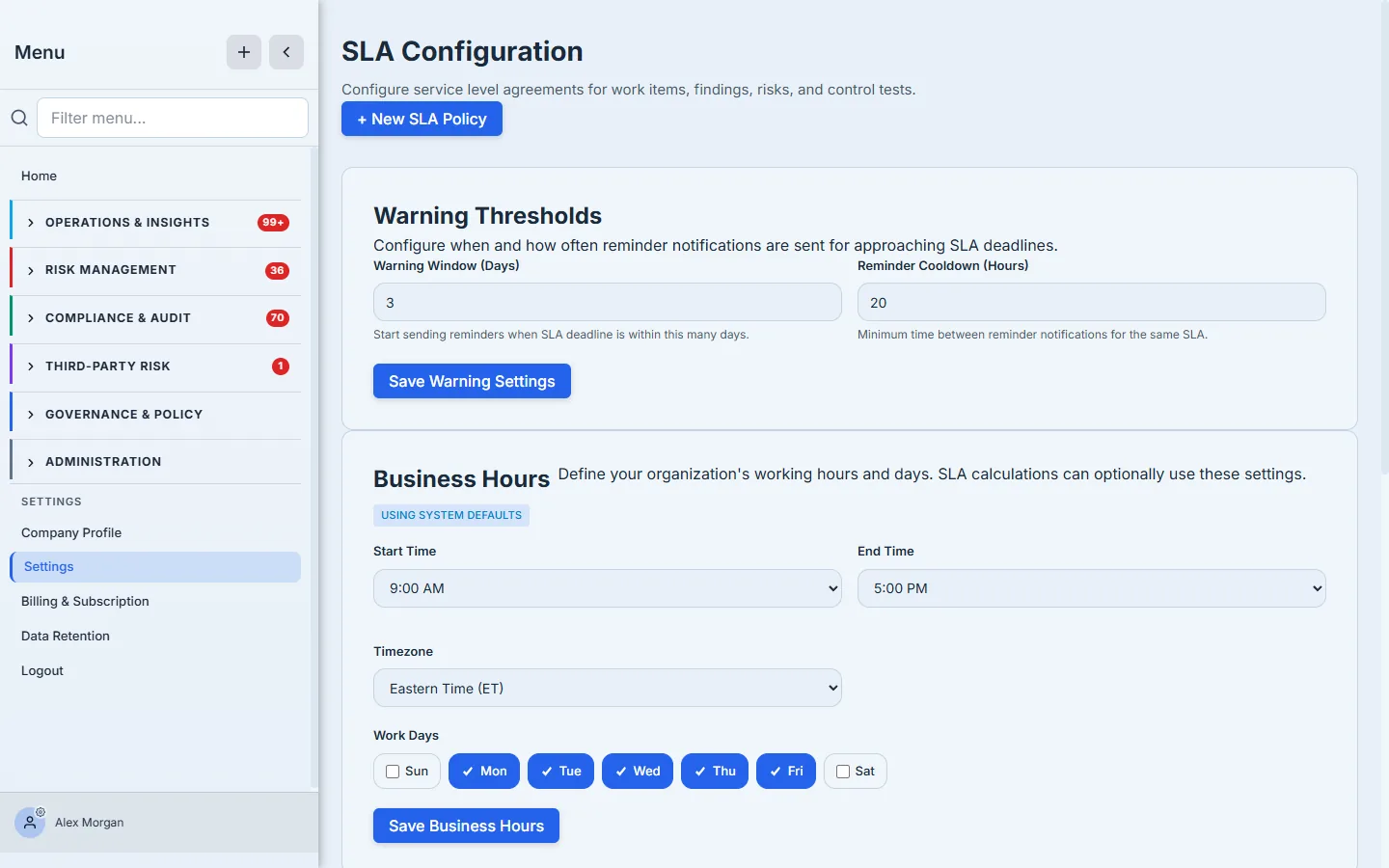
Below that, Business Hours define the clock SLAs run on. Set your start and end time, timezone, and work days, and an SLA marked “business hours only” stops counting nights and weekends — “two business days” means two working days, not 48 wall-clock hours. The “Using system defaults” badge tells you when you’re still on the out-of-the-box 9-to-5, Monday–Friday.
Step 5 — Set response and resolution targets
The thresholds above govern reminders; SLA policies govern the deadlines themselves. Click + New SLA Policy and you define targets per item type (work items, findings, risks, control tests) and priority — so a Critical item and a Low one can carry very different clocks.
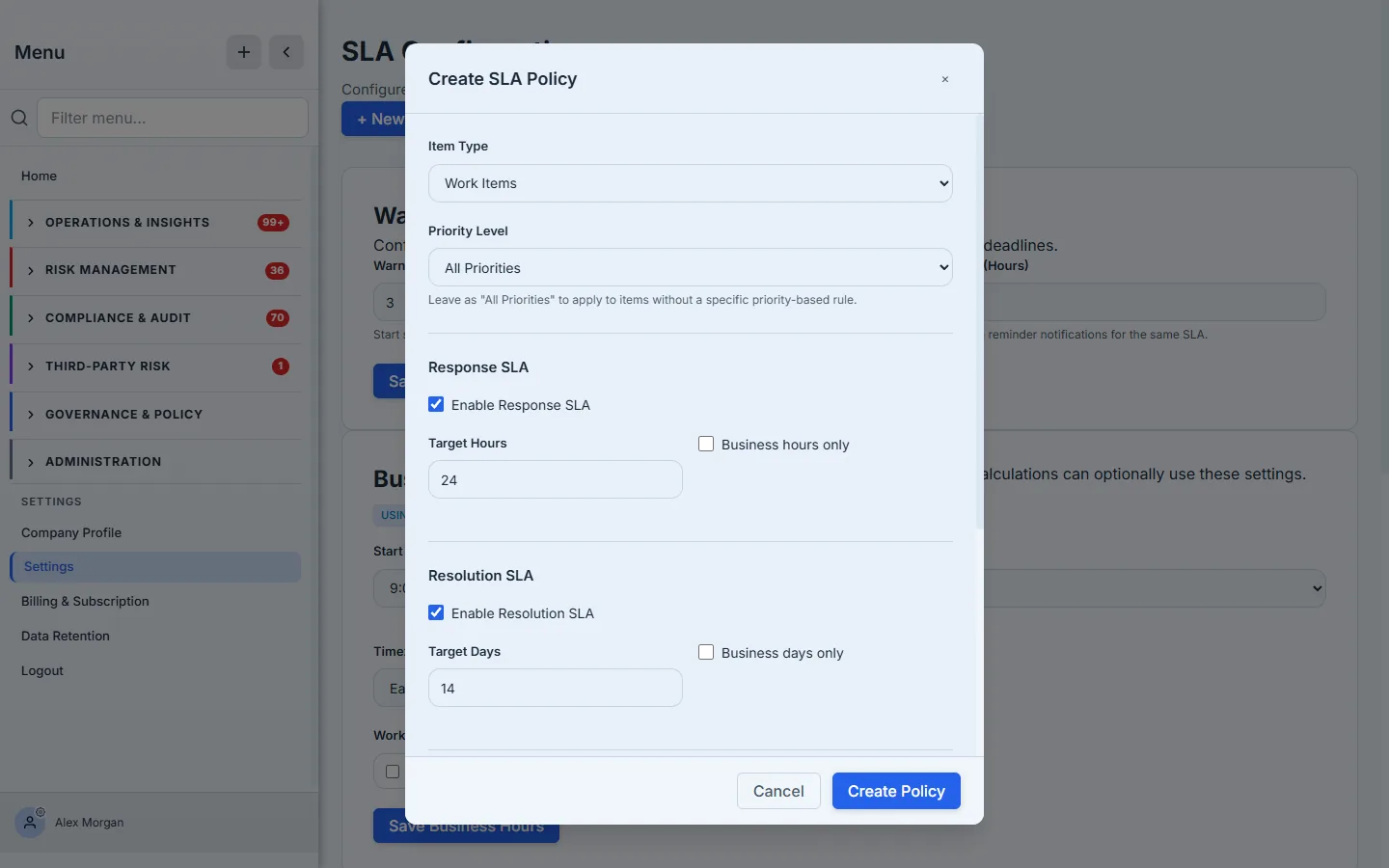
Each policy carries two clocks: a Response SLA (how fast someone must acknowledge the item, in hours) and a Resolution SLA (how long until it must be done, in days) — either or both, each able to honor your business hours. With escalation enabled, the platform warns automatically at 50% and 75% of the target and fires a breach notification at 100%, so an at-risk item surfaces before it’s overdue, not after. Leave priority as “All Priorities” for a catch-all, or stack per-priority rules for finer control.
Step 6 — Every user can fine-tune their own
Org defaults are a starting line, not a cage. Each person has their own Notifications preferences (under Administration → Workflow Settings), mirroring the org controls one-for-one — and every toggle shows the org default beneath it, so the inheritance is never a mystery.
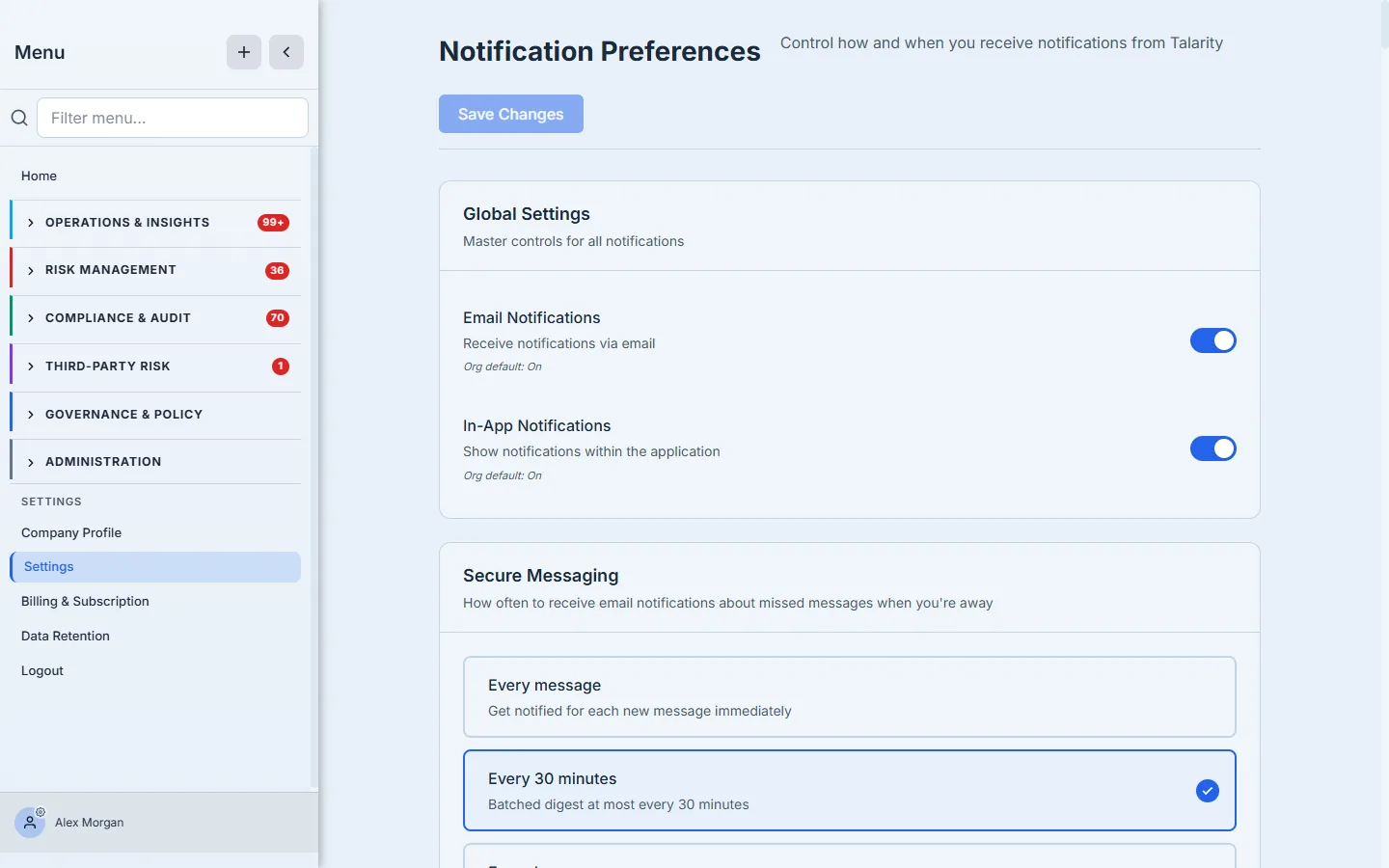
An on-call engineer can flip Risk email to realtime even if the org batches it; someone drowning in audit chatter can mute a category they don’t own — none of it touches anyone else’s settings or the org default. A per-user “reset to default” appears the moment they’ve overridden something, so getting back to the org baseline is one click. The hierarchy is simple and legible: org sets the default → the user may override → the platform honors the most specific setting.
What you walk away with
- A signal-to-noise dial, not an on/off switch. Per-category channel and frequency control means the alerts that matter (an SLA breach, a cross-org request) arrive in realtime while routine reminders batch into a digest.
- SLAs that respect your calendar. Business-hours-aware targets and tunable warning windows mean “late” reflects your actual working week — and reminders fire early enough to act, without nagging.
- Automatic escalation. Warnings at 50% and 75% and a breach alert at 100% surface at-risk work on their own — no one has to watch a clock.
- Defaults that don’t trap anyone. The org sets a sane baseline; every user tunes their own copy, with the org default always visible and one click away.
Set this once, and the platform stops being a firehose and starts being a colleague that tells the right person, the right thing, at the right time.