Almost every framework that touches your security program now expects two things about the software services you depend on — not just laptops and servers. First, inventory them and name who owns each one: ISO 27001:2022 A.5.9 (inventory of information and associated assets) and A.5.23 (cloud services); NIST CSF 2.0 ID.AM‑1/ID.AM‑2. Second, prove you periodically review who has access and remove what’s stale: ISO 27001 A.5.18 (access rights), SOC 2 CC6.2/CC6.3, NIST SP 800‑53 AC‑2, and SOX ITGC access certifications. Auditors open with “List your SaaS apps and who owns each,” and close with “Show me your last access review and the sign-offs.”
Most teams answer the first with a spreadsheet a quarter behind, and the second with a frantic email thread of screenshots. Talarity does both from one place — the Workforce section — and treats each SaaS app as a first-class asset with an accountable custodian, a tracked access list, and a review that produces its own signed report. Everything below happens at Workforce → Assets & Licenses, on the Custodians tab; you never touch a separate assets console.
Apps don’t only get added here by hand. When someone files a SaaS Subscription or Cloud Service request through the guest request portal, approving it adopts the app into this same catalog — so a tool your team asks for becomes a tracked, owned asset instead of shadow IT. See From request to fulfillment.
Who’s involved
- IT / SaaS admin — adds the apps the company uses, links the vendor, sets (or inherits) the owner, and records who has access.
- App custodian — the org-side person accountable for provisioning, deprovisioning, and certifying access for that app. Usually an IT lead, with exceptions (the CRM belongs to sales ops).
- GRC lead — watches the By App roster for unowned apps and launches the periodic access review before an audit.
- Auditor — asks for “your SaaS inventory, the owner of each, and your last access certification” and gets three screens and a PDF.
What’s on the page
Everything here is at Workforce → Assets & Licenses, on the Custodians tab, under By App — no separate assets console:
- By App roster — every SaaS app as a first-class asset with its custodian.
- + Add SaaS App — start from your org’s shared catalog (no duplicates).
- Categories — set a custodian once and inherit it across a category.
- Access list — who has access, each with a per-user note.
- Access review — one click launches the annual review to each app’s custodian.
Step 1 — Add a SaaS app, without leaving Workforce
Open Workforce → Assets & Licenses, go to the Custodians tab, and switch to By App. Click + Add SaaS App. You start from your org’s shared catalog — search for an app that’s already been added, or create a new one. The catalog means the second person to add “Slack” reuses the first person’s entry instead of creating a duplicate.
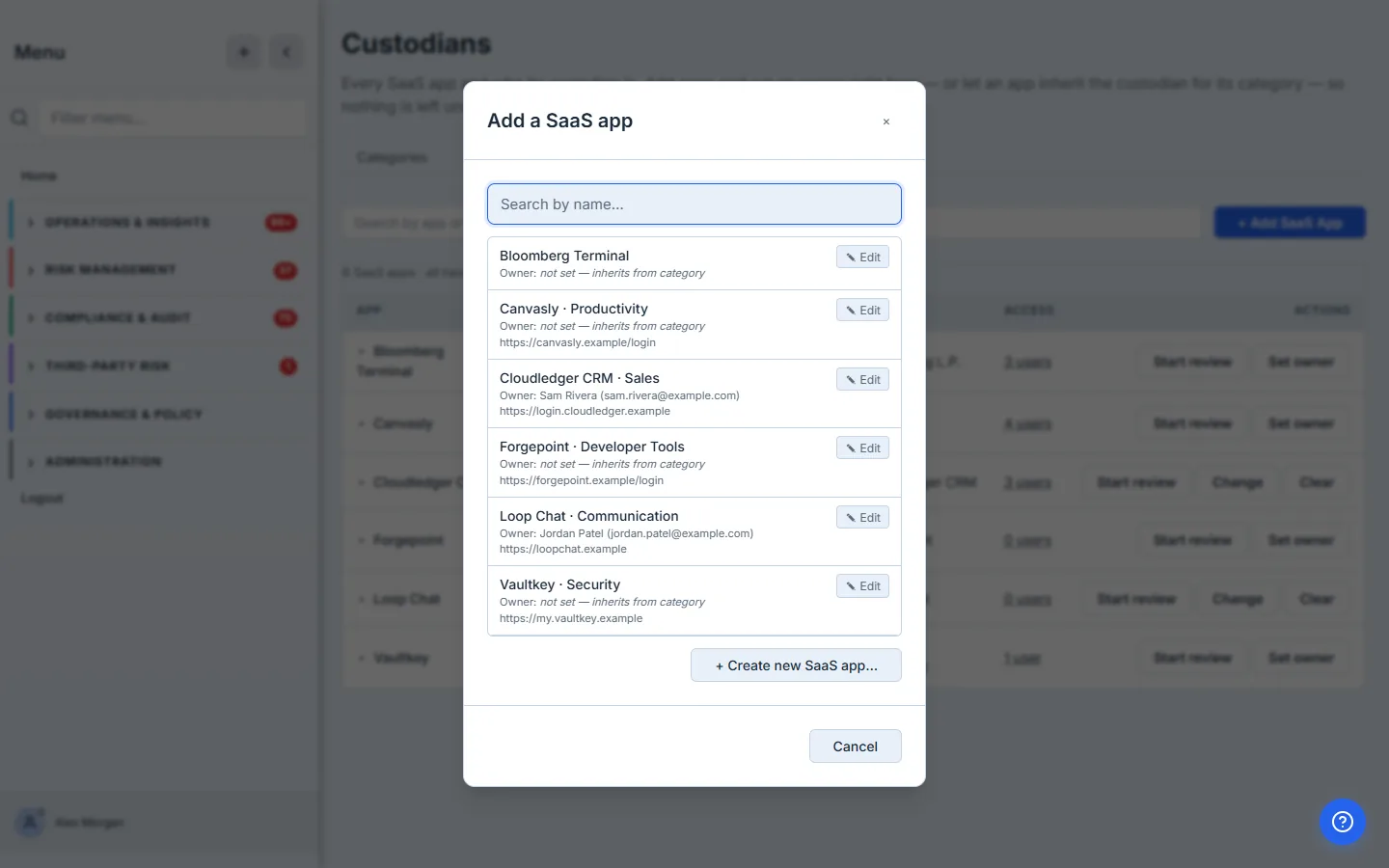
When the app isn’t there yet, click + Create new SaaS app… and fill in what you know — name, the vendor (so contracts, renewals, and risk tier are one click away), login and admin URLs, a business category, and whether it supports MFA and SCIM.
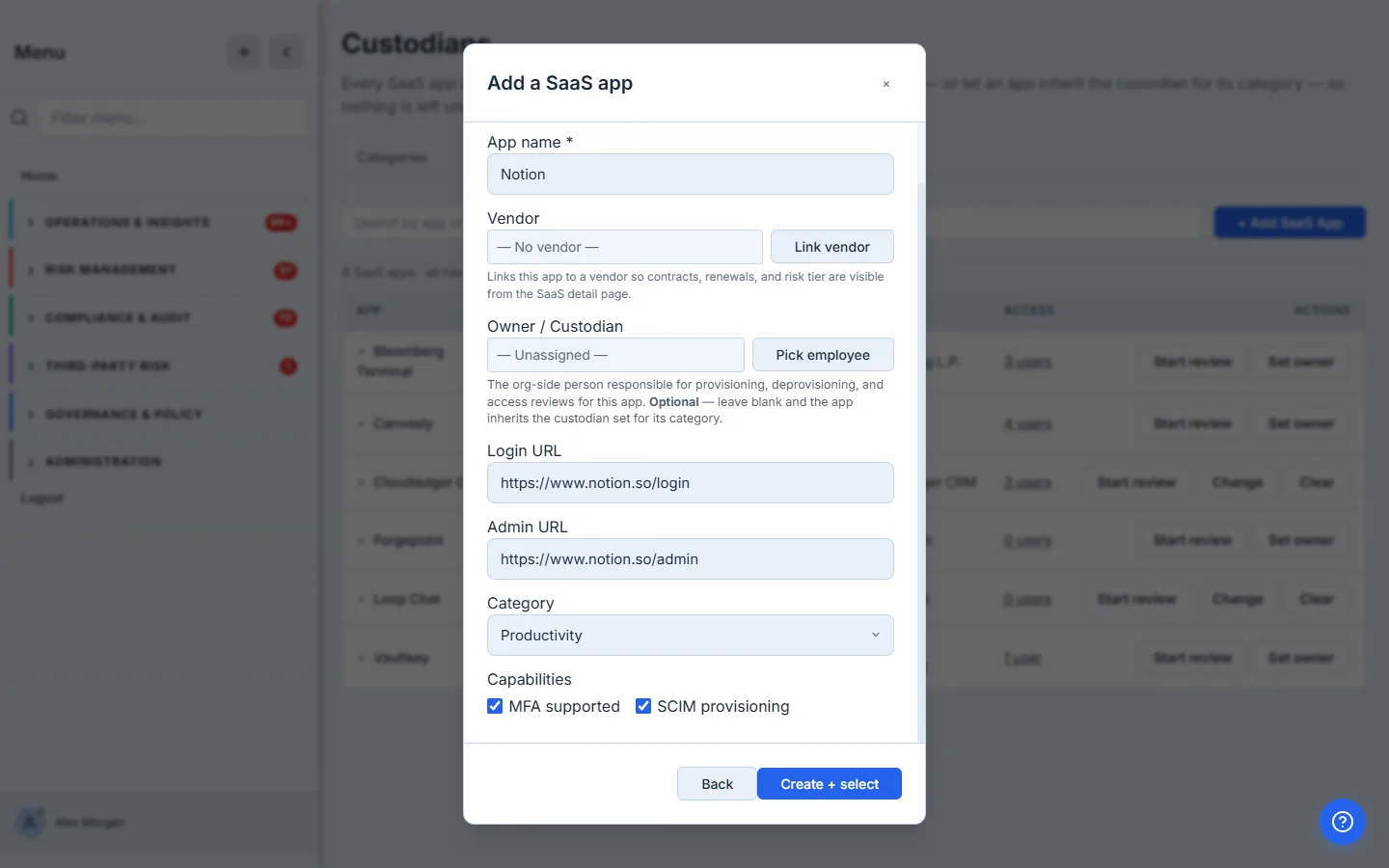
The Owner/Custodian field is optional on purpose. Don’t let it block adding the app. Leave it blank and the app inherits the custodian set for its category — so you can bulk-load fifty apps in one sitting and assign ownership in one move afterward, rather than stalling on each row.
Behind the scenes, every SaaS app is a real asset: Talarity writes a paired assets row alongside the catalog entry in one transaction, so the app shows up in the same graph your controls, risks, and work items already join against — not in a side table.
Step 2 — See the estate by owner
The By App roster lists every SaaS app with its effective custodian — set directly, or Inherited · Software when it comes from the category rule — plus the vendor, a live access count, and per-row actions. The summary line reads “6 SaaS apps · all have a custodian.” That second clause is the number a GRC lead watches before an audit: apps with no owner are flagged so nothing is left unowned.
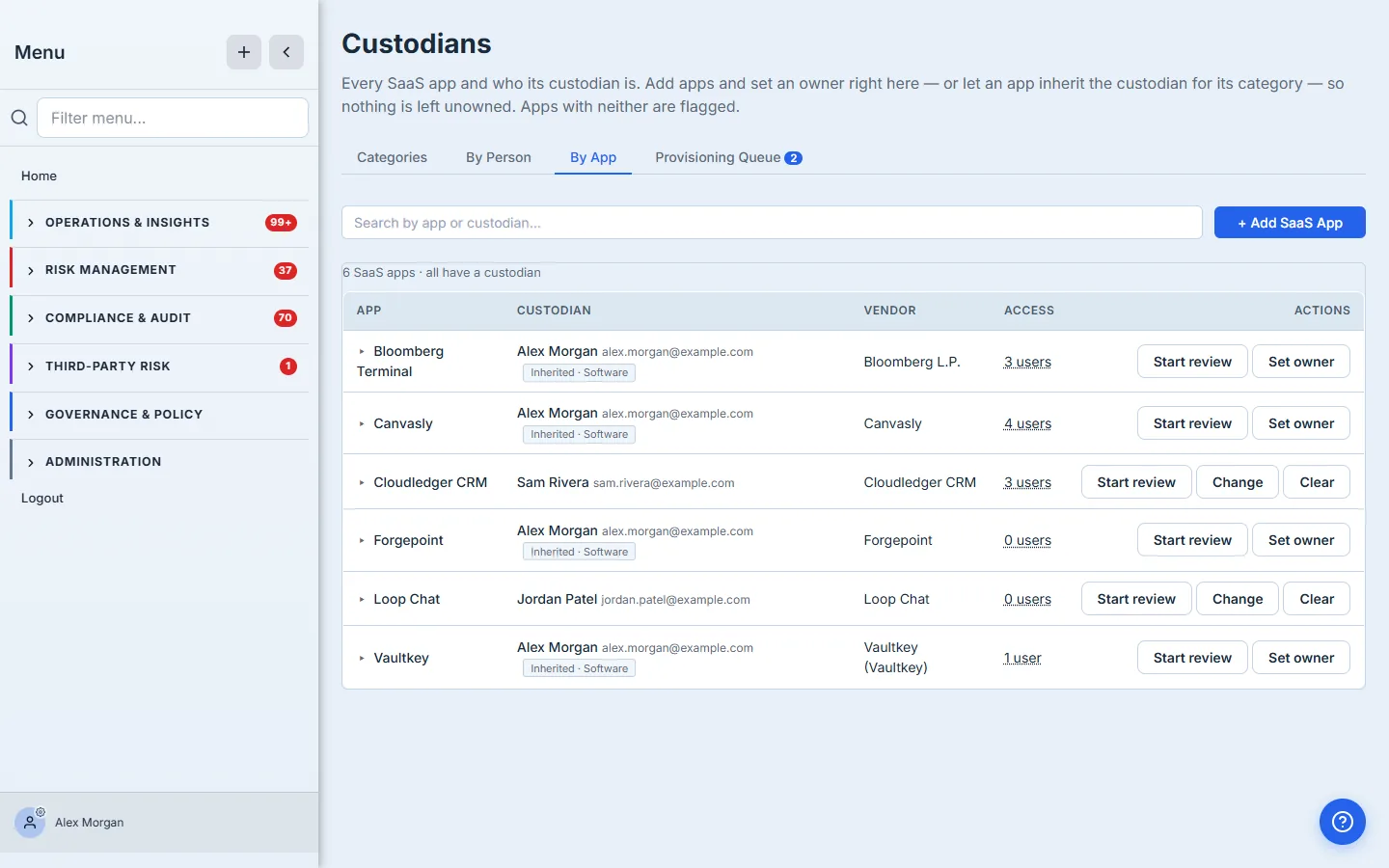
This is the accountability lens: not “what apps exist” (the inventory answers that) but “who’s on the hook for each, and does anyone still need access.”
Step 3 — Give every app an owner at once
You don’t assign fifty custodians one at a time. SaaS apps live under the Software asset category, so set one custodian on that category and every app inherits it. Switch to the Categories tab and assign an owner to Software — every app under it immediately reads “inherits <that person> (from Software).” Sub-categories (CRM, Communication, Developer Tools…) inherit down the same chain.
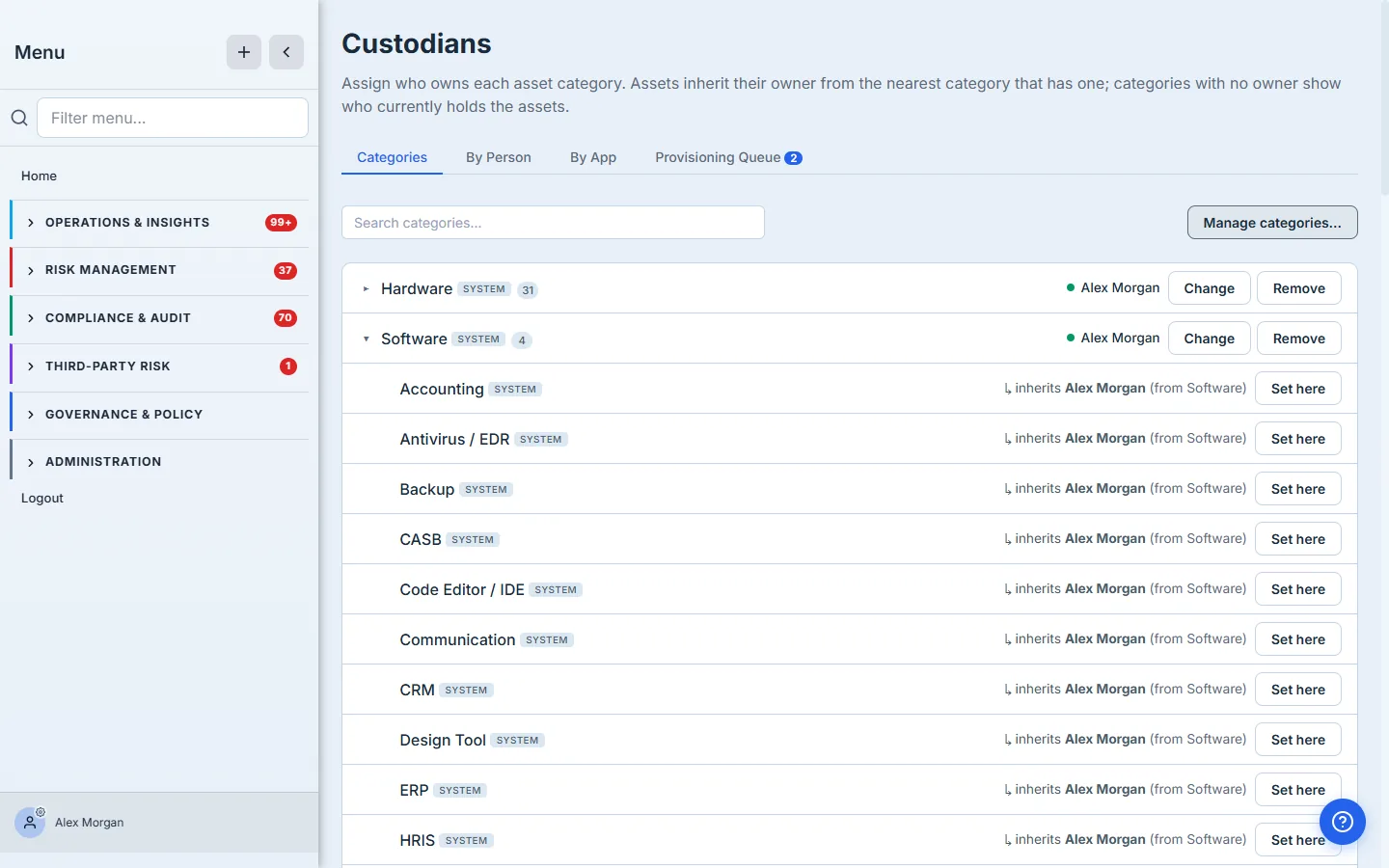
Inheritance is the default that keeps the inventory maintainable: a newly added app is owned the moment it lands, because it inherits from its category — no app is ever silently unowned. (To override the common case for one app — the CRM belongs to sales ops — use Set owner on that app’s row back on the By App tab; a direct owner always beats the category rule.)
Step 4 — Track who actually has access (with a per-user note)
Ownership answers “who’s accountable for the app.” Access answers “who can get into it” — the question an access review turns on. Click an app’s access count (or its row) to expand its access list: every user with access, their account, whether MFA is on, the lifecycle status, when it was granted, and a free-text note per person. Use + Grant access to add someone, or Edit / note to record why they have it.
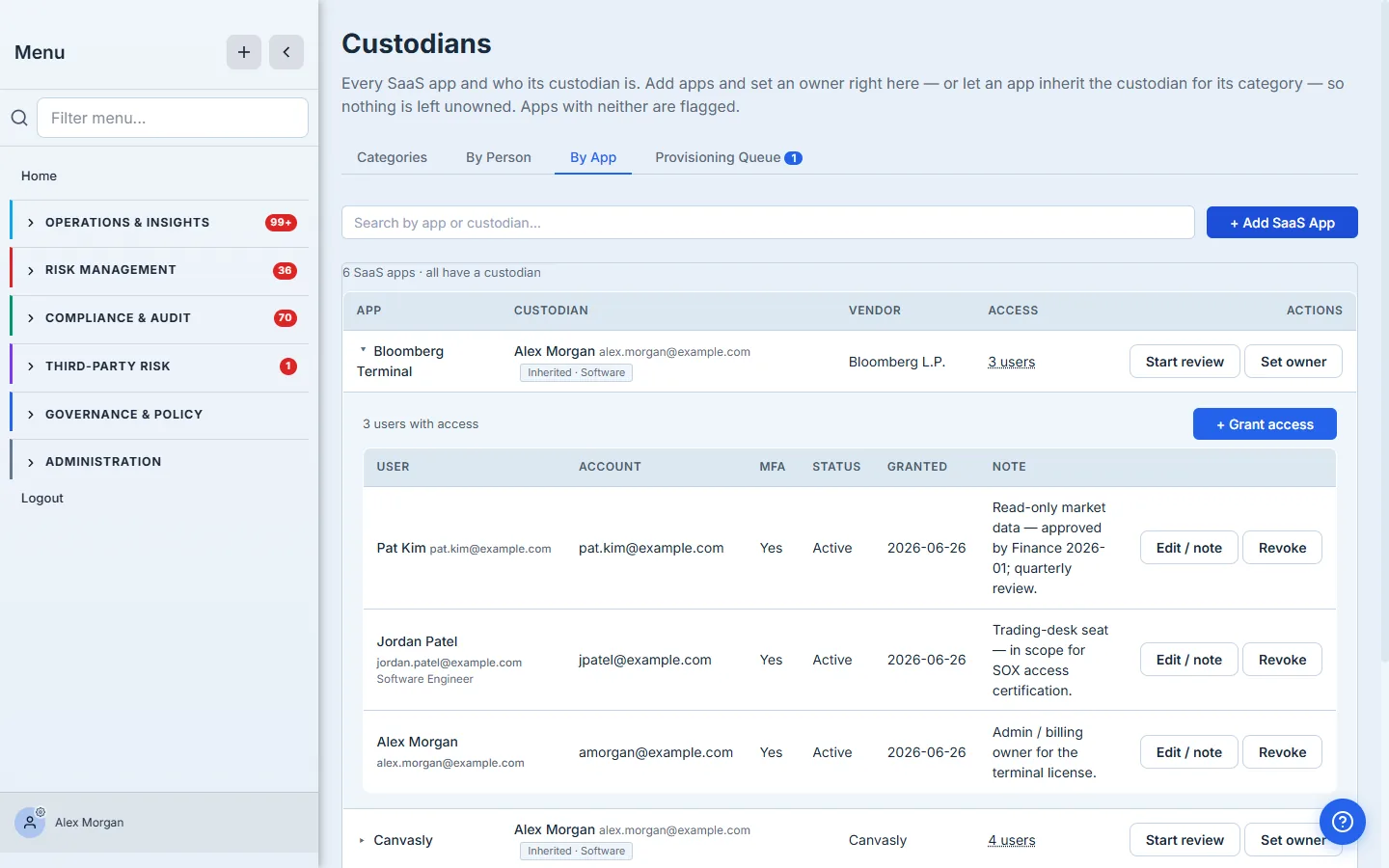
The note field is the reviewer’s memory. “Approved by Finance 2026-01,” “trading-desk seat,” “admin/billing owner” — those are the sentences that turn a yes/no access review from guesswork into a decision. Write them when you grant access, not when the auditor asks.
Step 5 — Launch the annual access review — to the app’s custodian
Periodic certification is where most programs leak. On the app’s row, click Start review. Talarity pre-scopes the review to that app and defaults the reviewer to the app’s custodian — the person who already owns it — so you’re not hunting for who should sign off. Set a due date and click Start review & notify.
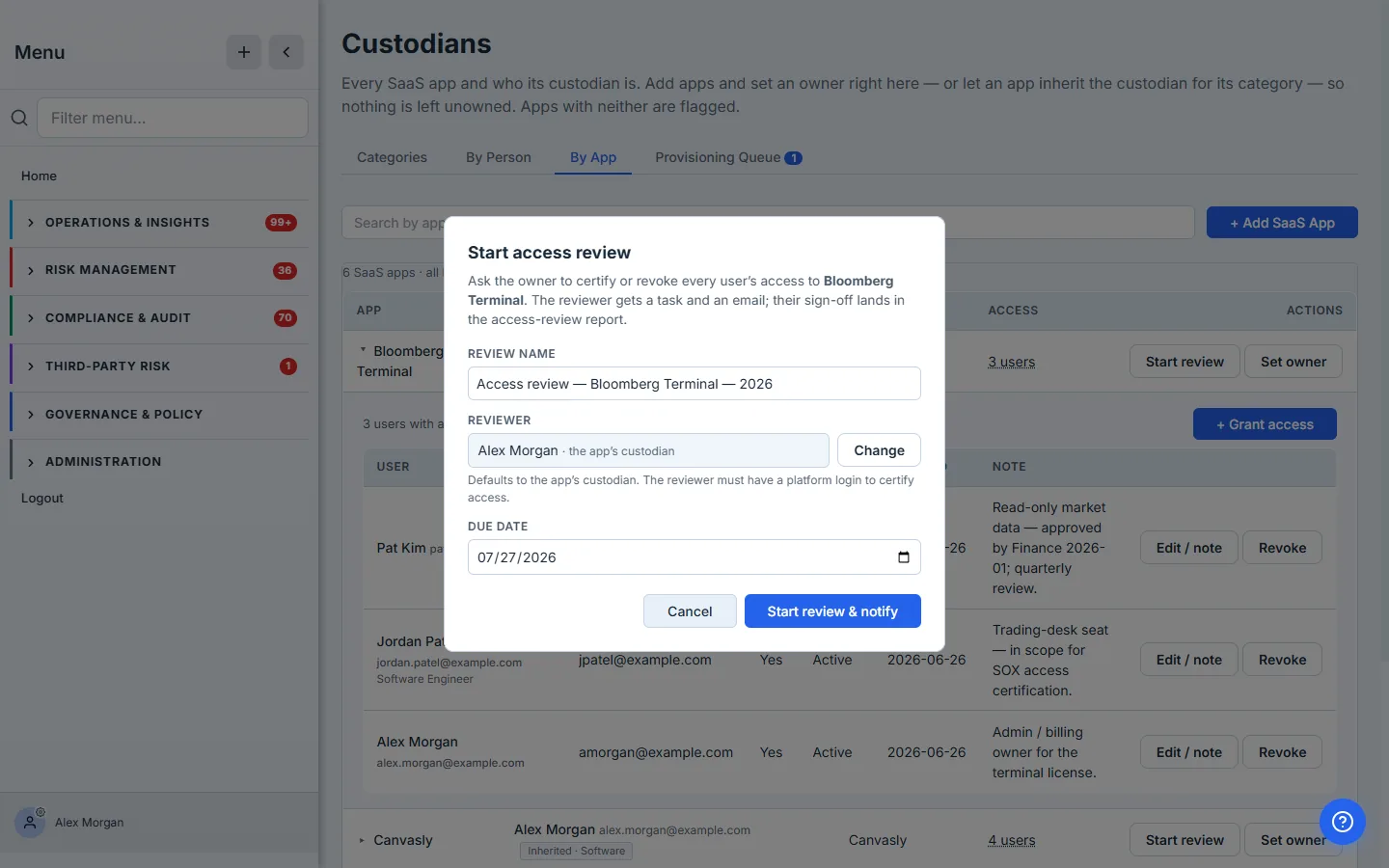
The custodian gets an in-app task and an email — no chasing. Need a different reviewer for one app? Change swaps in any colleague with a platform login.
Step 6 — The custodian certifies each grant
The reviewer opens Workforce → Access & Attestation, on the Access Reviews tab, sees the campaign grouped by person, and makes a call on every grant: Keep (certify), Revoke, or Flag. A revoke or flag prompts for a reason — the audit justification that lands in the report. Keep all clears an obviously-fine person in one click.
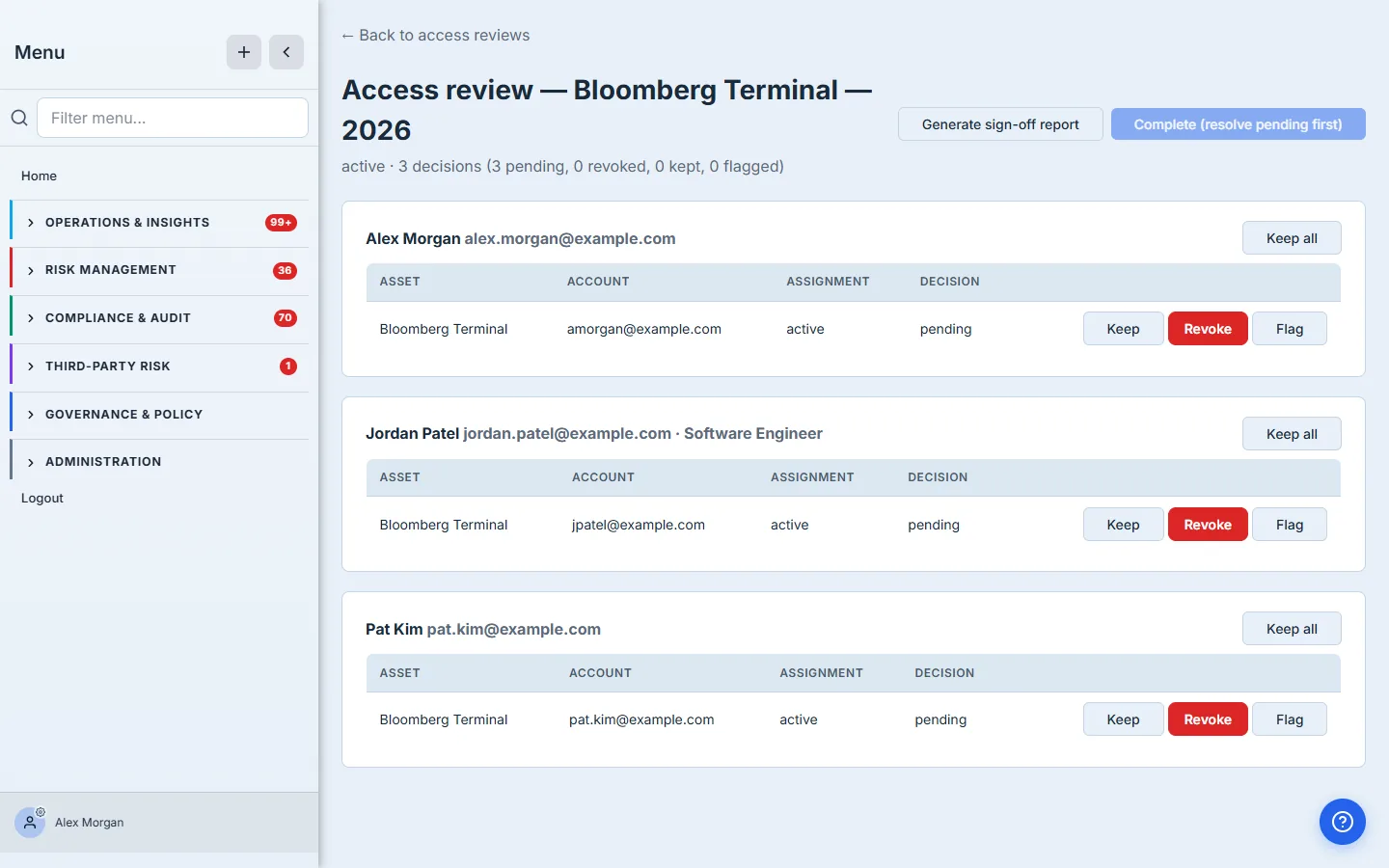
When the last grant has a decision, Complete the review — every revoke fans out a real deprovisioning work item, so “I’ll remove that later” becomes a tracked task instead of a forgotten line in a spreadsheet.
Step 7 — Prove it: a signed-off report that files itself
Click Generate sign-off report and Talarity renders a finalized, watermarked PDF: the scope, the reviewer, a decision summary (certified / revoked / flagged), and every user’s decision with its reason and timestamp. It’s filed straight into the Evidence Repository with a 7-year retention tag and cites the frameworks the review satisfies — ISO 27001 A.5.18, SOC 2 CC6.2/CC6.3, NIST AC‑2, SOX ITGC.
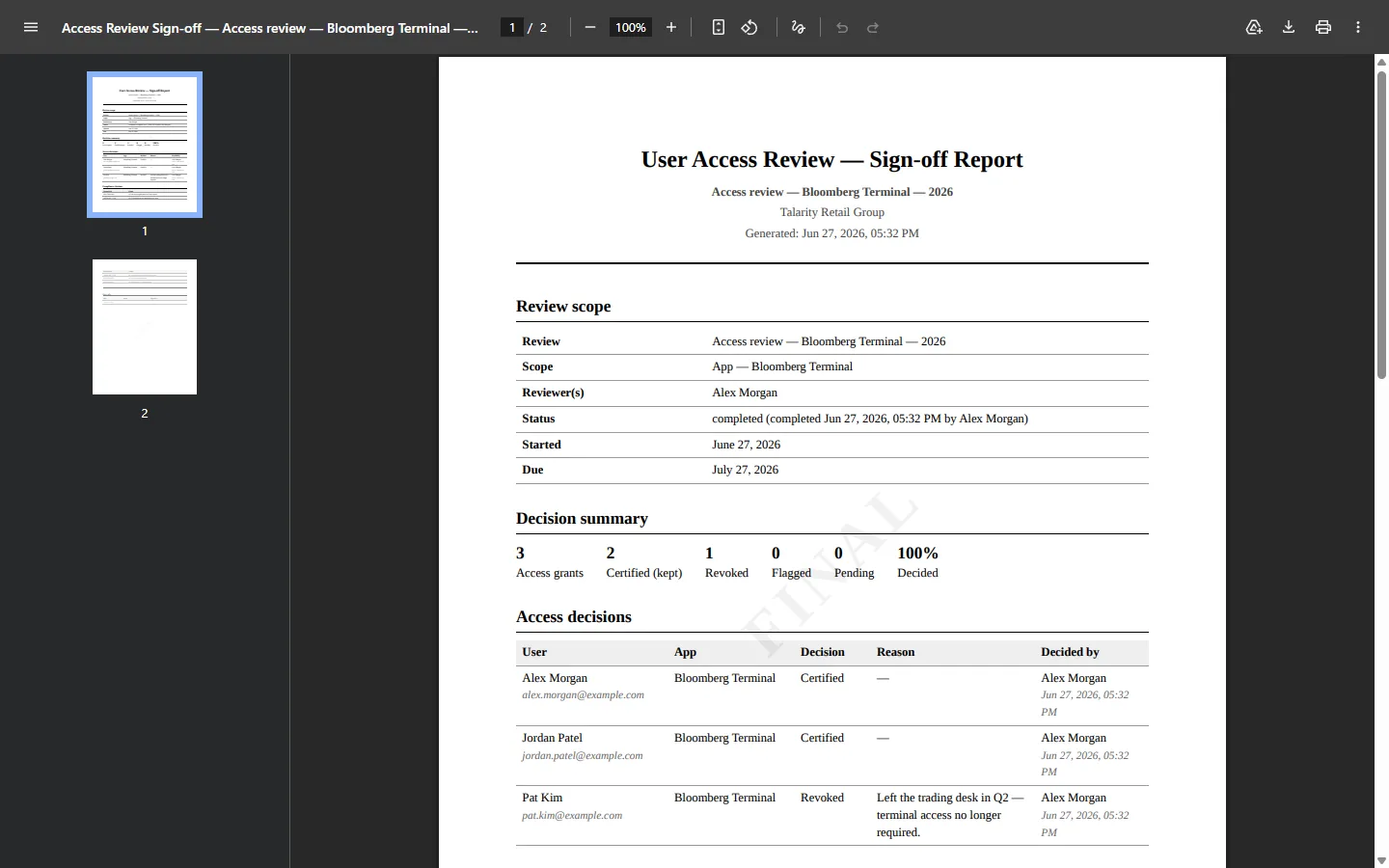
This is the screen you hand the auditor who asks for your last access certification — and the artifact a GRC lead pulls a year later to show the program runs on a cadence, not a fire drill.
What you walk away with
- A SaaS inventory where every app is a real asset — in the same graph as your hardware, controls, and risks, not a disconnected list — added and owned entirely from the Workforce section.
- A custodian on every app — set directly, or inherited from its category so nothing is ever silently unowned.
- A tracked access list with a per-user note, so the question “who can get into this, and why” always has an answer on screen.
- A one-click access review that routes to the app’s custodian with a task and an email, captures a reason on every revoke, and fans out deprovisioning work for what’s removed.
- A signed-off, audit-ready report filed to the Evidence Repository with framework citations — the answer to “show me your last access certification.”
Run yours this afternoon. Open Talarity, head to Workforce → Custodians → By App, add the five apps you’d be embarrassed to not have on a list, set a custodian on the Software category, and start a review on the one with the most users. The first pass takes about ten minutes; every app added after that is owned the moment it lands — and reviews itself on a schedule.