Most compliance platforms hand you an empty dashboard and a login, and leave you to figure out the rest. The result is predictable: a few fields get filled, the rest is “later,” and three months in nobody’s quite sure what was configured. The setup that determines how useful the platform is — your org profile, your frameworks, your retention policy — is exactly the part that gets skipped.
Talarity opens differently. A new organization lands on Home, which puts the same guided, progress-tracked path in front of you: everything worth configuring, grouped by what it unlocks, tracked as you go. You’re never staring at a blank slate wondering where to begin — and the tracking is automatic, because a setup step counts itself the moment you visit the screen that finishes it.
Who’s involved
- Org admin — runs the initial setup: profile, branding, retention, frameworks, team.
- Compliance lead — picks the frameworks and the targets the org will work toward.
- Everyone else — benefits from a configured org (their dashboards, evidence, and assessments all key off the setup the admin does once).
What’s on the page
Setup runs off Home (/app/home) and the screens it reaches — what you’ll touch:
- Home — where you start: Quick Start for “what do you need?”, the module cards that reach every screen below, and the setup tracking that runs underneath them.
- Company profile — name, logo, industry — the org’s identity.
- Branding — platform colors and logo.
- Data-retention policy — how long records are kept.
- Framework mapping — the frameworks your program targets.
Step 1 — The Getting Started checklist
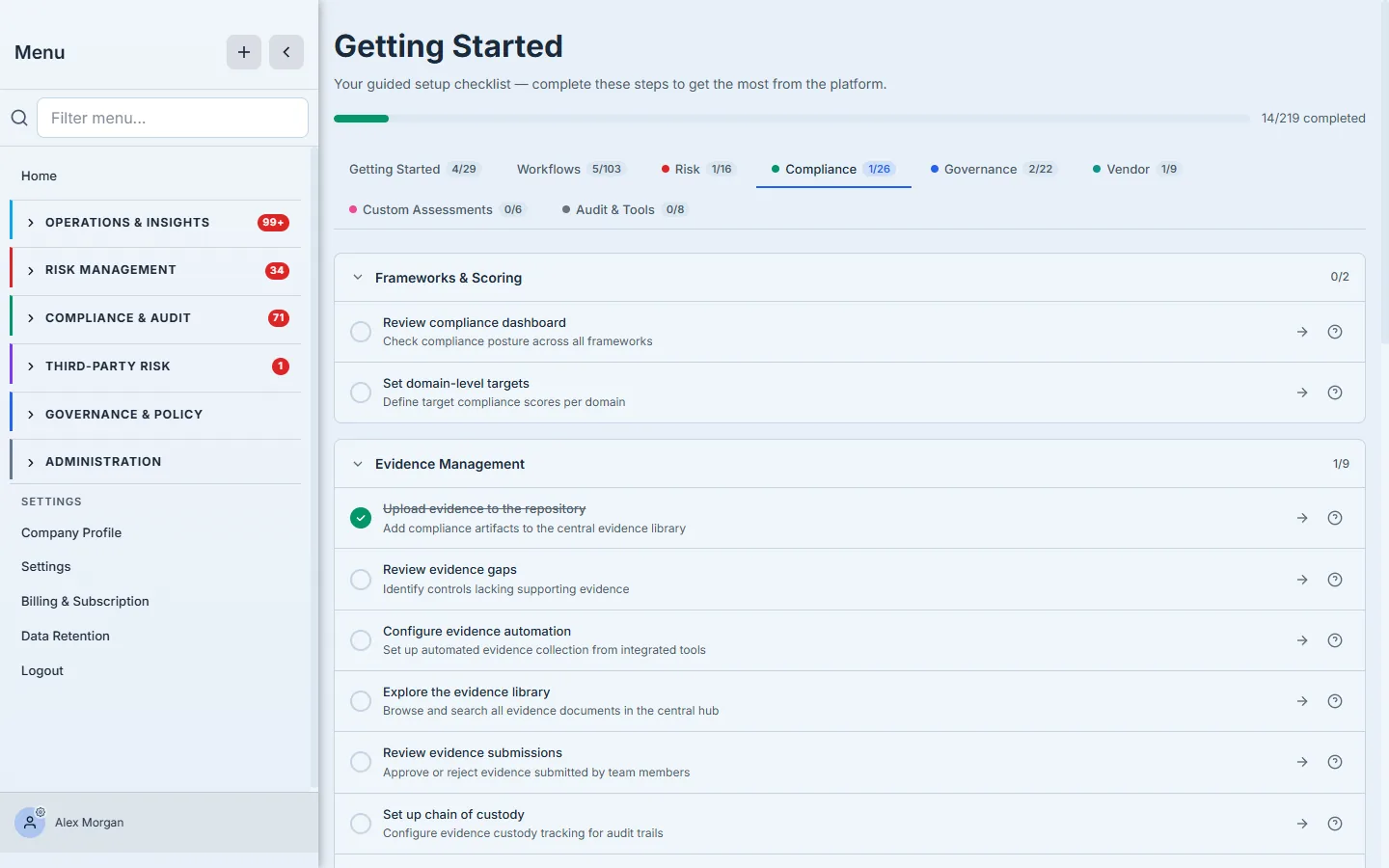
Setup is guided, but the guidance is no longer a page of its own. The standalone Getting Started page has been retired, and its address now redirects to Home. What it displayed did not go with it: the same checklist — its sections, its items, and the link from each item to the screen that completes it — is still there, and completing a step still marks it, because visiting the screen that finishes it counts. What changed is where that progress is shown. It now surfaces through workflows: a workflow step counts as complete when any of its checklist items is, and a workflow is complete when all of its steps are — so a 200-step platform still becomes a sequence of small, finished things, grouped by the job you are doing rather than by a tab. On Home, Quick Start takes the other half: describe what you need in plain language and it routes you to the action that handles it.
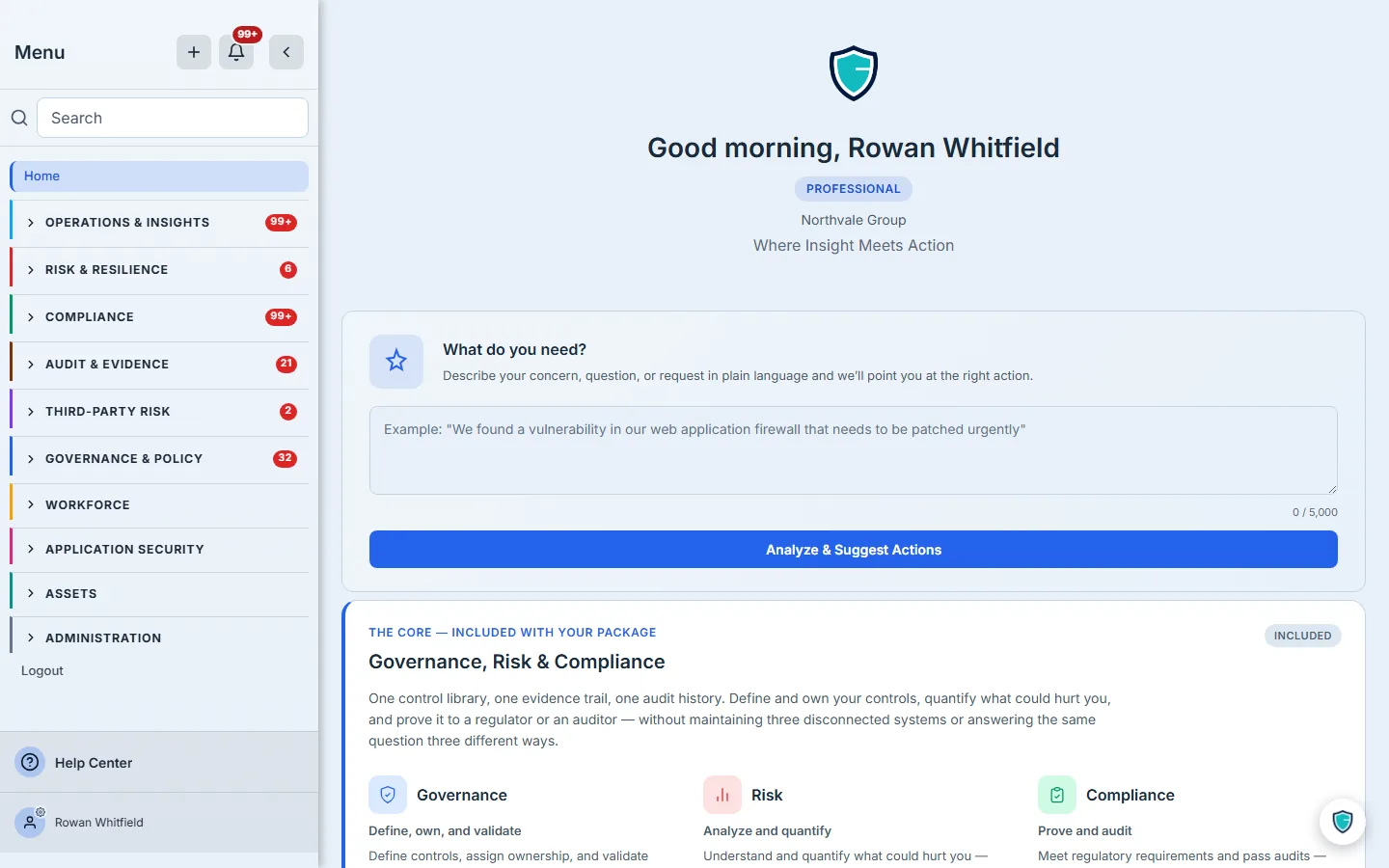
Home opens on your organization, your licence tier, and Quick Start: one field where you describe a concern, a question, or a request in plain language, and the platform points you at the action that handles it. Below it are the module cards — Governance, Risk and Compliance together in the core card, then whatever add-ons your package includes — which is how you reach the screens the rest of this article walks.
What is no longer on screen is the checklist’s rows. The items behind them are unchanged: Configure the Basics — set up your profile, complete the company profile, review insurance coverage, upload your logo, set compliance targets — and Set Up Your Team — permission groups, user assignment, MFA policy. They still complete themselves the moment you visit the screen that finishes each one; you never tick anything. You simply read that progress off the workflow you are working through, as described above, rather than off a page of green checks. The rest of this article walks those same stops, in the order worth doing them.
Step 2 — Complete your company profile
The Company Profile (/app/settings/company-profile) is more than a name and a logo — it’s the organizational context that powers risk scoring, benchmarking, and dashboard analytics. Industry, employee count, annual revenue, headquarters region, and fiscal year end all feed downstream: peer benchmarking needs your industry and size; risk quantification uses your revenue and insurance posture. A profile-completion meter (Core / Risk / Compliance) shows exactly what’s still blank.
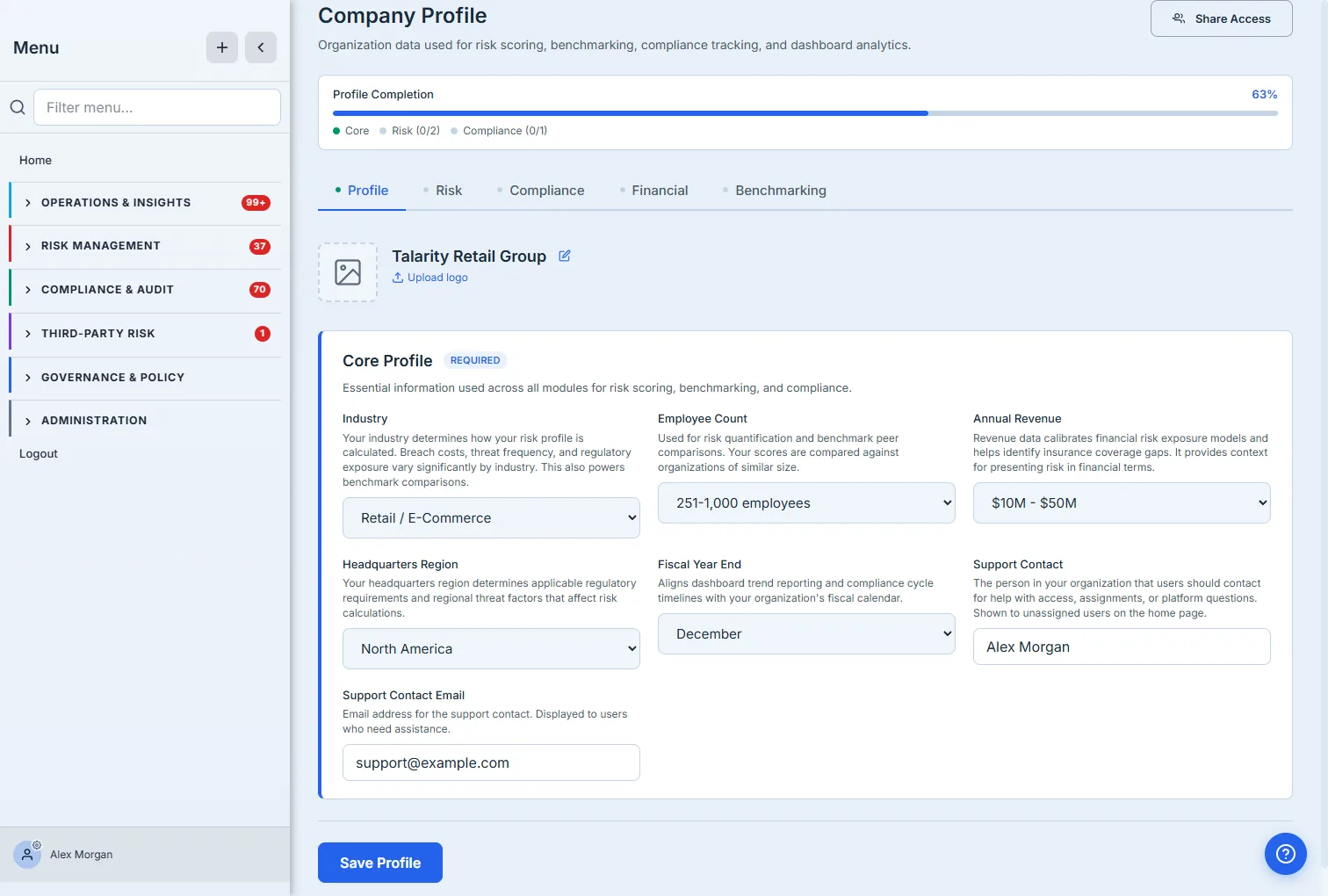
The profile feels optional and isn’t. An empty industry means no peer benchmark; a blank revenue means risk quantification falls back to generic assumptions. Five minutes here makes every downstream number sharper.
Step 3 — Brand the platform
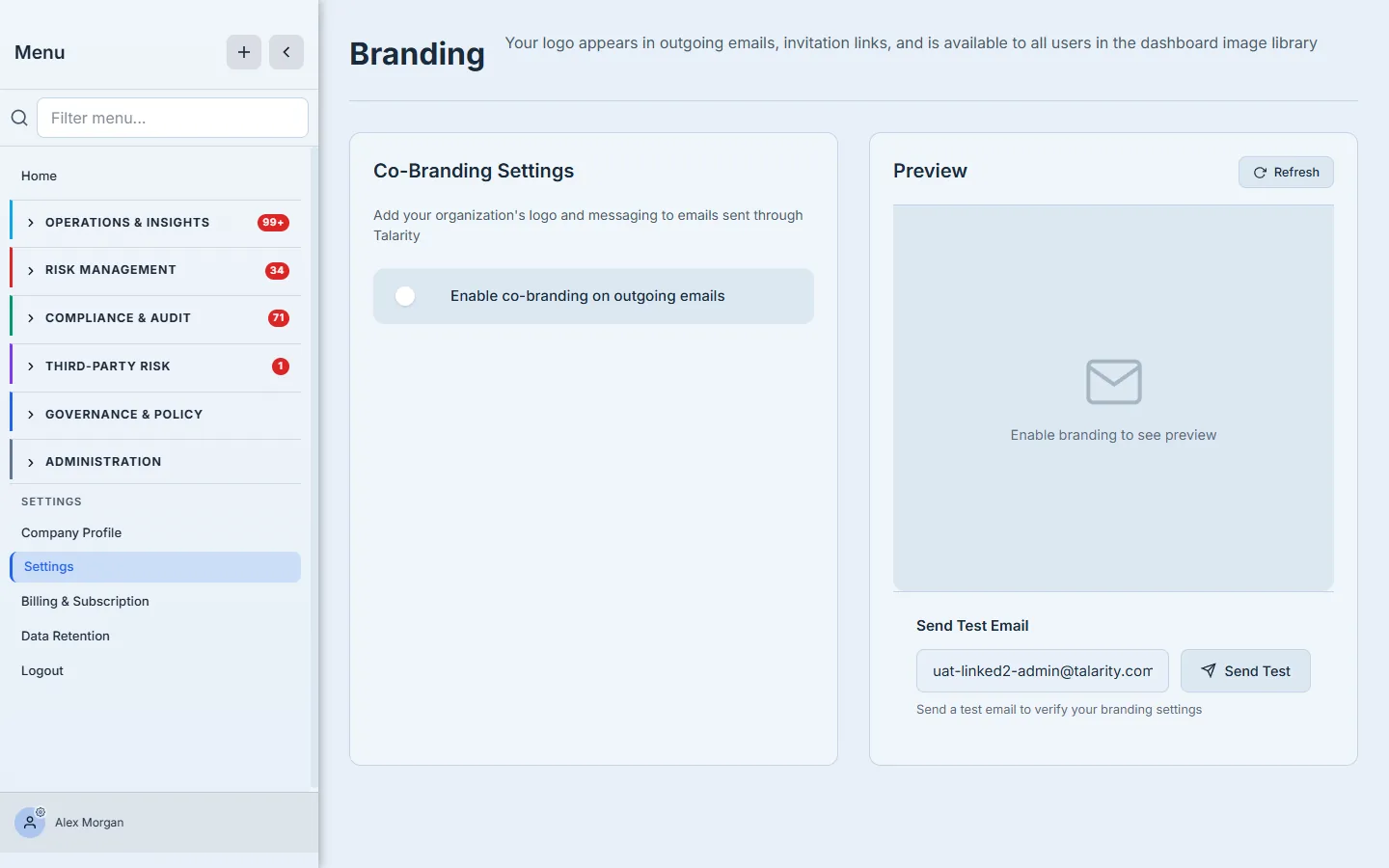
Compliance work leaves your building — invitations to vendors, acknowledgement requests to staff, attestations to auditors. Branding (Settings → Branding) lets you put your organization’s logo and messaging on outgoing emails so those touchpoints look like you, not a generic tool. Toggle co-branding on, and a live preview shows what recipients will see; a Send Test button lets you verify before it goes out.
Step 4 — Set your data-retention policy
How long you keep audit logs, assessment data, and generated reports isn’t a detail — it’s a compliance obligation. Data Retention Settings (Settings → Data Retention) ships with presets — Regulatory Minimum, Industry Standard, Extended, or Custom — and lets you tune per-category retention with the frameworks each one satisfies shown inline. Audit logs default to 730 days (SOC 2 / HIPAA / PCI DSS); assessment data to 1,095 days (SOC 2 / ISO 27001). Each category can require approval before deletion, and Legal Holds suspend deletion entirely when litigation or an investigation demands it.
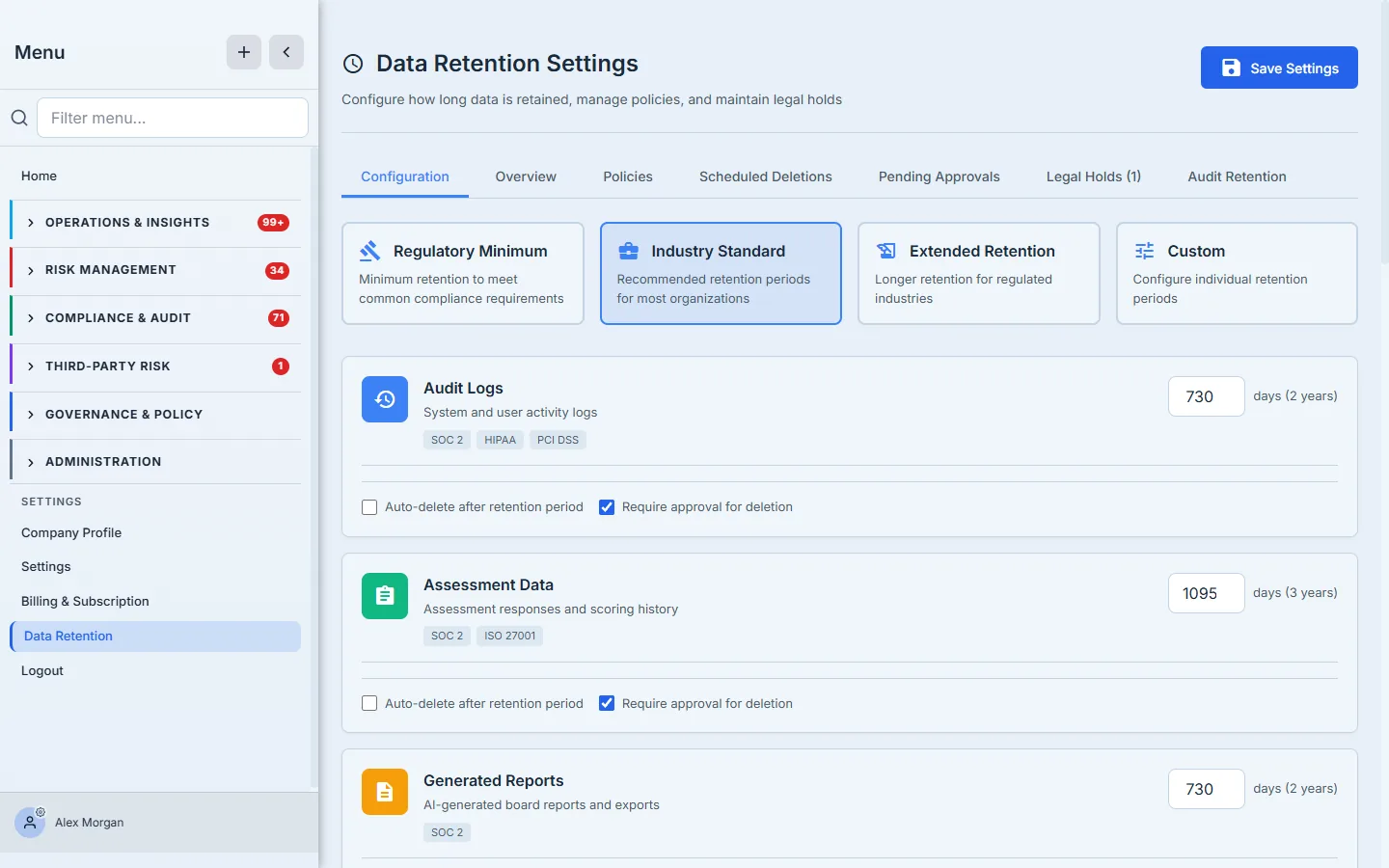
Retention is where “set it and forget it” is actually the right move — but only if you set it deliberately at the start. The framework tags on each category tell you which obligation you’d breach by shortening it.
Step 5 — Map your frameworks
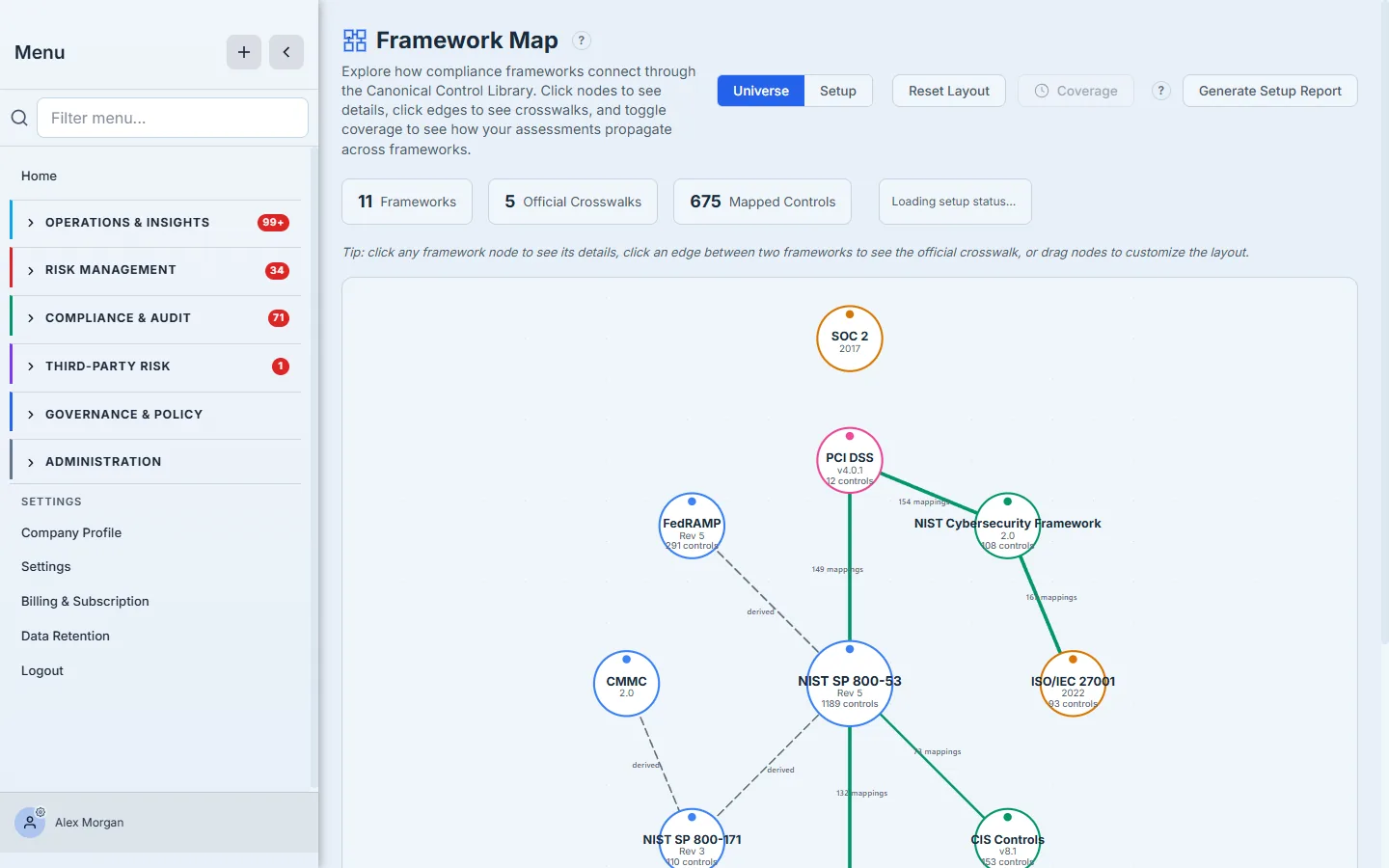
Most orgs carry several frameworks that overlap heavily. The Framework Map (/app/framework-map) shows how they connect through the Canonical Control Library — click a node to see a framework’s details, an edge to see the crosswalk between two, and toggle coverage to see how your assessments already satisfy controls across the set. It’s the picture that turns “we have to do SOC 2 and ISO 27001 and CIS” into “these mostly overlap, and here’s where.”
Step 6 — Per-module onboarding
Once the basics are in, the checklist’s module tabs take over. Each module — Compliance, Risk, Governance, Vendor — has its own onboarding sequence so you light up capabilities in the order that makes sense, rather than all at once. The Compliance tab, for instance, walks you from your first assessment through framework readiness; the module tabs mean a new org can go live on one capability and grow into the rest.
What you walk away with
- A guided path, not a blank slate — a progress-tracked checklist that tells you what to configure, in order, and checks it off as you go.
- A profile that powers the platform — industry, size, and revenue that sharpen benchmarking and risk quantification instead of leaving them generic.
- Branding on every touchpoint — your logo on the emails that leave the building.
- A deliberate retention policy — per-category periods mapped to the frameworks they satisfy, with legal holds.
- A framework map — the overlap picture that stops you from doing the same control four times.
Open Getting Started, work the Configure the Basics section top to bottom — it’s about fifteen minutes — and watch the completion bar climb. By the time it’s full, your org isn’t just logged in; it’s set up to produce real numbers.