Every framework that touches access control expects you to grant people the minimum they need to do their job — SOC 2 CC6.1 calls it logical access tailored to function, ISO 27001:2022 A.5.15 expects access control rules that distinguish between read, write, and management, NIST 800-53 AC-5/AC-6 mandate separation of duties and least privilege. The default-deny mindset is older than the cloud, and it survived the cloud because the alternative is a breach waiting for an outside auditor to surface it.
Most teams default to two practical roles — admin and not admin — and then spend the next two years patching exceptions. Talarity ships with twelve named system groups that cover the practical roles inside a GRC program: the people who run the whole platform, the people who do day-to-day work in it, the people invited to answer questions, the people reviewing, the people managing third-party vendors, the people running business continuity and disaster recovery, the external partners on a single messaging channel — plus a per-module Full Access family (AI, Compliance, Governance, Risk, Workforce) for teams that own one module end-to-end without touching the rest. Most orgs never need to author a custom group.
Who’s involved
- Org administrator — picks the right group at invite time, assigns work to groups instead of individuals, and decides who’s on the program.
- Standard user — runs the day-to-day work. Writes policies, files exceptions, sees the program.
- Assessment contributor — invited collaborator who answers questions on assessments they were specifically assigned to.
- Reviewer — sees the program read-only. Can post questions in messaging; can’t change a thing.
- Business continuity manager — runs the BC/DR program: business impact analyses, recovery plans, DR test exercises, and the DR program itself. Read-only on the assets, vendors, and risks their plans depend on.
- External participant — pulled into one messaging channel from a partner org. Has no other visibility.
What’s on the page
Open Groups (/app/groups). Two surfaces drive role-based access and assessment assignment:
- Groups page — the twelve pre-built groups (Full Access, Standard User, Assessment Contributor, Review Only, Business Continuity Managers, Vendor Managers, and the AI / Compliance / Governance / Risk / Workforce Full Access family…), each with its permission scope and a member drawer showing who’s in it now.
- Assessment Center → Assignments tab — the Assign to Internal Users modal, plus the snapshot-vs-live binding that controls what each assigned member actually sees.
Step 1 — The twelve pre-built groups
Open /app/groups. The Defaults tab shows the twelve system groups that ship with every Talarity org. They are not authored — they are seeded when the org is created, and the Default badge marks their permissions as locked: you can manage who’s in a default group, but not what it can do. (To change the permissions, duplicate it into a custom group — the original always survives.) The stat strip counts every group in the org, so a Total Groups 13 against twelve defaults simply means this org has authored one custom group of its own, which you’ll meet in Step 5.
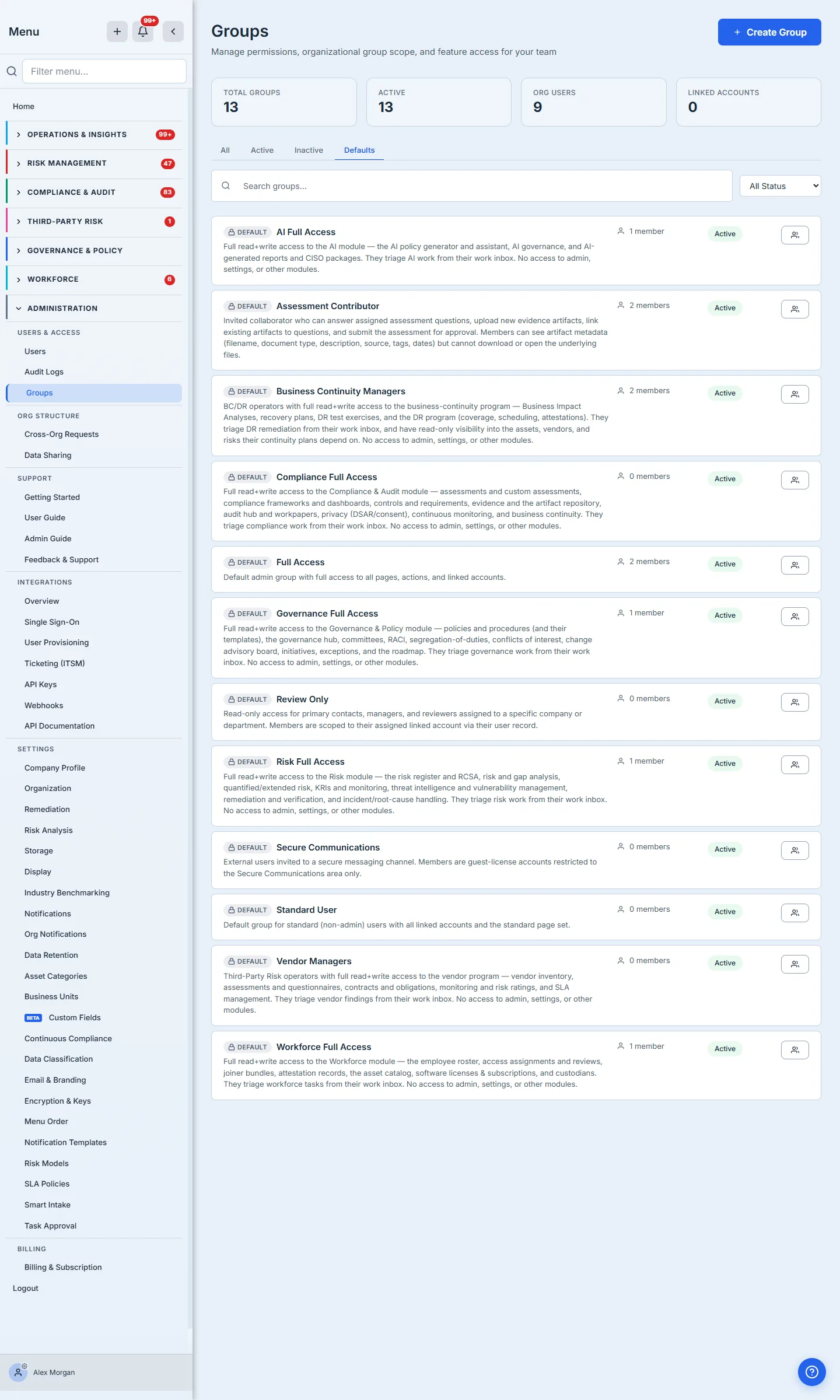
The two platform-wide groups:
- Full Access — the admin group. Every page at write, every action permission, every linked account. New org owners land here automatically. This is the group whose members don’t need to be on an assignment to see an assessment — they see the org-wide portfolio by design.
- Standard User — the default for newly invited team members. All standard pages at write; admin-only pages (Users, Groups, Linked Accounts, Integrations, Audit Logs, Billing) hidden. This is the group that does the work of the program — writes the policies, files the exceptions, runs the campaigns — without holding the keys to the platform.
Four role-shaped limited groups:
- Assessment Contributor — invited collaborator. Sees Home, My Work, and Assessments only. Can answer assigned assessment questions, upload evidence, link existing artifacts. Cannot see assessments they aren’t on. This group is intentionally narrow.
- Review Only — read-everywhere. Standard pages at read, no write permissions anywhere except the messaging channel they were invited to. Ideal for auditors, executive reviewers, and vendor-side observers.
- Secure Communications — external-only. The single page they see is the messaging channel that pulled them in. A guest-license account used when you need to talk to a partner without bringing them into your program.
- Business Continuity Managers — the BC/DR role. Full read+write on the business-continuity program — business impact analyses, recovery plans, DR test exercises, and the DR program (coverage, scheduling, attestations) — plus Home and My Work, where they triage DR remediation. Read-only visibility into the assets, vendors, and risks their continuity plans depend on; no access to admin, settings, or other modules.
The per-module Full Access family — six groups (Vendor Managers plus five newer siblings), each granting full read+write inside one module and nothing else, so you can hand a team its whole area without full-admin keys:
- Vendor Managers — the Third-Party Risk module: vendor inventory, assessments and questionnaires, contracts and obligations, monitoring and risk ratings.
- Risk Full Access — the Risk module: the risk register and RCSA, risk and gap analysis, quantified/extended risk, KRIs and monitoring, threat intelligence and vulnerabilities.
- Compliance Full Access — the Compliance and Audit & Evidence areas: assessments and custom assessments, frameworks and dashboards, controls and requirements, evidence and the artifact repository, audit hub, privacy (DSAR/consent), continuous monitoring.
- Governance Full Access — the Governance & Policy module: policies and procedures (and their templates), the governance hub, committees, RACI, segregation-of-duties, conflicts of interest.
- Workforce Full Access — the Workforce module: the employee roster, access assignments and reviews, joiner bundles, attestation records, the asset catalog, software licenses and subscriptions.
- AI Full Access — the AI module: the AI policy generator and assistant, AI governance, and AI-generated reports and CISO packages.
Each carries Home and My Work (to triage that module’s work inbox) and nothing else — no admin, no settings, no sibling modules. They’re the answer to “give the vendor team the whole vendor program, but keep them out of everything else.”
The same twelve groups exist in every Talarity org from day one. That’s the load-bearing detail — admins moving between orgs don’t have to learn a new vocabulary, auditors testing access controls see the same roles in every customer environment, and the catalog of “who can do what” never drifts from this baseline.
Step 2 — What a limited-role group can actually do
Click into a group card to open its detail drawer — five tabs: Permissions, Views, Scope, Types, Members. The Permissions tab is the canonical page-access matrix — every left-nav surface, rendered as a row with three controls: Read, Write, and Deny. Leave all three unchecked and the page is Undefined — this group simply doesn’t grant it. Deny is the deliberate, subtractive control that removes a page even when another of the member’s groups grants it; the system groups never use it (they only Allow), which is what keeps them safely combinable. Views controls per-page visibility, Scope restricts a group to specific linked accounts or asset categories, and Types auto-grants newly-added registry items (system groups default to grant). For default groups all of this is read-only (a banner says so), but it’s the same view that drives custom groups too.
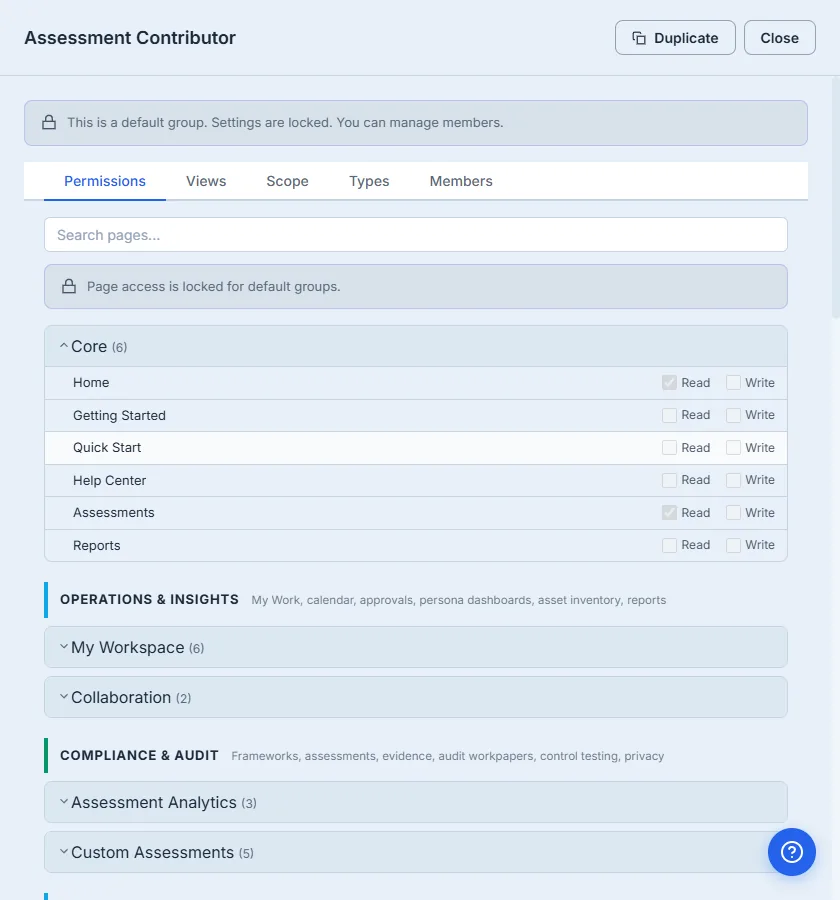
What this view tells you about Assessment Contributor:
- They see Home, My Work, and Assessments — Assessments at read, My Work at write.
- Everything else — Risk Register, Vendor Management, Reports, Org settings — is Undefined (unchecked, not Denied). For someone whose only group is Assessment Contributor the sidebar items don’t render and the routes 404 — there’s no Allow for them anywhere. But because the page is Undefined rather than Denied, it stays additive: put that same person in a second group that grants Risk Register and those pages appear, on top of their contributor access. Nav visibility is derived from this matrix — a sidebar item shows when some group grants its page and no group denies it.
- They hold the
risk.assessment.respondaction permission — answer questions, upload evidence, submit the assessment for approval.
You can do the same exercise for any group. Standard User looks similar at the page level but with most pages set to Write; Review Only mirrors Standard User with the writes flipped to read; Secure Communications has exactly one row at Write and everything else at None.
Step 3 — Who’s in the group right now
The Members tab on the same drawer is where you confirm membership. For system groups you can add and remove members freely — the settings are locked, the roster is not.
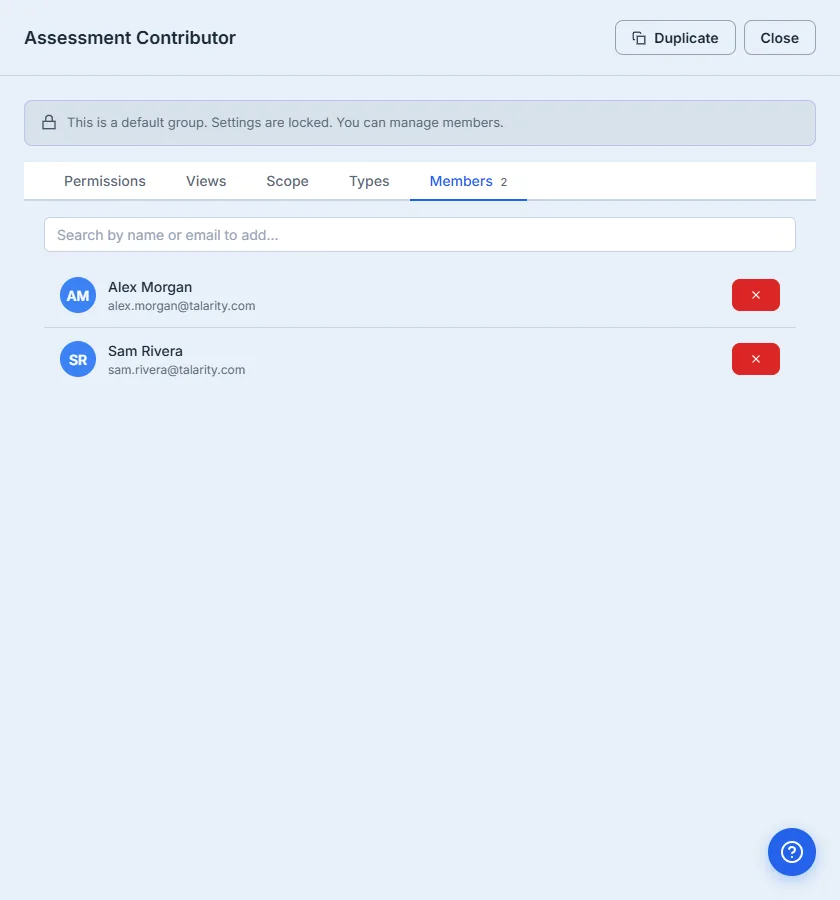
Membership in Talarity is a single source of truth — org_users.allowed_group_ids is the canonical list, and every read across the platform resolves group membership from there. You can put a user in two groups (an admin who’s also marked as an Assessment Contributor so they see contributor-facing UI hints), or zero groups (a deactivated account), or one. The user picker on the My Work page, the dispatcher’s permission check, the My Work badge counts, the assignment modal in this article — all of them resolve membership from the same column. There is no second list to keep in sync.
Step 4 — The scoping rule that catches every admin once
Here’s the rule that, if you don’t know it, will produce a customer support ticket within six months of going live:
A limited-role group does not see assessments by group membership alone. It sees assessments it was assigned to. Adding someone to Assessment Contributor does NOT grant them visibility on every assessment in the org. It grants them eligibility to be assigned to one. The two steps are separate and both required.
That’s by design. Assessment Contributor is the role you give to a contractor finishing one section of a SOC 2 questionnaire, or a partner answering a vendor risk request. They aren’t supposed to browse the program. They’re supposed to do the one thing, finish it, and be done. Limiting them to what they were assigned keeps the program private from collaborators without burying you in per-user permission editing.
The Assessment Center, viewed by an admin, shows the org-wide portfolio. Active assessments, drafts, completed, archived — the admin lands here and the table is everything. (Full Access and Standard User both carry the broad-portfolio view.)
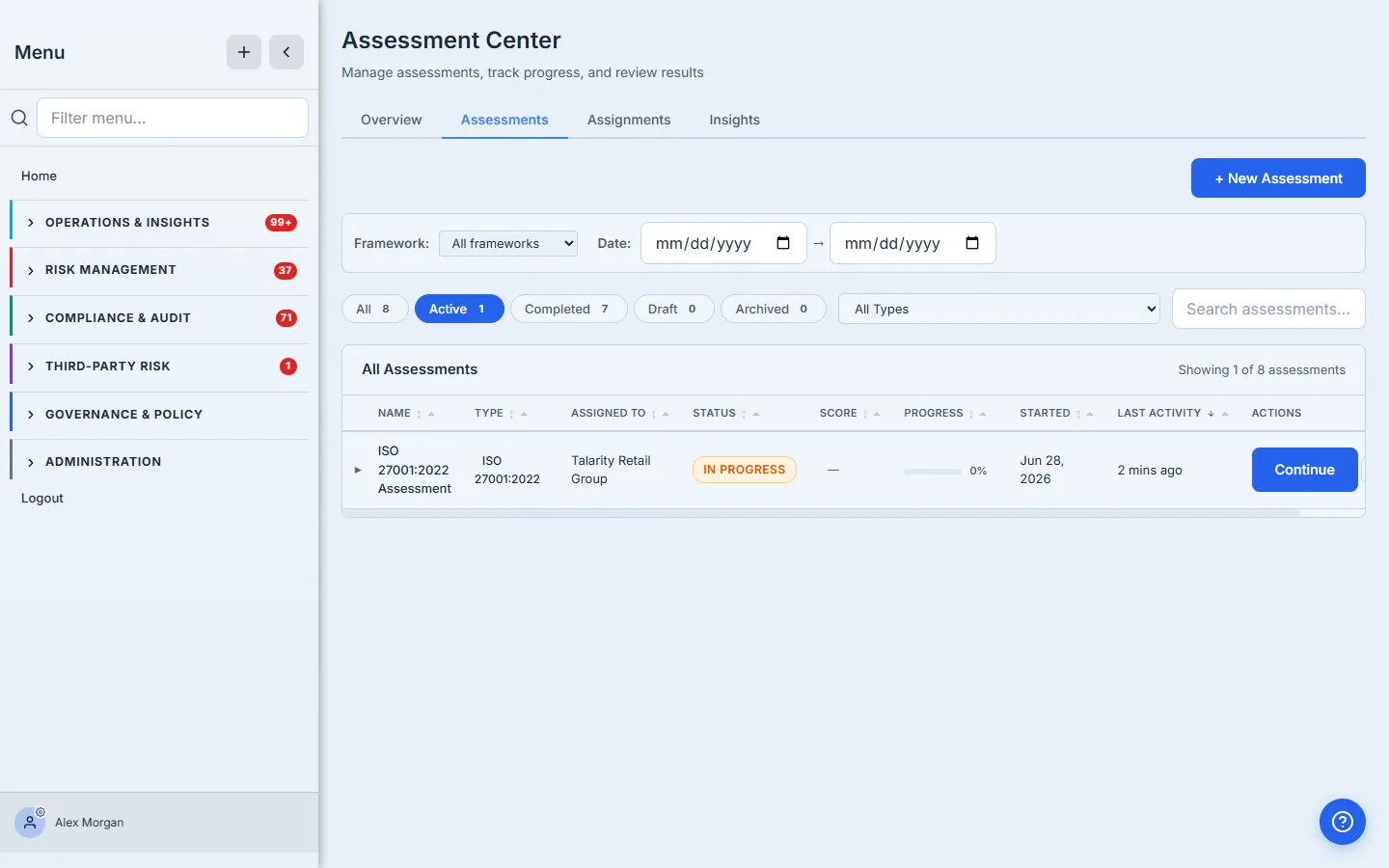
An Assessment Contributor opening the same page, with no assignments yet, sees an empty list. The page renders, the search box and filters render, but the rows are empty — the read-side handler is filtering at the database level, not just hiding rows in the UI. There is no “show me everything anyway” admin override exposed to a contributor. They can’t escalate by clicking around.
Step 5 — The Assignments tab, before you’ve sent anything
Switch to the Assignments tab to see the two-direction view: assessments other people sent to you (top), and assessments you’ve sent to your team (bottom). On a fresh org both panels are empty, with a single primary button on the right that does the entire workflow in one place.
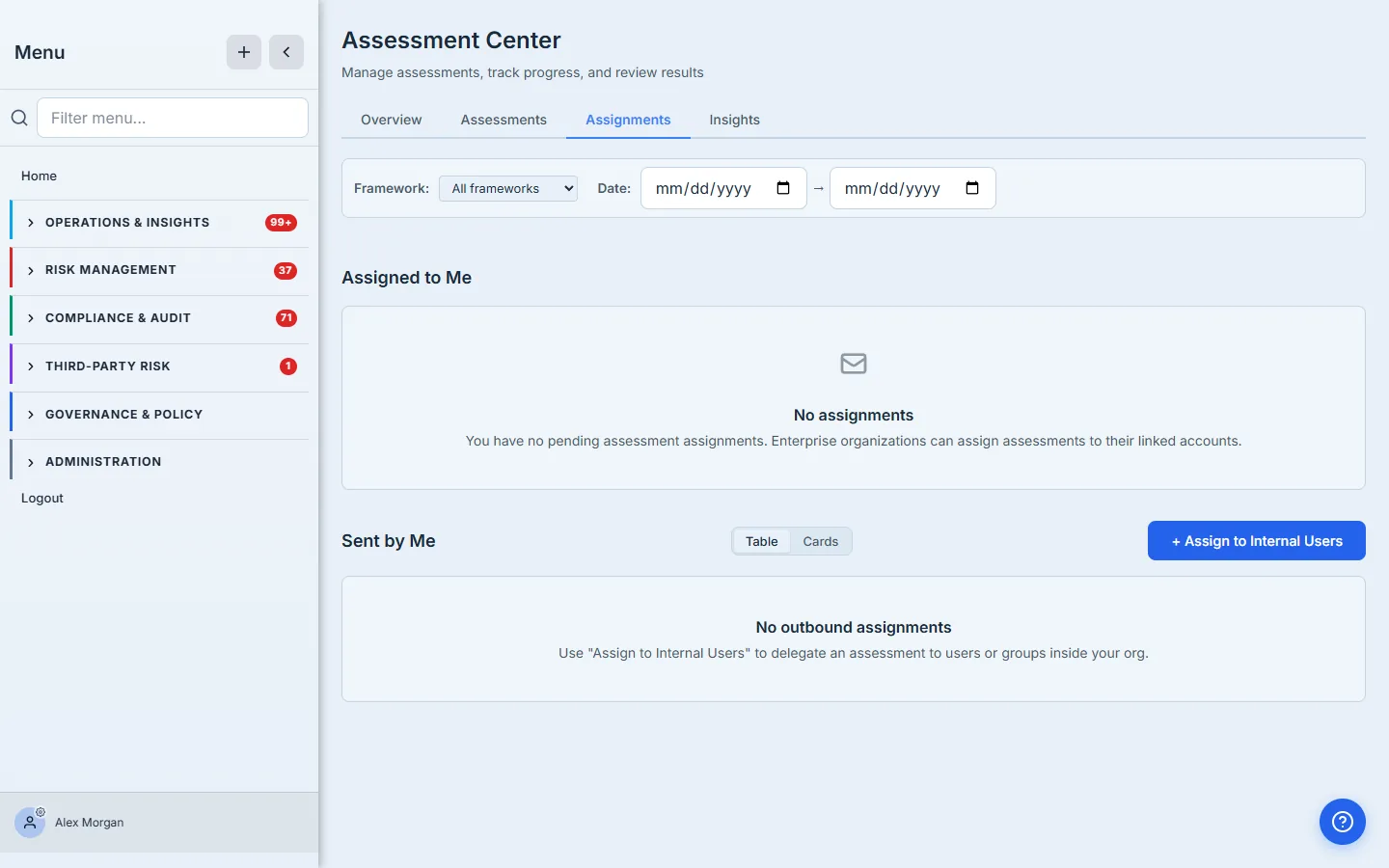
The button is the entry point for the entire internal-delegation flow — and it’s the same primitive whether you’re assigning to one person, a single group, or a mix. Click it.
Step 6 — The Assign to Internal Users modal
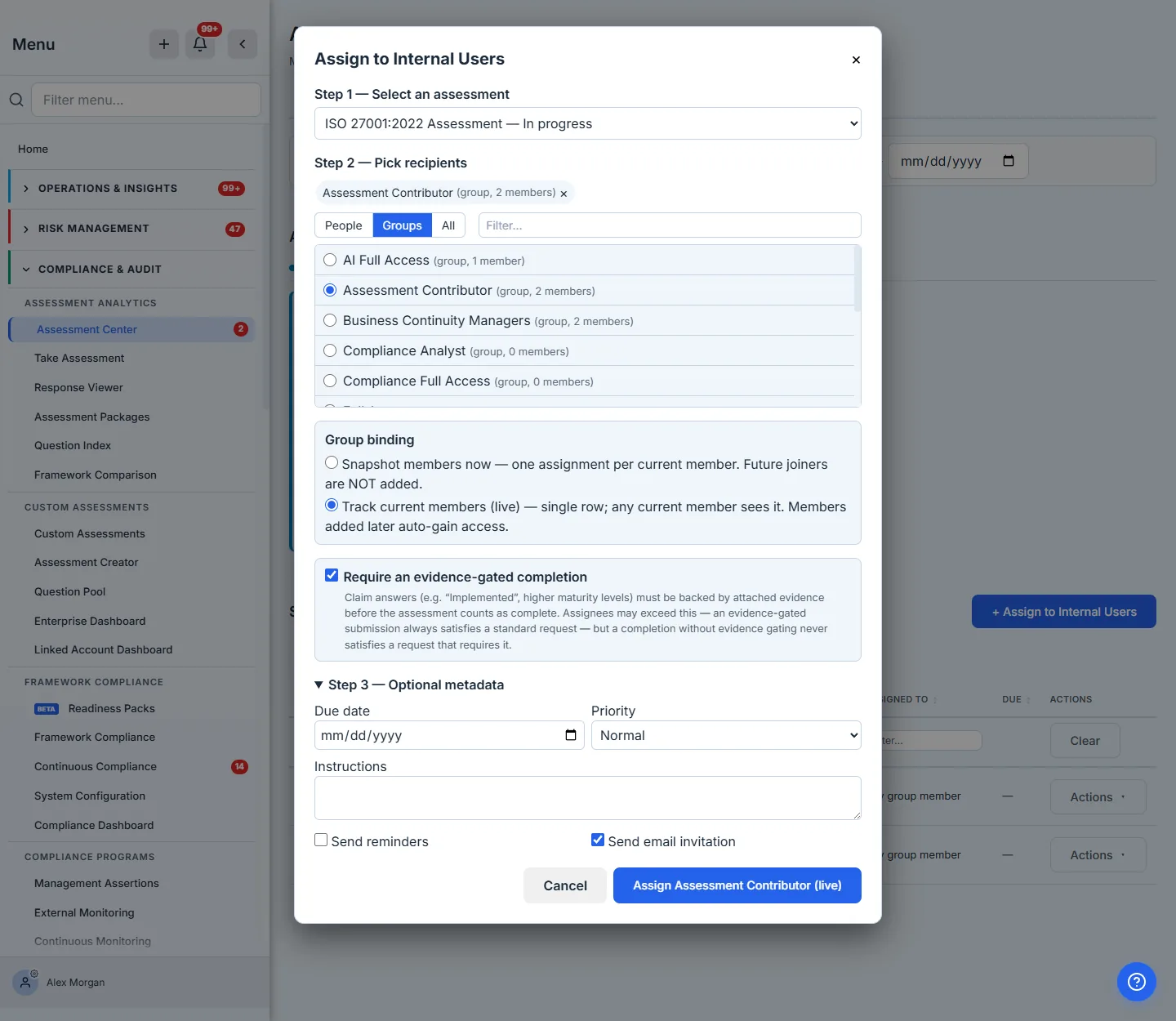
The modal opens with three numbered steps plus one standalone decision. Step 1 is the assessment, Step 2 is the recipients, Step 3 is optional metadata (due date, priority, instructions, reminders, send-email toggle) — and between the recipients and the metadata sits Require an evidence-gated completion, deliberately not folded into the optional block, because it defines what a valid submission is rather than how it’s scheduled. It’s pre-checked from your org’s evidence-gating default. Leave it on and claim answers on the assigned assessment must carry attached evidence before the work counts as complete; the recipients see the requirement as an Evidence-gated badge on their assignment card and a locked gating chip in the runner. The rule underneath is one-directional: an evidence-gated completion satisfies any assignment, but a completion without gating never satisfies an assignment that required it. The two segmented controls — People | Groups | All — are the design’s other load-bearing decision: do you want to assign to specific individuals, to a group, or browse them together?
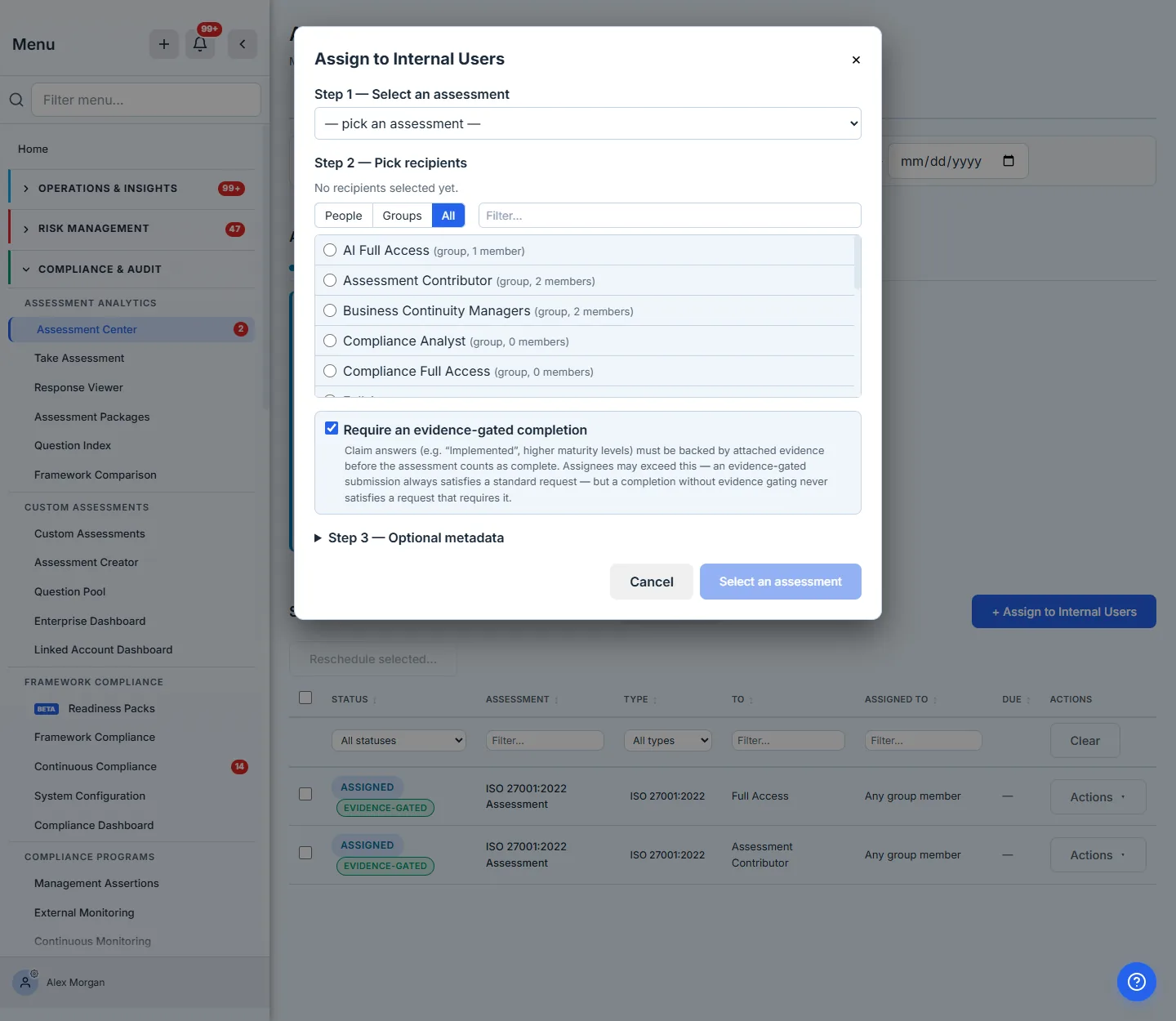
Pick the assessment from Step 1, then click the Groups segment. The picker now narrows to just groups, with each row showing the live member count.
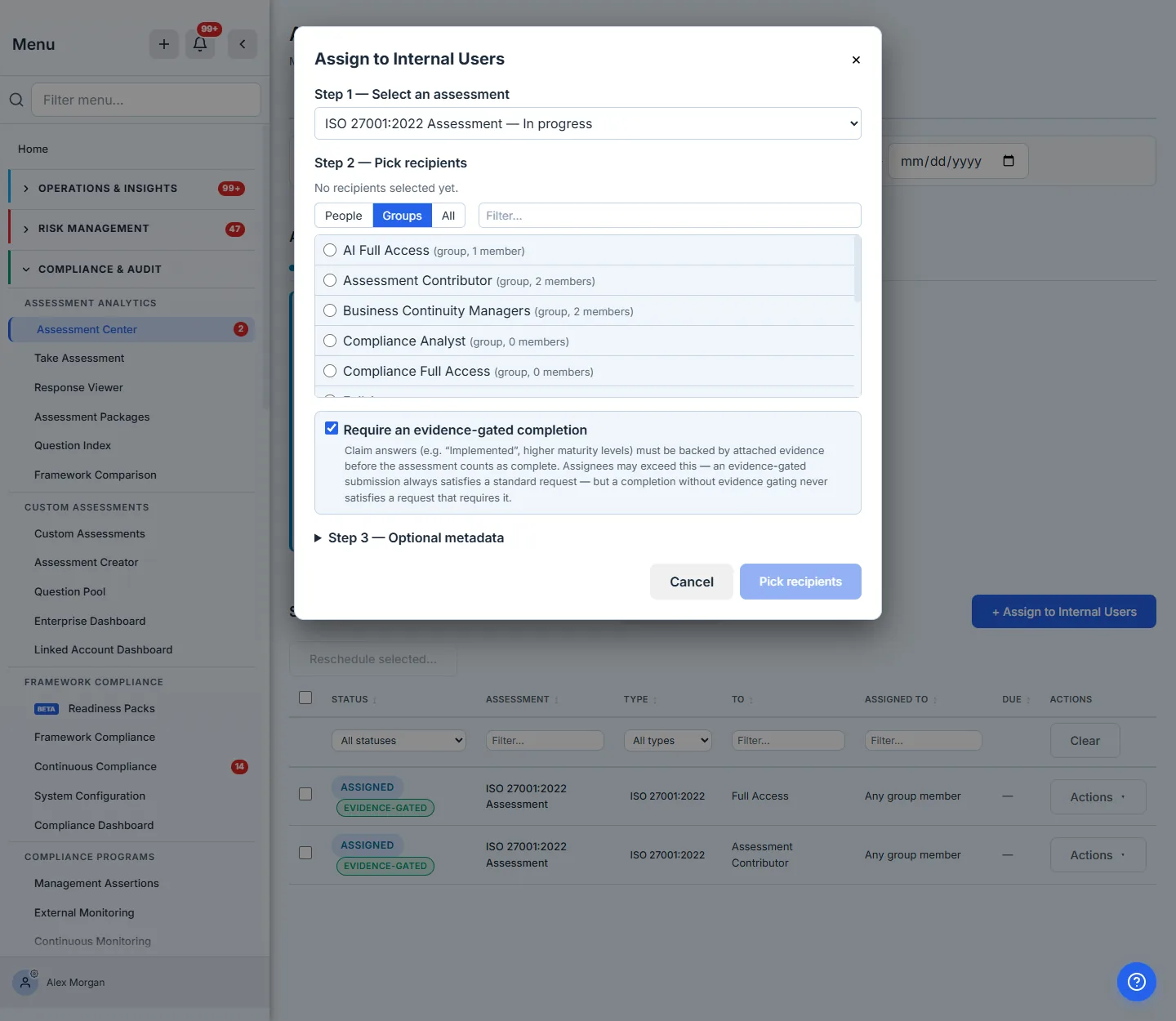
Assigning to a group is the safer default for an ongoing role. Adding a new contributor next quarter? Drop them into the Assessment Contributor group from the user list and they inherit the assignment automatically — no per-assessment remembered-list to update. That’s what makes the group assignment more durable than the person assignment for anything that runs longer than one cycle.
Step 7 — Snapshot vs. Live binding
The moment you tick a group radio, a new section appears: Group binding. This is the article’s other load-bearing decision.
-
Snapshot members now — Talarity materializes one row per current member. If you add a new person to Assessment Contributor next month, they do NOT inherit the assignment. The roster is frozen at submit time. Choose this when the assessment has a fixed scope and a finite window — a one-shot Q3 vendor questionnaire, a single audit deliverable.
-
Track current members (live) — Talarity writes a single row with a group reference. Any current member sees the assignment via group lookup. Joiners auto-gain access; leavers lose it. Choose this for ongoing roles where you want the group itself to define the recipient list — a standing CIS assessment that contractors rotate through, an annual SOC 2 cycle where the contributor list flexes.
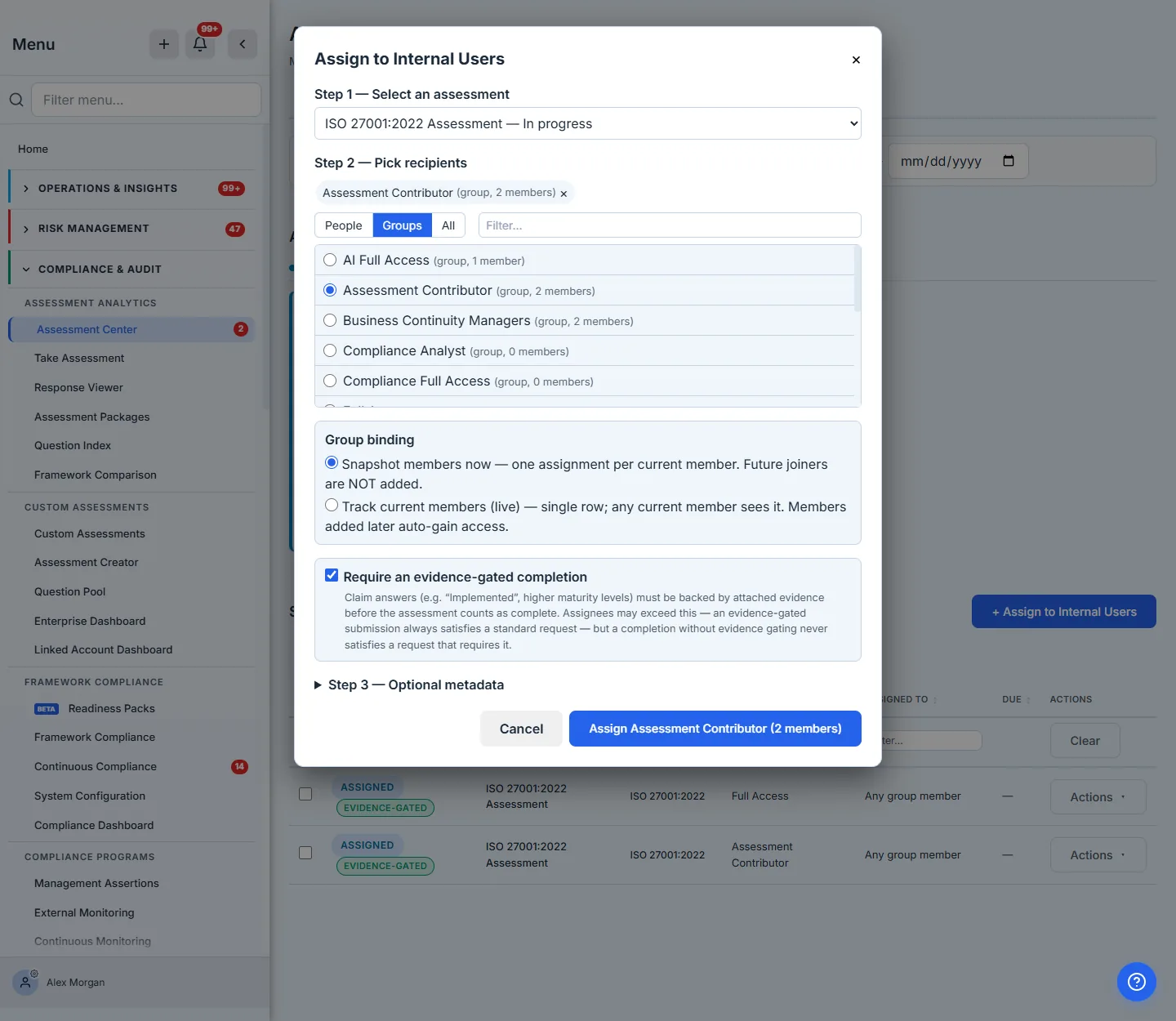
Track current members (live) is the default; with it selected the submit button reads “Assign Assessment Contributor (live)”. Choose Snapshot members now instead and the button switches to the current member count (“Assign Assessment Contributor (2 members)”). Below the binding sits the Require an evidence-gated completion box (independent of the binding mode — it travels with the assignment either way), and then the optional metadata block (Step 3), the same in either mode: a due date that triggers the reminder cascade if you enable it, a priority badge that the recipient sees in My Work, instructions that show up on the recipient’s task, and the email-invitation toggle that controls whether the initial notification goes out (live mode always skips the email — the assignment surfaces in My Work for current members; new joiners discover it the next time they log in).
Hit submit and Talarity confirms with the count of rows materialized — one for live, N for snapshot (a “1 assignment created” toast for the live binding above; a 2-member group in snapshot mode would report “2 assignments created”).
Behind the scenes, the new row in assessment_assignments carries assignee_group_id set to the Assessment Contributor group id, assigned_user_id left NULL (that’s the live-binding signature), assigned_by set to your uid, and status: 'in_progress'. The next time any current member of the group calls the assessment list handler, the scope predicate evaluates a.assignee_group_id = ANY(caller's groups) — they match, the row surfaces, and the assessment appears in their Assessment Center.
Step 8 — The before-and-after on the Assignments tab
Refresh the Assignments tab and the empty state is gone. Both panels carry the assignment now: Sent by Me shows the row from the admin’s perspective (with the recipient column reading “Assessment Contributor”), and Assigned to Me picks the assignment up because the admin is also a member of Assessment Contributor (Alex Morgan carries both Full Access and Assessment Contributor here — a useful pattern when admins want to test what their contributors see).
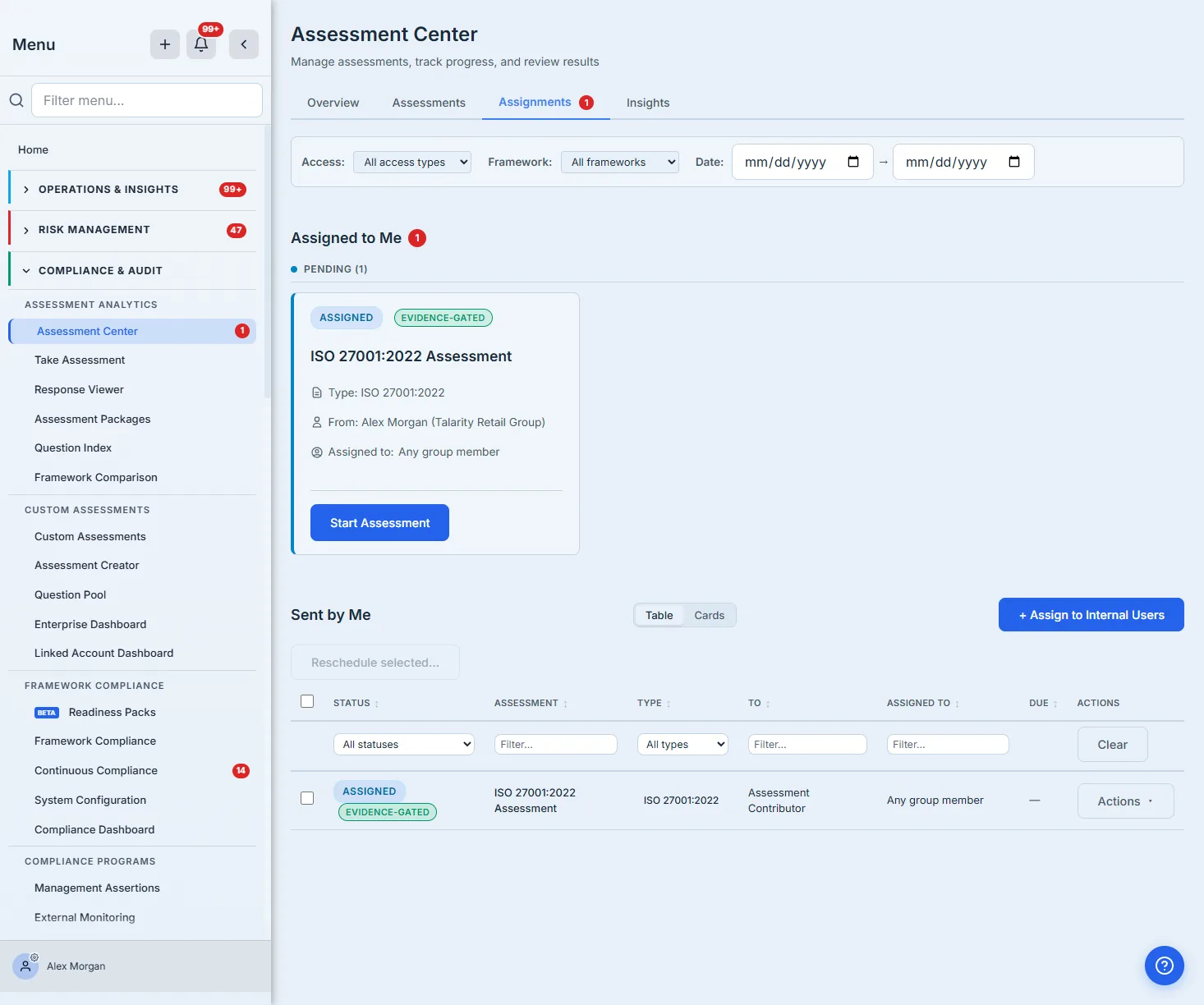
The Any group member label is the live-binding fingerprint — it’s what the column shows when the assignment doesn’t bind to one specific user but to “whoever is currently a member of this group.” It’s also the answer to the support ticket: “why can my new hire see this assessment without me re-assigning?” — because the binding is live, not snapshotted.
The green Evidence-gated pill next to the status is the requirement from Step 6 made visible — on both sides of the exchange. The recipient sees at a glance that claim answers will need attached evidence before this assessment counts; the sender sees which of their outstanding requests demand the higher bar. If a run is ever completed without gating against a requirement like this one, the pill flips to an amber Needs evidence-gated run and the assignment stays open — an ungated completion never quietly satisfies a gated request.
The cross-org wrinkle — when a parent org sends an assessment to a child
The same scoping rule applies when an Enterprise customer sends an assessment from a parent org to one of its linked-account child orgs. The parent’s Assign Assessment flow mints an assessment in the child org’s collection and an assignment row keyed to the child via linked_account_id and target_email. The child-org admin (Full Access) sees the inbound assessment immediately — they pass the same admin scope rule that Full Access carries in every org. But a child-org contributor (Assessment Contributor) does NOT see it, because the parent’s mint didn’t set assignee_group_id or assigned_user_id — it could only know the child org and a target email, not the internal group structure.
The fix is the same screen: the child-org admin opens Assessment Center → Assignments → Assign to Internal Users, picks the inbound assessment from the dropdown (it’s there — the assessment lives in their org now), picks the Assessment Contributor group, picks live binding. From that moment forward the child-org contributors see it, including anyone added to the group later. One screen, one form, one submit.
The “I sent it but my contributor can’t see it” ticket has one cause and one fix. Cause: a limited-role group needs to be on the assignment, not just on the user. Fix: open the Assign to Internal Users modal, pick the group, pick live binding, submit. Two minutes.
What you walk away with
- Twelve named system groups in every Talarity org from day one — Full Access and Standard User (platform-wide), the role-shaped Assessment Contributor / Review Only / Secure Communications / Business Continuity Managers, and the per-module Full Access family (Vendor Managers, Risk, Compliance, Governance, Workforce, AI).
- A clear scoping rule for limited-role groups: they see assessments they’re explicitly assigned to, not every assessment in the org. By design, not a bug.
- One screen — Assessment Center → Assignments → Assign to Internal Users — that handles individual assignments, group snapshot assignments, group live assignments, and cross-org re-routing with the same form.
- The Snapshot vs. Live trade-off — Snapshot for fixed one-shot scopes, Live for standing roles where you want the group itself to drive the recipient list.
- An evidence bar you set per assignment — the Require an evidence-gated completion toggle (defaulted from your org policy) travels with the assignment, badges it Evidence-gated on both sides, and guarantees an ungated completion never quietly closes it.
- No drift across orgs — the same twelve groups exist in every Talarity environment, so admins, contributors, and auditors all see the same vocabulary regardless of which customer they’re working with.
Open /app/groups, hit the Defaults tab, click into Assessment Contributor. Add the person you’ve been meaning to invite. Then open the Assessment Center, click + Assign to Internal Users, pick the assessment, pick the group, pick live. The first one takes about two minutes — every assignment after that takes the same two minutes, and the group itself remembers who’s on the program.