Almost every framework that asks you to attest to a policy also asks who you sent it to, what message they got, and how the external participants — the new hire who starts next month, the auditor on this engagement — were reached. SOC 2 calls it out across CC2.3 (information communicated to support the functioning of internal control). ISO 27001:2022 A.5.1 mandates that policies are communicated, and Clause 7.3 (Awareness) requires records that the workforce knows the policy applies to them. PCI DSS 12.6 expects an annual security awareness program with documented acknowledgement. The auditor’s question is “how did this person receive the policy?” — and they’ll keep asking until the answer is concrete.
Most teams type the same dozen emails into a BCC field every year, write the message from scratch every time, and either email a Word doc to the new hire’s personal address (no record they read it) or wait until day one to onboard them (too late for an audit). Talarity’s Send-for-Acknowledgement modal takes the three things that always get fudged — the recipient list, the message text, the external participants — and makes each one a structured choice.
Who’s involved
- Compliance lead / policy owner — fires the campaign, picks the people, picks the message.
- Employee — gets the task in their My Work queue (if they’re an org member) or a token-authenticated portal link (if they’re not).
- New hire / external partner — gets the same portal link before their first day, signs from a personal device, and is on day-one as if they’d already onboarded.
- Auditor — pulls the per-recipient log and the message body that was sent; the bytes are immutable per campaign.
What’s on the page
This all happens in the Send for Acknowledgement modal, opened from any published policy’s detail page — four stacked blocks:
- Recipients — a comma-separated email field plus a Pick recipients two-source picker (Org members / Employees).
- Due date + Reminders — when the acknowledgement is due and the reminder cadence.
- Message template — four built-in starters plus any your org has saved.
- Custom message — the body, pre-filled by the template and editable.
Step 1 — Open the Send-for-Acknowledgement modal
From any published policy’s detail page, click Send for Acknowledgement. The modal has four blocks: recipients, due date + reminders, message template, custom message.
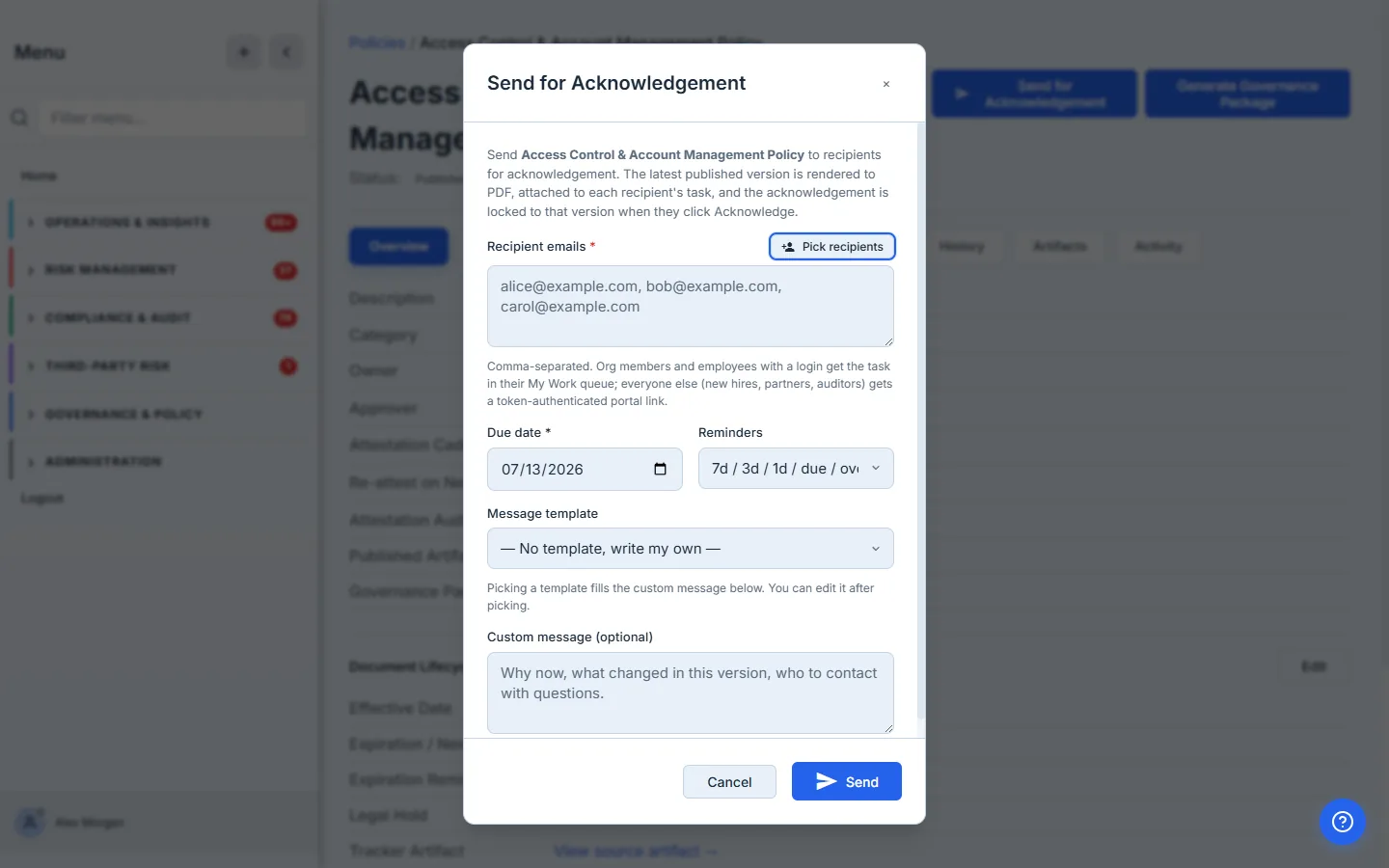
The recipient textarea accepts comma-separated emails. That’s the fast path when you already have the list pasted somewhere. For everything else, you don’t have to type.
Step 2 — Pick recipients (org members or employees)
Click Pick recipients next to the Recipient label. The modal opens a two-source picker — an Org members tab and an Employees tab (your workforce roster, including directory-synced people who haven’t logged in yet). Org members is a search-filterable checklist by name and email; active members only — guests and disabled accounts are filtered out so the campaign doesn’t fan out to someone who can’t act on it.
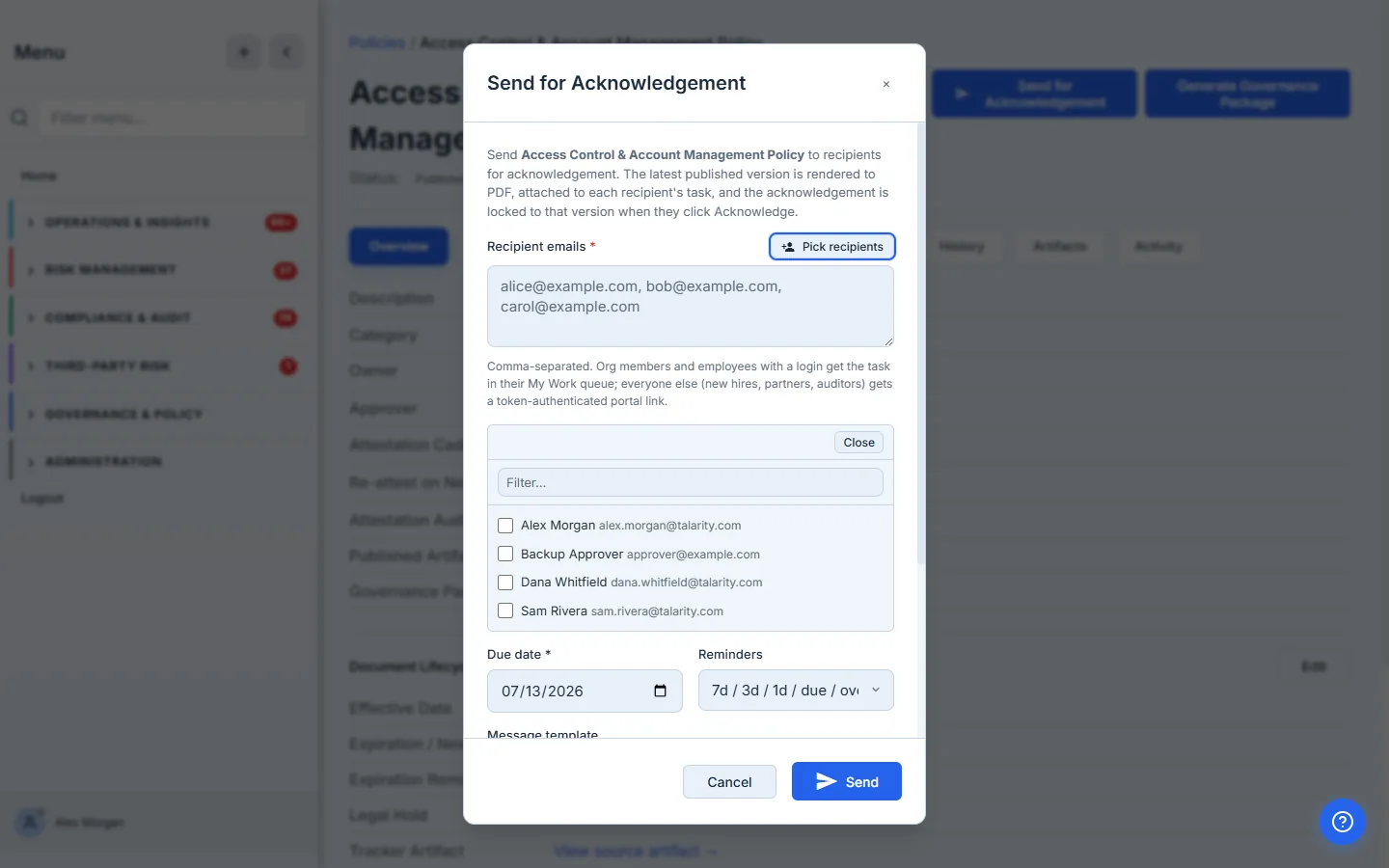
Tick the boxes for the people you want. Each tick appends that person’s email to the recipient textarea — same field as the typed-email path, so you can mix both freely. The picker isn’t a replacement for typing; it’s a faster way to do the same thing.
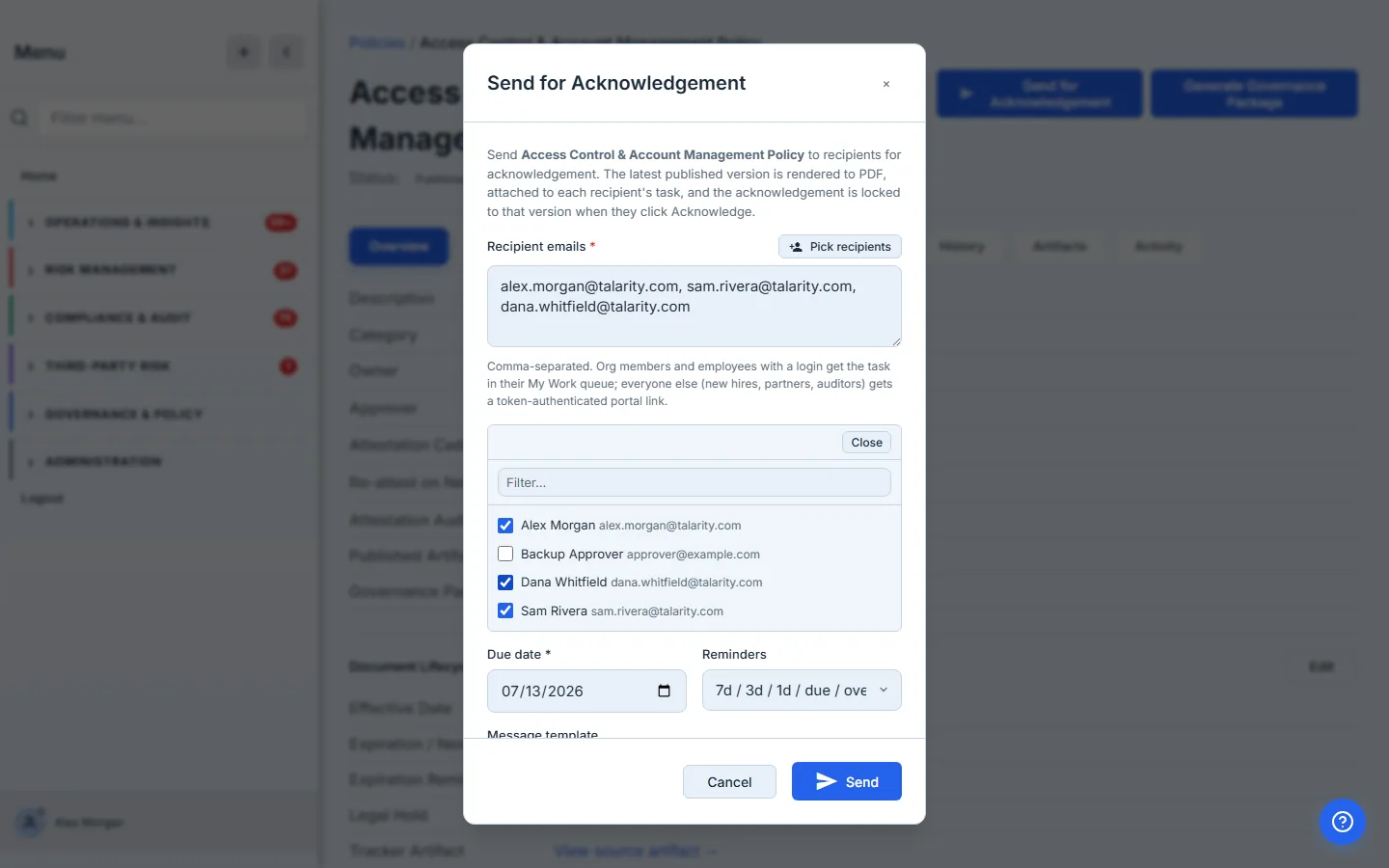
The picker is the answer to “we always forget Alice on the Engineering team.” When the list lives in someone’s head you forget someone every year. When the list is a checklist you scan, the forgetting becomes deliberate — and the next coordinator after you doesn’t have to guess.
Step 3 — Type the externals on top
Close the picker and type the external addresses straight into the textarea — new hires who don’t have an account yet, partners, auditors. Talarity sees them as external the moment you submit; nothing else changes for the recipient list.
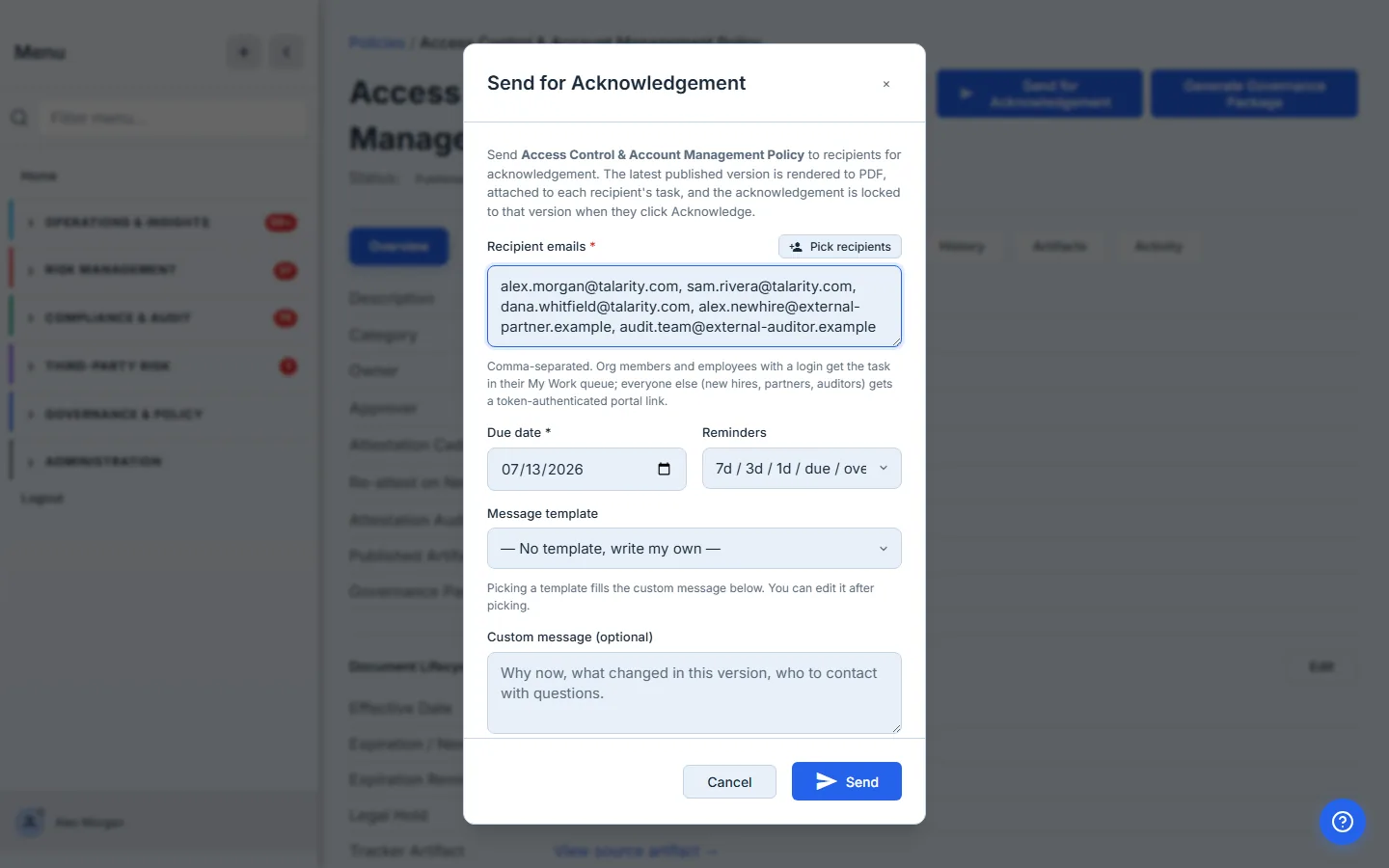
The token portal is the load-bearing detail for the new-hire case. External addresses don’t need an account, don’t need an invitation, and don’t need a Talarity login. When the campaign sends, Talarity mints a one-shot token per external recipient, emails them a link, and they sign on a portal scoped to their task. The acknowledgement lands in the same policy_attestations table an internal user’s would — keyed on the recipient’s email when they have no account yet, an email-keyed proof row that stands on its own.
That’s why this works for new hires before they join. Send the acknowledgement on offer-letter acceptance; the new hire signs from their phone the same evening; their first day starts with a green check in your policy attestation rollup, not a “we still need to circle back.”
Step 4 — Pick a message template
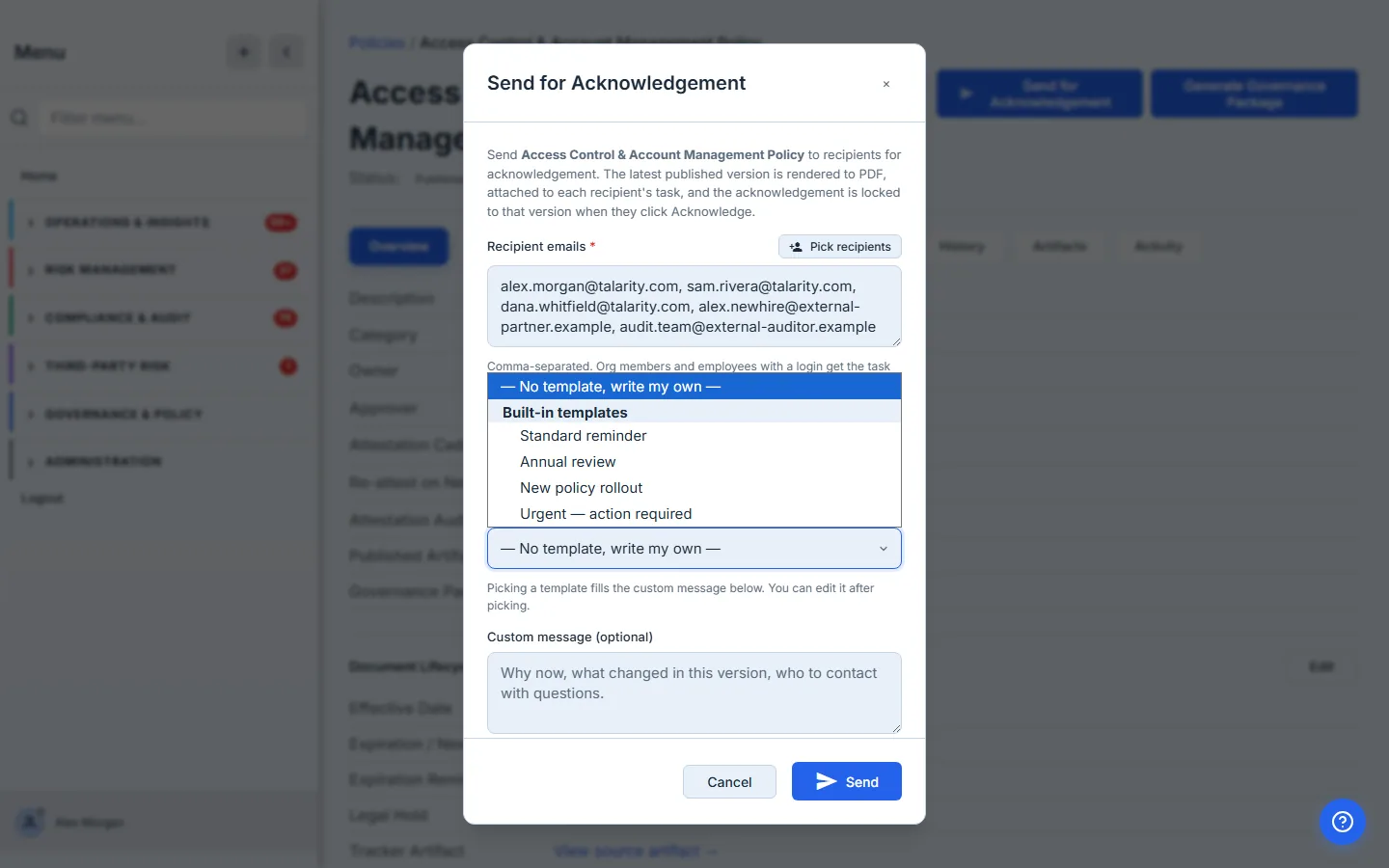
The Message template dropdown carries four built-in starters — Standard reminder, Annual review, New policy rollout, Urgent — action required — plus any custom templates your org has saved. Pick one and the body fills the Custom message textarea below; you can edit after.
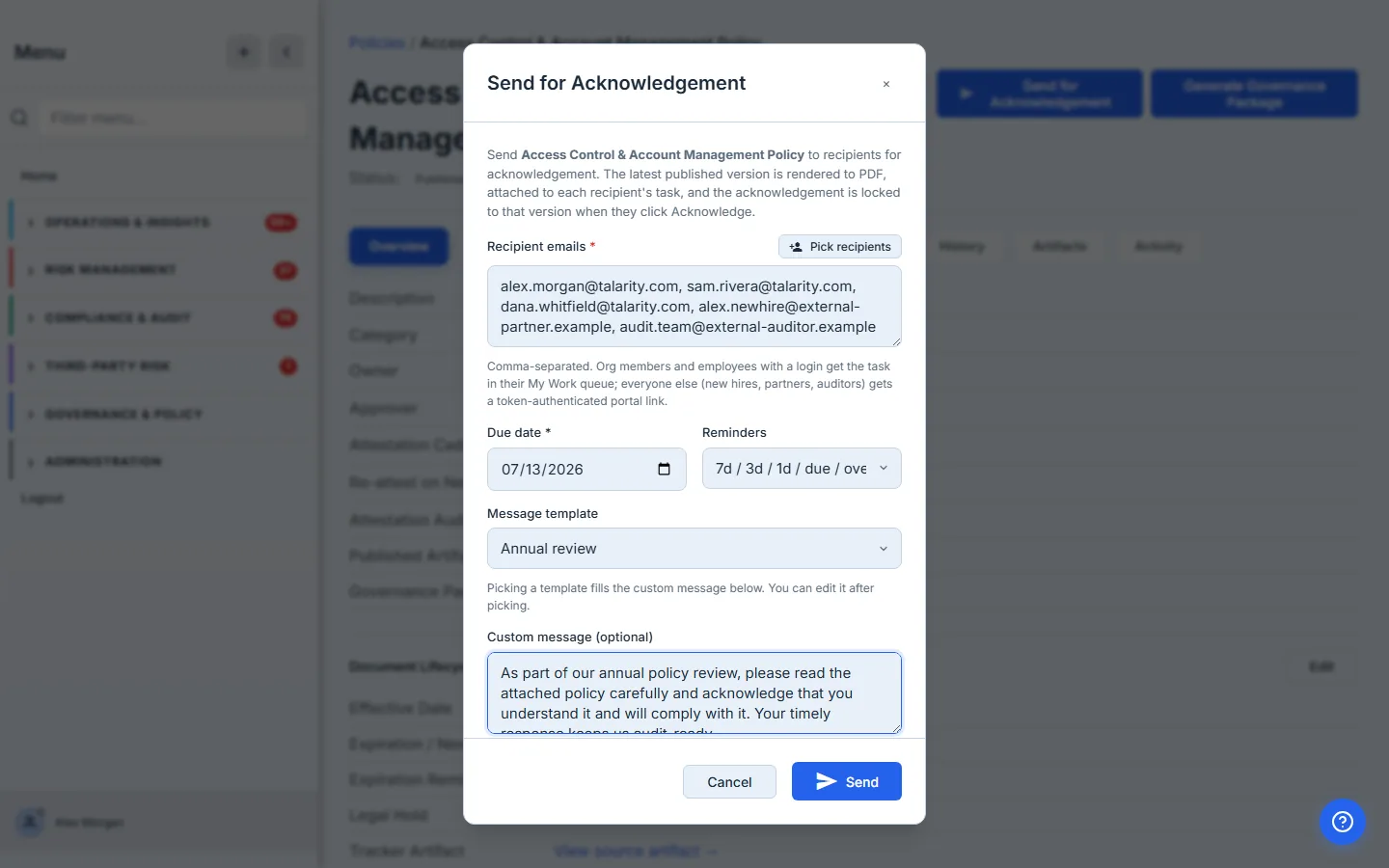
Picking Annual review fills the message with a recognisably-annual phrasing — “As part of our annual policy review, please read the attached policy carefully and acknowledge that you understand it and will comply with it. Your timely response keeps us audit-ready.” — exactly the message your workforce expects to see every year, and exactly the message an auditor expects to find when they pull the campaign record.
The first template you write becomes the template you reuse. Most orgs don’t need many — Annual review and one New policy rollout variant cover 80% of campaigns. The built-in starters are versioned in code, but anything your org has authored lives in
attestation_message_templates, so it’s portable across coordinators. Don’t write the message from scratch every quarter; write the templates once.
What you walk away with
- A searchable picker of org members so the recipient list is a checklist, not a memory test — and “we always forget Alice” stops being a thing.
- External addresses that work from the same textarea — paste a partner’s email, paste a new hire’s pre-start address, paste both. Talarity routes each to the right channel automatically.
- A token-authenticated portal for every external recipient — no account, no invite, no friction. Acknowledgement still lands on the same audit-trail.
- Four built-in message templates that cover the common cases, plus your own org-authored ones, so the message text is structured rather than improvised.
- One acknowledgement campaign with one row per recipient, whichever inbox they came from — and a clean per-recipient + per-version proof an auditor can read. Anyone already current on this version is skipped at send time, so you never double-ask.
Open /app/grc/governance, pick the policy that needs an acknowledgement drive, click Send for Acknowledgement, click Pick recipients — org members and your employee roster are in the same picker — pick the Annual review template. The first send takes about three minutes. Every subsequent drive is the same three minutes — and an auditor’s “how did this person receive the policy?” gets a one-second answer.
Sending is half the loop. Once it’s out, Policy sign-off — who signed, who’s missing, and how to close the gap shows you acknowledgement reconciled against your employee roster, with one click to chase whoever’s still outstanding.