Sending a policy for acknowledgement is the easy half. The hard half — the half auditors actually ask about — is knowing who hasn’t signed it. SOC 2 CC1.4 expects you to demonstrate that workforce members commit to your policies; ISO 27001:2022 A.5.1 wants evidence of policy awareness; HIPAA §164.308(a)(5) is explicit about documented acknowledgement for every workforce member. “We emailed it to everyone” is not an answer. “147 of 152 employees signed v2.1; here are the five who haven’t and the reminder we sent them” is.
Most teams reconstruct that answer by hand — export the acknowledgement list, export the employee roster, and reconcile the two in a spreadsheet the night before the audit. Talarity does the reconciliation for you, continuously, against the same employee roster that drives onboarding and offboarding. This walkthrough covers the full loop from the compliance lead’s seat: send to a group plus one individual, watch acknowledgements land, then read coverage against the roster and close the gap.
Who’s involved
- Compliance lead — sends the policy, watches coverage, and chases whoever’s missing.
- Employee — reads the policy and clicks Acknowledge, in their My Work queue or via a token portal link if they have no login yet.
- People manager — checks a single direct report’s standing on the employee’s Policies tab before a review.
- Auditor — pulls the per-version proof and the missing-list at audit time, and sees that the gap was actually worked, not just noticed.
What’s on the page
Sign-off tracking reads off a published policy and your employee roster — here’s what you’ll touch:
- The policy’s Overview tab — confirms it’s published, who owns it, and the Attestation Cadence (the field that decides what “signed” means).
- Send for Acknowledgement — the send screen (recipients + the Pick recipients picker, due date, reminder cascade).
- The policy’s Attestations tab — the Acknowledgement Status panel: every employee bucketed Signed / Signed (outdated) / Pending / Not sent, with per-bucket counts, filter chips, a Send to missing action, and Export CSV (Employee, Email, Status, Signed Version, Current Version, Signed At).
- The employee’s Policies tab — the other axis: every policy this person owes, each marked Signed (version + date) or Pending.
Step 1 — Start from a published policy
Acknowledgement runs off a published policy. Each acknowledgement is frozen as immutable proof — it locks to the version current at the moment the employee clicks Acknowledge, so “Riley acknowledged v1.0 on May 22” stays true even after the policy moves to v1.1. The Overview tab is where you confirm the policy is published, who owns it, and — the field that drives everything downstream — the Attestation Cadence.
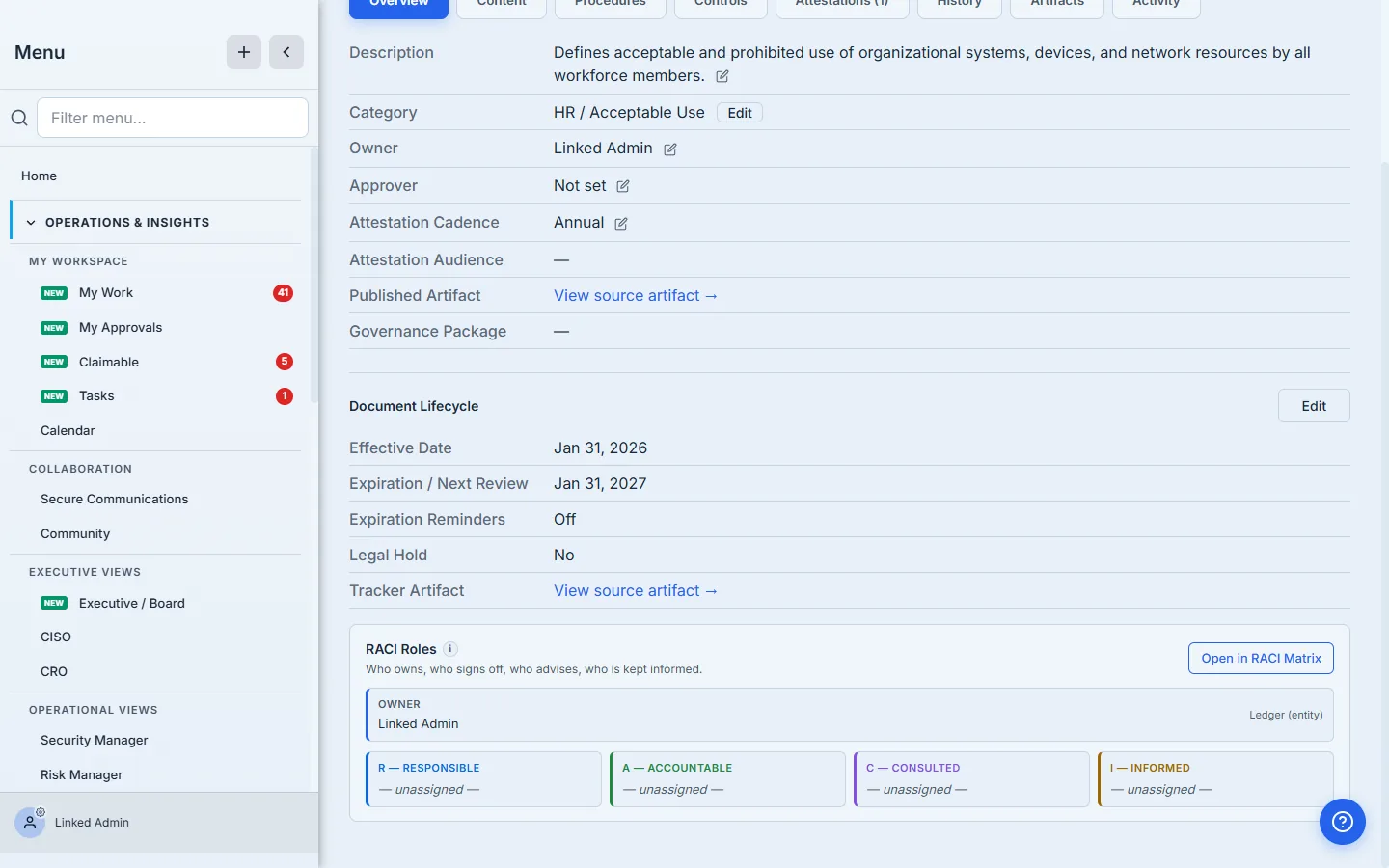
The Attestation Cadence is the field that decides what “signed” means. Set to Annual, a sign-off counts as current for a year; after that the same employee shows up as needing to re-acknowledge. Coverage is always measured against the current version, within the cadence window — not “ever clicked Acknowledge once.”
Step 2 — Send for Acknowledgement, to a group and an individual
On a published policy, Send for Acknowledgement opens one screen. Paste a group of recipient emails, add the one individual you also need, pick a due date, and decide whether to run the tiered reminder cascade. You don’t have to type addresses from memory — Pick recipients pulls straight from your org members and your employee roster, so a new hire who was synced from Intune but hasn’t logged in yet is one click away. The recipient-picker and reminder trade-offs are covered in depth in Sending a policy for acknowledgement.
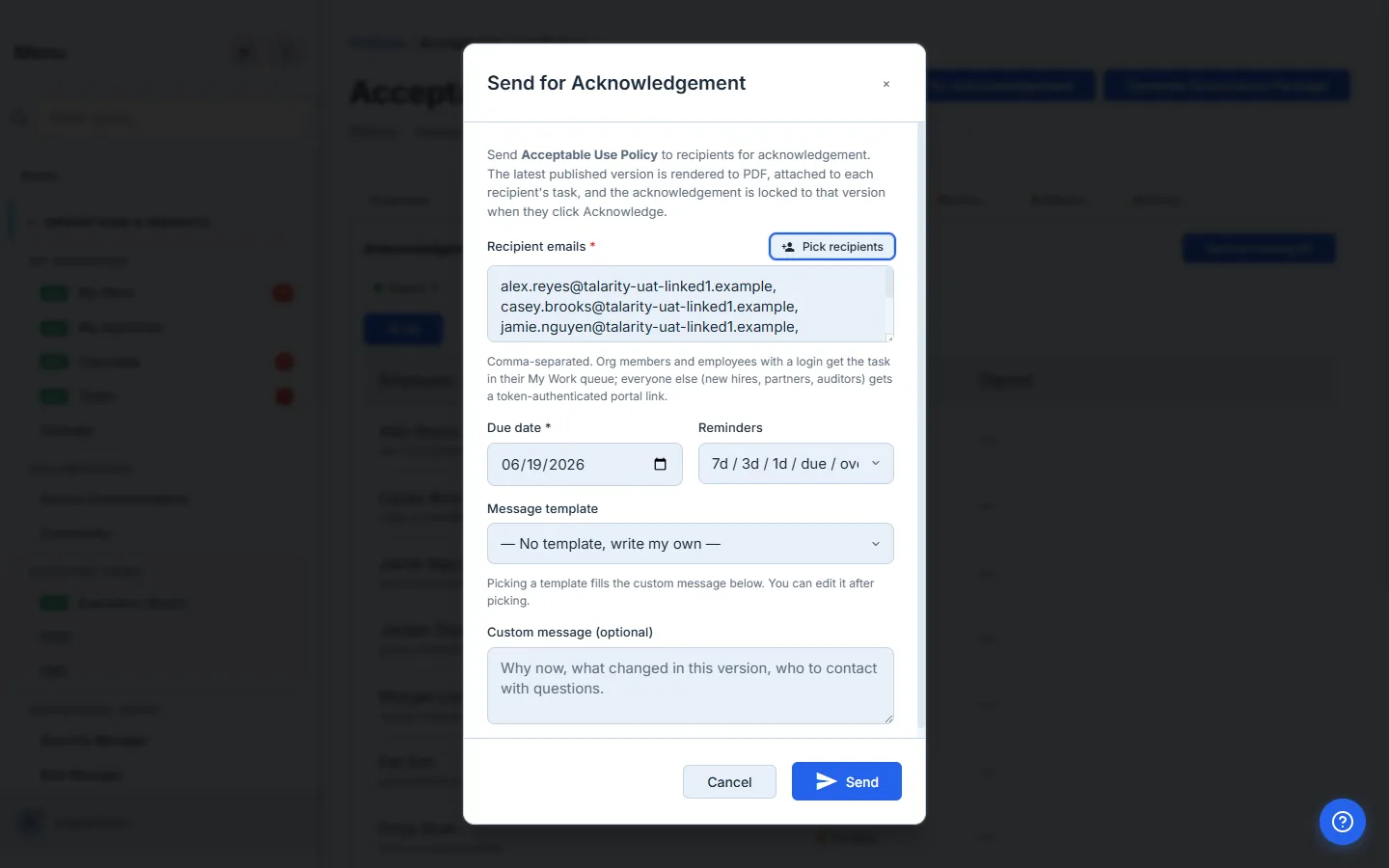
Behind the scenes Talarity renders the published version to a PDF (deduped by hash, so sending to twenty people makes one file), creates a campaign with the policy and version stamped on it, and spawns one work item per recipient. An address that matches an org member resolves to an internal My Work task on the same call; everyone else gets a token-authenticated portal link. The recipient’s experience — the task, the attached PDF, the single Acknowledge item — is walked through in Policy attestation, automated.
Step 3 — Read coverage against your roster
Here’s the part that used to be a spreadsheet. Open the policy’s Attestations tab and the Acknowledgement Status panel reconciles three things for you: your active employee roster, the acknowledgements recorded for the current version within the cadence window, and any open acknowledgement tasks still outstanding. Every employee lands in exactly one bucket — Signed, Signed (outdated), Pending, or Not sent — with the count for each at the top.
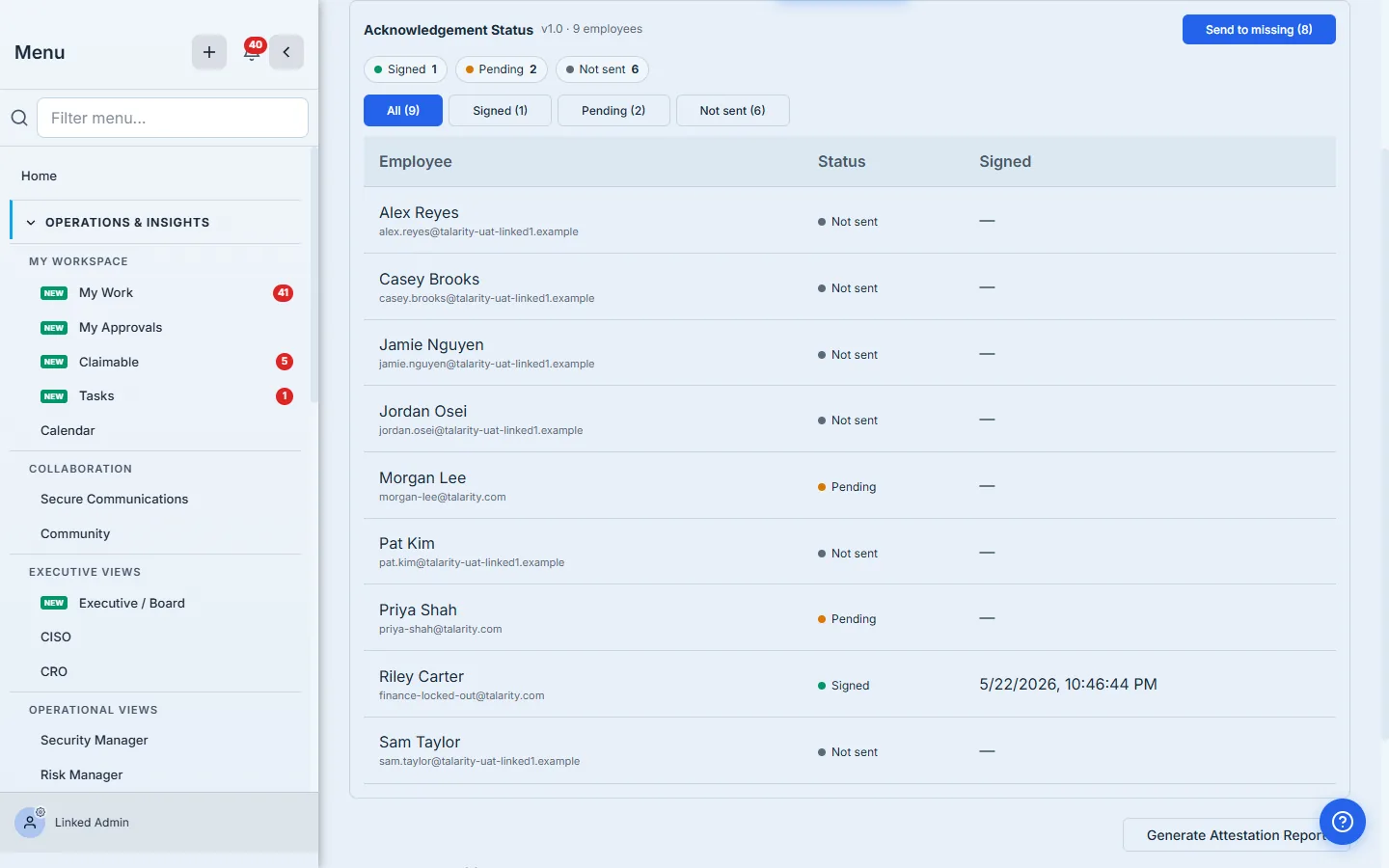
Read the table row by row:
- Signed — the employee acknowledged the current version inside the cadence window. The exact timestamp is in the Signed column, so an auditor can verify the date without leaving the page.
- Signed (outdated) — they acknowledged a prior version, or signed outside the cadence window. They’re no longer current and resurface here the moment you publish a new version — exactly the re-acknowledgement an auditor checks for.
- Pending — they were sent it and have an open task, but haven’t acknowledged yet. This is your reminder list.
- Not sent — they’re on the roster but were never included in a campaign for this policy. This is the gap that quietly fails audits, because nobody knew it was there.
Note that the table shows real employee names, resolved from the roster — not the raw user IDs that a naive acknowledgement list would carry. The filter chips (All / Signed / Signed (outdated) / Pending / Not sent) narrow the table when you want to work just one bucket, and the counts come straight from the reconciliation, not a stale cache. An Export CSV button on the panel hands an auditor the whole reconciliation — Employee, Email, Status, Signed Version, Current Version, Signed At — as a file, not just an on-screen view.
Step 4 — Close the gap with one click
Once you can see the gap, you close it from the same panel. Send to missing opens the same Send-for-Acknowledgement screen with everyone who isn’t current on this version filled in as recipients — Pending, Not-sent, and anyone who signed an outdated version — so the only people left out are those already current on the version in force, and you’re not nagging them. Adjust the message, set the due date, send.
It seeds the recipient box with exactly that set — the eight people here who aren’t current (everyone except the one who’s signed the version in force) — in one click. No re-typing, no re-deriving who’s outstanding, no risk of missing the one person who never got the first send.
Step 5 — Check one person on their Policies tab
The policy view answers “who’s behind on this policy.” The other axis — “what is this person behind on” — lives on the employee. Open anyone on the workforce roster and the Policies tab lists every policy they’ve been asked to acknowledge, each marked Signed (with the version and date they agreed to), Signed (outdated) with a Needs latest tag when they’re behind the current version, or Pending (with the due date). It’s the view a manager pulls before a performance review and the view you pull when an employee changes roles.
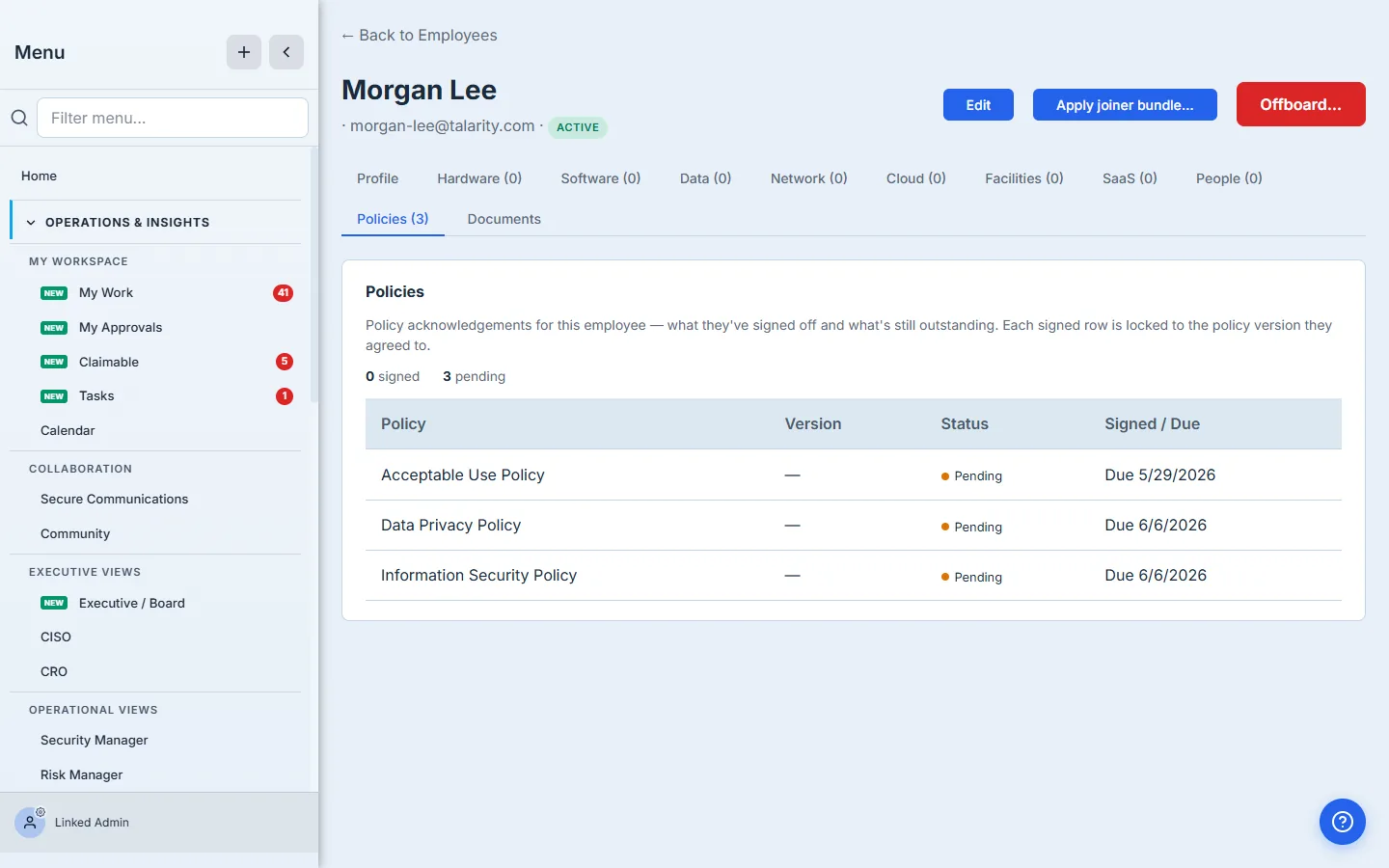
Both surfaces read the same definition of “signed” — acknowledged the current version inside the cadence window — so the policy view and the employee view never disagree about where a given person stands.
What you walk away with
- A roster-reconciled coverage view on every policy — Signed / Signed (outdated) / Pending / Not sent, counted, against the employees you actually employ (not just the addresses you happened to email).
- A Not-sent bucket that surfaces the silent gap — the people who were never sent the policy at all, which a send-list-only view can never show you.
- One-click chase — Send to missing re-targets exactly the outstanding employees and no one else.
- A per-employee Policies tab — every policy a person owes, Signed or Pending, for managers and role changes.
- One consistent definition of “signed” across both views — current version, within cadence — so the policy lens and the employee lens always agree, and the auditor gets the same answer twice.
Open a published policy, click the Attestations tab, and read the Acknowledgement Status panel. If there’s a Not-sent count above zero, click Send to missing — the first gap you close this way is usually the one you didn’t know you had.