Almost every framework that touches a security or compliance program demands documented evidence that every employee saw and accepted the policies that govern their work — not just that the policy exists. SOC 2 calls it out in CC2.3 (the entity communicates information to support the functioning of internal control) and CC1.4 (commitment to integrity & ethical values — operationalised through workforce acknowledgement). ISO 27001:2022 lays it down in A.5.1 (policies must be approved, communicated, and reviewed) and Clause 7.2 (competence and awareness — records retained). PCI DSS 12.6 mandates an annual security awareness program with acknowledgement; HIPAA §164.530(b) requires documented workforce training. The auditor will ask “show me every person who acknowledged version 1.0 of the Acceptable Use Policy” and expect an answer in seconds.
Most teams handle this with an email blast, a shared Excel sheet, and a frantic chase the week before audit week. Reminders are manual. Status is whoever-replied-last. Version history is “I think Sandra got the old PDF.” Talarity treats every acknowledgement drive as a structured, status-tracked campaign — one row per recipient, live progress, automated reminder tiers, and one immutable policy_attestations row per (employee × policy version × campaign) that the auditor can read directly.
Who’s involved
- Compliance lead / policy owner — fires the campaign, picks the cadence, watches the dashboard, chases the laggards.
- Employee / recipient — gets the task in their My Work queue, opens the policy PDF, ticks the acknowledgement checkbox, and is done in under a minute.
- Auditor — pulls the per-version attestation rollup on the policy, the per-recipient evidence on the campaign, and the finalized PDF report; verifies the cadence actually ran.
What’s on the page
An acknowledgement drive spans a few connected surfaces — here’s what you’ll touch:
- Policy → Attestations tab (
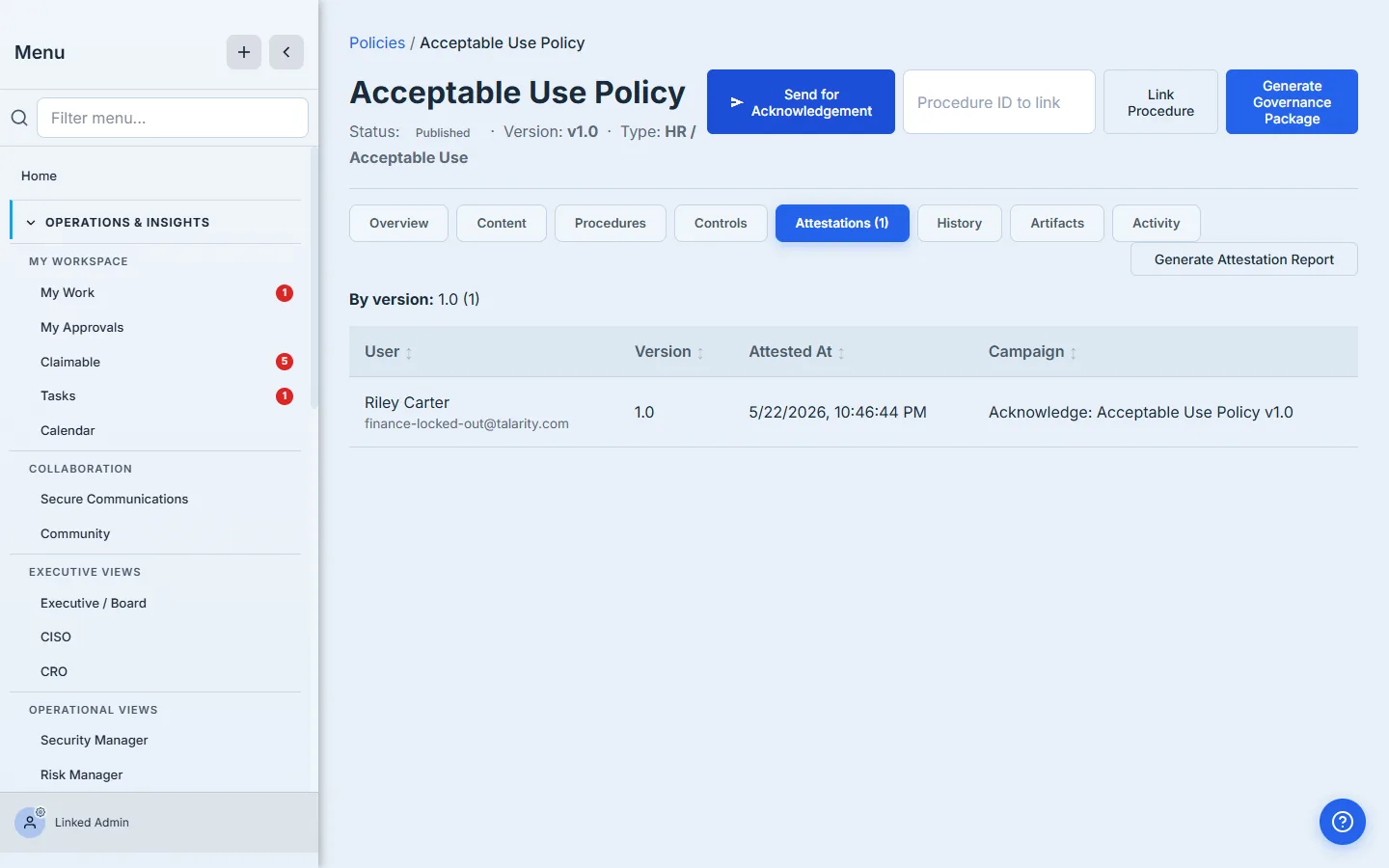
/app/grc/governance) — the campaign launch point, the per-version acknowledgement rollup (User · Version · Attested At · Campaign), and Generate Attestation Report. - Send for Acknowledgement modal — Recipient emails (+ Pick recipients), Due date, Reminder cadence, Custom message.
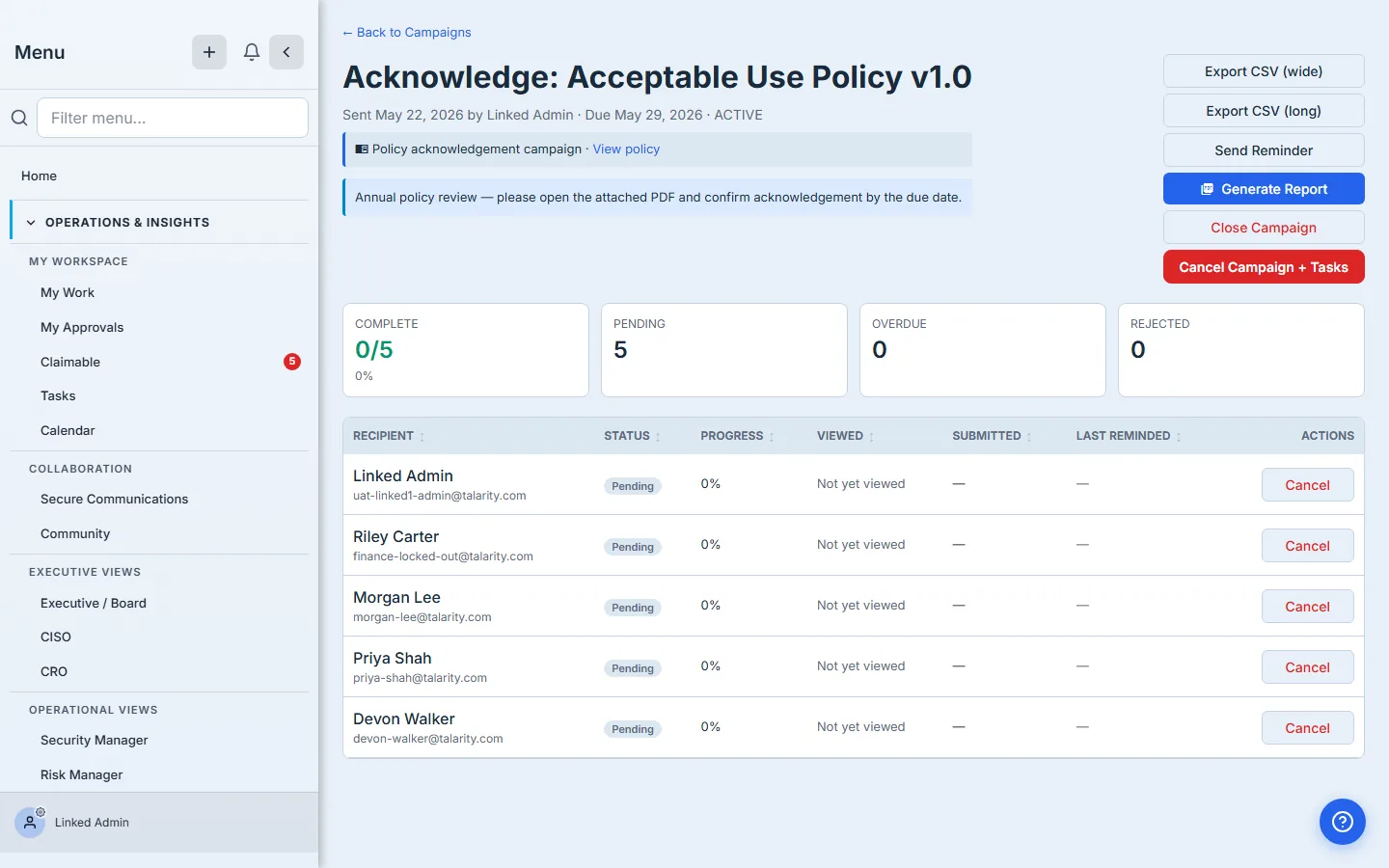
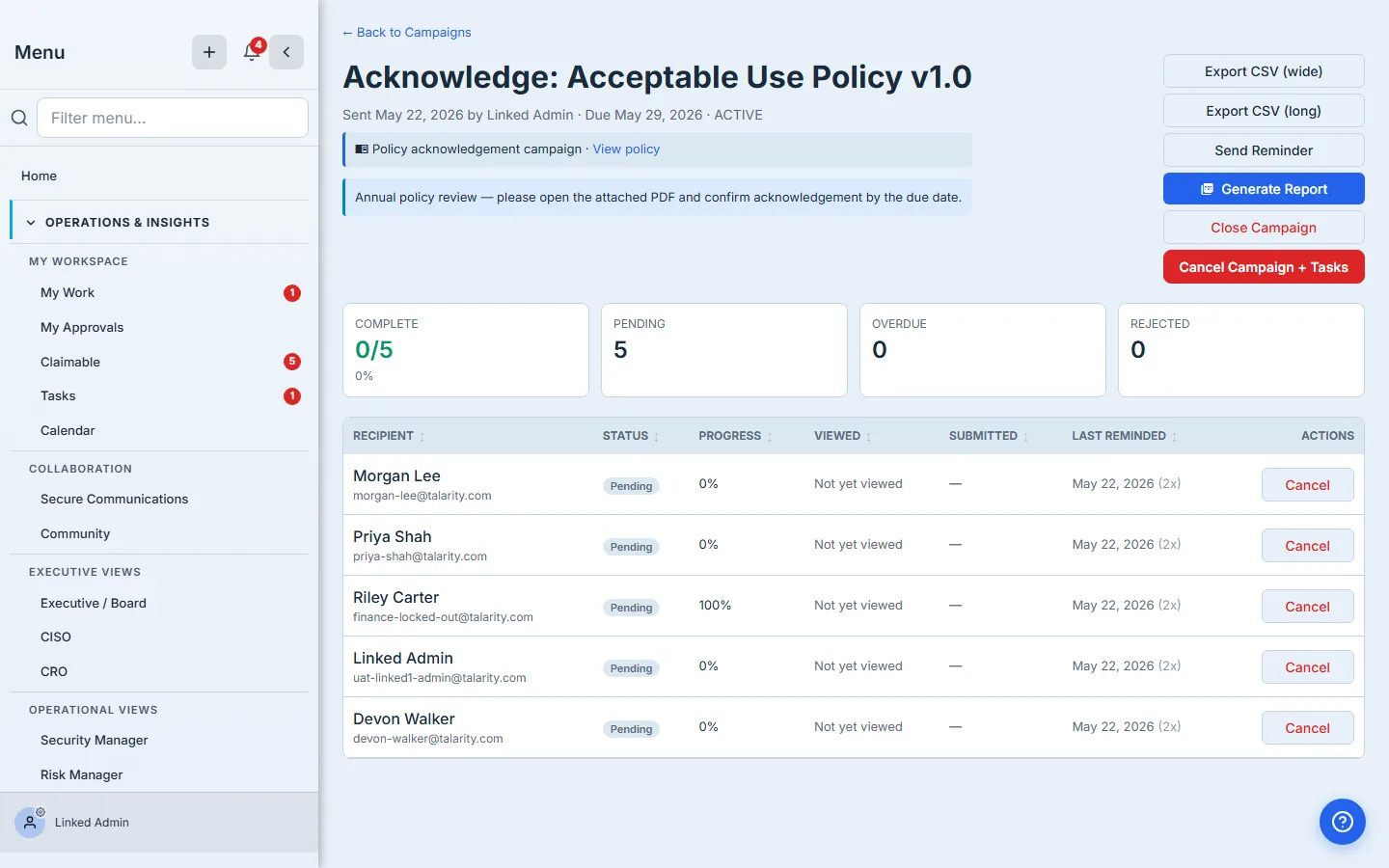
- Campaign detail page — four aggregate cards (Complete / Pending / Overdue / Rejected) plus the per-recipient table with six columns: Recipient, Status, Progress, Viewed, Submitted, Last reminded, and a Send Reminder button.
- Recipient’s My Work task — the policy PDF attachment, the custom message, and a Checklist tab with the one-question acknowledgement.
Step 1 — Open the policy and switch to Attestations
Head to /app/grc/governance, open the policy you want acknowledged — Acceptable Use Policy in this walkthrough — and switch to the Attestations tab. An empty Attestations tab is the honest starting state: no campaigns yet, no signed rows, nothing to count.
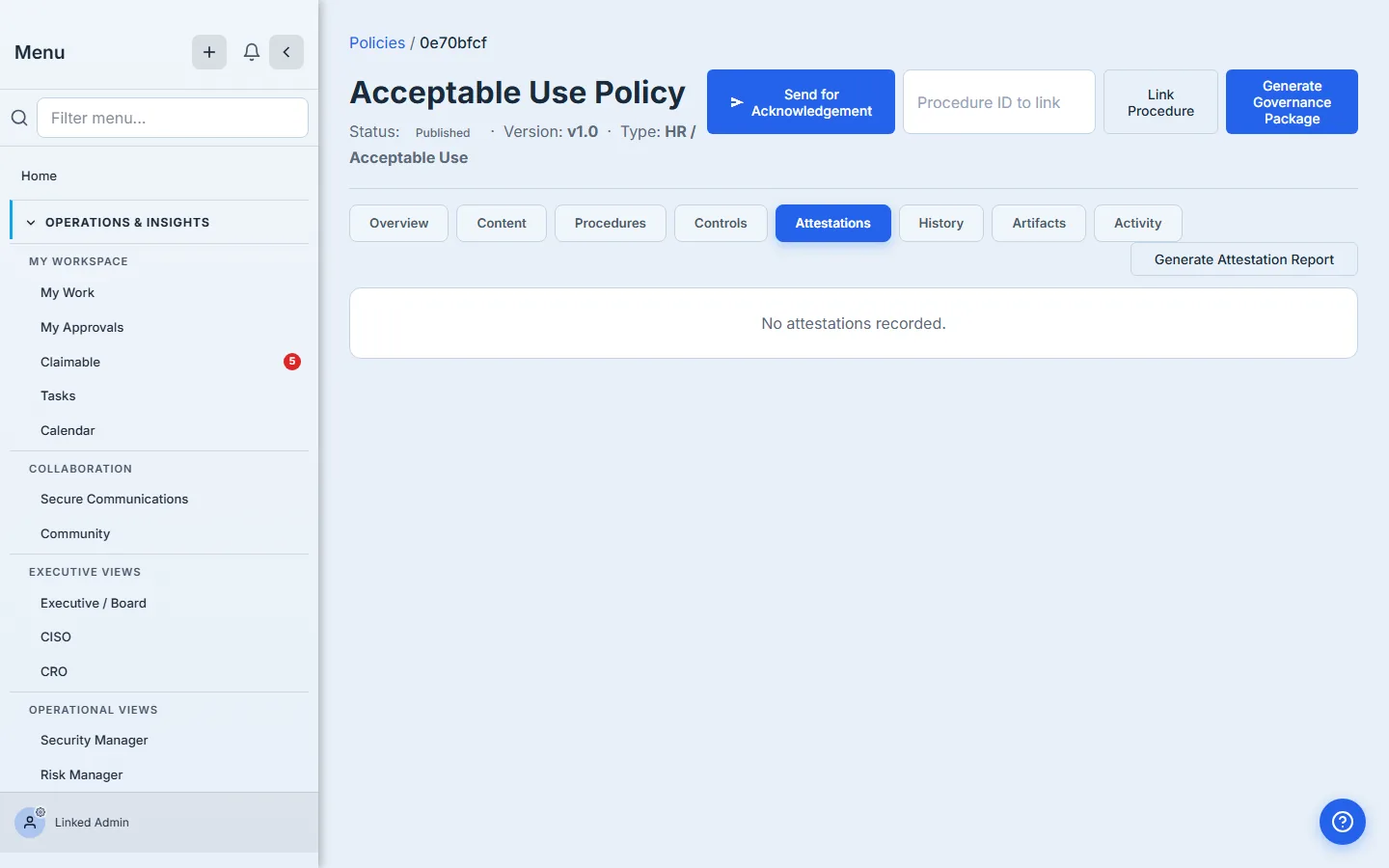
The tab is also where the audit history lives once campaigns have run. Every row that lands here corresponds to a policy_attestations write — the immutable proof that this person, on that date, signed that version.
Step 2 — Fire the acknowledgement campaign
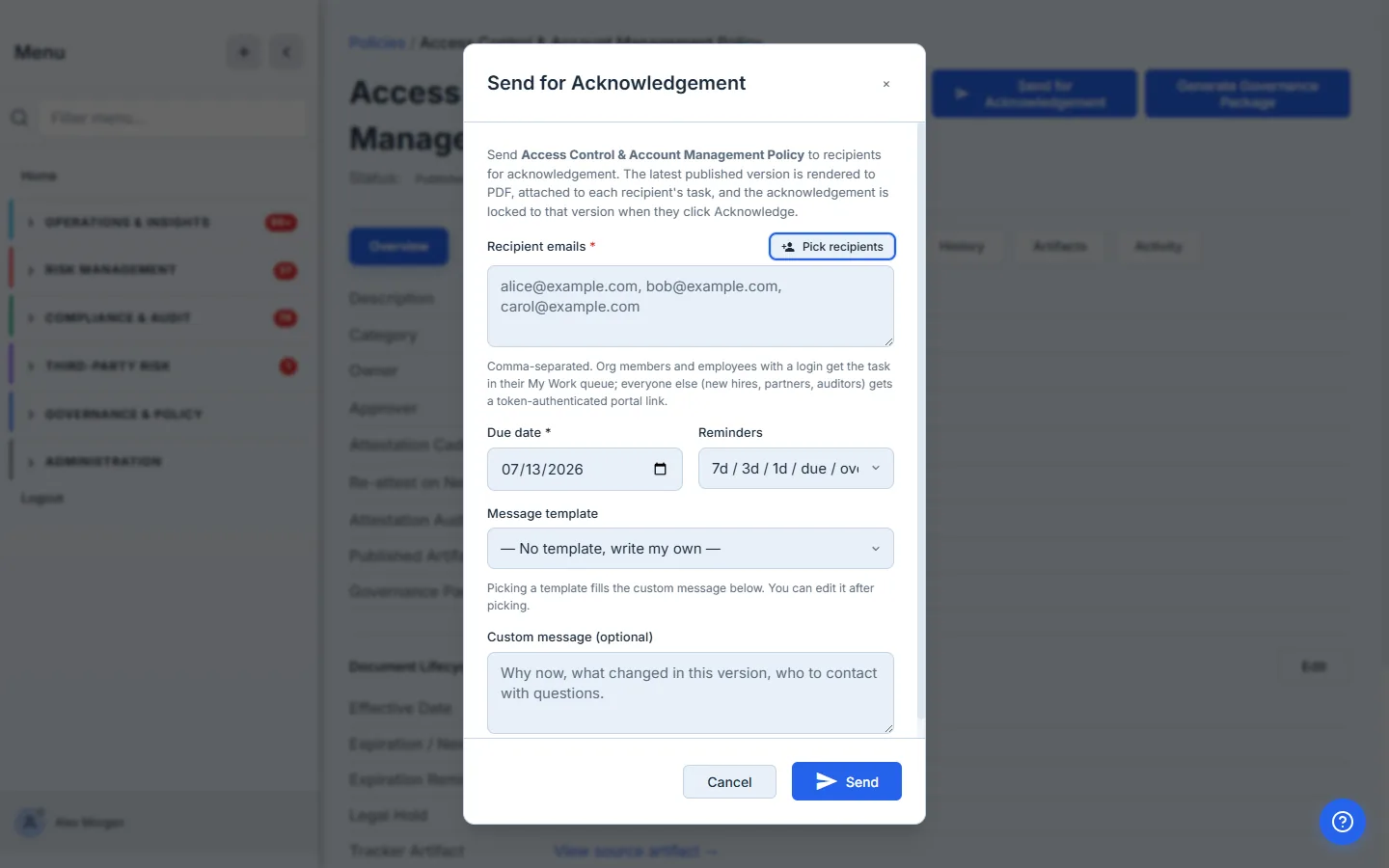
Click Send for Acknowledgement. The modal collects everything the campaign needs in one place:
- Recipient emails — comma-separated, or click Pick recipients to choose from org members and your employee roster. Internal members and external collaborators go in the same box; Talarity resolves which inbox each one is when the campaign fires — and silently skips anyone already current on this version, so you never double-ask.
- Due date — when the campaign expires for the recipients who haven’t acted. Defaults to fourteen days, which is the right answer for most annual programs.
- Reminders — 7d / 3d / 1d / due / overdue (recommended) fires each tier automatically, or Off — manual reminders only for a more conservative pace.
- Custom message — context the recipient sees on their task page (“Annual policy review — please open the attached PDF and confirm acknowledgement by the due date.”).
Fill it. Five recipients — the compliance lead plus four employees — a seven-day window, the recommended cadence.
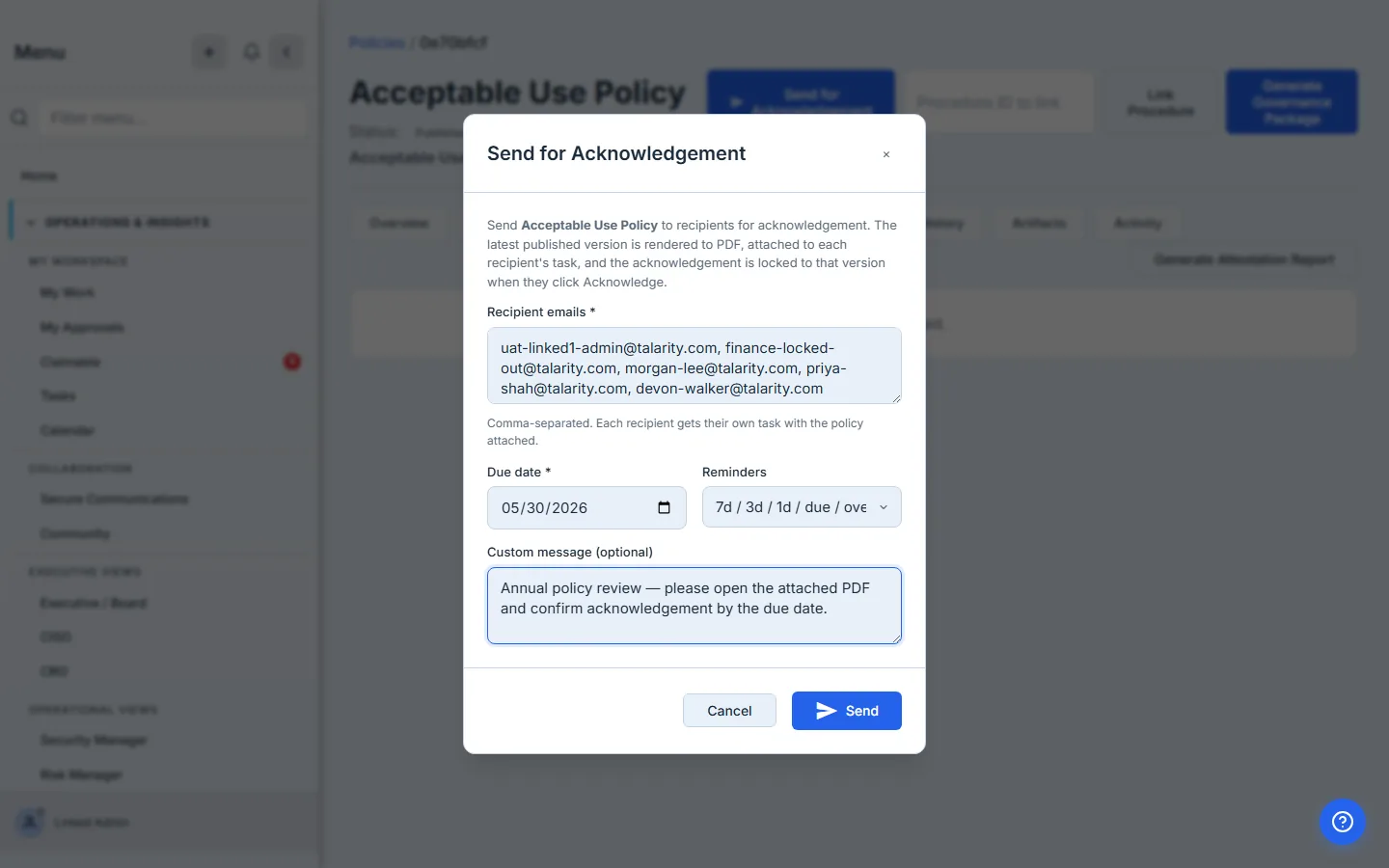
Click Send. Talarity does several things atomically:
- Attaches the policy’s source PDF (or renders the published version, depending on how the policy got into Talarity) to the campaign as the distribution file. Every recipient receives the identical distribution PDF — the same stored file — so there’s no ambiguity about which bytes each person signed.
- Creates a
task_campaignsrow stamped with the source policy + version so the policy detail’s Attestations tab can read it back. - Resolves which recipient emails belong to internal org members and which are external — internal users get the task in their My Work queue, external recipients get a token-authenticated portal link.
- Stamps the reminder cadence on the campaign so the scheduled reminder dispatcher can fire each tier on time.
The browser lands on the new campaign’s detail page. Five recipients, zero done, all Pending.
Step 3 — What the recipient sees
An employee opens their My Work queue and finds the new task. Subject line names the policy + version. The task page shows the custom message, the policy PDF as a downloadable attachment, and tabs for Overview, Checklist, and the rest.
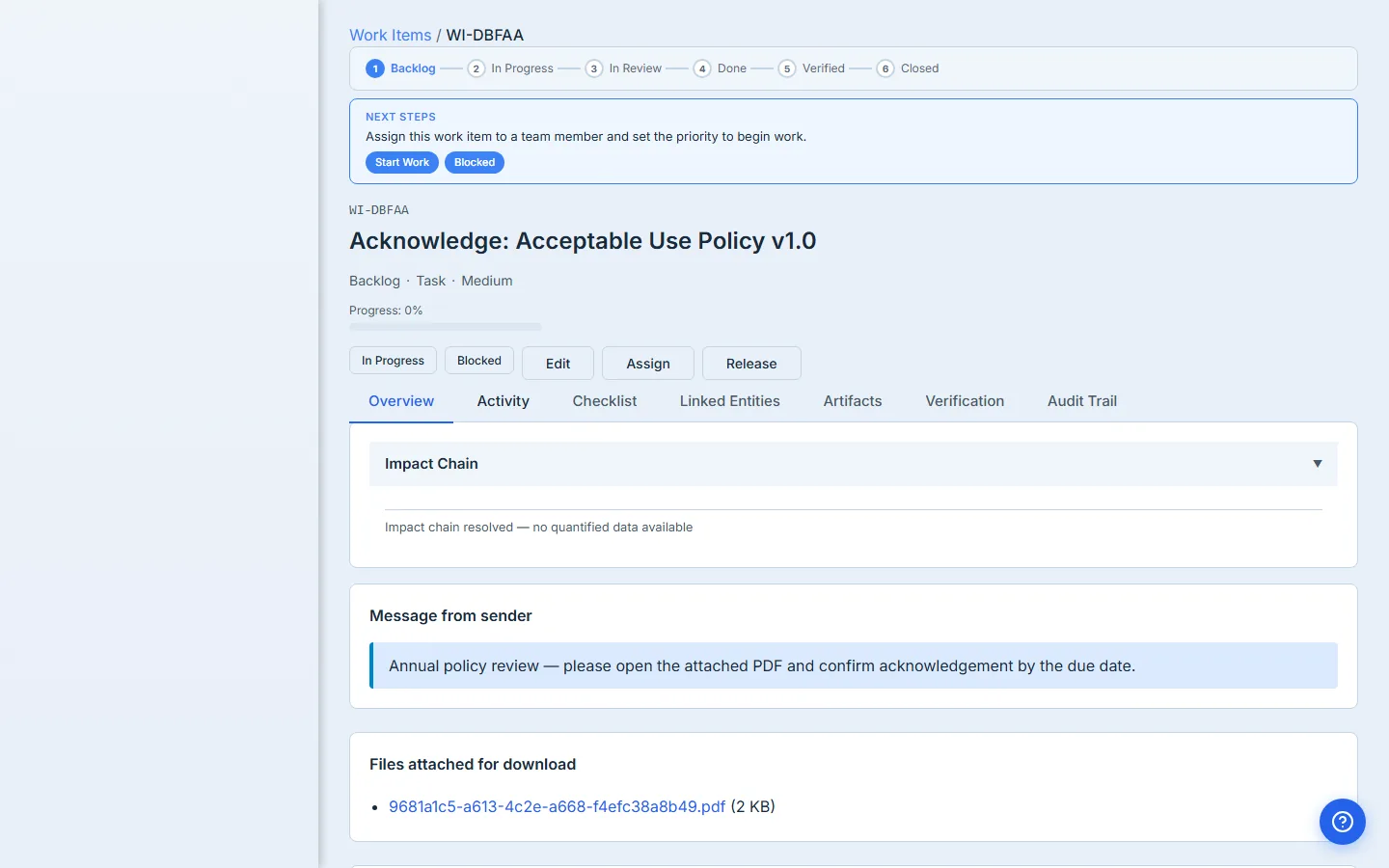
Switch to the Checklist tab and tick the one-question checkbox: I have read this policy and agree to comply with it. Talarity writes the policy_attestations row in the same transaction that flips the checklist item complete — there’s no race between “I clicked the box” and “the auditor sees the record.”
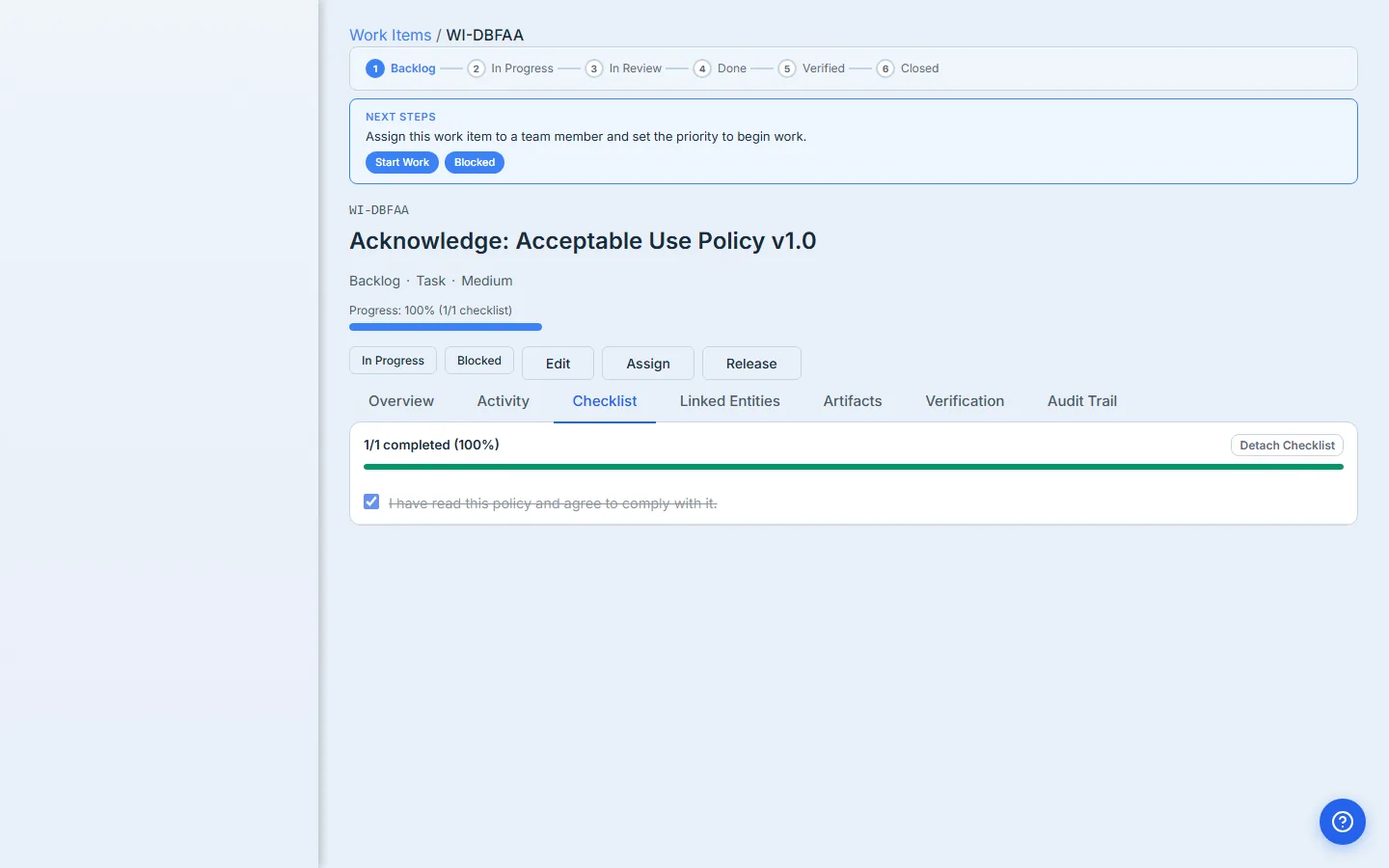
The acknowledgement isn’t just a checkbox state. It writes a row keyed on
(policy_id, policy_version_id, user_id, attestation_campaign_id)with a signature hash and the timestamp. Two months later, when the auditor asks “show me Riley Carter’s acknowledgement of v1.0,” that row is the answer — and migrating to v1.1 doesn’t overwrite it.
Step 4 — Track in real time
Back on the campaign detail page as the coordinator, the per-recipient table refreshes. Riley’s row shows 100% progress on her checklist; the four others still show 0%.
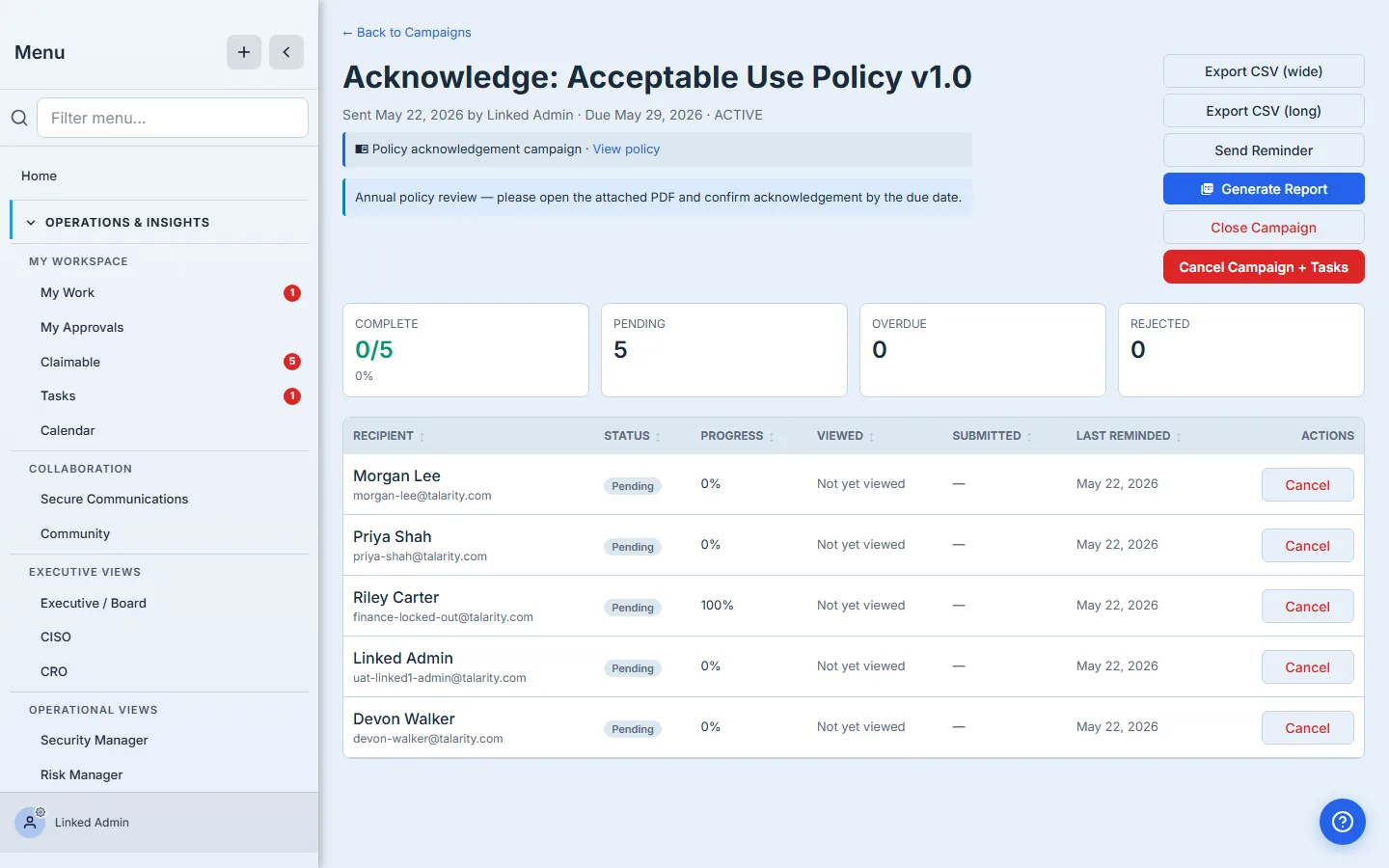
The table carries the six columns a coordinator actually needs to chase a drive:
- Recipient — name plus email plus a small badge for external / cross-org / guest.
- Status — the colour-coded pill (Pending → In Progress → Done). Cancelled and rejected get their own colours.
- Progress — % of the recipient’s checklist completed; for a one-question acknowledgement this is binary, but a richer attestation (e.g. a DR-test sign-off) shows partial progress here.
- Viewed —
firstViewedAtplus a view count. “Has Devon opened the email yet?” is one click away. - Submitted — when the acknowledgement landed.
- Last reminded — when the most recent reminder fired, with the count if more than one. Closes the “did I already nudge them?” loop without scrolling the audit log.
The four cards across the top — Complete, Pending, Overdue, Rejected — give the aggregate state. Overdue colours red the moment any pending recipient passes the due date.
Step 5 — Chase the laggards
The Send Reminder button on the campaign header opens a confirmation: send to All Pending or only the Overdue Only ones. Both write fresh in-app notifications and queue emails to the recipients in scope, then increment remindersSent and stamp lastReminderAt on each work item.
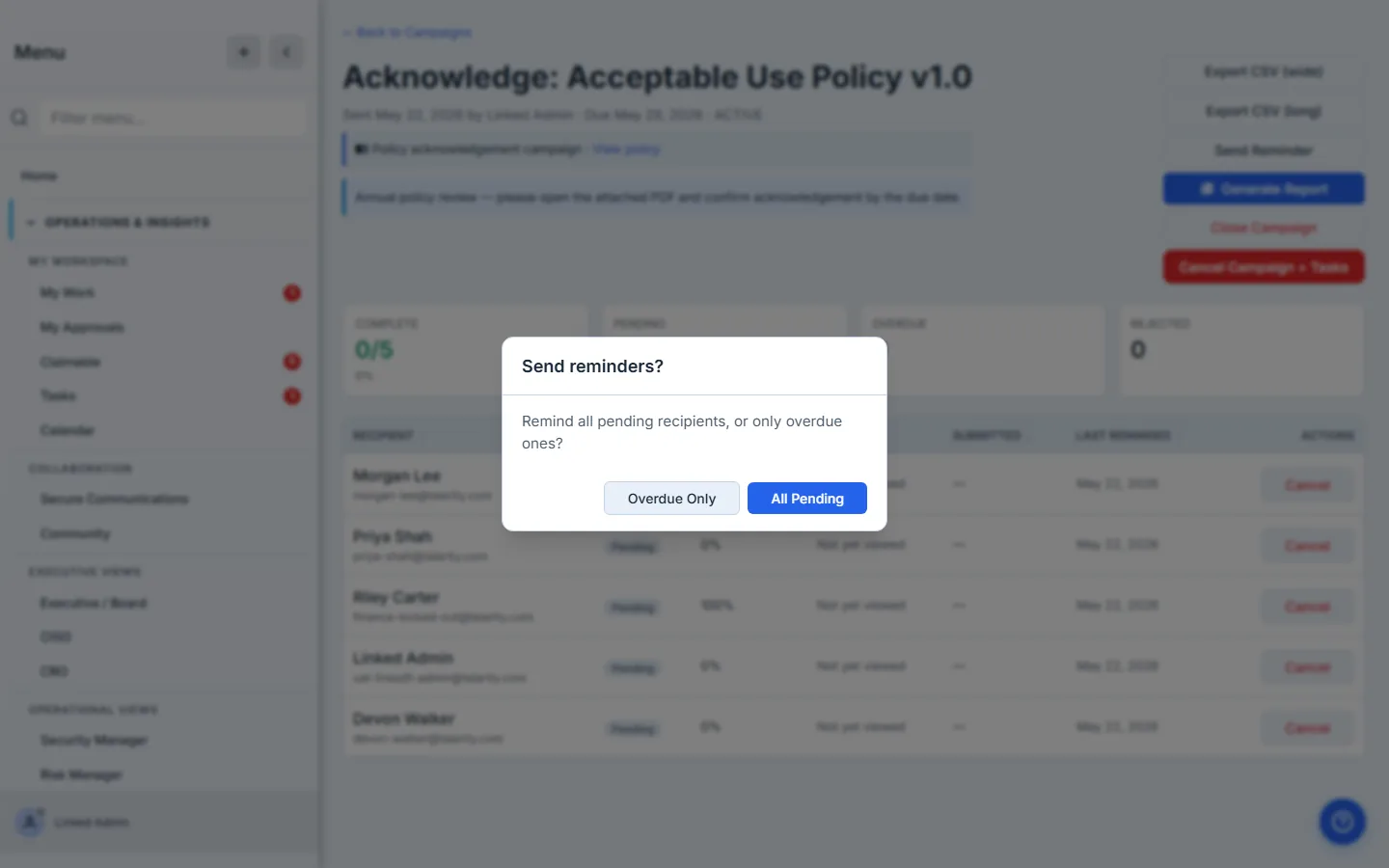
After the reminder fires, the Last reminded column on the table updates immediately. Coordinator now knows, per recipient, how recently the last nudge went out.
Manual reminders are the floor, not the ceiling. When the campaign carries the recommended cadence (7d / 3d / 1d / due / overdue), Talarity’s scheduled reminder dispatcher fires each tier automatically and deduplicates via the reminder log — one notification per (recipient × tier), no duplicates if the scheduler restarts. The Send Reminder button is for the moments you want to chase someone off-cadence, not for the cadence itself.
Step 6 — Audit handoff
Back on the policy detail page, the Attestations tab now carries a rollup by version, a row for each policy_attestations write, and a button to Generate Attestation Report.
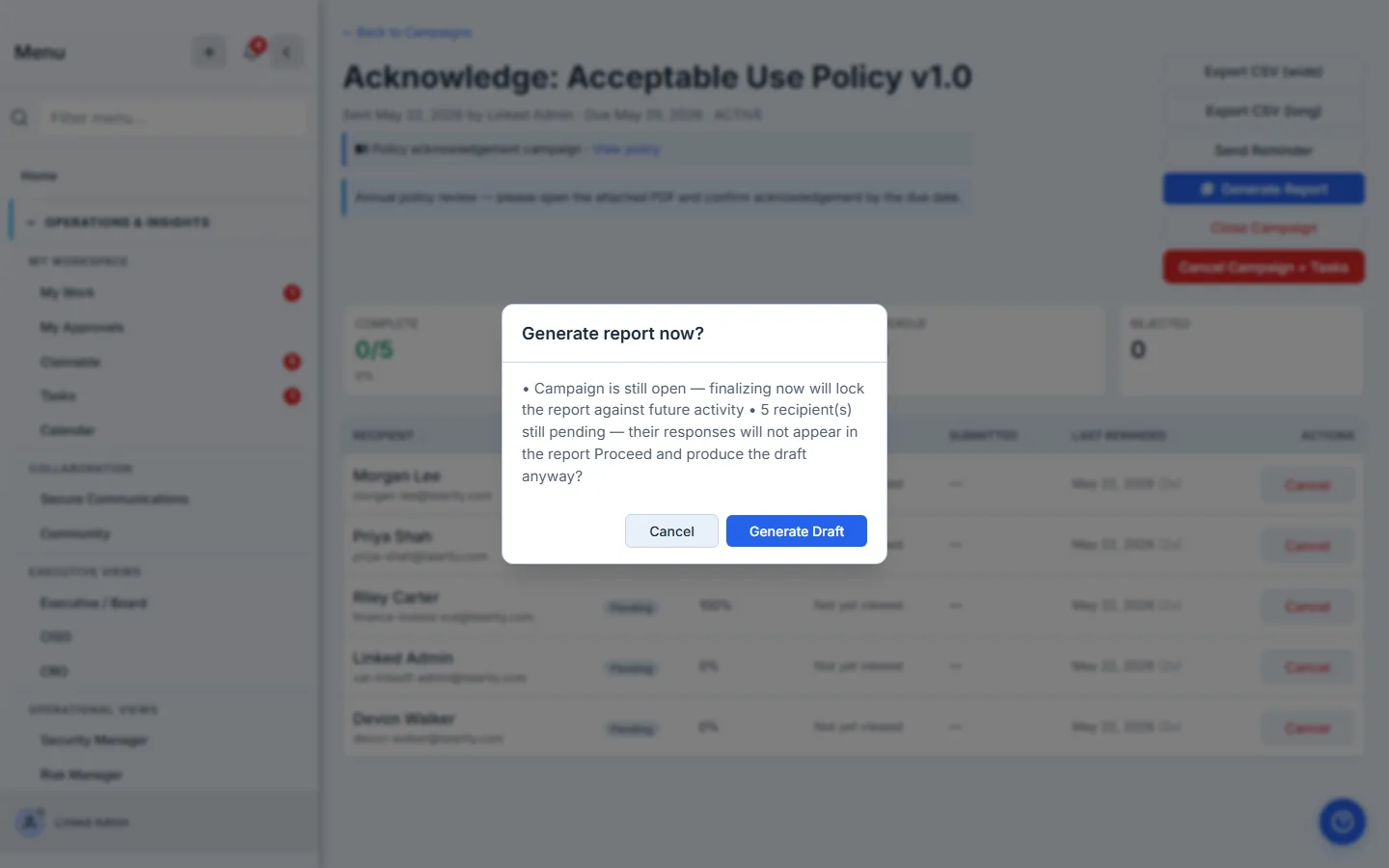
Generate Attestation Report drafts a Policy Attestation Report — a capstone artifact stamped with the policy + version, the per-version acknowledgement rollup, and the recipient roster with each person’s signed status and timestamp. It drafts directly, capturing whatever is signed at the moment you generate it; re-generate later to pick up acknowledgements that have landed since.
Finalize it and the watermark flips from DRAFT to FINAL, retention locks in for seven years, and the artifact lands in the Capstone Library next to your DR-test reports and audit packages.
What you walk away with
- One row per (recipient × work item) in real-time status — Recipient, Status, Progress, Viewed, Submitted, Last reminded — so the coordinator never has to ask “what’s the state of this drive?” in a meeting.
- Aggregate counters — Complete, Pending, Overdue, Rejected — refreshed live as recipients act.
- Scheduled reminder tiers — 7d / 3d / 1d / due / overdue — that fire without anyone setting a calendar invite, plus a manual Send Reminder for off-cadence chasing.
- Auto-resolved recipients — internal members get a real task in My Work; external collaborators get a token portal. Same campaign, two transport paths, one signed proof either way.
- One immutable
policy_attestationsrow per (employee × policy version × campaign) — the artefact an auditor cites by name, signed and hashed. - A finalized PDF report with seven-year retention, stamped with the policy + version and the per-version acknowledgement rollup, ready to hand to the auditor.
Run yours this week. Open /app/grc/governance, pick the policy that’s overdue for an acknowledgement drive, switch to the Attestations tab, and click Send for Acknowledgement. The first one takes about three minutes. Every annual cycle after that — Talarity fires it, tracks it, and finalises the report for you.
This view tracks one campaign. To see acknowledgement reconciled against your whole employee roster — who signed the current version, who’s still pending, and who was never sent it at all — read Policy sign-off — who signed, who’s missing, and how to close the gap.