ISO/IEC 27001:2022 A.5.9 asks you to keep an inventory of information and associated assets, and to keep it current. Nobody argues with that. The argument is always about how — because “current” means somebody looks at each asset on a cadence and confirms it is still needed, still classified correctly, still owned by the person named against it, and still covered by the controls its classification implies.
The obvious way to build that is a review-date field on the asset record: set Next review, and a job chases the owner when it comes due. It is the obvious way, and it does not survive contact with a real inventory, for a reason that has nothing to do with the reminder job working. The job works. It simply has nothing to fire on.
The model is what fails. One date per record asks a customer to make a separate decision about every asset they own before the feature does anything at all — and to make it again for each asset they buy. An inventory of any size never reaches the end of that, so the field sits empty and the reminder that depends on it never fires.
A requirement inverts it. You declare the obligation once, declare which assets it applies to, and every matching asset gets its own copy for its owner to satisfy — including the asset somebody commissions next March. That is the same engine Talarity already uses to chase a Regulation S-P addendum out of a vendor; what changed is that a requirement now says what it is about.
This article walks the loop on assets: defining the review, scoping it by criticality, seeing what is owed, evidencing one asset, and reporting across all of them. If you have read the Regulation S-P walkthrough, the shape will be familiar — that is the point.
Who’s involved
- Asset owner / IT manager — defines the review requirement and decides which assets it applies to.
- Owner — the person on the hook for a given asset. Set on the requirement (and overridable per asset), and it is what the reminders and the sidebar count are scoped to: an unowned requirement chases nobody.
- Responsible party — the counterparty answerable in practice, who may have no Talarity account at all. Named on the record and never emailed; the vendor requirement report carries a Responsible column for them, because a vendor obligation usually has one. An asset obligation usually does not, so the asset report does not print a column that would be empty on every row.
- Auditor — asks “show me that every critical asset was reviewed this year.” Pulls the report, follows any row to the evidence and the trail behind it.
What’s on the page
Four surfaces, and only one of them is new to you if you already run vendor requirements:
- Requirement Definitions (
/app/settings/vendors/requirements) — where an obligation is declared and scoped. A Requirements about selector at the top decides whether you are authoring for vendors or for assets. - Requirements (
/app/vendor-requirements) — every requirement against every record it applies to, filterable and exportable, with the same selector. - The asset itself (
/app/grc/assets/:id) — a Requirements section listing what is outstanding against this asset, with the actions to satisfy it. - Reports — a dataset whose subject column resolves to whatever the requirement is about.
The first two are tabs rather than sidebar rows of their own, and they sit on different rows: Requirement Definitions is a tab on Program Settings (Third-Party Risk → Vendor Inventory), and Requirements is a tab on Vendor Assessments (Third-Party Risk → Vendor Assessment). The asset itself is where you would expect, under Asset Inventory. Their URLs still say vendors. That is history, not a mistake: requirements were built for vendors first and generalised afterwards, and renaming a live route costs every bookmark and deep link already pointing at it. The Requirements about selector is what decides the subject — not the menu you reached it through.
Step 1 — Choose what the requirement is about
Open Third-Party Risk → Program Settings, on the Requirement Definitions tab. The Requirements about selector is the first decision, because it changes everything after it: which templates are offered, which records the scope can name, and the words the form uses.
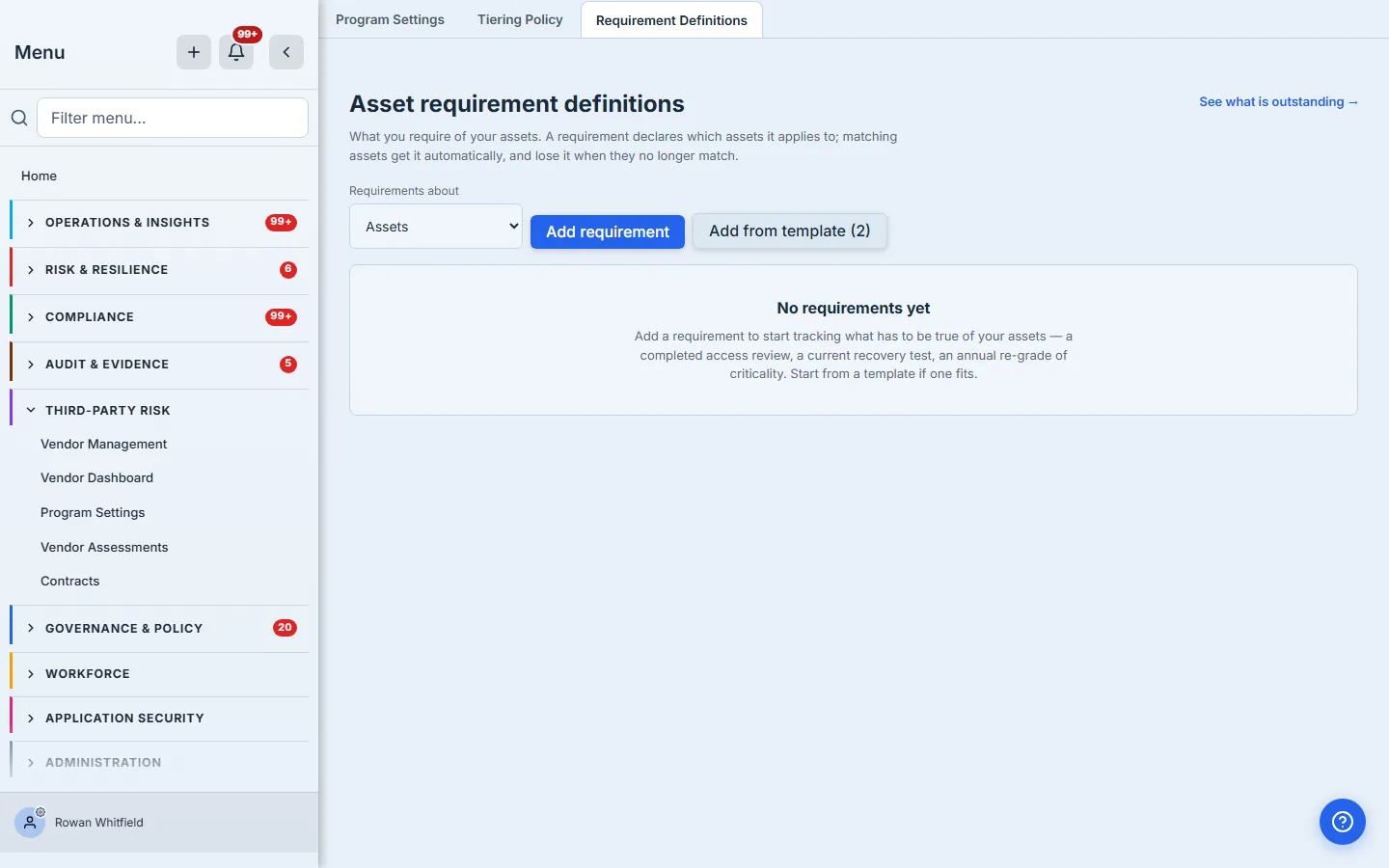
Pick Assets. Everything after it is now scoped to assets — the list, the templates on offer, and the kind Add requirement will create. On an organisation that has not declared one yet, that list is empty, which is the honest starting point: nothing is required of an asset until somebody says so.
This choice is fixed once the requirement exists. It has to be: the moment you save, copies of it start pointing at asset records, and re-pointing the definition at vendors would orphan every one of them. If you need the same obligation for both, that is two requirements — which is usually right anyway, because the evidence differs.
Step 2 — Start from a template, or declare your own
Add from template offers the asset templates: a Periodic asset review cited to ISO/IEC 27001:2022 A.5.9, and an Asset owner attestation cited to A.5.10.
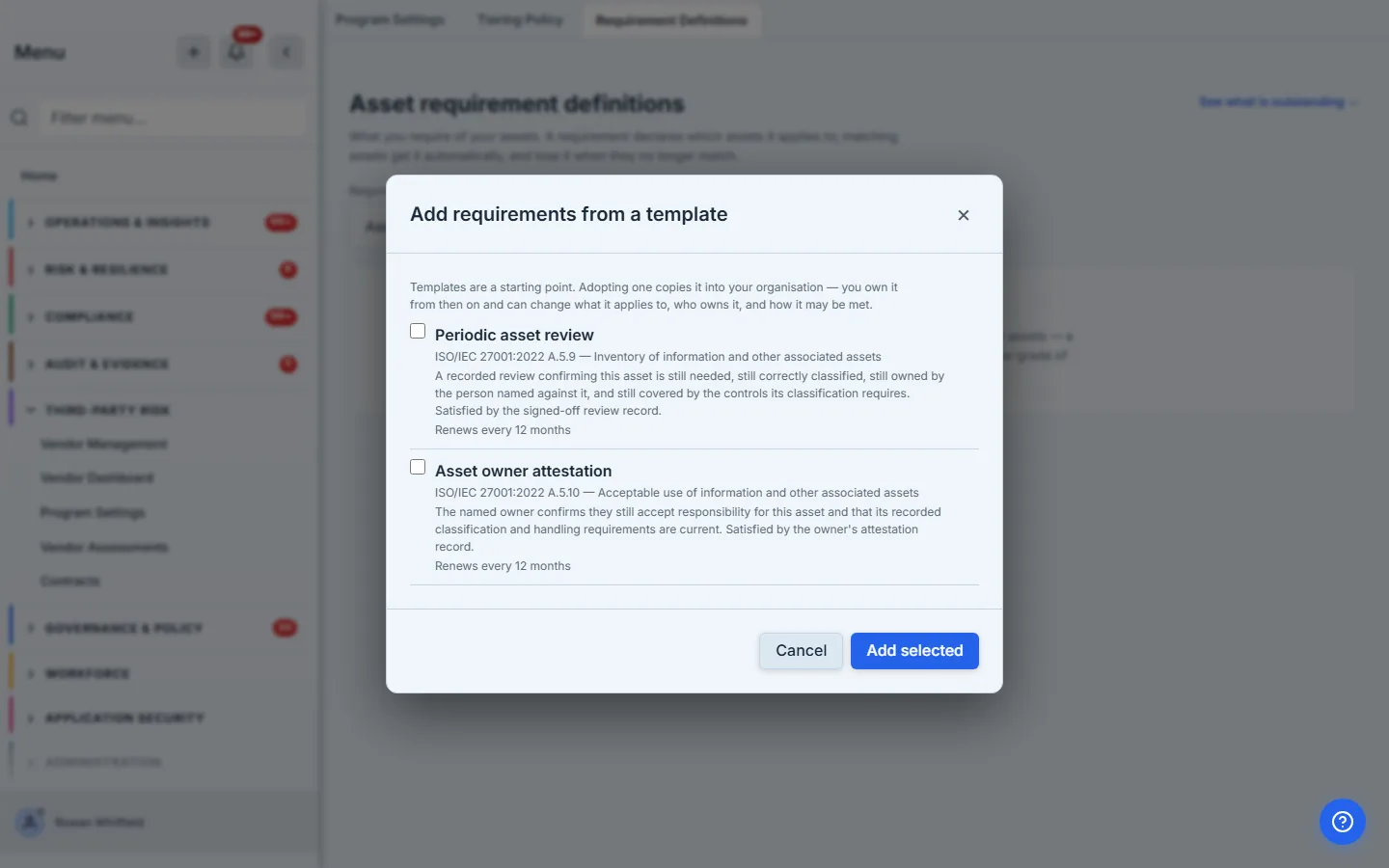
Adopting a template copies it into your organisation — it does not subscribe you to ours. Edit the name, the description, the cadence and the scope freely afterwards; the definition records which template it came from, so provenance survives the edits.
The description matters more than it looks. It is what the owner reads in the notification, months from now, with no other context. “A recorded review confirming this asset is still needed, still correctly classified, still owned by the person named against it, and still covered by the controls its classification requires” is a sentence somebody can act on. “Annual review” is not.
Step 3 — Scope it to the assets that matter
This is the step that replaces a decision per asset with one decision.
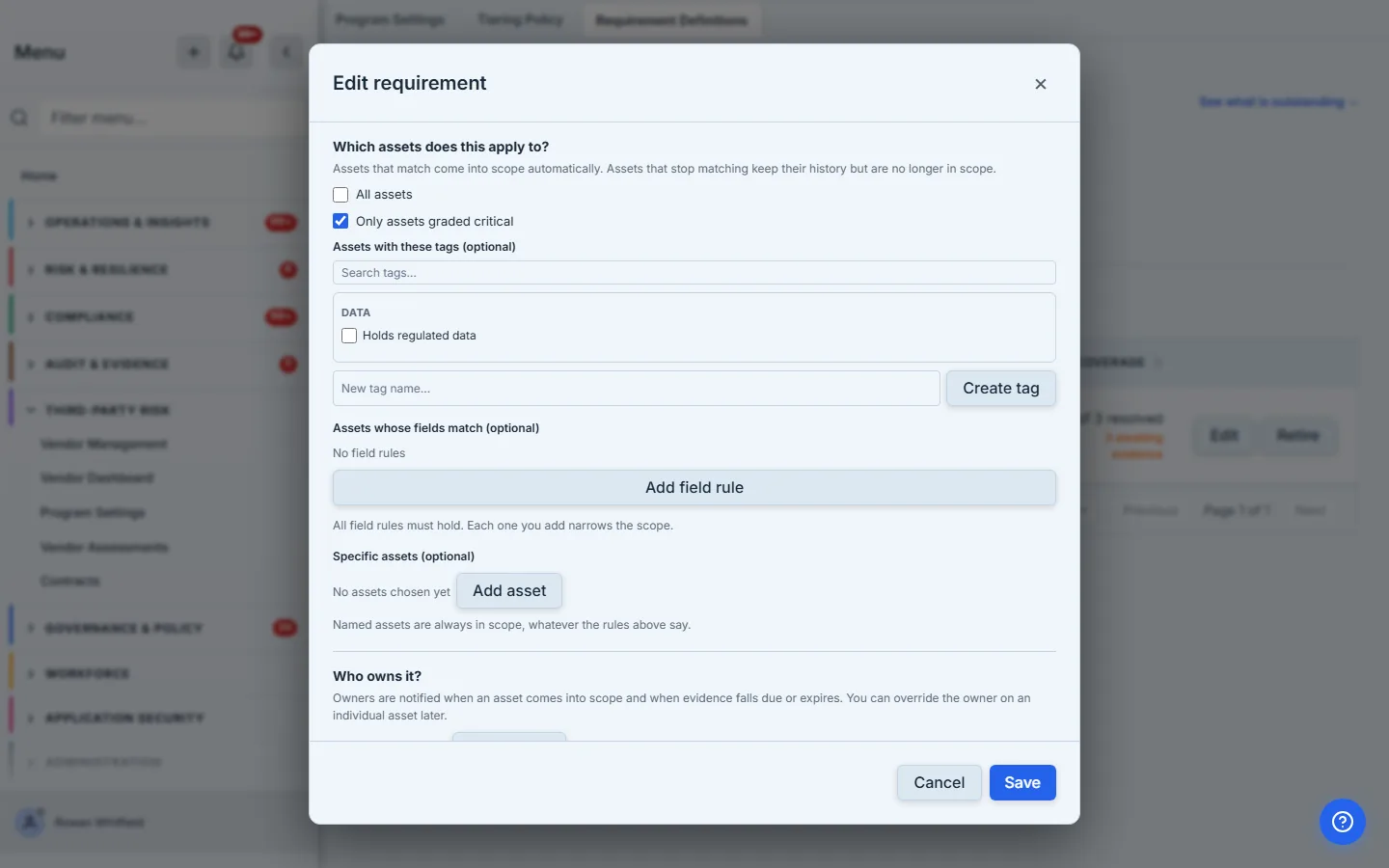
Note the wording. A vendor is flagged critical — a yes/no designation someone applies. An asset is graded: critical, high, medium or low, usually computed by the criticality model rather than set by hand. So the asset form offers Only assets graded critical, and it means the grade, not a flag.
That distinction is not cosmetic. An earlier version of this engine tested criticality as a boolean for every kind, which is correct for a vendor and silently false for every asset alive — the requirement would have sat in the list looking configured and landed on nobody.
Know its limit before you rely on it: the checkbox tests the top grade and only the top grade. If your programme reviews critical and high, this control alone will not say so — scope it with a tag or with the field rule below instead, both of which take any value you can express.
The other scopes are the ones you would expect, in the asset’s own vocabulary: every asset, assets carrying particular tags, specific assets you name, or — the one worth knowing about — a field rule over an attribute you defined yourself. If your organisation added a Data classification custom field to assets, you can scope a requirement to “every asset whose Data classification is Restricted” without inventing a tag to stand in for it.
Tags are worth a word, because they are the scope people reach for first. An asset tag is a label you define — “Holds regulated data”, “Customer-facing” — and apply from the Tags section on any asset. They are a vocabulary, not a status: a tag groups records so a rule can select them, and it carries no evidence, owner or history of its own. That is what a requirement is for, which is why the two sit next to each other on the asset page.
Leaving every scope empty deliberately matches nothing. Fanning an obligation across an entire inventory is an explicit act, not the result of an unfinished form.
All assets is that explicit act, and it is exclusive: tick it and the narrowing controls below grey out, because a scope cannot be both everything and a subset of everything. Named assets are the exception and stay live — they are always in scope, which under All assets they already are. The form greys them rather than accepting them and dropping them on save, which is the same choice made one section down, where ticking A document must be uploaded disables the link option it contradicts.
Step 4 — Set the cadence, and save
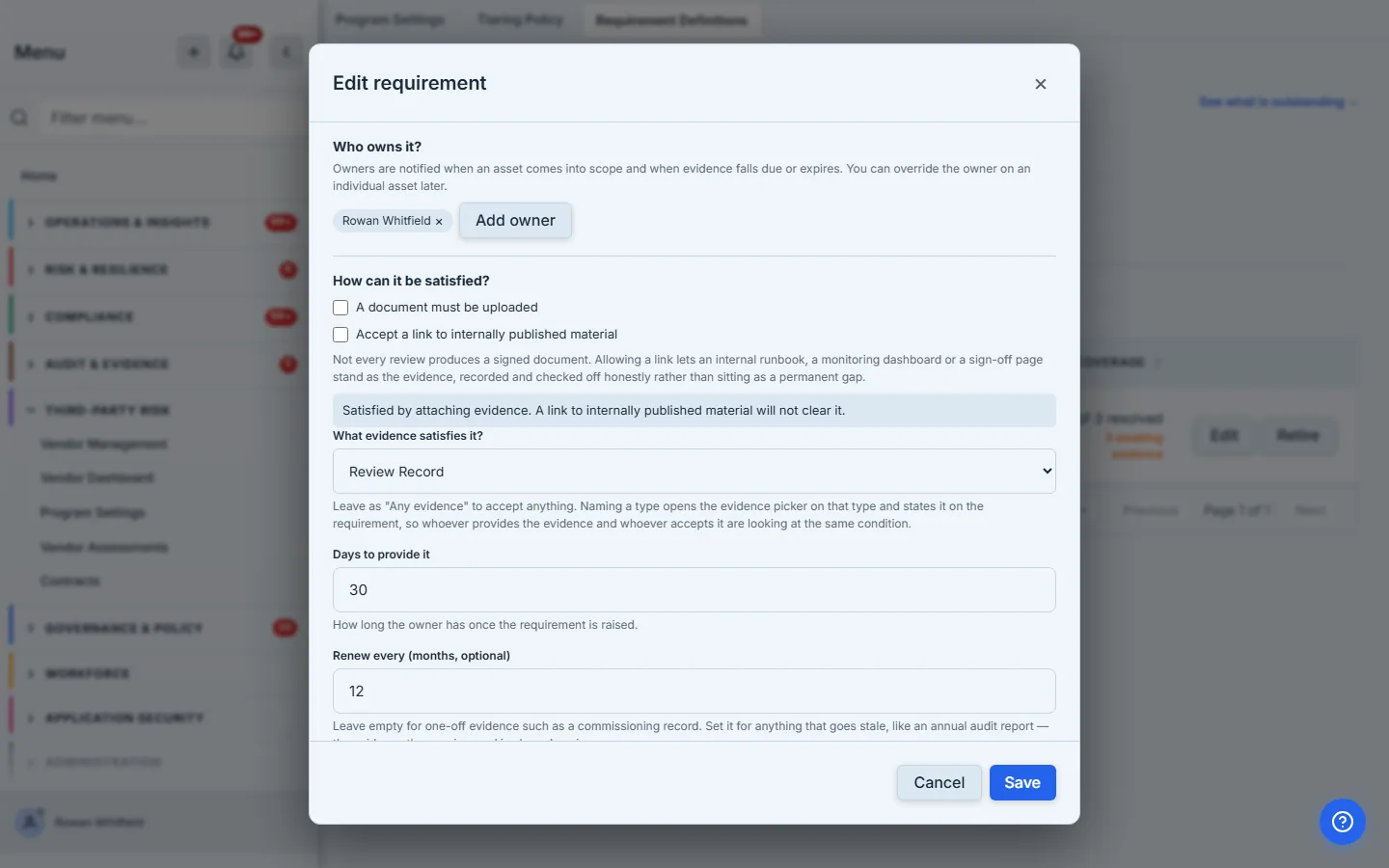
Days to provide it gives each copy a due date. Renew every is what makes a periodic review periodic: satisfy it once and Talarity dates the next one itself, so an annual review comes back round on its own rather than depending on somebody remembering.
The date it picks is whichever comes first — the cadence counted from the day you accepted the evidence, or the expiry the evidence itself carries. That second half matters more than it sounds: attach a certificate valid until 2030 against an annual review and a naïve cadence would push the next review out to 2030, quietly turning “annual” into “once”. Step 10 shows the resulting date on the card.
Add owners here and every copy inherits them — the reminders and the nav badge then have somebody to go to. You can override the owner per asset later, for the handful that belong to someone else.
What evidence satisfies it? is the quiet one. Naming a type — here a review record — is what lets the product answer the question later instead of asking the reader to remember it: the requirement states its condition on every copy, the evidence picker opens on that type rather than on your whole library, and anything uploaded from that picker is filed as that type. Leave it on Any evidence and nothing breaks; you simply get a flat picker and a card that does not say what it wants. Step 9 is where the difference shows.
Save, and the requirement lands on every matching asset immediately.
Step 5 — See what is owed, across the estate
Open Requirements and set Requirements about to Assets.
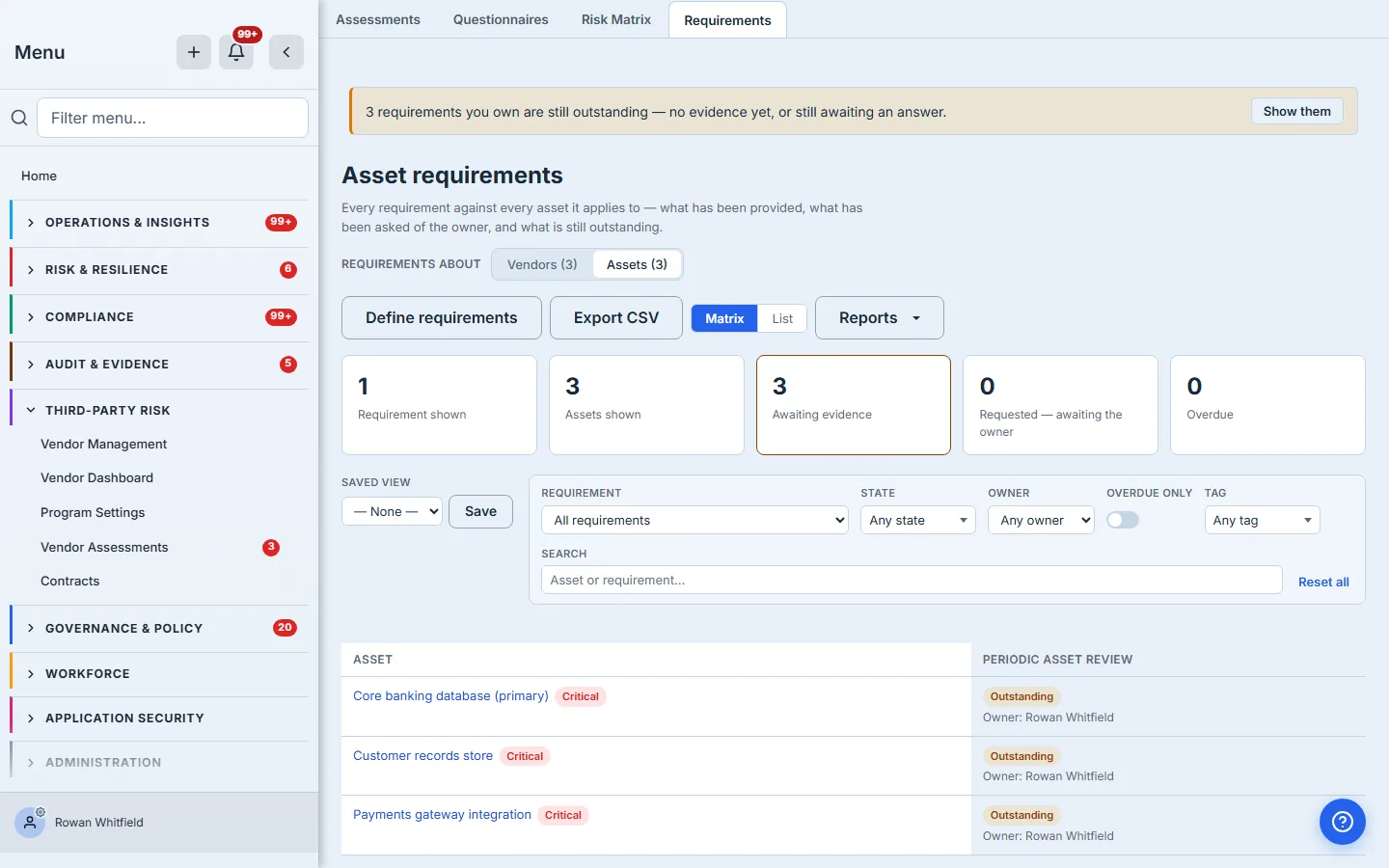
This is the question the review-date field could never answer: not “what is this asset’s review date” but “which assets are missing a review, and who is being chased for it.” The State filter carries the whole vocabulary in the product’s own words — Outstanding, Expired — renewal due, Rejected — resubmission needed, Requested — awaiting the owner, Received — awaiting review, Evidence accepted, Reference accepted and Exempt — so you can ask for any one of them whether or not this organisation has a record in it today.
The badge in the sidebar counts your own share of it: requirements you own with no evidence accepted yet, across vendors and assets alike. It is a to-do list, not an organisation-wide total. Because it spans both kinds while this view shows one at a time, each tab carries its own count under whatever filters you currently have set. Read the tab counts as answers to the filters in front of you, not as a breakdown of the badge: the badge counts only what you own, and the filters shown here are wider than that.
Step 6 — Open an asset and see its obligations
Click through to an asset — the next five screens follow Core banking database (primary), the first of the three. Its Requirements section is the same panel the vendor page uses — literally the same component, so the cards, the states and the actions behave identically.
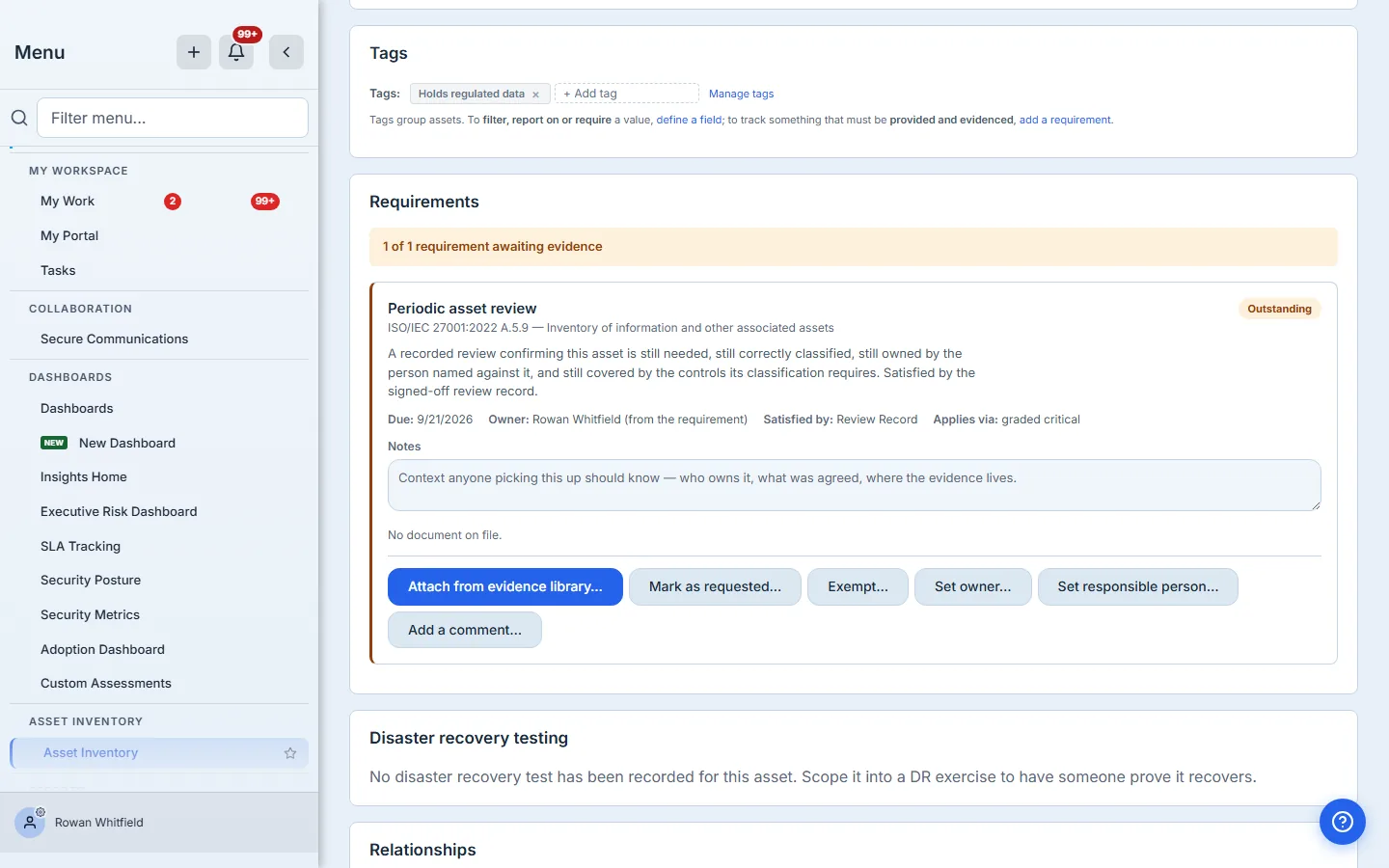
What differs is only what genuinely differs. Attach from evidence library — the org-wide store every record shares — is offered on every kind, and on an asset requirement it is the whole of the evidence story: the one door, and you can both pick from the library and add to it without leaving the dialog. A vendor requirement adds two more, Upload evidence and Link existing document, because a vendor has a document store of its own. Those two are not hidden on an asset to keep the screen tidy; they are absent because they would not work — both write to the vendor’s store and the handlers refuse any other kind — and a control that exists and does nothing is worse than one that is not there.
Step 7 — Record that you asked
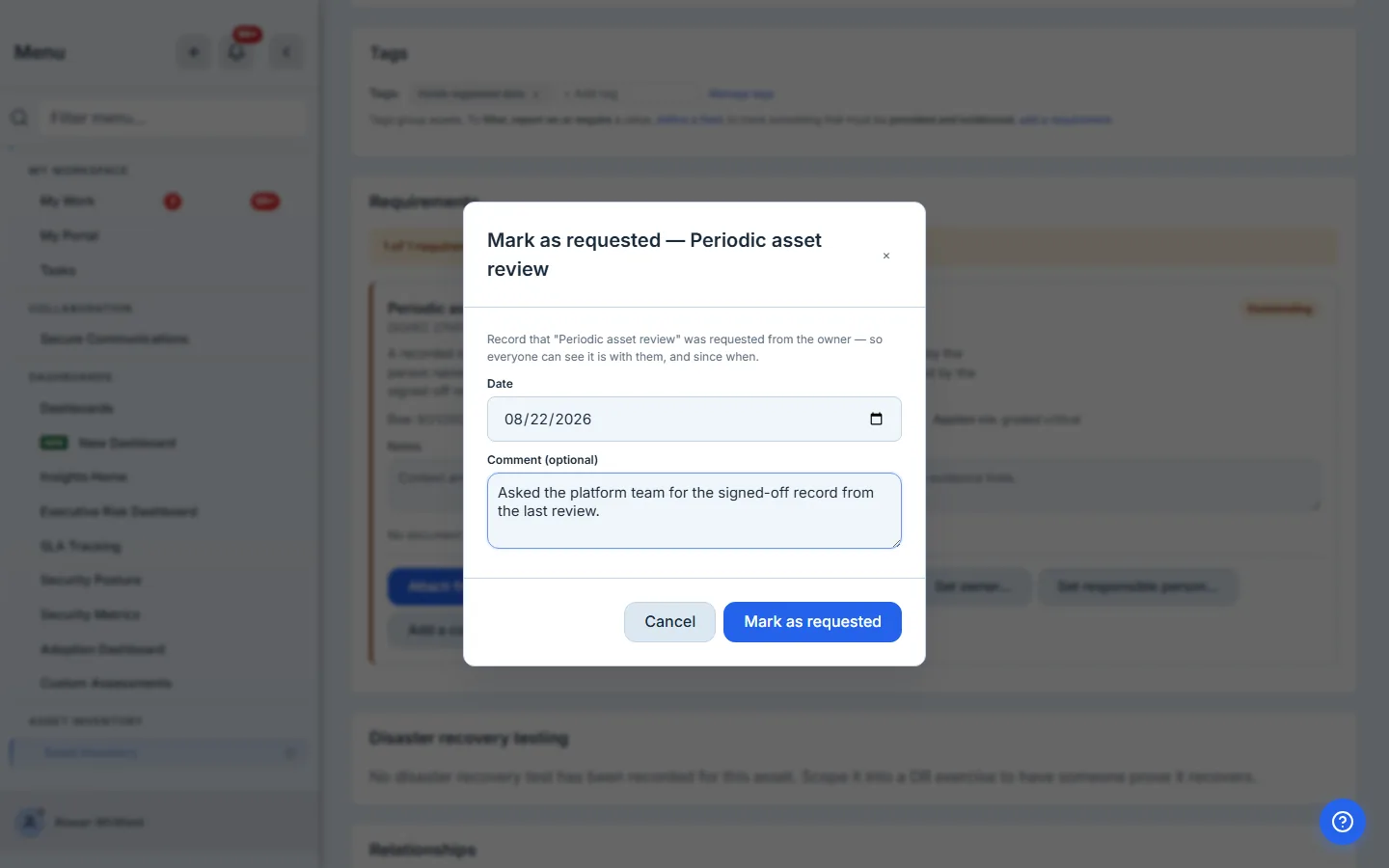
Mark as requested records the ask with a date and an optional comment, which lands in the requirement’s comment thread alongside everything else said about it. This is the column the spreadsheet always grows and never keeps current: the difference between nobody has asked and asked three weeks ago, chase them. Both look like “not done” until you can tell them apart.
Step 8 — Leave the context that isn’t a document
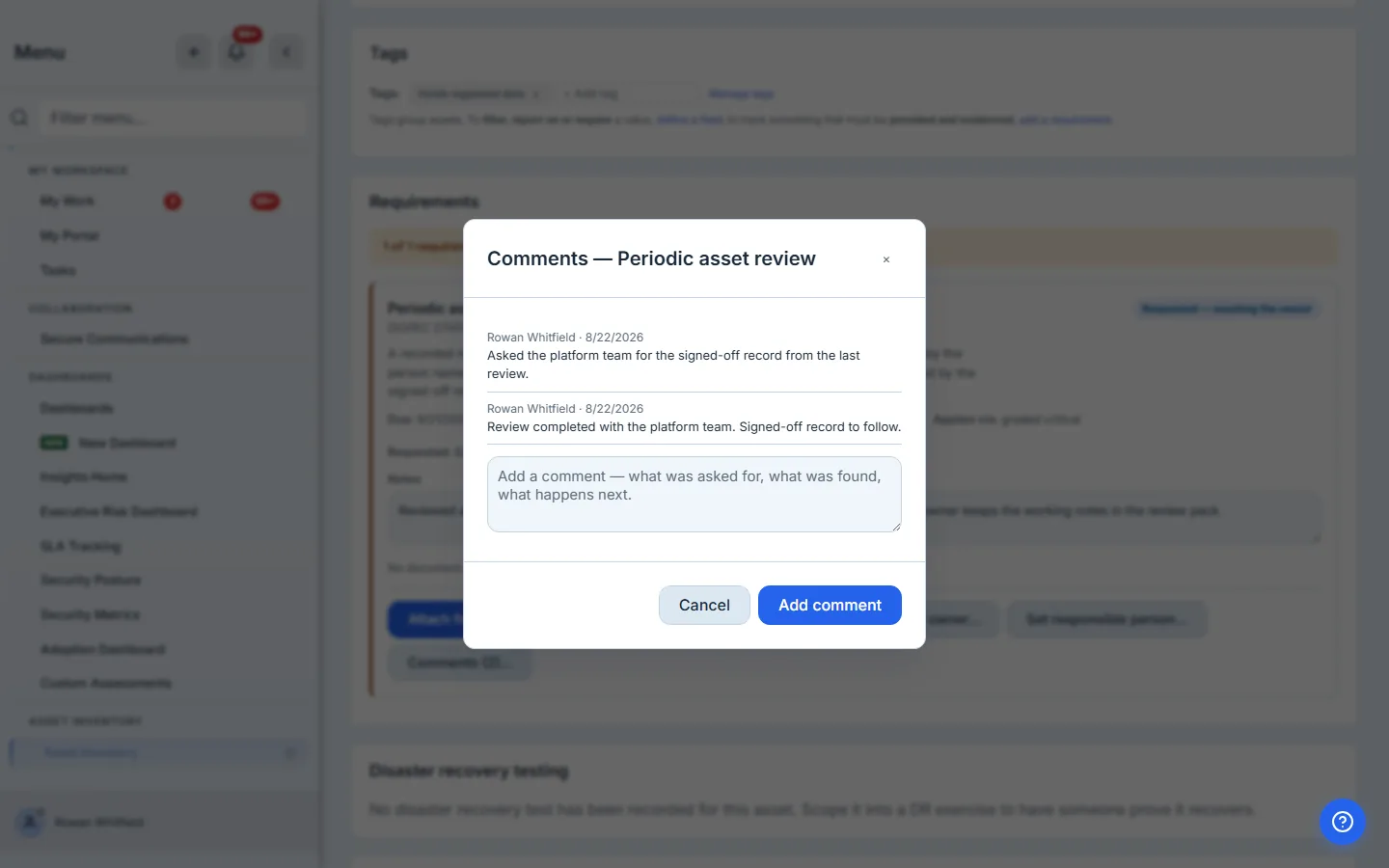
The card carries two different kinds of writing, and the difference matters. Comments — open above — is the conversation: dated, attributed entries that accumulate, one per thing that happened. Notes is something else entirely: a single free-text field sitting on the card itself, holding the standing context anyone picking this up should know. It is edited in place and saves as you leave it, and you can see it filled in on the accepted card in Step 10.
Both are kept against the requirement rather than the asset, so a year later the reason this review slipped is attached to the review it slipped on, not buried in a general activity feed.
The asset does keep a feed, further down its own page: an Activity section recording who asked, who accepted the evidence, who exempted a requirement and when. That is the auditor’s half of the same record — the conversation stays with the requirement it is about, while the sequence of events stays with the asset, which is the thing an auditor picks up and reads front to back.
Step 9 — Attach the evidence
Attach from evidence library opens your organisation’s evidence library — searchable, with anything already attached filtered out, and opened on the kind of evidence this requirement says satisfies it.
That last part is the difference between a picker and a decision. A requirement declares what it is satisfied by — this one wants a review record — so the dialog starts there rather than offering the whole library flat and leaving you to remember the condition, which is written in a description you scrolled past two screens ago. Show all evidence widens it in one click when the right document happens to be filed under another type, and if nothing of the required kind exists yet you can upload one here, typed correctly, without leaving the dialog to go and find the evidence library first.
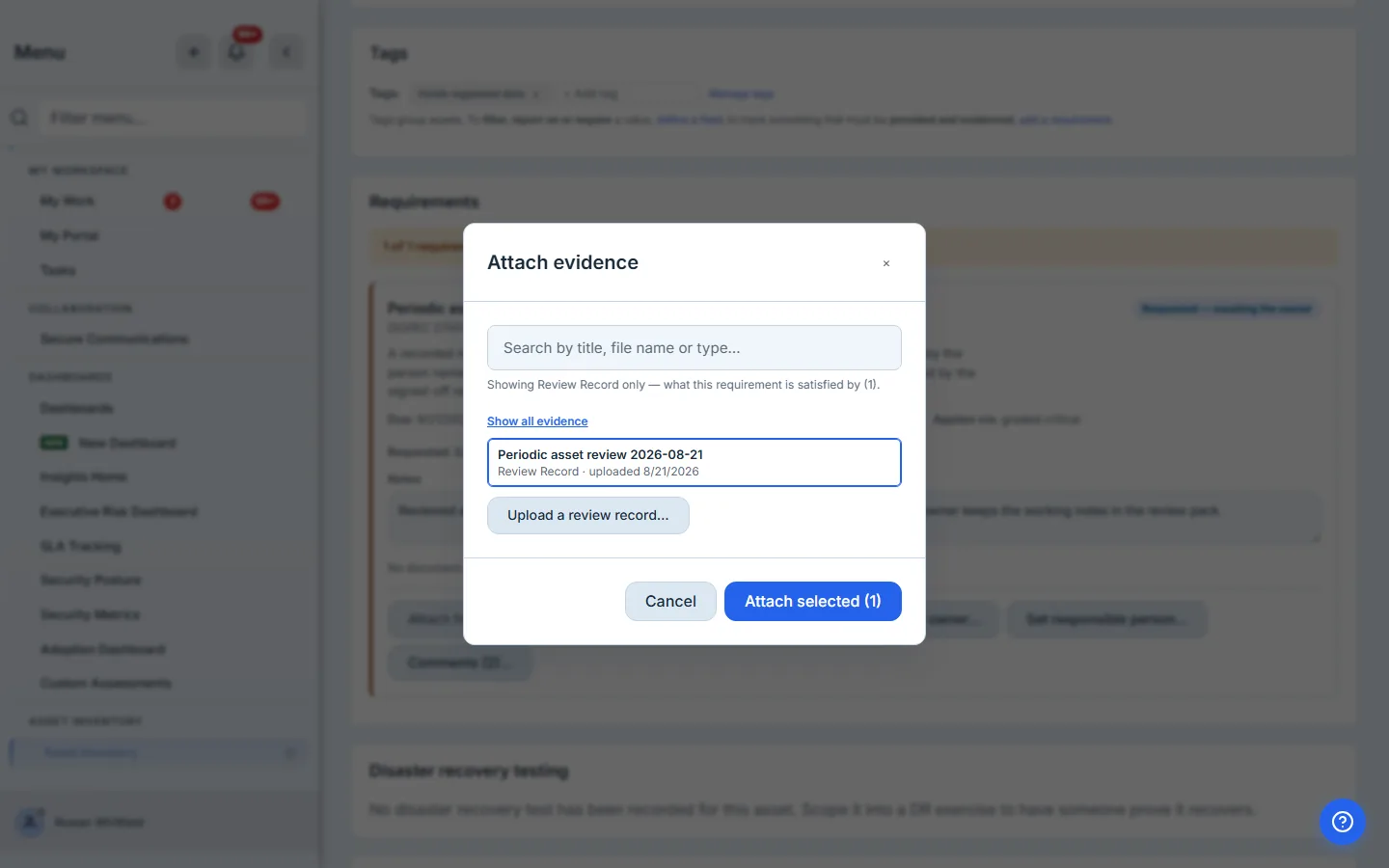
Attaching evidence to a requirement that is still being chased advances it to Received — awaiting review — the owner has answered and the ball is on your side. A requirement already satisfied, exempted or rejected keeps its state; the evidence simply attaches.
Attached evidence stays live on the card: open it to read the file, or unlink it if the wrong record went on. Unlink the last piece of evidence from a requirement that rested on it and the requirement returns to where it was — requested if it had been asked for, outstanding if it had not — rather than dropping to a default and erasing the fact that you chased it. A requirement satisfied some other way keeps its state; you have removed an attachment, not its grounds.
The library is deliberately the store here rather than a per-asset upload. A single signed review record frequently covers several assets reviewed together, and the library lets one document satisfy each of their requirements — uploaded once, attached from each asset, rather than five copies under five different ids with no way to tell later that they were the same review. Attaching is still one asset at a time: there is no bulk select on the estate view, so five assets is five visits to this dialog against the one document.
Step 10 — Accept it, with your name on the decision
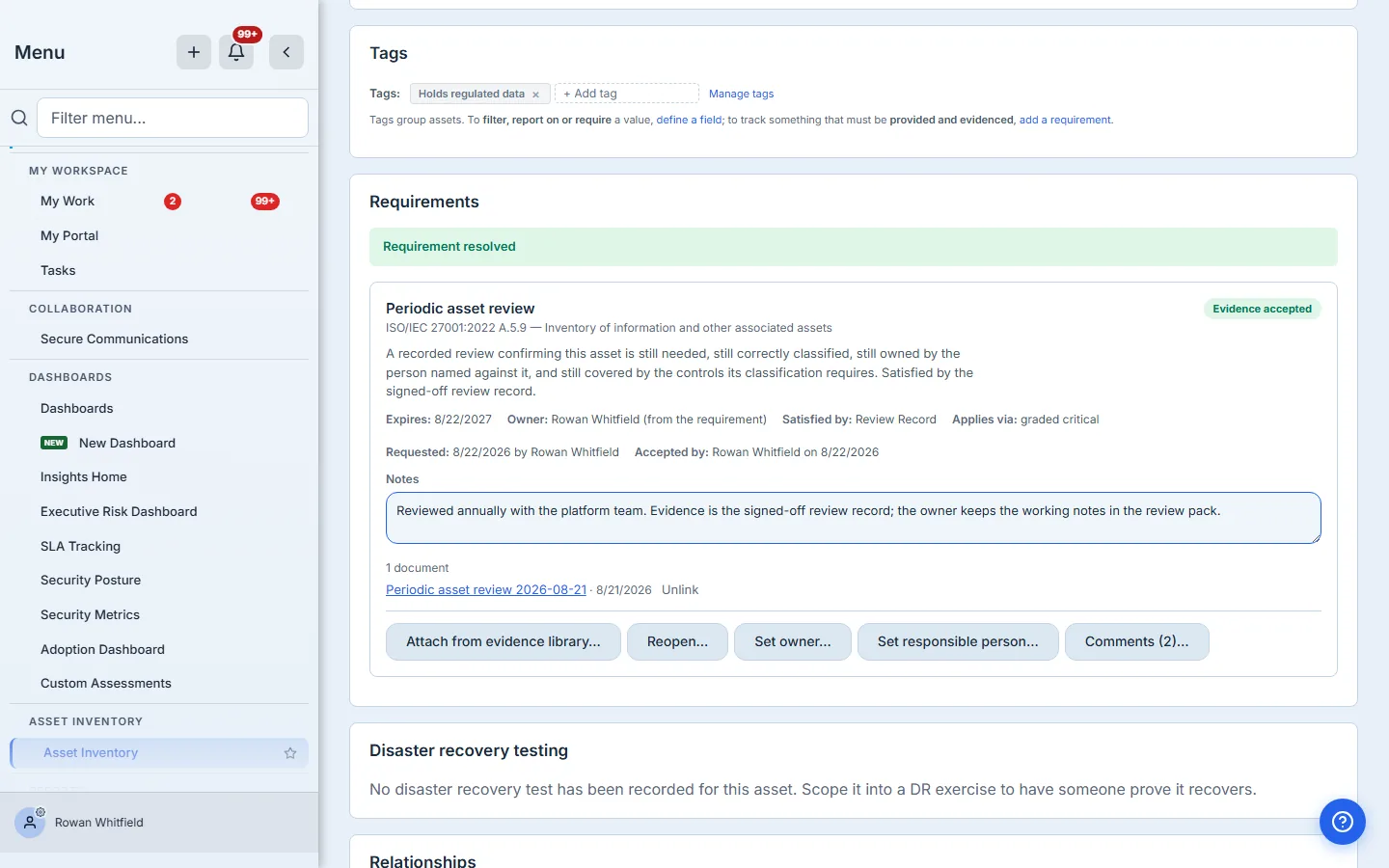
Accepting stamps who accepted it and when, and sets the date it falls due again. The card shows both. Nothing new is created and nothing is queued: the same record simply carries an expiry, and when that date passes it returns to the outstanding list to be chased like any other gap. The renewal date is whichever comes first: the cadence you set, or the evidence’s own expiry if the document goes stale sooner — an attestation covering a stated period stops describing today when that period ends, and an annual review is due annually whatever the paperwork says. “On whose authority, and when” is the first question an auditor asks of any accepted control, and it should never require opening a database to answer.
The card also states, as a plain fact rather than as a sentence to parse, what this requirement is satisfied by. That matters most to whoever is accepting — in practice a different person, days later, who did not choose the evidence and has no reason to re-read the description. (This walkthrough runs on one account, so the card above shows the same name requesting and accepting; read it as the two roles rather than the two people.) If what is attached is not of that kind, the attachment says so in as many words. It does not block you: an organisation may legitimately hold the right evidence filed under a different type, and the product’s own classification is not the last word on what discharges an obligation. What it must not do is say nothing, and let a document that does not answer the question travel all the way to a compliance report under a heading claiming it does.
Step 11 — Filter to what is still owed
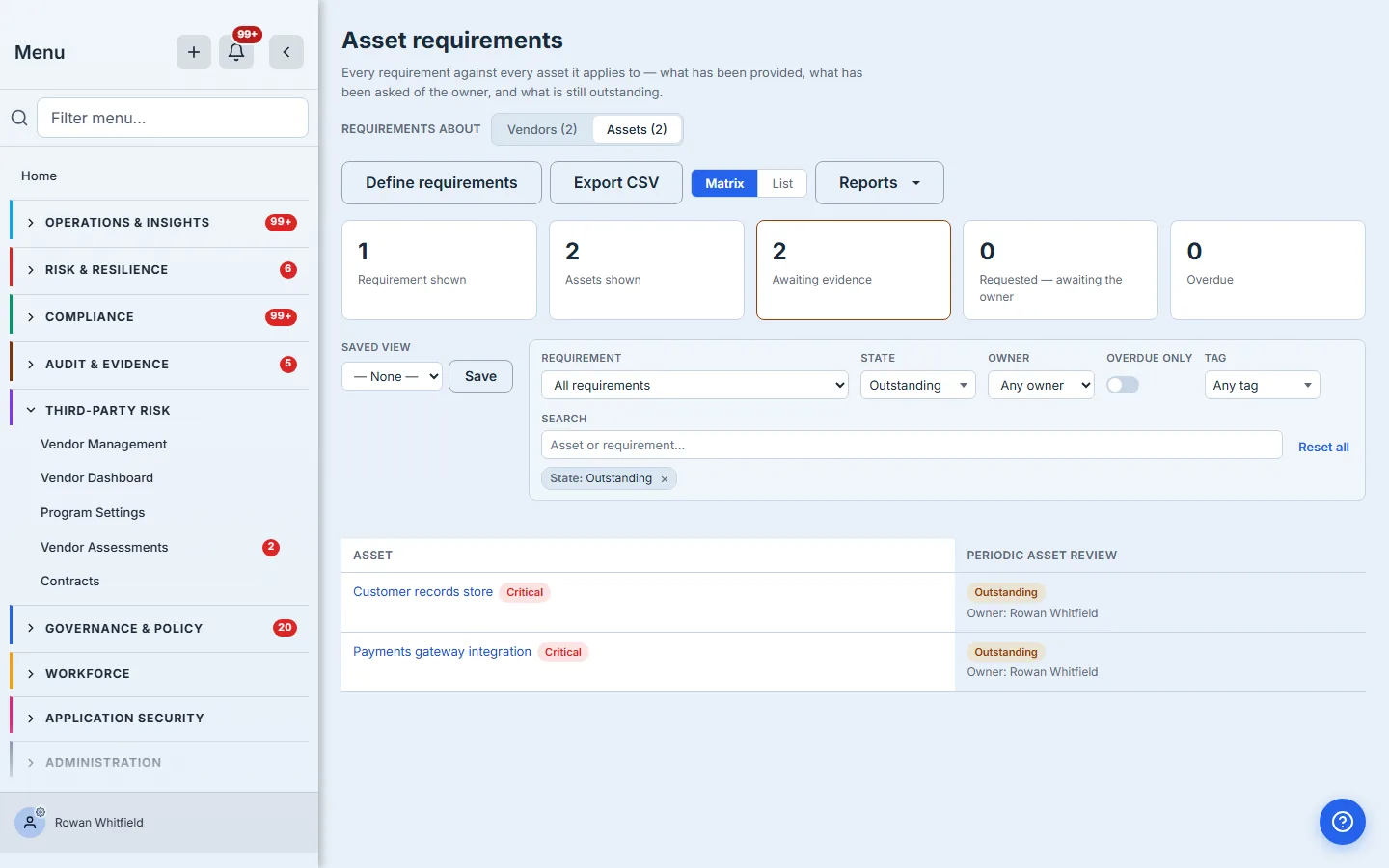
Filter by requirement, by state, by owner, by tag, by overdue. The filters are applied server-side, so the answer covers the whole estate rather than the rows that happened to load — which matters more the larger the estate gets: an organisation typically manages an order of magnitude more assets than vendors, and a filter that only sees the loaded page is a filter that answers a different question than the one you asked.
Save a filter you use often as a view, and it comes back with fresh data rather than a frozen snapshot.
Step 12 — Report on it
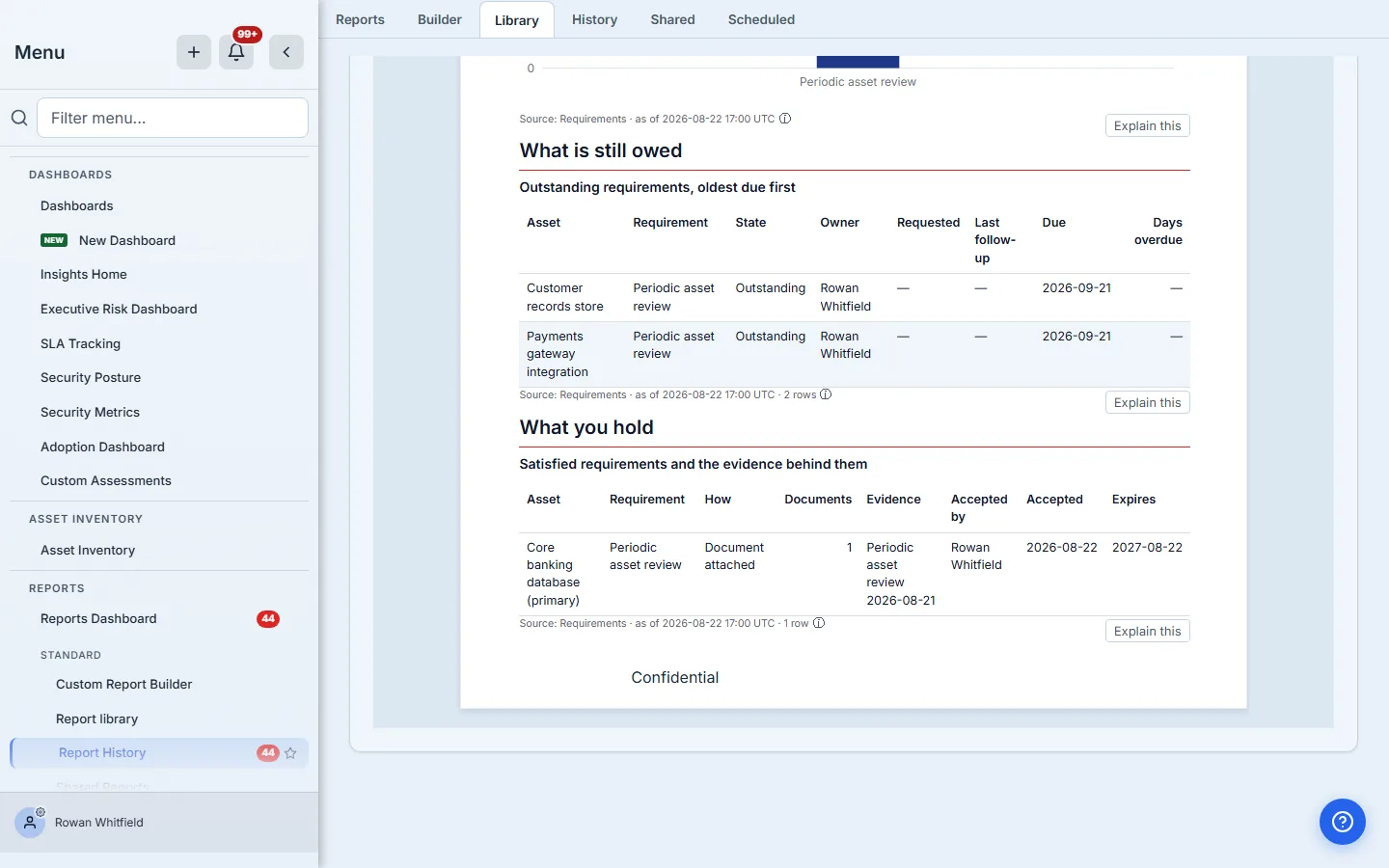
Asset requirement compliance is a shipped template — four KPIs, two charts and two tables, the same shape as its vendor counterpart and bound to asset requirements. Generate it and the subject column resolves to the asset each row is about, and the Owner column beside it to the person accountable for closing it — the same owner the sidebar badge and the reminders are scoped to, so the report answers “who owes this” with a name rather than leaving it to be looked up. The frame below opens on What is still owed, several blocks down from the cover. The table beneath it, What you hold, is the other half of the same question: each satisfied requirement with how it was met, who accepted it and when it expires — and the Evidence column naming the documents behind it, not merely counting them, so a row can be followed to the thing that discharges it rather than to a number.
That pairing is deliberate, and it is why the vendor report is scoped rather than left to gather everything: a compliance report that silently counts a second programme is not a wider report, it is a wrong one. Each names its kind and counts only that kind; a report that deliberately spans both can add the Subject type column and group by it.
Every figure carries its own provenance: the grey line under each block names the dataset and the moment it was read, and the ⓘ beside it opens the rows behind that figure on the Requirements view — already scoped to the kind the report is about, so an asset figure lands on assets. The rows printed in the document are text, as a governed artefact’s rows should be: what you hand an auditor is the same whether they read it on screen or on paper.
What you walk away with
- One obligation, declared once, that applies itself to the assets it should — including the ones commissioned after you declared it.
- A live answer to “which assets are overdue for review, and who is being chased for those reviews”, instead of a date field nobody filled in.
- Evidence attached to the obligation it satisfies, with the acceptor and the date on the record.
- A renewal cadence that brings the review back round without anyone remembering.
- The same reports, filters, saved views, exports and audit trail your vendor requirements already use — because it is the same engine with a different subject.
What this article does not cover
- Asset criticality itself — the grade is set on the asset record, and can be recalculated in bulk from the inventory. It is its own workflow, and this article takes whatever grade you have already arrived at.
- Vendor requirements, walked end to end in the Regulation S-P article. Everything here applies there, in the vendor’s vocabulary.
- Managing the tag vocabulary — creating and retiring the tags you can scope by lives in Program Settings.
Declare yours this afternoon. Open /app/settings/vendors/requirements, switch Requirements about to Assets, and adopt the periodic review template. Scope it to your critical assets and Talarity will tell you, immediately, how many of them are waiting on a review — a number the review-date field could never produce, because it can only count the records somebody had already filled in by hand. Nothing is overdue on day one, and that distinction is the point: the gap exists from the moment you declare the obligation, months before any date passes.