Every framework that touches your workforce expects new people to be brought up to speed the moment they join — not weeks later when someone remembers. SOC 2 operationalises CC1.4 (commitment to integrity and ethical values) at the point of hire. ISO 27001:2022 splits it across A.6.1 (screening) and A.6.3 (information-security awareness, education, and training on joining). HIPAA’s Security Awareness rule §164.308(a)(5)(i) is explicit that every new workforce member needs documented onboarding. NIST SP 800-53 PS-4 and PS-6 cover the same ground from the access-agreement angle.
Most teams run this off a checklist in someone’s head. A new hire — or a contractor, or an auditor you just granted a login — joins, and whether they actually read the acceptable-use policy, set up MFA, or uploaded their signed agreement depends entirely on whether a busy admin remembered to chase them. Talarity turns that into a standing rule: you define the onboarding once, and from then on the platform assigns it automatically to anyone who joins — no per-person action, no chase-down spreadsheet, no gap for the auditor to find.
This is the login-side companion to joiner bundles. If you’re provisioning a new hire’s equipment and HR onboarding pack, that’s a joiner bundle — applied per hire, equipment-first. Onboarding assignment rules are about anyone who gets a Talarity account: they fire on every join, need no per-person trigger, and an Enterprise parent can push them down to linked child organizations.
Who’s involved
- Org admin — defines the rules once in the Tasks workspace and never touches them again.
- Enterprise admin — extends a rule to new users across all (or specific) linked child organizations.
- New user — joins, signs in, and finds their onboarding items already waiting in My Work — as a quiet inbox, a welcome popup, or a gate they clear before they continue.
- Auditor — pulls the record: every joiner was assigned the required onboarding, and the platform tracks who completed what, when.
What’s on the page
Onboarding rules live in the Tasks workspace → Onboarding Rules tab (/app/tasks?tab=onboarding-rules):
- The rules list — one row per standing rule: name, what it assigns, scope, enforcement (Inbox / Popup / Blocking gate), due window, how many people it’s reached, and active/disabled status — with an Active/Disabled/All filter and per-rule Apply, Disable, and Delete actions.
- The New Rule builder — a name plus an item builder mixing four kinds (Task · Checklist · Policy acknowledgement · Document upload, each with its own priority), the three enforcement modes, a due offset, a Skip guest users toggle, and the Who it applies to scope (your org / all linked children / specific children).
- The new user’s side — items arrive in their My Work → Onboarding section, optionally surfaced by a first-login popup or held behind a blocking gate.
Step 1 — Open the Onboarding Rules tab
Onboarding rules live in the Tasks workspace, under the Onboarding Rules tab (/app/tasks?tab=onboarding-rules). Each row is one standing rule: its name, a summary of what it assigns, the scope it targets, the enforcement style, the due window, how many people it’s reached, and whether it’s active.
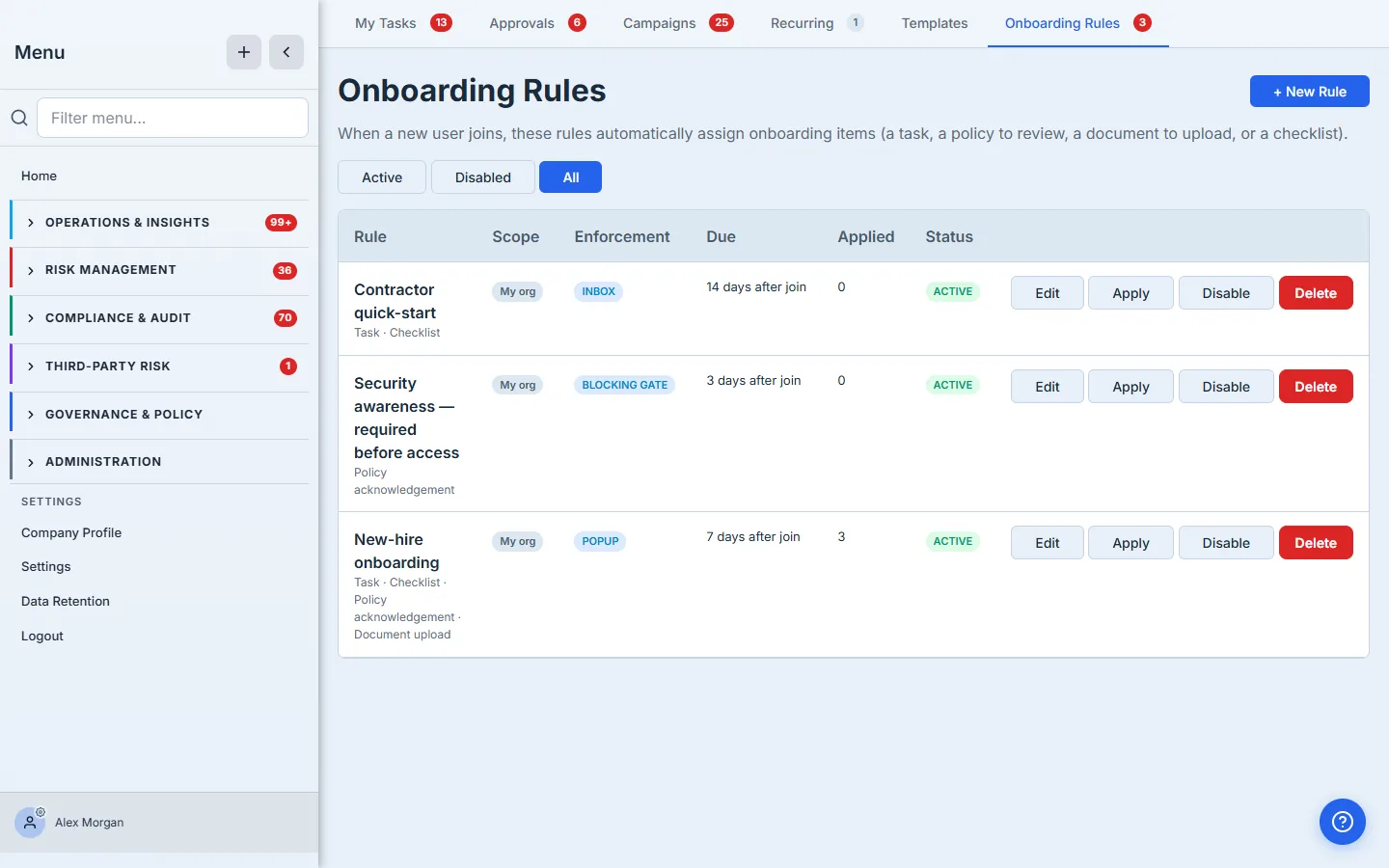
The list is the whole control surface: filter by Active / Disabled / All, Apply a rule to people who already joined, Disable a rule without deleting its history, or Delete it outright. Disabling or deleting a rule never claws back items already assigned — it only stops future joins from getting them.
Step 2 — Build the items a new user gets
Click + New Rule and give it a name. Then add the items every new user should get. A rule can mix four kinds, in any order:
- Task — a plain to-do with a description. “Complete your profile and turn on MFA.”
- Checklist — a multi-item checklist, one line each. The user ticks them off as they go.
- Policy acknowledgement — pick a published policy; the user reviews the current version and acknowledges it. This writes the same per-version attestation record as a standalone acknowledgement campaign.
- Document upload — the user must upload a document (a signed agreement, a certificate) to complete the item.
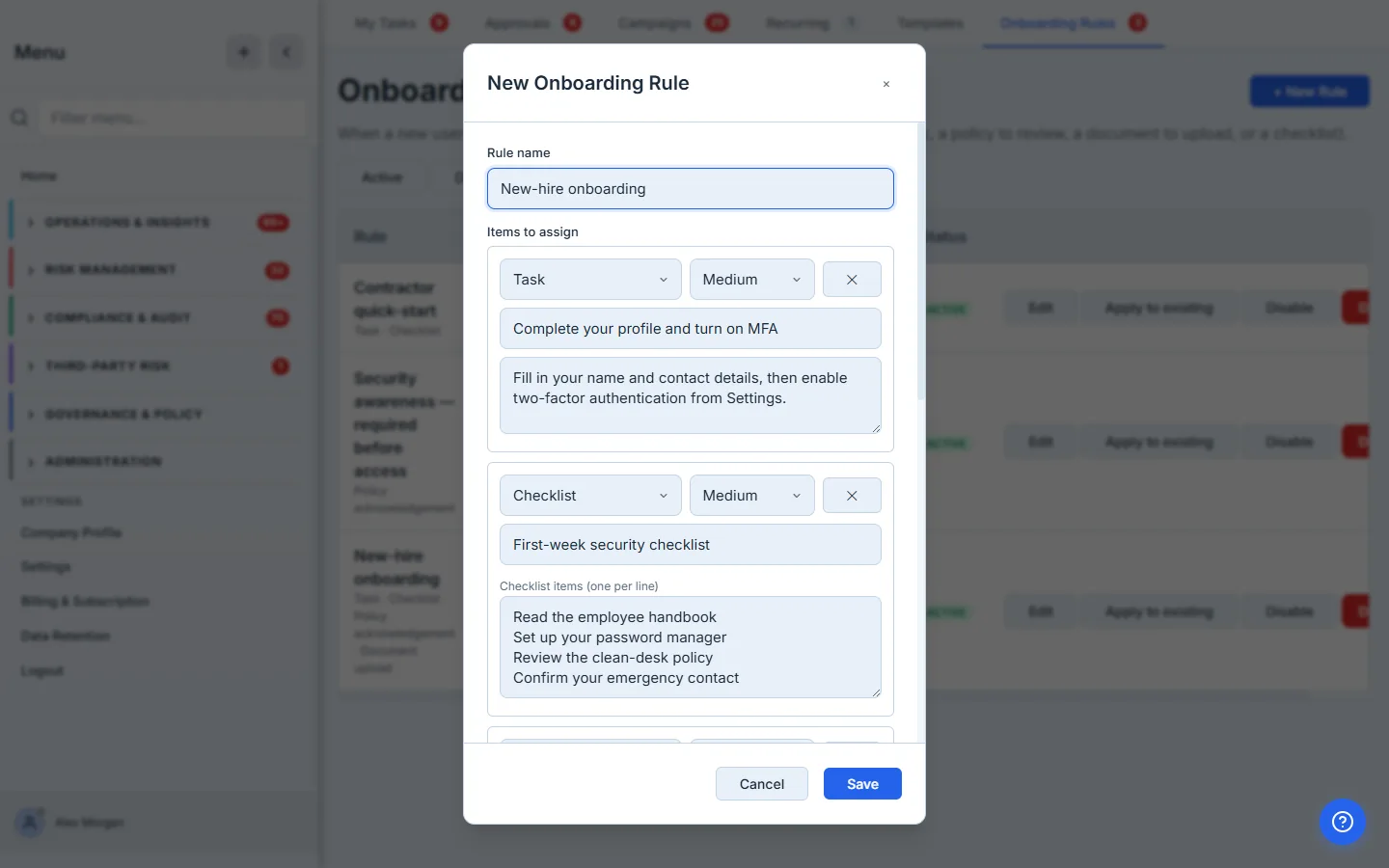
Each item carries its own priority, so the policy ack can be High while the “set up your password manager” checklist sits at Medium. Behind the scenes, every item becomes a real work item assigned to the new user when they join — the same primitive that drives remediation, vendor findings, and DR-test tasks — so onboarding items show up in the exact same My Work inbox the rest of your program already uses.
Step 3 — Choose how firmly it’s enforced
Scroll down and pick the enforcement mode. This is the decision that matters most, because it’s the difference between a gentle nudge and a hard requirement:
- Inbox — the items appear in the user’s My Work with a due date and a nav badge. The app stays fully usable. Right for “please get to these.”
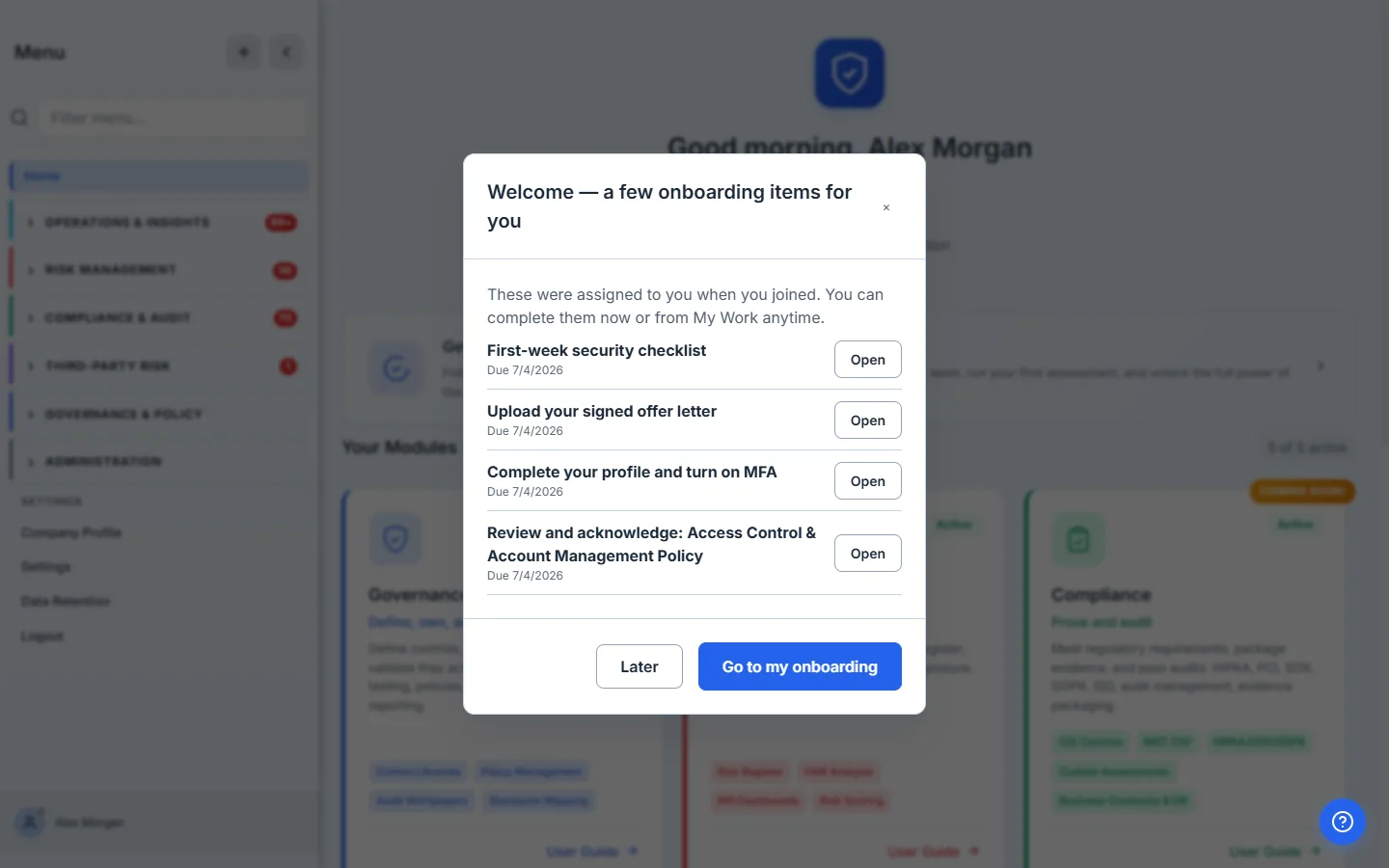
- Popup — a dismissible welcome popup on first sign-in highlights the items, then they live in My Work. Right for “we’d really like you to notice these.”
- Blocking gate — until the required items are done, a gate blocks the app on sign-in. Right for “you don’t get to work until you’ve acknowledged the security policy.” (Admins are never locked out — the gate degrades to a popup for them so they can still manage the org.)
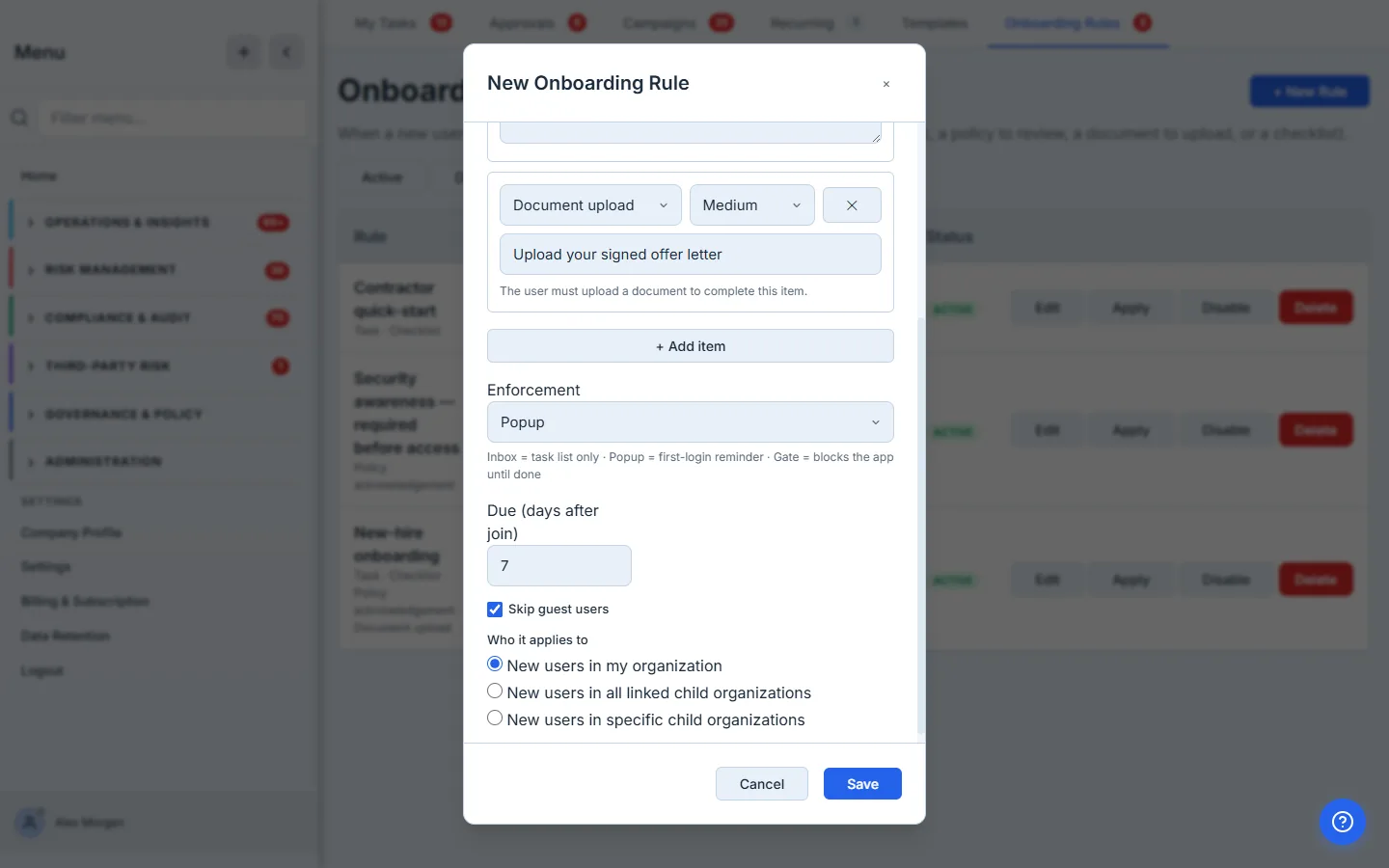
Set a due offset — how many days after joining the items are due. Talarity’s daily reminder sweep treats onboarding items like any other work item with a due date, so it nudges the assignee as the deadline approaches and flags anything overdue. Tick Skip guest users if guest-licensed accounts (external auditors, contractors on a limited login) shouldn’t get the rule.
Pick the enforcement that matches the consequence, not the impulse. A gate on a new contractor who needs to start working in the next hour is friction; a gate on the one policy your regulator checks is exactly right. Most teams use Inbox for the routine items and reserve the gate for the one or two acknowledgements that are genuinely non-negotiable.
Step 4 — Scope it: your org, or your child organizations
The Who it applies to options decide whose new users the rule reaches:
- New users in my organization — the default. Everyone who joins your org.
- New users in all linked child organizations — for an Enterprise parent, the rule fires for every new user across all linked children too.
- New users in specific child organizations — target only the children you choose.
An Enterprise parent can set one onboarding standard and have it apply automatically to every new person who joins any of its subsidiaries — without logging into each child org. Talarity validates the targets against your live linked-account relationships, and the items it creates land in the child org, owned and completed by the child’s user. Save the rule, and it’s live: the next person who joins gets it, no further action required.
Step 5 — Apply it to people who already joined
A new rule only fires on future joins by default — so turning one on doesn’t suddenly flood your existing team with tasks. When you do want to roll a rule out to people who are already here (a new required policy, say), click Apply on the rule.
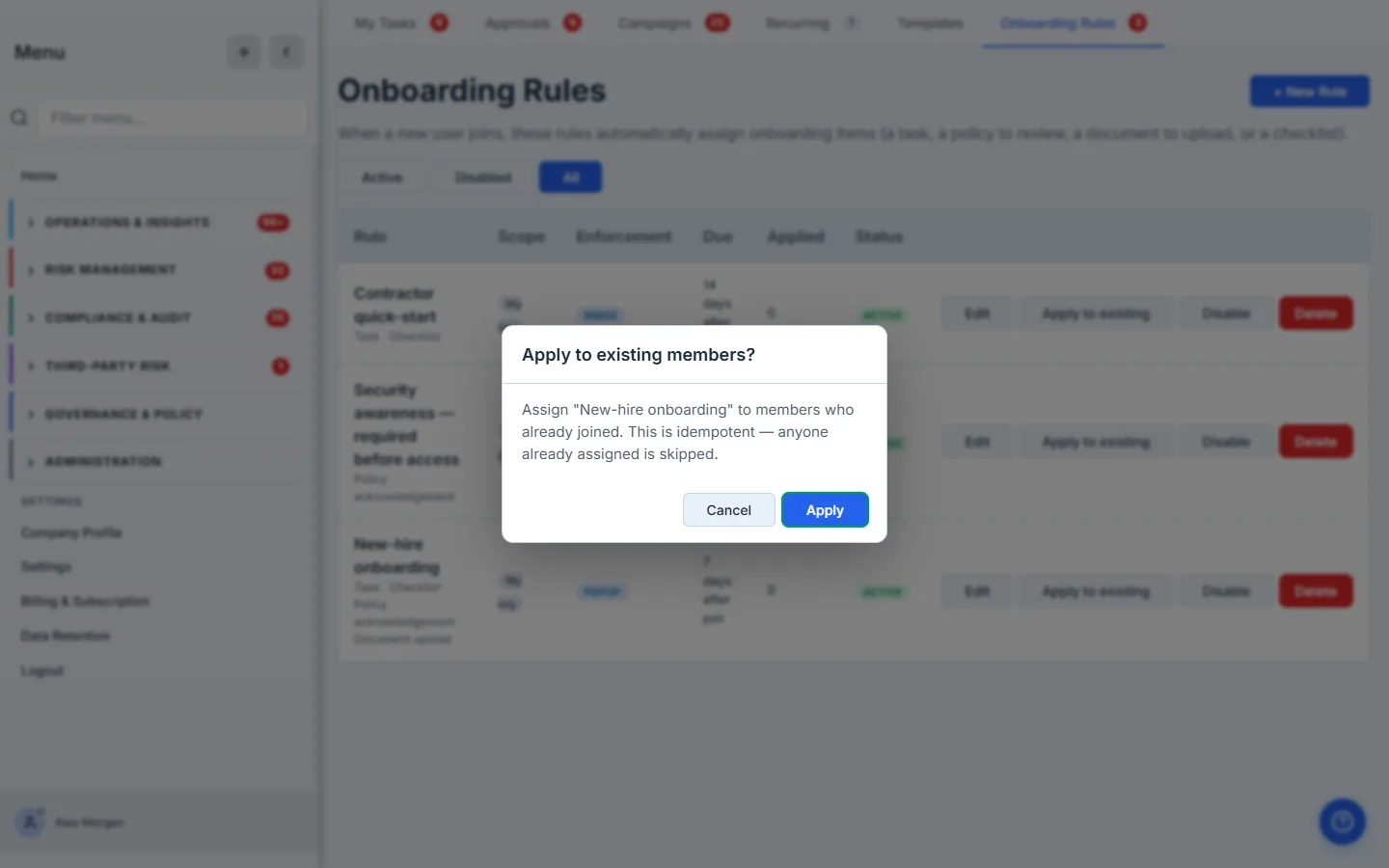
The backfill is idempotent: anyone who already has the rule is skipped, so you can run it as many times as you like without doubling anyone up. For an Enterprise parent with a cross-org rule, Apply reaches the matching members across the targeted child organizations too.
Step 6 — The new user signs in
This is the payoff. When the new user opens Talarity, their onboarding items are already waiting — in their My Work inbox, in a section called Onboarding. No email, no “where do I start,” no admin walking them through it. And if the rule’s enforcement is Popup or Blocking gate, they see it the moment they land: a welcome surface listing exactly what’s required, with a link straight to it.
Opening an item is the same flow as any other work item. A checklist item is ticked off line by line; a policy acknowledgement walks them through the current published version and records their attestation; a document-upload item won’t complete until the file is attached.
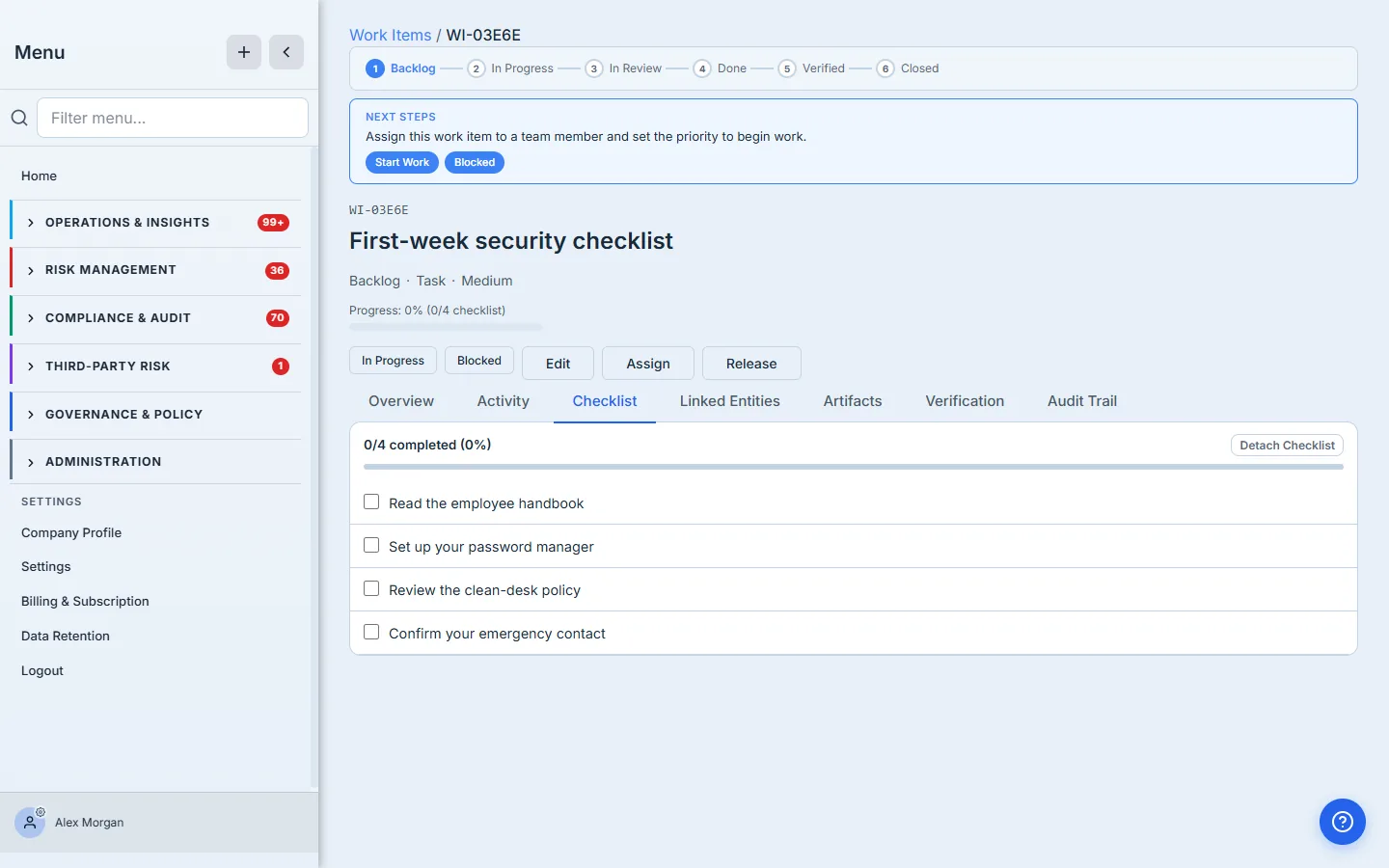
Every completion flows back through the standard work-item machinery — progress counters, the nav badge clearing, the audit trail — so the admin and the auditor can both see, per person, which onboarding items were assigned and which are done. The gate clears itself the moment the required items are complete.
What you walk away with
- One standing rule per onboarding scenario — defined once, fired automatically on every future join, no per-person trigger.
- The right enforcement for the stakes — a quiet inbox, a first-login popup, or a blocking gate, chosen per rule.
- Onboarding items as real work items — assigned to the new user, surfaced in the same My Work inbox, reminded on the same due-date sweep, audited the same way as the rest of your program.
- Policy acknowledgements that count — a policy-ack onboarding item writes the same per-version attestation record an auditor expects.
- For Enterprise, one onboarding standard across every linked child org — set at the parent, applied automatically to new users in the subsidiaries.
- An opt-in backfill — roll a rule out to people who already joined, idempotently, whenever you’re ready.
Set yours this afternoon. Open /app/tasks, click the Onboarding Rules tab, hit + New Rule, and add the three things every new person at your company should do on day one. The first rule takes about three minutes. Every person who joins after that gets it — without you lifting a finger.