Most audit tooling treats the plan as paperwork: a document you write at the start, file somewhere, and quietly diverge from. Talarity treats it as the engagement itself. The plan record is the audit — its scope, its findings, its workpapers and its conclusion all hang off it, and its status is what an auditor means when they ask “where is that engagement up to?”
That one design decision is why this walkthrough spends as much time on what the product refuses as on what it does. An engagement record you can delete is not a record.
Who’s involved
- Audit lead — opens the engagement, sets its scope, runs it through its states.
- Fieldwork team — raises findings against the controls in scope and attaches workpapers.
- Compliance owner — picks up remediation for what the audit found.
- External auditor or reviewer — reads the case file and the trail behind it, long after the engagement closed.
An audit plan is the engagement
Open Audit Management (/app/audit-hub). Every engagement is a card carrying its status, its period, its framework and its progress. The “Active Audits” figure at the top of that page is a count of work in flight, not a count of documents — because there is no separate document.
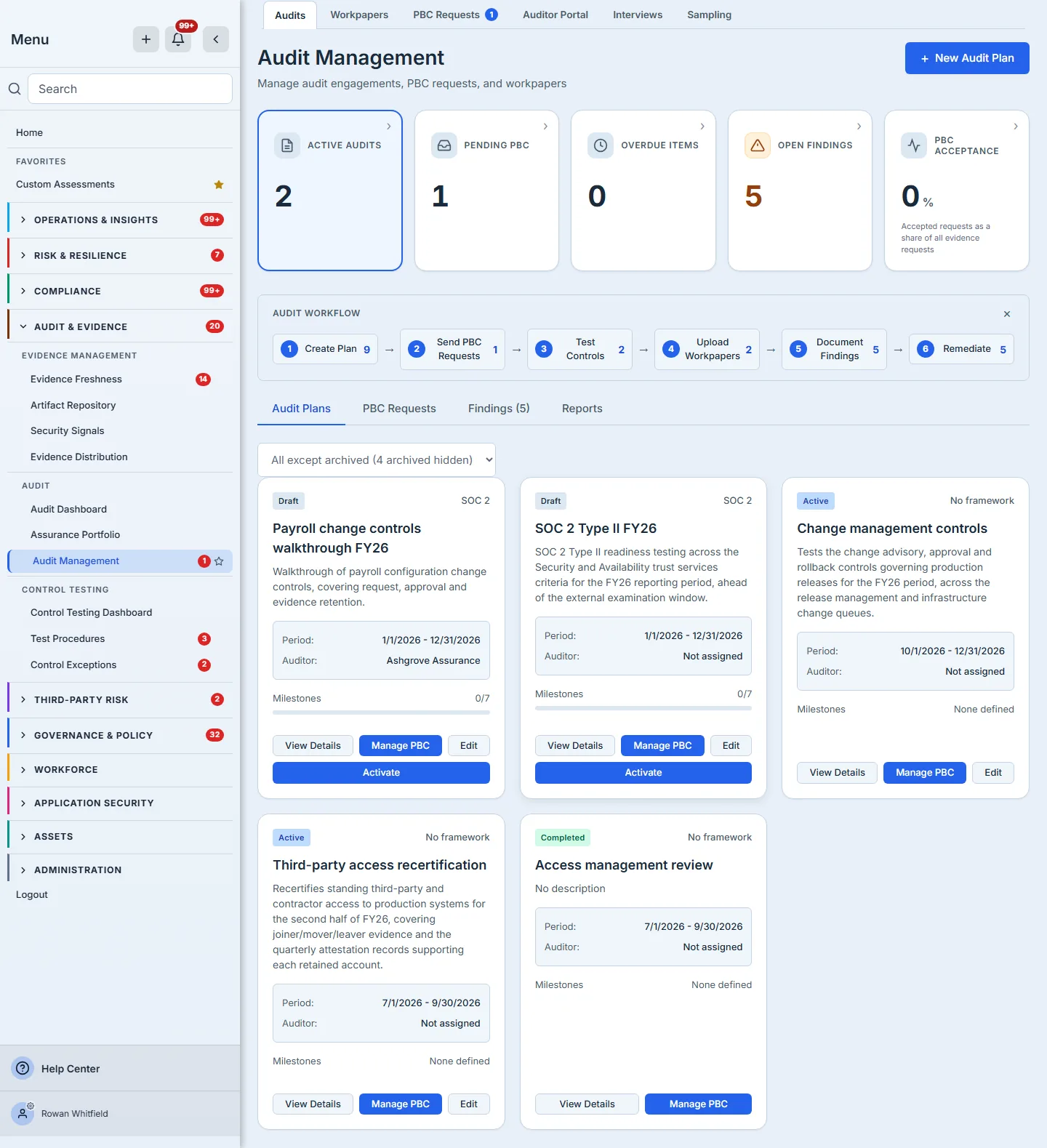
Each plan has two surfaces, and they are genuinely different pages rather than two views of one:
- The hub’s per-plan mode (
/app/audit-hub/plan/<id>) — where you shape the engagement: map controls into its scope, auto-populate from a framework, work the PBC queue. - The case file (
/app/audit-plans/<id>) — where you read it. This is where View Details on a plan card takes you, and it is the surface this article mostly lives on.
Knowing which one you are on matters, because the same noun means different things on each: on the hub, scope is something you edit; on the case file, it is something the engagement has.
Getting to the shaping surface is the awkward part, and worth knowing before you go looking for it. The plan card’s View Details button goes to the case file, not to the per-plan mode — and Manage PBC filters the hub’s PBC tab to that plan without opening it either, so neither button on the card reveals the Control Scope or Checklist tabs. Those appear only when the plan id is in the URL.
The links that put it there are worth knowing, because the most useful ones are on the case file itself and only appear when you need them. Every empty pane on the case file offers the action that would fill it, and those actions are what open the shaping surface — an engagement with no findings offers Raise a finding, one with no scope offers Map scope (“Scope is mapped on the hub’s per-plan Control Scope tab”, it says, and links there), an empty PBC or Evidence pane offers Manage PBC, and an empty Remediations pane offers Create a remediation plan. So the new draft engagement, which is exactly when you want the shaping surface, is the case where the route is most visible. Beyond that, the Audit Dashboard links to it from the engagement name in its pipeline and readiness tables, and an internal-audit engagement’s “Open workpaper” link goes there too.
What remains awkward is narrower than “you cannot get there”: no button on a populated plan card opens it. Once the panes have content their CTAs are gone, and from the hub the per-plan mode is then reachable by URL.
Opening the engagement
+ New Audit Plan on the hub asks for a name and a description, an audit type, a framework and version, a period, and the audit firm’s details. Three of those decide things you cannot revisit later, and they are worth slowing down for: the framework decides what the scope can be auto-populated from, the period is the field the audit-plan reporting dataset exposes for grouping and date filtering, and the audit type decides what the engagement is about.
That last one deserves its own sentence, because it changes the shape of the engagement rather than a field on it. A Controls Audit tests framework controls. An ISMS Internal Audit examines the management system itself — ISO 27001 clauses 4 to 10: context, leadership, planning, support, operation, performance evaluation and improvement — rather than the Annex A controls. Pick the second and the engagement’s Control Scope tab is replaced by Clause Coverage, because a control-scope mapping has no meaning for a management-system audit. Like the framework, it is set once.
These are correctable while the engagement is open, and frozen the moment it closes. An engagement in draft or active can be corrected — name, description, framework and version, period, audit firm, and the audit type — from Edit on its plan card. A completed or archived engagement refuses all of it. That is not a gap in the editor; it is the same rule as the delete and the opinion freeze: once fieldwork is signed off, the framework and period an audit was performed against are part of what its conclusion means, and editing them afterwards rewrites what the opinion was an opinion about.
Two things still deserve care at creation. A plan opened without a framework keeps a blank one until someone corrects it, and the auto-populate button on its scope tab has nothing to work from until they do. And the audit type is refused once scope exists — flipping a controls audit to an ISMS internal audit would strand the controls already mapped under a tab that no longer renders, so the product declines and tells you how many are in the way, rather than silently orphaning them.
A plan is born a draft. That one word governs everything the rest of this article shows.
Scope: which controls this audit actually tests
Scope is a mapping from the canonical control library into the engagement: the set of controls this audit will test. On the hub’s per-plan Control Scope tab you can map them by hand or press Auto-populate from Framework, which pulls the framework’s mapped set in one action.
On the case file, the Scope tab shows the result — control id, name, test status and result — as a record rather than an editor. It carries no per-row framework. There was a Framework column, and it was removed rather than filled. That is deliberate: a library control commonly maps to a dozen or more frameworks at once — the ten controls in the engagement below map to between eleven and eighteen apiece — so “which framework is this control?” has no honest answer at the row level. The framework that is meaningful here is the engagement’s, and it sits in the header.
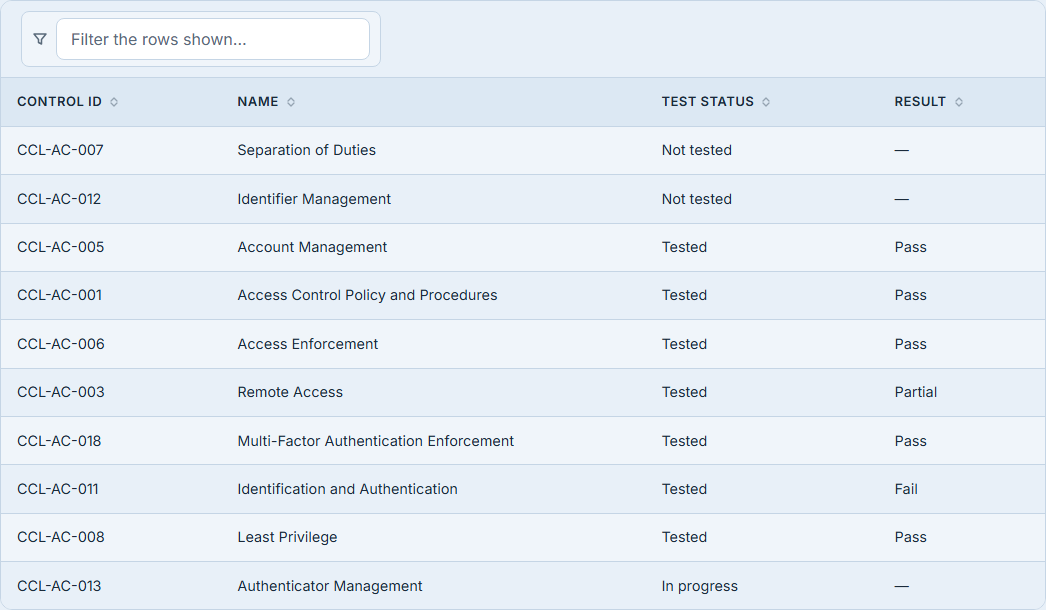
Hold on to one property of scope, because the product’s delete rule turns on it later: a scope mapping is not a record of anything that happened. It describes an engagement. It has no independent standing.
Fieldwork: findings against the scope
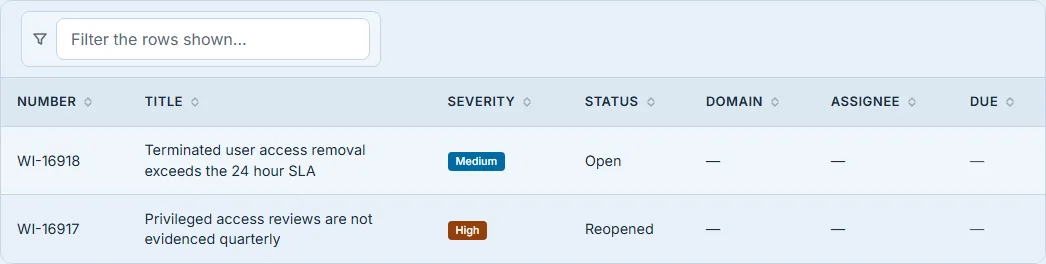
A finding carries severity, status, domain, an assignee, a due date and the control reference it was raised against. From the moment it exists it is a permanent audit record — and that is not a figure of speech in this product, it is an enforced property. We will come back to it.
Findings are visible on the case file’s Findings tab, badged with a count, and each row opens its own detail page.
Workpapers: the evidence behind the conclusion
Workpapers attach to the engagement that produced them, from Workpapers under GRC (/app/grc/workpapers). The engagement picker there lists only plans in draft or active status — so attach the paper before you complete or archive anything. A completed engagement is a closed record, and the picker treats it that way. One deliberate exception: if a paper is already linked to an engagement that has since closed, the picker keeps that engagement in the list and selected, labelled “Currently linked engagement (closed — kept)”, so opening an old paper cannot silently unlink it.
The engagement’s own Workpapers tab is where they surface afterwards, listed by title, the control they document, their status and when they were last touched.

That Control cell is worth stopping on, because it is the defect this walkthrough found rather than a feature it demonstrates. The case file printed the control’s internal id where its name belongs, while the Scope tab two sections above resolved the same kind of reference to “CCL-AC-005 / Account Management” on every row. One page, two answers to the question “is an id a name?”. The handler that builds the Workpapers rows now resolves them the way the scope section always did, in a single batched lookup rather than one query per row.
It took a second pass to finish, and the second half is the smaller one. Resolving the name fixes every row whose control the organisation still holds — which, in the engagement above, is the row you can see: the cell reads “CTRL-0007 — Vendor access is revoked …”. What it does nothing for is a row whose reference points at a control that has since been removed, and that row fell through to a branch which printed the raw identifier anyway. A truncated UUID tells a reader nothing and cannot be acted on, so the cell now distinguishes three states rather than two: the control’s name where it resolves, an em dash where no control is attached, and an explicit “unresolved control reference” where a paper points at something no longer there — a data condition somebody may need to go and fix, and worth saying out loud rather than encoding as a hex string.
The case file: ten tabs, one engagement
The case file renders ten panes, in this order: Overview, Findings, Scope, PBC Requests, Workpapers, Evidence, Snapshots, Remediations, Linked Risks, Activity. Most carry a count badge, so the shape of the engagement is legible before you open anything. The strip itself is shown in full two sections below, on the completed engagement — the panes that carry a count and the panes that do not are legible there before anything is opened.
The status sits on the metadata line directly below the title, beside the framework and the period, and that placement is not decoration: the status decides which of the lifecycle buttons above the tabs are offered. Two buttons are not lifecycle buttons and sit beside them in every state — Generate Audit Report and Generate Evidence Binder, which stay available on an archived engagement precisely because producing the record of a finished audit is not a change to it.
The lifecycle, and what each state permits
Four states, and the affordances change with each:
| State | Lifecycle buttons offered |
|---|---|
| draft | Activate Plan, Delete Draft |
| active | Complete Plan, Archive |
| completed | Archive |
| archived | none — the engagement is final |
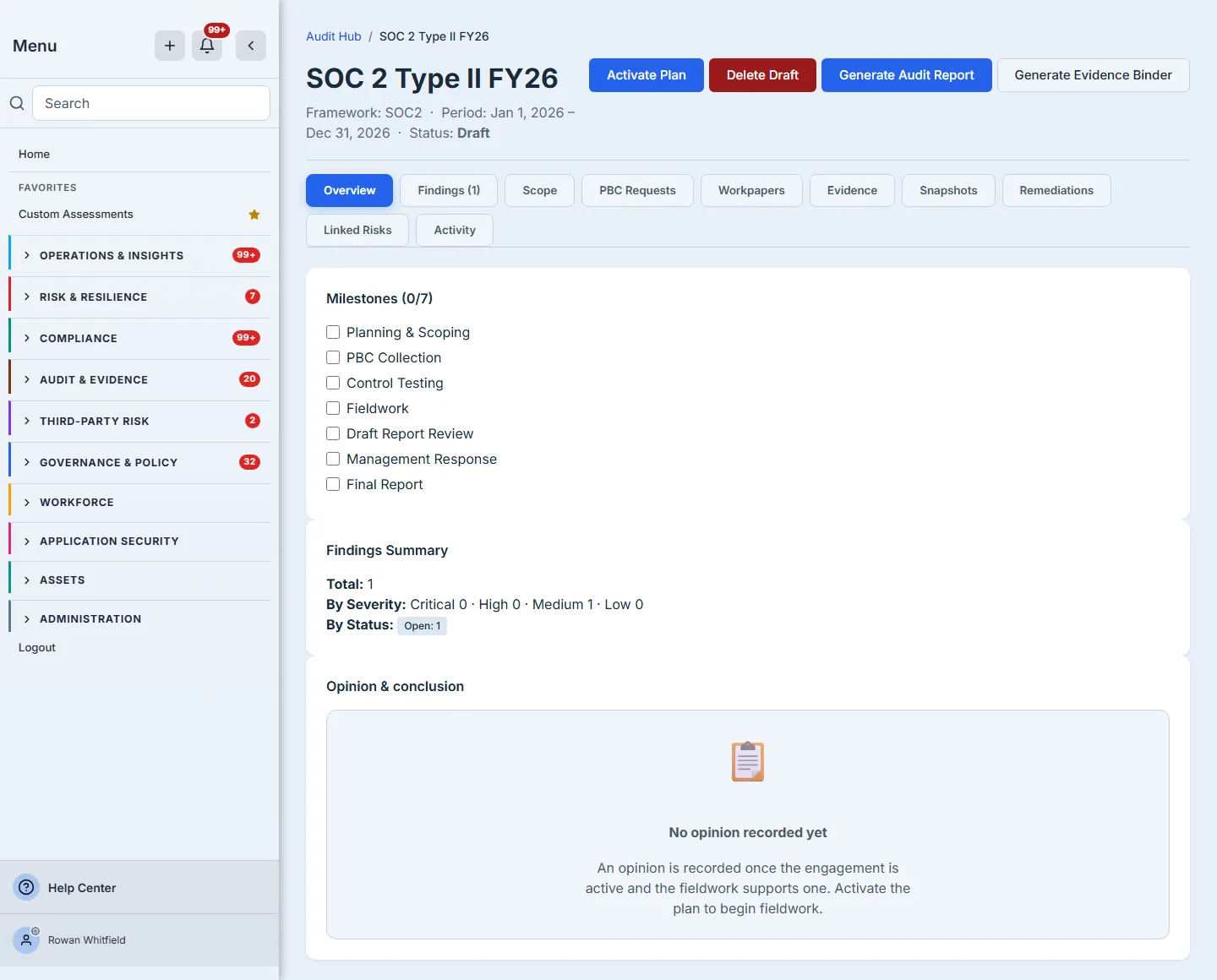
The path is draft → active → completed → archived, with archive reachable from active as well as completed — an engagement you abandon mid-flight becomes a historical record rather than a stuck one. Nothing goes backwards. There is no “reopen”, and no status field to edit your way around it.
Each transition is a governed move rather than a field write. It carries its own permission, it records an entry in the audit trail, and it is executed as a single conditional update carrying the states it is legally allowed to move from — so a transition that races another one, or arrives out of order, matches nothing and is refused, rather than quietly overwriting whatever it found.
What the product refuses
This is the part worth the walkthrough.
A clean draft deletes. A draft with nothing attached to it can be thrown away, and the scope mapping goes with it — those rows describe the engagement and are meaningless once it is gone. The confirm dialog warns only that this cannot be undone; it is the toast afterwards that names how many went — “Draft plan deleted, with 10 scoped controls.” — so the cascade is something you read rather than something you assume. (Reading it after the fact rather than before is a fair criticism of the dialog, not of the record-keeping.)
A draft carrying permanent records does not. Try to delete a draft that has a finding on it and the refusal names what is blocking it:
“SOC 2 Type II FY26” was not deleted. This draft cannot be deleted because permanent audit records are attached to it: 1 finding, 8 readiness checks. Archive the plan instead — archiving keeps those records traceable to the engagement they belong to.
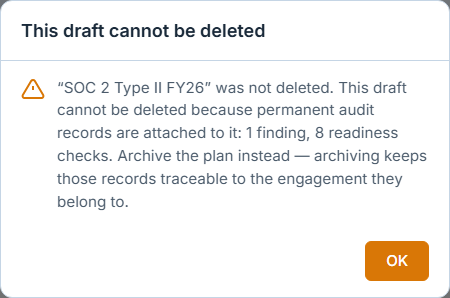
Seven kinds of record block a delete: findings, workpapers, engagement snapshots, readiness checks, auditor-portal members, auditor sign-offs, and child engagements. The message counts them and names them, and it agrees the noun with the number — you can read both halves of that in the dialog above, where “1 finding” stays singular beside “8 readiness checks” in the same sentence. Record types with a count of zero are dropped rather than listed, so the sentence tells you what to act on and nothing else.
A completed engagement cannot be deleted at all. Not by a different button, not through a generic API door. The refusal names the state it found and offers the alternative in the same breath:
Only a draft audit plan can be deleted. This plan is “completed” — archive it instead, which keeps the record and its history.
And the button is not the rule. This is the distinction that matters when you are evaluating a product rather than a screenshot. The Delete Draft button simply does not render on anything that is not a draft — but a button that is absent proves nothing, because anything calling the API never loads the page. The draft-only check runs on the server, on every call, with no override parameter. The generic proxy delete that once reached these tables now refuses them outright and names the typed action that replaced it.
And a door does not have to be a delete to matter. The same generic write API that once reached these rows is now refused for an engagement’s status, its identity — name, framework, version, period, auditor — and its conclusion: the opinion and the closing narrative. That last group is the point. Closing the delete door while leaving the opinion field writable would have protected the container and not the contents: a record whose conclusion can be rewritten by anyone holding a broad write permission is not a record, which is the same sentence that justified the delete rule in the first place.
What replaced the generic door is not no door — it is a typed one for each of these, carrying the audit-plan grant and declining a verb wildcard. Identity has one, and it is open only while the engagement is: correcting a period or a firm name is ordinary work during fieldwork and rewriting-the-past once the opinion is signed, so the same action is allowed on a draft and refused on a completed engagement. The conclusion has its own, for the opposite reason — it is reached at the end rather than typed at the start, so it is writable exactly when identity is becoming settled. Which is the next section.
That is the pattern worth taking from this whole article: no field on an audit engagement is reachable through a general-purpose write. Each one has a named action, a permission, and a set of states it will act in — and where those states end, the refusal says so.
And every refusal that stops a deletion offers archiving in the same breath, because keeping the record is the point. (Archiving is not offered in every state — a draft’s buttons are Activate and Delete, and an archived engagement has none. It is the refusals that always name it.)
The opinion
The Opinion & conclusion card sits on the case file’s Overview pane, below the milestones and the findings summary, and it is where the audit finishes. Record opinion is offered while the engagement is active or completed — the two states in which an audit can honestly reach a conclusion — and it asks for three things:
- The opinion, from the four an audit report can carry: unqualified (the controls in scope operated effectively), qualified (effective except for the matters described), adverse (they did not), or disclaimer (there was not enough evidence to form one). It is a fixed vocabulary rather than free text for a boring but real reason: reports group and filter by it, and a field where everyone types their own phrasing groups into one bucket per audit.
- The conclusion — the basis the opinion was reached on. It is required, not optional. An opinion word with nothing behind it is a rating, not a conclusion, and the audit report reads the two together.
- The methodology — optional, and how the work was done.
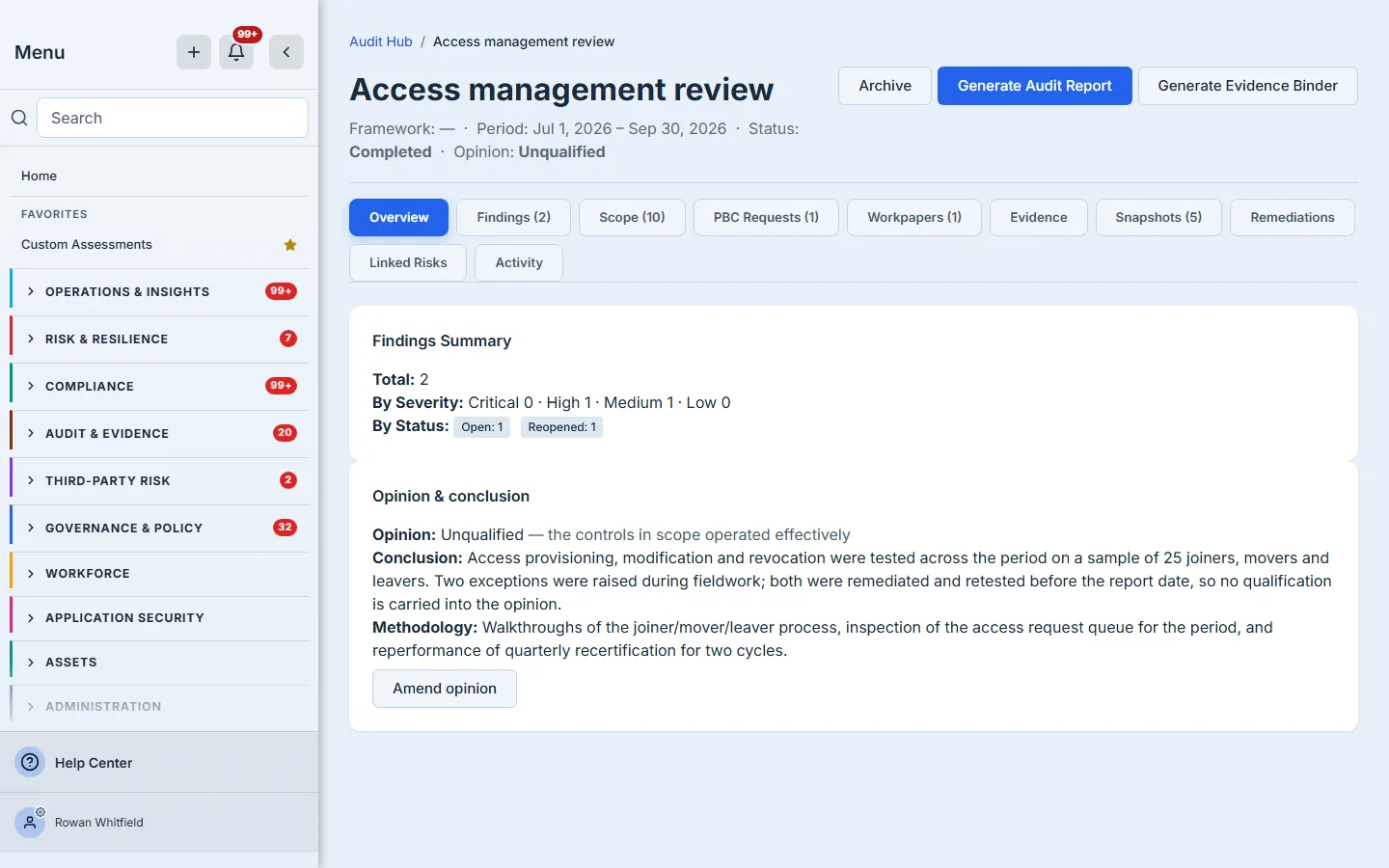
Once recorded, the opinion appears on the engagement’s header line beside its status, on every finding raised by the audit, and — the reason it exists — in the Audit opinion section of the generated Audit Report. That document says so itself when there is nothing there: “if no opinion is recorded below, this document reports work that was done, not a conclusion that was drawn.”
Two rules govern it, and both are the same rule the rest of this article has been about:
- An amendment is recorded, not silent. Re-recording an opinion writes an audit-trail entry naming the opinion it replaced. Changing an audit’s conclusion is a governance event; a system where it happens invisibly is one you cannot show an auditor.
- Archiving freezes it. The opinion is writable on an
activeorcompletedengagement and refused on an archived one, in the same breath and for the same reason the delete is: an archived engagement is final. If the audit has to be redone, that is a new engagement, not an edit to a closed one.
And the freeze is visible rather than merely enforced — an archived engagement is the one state that offers no lifecycle button at all:
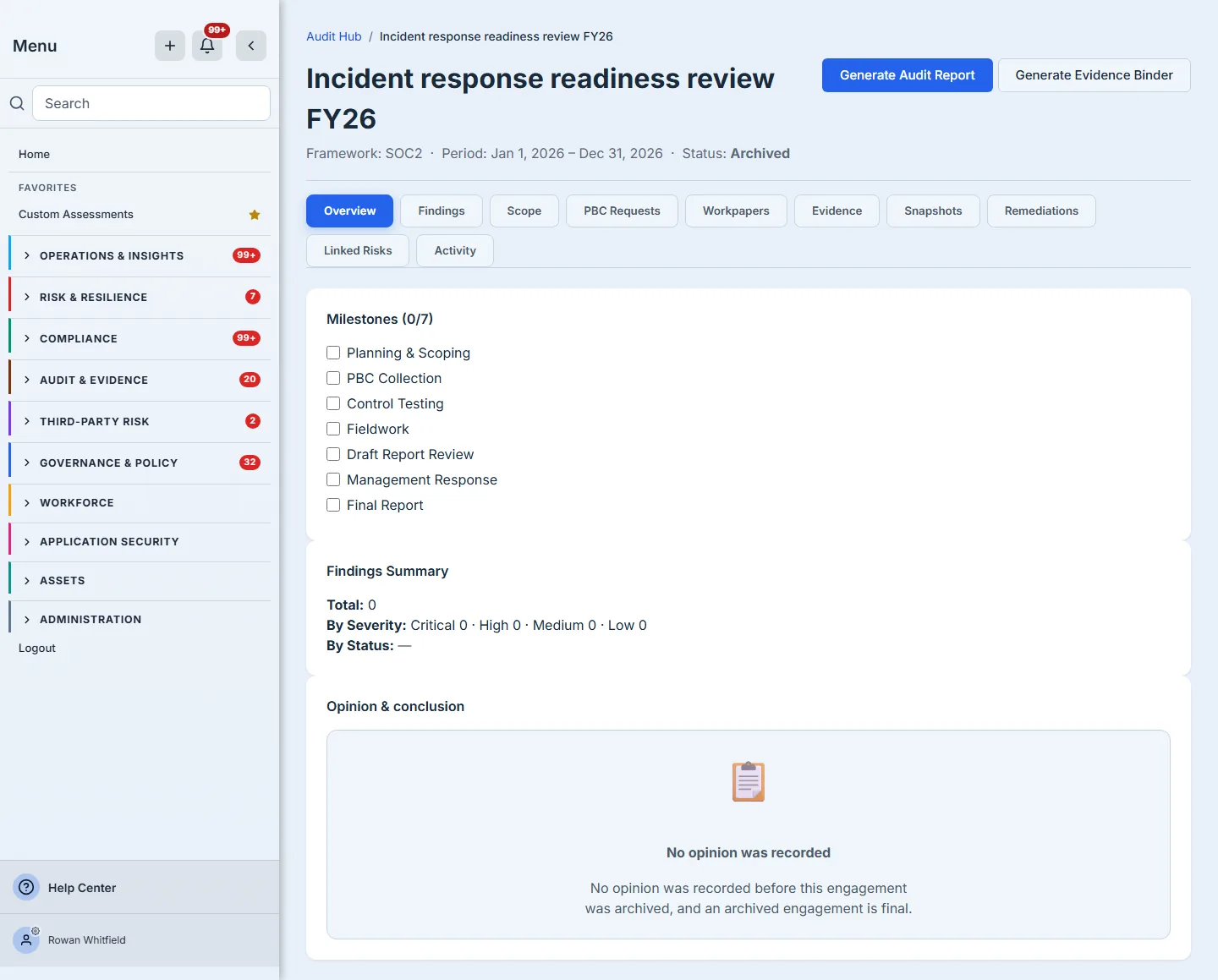
That last line is the distinction the whole article has been circling. Three engagements in this walkthrough render the same Opinion card and it says something different on each: on the draft, that an opinion comes after activation; on the completed one, the opinion itself; on the archived one, that none was recorded and none now can be. That is not three designs. It is one rule, saying out loud in each state why it is doing what it does.
And, as with the status, the button is not the rule. The write goes through a typed action requiring an audit-plan grant — no verb wildcard, no generic write door.
Who can do any of this
Audit actions in Talarity refuse a verb wildcard by name. That needs a sentence of context: a permission like *.write is a convenience that a group holding write access on any one feature can end up carrying, and it used to satisfy an audit plan’s status change — which meant the status of a governance record was writable by seats with no audit grant at all. Closing the delete door while leaving that field writable would have protected nothing: you could re-draft a completed engagement and then delete it legitimately.
So the lifecycle transitions now require an audit-plan grant exactly, and decline to accept a wildcard as a substitute. That change was measured before it shipped, across every group and every grouped non-admin seat in production, by executing the real permission derivation rather than reasoning about it: 69 of 76 grouped non-admin seats kept the ability, 7 lost it — and the 7 were precisely the seats holding an audit permission through a wildcard and nothing else (measured 2026-08-27).
That is what a blast radius should look like before a permission change ships: a named population, a count of who keeps working, and a count of who does not.
What this does not do yet
A walkthrough that only shows the happy path is not much help when you are deciding whether to adopt something.
- An audit plan’s identity is correctable only while the engagement is open. Name, framework, period, audit firm and audit type can be fixed from Edit on the card while a plan is draft or active, and are refused once it is completed or archived. So a typo caught during fieldwork is a correction; the same typo noticed after the opinion is signed is permanent, and the remedy is a new engagement. The audit type carries the extra condition described above — it is refused once any control is mapped into scope.
- “General Audit” cannot be auto-populated. It is one of the framework options on the create form, but the control library indexes its mappings under twenty-seven named frameworks and general is not one of them — so a plan created as a General Audit gets the same empty scope as a plan created with no framework at all. The refusal is honest and lists the frameworks that are covered, but the scope has to be mapped by hand.
- Only five frameworks are offered at creation, while the control library covers twenty-seven — and one of the five, General Audit, is not in the library at all, so the create form and the library actually meet on four. If you audit against one of the other twenty-three, the plan carries no framework and its scope is mapped by hand.
- Reaching the shaping surface takes a link from elsewhere, as described above — no button on the plan card opens it.
- Findings link to a control by free-text reference, not by library id. The finding form takes a Control Reference you type. The backend can hold a canonical control library id on a finding, and other surfaces would use it for cross-framework traceability, but no screen sends one today — so a finding’s tie to a library control is a string a human wrote, not a join.
- The case file’s Scope tab is read-only. Mapping and auto-population live on the hub’s per-plan surface, so shaping scope and reading scope are two different pages.
- Tab badges are counts of the rows the page loaded, not independent totals — every section of the case file is bounded server-side. At real engagement sizes the two agree. At extreme ones they do not, and the badge says so: a section that came back full renders with a trailing
+rather than a bare number, and a tooltip naming what it is showing. The bound is per section rather than one number — findings, PBC requests and workpapers load 100, evidence 200, scope 500 and snapshots 25 — so a very large scope tab reads500+, and the limits live in one place beside the disclosure precisely so that raising one cannot leave the badge lying. A cap is a fine thing for a page to have; presenting it as a total is not.
What good looks like
An engagement you can defend has four things true of it at once: a scope that names the controls it tested, findings that are attached to that scope rather than to a folder, workpapers attached to the engagement that produced them, and a closing state that nobody could delete their way out of.
The last one is the one that is hard to buy. Any tool can store an audit plan. The question worth asking a vendor is what happens when someone tries to remove one — and whether the answer is a hidden button or a refusal that comes from the server, names what it is protecting, and offers you the thing you should have done instead.