Ask an auditor what a workpaper is and you get an unglamorous answer: it is the piece of paper that proves the test happened. Not that the control works — that is the conclusion. That the test happened, in a defined period, on a defined sample, by a named person, and that a second named person read it afterwards and agreed.
A control everyone believes works, with no workpaper behind it, is an opinion. The same control with a workpaper behind it is something you can defend to a regulator, an external auditor, a board committee, or the version of you that has forgotten the details in eleven months.
Audit Workpapers (/app/grc/workpapers) is where that record lives. If you are running the
audit rather than performing the testing, the surrounding workflow — the plan, the request list,
the findings register, the reporting — is covered in
Run an internal audit. This article is the part where the
testing gets written down.
Who’s involved
- The preparer — runs the test, records what was found, signs first. If the review sends it back, withdraws that signature, corrects the work and signs again.
- The reviewer — reads it afterwards and signs second. Not the same person; the product enforces that.
- The audit lead — approves and finalizes. Finalizing needs an elevated permission.
- Next year’s team — inherits the structure through roll-forward, and none of the conclusions.
What the register is telling you
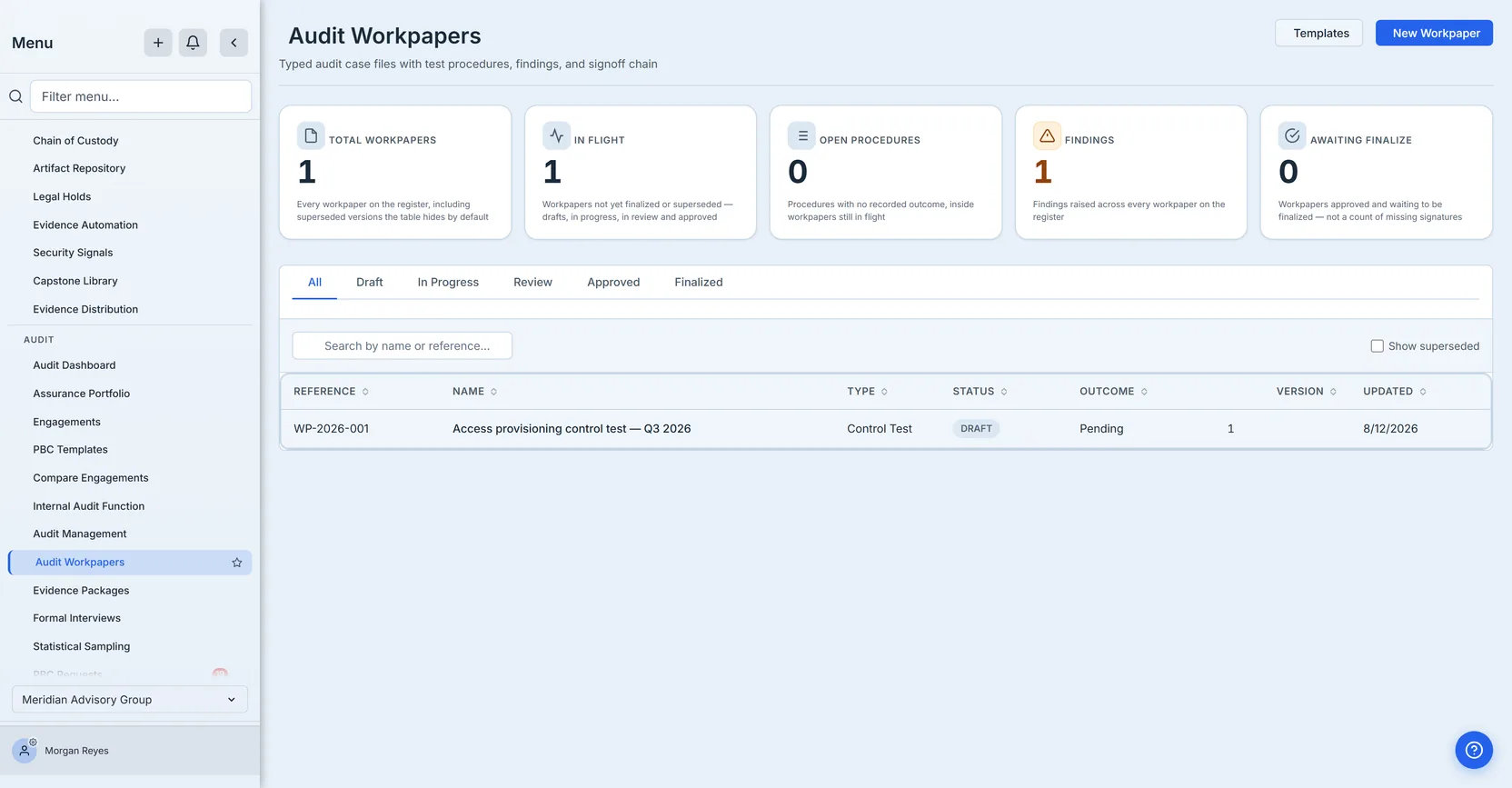
Five counters, and the two zeroes are the interesting ones, because they are zero for completely different reasons.
Open Procedures counts procedures with no recorded outcome, inside workpapers still in
flight. It measures unfinished testing, not failures. The workpaper here is in flight — the card
beside it reads In Flight 1 — so its procedures are in scope. The count is 0 because both
have a recorded result.
Awaiting Finalize counts the workpapers sitting in approved status — approved, and
waiting for someone to finalize them. No signature is consulted, and the card says so beneath the
number. This workpaper has three unsigned roles and still contributes 0, because it is a draft
rather than an approved one. That card used to be labelled Signoffs Pending, which is how it
came to read 0 beside a workpaper with three unsigned roles; a counter that needs an article to
explain what it is not counting is a counter with the wrong name.
The two do not partition the register, which is worth knowing before you try to add them up. In Flight is everything neither finalized nor superseded — drafts, in progress, in review and approved — so an approved workpaper is counted by both cards at once. Signing freezes a workpaper’s content; finalizing is what closes it, and until then it is still in flight.
One more thing about all five, because it decides whether you can quote them in a report. Each is computed from a bounded read, and there are four different bounds across three groups of cards, not one:
- Total Workpapers, In Flight and Awaiting Finalize come off a page of at most 1,000 workpapers.
- Open Procedures is bounded three ways: by the 1,000-workpaper page it draws its in-flight set from, by the first 100 in-flight workpapers of that page, and by at most 1,000 procedure rows — so it can cap on a register far smaller than a thousand.
- Findings is its own query, bounded at 1,000 findings, and on the register it is counted org-wide rather than derived from the workpaper page — so it is the one card here whose bound is entirely its own.
You do not have to remember any of that. A card that has hit its bound shows a trailing + and
rewrites its own source line to open with “At least this many” — and names which bound it hit,
including the case where Open Procedures capped because the register’s page did, rather than
because it ran out of in-flight workpapers of its own.
A card without the + is exact. That is the whole rule: read the +, not the cap.
Running a control test, start to finish
1. Create the workpaper
New Workpaper asks for a name, a type, a description, a reference number, the control under test, the methodology, the period, the sample and population sizes, and — the field worth not skipping — an engagement. Attaching the workpaper to an audit plan is what later lets its findings be promoted into that audit’s findings register. You can add the link afterwards from Edit, but only until somebody signs — a signature freezes the workpaper’s content, and step 5 sets out exactly what that covers.
Two of those fields deserve care. The period is a calendar date, not a moment: an audit covers the third quarter, and the product stores it as a date precisely so it cannot drift with a timezone. And sample size and population size are separate numbers — “we tested 25” means nothing without “out of 4,300”. Both live in this dialog, and both are worth filling in before anyone reviews it.
Two of those fields do more than they look like. Type — Control Test, Walkthrough, Inquiry and so on — is not decoration: it is a column on the register, a badge on every detail header, and how you find a class of work later. And Control Tested is the field that makes the workpaper a record about a control rather than a loose document; leave it empty and the workpaper proves a test happened without saying what was tested. Control Tested has a real “None — not tied to a specific control” option, so leaving it out is a choice you can make deliberately. Type does not: it has no empty option and defaults to Control Test, so a walkthrough saved without touching that field is labelled a control test on the register and in its own header. Set it.
The third control in that dialog is Start from template, and it is easy to scroll past. A workpaper template carries a ready-made set of procedures — the recipe for testing a particular kind of control — which are copied into the new workpaper as its test steps, so the same control class gets tested the same way each time instead of drifting with whoever typed it.
Be clear about the limit, because it is a real one: the templates are supplied with the product and you cannot yet create or edit your own. The Templates button in the top right browses what is available and starts a workpaper from one; it is a library, not an editor. If none of them fits your control, start from a blank workpaper and write the steps by hand, as the next section describes — that is the normal path today, not a fallback.
Two behaviours to know because nothing announces either: choosing a template rewrites the Type field, silently, over whatever you had already chosen — and if you leave Methodology blank, the template’s own methodology is written in its place. Both are reasonable defaults and neither is mentioned on screen, so if you set either field deliberately, check it again after picking a template.
2. Write the procedures
A procedure is one test step: what you will do, and what you expect to find. Write them before testing, not after — the expected result is what makes the actual result meaningful.
Open the workpaper and go to its Procedures tab; Add Procedure is at the top of the list. The dialog takes five things and only the first is required: a Description — the step itself, what you will actually do — an Expected Result, a Sample Size, an Order, and Notes. Expected Result is optional in the form and worth treating as mandatory in practice, for the reason above: it is the sentence a later reader compares the actual result against, and a procedure without one records that something was done without saying whether it was right.
A word about Sample Size, because it appears twice in this article under one label. The one in
this dialog is the procedure’s own — how many items this step tests, rendered on the step’s card as
Sample: N. It is a different field from the workpaper’s Sample Size in section 1, which is the
header number the coverage argument later in this article is about. Filling in the procedure’s does
not fill in the workpaper’s, and the header is the one that shows a dash when nobody set it.
Leave Order empty and the step is appended — the product assigns the next position after the last one. Fill it in and your number is used instead, which is how you insert a step you forgot between two that already exist. The number shown on the card is the procedure’s position in the current order, not the value stored in that box, and the same list produces the “From procedure #2” link a finding carries back to the step it came from. So the card and the finding’s reference always agree with each other — and both move together if you reorder the list, which is worth knowing before you renumber a workpaper somebody has already read.
You can add procedures for as long as the version is unsigned. Once anyone signs, the content is frozen and Add Procedure is withdrawn — which is section 5, and the reason to get the steps written before the signing starts rather than after.
3. Record what you actually found
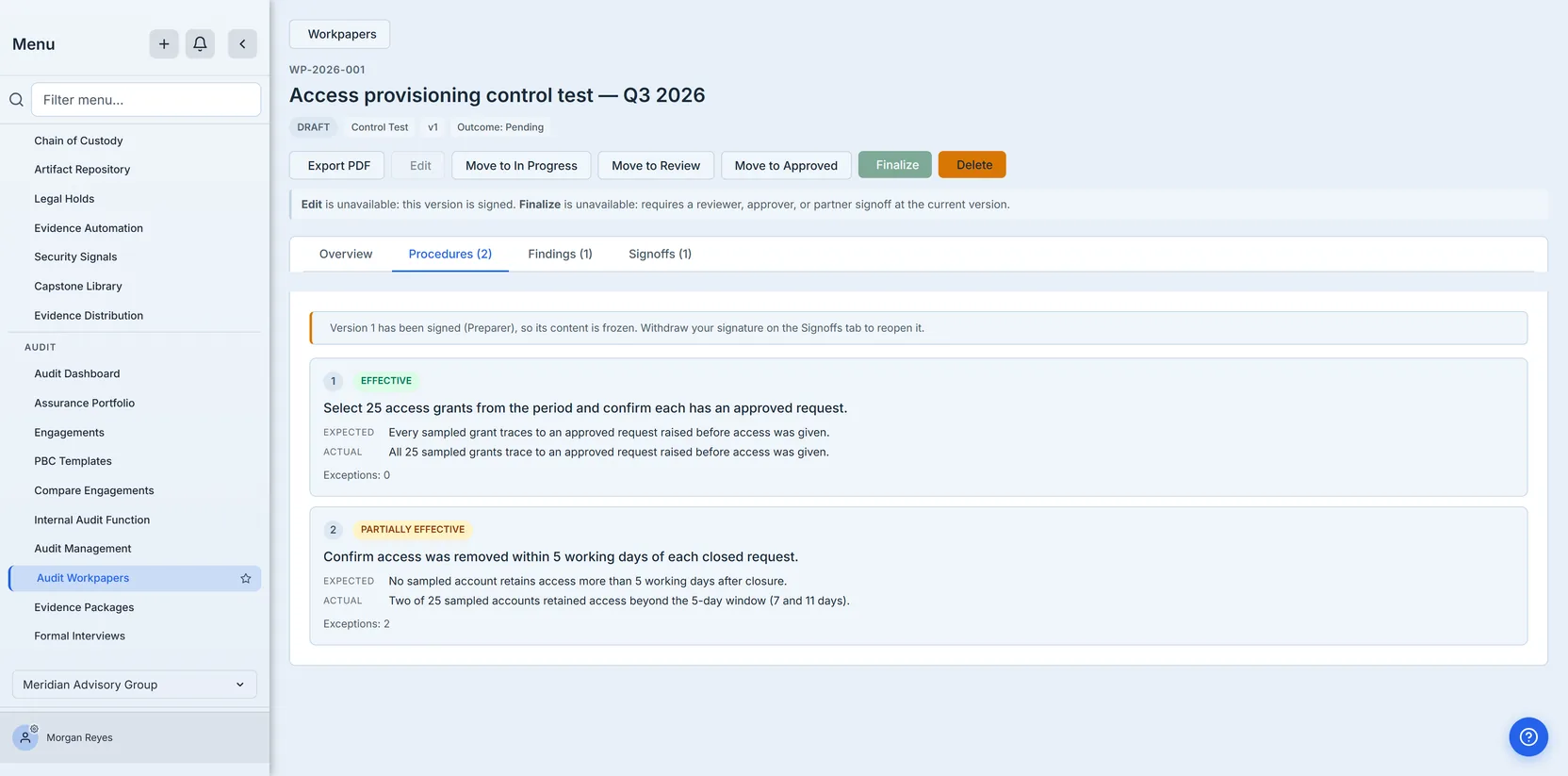
Record Result captures five things: the Actual Result — what you actually found, against
the expected result you wrote in step 2 — an Outcome, which is the only required one, an
Exception Count, the procedure’s Notes, and any evidence you attach to the step itself.
Attaching here rather than at the workpaper is what lets a reader go from a single failed procedure
to the document that shows it failed, instead of to a pile. The outcome
comes from a closed list — pending, effective, partially effective, ineffective, N/A —
and the list is the point.
- Pending is the honest default: written but not performed is not a pass.
- Effective means tested, no exceptions.
- Partially effective means tested, exceptions found, control still broadly operating. This is the value a pass/fail checkbox destroys, and it is the most common real answer.
- Ineffective means tested and failed.
- N/A means the procedure did not apply — not the same as effective. Collapsing those two is how coverage gets overstated.
The screenshot is the argument. Procedure 1 sampled 25 access grants and every one traced to an
approved request: Effective, Exceptions: 0. Procedure 2 found two accounts still active at
7 and 11 days against a five-day standard: Partially Effective, Exceptions: 2. A checkbox
records the second as a fail (overstating it — the control ran) or a pass (hiding two real
exceptions). Neither is what happened.
The product refuses the two combinations that contradict themselves: an effective result with a
non-zero exception count, and an N/A result with exceptions recorded against it. Both would put
a reassuring word above its own counter-evidence, and the dangerous reading of each — a green
badge, or a procedure that “did not apply” and somehow produced exceptions — is the one that
overstates coverage. Ineffective with zero exceptions is accepted, because a control that does
not exist at all has nothing to except.
Record Result is also where you attach the evidence behind the result: the sample listing, the export, the screenshot of the configuration. It reads from your evidence library, and the procedure card then names what is attached rather than counting it — “Evidence: Q3 access export” tells a reviewer what to go and look at; “Evidence: 2” does not.
Two limits worth stating plainly rather than leaving you to find them.
The picker lists your hundred most recent uploads, and it is the only way to attach evidence here. No other screen attaches a document to a workpaper procedure or finding — not the evidence library, not the artifact repository. So a document older than those hundred cannot currently be attached to a procedure at all. Age is not the only exclusion, either: that list asks for active documents and no history, so an archived or superseded document is equally unattachable no matter how recent it is. That is a real gap, not a design boundary, and it is worth knowing before you plan around it.
What is already attached is never lost to that limit. If a procedure carries a document the picker cannot show you — there are four ways that happens: older than the hundred, archived, superseded by a newer version, or one your permissions do not let you view — the picker says so and keeps it attached; your edits apply to the rest. The alternative, which this page briefly shipped, was to disable the field entirely, and that turned an ordinary ageing attachment into a procedure whose evidence could never be changed again by anyone.
One honest caveat on that: the dialog reads the attachment list when it opens, so if a colleague attaches something while your dialog is sitting there, your save reflects what you were shown rather than what they added. Last write wins, as it does everywhere else in the product. Reopen the dialog if you have had it open a while.
4. Raise findings from the results
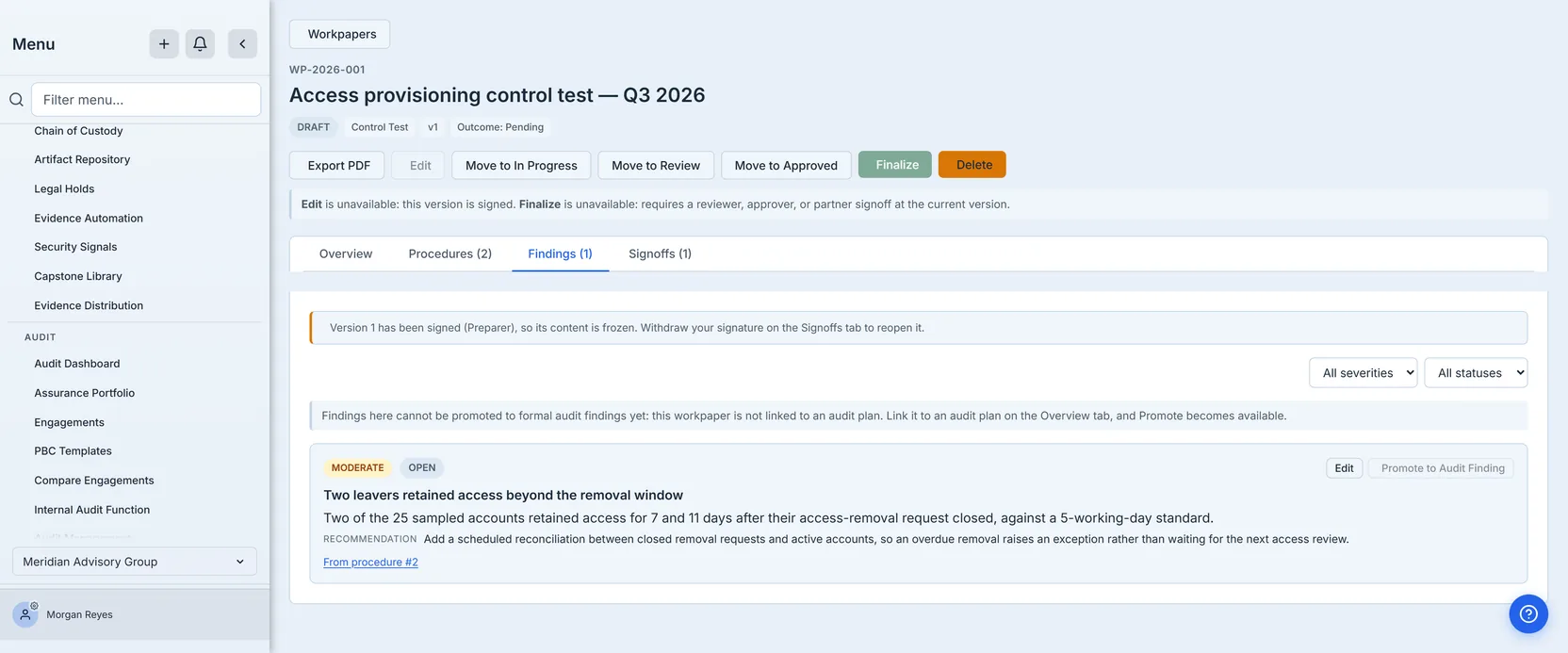
Add Finding takes a title, a severity from a closed list (critical, significant,
moderate, low, observation), a description (the dialog’s label — this article calls it
the detail), a recommendation, a management response, the evidence behind it, and — the field
that matters most — the procedure it came from.
The smallest line on the card is the important one: From procedure #2, and it is a link. Anyone challenging this finding lands on the test step that produced it, with its sample and its exception count. That link can only be set when the finding is created — the update handler will not patch it — so provenance cannot be quietly rewritten later to point at a more flattering step.
Know what promoting costs before you do it, because it is one-way. Once a workpaper finding carries its audit finding, both of its row actions disappear; there is no un-promote, the link cannot be patched, and workpaper findings cannot be deleted — so it becomes a permanently read-only record of what it said at the moment it was promoted. The confirm dialog says so at the click; this is so you know before you get there.
The practical consequence is worth knowing before you raise one: if you forget to pick the procedure, you cannot add it afterwards, and you cannot undo it by starting over. Re-opening the finding shows a Status field where the procedure picker was — the picker appears only on the add dialog — and there is no delete: a workpaper finding can be listed, added, updated and promoted, and that is the whole set. A finding raised without provenance stays that way, and the honest remedy is to say so in its description rather than to leave the reader of the register guessing which step it came from. Pick the procedure while the dialog is in front of you.
The link is offered, not compelled: the picker defaults to “None” and a finding saved that way is valid. Not everything you notice in fieldwork comes from a numbered step. But a finding with nothing behind it is harder to defend, and the product will not stop you creating one.
Promote to Audit Finding is greyed out here because this workpaper has no engagement — an audit finding is engagement-scoped, so there is nowhere to promote it to. Attach the workpaper to a plan and the button lights up.
One thing in that screenshot looks like a contradiction and is not. The banner says the version is signed and frozen, there is no Add Finding button — and yet this finding’s own Edit button is live. That is deliberate, and it is the split step 5 sets out: raising a new finding would add substance the signature does not cover, so it is blocked, while editing an existing one opens what is effectively the management-response form. On a signed version that dialog shows the severity, title, detail, recommendation and attached evidence greyed out — the evidence picker says so in as many words, “Frozen — the evidence behind a signed finding is part of what was signed” — and lets you record a response and move the finding towards closed. The signature protects what the finding says; it does not stop you doing something about it.
5. Sign it — and get the second signature
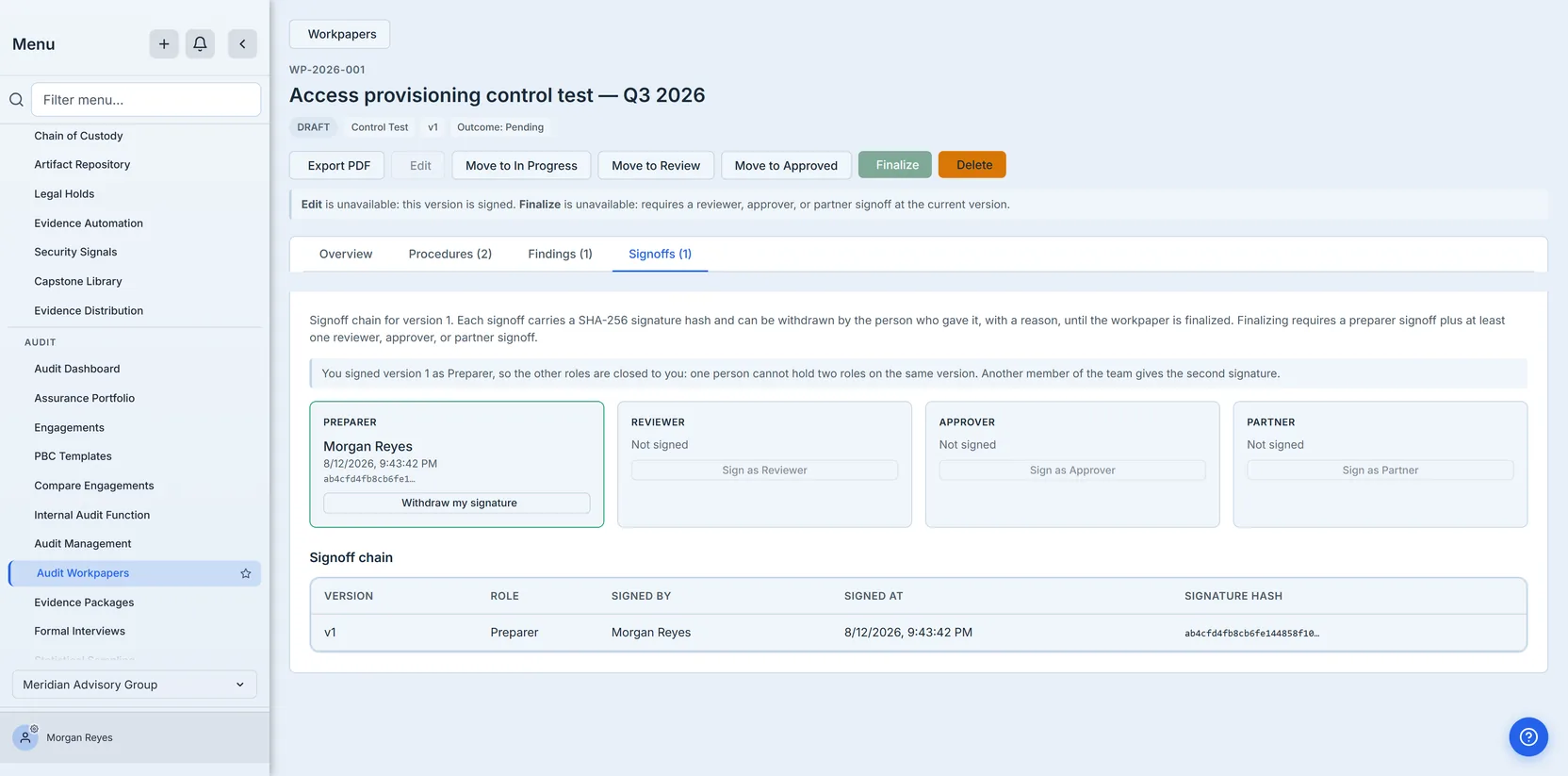
Four roles — preparer, reviewer, approver, partner — and two rules the product enforces rather than suggests:
- One signature per role, per version, enforced by a uniqueness constraint in the database. Two people cannot both be “the reviewer” of version 1.
- One person cannot hold two roles on the same version. If you signed as preparer, your reviewer signature is refused outright. This one is enforced by the sign handler rather than by a database constraint — there is no unique index on the person — which changes nothing about what you can do in the product and is worth knowing if you ever write to this data by another route.
The second is the one that matters. “Preparer and reviewer were the same person” is a finding an external auditor will raise against your audit function, and it is easy to do by accident at 6pm on a deadline.
Signing opens a Sign Workpaper dialog with three things in it: the Role you are signing, shown read-only so you cannot sign as someone else by accident; a Notes (optional) box — the review note this article is named for; and a line stating that the signature will be permanently recorded with a SHA-256 hash and that one person cannot hold two roles on the same version. The button reads Sign as Preparer (or Reviewer, Approver, Partner) rather than a bare “Sign”, so the role you are about to take is on the control itself.
The note is genuinely optional, and it is worth writing anyway: it is where a reviewer says what they checked, and it renders back on that role’s card in the signoff chain. Note where it does not appear — the Signoff chain table beneath the cards lists version, role, signer, timestamp and hash, and no notes column. If you want the note read, expect it to be read on the card.
Each signature stores that note alongside a SHA-256 hash over the workpaper id, version, role, signer and timestamp. Be precise about what that hash is: a receipt for the signing event, binding who signed which role on which version and when. It is not a checksum of the contents.
What stops a signature drifting onto work nobody signed is a separate rule: once any role has signed a version, that version’s content is frozen. Worth knowing exactly what that covers, because “frozen” is doing real work here and a vague version of it would be worse than none:
- Frozen: the header — name, description, type, period, control, framework and requirement, methodology, reference, engagement, sample and population sizes, conclusion, overall outcome, and the named owner. The procedures entirely — description, order, sample size, expected and actual results, outcomes, exception counts, notes, and the evidence attached to a step — and no new procedure can be added at all. That is worth stating as a whole rather than a list of the fields you would think of first: the guard is on the row, not on a chosen subset, so anything a procedure carries is closed. What each finding says — its severity, title, detail, recommendation, attached evidence, and the finding’s own metadata. The sampling attachment, which writes the sample and population sizes from a different screen. And the workpaper’s provenance — the record of what it was rolled forward from, which is what the Rolled forward badge reads, and therefore part of how much scepticism a reader decides the work is owed.
- Not frozen: the status, because moving through review to finalized is what signing is for. A finding’s management response and its open → remediated → closed lifecycle, because responding to a finding and closing it out are the reasons for raising one — a signature is meant to protect a finding, not entomb it. And promotion to a formal audit finding, for the same reason.
The page shows this rather than merely enforcing it. On a signed version a notice at the top of the Overview, Procedures and Findings tabs states that the version is signed and what to do about it — Overview included, because that is the tab showing the fields Edit changes — the controls that would add to it are withdrawn rather than left to fail, and Edit is greyed out with the reason written under the toolbar. A rule you only discover by having your work rejected is not a rule the product has told you — and a rule you can only discover by hovering a mouse is one it has told only some of its readers, which is why the toolbar now spells out every action it has closed and why, rather than keeping the answer in a tooltip.
Signing also demands fresh authentication: if you have not re-verified within the hour, the product asks you to prove who you are, inline, and then completes the signature. And when the preparer signs, the organisation’s configured compliance recipients are notified in the product that a workpaper is waiting for a second pair of eyes — this category is in-app only and sends no email, so nobody learns of it from their inbox. Where nobody has been configured, or where the configured principals resolve to no one, it falls back to the org’s admins: active accounts only, excluding disabled, pending-deletion and guest-licence holders, and capped at fifty. No compliance role or permission is consulted. The signer is excluded, so on a one-person tenant that notification reaches nobody. Withdrawing a signature notifies the same list, which is the half worth knowing: the reviewer who was told it was ready is also told it stopped being ready.
The chain in the screenshot has one signature and three open roles, which is what a real workpaper looks like mid-review. The page states the finalize rule above it: a preparer signoff plus at least one reviewer, approver or partner. And the three remaining Sign as buttons are greyed out, because the person looking at this page is the one who signed as preparer — that is the second-eye rule showing itself before you click, rather than an MFA challenge followed by a refusal.
6. When the review sends it back
Here is the situation the whole thing exists for. The preparer has signed. The reviewer reads it and says the sample size was never filled in, or that procedure 2’s conclusion does not follow from its result. The content is frozen. What now?
The signer withdraws their signature. It is on the Signoffs tab, on your own card only, and it asks for a reason — because the reason is the review note. Withdrawing removes your name from the chain and writes the withdrawal and your reason into the organisation’s audit log. Then the work is corrected and signed again.
The freeze lifts on the last signature, not the first. The version is frozen while any signature stands on it, and you can only withdraw your own — so on a chain where both a preparer and a reviewer have signed, one withdrawal is not enough. The product says which case you are in: withdraw on a two-signature chain and it tells you how many signatures still hold the version frozen, rather than claiming it is editable.
That audit entry is not a nicety, and it is worth understanding why, because “you can remove a signature” sounds like it weakens the record. It does not, for two reasons. The entry is written into a hash-chained log, and the reason is inside the hash — so a withdrawal cannot be altered or quietly dropped afterwards without breaking the chain. And it is written before the signature is removed, and if it cannot be written the withdrawal does not happen. A signature can leave the chain; it cannot leave without saying why.
Three deliberate limits:
- Your own signature, and nobody else’s. No permission level lets one person strike another’s attestation off the record. If the signer has left the organisation, the remedy is the admin Delete described below — not a quiet edit of somebody else’s signature.
- Not after finalize. A finalized workpaper is a closed record; superseding is the route there, and it exists precisely so the history survives.
- The same identity check as signing. Removing a signature is the same class of act as adding one, so it asks for the same fresh authentication. It should not be the cheaper of the two.
This matters more than it sounds. Without it, a reviewer who disagreed had exactly two moves: sign work they did not agree with so that somebody could finalize and then supersede it, or have the whole workpaper deleted. On a one-person tenant only the second existed. A review process whose only outcomes are “endorse it anyway” and “destroy it” is not a review process.
7. Finalize, and get something you can hand over
Finalizing closes the workpaper and needs an elevated permission — the same one that governs deleting and superseding. A finalized workpaper’s PDF can then be stored permanently as a report artifact, rendered from the same template as the download and marked FINAL. Storing it is not the elevated step, though: it needs only the ordinary write permission, so anyone who could edit the workpaper can archive its PDF once somebody else has finalized it.
Anything not finalized exports with a DRAFT watermark. That covers work in progress, and also covers a superseded workpaper — a closed historical record — which is worth knowing if you find one in a folder.
That is the point at which the record stops depending on the product. Handing an external auditor a link into your GRC tool is fine until their engagement ends or the underlying data changes; handing them a fixed document that says what was tested, by whom, with what result, and who signed it, is what a workpaper was always for.
Versions, and the “1” in the register
Every signature rule above is per version, and the register carries a Version column, so it is worth saying what a version is — because you do not make one casually.
A workpaper starts at version 1 and stays there. Editing does not mint a version and neither does
signing. The only route to a version 2 is to finalize first, and then use New Version —
the button that appears in the toolbar once a workpaper is finalized, beside Save PDF to
Artifacts and Roll Forward. It is not on the toolbar before then, which is the product
refusing the action rather than hiding it. Look for the word supersede on a control and you will
not find it: the product calls the action New Version and uses Superseded for what the old
row becomes. The two words are used interchangeably below, now that the label is pinned to the
concept. Superseding creates a separate workpaper record —
its own id, version 2, linked back to its predecessor — copied from the finalized one with
outcomes reset to pending. Both rows exist independently afterwards, which matters if you have
bookmarked a URL or exported a PDF. The old version stays finalized until the new one is
finalized in turn, at which point it flips to superseded and drops out of the register unless
you tick “Show superseded”.
The new version keeps the reference number, and that is deliberate — but it means two rows carry the same reference until the old one is superseded. A roll-forward does the opposite and starts with no reference at all, for the reason given further down: two records answering to the same index is the confusion a reference number exists to prevent. The difference is that a roll-forward is a different workpaper for a new period, while a new version is the same workpaper at a later revision — so sharing an index is what you want, and the version column is what tells them apart. Know it while both rows are visible in the register, because that window is the one time the reference alone will not identify a row.
Supersede carries the header and the procedures. Three things do not come across: the findings, the attached evidence, and the conclusion. The new version’s procedures start with nothing attached, as does a roll-forward’s, and its conclusion is blank — it has to be re-concluded. That is the right default, and one reason covers all three: they all belonged to the results you have just reset, so importing them into a version nobody has tested would be asserting a conclusion nobody has re-reached. The confirm dialog names all three at the click. But know it before you use supersede as a correction route, because the findings you raised are not lost, they are on the previous version, and version 2 starts with none. If what you actually wanted was to fix something in the current version, withdrawing the signature is the shorter road and keeps everything.
That is why the signature rules can be strict. A version is not a save point; it is a deliberate act saying the previous record is closed.
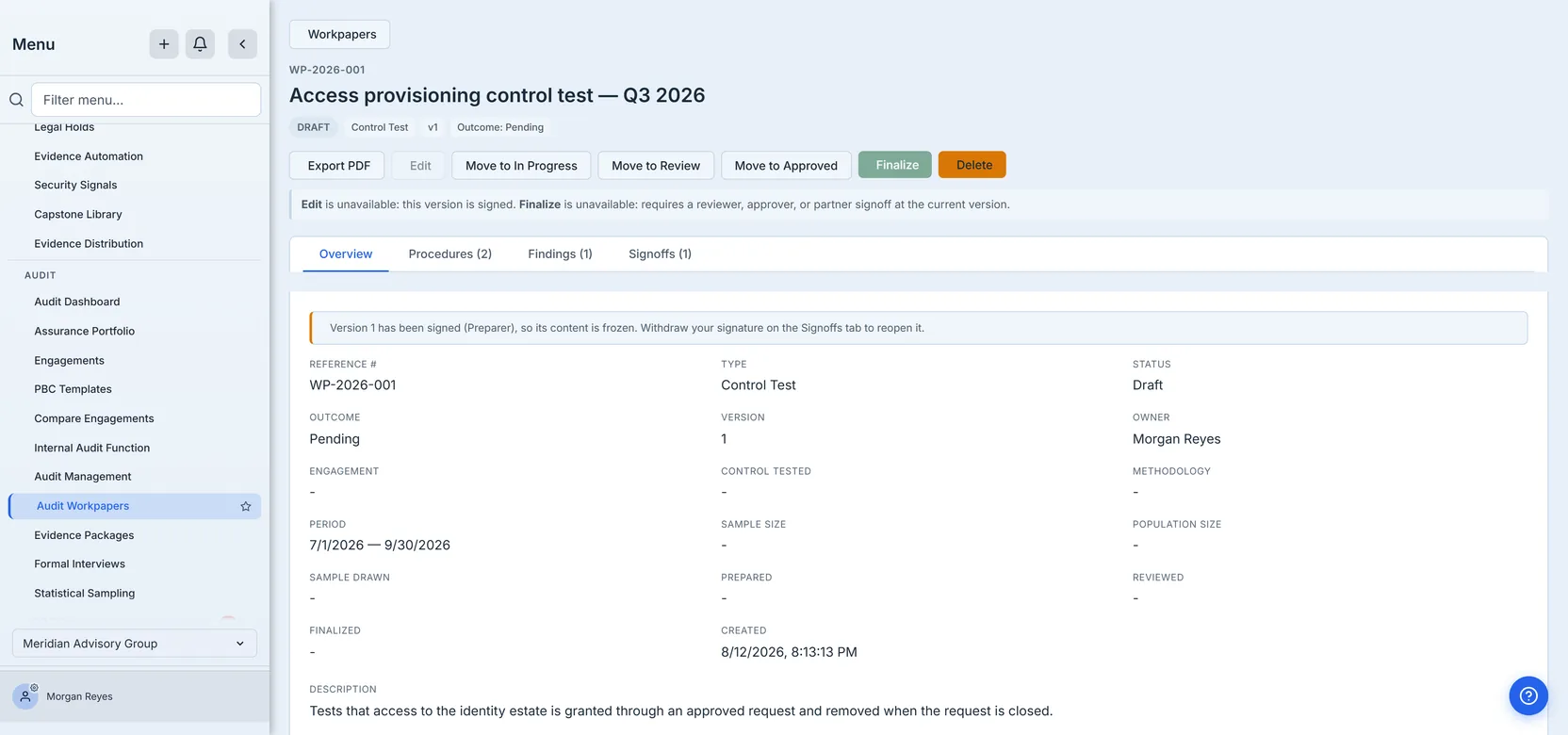
The Overview header above shows the shape of one. Note the dashes: the page prints - for an
empty field rather than 0, and the distinction is the article in miniature. A population of 0
is a claim — you looked, there was nothing to test. A dash says nobody filled it in. This
workpaper’s first procedure reads “Select 25 access grants” while Sample Size shows a dash: the
coverage is in the prose and nowhere anything can count it. Fill those fields in before the
review, because afterwards the signature freezes them.
Engagement is on that header too, and it is the field to check first if a finding will not promote: a dash there means the workpaper is standalone, which is exactly the state the greyed-out Promote to Audit Finding button in the previous screenshot is telling you about. The two are the same fact seen from different tabs.
Two more fields there are easy to misread, so read them deliberately.
Prepared / Reviewed / Finalized are not the signatures. They are workflow attribution.
Prepared and Reviewed are stamped when the workpaper’s status moves — Prepared when it goes
to in progress or review, Reviewed when it reaches approved. Finalized is not, and the
difference is deliberate: the ordinary status-change path refuses finalized outright and tells you
to use the finalize action, which is the one that carries the elevated permission and writes the
stamp. Finalizing is not a status you can drift into. A signature is a separate, deliberate attestation with its own identity
check. So the header can honestly show Prepared: - beside a recorded preparer signature: this
workpaper was signed but never moved out of draft. The two answer different questions — “who
pushed this along” and “who put their name to it” — and the second is the one that matters.
Each of those stamps is written once. The first person to move a workpaper to approved is
recorded as having reviewed it, and moving it back to review and forward again does not transfer
the credit to whoever clicked last. That matters more than it sounds: status is the one field a
signature does not freeze, so without stamp-once anybody holding write access could have taken
the reviewer’s name off a signed workpaper simply by toggling it — no edit form required.
Outcome and Conclusion belong to the workpaper, not to any one procedure. The Outcome is your
overall verdict on the control, drawn from the same five-value list the procedures use, and the
Conclusion is the paragraph that says why. Both are set in Edit — and only there: a workpaper
started from a template arrives with the conclusion empty, because a template that pre-wrote
“the control operated effectively” would be asserting a verdict on work nobody has done yet. The
template’s suggested wording appears in the Edit dialog as greyed placeholder text, not as
text already in the field: a prompt you read and type over, never one you accept with a click. No
template wording can become your conclusion without somebody writing it. Both are frozen by a
signature like everything else substantive — which is the point, since the conclusion is the thing
a signature most obviously stands behind. Set them before the review, not after. A workpaper that
still reads Outcome: Pending when every procedure has a recorded result, as the one in these
screenshots does, has not finished having its verdict written down.
Roll-forward carries the structure, not the conclusions
Next year’s audit usually tests the same controls. Rebuilding from scratch is waste; copying last year wholesale is malpractice.
Roll Forward takes the middle path. It needs a finalized source workpaper and a draft or
active audit plan to land in, and it creates a new draft carrying the procedures, their
descriptions and expected results, while resetting everything that constitutes a conclusion:
outcomes to pending, actual results and performers cleared, the workpaper’s own conclusion
cleared, status to draft, version to 1. Signatures and findings do not come across at all. The new
workpaper records where it came from.
One thing to fix by hand: the roll-forward copies the period verbatim. Carrying last year’s quarter is not sensible — change the period first, or the new workpaper misstates the scope of its own evidence. The reference number is deliberately not carried — it identifies one workpaper in one audit, and two records answering to the same index is the confusion a reference number exists to prevent — so give the new one its own.
What rolls forward of the sample is the intention only. The sample size comes across, because “we test 25 of these each quarter” is a plan and plans repeat. The population size does not, and neither does the selection — the method, the seed and the items drawn. Both are facts about a period that has ended: a population is a measurement of last quarter’s population, and a seed identifies the specific items drawn for it. A new period draws its own sample.
This is worth stating because it used to work the other way, and the failure was quiet. Both
numbers travelled and the draw did not, so a rolled-forward or superseded workpaper showed
Sample Size 25 and Population Size 4,300 beside Sample Drawn: - — a coverage claim with its
evidence stripped off, which is the one state this page’s own sampling field exists to prevent.
Supersede now carries the selection with the numbers it justifies, since it is the same test over
the same period; roll-forward clears both the population and the draw, since it is not.
What this page does not do
- It cannot delete a procedure or a finding. There is no delete for either — edit them, or delete the whole workpaper. Delete is the orange button at the end of the toolbar under the workpaper’s name — present but disabled at Approved, with the reason written under the toolbar, and absent altogether once a workpaper is finalized or superseded. It is permanent, it takes the procedures, findings and signoffs with it, and it needs the elevated permission. Say the last part plainly, because it is the one exception to everything above: an admin can delete a workpaper that has been signed, while it is still in Draft, In Progress or Review. That is deliberate — it is the only remedy when the person who signed has left the organisation and cannot withdraw — so a signature makes a workpaper’s contents immovable, not the workpaper itself. Note the exact boundary, because it is easy to walk past: Approved is already too late. Delete is refused there as it is on a finalized or superseded workpaper, and moving a signed workpaper to Approved is a status transition the product offers freely, since status is exempt from the freeze. If you find yourself with a signed, approved workpaper whose signer has gone, move it back to Review first — that transition is allowed — and then delete. The product now says this itself: at Approved, Delete renders disabled with that reason printed under the toolbar rather than disappearing from it. It used to vanish silently, from a toolbar whose Finalize control showed itself disabled — the same screen giving two different answers to “why can’t I do this”, one of them silence. The first repair made them consistent by giving both a tooltip, which is consistency at the wrong level: a tooltip reaches a mouse and nobody else. Each of this toolbar’s three refusals — Edit, Finalize and Delete — now names itself in one line beneath the buttons, and only the ones actually biting appear there. On the workpaper in the screenshots above you will see two, because it is a draft and therefore genuinely still deletable; the line is a list of what is closed, not a fixed sentence about the toolbar.
- It is not the sampling tool, but it is wired to it. Choosing the 25 items is Statistical Sampling’s job; attaching a selection stamps the sample size from that draw — always — and records the method and seed. It writes the population size only when the selection carries one: a draw made without that parameter leaves whatever population was already on the workpaper, so the two halves of a coverage claim can end up sourced from two different places. Check the header after attaching, which is the one moment the mismatch is visible. The seed is the part that matters to anyone challenging the work — a seeded draw can be re-run and checked by somebody who was not there. A finalized, superseded or signed workpaper refuses the attachment.
- Access is by permission. Reading needs
workpapers.read. Creating, editing, signing, withdrawing a signature, rolling forward and promoting a finding needworkpapers.write. Deleting, finalizing and superseding needworkpapers.admin. Browsing the evidence library from the picker additionally needsevidence.library.read, so choosing a document is not a way to enumerate documents you are not entitled to see — though be aware that the API itself accepts evidence ids from anyone holdingworkpapers.write, so the picker is a usability boundary rather than a second lock. Two edges are worth knowing because they do not follow that shape. Attaching a sampling selection is not aworkpapers.*action at all — it is registered in the risk service underrisk.sampling.manage, and it writes the sample size, the population size and the draw straight onto the workpaper. So somebody holding no workpaper permission whatsoever can set the two numbers most central to a coverage claim, while aworkpapers.adminholder without sampling permission cannot. And saving the PDF to Artifacts needs onlyworkpapers.write, not an elevated one — it is an ordinary write by the same people who edit the workpaper, not a privileged archival step. - It is not the only reader of this data. An external auditor working in the auditor portal can list and download the PDF of the workpapers that engagement explicitly shares with them — the portal reads an allowlist, not your register — and that PDF carries the procedures, the results, the findings and the signoff chain. So the scope is narrow, but within it a review note is not an internal aside.
Two things writing this changed
Writing this meant driving the page rather than reading it, and tracing every claim in it back to the code that enforces it. One defect is worth passing on because it is invisible from every angle except the right one.
The period dates rendered one day early for everyone west of Greenwich. A period entered as 1 July – 30 September displayed as 30 June – 29 September. A calendar date has no time and no timezone, but it was being sent to the browser as an instant — midnight UTC — which the browser then rendered in local time, landing on the previous evening. The page even contradicted itself: the Edit dialog showed the right days while the Overview showed the wrong ones.
For a workpaper that is not cosmetic. The period is the boundary of what the audit covered, and a
workpaper claiming it starts on 30 June when the auditor scoped 1 July misstates the scope of its
own evidence. It is fixed, and what holds it fixed is worth being exact about, because the obvious
answer is the wrong one. The fix is not pinned by rendering the date in some particular timezone.
It is pinned by two assertions that cannot drift with a clock at all: the projection must ship a
plain calendar date carrying no time component — asserted in the negative, because an instant
sneaking back in is precisely what regressing looks like — and the page’s formatter builds its
date from the YYYY-MM-DD string in local parts, so the rendered day is the typed day by
construction rather than by coincidence.
The tests that do pin a timezone are the two that describe the defect: a control showing that the old wire value, read west of UTC, really did land on 30 June, and a built-to-fail case reproducing the old projection to prove the control was testing something real. They assert what the bug looked like, not what the fix does — and they would still pass if the fix were reverted, which is exactly why they are labelled as controls rather than counted as protection.
The second is the rule this article spends most of its length on, and it is worth saying how it got there. The freeze started out covering the workpaper’s header — its name, period, sample size. That reads like protection and was not: the procedures, the recorded results and the findings were all still editable under a signature, so the preparer could have changed “two of 25 retained access” to “all 25 clean” with the signature still attached and still verifying. The header is the trim. The results are the record.
Extending it to the results was the obvious fix, and it created a new problem that took another pass to see: with everything frozen, a reviewer who wanted a correction had no way to ask for one that the product would honour. The rule was enforceable and not compliable-with. That is why withdrawal exists, and why it takes a reason.
Both of those are the same mistake in different clothes. Checking that a rule is enforced is not the same as checking that it covers what matters, or that somebody living under it can actually get their work done. They are separate questions, and having just answered the first is the worst possible preparation for remembering to ask the other two.