Every advisory firm asks the same questions twice. The technology due-diligence list you sent last month is nearly the list you need this month; the ISO readiness list barely changes between clients. Rewriting it each time is not just slow — it is how two engagements end up asking for subtly different things and nobody can say which one was right.
PBC templates (/app/advisory/pbc-templates) is where a firm writes those lists down once. PBC
is audit shorthand for provided by client: the things somebody outside your team has to produce
before the work can start. A template is a reusable list of them, owned by the firm rather than by
any one engagement.
This article is about building the library. Applying one — which is where the requests actually get raised — happens somewhere else, and that is the first thing worth being clear about.
Who’s involved
- The firm’s methodology owner — writes and maintains the standard lists, and is the reason they exist: the point of a template is that nobody rewrites it per client.
- The engagement lead — applies a template to their engagement, which raises every item on it as a real request against that client.
- The client — receives those requests and answers them, without ever seeing this page.
The library
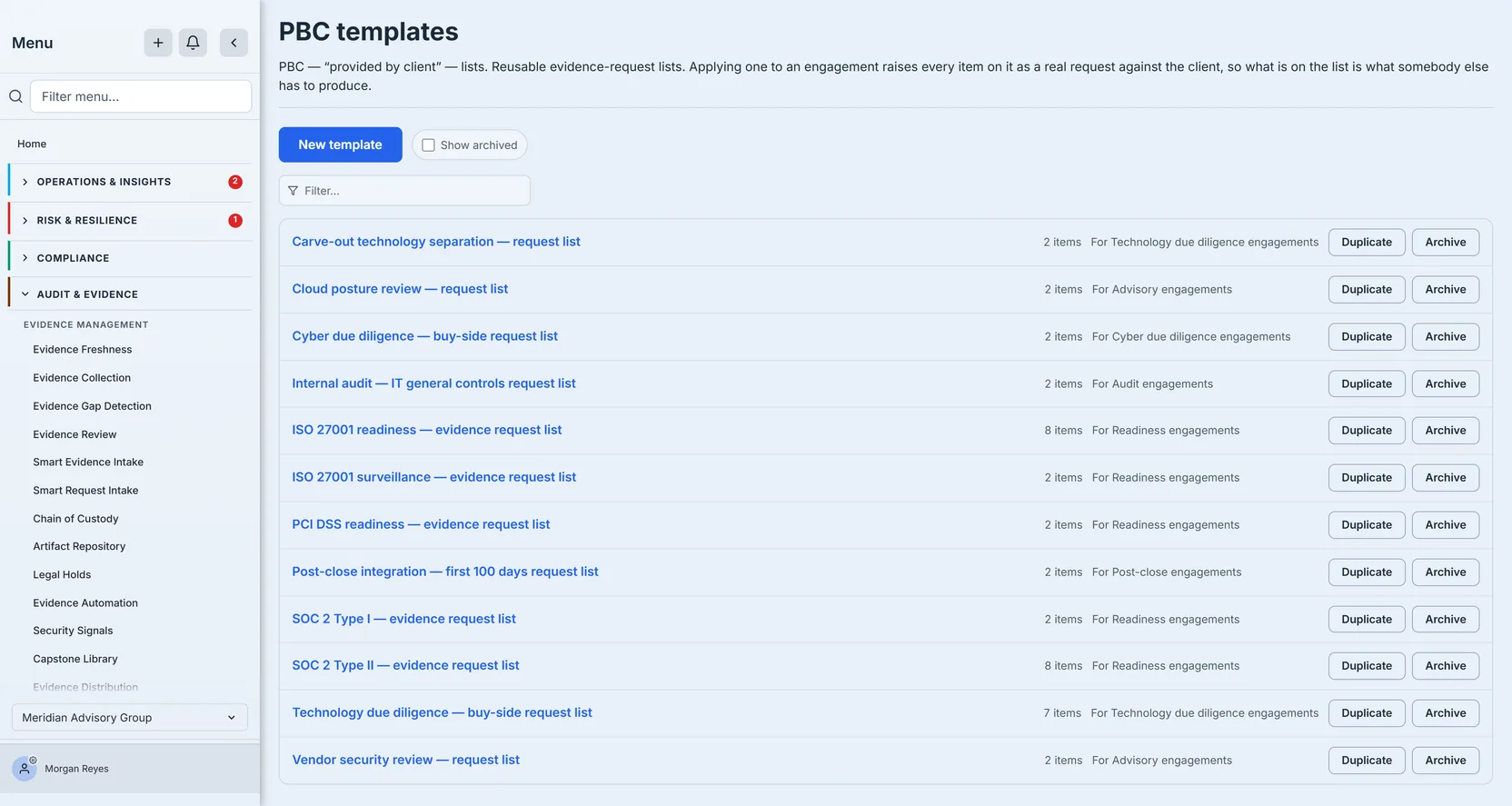
Each row is one list, and it carries what you need to choose between them: its name, how many requests are on it, counted as items — and which engagement type it is for. That last one is a label rather than a rule — nothing stops you applying a readiness list to a due-diligence engagement — but it is what makes a library of a dozen lists navigable instead of a pile.
Show archived brings back the ones you have retired. A filter box joins it once more than ten templates are loaded — below that the list is short enough to read, so it stays out of the way. And since Show archived changes what is loaded, ticking it can be what brings the filter box with it: eight active and six archived is a library of fourteen that shows no filter until you ask for the archived ones. Both matter because a firm’s library grows: the useful state after two years is a short active list with the old ones out of sight but recoverable.
Both controls reach the whole library, which is worth stating because it was not always true: the page asks for as many templates as an org is allowed to hold, so the filter searches every one of them rather than a first page, and Show archived adds the retired ones without pushing anything live off the end. If a future library could ever outgrow one page, the list says so in a line above itself rather than quietly going short.
Archiving is not deleting. It flips the template inactive, which takes it out of the list you pick from when applying to an engagement — the picker asks for active templates only. Nothing that was already created from it changes, because applying a template copies its items into real requests rather than linking to it. That is also why deleting is allowed at all: there is nothing downstream to orphan among the requests it raised. A template you delete takes its own request list with it and leaves every request ever raised from it untouched.
One thing does break, and it is the thing you were relying on: a copy remembers its original by id, so deleting the original leaves every copy’s row reading Copied from an earlier template instead of naming it. Nothing repairs that. Worth knowing before you delete an original to free a slot at the 200 ceiling — the provenance you are giving up is exactly what answered “which of these six do we actually keep updated?”.
There is a ceiling, and archiving does not lower it. A firm holds at most 200 templates, and the count that enforces it does not care whether a template is active — archived ones occupy a slot exactly as live ones do, and both New template and Duplicate refuse once you are at 200. That is worth knowing before you adopt “archive everything, delete nothing” as a policy, because a firm accumulates a template per framework per engagement type per annual vintage and the ceiling arrives quietly. Deleting is the only thing that gives a slot back. Archive still is the reversible choice and the right default; it is simply not a way of storing an unbounded number of old lists.
Duplicate is the one to reach for when a client needs a variant. It copies the description, the engagement type and every request, and names the copy <original> (copy) — rename it to something meaningful before you forget which is which. It also records where it came from, and the copy’s row then says so by name: Copied from <the original>. That is what makes “which of these six is the one we actually keep updated?” answerable six months later.
Making one
New template opens a dialog with three fields, and only the first is required.
- Name — what you will scan for in a list of eighty. Name it for the work, not the client: ISO 27001 readiness — evidence request list survives reuse in a way Acme phase 1 does not.
- Description — what this list is for and when to reach for it. Know where it shows up: on the template’s own screen once you open it, and nowhere else. The library row does not carry it and neither does the apply picker, which offers each template as name (N items). So it is documentation for whoever inherits the list, not a way to tell two rows apart — what does that is the name, the count, the engagement type and Copied from ….
- Engagement type — the label described above. The dropdown opens on Any engagement type, and the hint underneath is explicit that this is a real choice rather than a blank: a list you reach for on any kind of work is meant to say so.
Save and the template appears in the list at 0 items — an honest zero, because items are added afterwards rather than in this dialog. That is the next section.
Edit template reopens the same dialog on an existing template, with one addition: an Active checkbox. That is the same state the row’s Archive button flips, and on an archived template that button reads Restore — so there are two routes to the same reversal, and neither of them deletes anything.
One template, opened
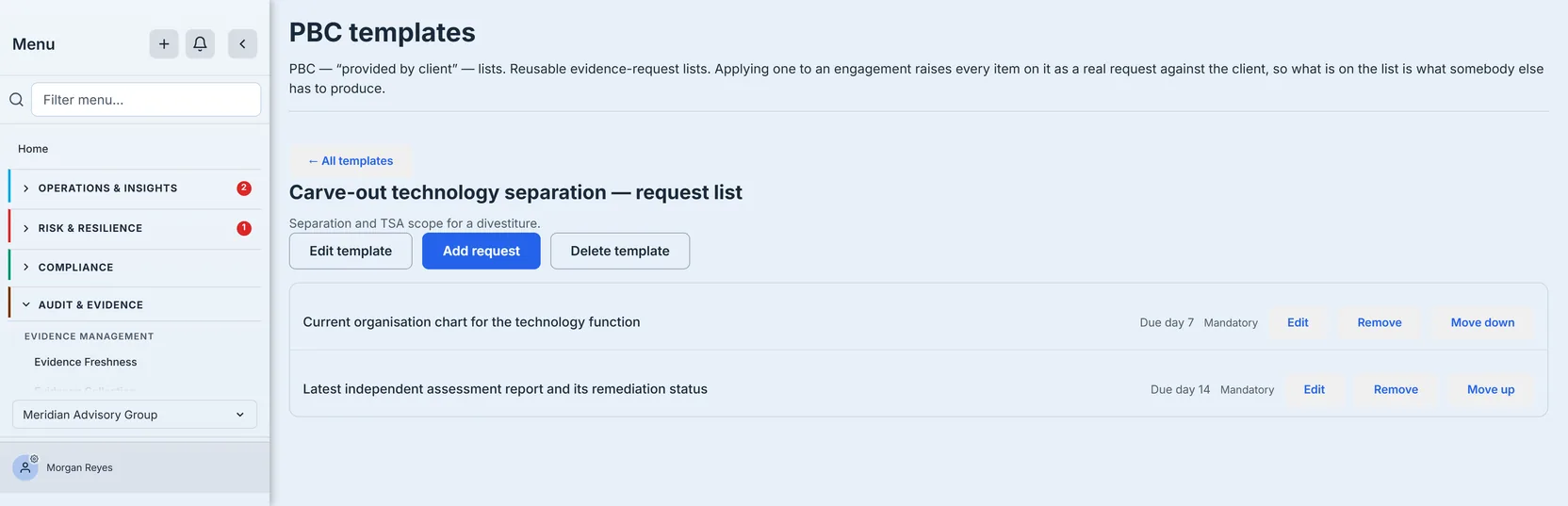
Opening a template shows the list itself. Each row is one thing the client will be asked for, and carries its due offset and whether it is mandatory. Move up and Move down order this list — the one your methodology owner maintains. It is worth knowing what that ordering does not do: once the requests are raised they are shown by state and due date, on your side and the client’s, so the sequence you set here organises the template rather than choreographing the client’s work. If something genuinely must come first, give it an earlier due offset: on both of those surfaces the due date is what orders requests within a state. Not on every surface, though — the org-wide PBC queue arrives newest-raised-first and is sorted by clicking a column, so an applied batch lands there in no particular order at all.
A template holds up to 500 requests. That is not a number you will meet writing a real list; it is there so a list cannot grow into something nobody can work through — and it is the same ceiling applying one obeys, so a template that fits is a template that will apply.
What a request actually says
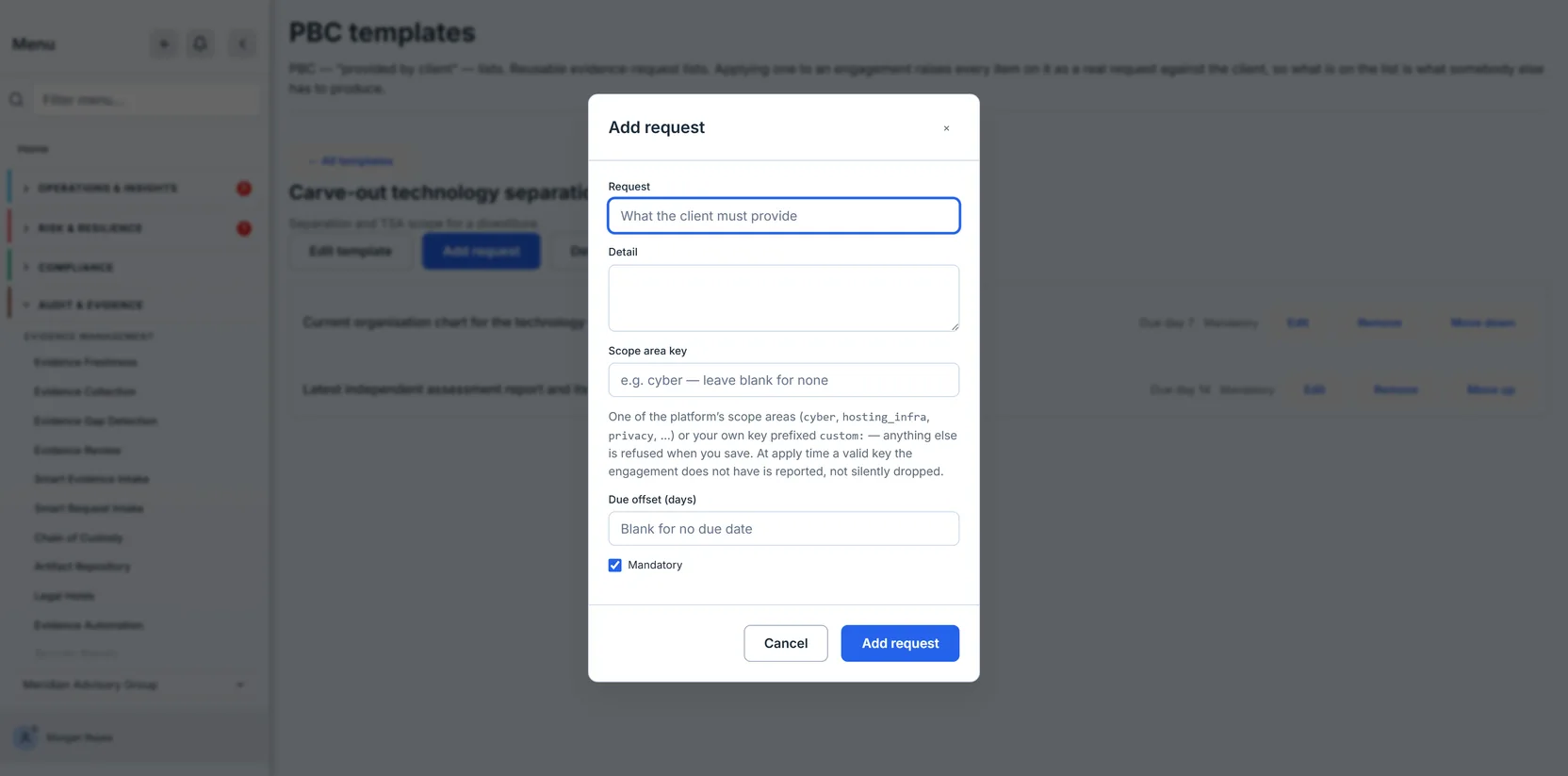
Add request takes five things, and only the first is required.
- Request — the thing itself, in the client’s language. This becomes the title of the request they see, so “Record of processing activities, or the data inventory that stands in for one” is worth the extra words over “RoPA”.
- Detail — the longer explanation. It reaches the person fulfilling the request, so it is where the period, the format and the acceptable substitutes belong.
- Scope area key — which part of the engagement this request belongs to.
- Due offset (days) — when it is due, counted in days.
- Mandatory — ticked by default.
The last three each have a catch, and they are the reason this section exists rather than a list of field names.
Mandatory is ticked when the dialog opens. Add ten requests without looking at it and you have a list where everything is mandatory, which tells the client nothing about what to do first. It costs one click to leave off, and it is the difference between a list somebody triages and a list somebody resents.
The flag travels with the request. When the client opens their own engagement, the ones you left unticked are badged Optional — the exceptions are marked rather than the rule, so a long list still reads at a glance. Untick nothing and there is nothing to see, which is exactly the problem worth avoiding.
Scope area key comes from a fixed vocabulary, and it can fail in two different places. This field
says which part of an engagement the request belongs to. The platform defines eight keys —
service_ops, apps_data_reporting, hosting_infra, cyber, spend_roadmap, tech_org,
product_review, privacy — and you can coin your own. Leave it blank if the request does not
belong to an area.
Coining one is a three-step job, and the second is the one people miss. On the engagement, click
Manage scope areas — the dialog is titled Scope areas — and use Add your own area: type
ESG and you get the key custom:esg. Then press Save scope. Until you do, the area exists
only in the open dialog: Add area puts a ticked box on screen and nothing else, and closing the
dialog without saving throws away the area you just coined. Only then use that same key on the
template.
Get that order wrong and you land in exactly the failure the rest of this section is about — the template names a key no area answers to, the requests arrive unfiled, and the first you hear of it is the warning at apply time.
And a custom area belongs to that engagement alone. There is no firm-level list of them: the
platform’s eight can be chosen anywhere, but custom: keys exist only on the engagement where
somebody coined them. The Scope areas dialog offers custom ones already on the engagement you have
open, and roll-forward re-matches by key rather than creating what is missing. So a template built
on custom:esg needs that key coined again — spelled identically — on every engagement it is ever
applied to.
A new engagement does not start with all eight platform areas either — it starts with the ones its type seeds. A technology due-diligence engagement opens all eight; a post-close engagement opens four; a cyber due-diligence or readiness engagement opens three; an audit engagement opens two; an advisory engagement opens none at all. The frame below is a cyber due-diligence engagement, and cyber due diligence seeds exactly three — cybersecurity, hosting and infrastructure, and technology organisation. That is why three of the platform’s eight checkboxes are ticked and five are not: nobody unticked anything, those five were never areas of this engagement.
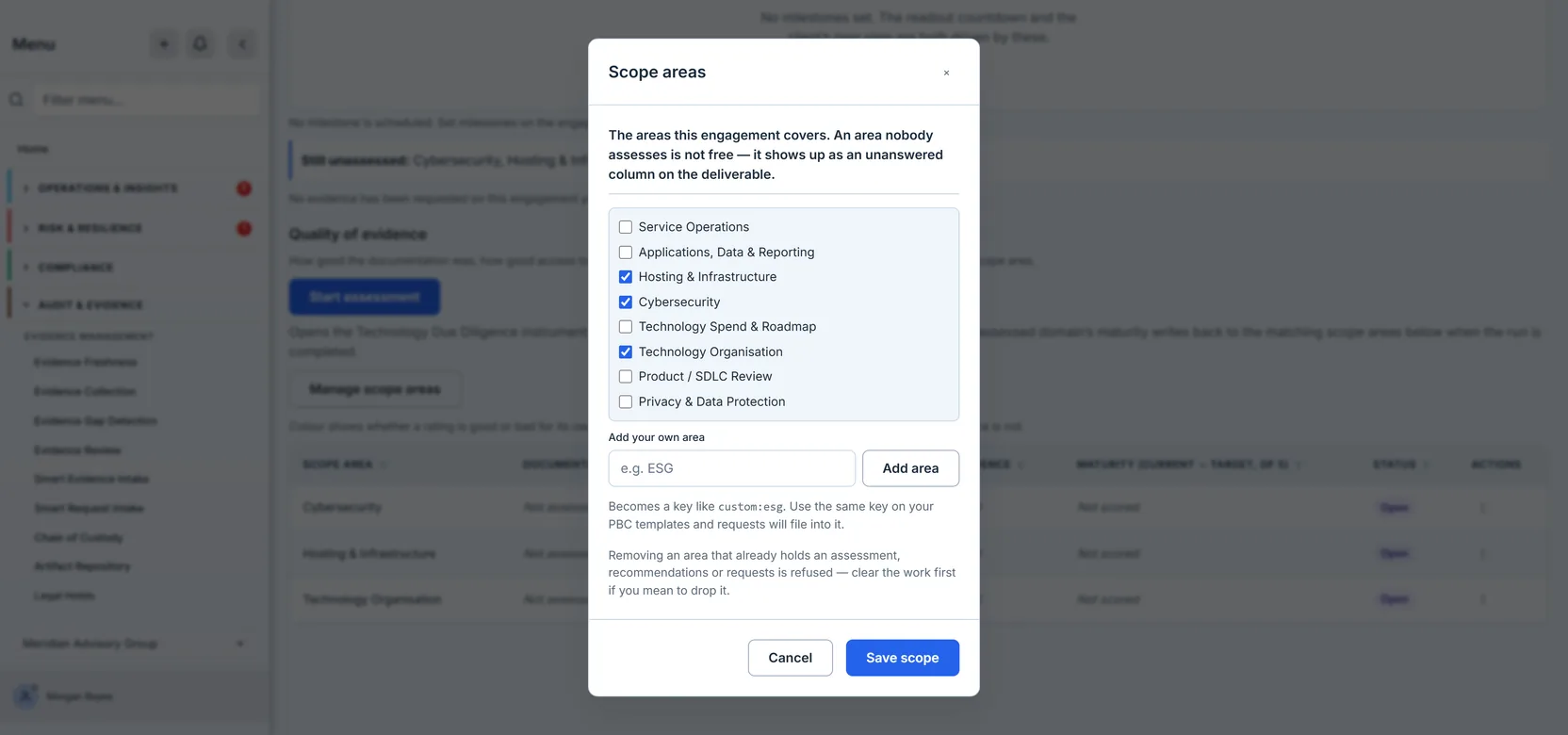
So the practical rule is narrower than “prefer the platform keys”. Prefer them — a custom: key is
a promise to re-coin it everywhere — but a platform key is only matched if that engagement actually
took the area. If it did not, tick it in Scope areas and save before you apply, exactly as you
would coin a custom: one. Putting hosting_infra in a list you apply to audit engagements files
nothing, for the same reason a misspelt custom: key files nothing.
The key is derived from what you type: lowercased, with each run of anything that is not a
letter or number collapsing to a single underscore, and any leading or trailing underscores dropped.
So ESG & Climate becomes custom:esg_climate — one underscore, not three. That determinism is the
whole point of a key that has to match a template written months earlier, and it is why two people
typing “ESG” get the same key.
The order matters more than it looks. A template can name a key the engagement does not have — that is the softer failure below — but nothing files into an area that was never created, so the area comes first and the template second.
The first failure is immediate: type anything else — finance, say — and the dialog refuses to save
the request at all, with Unknown scope area key: finance. The second is later and softer. A key can
be perfectly valid and still not be an area this particular engagement took, and in that case the
request is created anyway, arrives unfiled, and the apply result names the key so you can act on it.
Nothing is dropped quietly — and because that message is the one you have to act on, it stays on the
page rather than vanishing with the toast. The thing to avoid is a library where every list uses a
slightly different custom: key, or one whose area nobody ever added to the engagement, because
either way the mismatch only surfaces at the moment somebody applies it.
Due offset is counted from the engagement’s period start — and blank does not mean zero. Leave
it empty and the request has no due date at all, which is different from day 0. Fill in 7 and the
request is due a week after the engagement’s period starts. If the engagement has no period start
recorded, the count runs from the day you apply instead, so two applications of the same template a
month apart produce two different sets of dates. The apply result calls the fallback out when it was
the one in play; silence means the offsets were counted from the period start, which is the case you
wanted anyway. But the real fix is upstream: if the dates matter, set the engagement’s period before
applying.
Applying it — which does not happen here
This page builds the library and never uses it. Applying a template is done from the engagement, on the engagement’s own page — the Apply PBC template button on its Evidence requests tab — and that is deliberate: the requests belong to an engagement and a client, not to the list they came from.
What you get back is worth reading rather than dismissing:
- How many requests were created, which should equal the number of items on the template.
- How they were delivered, and whether anyone was told. If the client has their own Talarity tenant, the requests are sent across as one batch and the product says how many were delivered. If they do not, it says so plainly — this client has no Talarity tenant, so collect the evidence directly — and tells you they have not been notified. Landing the requests and announcing them are two different steps, so if the batch arrives but the notification fails, the result says that too rather than reporting an unqualified success. A firm that assumes an email went out will wait a long time. And if only part of the batch crosses over, the result names the shortfall specifically — N did not reach their tenant and are not visible to them — so you learn the client is looking at an incomplete list rather than discovering it in a status meeting.
- Which clock the due dates were counted from. If the engagement has no period start, the offsets are counted from the day you applied rather than from the period, and the result says so — which is the difference described under Due offset above.
- Which scope area keys did not match, named individually, with the note that those requests were created without an area. This is the one that catches a drifting library, and it is why the message is a warning rather than a tick.
There is a second route worth knowing, sitting beside that button as Roll forward from an earlier engagement — the dialog it opens is titled Roll forward requests. It takes the requests from a previous engagement rather than from a template. It is the right tool for the second year of the same client — last year’s list, including anything you added mid-engagement, rather than the firm’s generic one. It reaches the client the same way an apply does — the same batch, the same “were they actually told” — and it reports the same things bar the due-date clock, plus how many cancelled requests it skipped. What it is most careful about is what it does not carry: every trace of last year’s fulfilment is stripped, so nothing arrives already looking satisfied and nobody can sign off this period against last period’s documents. Last year’s due dates are dropped too, rather than arriving overdue on day one, which is also why roll-forward has no due-date clock to report.
What the product will not let you do
-
You cannot apply a template you have archived. The picker lists active templates only, and the refusal is enforced when you apply rather than only in the dropdown — so archiving genuinely takes a list out of circulation instead of merely hiding it.
-
You cannot delete a scope area that holds work. Tidying an engagement’s scope list is refused while anything is attached to the area you are dropping, and the refusal names each thing rather than saying “in use”: so many evidence requests, so many recommendations, and any assessment work recorded on the area itself — an evidence-quality assessment, a maturity score, an assessor narrative, a linked assessment run. Clear or move that work first, or leave the area. This matters more than it sounds: a request whose area disappeared would still exist, just filed under nothing.
-
You cannot recover a deleted template. Deletion removes its requests first and then the template itself, so a failure part-way leaves it findable and deletable again rather than leaving orphaned rows — but there is no undo. Archive is the reversible choice; delete is not.
-
You cannot edit the library — or apply what is in it — without
advisory.write.advisory.readgets you the library and its lists to look at; creating, editing, duplicating, archiving, deleting and applying are all the same single permission. There is no level that lets somebody raise a client’s requests from the firm’s standard list without also letting them rewrite that list for everyone.Read that as a floor rather than a fence. Write permission in this product is granted by verb across features, so a group with write access anywhere already carries
advisory.write— the library screen will render read-only for them while the API accepts their changes. If you need a genuinely read-only advisory role, that is a group design question, not something this page enforces on its own.
Where to start
If you are standing up a library from nothing, write the list you send most often, apply it once, and then fix it from what came back — the requests that confused the client, the ones you had to chase, the one you forgot. A template earns its keep on the third engagement, not the first, and the version that earns it is the one that has been through a real client rather than a meeting.