Two articles on this site already cover the ends of this flow. Build a PBC template library is how a firm writes its standard asks down once. PBC requests end to end is the firm’s queue — raising a request, fulfilling it, reviewing what arrived.
This one is about the middle, and specifically about the part neither of those can show you: what happens when the person answering is not in your organisation.
That is not a detail of implementation. When a client has their own Talarity tenant, one obligation is described by two records in two organisations, and each organisation owns its own. The firm owns an evidence request. The client owns a delivery record of their own. Neither side queries the other’s tables at will: every crossing goes through a small set of named doors, and each one resolves the other organisation from the hand-off record itself rather than from anything the caller supplies. Everything interesting about this feature is the discipline of keeping those two records in step, and every failure mode is one of them moving without the other.
Who’s involved
- The engagement lead — applies a template, which raises the requests, and later decides whether what came back is enough.
- The client contact — a named person at the client organisation, invited for one engagement. Their seat is free and does not consume one of your licences.
- Nobody else. A contact on one job cannot see another engagement you are running with the same company, and no part of your firm’s working record is shown to them unless it was projected deliberately: the engagement, its dates, its shared milestones and its scheduled calls each come through a named allowlist.
Stage 1 — The library, in one paragraph
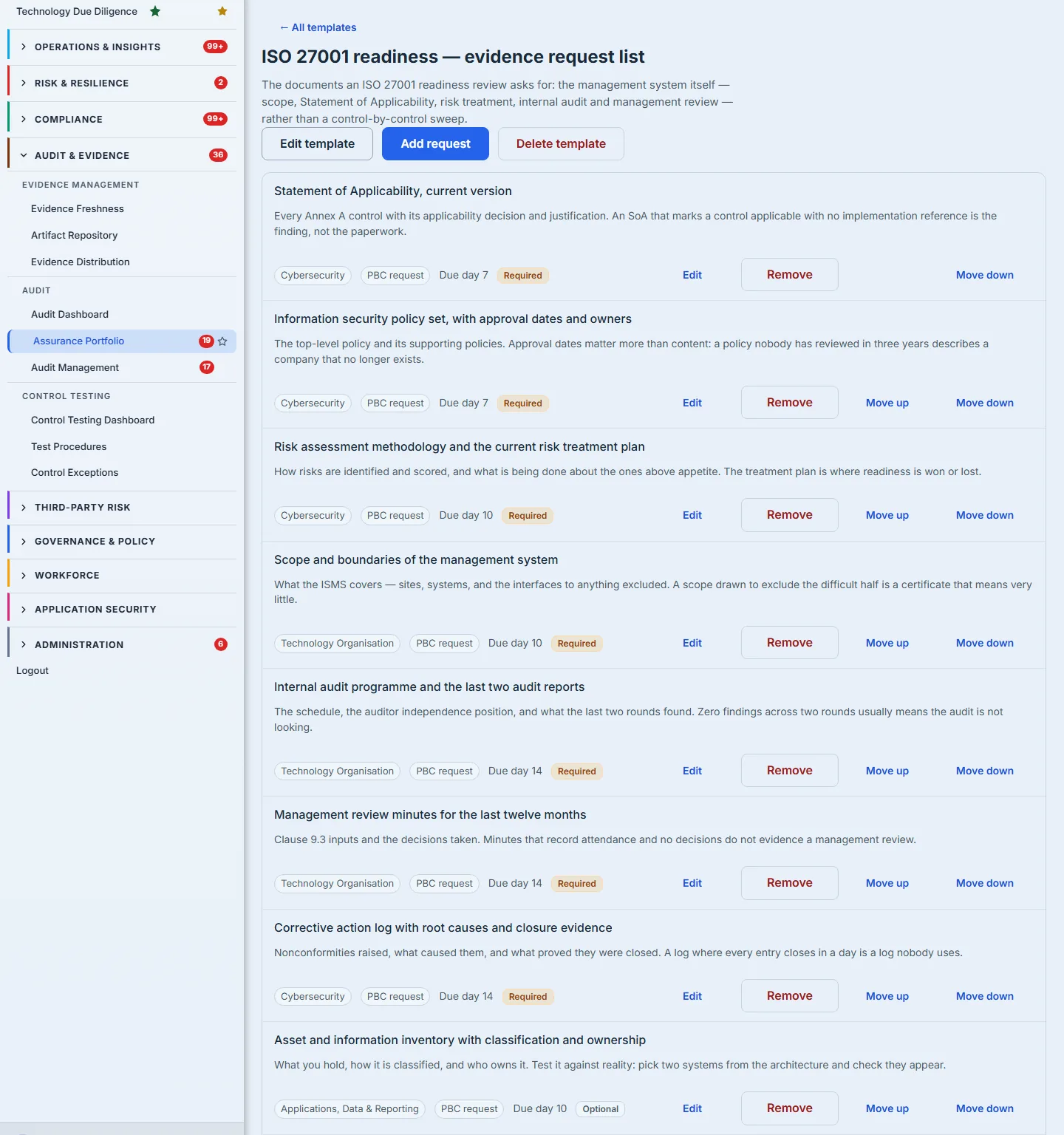
A template is a reusable list of asks with an engagement type on it. The engagement type is a label to find it by, not a restriction: any engagement can apply any template, and the product says so on the field itself. The library article covers writing one; the only thing worth carrying forward here is that each item on a template has a description and a mandatory flag, and both of those travel further than you might expect.
Stage 2 — Applying it, and what survives the copy
Applying a template on an engagement’s case file creates one evidence request per template item. This is a copy, not a link — the requests are now this engagement’s, and editing the template later does not reach back into them.
What survives the copy is the part that matters a year later:
- The description the methodology owner wrote, which is what the client will actually read.
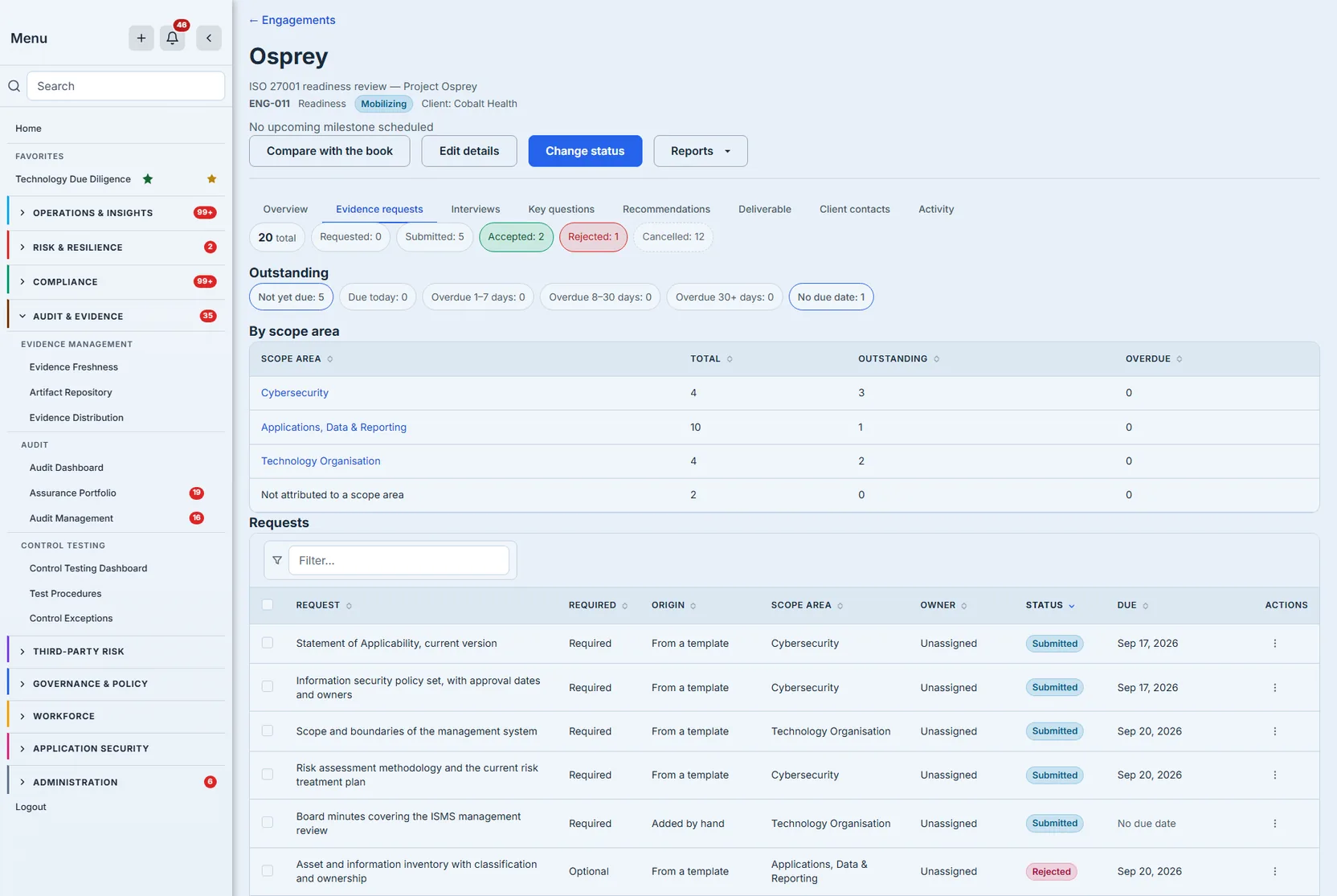
- The mandatory flag, written Required on the template and on the case file, and reaching the client as an Optional badge on the asks that are not. Optional is badged and required is not — most asks are mandatory, so badging every one of them would say nothing; badging the exception is what carries information.
- Where the ask came from. Every row on the case file carries an Origin: From a template, Added by hand, or Carried forward from last year’s engagement. (The PBC queue has a column under the same heading that answers a different question — whether the ask was raised internally or by an external auditor — and pairs it with the same From a template chip.) That distinction is the one a partner needs when reviewing an old engagement: was this our standard list, did somebody add it for this client, or did it come across in the roll-forward?
Applying the same template twice does not duplicate anything. Items already raised on this engagement are skipped, and the message distinguishes already there from withdrawn from this engagement — because “nothing was created” means two very different things depending on which it was, and a partner who withdrew three asks last month needs to know they were not silently re-raised.
That dedupe is about the template, and only about the template. Asks somebody types by hand are not matched against anything, so two people can raise the same one twice and the case file will show both — which is the right default for a one-off ask, and worth knowing before you read the list as de-duplicated end to end.
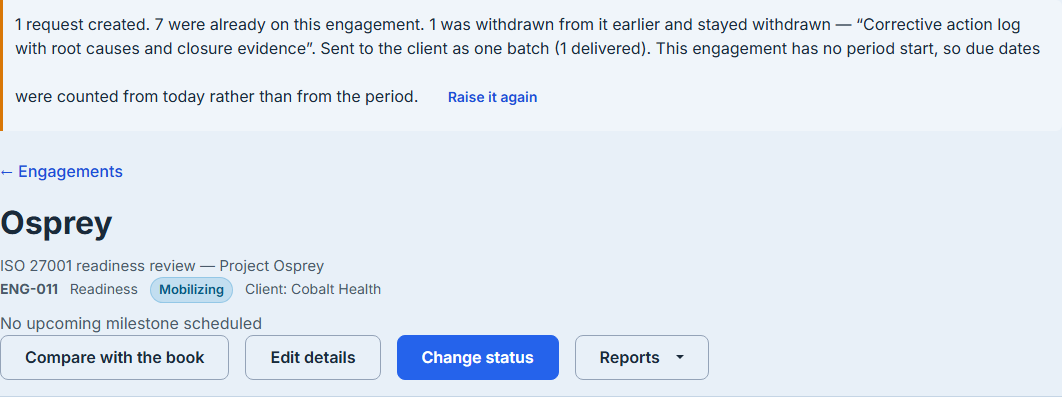
If a template names a scope area this engagement never took, those items are still created — the work is real — attributed to no area, with the unmatched keys reported back so you can add the area or re-point them. Dropping them would silently shrink your own request list.
Stage 3 — The client’s side
The client opens My Engagements (/app/engagements/mine) in their own tenant — reached from the
My Work row in their sidebar, which is the row the page belongs to. This is a different
organisation, not a different page.
The list of asks is built entirely from records the client’s own organisation owns — the same hand-off rows the firm wrote when it applied the template, and nothing else. The engagement’s header, its dates, its client-visible milestones and its scheduled interviews are a different case: those are read out of the firm’s tenant, and they are the reason the boundary is worth describing carefully. They come through a fixed allowlist — a named set of fields, decided in the code rather than by whatever the query returns — so widening it is an edit somebody has to make on purpose. A field nobody added does not cross because nobody thought to exclude it.
Each ask shows its title, the description the firm wrote where it wrote one, an Optional badge where it applies, and a due date or No due date. Nothing about the firm’s other clients is reachable from here, and a client contact is narrowed again to the single engagement they were invited for.
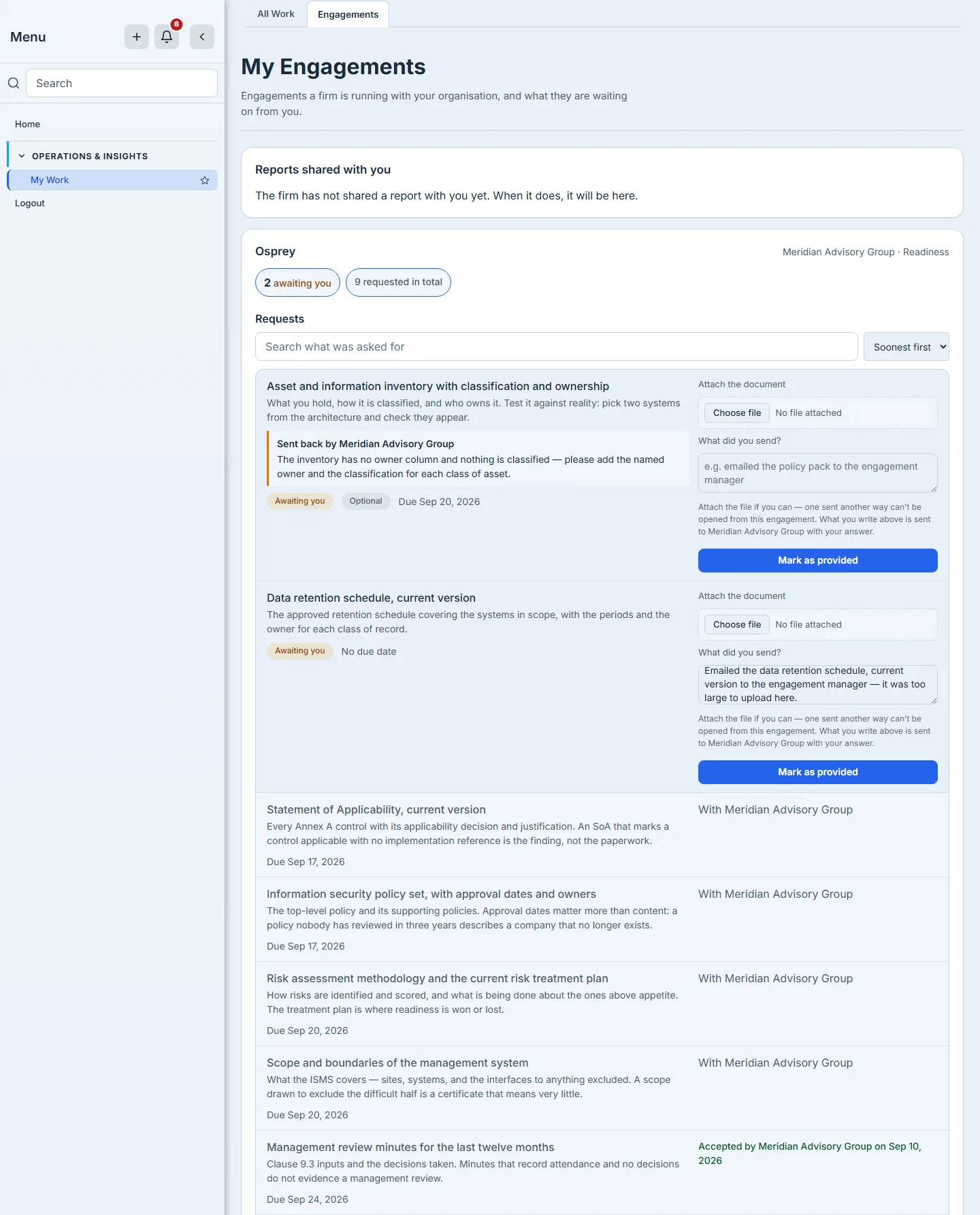
Their side of the transaction is two controls: attach the document, and Mark as provided. There is also a note box — “What did you send?” — because an answer is sometimes “I emailed the pack to your engagement manager”, and a status flip with no statement of what was provided is not an answer.
Attaching is optional and marking provided is not. That is deliberate, and it has a consequence worth knowing: a client can answer without uploading anything, and the firm is told so explicitly rather than being left to conclude an upload failed.
When they mark it provided, both records move together — and if the write into the firm’s tenant fails, the client’s own record is put back to outstanding rather than left claiming the job is done. The client sees an honest failure instead of a false “done”, which is the only version of this that is safe: a delivery record that says sent against a request that never moved is a dispute waiting to happen. On success their row stops asking and says it is with the firm — by name, not as “the firm”, because a client working with several advisors reads one portal and needs to know which of them is holding it.
Stage 4 — The firm’s queue, in one paragraph
The answered ask lands in PBC Requests (/app/audit/pbc), which is covered properly in PBC
requests end to end. Two things there are specific to this
flow: the queue badges Optional in the same word the template, the case file and the client’s own
screen use, and From a template in the same words the case file uses, and its status filter fetches from the server per status rather than filtering what
happens to be loaded — so an older request still sitting at requested is reachable rather than
merely slow to find.

Stage 5 — The return leg
Here is the part that makes this a feature rather than a form.
The firm accepts, rejects, or withdraws. All three are decisions taken on the firm’s record — and all three now travel back across the boundary to the record the client owns:
- Reject returns the ask to the client’s outstanding list, carrying the reviewer’s reason.
- Accept settles it, and clears any previous rejection’s reason rather than leaving a stale instruction sitting beside completed work.
- Withdraw is terminal — the status breakdown on the case file counts these as Cancelled. The ask leaves the client’s list entirely, because the firm no longer wants the document.
Both decisions are offered together on the ask itself, and they are not offered the same way. Rejecting opens a dialog that names the ask, quotes what the client said they sent, and asks for a reason. Accepting is a single click with no dialog at all — the decision that settles the obligation and clears the previous reason takes less confirmation than the one that returns it.
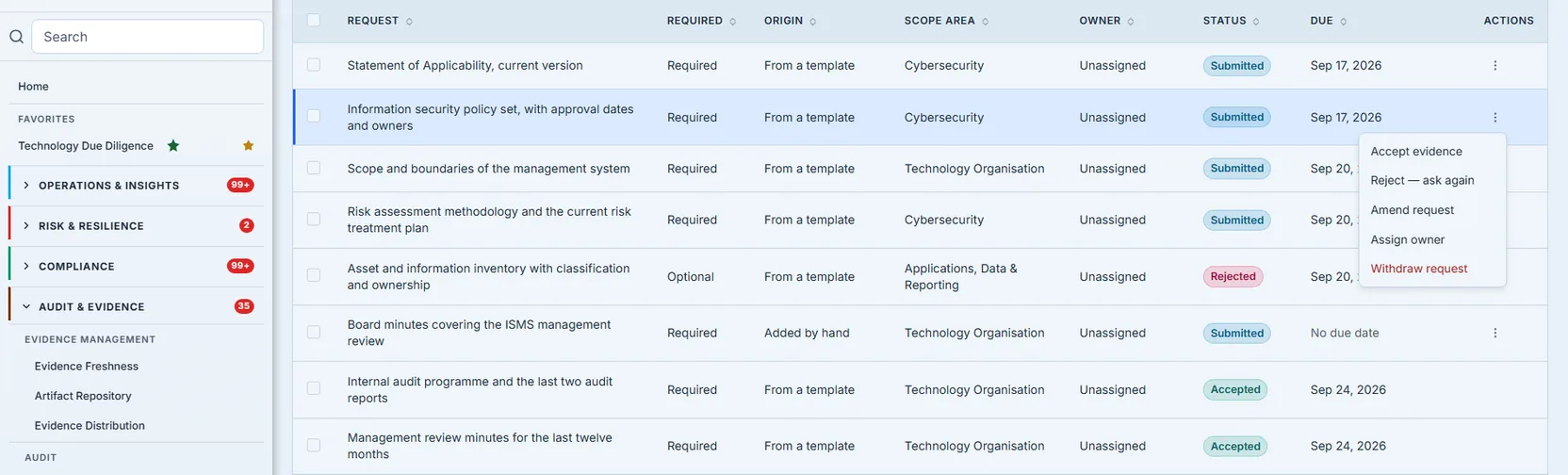
Choosing Reject — ask again opens the dialog below, on that same ask. Nothing has crossed the boundary yet: the reason is typed first, and the client’s record does not move until the decision is sent.
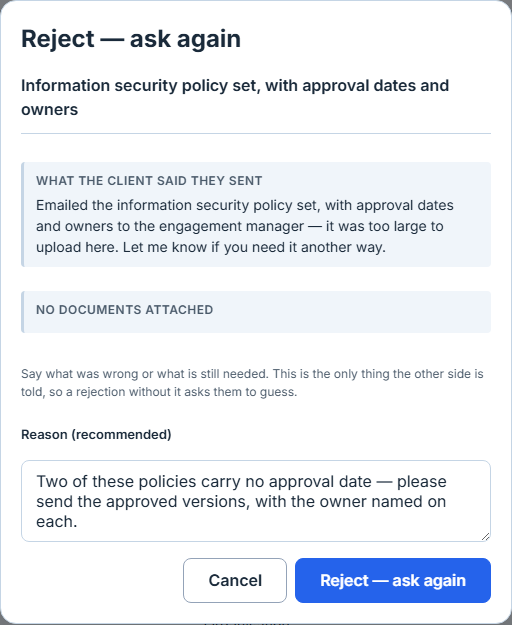
The rejection reason is the load-bearing one. It is not a note to the firm’s own file — it is what the client reads, on their own screen, which is what makes a rejection answerable rather than merely negative. And when a reviewer rejects without typing one, the client is told that:
Your provider asked for this again but did not say why — check with them before re-sending.
A silent reviewer and an un-reviewed request must never look alike. Rendering nothing would have made them identical.
Withdrawal being terminal is worth stating plainly, because the alternative is worse than it looks.
A withdrawn ask that merely greys out on the client’s screen still has a live Mark as provided
button underneath it — and pressing it would flip a record the firm had deliberately closed back to
submitted. Removing it from the list is the honest end state.
Stage 6 — Where the document ends up
The document the client attached is registered in the firm’s evidence library at the moment it is sent. It arrives carrying a client provided tag, marking it as something a client supplied against an ask, and a description naming the ask in words — “Provided by the client against the request …”. The machine linkage is the request’s own list of attached evidence, which is what the PBC queue reads when it shows you the document. Accepting settles the ask; it does not move the artifact, because the artifact was already attached to it. It does mark it: the decision is recorded on the document the firm accepted, which is what the library reads back as Accepted — and from that point the file itself is fixed, so replacing it takes a new version rather than an edit.
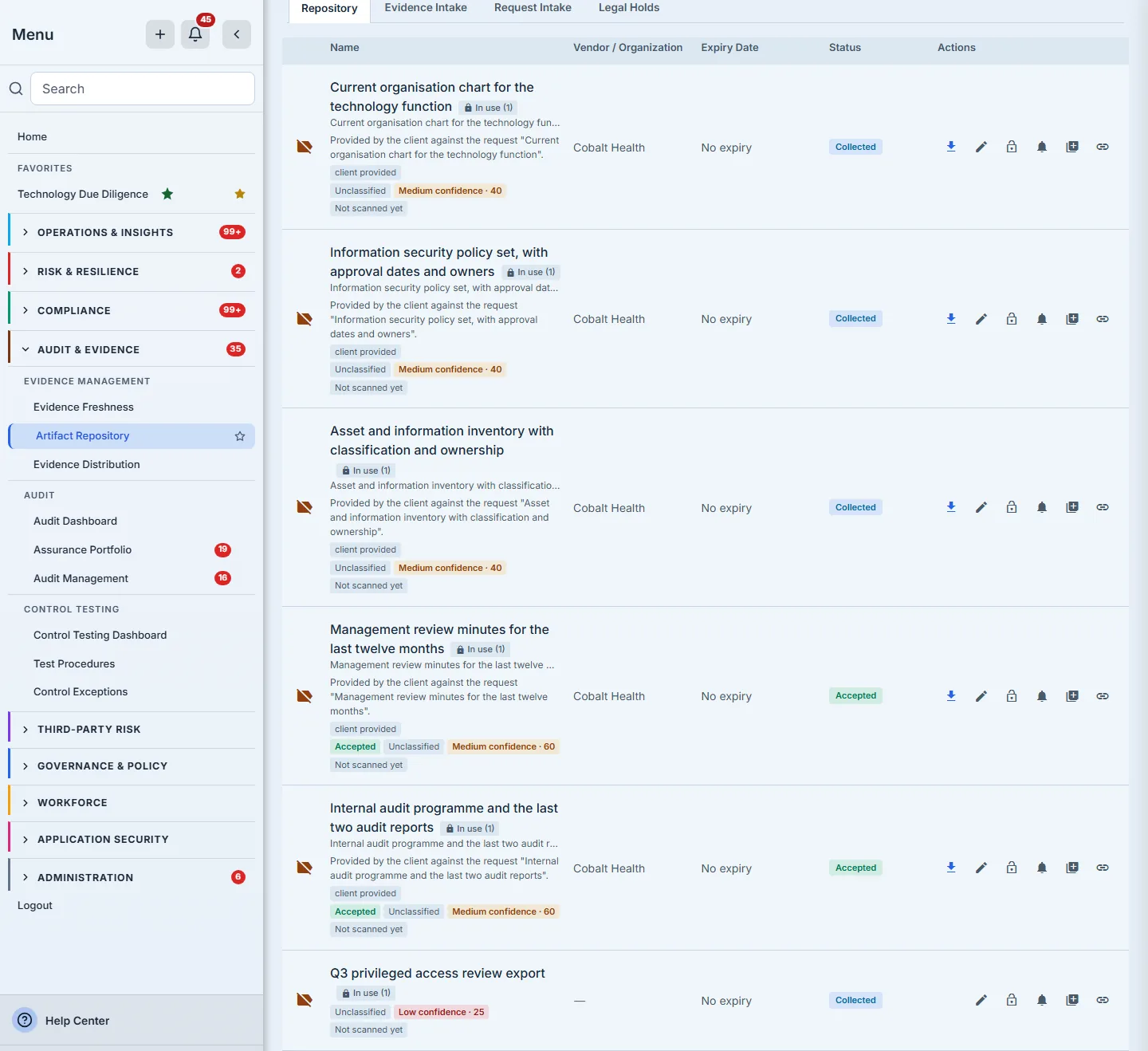
The Vendor / Organization column is the other half of that record, and it is filled from the upload rather than typed by anyone: a document that arrives through a client’s portal is recorded against the organisation it came from. The column’s own rule is the one the screenshot shows — every row a client provided names an organisation, and every row the firm collected itself stays blank, because inventing a providing organisation for your own working paper would be a guess.
The tag is deliberately generic rather than one tag per request. Tags are rendered to people, on the artifact’s own row, so a per-request identifier there would put a machine key in front of a reader who has no use for it — the linkage belongs in the record, and the human-readable half belongs in the description.
That ordering matters if you are looking for evidence of the linkage. The tag is written on upload, by the client’s own action. A request fulfilled the other way — a firm member picking an existing library document through the queue — attaches evidence to the request without creating that tag, because nothing new arrived to tag. Both are legitimate fulfilments; only one of them is a document that crossed the boundary.
What this does not do
- A contact-only client has no client-side page at all. Where the client has no Talarity tenant — which is perfectly normal — the firm collects the evidence directly, and the product says so on the case file rather than quietly creating nothing and letting you assume the client was notified.
- A rejected request does not restart a clock. It returns to the client’s outstanding list with its original due date, so an ask rejected after its due date reads as overdue, which is what it is.
- The client’s view is a projection, not a filtered copy of yours. An interview’s schedule crosses — when it is, and how long it will take, because a client being interviewed needs to know that. The record of what was said does not, and neither do key-question answers, recommendations or internal narrative. Milestones are private to the firm unless one is explicitly marked client-visible. The difference matters: “filtered” implies the rest is merely hidden and could leak with a changed query string.