Every audit has a list. The auditor needs the access review for Q3, the change tickets for the release in August, the signed policy, the org chart as it stood at year end. The list has a name — Prepared by Client, PBC — and it is where audits go quiet. The evidence is asked for, and then everybody waits, and nobody can say whether the waiting is on the auditor or on the client.
PBC Requests (/app/audit/pbc) is the queue that answers that. This article walks a request
from raised to accepted, and is specific about the two moments where a request can look finished
without being finished.
One thing to be clear about at the start, because it changes how you think about the rest: a PBC request is an evidence request tied to an engagement, not a separate kind of record. It lives in the same evidence-request table the fieldwork team already works — and this queue applies no filter at all, so it lists every evidence request in the organisation, advisory engagements included, not only the ones attached to an audit plan. That is why a request can carry a control, a framework requirement and a period — those fields are not PBC-specific, they are how every evidence request describes what it wants.
Who’s involved
- The audit lead — raises the requests, and reviews what comes back. Accepting is a decision with their name on it.
- The evidence owner — the person actually asked for the document. On an internal audit that is a colleague; on an advisory engagement it is frequently the client.
- The external auditor — sees and accepts through the auditor portal, on a token-scoped identity, never as a user of your organisation.
The queue, and what its counters can and cannot know
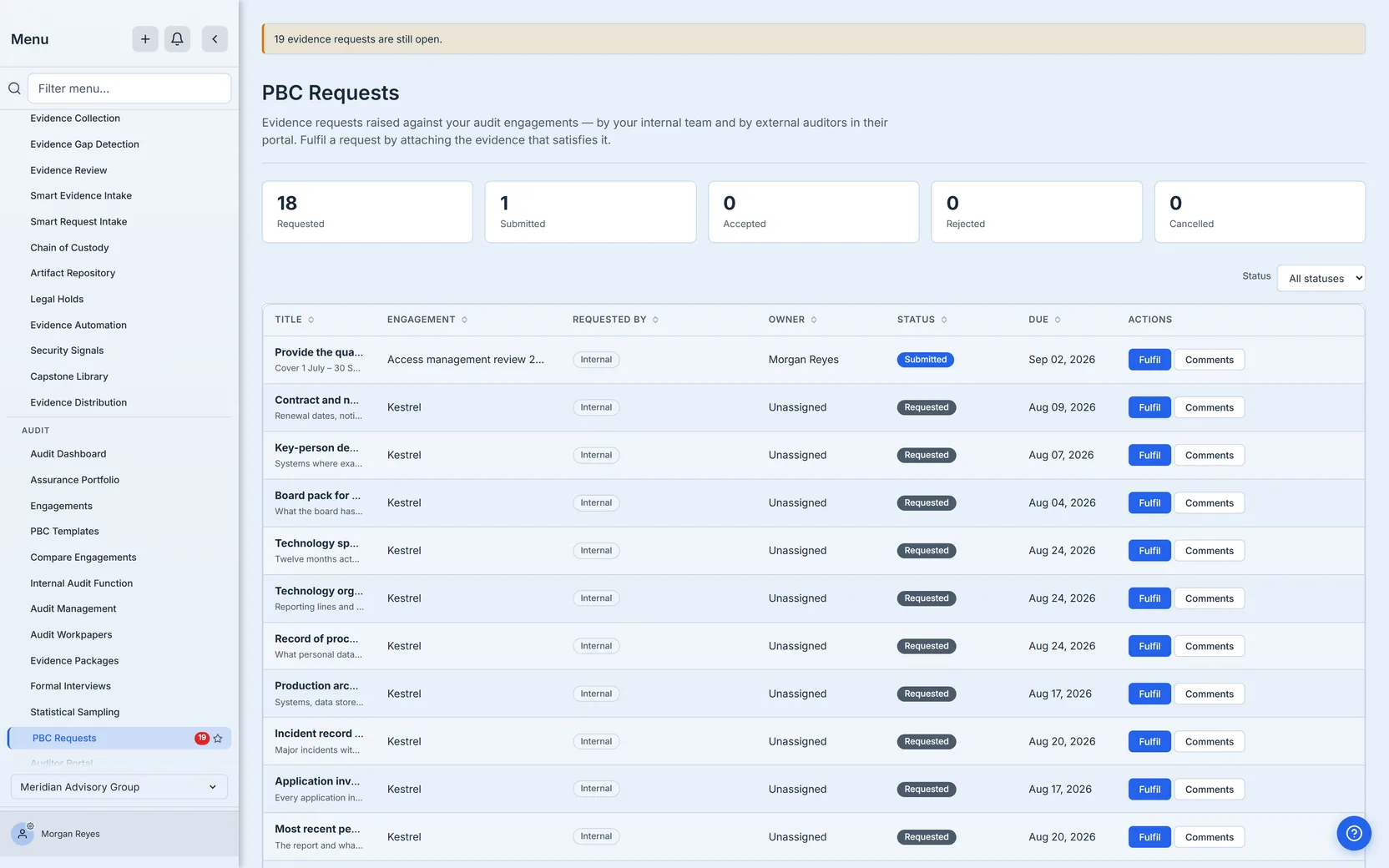
Five counters, one per status, and the fact that there are five is the point. The lifecycle is
requested → submitted → accepted, with cancelled as the one way out and rejected sending the
request back to the start rather than ending it — and the
strip used to render three of them. Rejected and cancelled requests were counted and then dropped,
so the numbers above the table never added up to the rows in it, and nothing on the page explained
the gap.
Rejected is not a closed state. A rejected request becomes actionable again rather than closing, so it is outstanding work, and a summary that hides it hides the requests most likely to need chasing. Note where it lands: the mirrored task belongs to the request’s assignee, who is not necessarily whoever submitted it, so a rejection returns to the owner’s queue rather than to the sender’s. That is the reason the tile exists rather than being folded into an “open” total.
Two controls on this page are worth knowing before you scan it. A Status filter sits above the table on the right and defaults to All statuses — so what you are looking at is everything, until you narrow it. And the Requested by column carries a tag reading Internal or External auditor, which is the one place the queue distinguishes a request your own team raised from one the auditor raised in their portal. Everything the section below says about who does what is readable off that column.
The counters also tell you when they cannot see the whole queue. The list is capped at the newest
500 requests, and when there are more than that, every tile renders as N+ with a line
underneath saying the figures are floors rather than totals. This matters more than it sounds: an
organisation whose most recent requests are all accepted, with older ones still outstanding, would
otherwise read Requested 0 — a measured-looking zero over an unmeasured set. A number that
cannot know its own total says so.
Overdue is a calendar day, not an instant — and it is shown on Audit Management, not here. This queue lists requests and their due dates and marks nothing late; the overdue badge, the red row and the overdue count in the stat strip all live on Audit Management’s PBC table, and each of those three is computed in the browser rather than by any server rollup. Worth knowing before you scan this page for a warning that is not on it. A due date comes from a date picker and is stored as midnight UTC, so a naive “is it past due?” marks a request due today as overdue from the start of that day — a full day before the date printed beside it. Both surfaces compare whole calendar days instead.
The subtle half is which calendar, and this is the part worth reading closely, because the product does not yet hold one answer.
A due date is stored as UTC midnight of the day somebody picked, and the app renders it with
timeZone: 'UTC', so the date you are shown in the queue does not move with your location. What
differs is the day each side compares it against. The advisory Engagement Case File ages each
evidence request on the server — not yet due, due today, overdue 1–7 days, and so on — and takes
both days in UTC, because a server has no reader’s timezone to use. That is the red due date and its ageing
tag — Overdue 1–7 days and so on — on the engagement’s evidence-request table. The overdue badge on the Audit Management queue
takes the due day in UTC and today in the reader’s own timezone, on the reasoning that “is this
late?” is a question about the day the reader is living in.
For most of the day those agree. Where they part company depends on where YOU are — one window, in one direction, fixed by your own offset. A reader sitting on UTC never sees it at all:
- West of Greenwich — between UTC midnight and your own, on the due date — the rollup has already rolled over and counts the request late while the badge, correctly by its own rule, has not. For a reader five hours behind, a five-hour window.
- East of Greenwich — between your midnight and UTC’s — the reverse: your local “today” runs ahead, so the badge marks it late while the rollup has not. For a reader ten hours ahead, a ten-hour window. This is the direction that is easy to forget, and it is the bigger one for most of Asia and Australia.
One scoping clause before you go looking for it. The second surface — the Engagement Case
File’s ageing tag — covers advisory engagements only; its query is scoped to
engagementKind: 'advisory'. Requests raised the way section 1 describes, against an Audit
Plan, never appear on it, so they cannot exhibit the disagreement at all. It is observable for
advisory requests, which do appear on both surfaces.
That is a real disagreement between two surfaces of one product, and it is not resolved. It is recorded here rather than smoothed over, because an article telling you the two agreed would be teaching you to trust a number that can differ by a day from the one beside it.
The reason it is stated instead of fixed is worth knowing too: the rule has been decided, reversed and restored across several sessions, and the frontend now carries a comment asking the next person to raise the inconsistency rather than flip the line a third time. The fix belongs on the backend, where the reader’s timezone would have to be carried into the aggregate — not in the badge.
1. Raising the request
Requests are raised from Audit Management (/app/audit-hub), on its PBC tab — not from the
queue this article opened on, which lists requests and fulfils them but offers no way to create
one. There is a second origin worth knowing, since this article is about where work comes from: an
advisory engagement raises them too, both one at a time and in bulk when a PBC template is
applied. Those arrive in this queue exactly like the ones raised here. The New PBC Request form asks for six things, and two are required: Audit Plan and
Request Title. The rest — Requirement ID, Due Date, Assign To and Notes — are
optional and worth filling in anyway.
Be aware of what the form does not offer, because the record underneath is wider than the form
above it. An evidence request can carry a control, a framework and a period — the
columns exist and the fieldwork side of the product reads them — and no surface in the app sets
them today. This form does not, and neither does applying a PBC template: the apply writes
controlId, frameworkKey, requirementId, periodStart and periodEnd as null for every
request it creates, so a template will not even carry across the requirement id this form does
offer. The one handler that populates them takes no traffic — nothing in the product calls it.
So do not go looking for the field, and do not reach for a template expecting to find it there. If a request needs to be tied to a specific control, put the control’s identifier in the Requirement ID or say it in the Notes, and know that it is prose rather than a link: nothing will filter or roll up on it. That is a real limitation of the current product rather than a step you have missed.
The title is the part people rush. “Access review” is a title that generates a follow-up email; “Q3 privileged access review, including the reviewer’s sign-off” is one somebody can act on without asking you what you meant. Notes is where the detail goes, and it is shown to the person fulfilling the request rather than merely stored.
Assigning an owner matters for a reason that is easy to miss. Raising a request creates a matching
task straight away — the request is created and its task is materialised straight after, not when
somebody gets around to assigning it. Be precise about “straight after”: the task is written
after the request commits, and a failure there is logged and swallowed rather than rolling the
request back, so a request can legitimately exist with no task behind it. That is true of the
attempt rather than the result, and it is the honest version of “made together”.
That task is also created unowned if you did not name anybody. It exists, it is
tracked, and it appears in nobody’s My Work queue — that section filters to work assigned to
you. It is not lost, though: the task lands in the unclaimed work pool at
/app/claimable-work, where anyone with work-item permission can claim it, and that page carries
its own nav badge. So an unassigned request is visible to a team that looks there and invisible to
everyone who only watches their own queue — a different problem from being ignored, and worth
naming as such. Naming an owner is what puts it in a person’s day: creating
an assigned request notifies that person in the app and queues them an email, deep-linked back
to this queue. The form says so itself under the Assign To field.
That is worth holding on to for section 3, because the same courtesy is extended at the other end: a decision dispatches too. Accepting or rejecting evidence notifies whoever submitted it — PBC evidence accepted or PBC evidence rejected, in the app, with the reviewer’s note carried along — so the person who did the work is not left re-opening the queue to find out whether it landed. The auditor portal is narrower: a rejection there notifies, an acceptance does not — the external contact learns that something was sent back, and has to look to find out that something was taken.
2. Fulfilling it — choosing evidence, not naming it
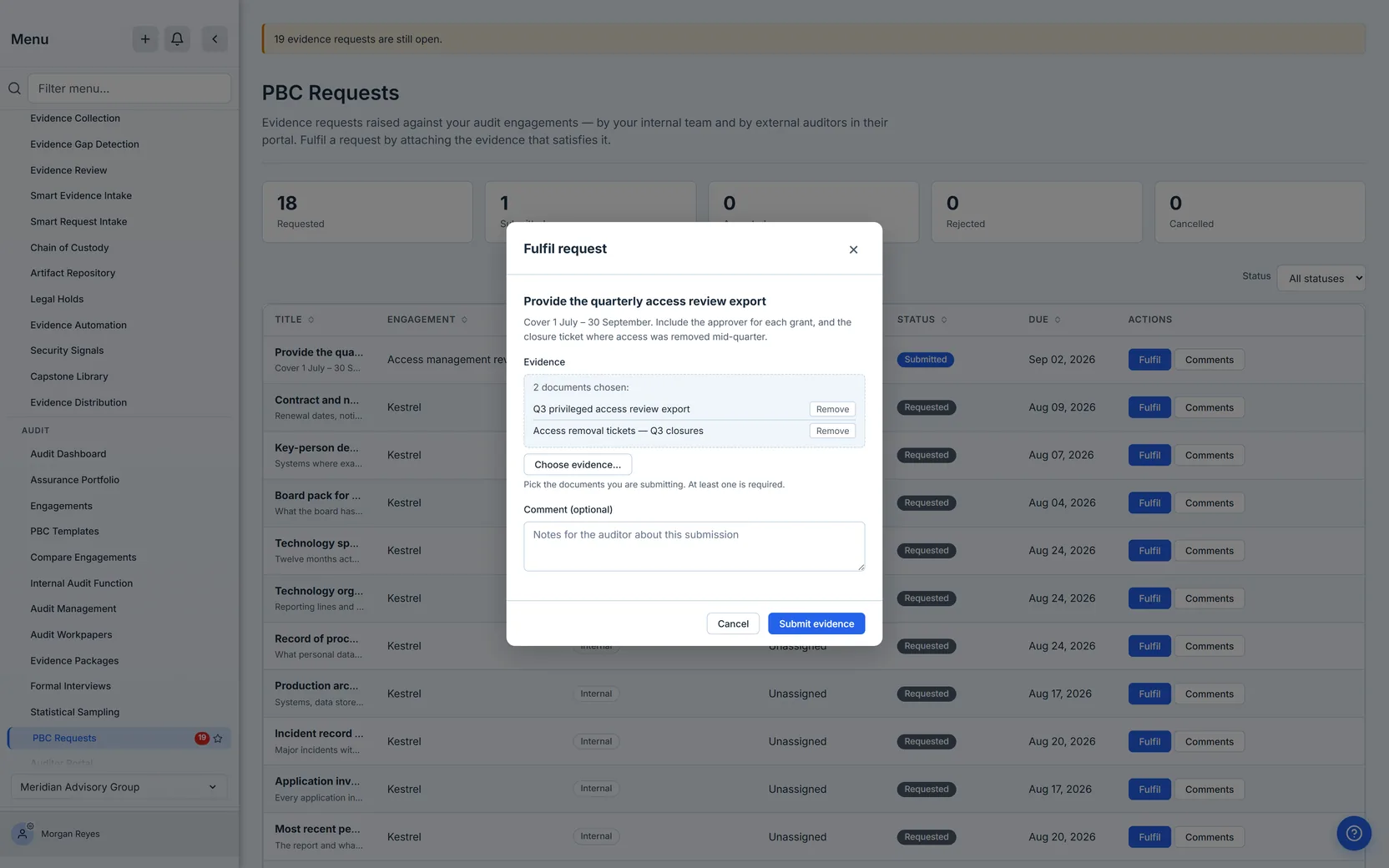
Fulfilling a request means attaching the documents that answer it and, optionally, saying something about them.
You submit a set, not an addition — and the dialog opens showing you the set. Re-open a request you have already answered and the evidence already attached to it is listed straight away, by name, each with a Remove beside it. “Nothing chosen yet” appears only when nothing is attached.
That ordering is the whole point, and it matters most on the loop the product runs most often: a reviewer rejects a submission, and the assignee re-opens the dialog to answer again. What you submit becomes the answer — so removing the document that was refused actually detaches it, rather than leaving it attached beside its own replacement with nothing marking which is which. Because the dialog has shown you the current set before you change it, submitting can honestly replace it; a screen that replaced a set it had never displayed would be a silent delete.
The documents are chosen from your evidence library through a picker that searches and pages server-side, and the chosen ones are listed back to you by name before you submit, each with a Remove beside it so you can take one out before it goes. This is worth stating plainly because the previous version of this dialog asked for something else entirely: a text box, and a comma-separated list of internal document ids. That is workable for somebody with database access and impossible for everyone else — and the people most often asked to fulfil a PBC request are exactly the people who have never seen an internal id. A primary action that only works if you can look up a uuid is not a rough edge; it is the feature not working.
Know one boundary of that picker before you plan around it: it lists active documents. An archived or superseded document does not appear, however recent it is, so if the evidence that answers the request has been archived you will need to restore it first rather than hunt for it in the list. That is a limit of this dialog rather than of the record: a request’s evidence has a second writer, the advisory path a client uses to answer from outside your organisation, and files sent that way are minted straight into the engagement’s library. Both paths now refuse an id that is not a document in that library — so what reaches a reviewer is always something they can open, or is disclosed as something they cannot.
The comment box is not decoration. “Here is the export, note that two rows are blank because those accounts were closed mid-period” is the sentence that stops the request bouncing back. It travels with the submission and is shown to the reviewer.
Submitting moves the request to submitted, not to accepted. Acceptance is a separate decision made by somebody else, and the next section is about what that person is shown before they make it.
Be precise about how far that separation goes, because one direction is enforced and the other cannot currently be configured at all. Submitting does not accept, and the task in the owner’s My Work queue cannot accept either — moving that task to done does not touch the request, and that matters most on an advisory engagement where the task’s owner is the client. The mechanism is worth a sentence of its own, and it gets one below.
What the product does not do is separate fulfilling from reviewing. They are the same permission — the one that also governs creating, cancelling, assigning and commenting — so anyone who can answer a request can also accept it, cancel it and reassign it. This is worth stating flatly because the obvious mitigation does not exist: you cannot grant “fulfil” without granting “review”, so on the advisory engagement above, giving the client the ability to send you evidence necessarily gives them the ability to accept their own. It is structural, not a configuration you have got wrong.
The one place the two roles are structurally separate is the auditor portal. An external reviewer there has no action that FULFILS a request — the portal can raise, list, comment, submit findings, request samples, sign off and accept, but never answer — so an engagement reviewed through the portal has the separation the internal path cannot express.
3. Reviewing it — seeing what you are accepting
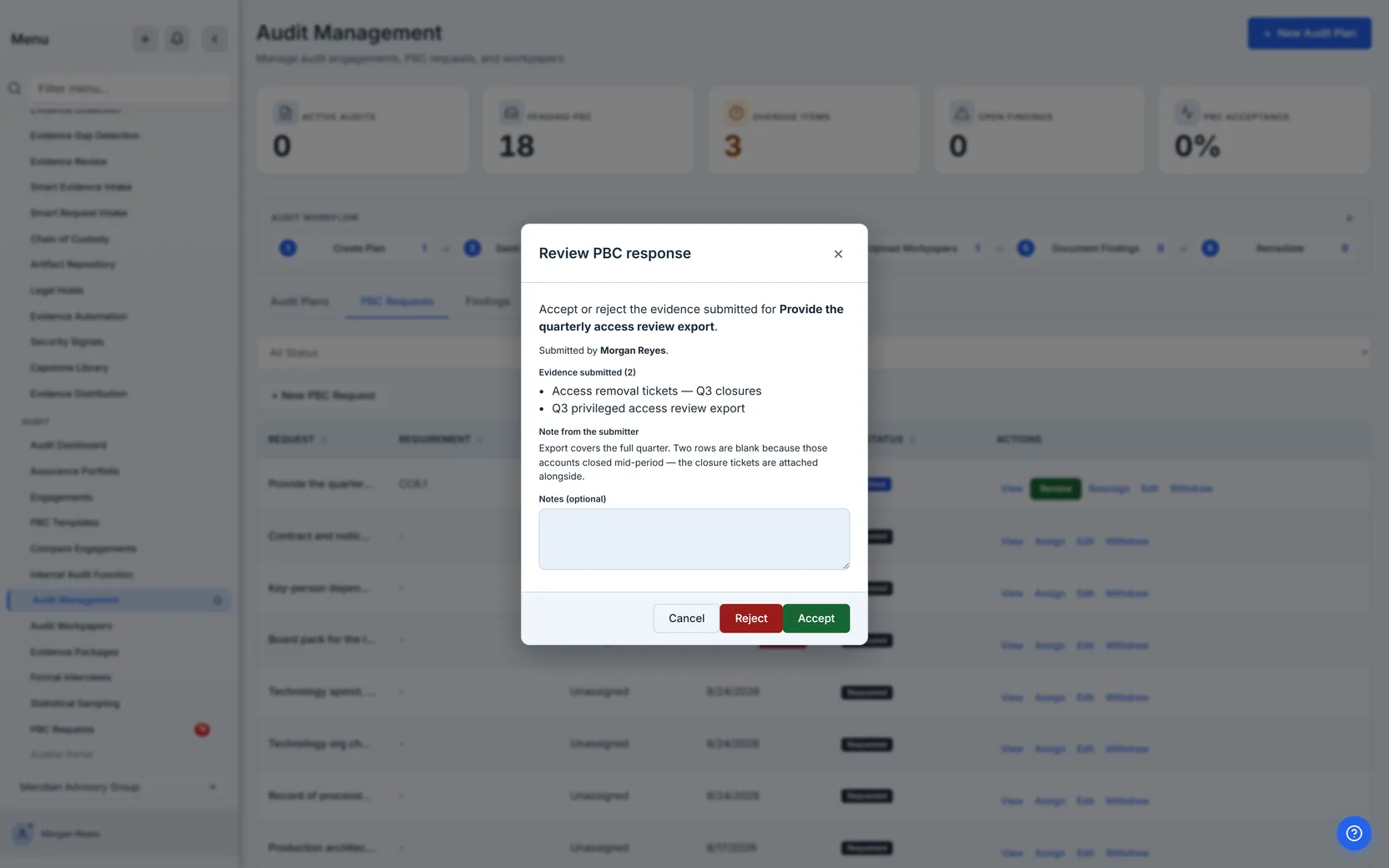
First, where this happens — because it is not the page you have been on. The PBC Requests queue
offers up to two actions per row — Comments always, and Fulfil on everything except an accepted or
cancelled request. Said as a negative deliberately: “while it is still open” reads as requested
only, and Fulfil is also offered on a submitted row (visible in the frame above) and on a
rejected one, which is the whole point of rejection sending the request back rather than ending
it. There is no Accept or Reject there. The
review decision lives on Audit Management (/app/audit-hub), in its PBC table, on rows that
have reached submitted; the external auditor’s equivalent is in the auditor portal. If you have
been following along on the queue, this is the point where you change pages.
Accepting evidence is an audit decision. It says: somebody looked at this, and it answers the question that was asked. So the dialog shows you what you are deciding about — who submitted it, the documents by name, and their note — before it offers you Accept and Reject.
There is one more field, and it matters most when you are rejecting: a Notes box. It is optional on both decisions and it is not a private annotation. What you type goes onto the request as its review note, and it is what the person who has to answer again will read: reject a submission and the request returns to their queue with “Returned for more evidence” and your words above the evidence picker, at the moment they are choosing what to attach next — and it needs to be there, because a re-submission adds to the rejected documents rather than replacing them, so the reason is the only thing telling the reader which of the attachments the reviewer was objecting to. Rejecting without one is therefore a decision they cannot act on — they learn that the answer was wrong and not what would be right. Treat the box as required on a reject even though the form does not.
That sounds obvious enough to be unremarkable, and it is the fix this page needed most. The dialog previously said “Accept or reject the evidence submitted for X” and then showed X and nothing else: no submitter, no note, not one of the attached documents. The record carried all three — the information was already on the object the dialog was handed — and the dialog rendered only the title. An auditor was being asked to accept evidence the product never displayed.
Two details in that list are deliberate:
- Documents are named, never listed as ids. An id in a review dialog is the same defect as an id in a text box, one screen later.
- A document you are not entitled to open is disclosed as exactly that, rather than omitted. The list is filtered by artifact access rules, so it is possible for a submission to contain something this reviewer may not see — and a reviewer needs to know their view of the evidence is incomplete before they accept it. Silently shortening the list would let somebody accept a submission they had only partly seen, believing they had seen all of it.
Rejecting reopens it with your notes attached. The request returns to rejected — actionable
rather than closed — and the mirrored task moves back into progress, which is why rejected requests
count as outstanding work in the queue’s summary.
Rejecting from Audit Management writes the decision, moves the task and notifies the submitter — PBC evidence rejected, carrying the reviewer’s note. Worth knowing precisely who hears it: the notification goes to whoever submitted the evidence, while the mirrored task belongs to the request’s assignee, and those are not always the same person. If they differ, the assignee sees the task reopen without being told why, so the queue is still the place the whole picture lives. The auditor portal rejects the same way. What it does not do is announce an acceptance — the one decision that leaves nobody waiting.
4. The conversation, in one place
Requests generate questions — “does this need to cover contractors?”, “is the September export enough or do you need the full quarter?” — and those questions have a habit of living in email, where they are invisible to everybody who was not on the thread.
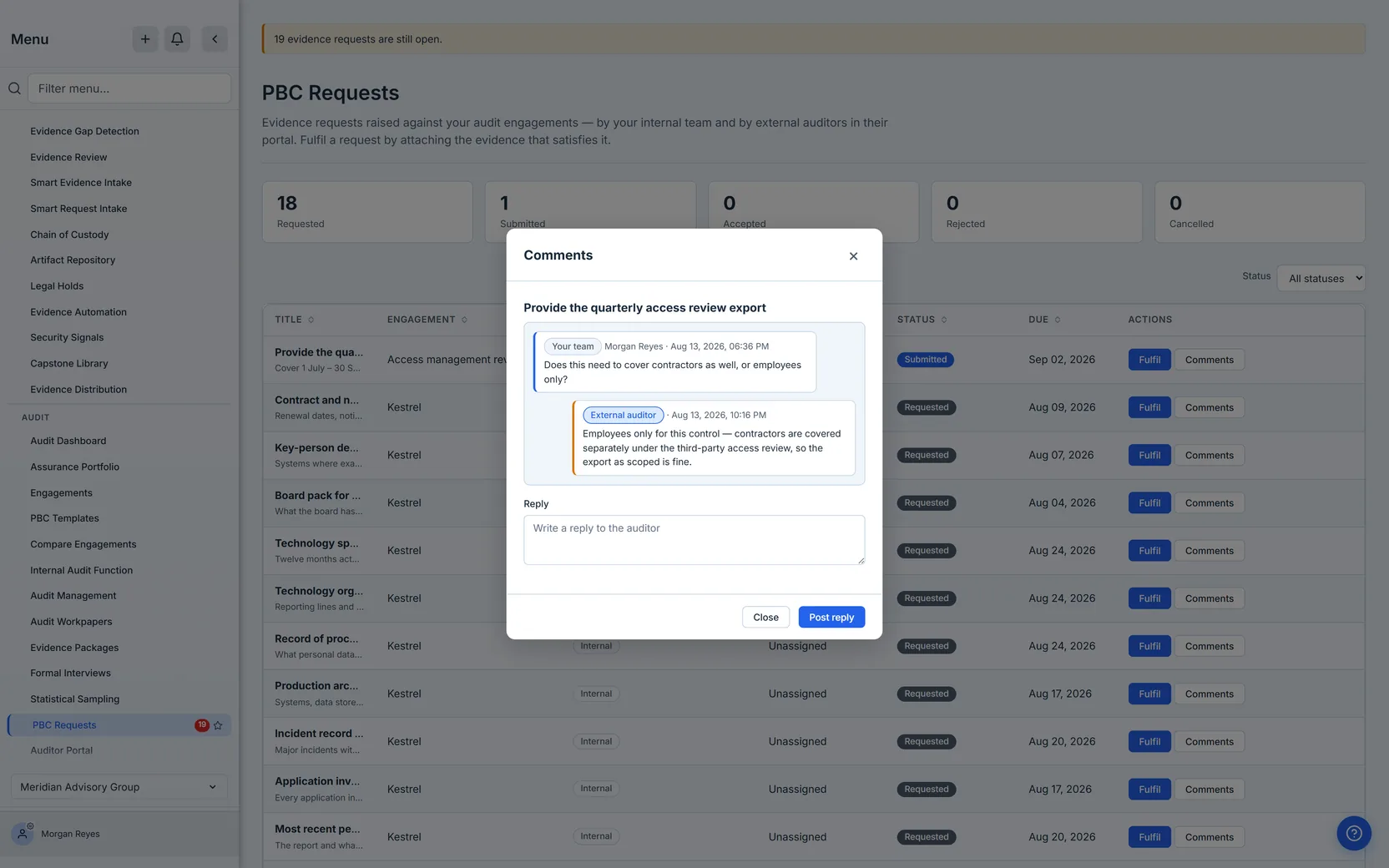
Each request carries its own comment thread, interleaving messages from your organisation and from the external auditor working in the portal. The value is not the messaging; it is that six months later the question and its answer are attached to the request they were about, rather than in somebody’s inbox.
Comments is the second action on every row of the queue, and it is available at every status — unlike Fulfil, which disappears once a request is accepted or withdrawn — a submitted or rejected request can still be answered again. It opens a dialog titled Comments, showing the request’s title, the thread oldest-first, a Reply box and a Post reply button. Both sides write into the same thread: your messages go through the app, the auditor’s through the portal, and neither is a separate conversation with its own history.
Each message is tagged with the side it came from — Your team or External auditor — and, beside that, the person’s name when one is on record. If the name would just repeat the side’s own label, the product prints the side once rather than twice; a message from an auditor invited without a name reads External auditor · Aug 13, 2026, 10:16 PM, not External auditor External auditor.
One rule worth knowing before you rely on it: a withdrawn request cannot be commented on. The
product refuses with “Cannot comment on a cancelled PBC request”, so if you cancel a request the
conversation attached to it stops accepting new messages — the history stays readable, but the
thread is closed. Since the queue treats cancelled as one of the two ways a request leaves the
lifecycle, that is worth deciding before you withdraw something people are still discussing.
What the product will not let you do
Three refusals, and each exists for a reason worth knowing.
-
You cannot review a request that has not been submitted. Accepting or rejecting a request still in
requestedwould record a decision about evidence nobody has provided. The product refuses it rather than recording an opinion about nothing. -
You cannot review a cancelled request. A withdrawn request is closed; re-deciding it would reopen a record that was deliberately ended.
Note what is not on this list: accepting is not a door that locks behind you. The review verb deliberately allows an already-decided request to be decided again, so an acceptance can be revisited and turned into a rejection — the queue just stops offering the button. Fulfilling is the stricter of the two: that verb refuses an accepted request outright. Worth knowing before you read a hidden control as a closed record.
-
An assignee cannot accept their own evidence from My Work. A PBC request materialises a task in the owner’s work queue so it shows up in their day — and moving that task to done does not move the request to accepted. Be precise about the mechanism, because it is a design choice rather than a guard: the branch that recognises a PBC shadow deliberately writes nothing — it logs that the request status was not changed, “because acceptance is a reviewer decision, not a queue action” — and a test pins that shut. On an advisory engagement the owner of that task is the auditee, and transitioning your own task needs only ordinary work-item permission. If the mirror ran in both directions, a client could mark their own evidence accepted and the audit file would record an acceptance no auditor ever made. The mirror is closed in that direction on purpose. Read that refusal for exactly what it says, though: it closes the My Work route, not self-acceptance in general. Somebody holding the review permission can still accept a submission they made themselves, as the fulfil section explains — the difference is that reviewing is a permission you grant deliberately, while transitioning your own task is not.
Where the external auditor fits
An external auditor working in the auditor portal sees the requests raised against their engagement, comments on them, and accepts or rejects what comes back — all on a token-scoped identity tied to their portal membership, never as a user of your organisation. Their acceptance is recorded against that identity, so the audit trail distinguishes “the firm accepted this” from “somebody at the client marked it accepted”, which is the distinction the whole record exists to preserve.
What you walk away with
- A queue whose counters mean what they say — every status shown, rejected counted as the open work it is, and capped figures marked as floors rather than printed as totals.
- A fulfil step a non-technical person can complete, because evidence is chosen from a library rather than named by id.
- A review step that shows what is being accepted — submitter, documents by name, and their note — with anything you are not entitled to open disclosed rather than quietly dropped.
- Boundaries that hold: no deciding on evidence that has not arrived, and no accepting your own through My Work — which is a narrower claim than “no self-acceptance”, and the section above says why: reviewing is a permission, and somebody who holds it can accept a submission they made.
The engagement these requests belong to is run from the Audit Management workspace, walked in Run an internal audit; the workpapers that consume the evidence once it is accepted are covered in Workpapers and review notes.