An internal audit is mostly bookkeeping about work that has not happened yet. Somebody has to know what is in scope, what has been asked for, what came back, what was tested, and what was found — and has to know it at any moment, not just at the end. The failure mode is not usually that the work goes wrong. It is that six weeks in, nobody can say with confidence which of those five things is true.
Audit Management (/app/audit-hub) is where four of those five live — the plan, the request list, the findings and the reporting. Testing itself has its own surfaces (Statistical Sampling and Audit Workpapers), which this page counts and links to. This is what each part of it counts, and — more useful — what it does not.
Who’s involved
- The audit lead — owns the plan, its period and its scope.
- The business — receives the evidence requests and answers them.
- The testers — run the control tests and write the workpapers.
- The audit committee — reads the findings and the status report.
The strip across the top is five different questions
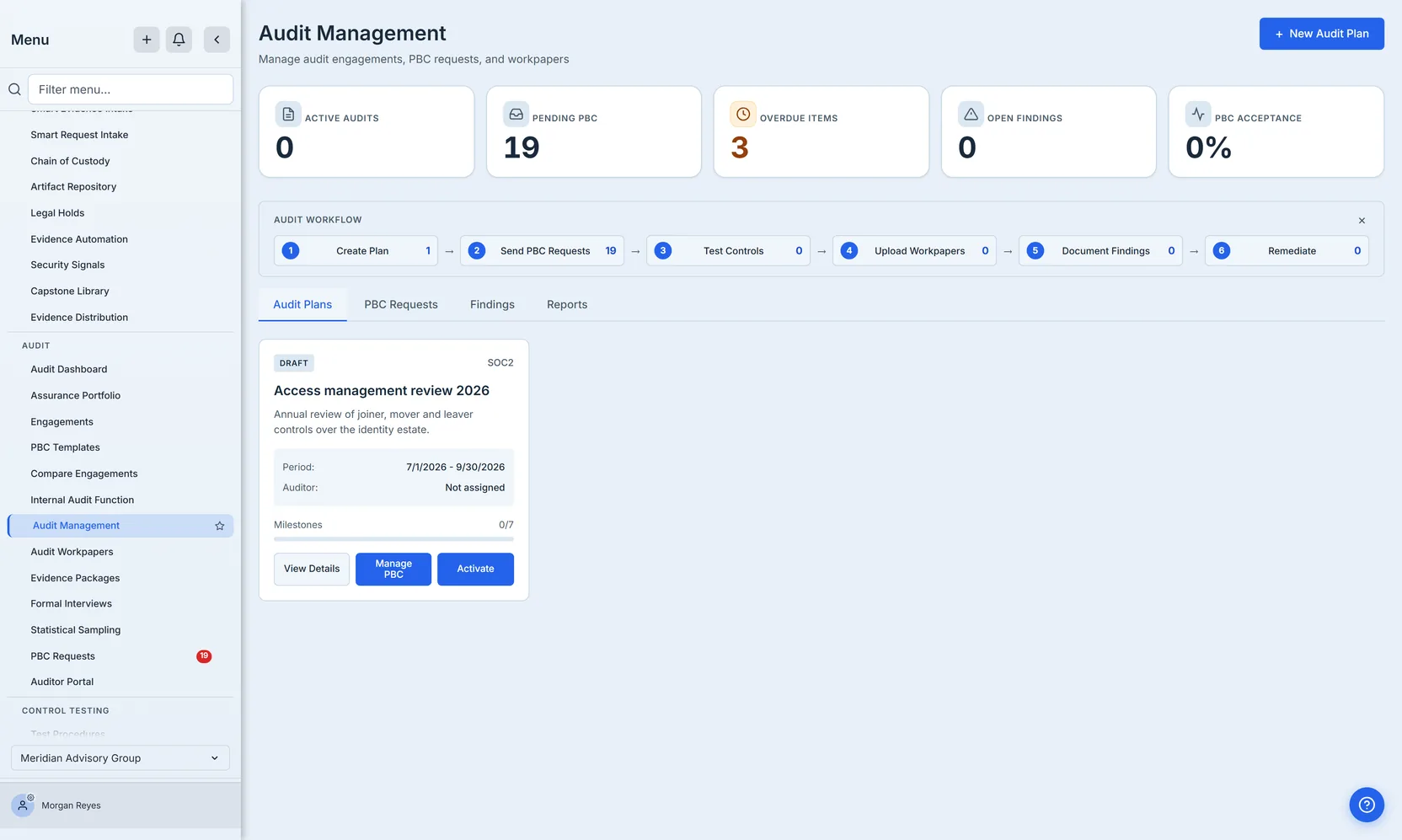
Five cards, and it is worth being precise about each, because four of them are easy to misread as versions of the same number.
- Active Audits counts plans whose status is
active. A plan you created this morning is a draft and is deliberately not counted — drafting a plan is not the same as running one. In the screenshot above, one plan exists and Active Audits reads0, which is correct rather than broken. - Pending PBC counts evidence requests still sitting at
requested— asked for, nothing back yet. - Overdue Items counts requests past their due date that have not yet been accepted or cancelled.
- Open Findings counts findings the backend has not marked terminal — its judgement, not a list of status names this page keeps, so an organisation that defines its own “Signed Off” status still has its closed findings counted as closed. The filter beside the table is narrower than the count above it: it offers the eight built-in statuses, so a custom status can be counted correctly and still not be something you can filter to. One exclusion is deliberate and stated rather than silent: findings an external auditor has submitted but you have not yet accepted are not counted here, because they are not in your register until you accept them. If any exist, the Findings tab says how many — and that number follows the same convention as everything else here: if it could not be read the tab says so rather than saying none; if it could only be read for some of your plans it reads at least N; and if the plans that did answer all returned nothing, it still says the answer could not be read for every plan, because a floor of zero is a floor and not a finding of none. Accepting them happens on the Auditor Portal, which is gated separately from this page — so the tab offers you a link when your access includes it, and tells you to ask an administrator when it does not, rather than sending you to a page you cannot open. If it cannot yet tell which of those is true, it offers the link: the same rule as the counters, applied to your own permissions. Telling you that your access excludes something, on the strength of an answer that has not arrived, would be the unmeasured zero in a different costume. It covers active and draft plans only — findings on completed or archived plans are not in this number, and not in the findings table below it. One asymmetry worth knowing: narrowing the Findings tab to a single plan re-scopes this card to that plan, which the PBC cards do not do when you narrow the request list — and that narrowing persists when you leave the tab, so if this card disagrees with what you expect, check whether the Findings tab is still filtered.
- PBC Acceptance is the share of evidence requests that have been accepted — not the share of the audit that is done. When no requests exist at all it shows an em dash rather than
0%, because a percentage of nothing is not zero; it does not exist.
All five share one convention, and it is the point of the page. A count that could not be read shows an em dash labelled (not loaded), never a zero. A count taken from a set the backend had to truncate is labelled (at least) — or (sample) on the acceptance share, because a percentage of a capped set is biased rather than merely short. A plain number means the whole set was read.
The six-step strip underneath — Create Plan, Send PBC Requests, Test Controls, Upload Workpapers, Document Findings, Remediate — is the same shape as the audit itself, with a live count on each step, and it follows the same convention: - when that count could not be read, N+ when the number is a floor rather than a total, N when it is whole.
Be precise about that +, because on two of the six steps it carries two different meanings and they call for different actions. Document Findings and Remediate are counted by fanning out across your audit plans, so their + means either that a plan returned more findings than the view loaded — a genuine cap, and the rest are on the plan — or that a plan’s findings failed to load, in which case the number is not bounded but incomplete and the remedy is Retry rather than opening anything. The strip says which: a line beneath the steps names the ones that are floors and, separately, names any plan whose findings did not load. A + with no explanation under it would be a number you cannot act on.
Step 1 — Create the plan
New Audit Plan asks for the name, the period, the framework and the audit type.
The type is the consequential field, and it has exactly two values: a controls audit tests framework controls; an ISMS internal audit examines the management system itself — ISO 27001 clauses 4 to 10 — context, leadership, planning, support, operation, performance evaluation and improvement — rather than the Annex A controls. The choice changes what the plan’s coverage tab shows you later, so it is asked once, up front, instead of being inferred. It also reaches outside this page: choosing ISMS internal audit is what satisfies the ISO 27001 clause 9.2 record — internal audit — and turns the corresponding line of the ISMS readiness check green. You create the plan here and the compliance side stops asking for it.
The period is what the audit is about: the window the report covers. It is displayed as a calendar date, so the 1 July you typed reads back as 1 July regardless of where the reader sits.
Creating the plan seeds a milestone set chosen by the framework, all pending. SOC 2 gets seven — Planning & Scoping, PBC Collection, Control Testing, Fieldwork, Draft Report Review, Management Response, Final Report — which is why the card in the screenshot above reads 0/7. The others differ because the work differs: ISO 27001 gets four (Stage 1 - Documentation Review, Stage 2 - Implementation Audit, Findings Resolution, Certificate Issuance), HIPAA six, PCI DSS five, and a plan on the General Audit option — or with no framework chosen at all — gets a general four. An ISMS internal audit is always ISO 27001, so it always gets that four-stage set rather than the seven above.
A new plan is a draft. Drafts are fully usable: you can attach requests and record findings against one. Activating it is what moves it into the Active Audits count.
Step 2 — Ask for the evidence
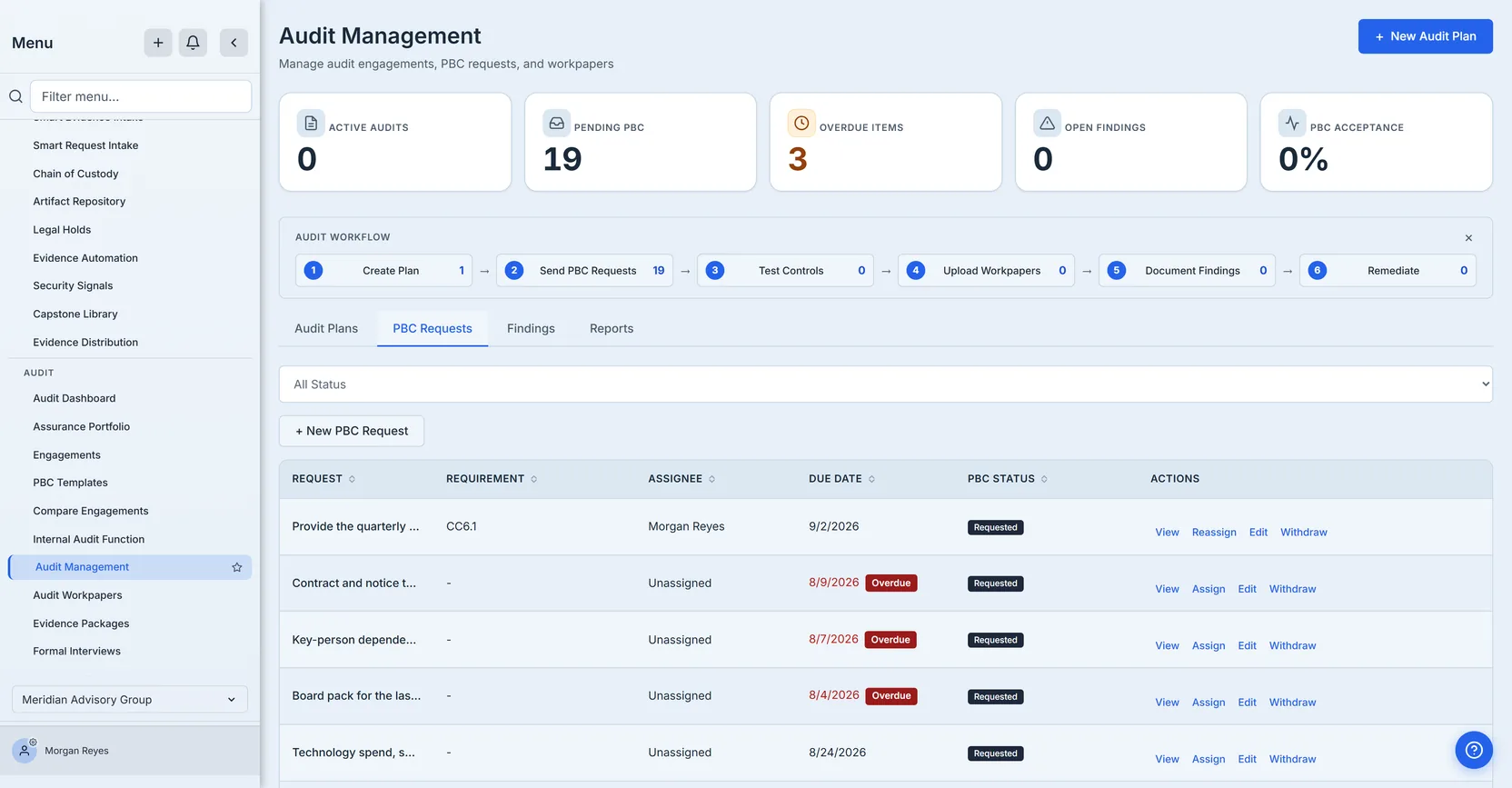
PBC — prepared by client — is the request list. Each row is one thing somebody has asked the business for, and each carries an assignee, a due date and a status: requested, submitted, then either accepted or rejected — or cancelled, if the request is withdrawn and no evidence is expected.
Assign it to somebody. The New PBC Request form has an Assign To picker over the people in your organisation, and the assignee gets both an in-app notification and a task — a request nobody is named on is a request nobody answers. Ownership can also change after the fact: Assign (or Reassign) on the row moves it, which matters when the person who owned it has left. Requests that have been accepted, rejected or cancelled cannot be reassigned, because that would imply work that is not going to happen. In the screenshot the top row is owned — it was raised through this form with an assignee chosen — and its action reads Reassign rather than Assign, which is how the row tells you the difference. The rows below it read Unassigned because they were raised before the picker existed, not because somebody decided to leave them unowned.
A due date is a calendar day, not a moment. A request due 17 August is not late until 17 August has passed — the badge and the date in the same row cannot disagree, and neither can the counter above them and the copy of this request on the PBC Requests page.
A deadline can move, and a request can be withdrawn. Edit changes the title, the requirement reference, the notes or the due date on a live request, so the business asking for another week does not leave a row permanently red. Withdraw stops a request being chased when it should not have been raised: it is a status change rather than a delete, so the request stays on the record as cancelled, keeping its comment thread and anything already attached, and it stops counting toward Pending PBC and Overdue Items, and drops out of the PBC Acceptance share entirely rather than sitting in it as an unaccepted request forever. A REJECTED request is different and stays in that share: evidence was asked for and came back unacceptable, which is exactly what the number should show. The two stop at different points, and the difference is deliberate. Edit stops once a request is accepted, rejected or already withdrawn — amending what was asked for after a decision is on the record would rewrite it. Withdraw stops only once a request is accepted or already withdrawn: a rejection sends the request back to be answered again, so a rejected request is still live work, and live work needs a way out. Both refusals come from the server, not merely from a hidden button.
This list is organisation-wide, and so are the counters above it. It is not scoped to the audit plan you are looking at. That is why the screenshot shows Pending PBC 19 beside Create Plan 1: exactly one of those nineteen requests belongs to the audit plan on the Audit Plans tab, and the other eighteen belong to other work in the same organisation. The same is true of Overdue Items and PBC Acceptance. Narrowing to a single plan is a separate action — Manage PBC on a plan card — which filters the table and shows a clearable chip naming the plan. Read the five cards as the organisation’s evidence position, not as this audit’s.
Two things in that table are deliberate.
Overdue says the word. A late request is red and carries an “Overdue” badge. Colour alone would be invisible to a reader who does not distinguish red from grey, and to anyone reading a printed copy.
Review only appears when there is something to review. The action shows up on a request whose status is submitted — an auditor accepts or rejects what came back, so the control does not exist before anything has.
The status dropdown filters the list; its counts stay computed over everything visible, so filtering to “Rejected” does not make the other counts collapse to zero.
And an empty list here is not automatically an empty list. If the requests could not be fetched, the tab says so and offers a retry, rather than showing the “no requests” state — which reads as an instruction to go and ask for something, and would be exactly the wrong advice about a list that was never read. The three counters above it read — in the same situation.
Step 3 — Record what you found
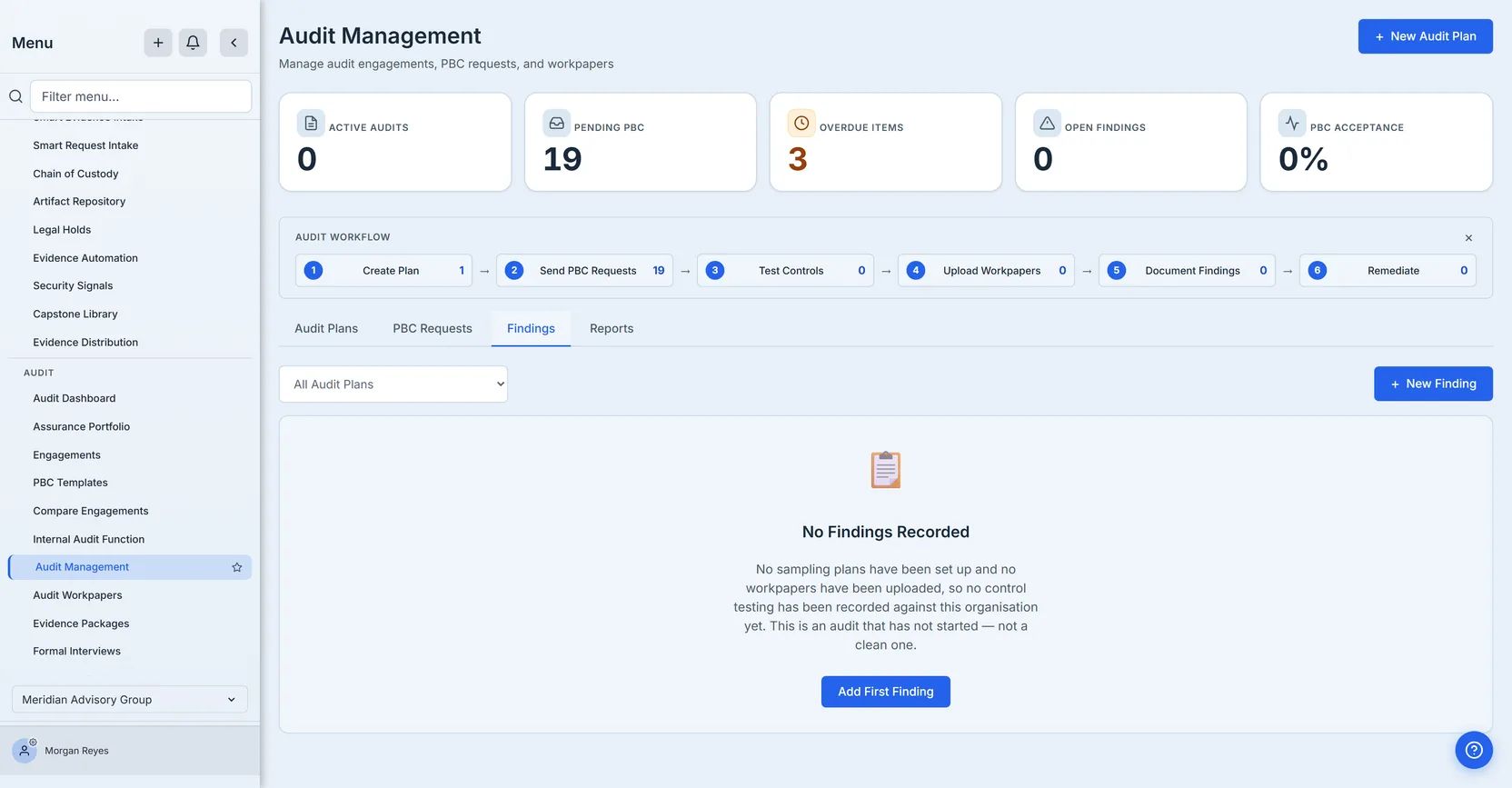
This is the screen that matters most, and it is the one most easily misread.
An empty findings list means one of two completely different things. Either the testing was done and nothing was found — a genuinely clean result — or nothing has been examined yet. Those look identical if the page just says “none”.
So it says which, and it asks the questions in order. First: were the findings actually read? If the list was never loaded, or could not be read for one or more plans, the page says exactly that and tells you the emptiness proves nothing. Only once the list has genuinely been read does it reason about testing volume — and it names the two things it reasoned from rather than summarising them: with no sampling plans set up and no workpapers uploaded, it tells you plainly that this is an audit that has not started, not a clean one; once testing has happened, the same empty list reads instead as nothing raised from the testing recorded so far; and if either of those two counts could not be loaded, it says the position is unknown rather than guessing. Narrow the tab to a single plan and it changes answer again, because the testing numbers it reasons from are organisation-wide: it tells you plainly that it cannot speak to that one plan’s testing.
That distinction is the whole discipline of the page. An audit tool that lets absence of findings read as evidence of health is worse than one that says nothing at all.
Findings are work items. They carry a severity, a status, a domain, a control reference and an owner — chosen on the New Finding form, from the same list of people the PBC assignee comes from — and closing one is the same event as closing any other piece of remediation work, which is why the sixth step of the workflow strip is Remediate rather than Report. A finding nobody owns is not remediation work; it is a note.
Step 4 — Report
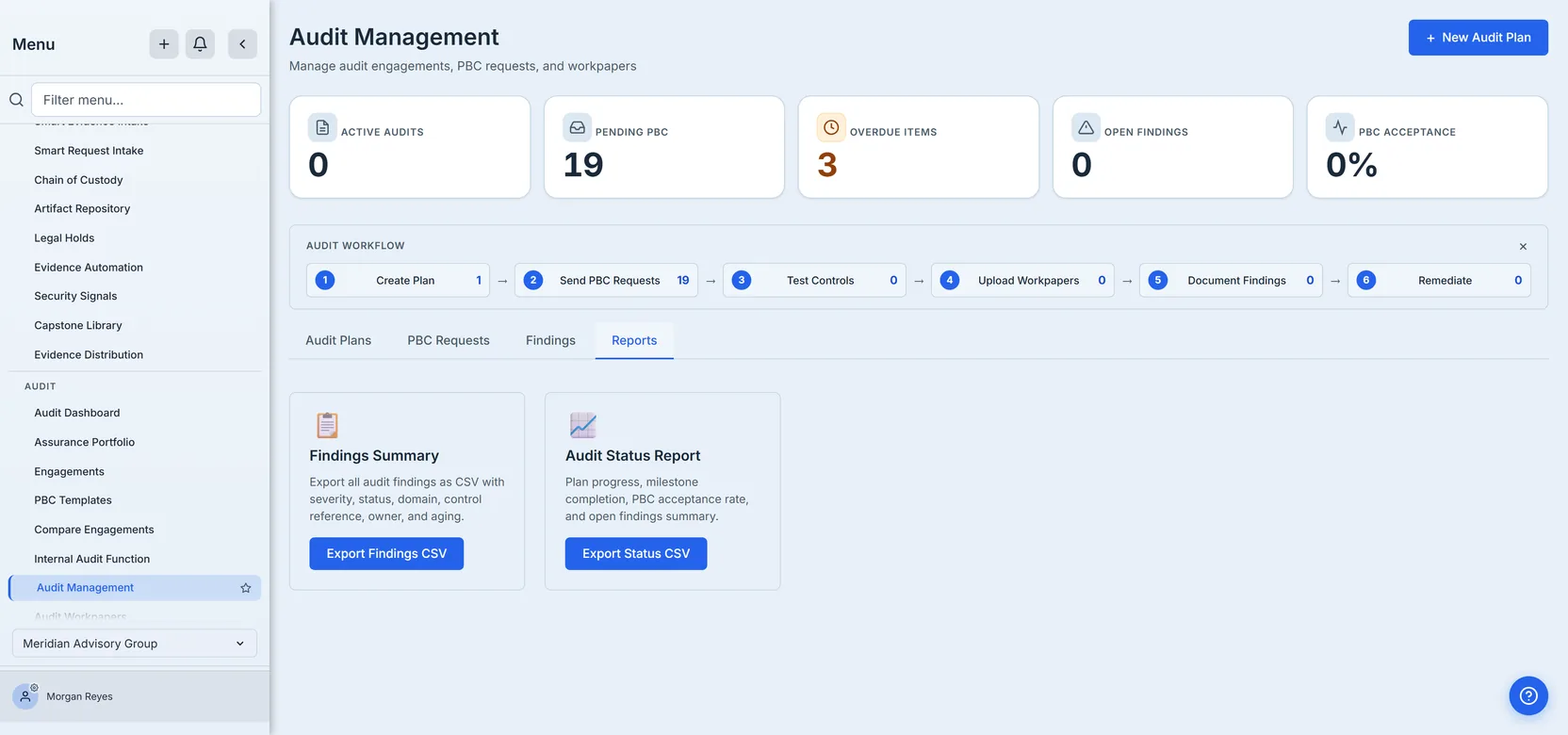
Two exports, for two audiences — both of them internal. Neither is what you hand an external auditor or a customer; that is a different job, done once and reused, and it is covered in Package your audit evidence once.
Findings Summary is the findings themselves. The file carries work item number, title, severity, status, domain, control reference, assignee, audit plan, age in days and created date — one row per finding across every active and draft plan.
Audit Status Report is the position of the work: milestones completed against total, evidence requests raised and accepted, and open findings, one row per plan.
The exports are worth one specific note. If the findings export cannot read a plan, it still gives you the rows it could read, but it names the plans it could not and calls the result INCOMPLETE; if it read nothing at all and at least one plan failed, it refuses and exports nothing rather than handing you an empty file that looks like a clean audit. A CSV headed “all audit findings” that is quietly missing an entire plan is more dangerous than one that admits the gap, because it will be read as complete.
Both exports apply the same rule the counters do. If the underlying list could not be read, they refuse and say so, rather than reporting that there was nothing to export — and where a status row cannot know a number, the cell reads not read or N+ rather than 0. A committee reading a spreadsheet has no way to tell a measured zero from an unmeasured one unless the file says which it is.
What this page is not
It is not the whole audit module, and it is not the portfolio view — Reading the Audit Dashboard is the surface that reads across engagements rather than into one. Workpapers and statistical sampling are their own surfaces, and steps 3 and 4 of the workflow strip navigate to them. Formal interviews are a separate page in the sidebar with no counter and no link here. The auditor portal is separate too, and this page links to it in exactly one place and one circumstance: when external findings are waiting and your access reaches that page. What lives here is the spine: the plan, the request list, the findings, and the five counters that tell you where the work actually is.
And when those numbers read zero, the page’s job is to tell you whether that zero was measured.