An external audit is, operationally, a list. The firm asks for things, you provide them, the firm accepts or comes back for more, and at the end somebody puts their name to a conclusion. Everything else — the fieldwork, the sampling, the write-ups — hangs off that list.
Talarity runs that list in one place, with the audit firm working it from outside your tenant. This article follows a single engagement all the way through: issuing the auditor’s link, the request list moving in both directions, the two things the auditor can do that most people do not expect, and the signature at the end — which is checkable, on demand, months later.
A companion article, The auditor portal — what a grant actually gives away, covers the boundary question in depth: exactly what a grant lets an auditor reach, and where the fence really sits. This one is about the work. Where the two overlap, this one states the conclusion and points there for the reasoning.
The one-paragraph model
An external auditor has no Talarity account. They hold a grant: a row pinned to one engagement, carrying an expiry, an allowlist of documents, two capability switches, and a bearer token that opens a portal page. The grant is revocable at any moment and consumes no licence seat. Everything below is a consequence of that shape.
Issuing the link
Go to Audit & Evidence → Audit → Auditor Portal, on the Auditors tab, and choose Invite auditor. The dialog asks for four things and offers a fifth:
- The engagement. A grant is pinned to exactly one. If your organisation has no engagements yet, the field says so and Send invitation is disabled — that is a correct dead end, not a broken dialog, and the copy tells you where to create one.
- Auditor name and email. The email is where the link goes, and it is also the identity the uniqueness rule below is enforced on. Settle it before you press Send.
- Access expires. Pre-filled sixty days out. You can shorten it freely; you cannot extend it past 180 days, and a date in the past is refused outright rather than quietly replaced with a default. Both limits are enforced when you press Send, not by the date picker — it will let you type a date the invitation then refuses, and the refusal says which limit you crossed. Leaving it blank gives you the sixty days.
- Scope. Two pickers — evidence packages and workpapers — that add chips to an allowlist, and two checkboxes, Allow findings and Allow sampling, both off by default.
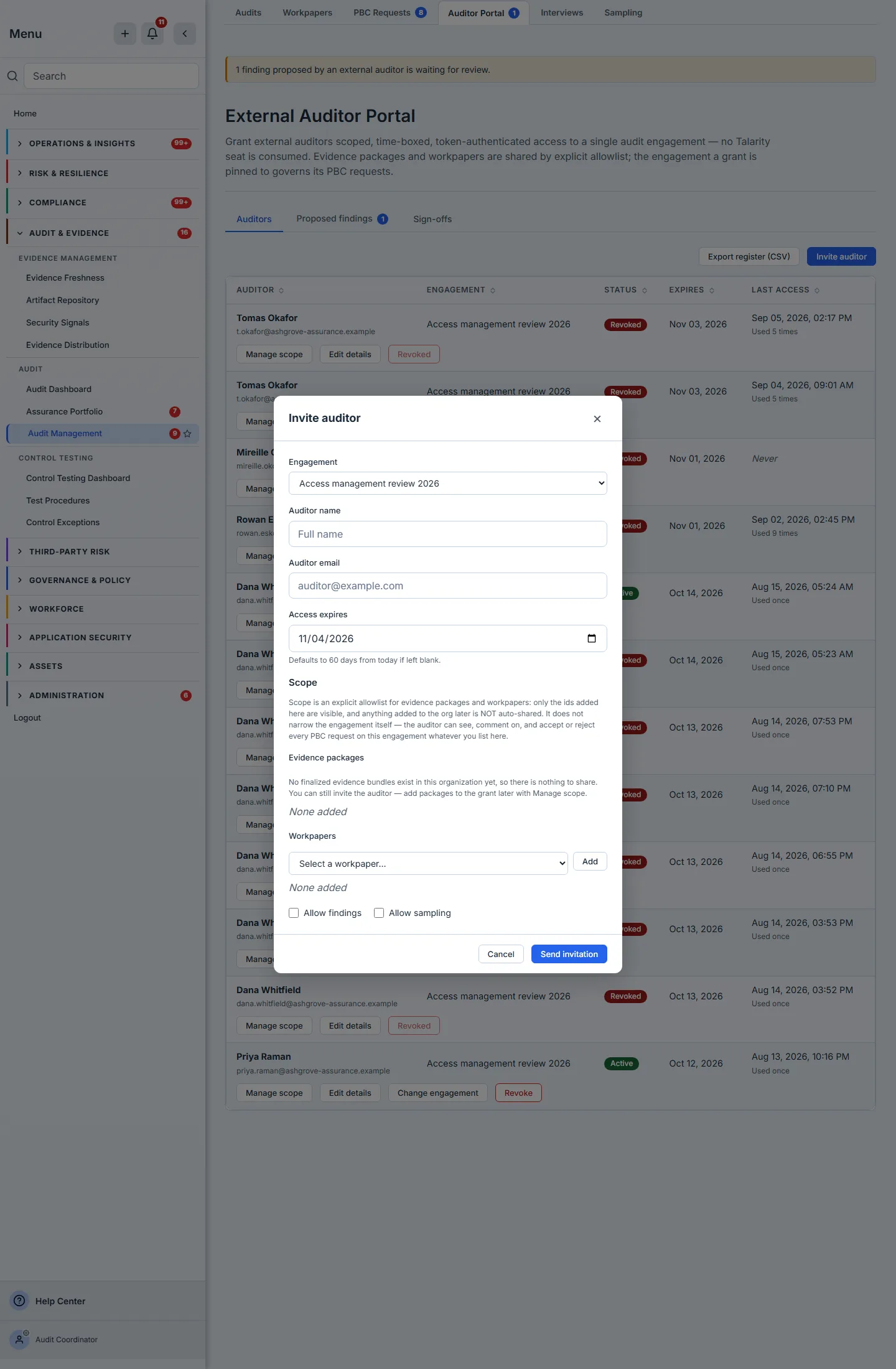
The packages picker offers finalized evidence bundles only. A bundle you are still assembling does not appear, and that is deliberate: sharing a package that is still moving would hand an outside firm a document that changes underneath their conclusion. If your organisation has no finalized bundles yet, the picker says exactly that and offers you the option of inviting the auditor now and adding packages later with Manage scope. The invitation does not have to wait on the evidence.
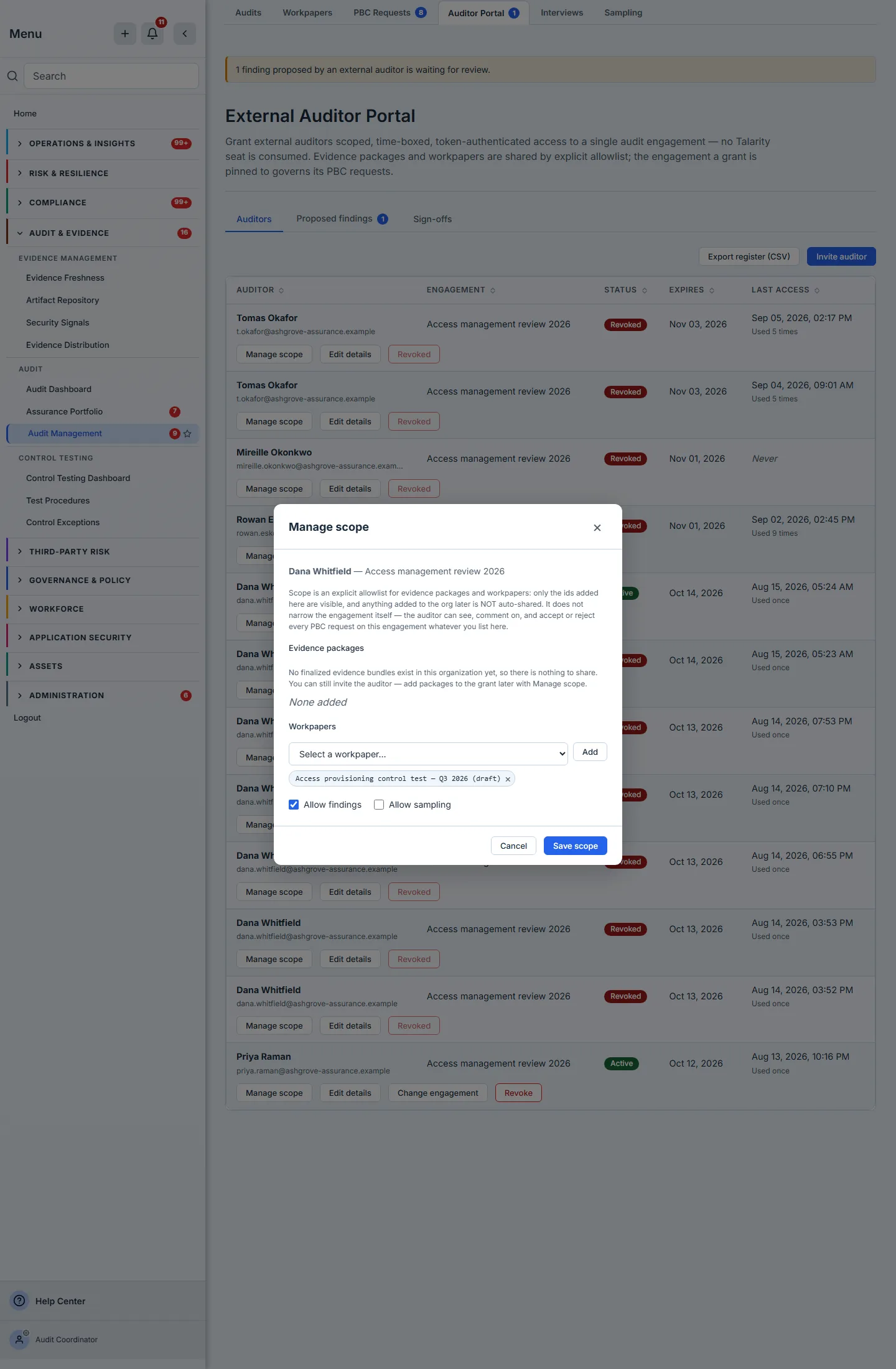
One thing in that dialog is worth naming before you meet it again further down. Allow findings is ticked on this grant and Allow sampling is not. Both switches are off when an invitation is issued — the state frame above it shows — and this is what it looks like after somebody has deliberately turned one on for a particular auditor. They are per-grant, not per-org, and the two of them are the subject of Sampling and findings below.
The part to read before you press Send
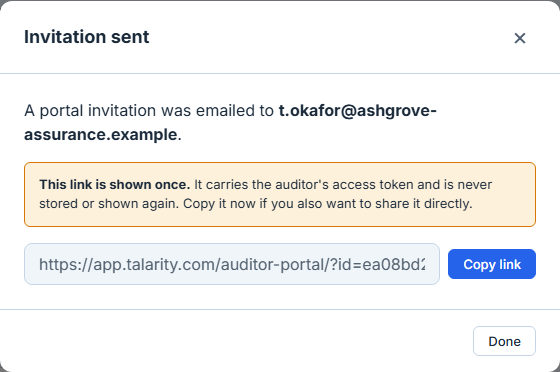
The portal link is generated once, shown once, and stored nowhere. Talarity keeps a salt and a hash of the token so it can check the credential; the credential itself exists in the response that draws the success dialog, and in the invitation email — whose stored copy is redacted once it has been sent. There is no resend, reissue or reveal verb anywhere in the product, for anyone, including a platform administrator.
So the success dialog matters more than a confirmation usually does. It carries the URL in a text box with a Copy link button. Copy it there, or rely on the email arriving. If both are lost, the only recovery is to revoke the grant and invite again, which mints a new token and sends a new email.
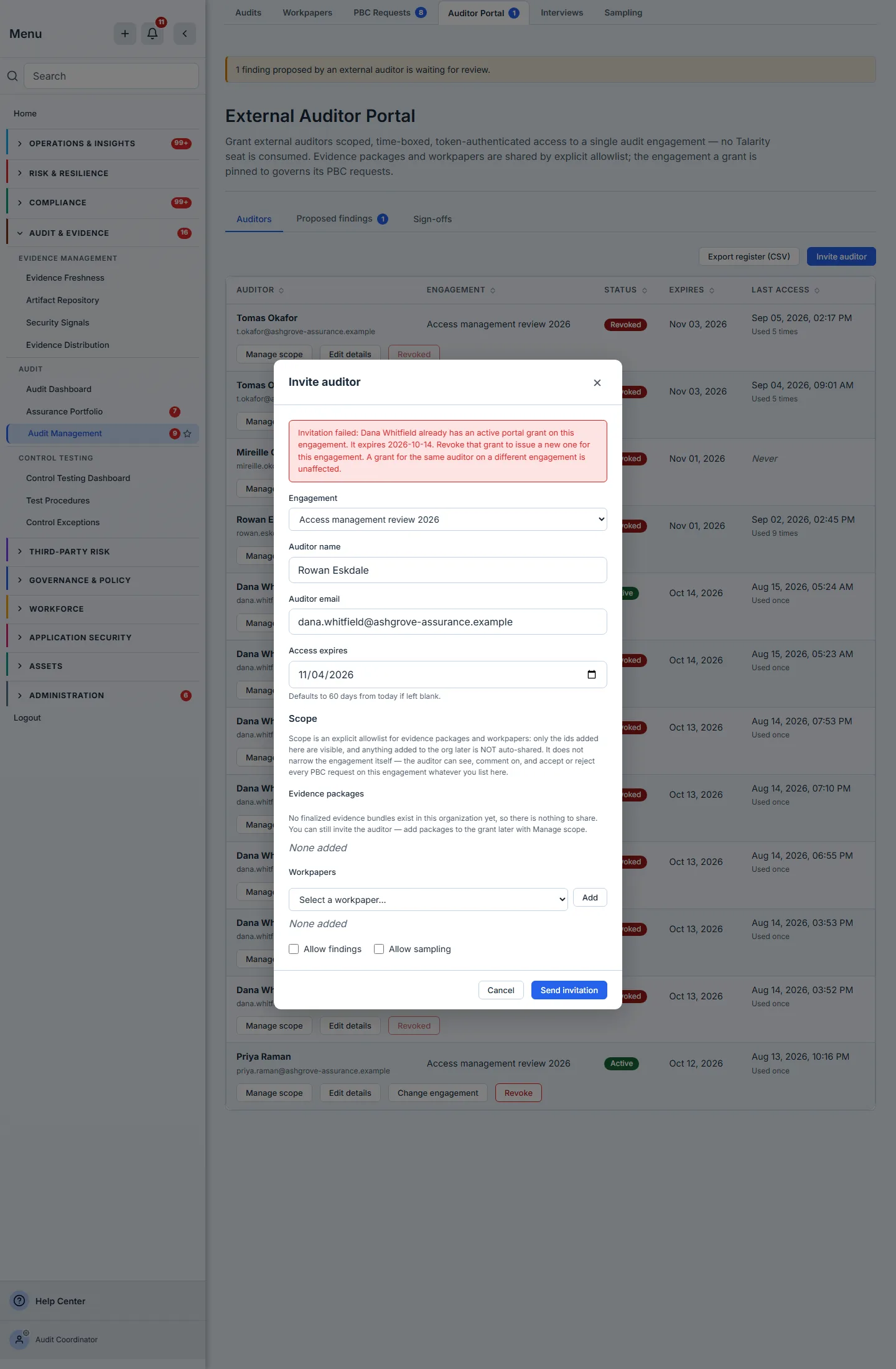
Which brings up the rule that makes “revoke first” more than advice: one live grant per auditor per engagement. Invite the same address on the same engagement twice and the second is refused, naming the grant standing in the way. Revoke that one and the new invitation goes through. The refusal is checked before the token is minted, so a refused invitation never burns a credential. The rule is per engagement — the same auditor on a different engagement is unaffected — and it holds on the edit path too, so renaming an existing grant onto a colleague’s address is refused for the same reason.
The register
The Auditors tab is a register rather than a settings screen, and it is worth reading as one. The header row carries the auditor’s name with their email beneath it, the engagement the grant is pinned to, a status pill and the expiry date; beneath each of those, on the record’s own second line, sits the thing people miss — Last access, under a small-caps label rather than in a column of its own. A grant that has never been opened reads Never. One that has been opened carries a timestamp with Used once or Used 15 times beneath it.
That line is the answer to a question nobody thinks to ask until an incident: did the link we issued in March ever actually get used? Revoked grants stay in the register rather than disappearing, so it is a history of who held a key and whether they turned it — and because it only ever grows, it carries a search box and a pager. Export register (CSV) takes the whole thing out, and the Sign-offs tab has its own export.
Which is why the register folds, and the note above the table states the arithmetic outright: 6
auditors and the 17 grants issued to them. Each row is one auditor’s current grant on one
engagement; the grants that came before it sit under a small expander on that same row — ▶ 3 earlier grants on Tomas Okafor’s, ▶ 8 earlier grants on Dana Whitfield’s. The 6 rows plus those
3 plus those 8 are the 17.
Superseded grants accumulate because Re-issue link is a revoke followed by a mint rather than an edit: a re-issued link always leaves behind the grant it replaced, ended and dated. None of them are ever deleted, and that is the point — a revoked grant is the custody record for a period in which somebody really did hold a key, so deleting it would delete the evidence that they did. The register therefore keeps both readings in reach: per auditor, expand the row and read that auditor’s chain; for the whole population, Export register (CSV) writes every grant on its own line, folded or not. The fold is presentation only. It changes how many rows you scroll past, not what the register holds.
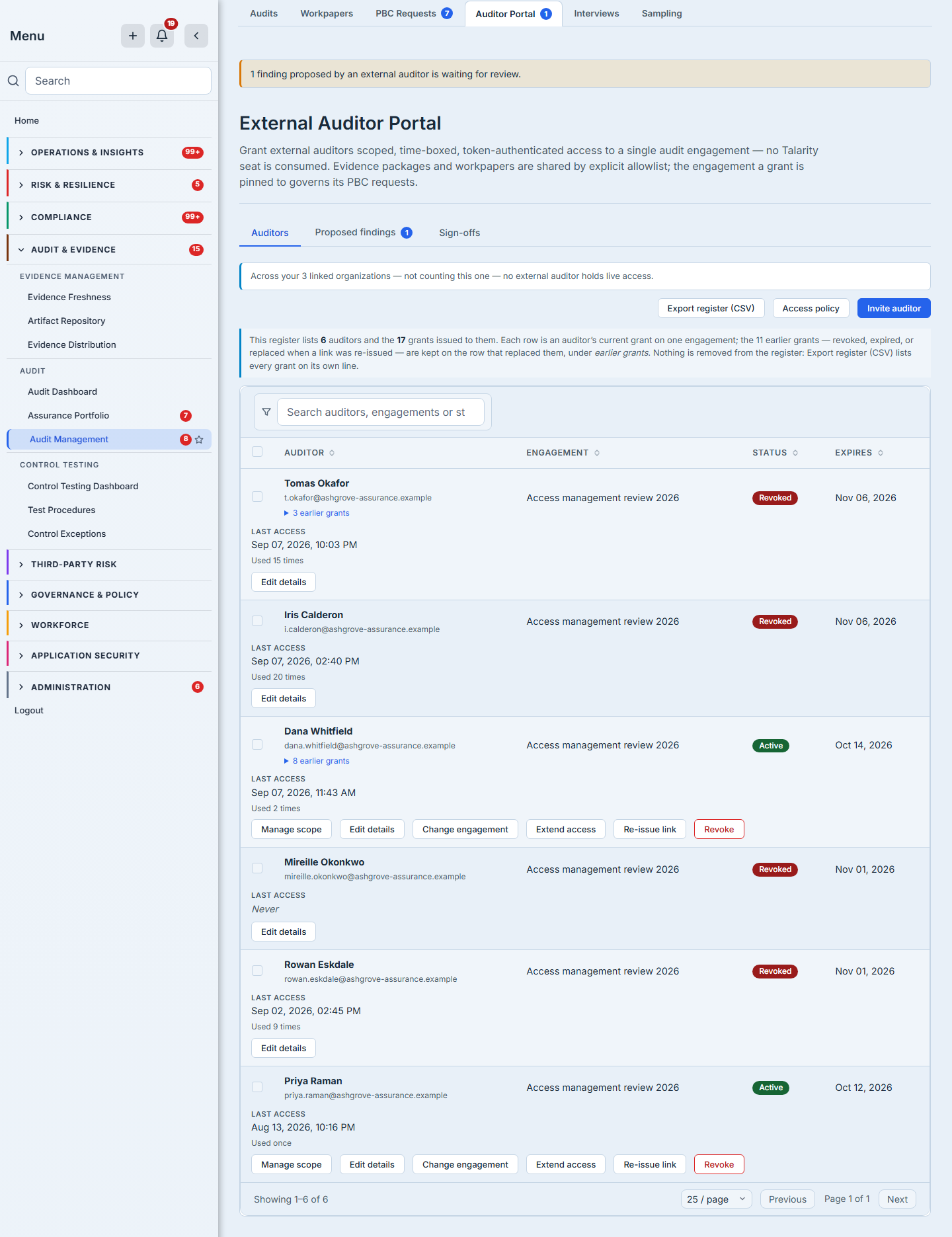
Per-row actions on a live grant are Manage scope, Edit details (to correct a typo in a name or an address without re-issuing anything — it does not touch the token, the scope or the expiry), Change engagement, Extend access, Re-issue link and Revoke. A revoked row carries Edit details and a spent Revoked marker and nothing else: re-pinning, extending or re-issuing a grant somebody deliberately ended is refused by name, and a button whose only outcome is a refusal is a dead end. ⛔ Re-issue link is destructive and says so before it runs — it revokes the current grant and mints a replacement, so the link already in the auditor’s inbox stops working immediately. Revoke is one-way; there is no un-revoke.
What the auditor arrives at
The auditor opens the link and lands on a page outside your app shell, with no sign-in. The token travels in the query string, so the page reads it into memory and then strips it out of the address bar — a bearer credential sitting in the location bar ends up in every screenshot and every screen-share of the auditor’s own workspace. It is put back as the page is being left, and stripped again if the browser restores the page from its back-forward cache, so a reload still works — but the recoverable thing is the saved URL, not the tab.
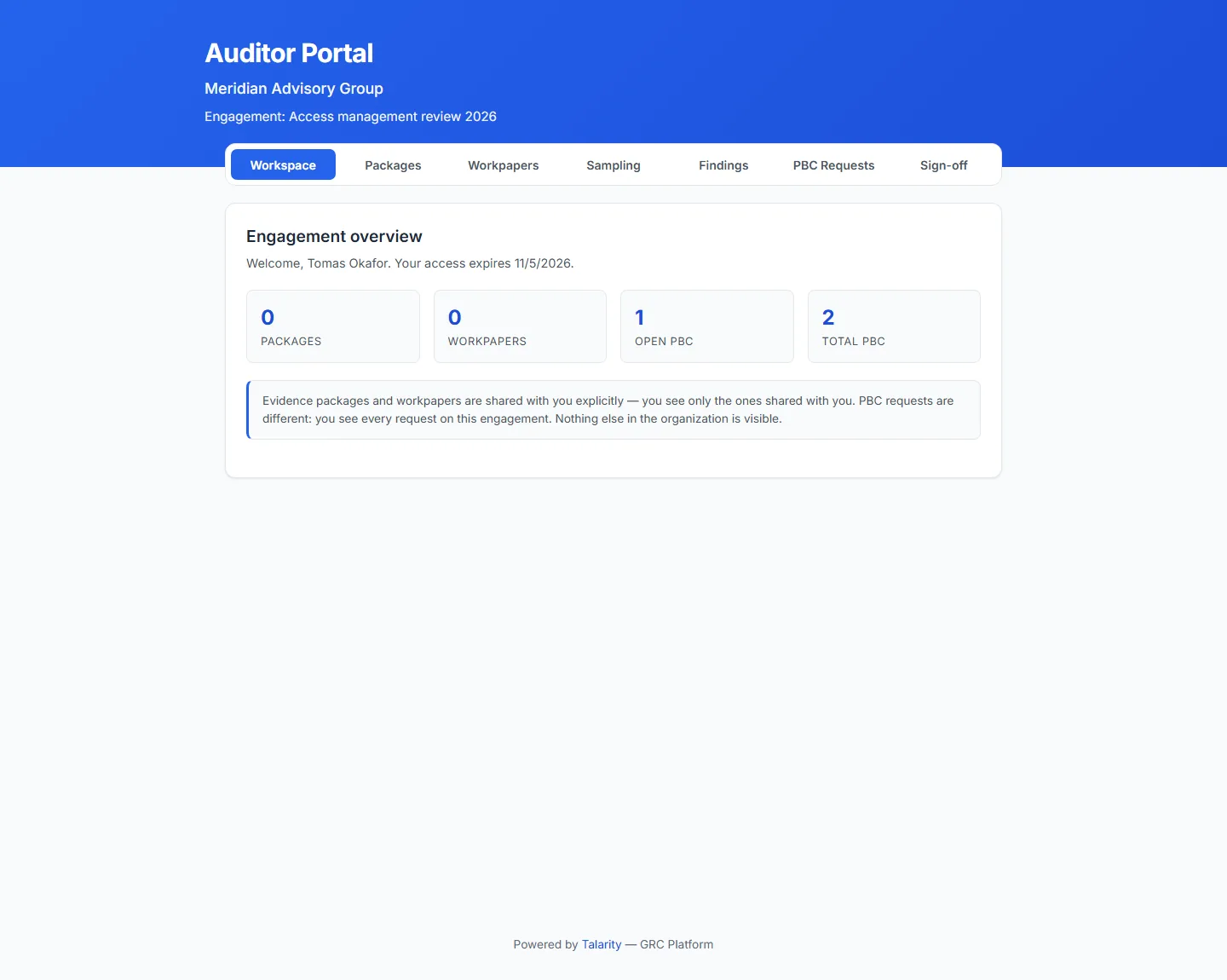
The tab strip is the scope, rendered. Seven tabs exist — Workspace, Packages, Workpapers, Sampling, Findings, PBC Requests, Sign-off — and Sampling and Findings ship hidden, revealed only when the grant carries those capabilities. An auditor whose grant allows neither never sees that the tabs exist.
The Workspace tab opens on four counts: Packages, Workpapers, Open PBC and Total PBC. Two things about those numbers are worth knowing, because they are the sort of detail that decides whether a number can be trusted:
- Open means still requiring work from your side, and that includes requests the auditor has rejected — a rejection is not a closure, it is a request to try again. The organisation’s own sidebar badge on the PBC queue reads the same three-status list — literally the same constant, not a second definition that happens to agree — so the two ends of the engagement cannot drift apart on what counts as outstanding. The populations differ, and deliberately: the auditor’s tile is fenced on their engagement, while the sidebar badge spans your whole org. The one thing the badge additionally drops is requests belonging to an advisory engagement that has already finished — a closed engagement chases nobody — so it is org-wide rather than unfiltered.
- If the count cannot be read, the tile shows an em-dash and a notice saying so, rather than a zero. “Nothing outstanding” and “we could not tell you” are different sentences, and the reader of this screen is the one person who must not be told the first when the second is true.
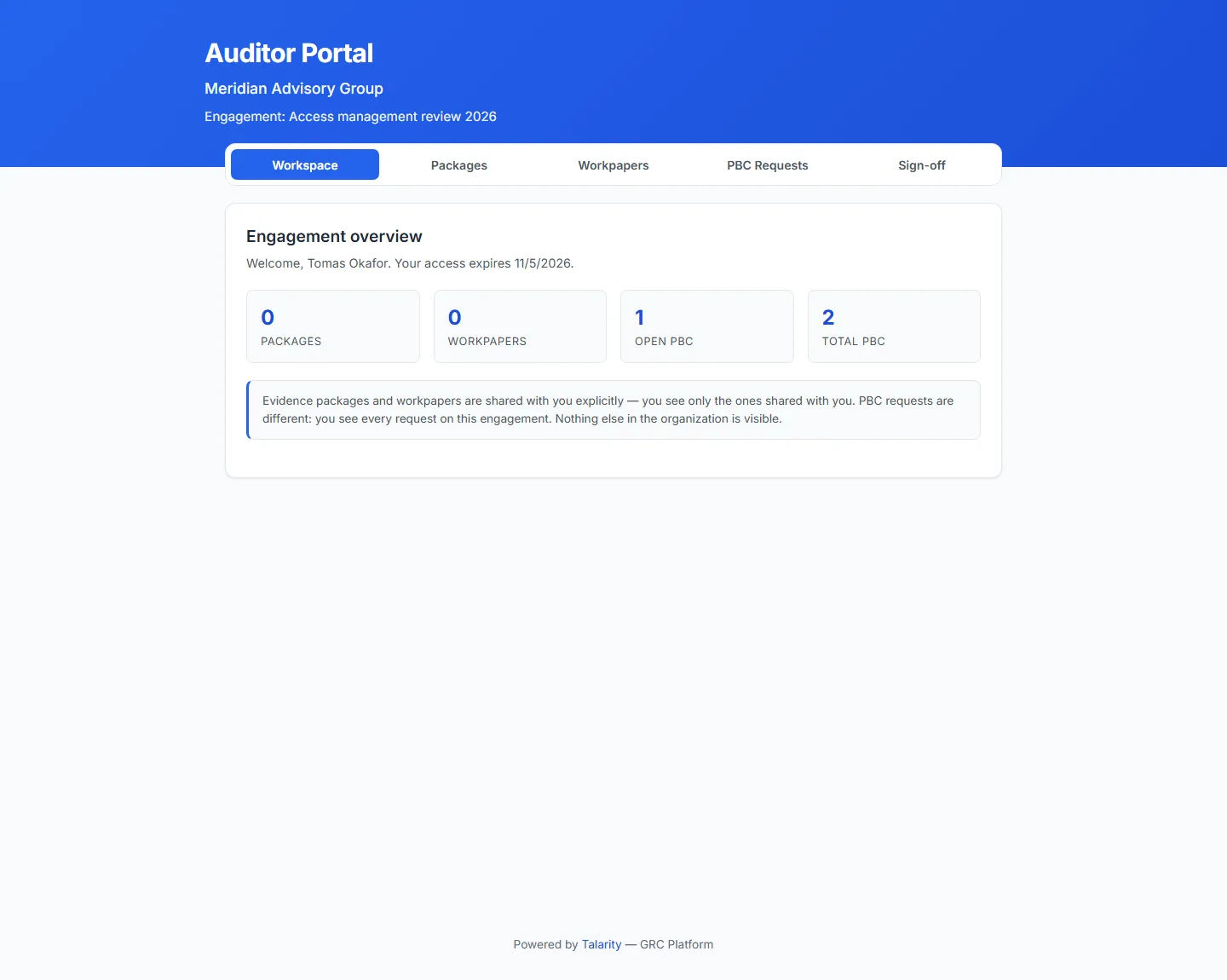
The Packages and Workpapers tabs list exactly what the grant allowlists, nothing more. If a document you shared has since been deleted, the row stays and is badged no longer available; if the read itself failed, it is badged could not be loaded. Those two are deliberately not the same badge, and the reason runs one way only: telling an outside firm a document is no longer available is an affirmative statement that you withdrew it, and a query that merely errored must never manufacture that. Neither says anything about you. And note the asymmetry, because it is the one that surprises people: un-sharing a document does not produce a badge at all — the id leaves the allowlist, so the row simply stops appearing.
The request list, from both sides
This is the part the engagement actually runs on.
Your side of it is Audit & Evidence → Audit → PBC Requests (/app/audit/pbc): the familiar
request queue, where requests are raised, assigned, fulfilled by attaching evidence, and reviewed.
The auditor’s PBC Requests tab is the same queue, seen from outside.
Three things about that queue matter and are easy to get wrong:
The auditor sees every request on the engagement, not only their own. The list is fenced on the engagement, not on who raised the row. If your team raised a request internally against the same engagement, the auditor can see it, read its comment thread and add to it. This is deliberate — an engagement’s request list is the engagement’s, not any one participant’s — but it means “we’ll track that one internally” is not a thing the request list supports. Track it somewhere else.
The auditor can raise requests. Filing a PBC request is not behind a capability switch; every grant carries it. That is the point of inviting an audit firm — asking for things is the job. What bounds it is volume rather than permission: a single grant may hold 200 open requests on an engagement at once — their own requests, counted per grant, so a co-auditor’s do not crowd them out — and the refusal, when it comes, names the number and says that fulfilling, accepting or cancelling some of them makes room. What stops counting is a request that is settled: accepted or cancelled. A rejected request still counts, on the same reasoning as the Open tile above — it is back with your team, not finished. So a long engagement does not walk itself into a wall, but rejecting your way through one will not clear the ceiling either.
The auditor can accept and reject. When your team fulfils a request, the status becomes submitted and Accept and Reject appear on that row in the auditor’s list — only on that status. That is the portal’s rendering rule, and the review action behind it agrees at the front end: it refuses a request still at requested, because there is no evidence to accept yet, and a cancelled one outright. It does allow a second look at a request already decided — the buttons stop being offered, not the judgement being revisited. Accepting closes it; rejecting sends it back, and the reviewer’s note travels in the notification — its first 160 characters — rather than only as a link to go and read it, though the notification carries that link too. Neither is behind a capability switch either: a grant that shares zero documents can still accept and reject evidence on its engagement.
Be precise about that last one, because it is easy to overstate in both directions. Accept and reject are not the auditor’s exclusive privilege — your own team holds the same review verb on the same rows from the in-app PBC page, and an internal reviewer accepting a request is a normal part of running the queue. The separation that is enforced runs the other way: there is no fulfilment verb on the portal at all. An external auditor can ask, comment, accept and reject. They cannot attach the evidence that answers their own request. That is the property worth relying on, and it is a property of the surface rather than of a permission — no verb exists to call.
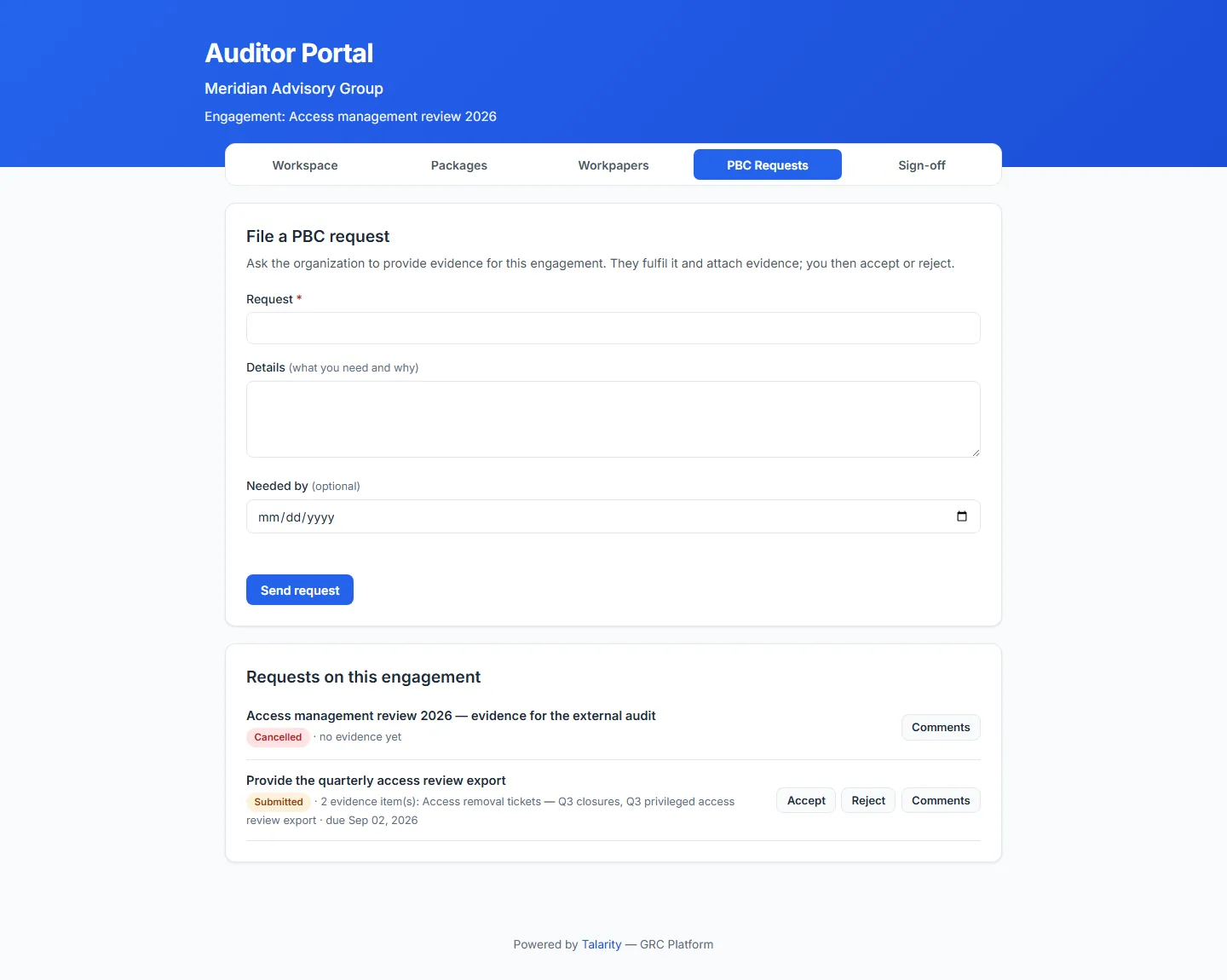
The comment thread is shared, on the request, in both directions.
Sampling and findings — the two switches
These are the only two things in the portal behind a capability flag, and both are off unless you turn them on.
Allow sampling lets the auditor draw a statistical sample over the evidence in the packages you have already shared — never over anything else. If any allowlisted package cannot be read at the moment they draw, the request refuses rather than sampling what it can see. A sample drawn from part of a population is not a sample, and it would otherwise be signed off as one.
Allow findings lets the auditor propose a finding. What lands in your register is a draft — status proposed, marked as originating from an external auditor — held out of the normal findings list until somebody on your side accepts it. It raises a nav badge so it is not waiting silently. An outside firm can put a finding in front of you; it cannot put one in your register.
Signing off, and checking the signature later
The Sign-off tab is a statement box and a signature name. The auditor writes their own conclusion and signs it.
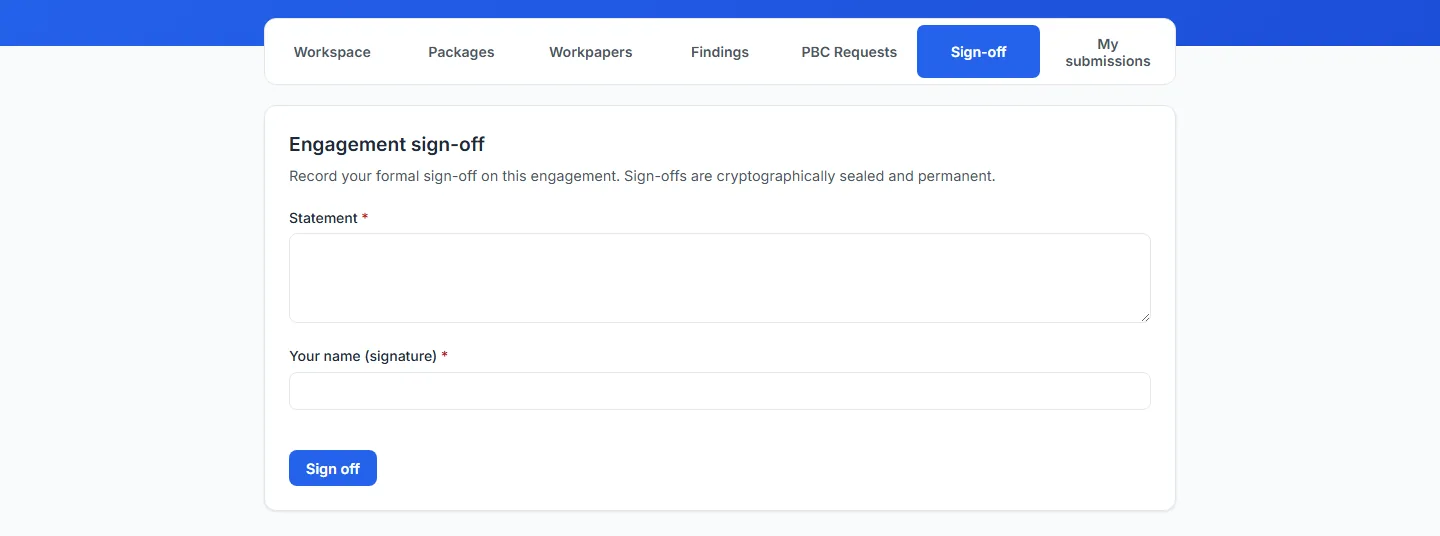
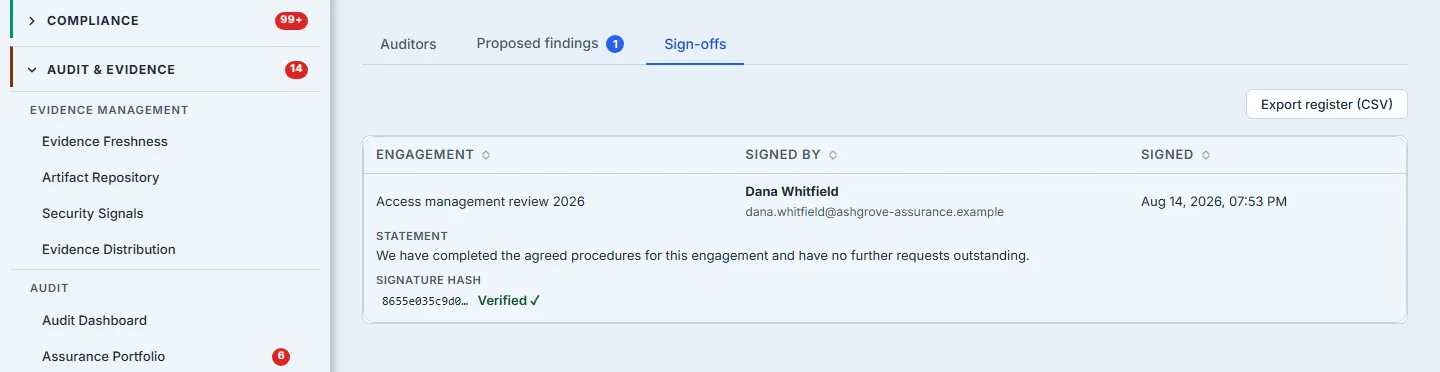
What is recorded is not just the text. Talarity builds a canonical payload from the organisation, the engagement, the grant, the statement, the signed name and the timestamp, and signs it with a keyed hash. The row lands in an append-only table with a database trigger that refuses both UPDATE and DELETE, and a unique index that permits exactly one sign-off per grant per engagement — so a double-click or a client retry cannot produce two signatures, and the loser of that race is told it has already signed rather than shown an error for something that succeeded. Your compliance recipients are notified: the terminal event of an engagement should not be something you discover by going to look.
Back in your own tenant — the Sign-offs tab of the Auditor Portal page, signed in as yourself — each signed row carries a Verify control. This is one of the places the two surfaces are easy to confuse: verification is yours, not the auditor’s. Nothing on the portal offers it, and the verify call requires a real authenticated principal in your organisation rather than a portal credential. Press it and the label resolves:
- Verified ✓ — the payload was re-derived from the stored row and the signature matches.
- Not signed — there is a row but no signature on it, which in an append-only signed register is an anomaly worth being able to confirm rather than infer from a blank cell.
- MISMATCH — the stored content no longer matches what was signed. That is a finding, not a display problem.
The control renders on every row, including an unsigned one, which is why the presence of the button proves nothing and the resolved label proves everything. Verification re-derives the payload from the same builder the signing path uses, so the two can never disagree about the shape of what was signed.
When access ends
Four refusals about the link itself, each named rather than folded into a generic error, because the person reading them is outside your company and needs to know which one they are looking at:
| what the auditor sees | what happened |
|---|---|
| This auditor access link is not valid. Open the most recent link from your invitation email. | The credential does not resolve — a wrong or truncated link. It reveals nothing else: no organisation, no confirmation that a grant exists. |
| This auditor access link has expired. Ask the organization that invited you to issue a new one. | The expiry date you set has passed. |
| This access link was revoked by the organization. | You revoked the grant. |
| Too many attempts. Please try again in a few minutes. | Ten failed token attempts locked the grant for fifteen minutes. |
Only the last of those offers a Try again button. Retrying an expired, revoked or malformed link fails identically, forever, so the portal withholds the control rather than handing an outsider an instruction that cannot work.
There is a fifth thing the page can say, and it is not in the table because it is not a verdict on the link at all: if Talarity itself cannot be reached, the auditor is told exactly that — this is a problem reaching Talarity, not a problem with your access link — your link is fine — and offered Try again. It matters because the button is the quickest way to tell the two apart on sight: a refusal with no Try again is about the grant, and one with it is about the moment.
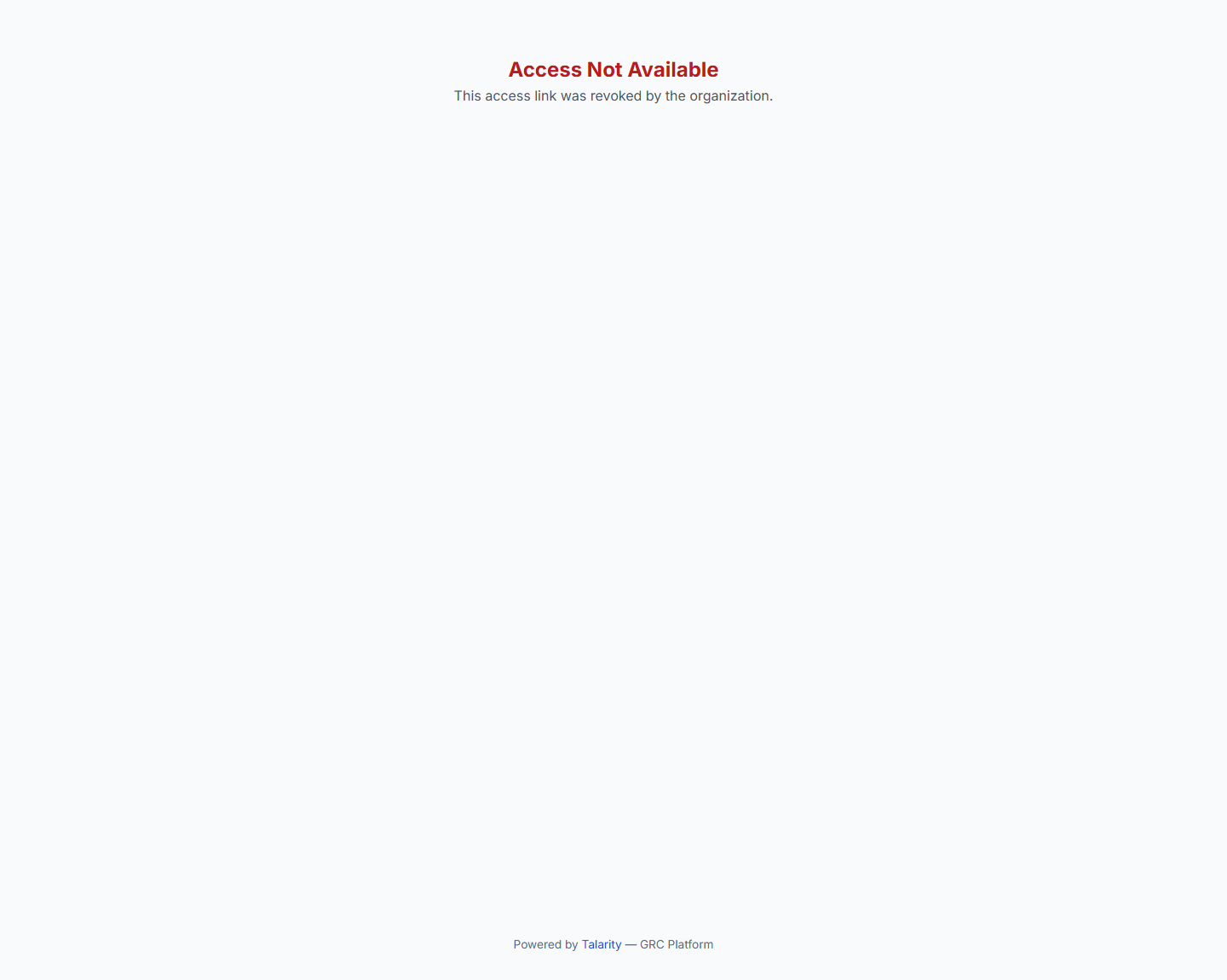
Expiry and revocation are re-checked on every action, not only when the page loads — so revoking mid-session ends the session’s next read, rather than waiting for the auditor to reload.
What is recorded
Every state-changing action across the whole loop is written to the audit trail — invitations, revocations, scope changes, engagement re-pins, and every one of the six things the auditor can change from outside: raising a request, commenting on one, reviewing one (accept or reject), drawing a sample, proposing a finding and signing off. Those six are the mutations; the portal offers a further seven read actions on top of them, and the trail does not stop at changes either — opening a workpaper PDF through the portal is recorded as well, so disclosure is on the record and not only mutation. The auditor’s actions are attributed to the grant itself, with the member id and email, because an external auditor holds no user account to attribute them to. Register exports are logged too.
The result is that “who gave this firm access to what, when, and what did they do with it” is one query rather than a reconstruction. Which is, in the end, the same question the audit itself is asking of everything else.
The short version
- Invite from Auditor Portal → Auditors. One grant, one engagement, sixty days by default and 180 at most.
- Copy the link from the success dialog. There is no resend.
- One live grant per auditor per engagement: revoke before you re-invite.
- Scope governs the documents. The engagement governs the request list — an auditor sees every PBC request on it whatever the allowlist says.
- The auditor can raise, comment, accept and reject. They cannot fulfil. Your team can review too.
- Sampling and findings are the only two switches, off by default. A proposed finding is a draft you accept, not an entry in your register.
- The sign-off is immutable and signed. Press Verify and read the label, not the button.