An advisory engagement is judged twice. The client judges the deliverable. Someone else — the firm’s own quality reviewer, a regulator, an acquirer’s counsel a year later — judges how the work was done: what was asked for and when, who answered, which finding rests on which document, and who agreed to own the fix. Audit documentation standards put the bar plainly: AU-C 230 asks for a record from which an experienced practitioner with no connection to the engagement can understand the work performed, and ISO 19011:2018 (§5.5.7) asks an audit programme to keep its records so they can be retrieved and relied on. A firm’s quality system under SQMS 1 then asks the same question across the whole book, not one engagement at a time.
Most firms keep that record across a proposal document, a request-list spreadsheet, an inbox, interview notebooks and a findings deck, with the engagement partner as the index. This walkthrough follows one engagement — a SOC 2 readiness review for a healthcare client — from the first screen a partner opens to the last, and shows where each of those artefacts lives instead. The other engagements on screen are the firm’s ordinary book.
Who’s involved
- The engagement partner — owns the engagement, its scope, its team and its status, and reads the book across clients.
- The engagement manager and consultants — run fieldwork: requests, interviews, key questions and recommendations, each with a named owner.
- The client’s contact — answers the firm’s requests inside the client’s own Talarity workspace, and sees what is asked of them and nothing else.
- The quality reviewer — reads the trail afterwards: who asked, who answered, who accepted, what changed and why.
Step 1 — Start from the whole book
The partner’s first screen is not one engagement. It is the Assurance Portfolio (/app/audit/portfolio): every client relationship the firm holds, the engagements in flight, the assurance requests waiting on clients, and what is past its date — counted across clients, because a client with nothing in flight produces no row anywhere else.
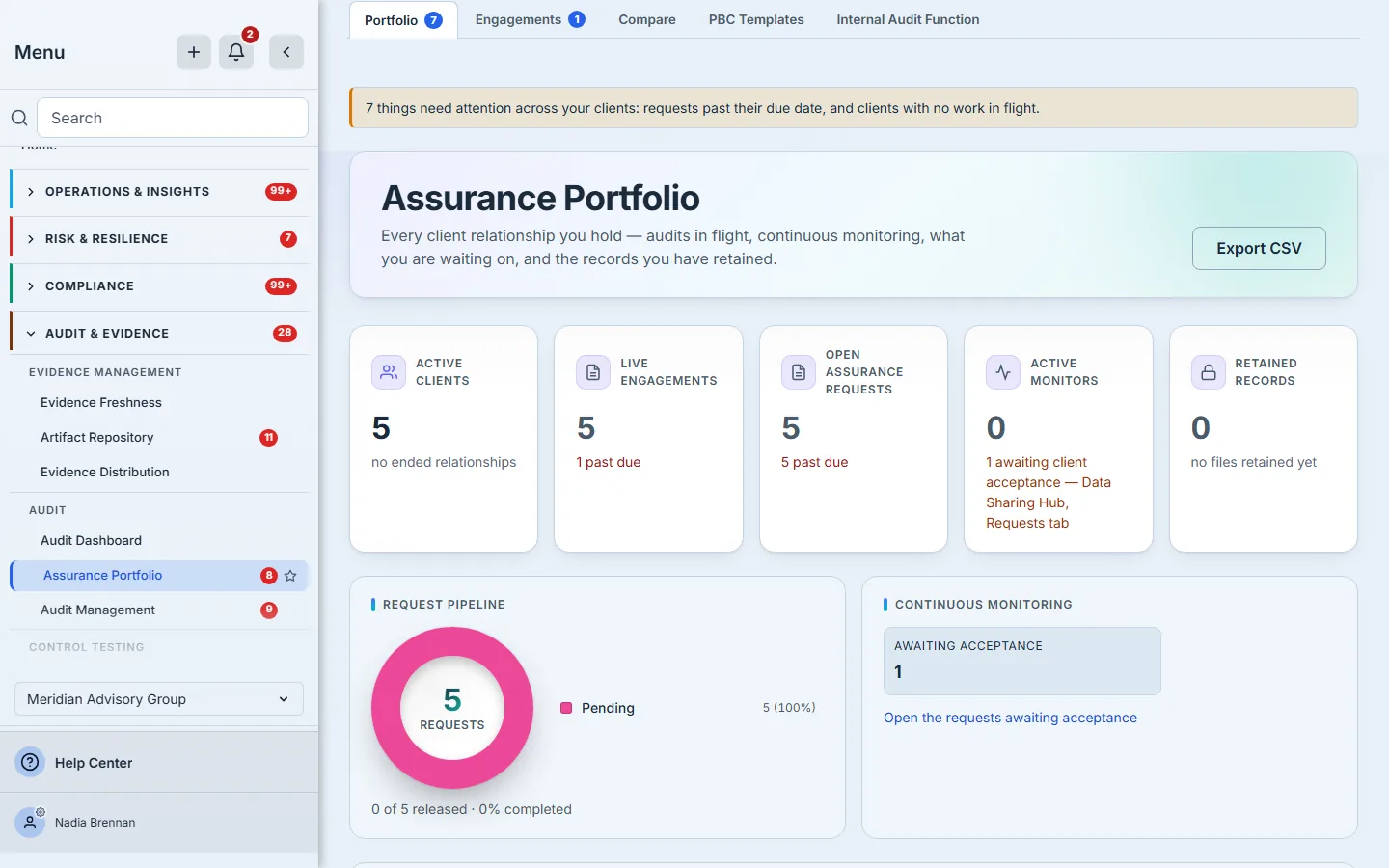
The figures are counted on the server over the same population the drill-downs open, so the number on a card and the rows behind it cannot disagree. Live Engagements counts the engagements not yet delivered or closed; Open Assurance Requests counts the data and assessment requests sent to clients’ workspaces — an engagement’s own request list is counted on its case file (Step 3). Export CSV carries the same population, one row per client.
From there, Engagements (/app/engagements) is the register of the work itself.
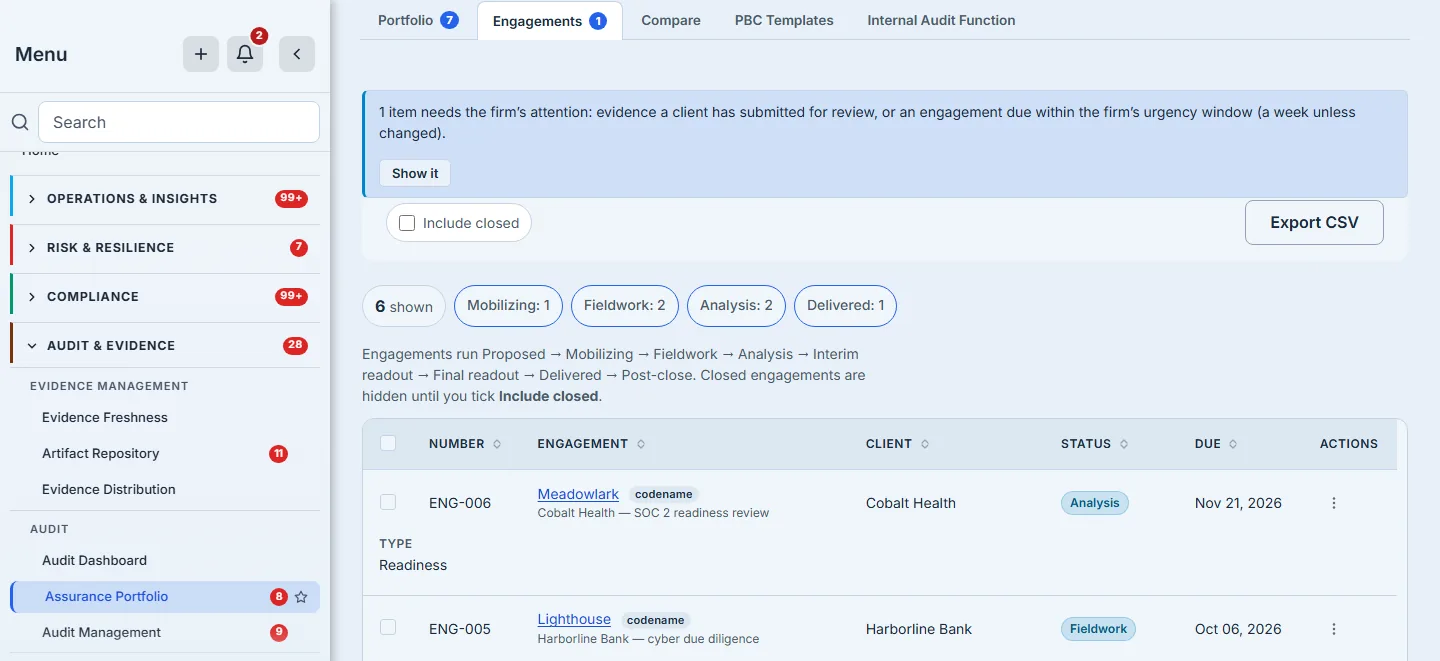
The status chips count the whole filtered book, not the page the browser happens to hold, and a chip is a filter: press Fieldwork and the register narrows to exactly the engagements it counted. Closed engagements stay out of the way until you tick Include closed. The banner above the register is the firm’s queue — evidence a client has submitted for review, or an engagement due inside the firm’s urgency window — and Show it narrows the register to precisely the engagements behind the navigation badge’s count.
Step 2 — Open the engagement, and let its type scope it
New engagement asks for a name, a type and a client, and offers a codename. The client starts unchosen: picking the wrong client by default is the kind of mistake that is invisible until the requests land in somebody else’s workspace.
The client has to exist first. A client is a linked account — the record your firm keeps for each client organization — added from Linked accounts by someone allowed to manage them; until there is one, the dialog says so and points there rather than offering an empty list. Decide at that moment whether the client gets its own Talarity workspace. That choice is made when the client is added, it is what lets the client answer requests and accept recommendations inside their own product (Steps 4 and 6), and an engagement’s client cannot be changed afterwards — the way out is to Duplicate the engagement onto the right client from the register.
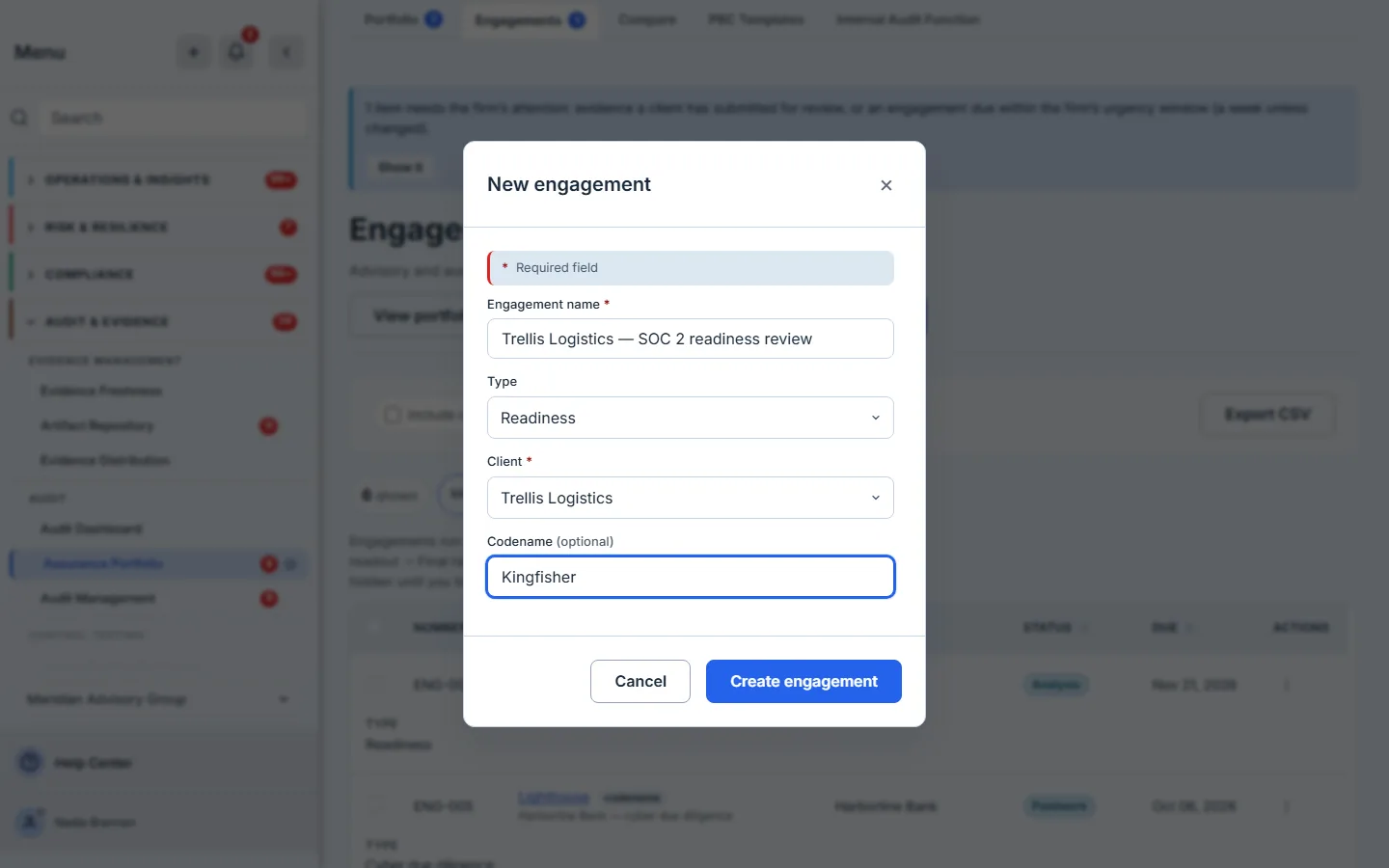
The type decides the scope. A readiness review opens three scope areas — Cybersecurity; Applications, Data & Reporting; and Technology Organization — where a technology due diligence opens eight. An area nobody intended to assess is not free: it sits on the case file as unassessed and makes a focused deliverable read as an incomplete one. Areas can be added later, including the firm’s own custom ones.
The engagement in this walkthrough is Meadowlark, a SOC 2 readiness review for Cobalt Health. Its case file is the one record everything else hangs off.
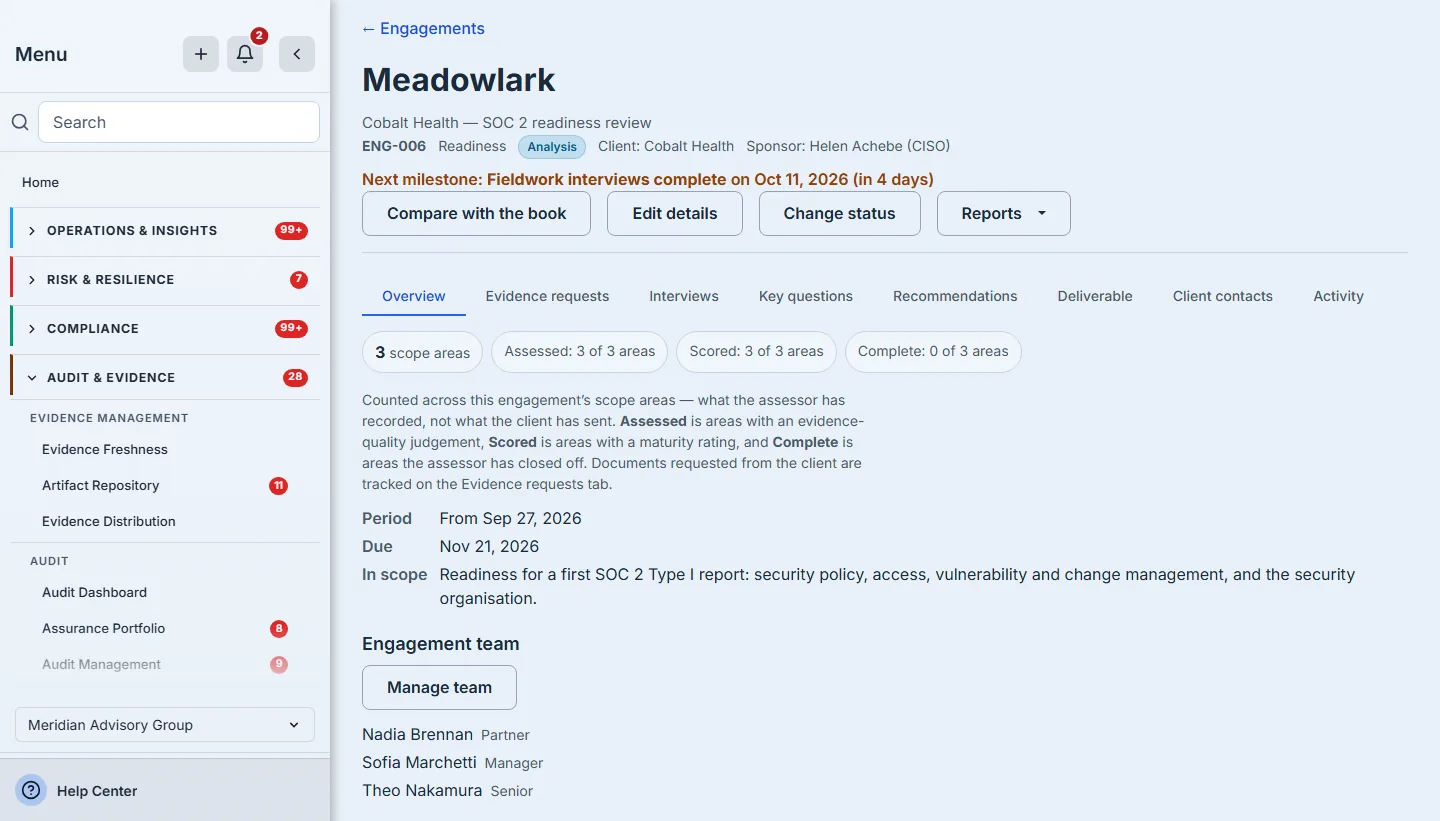
The header names the next milestone and how many days away it is, counted in the reader’s calendar days. The team carries roles — one partner, because someone has to be accountable for the opinion — and the chips say how far the scope has been worked: Assessed counts areas with an evidence-quality judgement, Scored counts areas with a maturity rating, Complete counts the ones the assessor has closed. They are three different acts and the chips keep them apart. An assessor rates an area by hand after a walkthrough, or runs the instrument from Start assessment, which writes each domain’s maturity back to the area with the same key when the run is completed.
Step 3 — Issue the request list from the firm’s own template
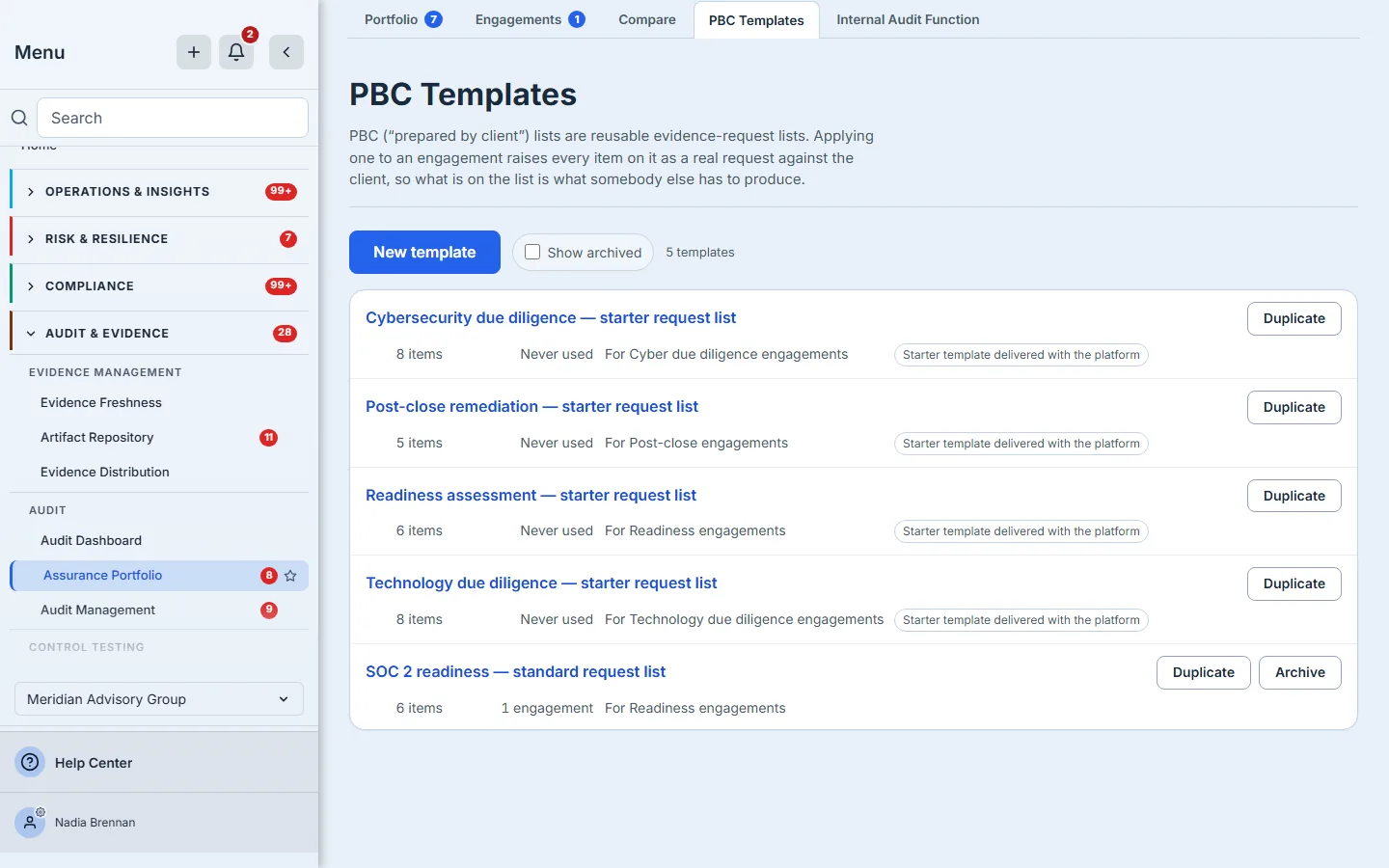
A firm asks for roughly the same documents at the start of every engagement of a kind. PBC Templates (/app/advisory/pbc-templates) holds those lists: starter lists delivered with the platform, which you apply or duplicate, and the firm’s own.
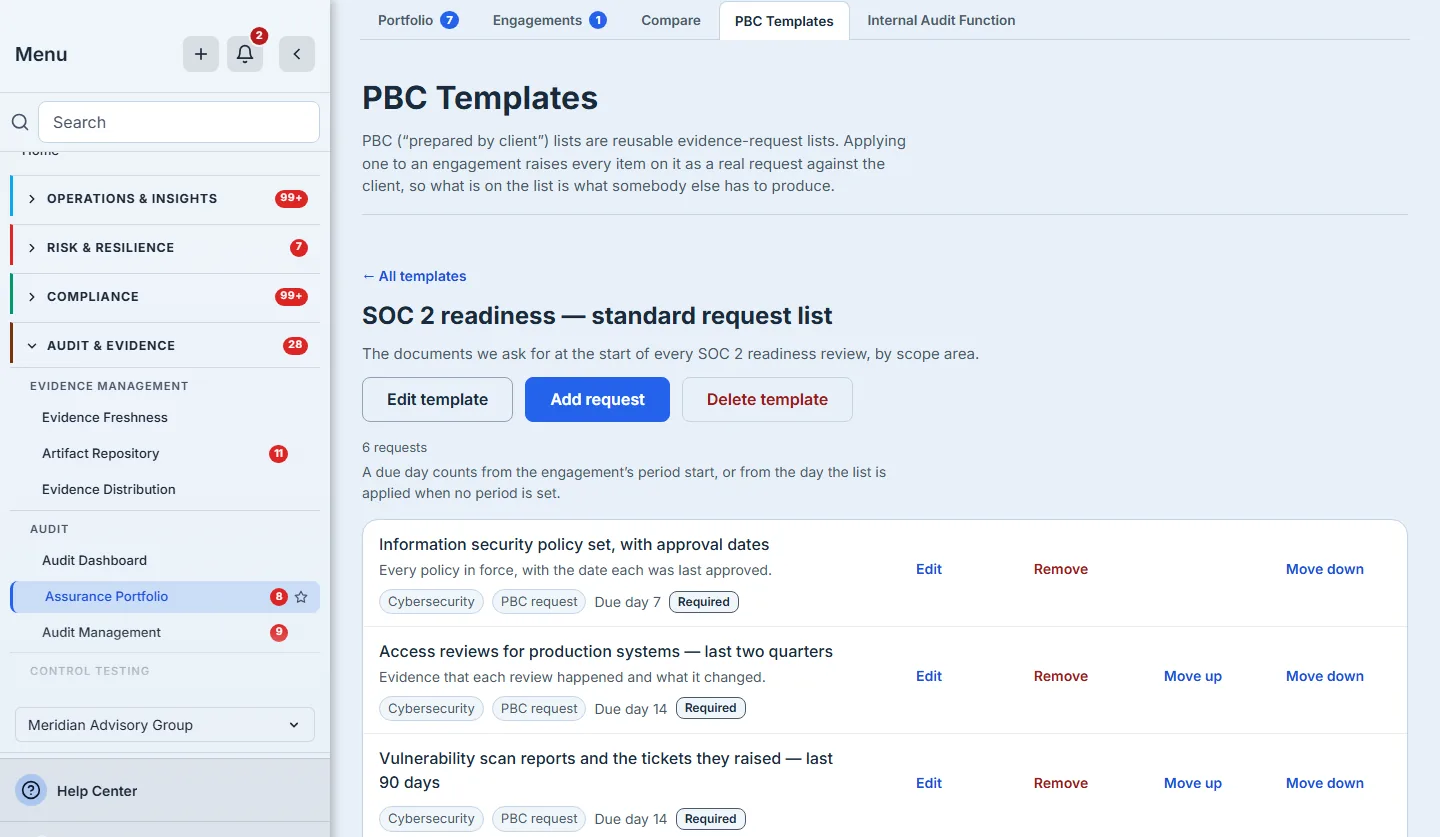
The firm’s own list attributes every item to a scope area, gives it a due day counted from the engagement’s period start, and marks whether the client must provide it. You build one with New template and Add request, or by duplicating a starter and editing the copy.
Set the engagement’s period in Edit details before you apply a list — with no period start, due days are counted from today, and the case file says so. Applied to an engagement from Apply PBC template, the list becomes the engagement’s own requests — one per item, each attributed to its area and dated from the period start. Applying it again raises nothing already raised, so a partner who is unsure whether a colleague applied it can simply apply it. One-off requests the template could not know about are added beside it, and next year’s engagement can roll this one’s asks forward with every trace of fulfilment cleared.
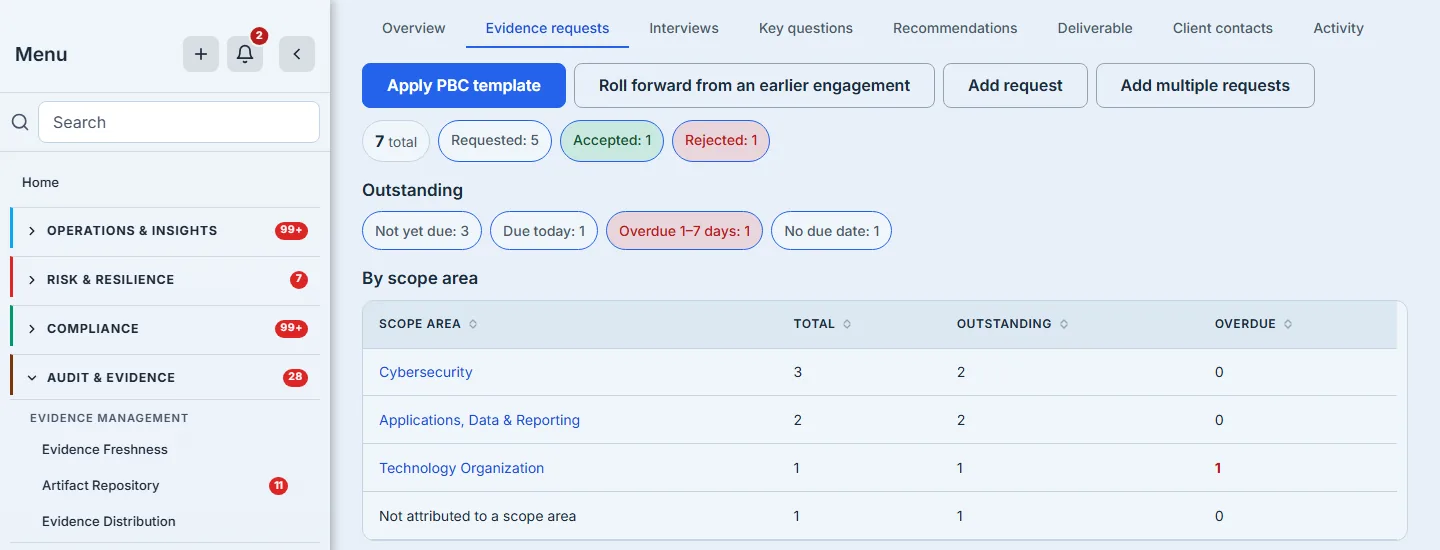
“Outstanding” as one number would say little. The tab splits it twice: by age, so a partner sees which are late rather than how many exist, and by scope area, so the chasing goes to whoever owns that area. An area with nothing requested against it is a gap you can see.
Step 4 — The client answers in their own workspace
Cobalt Health has its own Talarity workspace, so the requests land in their product as work they own, and the firm invites the person who will answer them from the case file’s Client contacts tab. Where a client has no workspace, the case file says so and the firm collects the evidence itself — nothing is sent anywhere and nothing pretends it was.
The contact opens My Engagements (/app/engagements/mine).
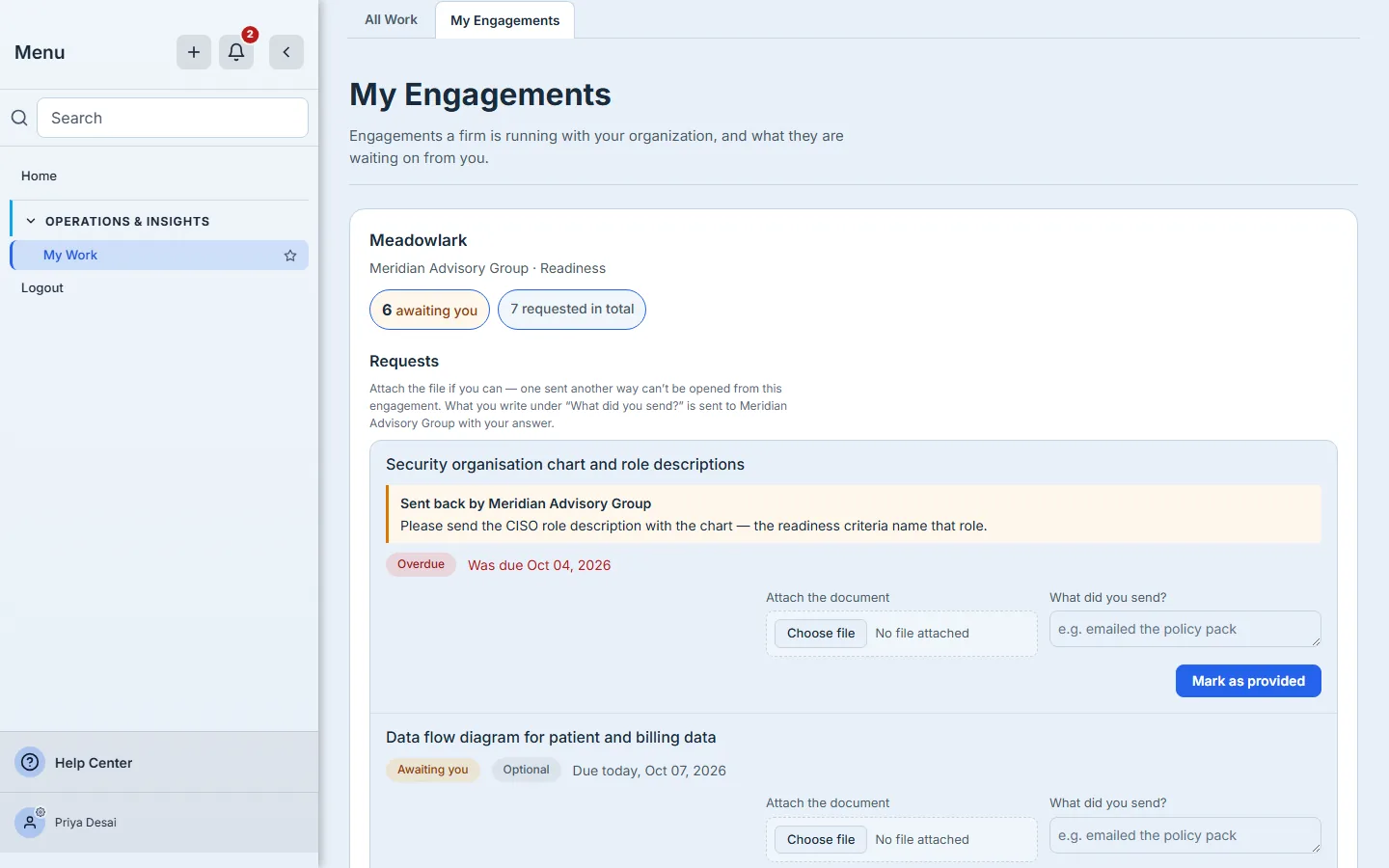
What the contact sees is a projection, not a filtered copy of the firm’s page: the requests and the dates the firm chose to share, never the firm’s internal status words, interview notes, key-question answers or recommendations. A request the firm sent back says so, with the firm’s note, so the contact knows what to fix rather than only that something is wrong. Readouts the firm shares appear on the same page; how a shared report is opened and verified belongs to report sharing.
Back at the firm, each answer arrives as a submission to review: Accept evidence, or Reject — ask again with a note, which the client reads beside the request as sent back.
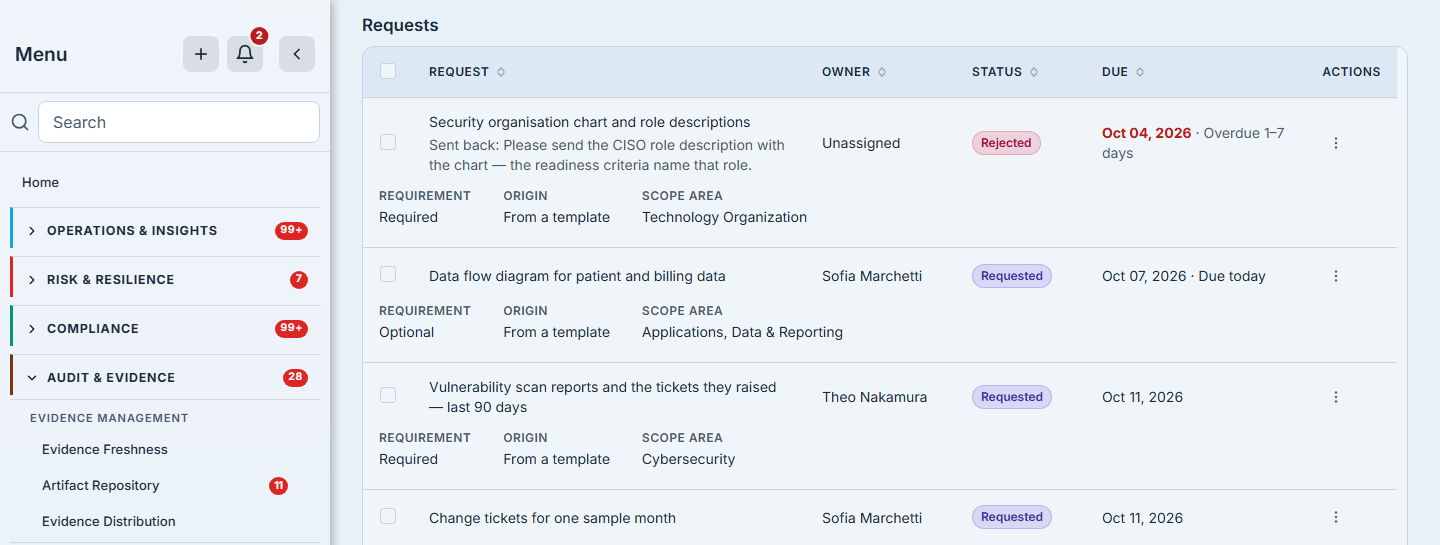
Accepting a submission accepts the documents attached to it. That is what Package accepted evidence on the Deliverable tab later collects — only what was accepted, never what was merely uploaded.
Step 5 — Fieldwork that names an owner and a date
Interviews record when, who was in the room, and on whose behalf — firm, client, or sponsor — because the same conversation reads differently if everyone present worked for the firm.
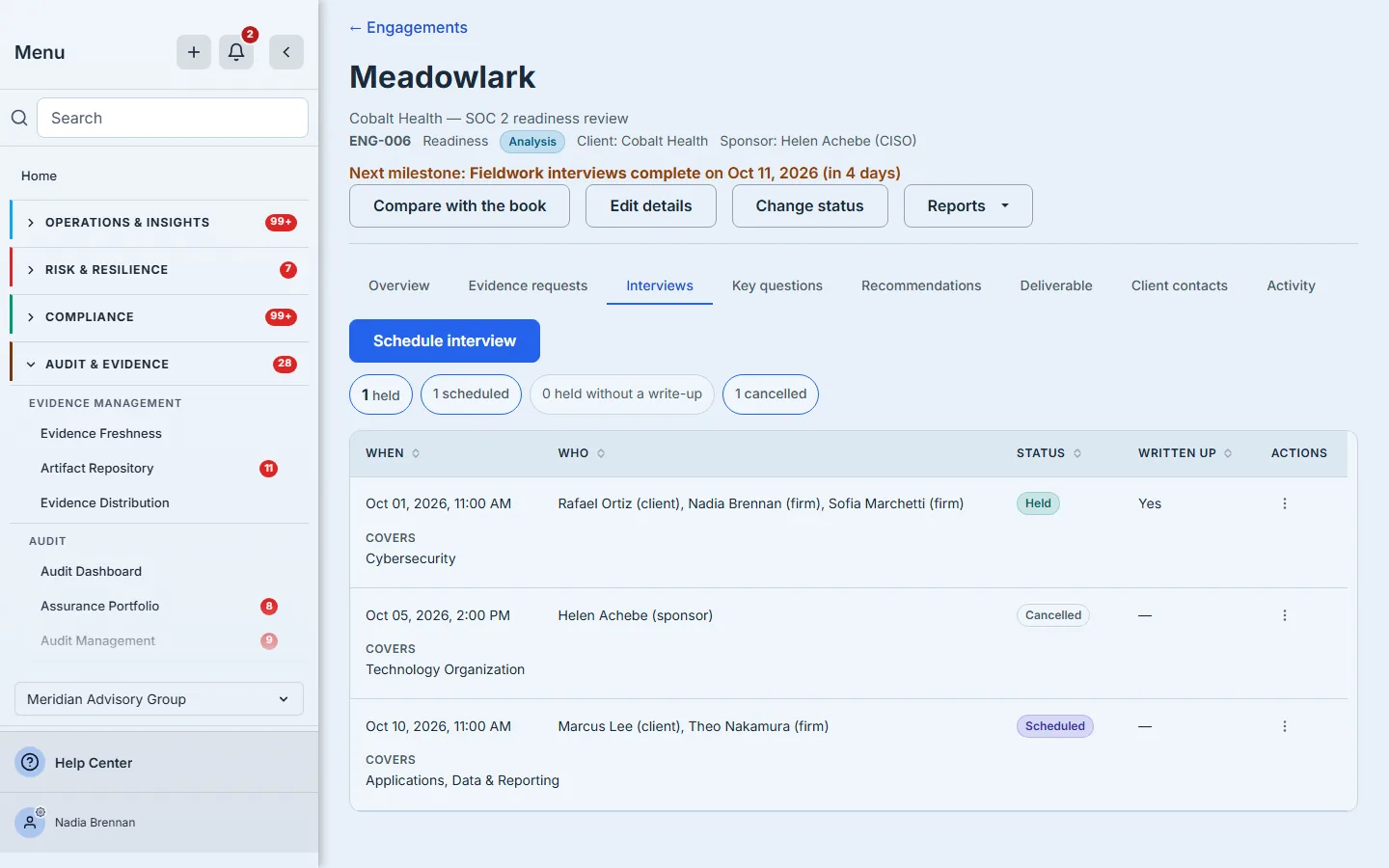
A cancelled interview stays on the record. A reader asking why an area is thinly evidenced is owed the answer that the session was booked and did not happen; deleting it would turn a scheduling problem into an apparent gap in the work. Its write-up is locked until someone reopens the interview.
Key questions are what the engagement exists to answer, and each one carries an owner and a due date.
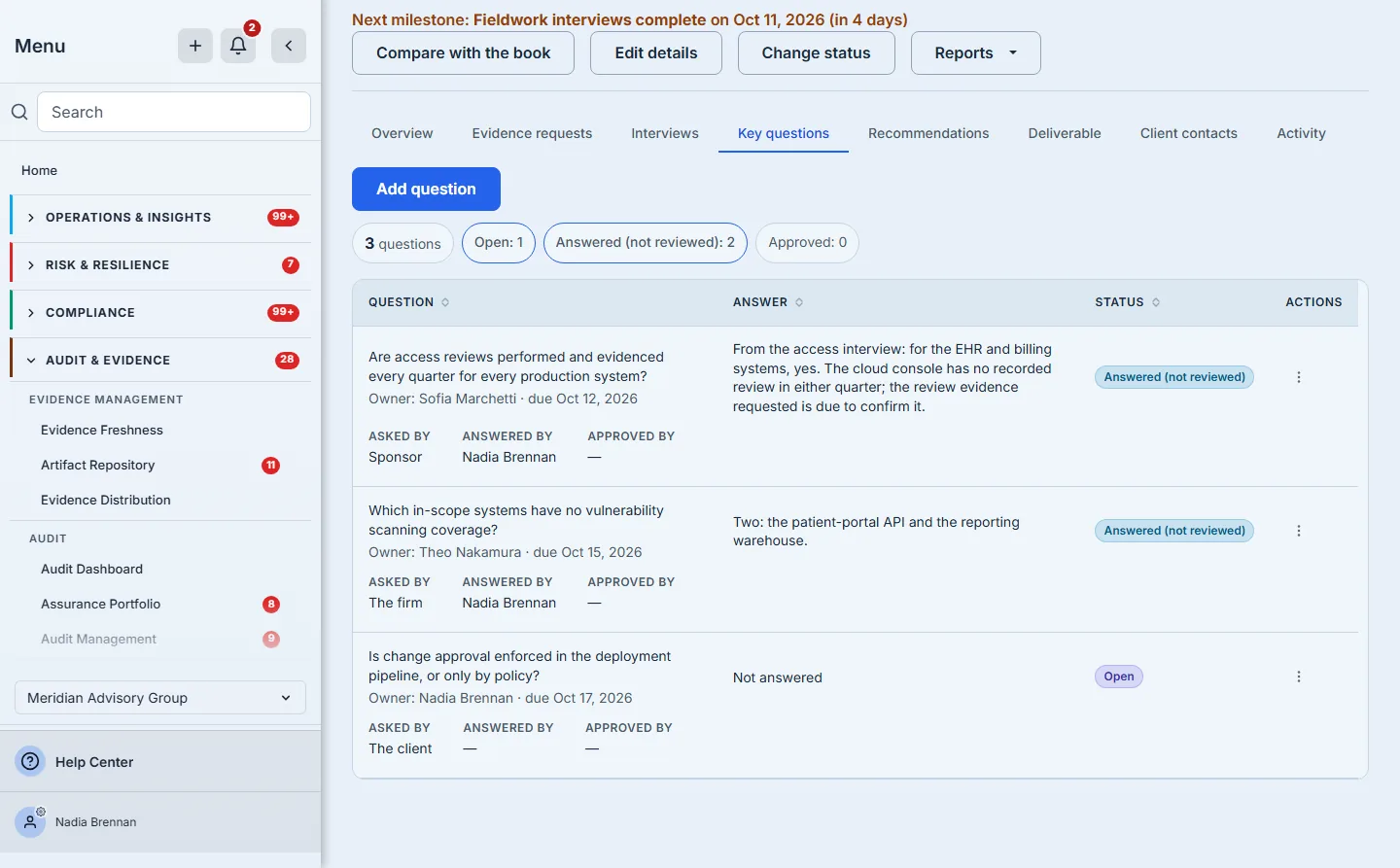
Naming an owner does more than print a name. The owner gets a task in their own work queue, carrying the due date, and — when someone else assigned it — a notification that opens this case file, so a question with an owner is work somebody has been given, not a line in a table. Answering and approving are separate acts and the platform enforces it: whoever wrote an answer cannot approve it. The empty Approved by column here is not a gap; those approvals are someone else’s to give.
Step 6 — Recommendations, and handing one to the client
A recommendation carries a value driver, a phase, an owner, a due date and its cost as a range, split into one-off and annual run-rate. The vocabulary comes from transaction work — protect or grow equity, pre-close, first 100 days — and translates directly: on a readiness review, pre-close is what must land before the audit window opens, and protect equity is work that stops something getting worse.
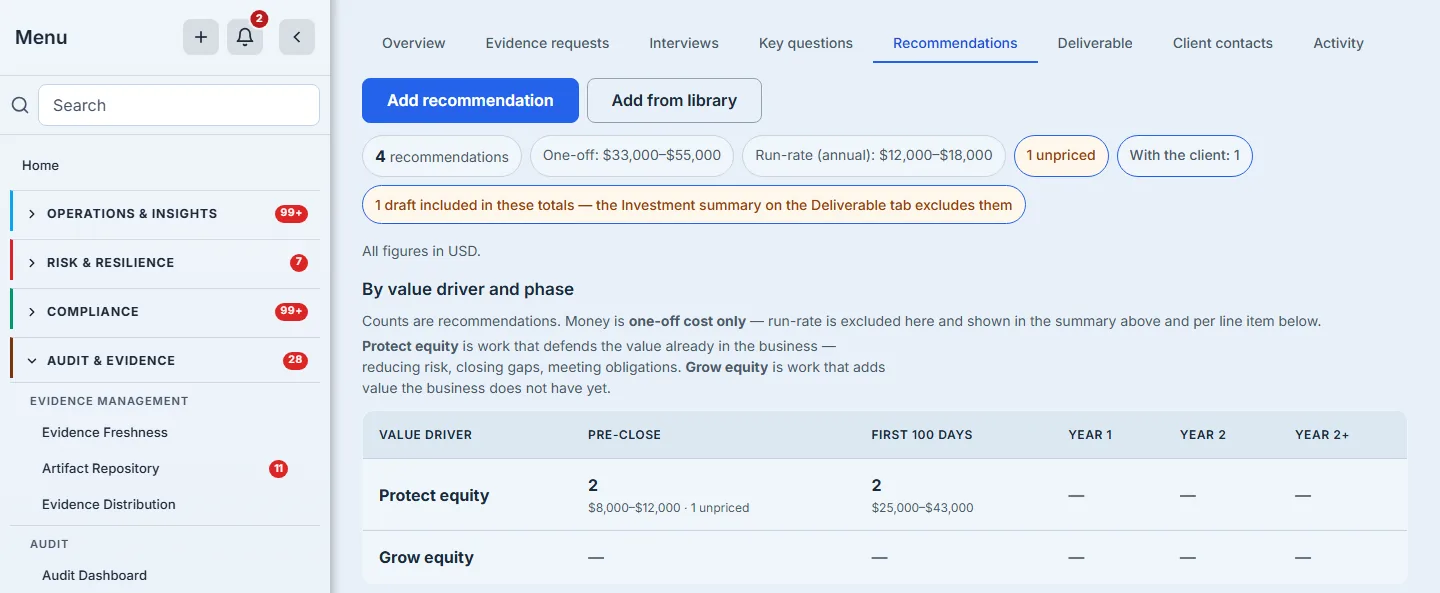
These are the assessor’s working totals, and they say what they include: drafts are counted here, and the chip under them says the Deliverable’s investment summary excludes them. A recommendation with no cost stays unpriced and is counted as unpriced — never summed as zero, because “nobody has priced it” and “it costs nothing” are different claims.
Only a recommendation the sponsor has accepted — set from Set phase or status — can be handed to the client, and only where the client has its own workspace: a draft is the assessor’s working position and a proposal is still under discussion. Handing one over does not write into the client’s workspace. It raises a request the client’s own people accept, and on acceptance it becomes a remediation plan in their product. While that request is open, the recommendation shows With the client, cannot be deleted, edited or re-phased, and offers exactly one action.
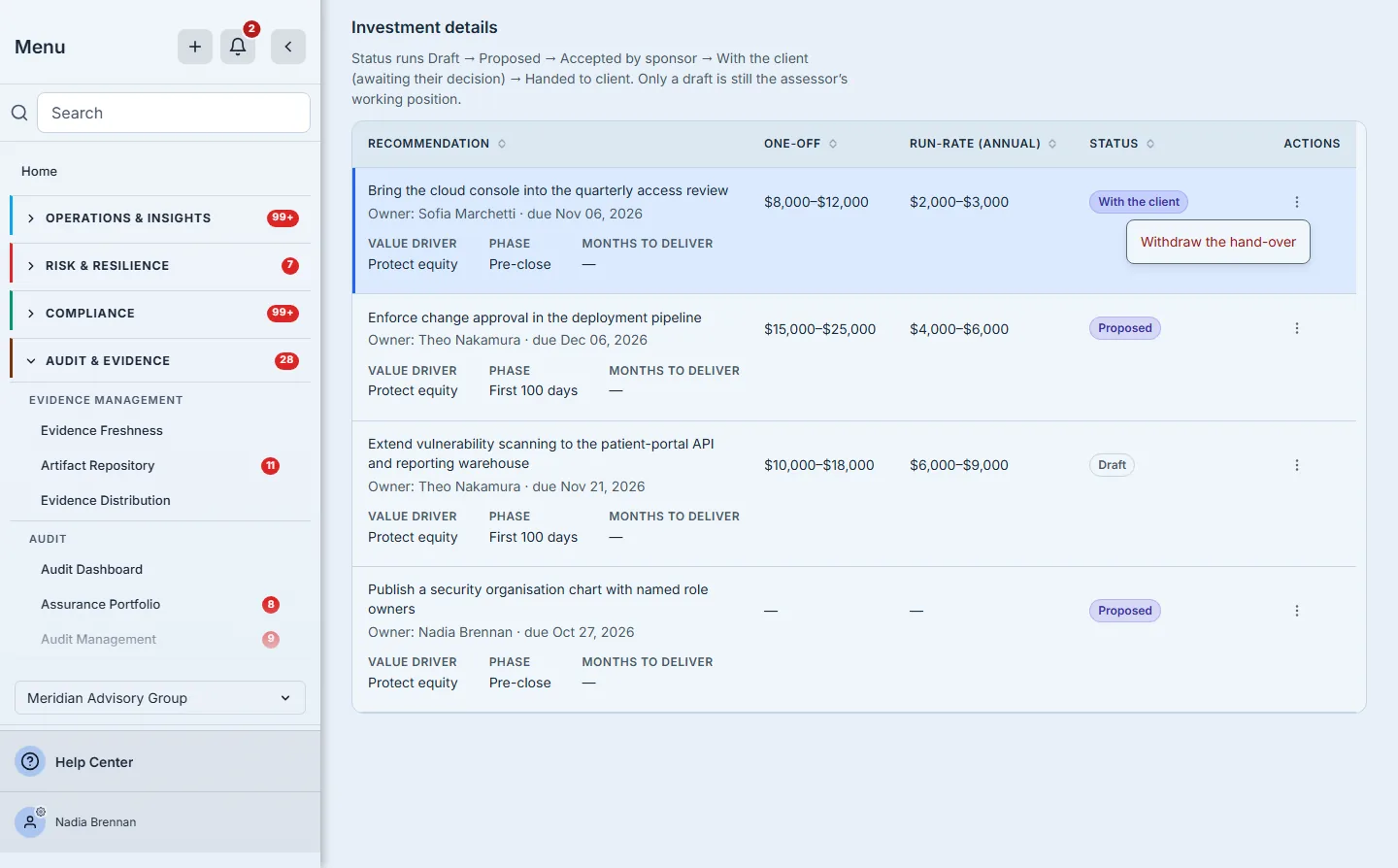
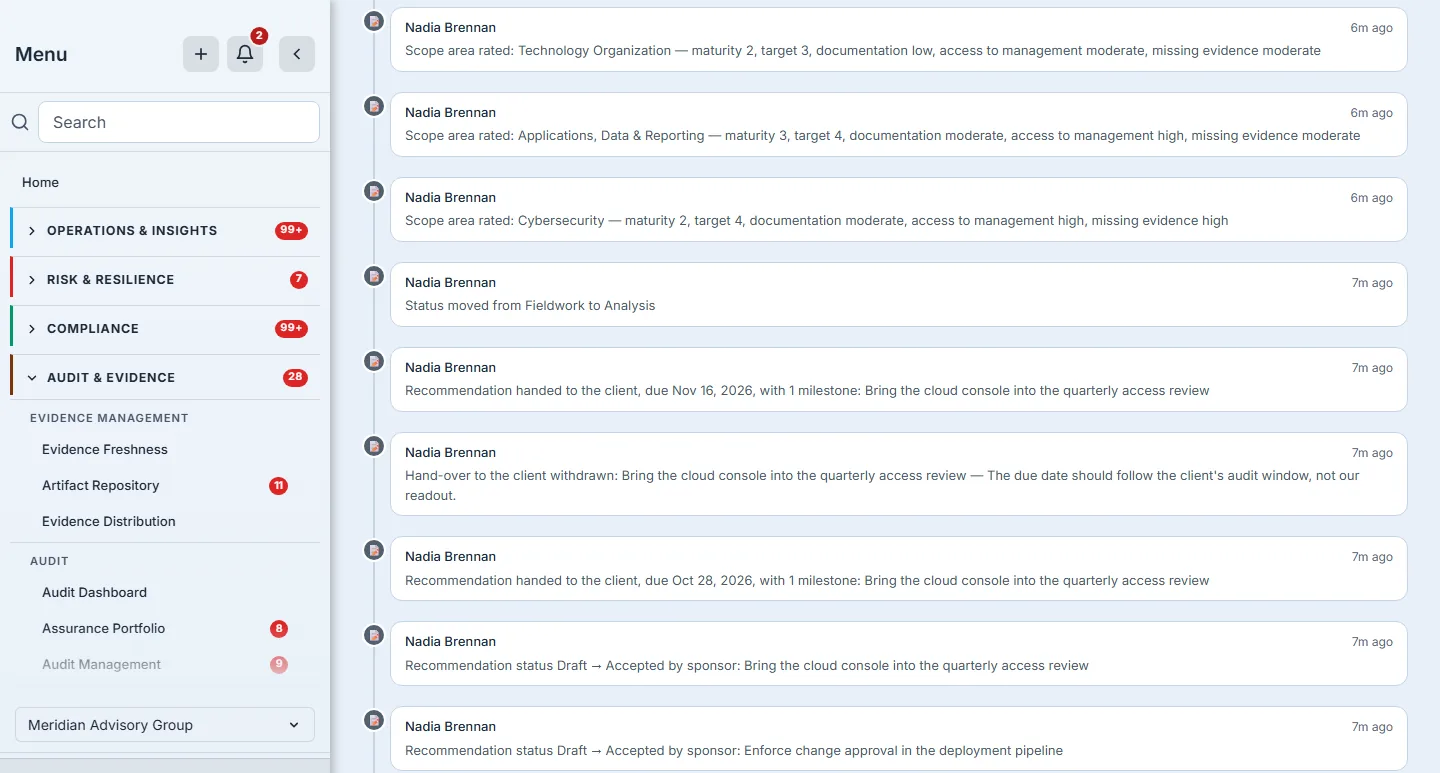
Withdraw the hand-over exists because hand-overs go out wrong — here, with a due date that should have followed the client’s audit window. Withdrawing asks for a reason, revokes the client’s request and records the reason on it — the client’s request inbox shows it beside the withdrawn request, so nobody there is left wondering why it vanished — and puts the recommendation back in the firm’s hands to correct and hand over again. The Activity tab records the withdrawal and its reason, and later the client’s accept or decline of the corrected hand-over.
Step 7 — The deliverable and the trail
The Deliverable tab is where the engagement turns into something the client receives.
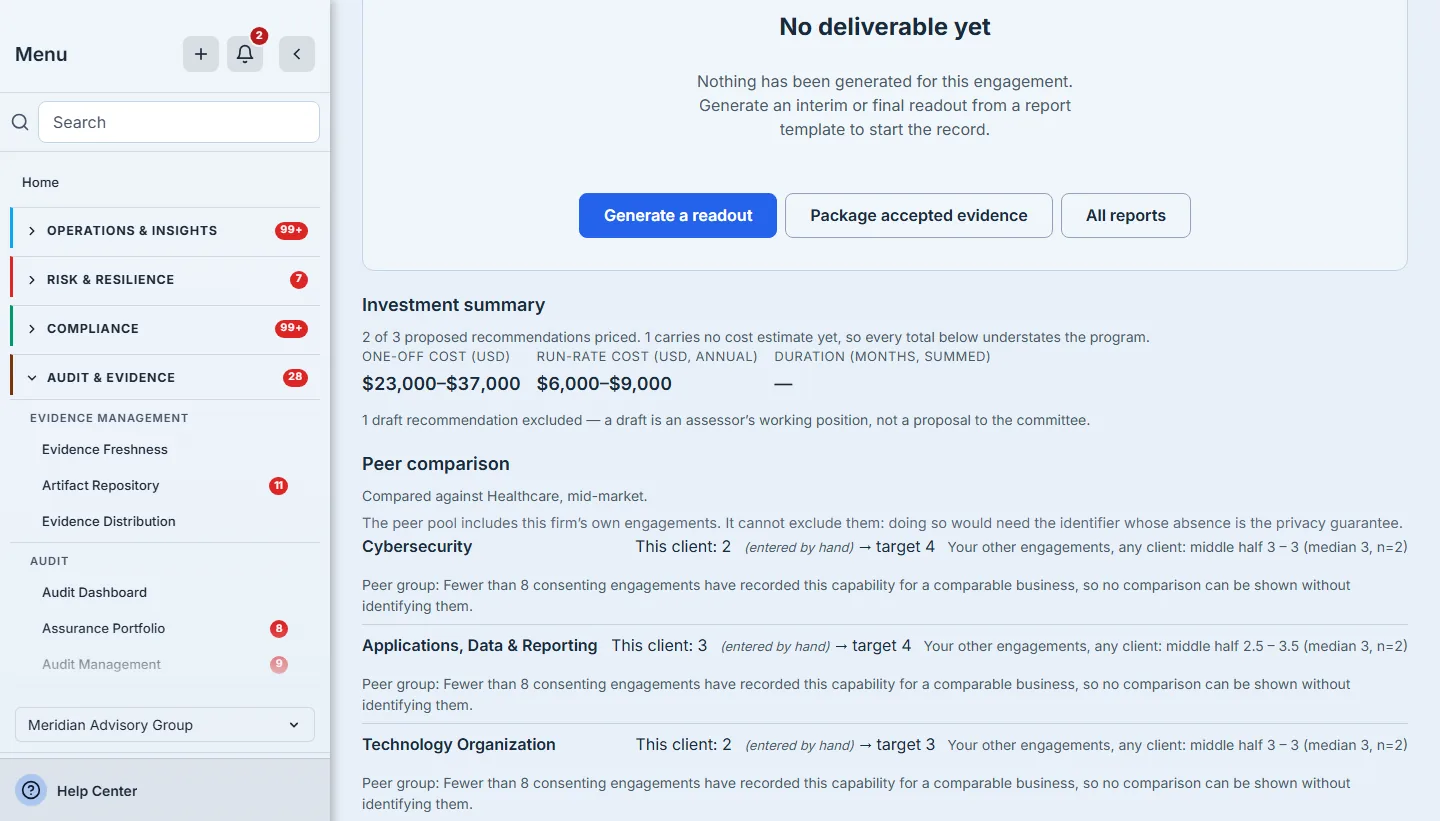
Generate a readout opens the report generator with this engagement already selected; the readout’s own layout belongs to the reports feature. Package accepted evidence builds a finalized bundle of every accepted document and returns a link to it — the evidence behind the findings, in one place, when the client or a reviewer asks for it. The investment summary is the committee’s view: drafts are excluded, the number excluded is stated, and the sentence above the totals says how many recommendations carry a price, so a total that understates the programme says that it does.
The firm’s work on the engagement is on its Activity tab, as sentences: status moves with both ends, closes and reopens with their required reasons, scope areas rated, interviews held or cancelled, questions answered, withdrawn or reinstated with their reasons, recommendations accepted, handed over and withdrawn — and the client’s accept or decline of a hand-over. That is the record a quality reviewer reads, and nobody had to write it. Export CSV on the tab hands over the whole trail — each entry with its exact time, who made it and the same sentence — and an engagement that closes is kept, with its trail, rather than deleted.
Step 8 — Read across engagements
One case file shows how one engagement is going. Compare (/app/engagements/compare) shows the pattern across them, ranked within one engagement type — a due diligence and a readiness review score different sets of areas, so their averages are not comparable, and the page will not pretend they are.
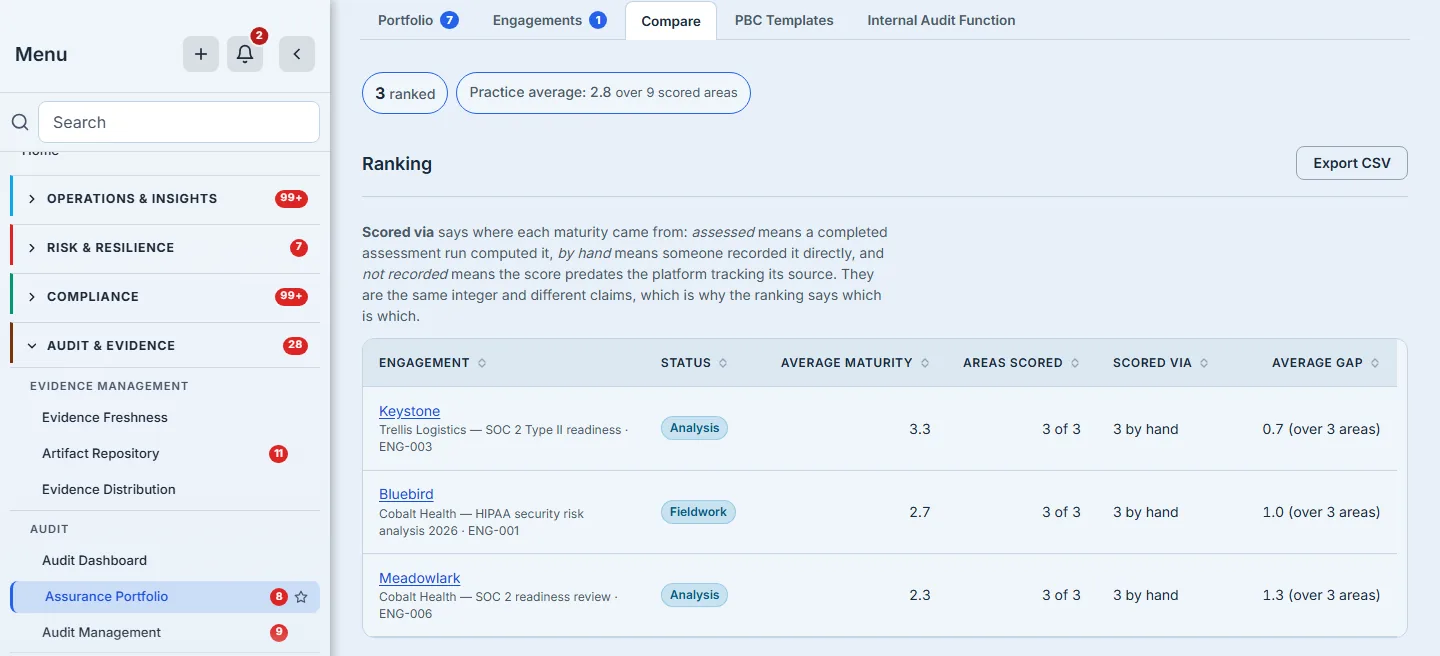
Scored via says where each maturity came from — a completed assessment run, recorded by hand, or not recorded for a score older than the tracking — because a computed 3 and a typed 3 are the same integer and different claims. The average gap to target is where the next engagement’s work is. A control area that falls short across most of a firm’s clients is a fact about the market the firm serves, and it is invisible one case file at a time; where a shortfall recurs, Draft a recommendation drafts the same recommendation onto each engagement that shares it and does not already carry one.
What this replaces
Not a tool. A habit — the one where the state of every engagement lives in the partner’s head, and every question about scope, status or history is answered by asking them.
What you walk away with
- One record per engagement — scope, requests, interviews, key questions, recommendations and the deliverable on a single case file, so “what is outstanding” is a filter, not a conversation.
- A request list issued once and answered where the client works — the firm’s own template, attributed to scope areas and dated from the period start, answered by the client inside their own workspace, accepted or sent back with a note.
- Fieldwork with owners and dates — every key question and recommendation can carry an owner who gets the task, and no one approves their own answer.
- Hand-overs with consent and a way back — the client accepts a recommendation as their own work, and a hand-over sent wrong is withdrawn with the reason on it.
- Evidence and a trail a reviewer can rely on — a package of exactly the accepted documents, and an Activity tab that records every change as a sentence, with its reason.
- The book as a whole — the portfolio across clients and a ranking across engagements of the same type, with every score saying where it came from.
Run yours this week. Add the client under Linked accounts if it is not there yet, open /app/engagements, press New engagement, pick the client and a type, set the period in Edit details, and apply a PBC template from the Evidence requests tab. The first engagement takes a few minutes to set up; the next one starts from the template and from this one’s history.