An audit asks for evidence by control. Evidence arrives by folder — exports, signed PDFs, screenshots, a spreadsheet somebody maintains. The distance between those two shapes is where collected evidence goes to die: gathered once, mapped to nothing, counted nowhere.
Smart Evidence Intake closes that distance in two steps. A classifier inspects each file as it arrives and proposes a category and candidate controls. A person then confirms, corrects, or rejects — and the confirmation is what turns a file into evidence the rest of the platform can see.
What the classifier actually does
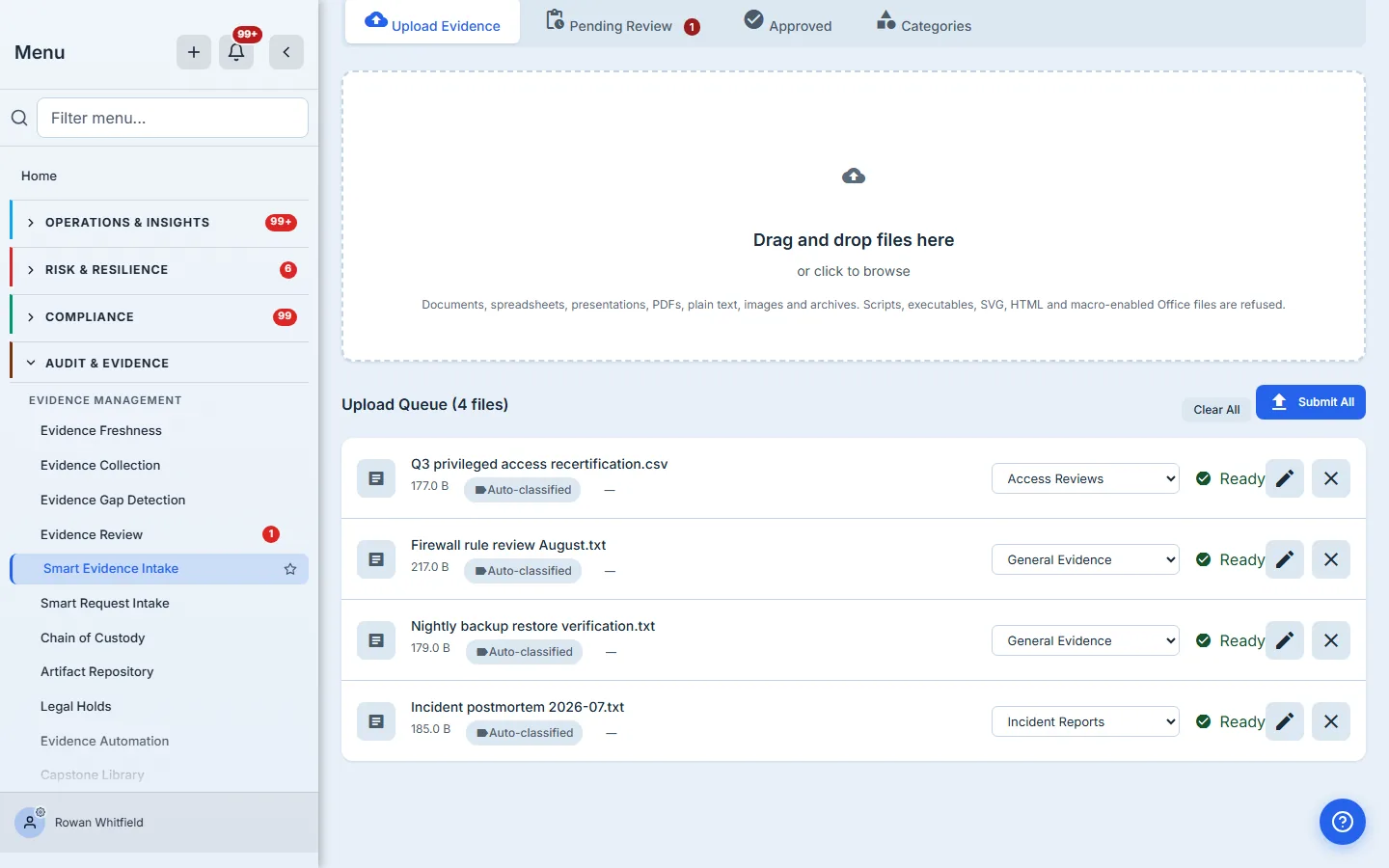
The queue-time pass is deterministic: keyword and category matching, no model call. That is a design decision rather than a limitation, and the page states it — a file in the queue is badged Auto-classified, never “AI Analyzed”.
A second pass runs after submission, against the persisted row, and it is where an AI classification is applied. It routes through your organisation’s AI budget and BAA gate, so an organisation without the AI module never has a model called on its behalf and spends nothing, and one that is over budget or missing a required BAA is told so rather than quietly downgraded.
That second pass was, until recently, reaching no organisation at all. The licence check in front of it read the AI entitlement from the organisation record, which does not carry one — the entitlement lives on the licence — so every organisation resolved as unlicensed and fell through to the same keyword pass as the queue. It was invisible precisely because the fallback is legitimate: a keyword classification is a real result, correctly labelled, so nothing errored and no screen contradicted anything. Customers were paying for a module that never ran. The check now reads the computed entitlement, and the frames below show the AI pass running.
The review screen states which classifier produced a record — “Auto-classification” or “AI Analysis” at the head of the suggestion panel — and that label is load-bearing, because the two passes differ in what their confidence figure means. It is worth knowing where the label is and is not: it appears while you are deciding, and the Approved tab does not repeat it, so a record you accepted months ago does not carry its classifier on the shelf. Treat the suggestions as a starting point either way — the review step exists because a classifier proposes and a person decides.
Confidence is reported honestly or not at all, and the difference between the two passes is visible. The queue-time keyword match has no meaningful confidence score, so the page shows an em dash rather than a number — a percentage invented to fill a column is worse than an empty one, because a reader cannot tell the difference. The AI pass does produce a score, and reports it: the review dialog below reads a confidence figure beside an “AI Analysis” heading, where the queue rows above it read “Auto-classified” and a dash.
What it deliberately refuses
The upload zone accepts documents, spreadsheets, presentations, PDFs, plain text and images — and also archives, RTF, CSV, JSON, XML and markdown, which is worth knowing because a ZIP of last quarter’s exports goes through as one item rather than being refused. It rejects scripts, executables, SVG, HTML and macro-enabled Office files. Those exclusions are a security control, not an oversight: SVG and HTML in particular are stored-XSS vectors in any product that renders uploaded files back to other users.
The check runs on the server when you submit, not when you drop — so a file the platform will refuse still sits in the queue looking acceptable until you press Submit All.
A refused file names itself and its reason in the queue. That matters more than it sounds — a batch that reports only “3 files failed” leaves the uploader retrying the same rejected file forever, because nothing on screen says which one, or why it will never work.
The review step
Decide who owns each item first. Every queued row carries an Assigned to picker, and the filter bar narrows the queue to Assigned to me or Unassigned. This matters more in practice than it sounds: a shared queue with no owner is not a queue, it is a pile — two reviewers work the same item, or both assume the other did, and the way you find out is an auditor asking for evidence nobody processed. Assigning is deliberately reversible and can be cleared, and an item that has already been decided cannot be assigned at all, because there is nothing left to do with it.
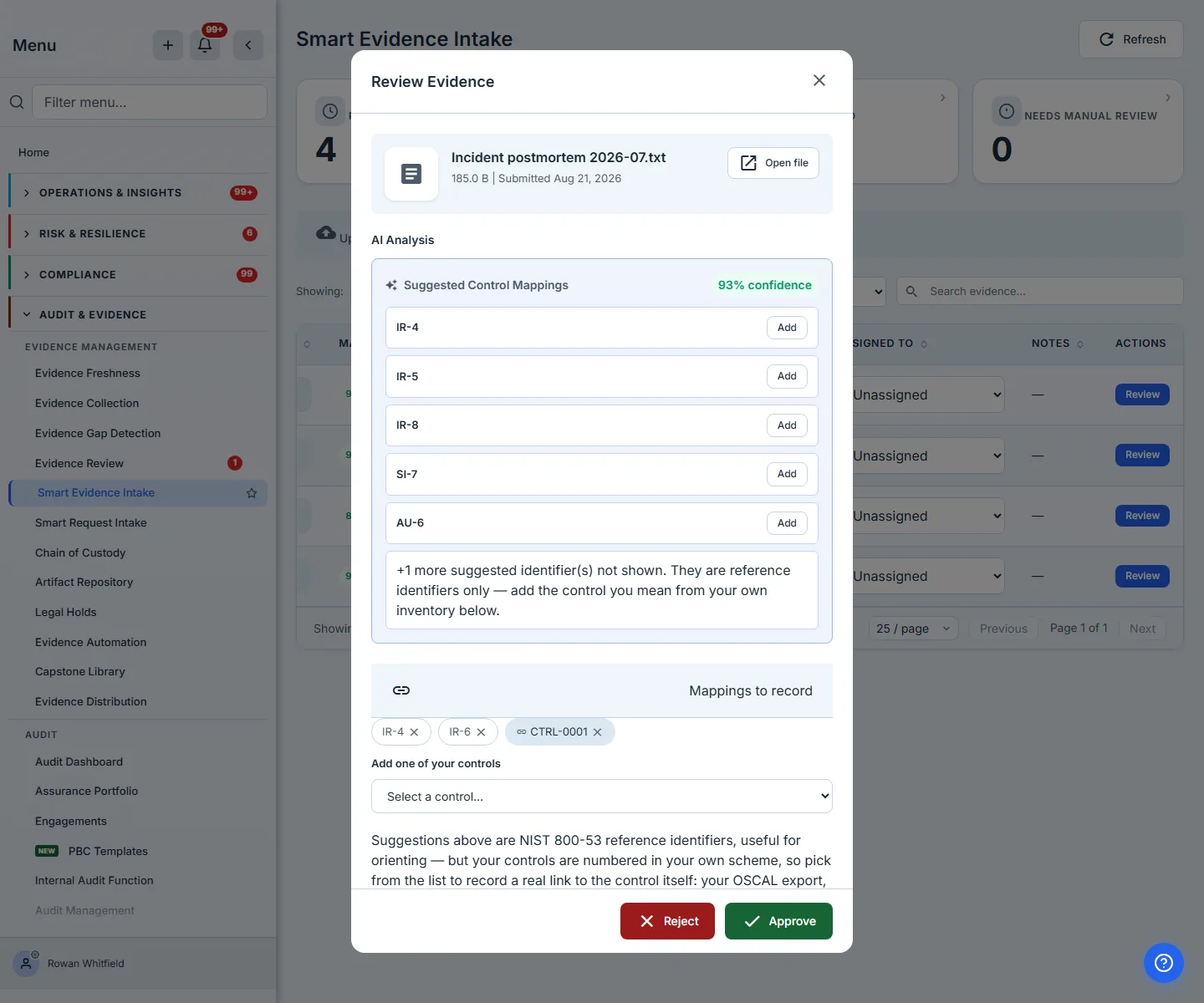
Reviewing a piece of evidence sets its control mappings, its category, its effective and expiration dates, and any notes you want to leave for whoever reads the record next — the dialog carries all of them, with the mapping panel first because it is the part that changes what the evidence connects to. That panel shows exactly what will be recorded, and lets you remove anything you disagree with before you commit to it.
Open the file before you decide. The dialog carries an Open file control that hands you the document itself in a new tab. It is worth saying plainly because the alternative is not a faster review, it is a worse one: approving or rejecting on a filename, a size and a classifier’s guess is a judgement about metadata, and the record afterwards claims a human read the evidence.
Where the suggested identifiers come from depends on which pass produced them, and both passes see less of the document than you would assume.
The queue-time pass reads the FILE NAME and nothing else — not one byte of the document is opened before you press Submit. It matches deterministic keywords from that name against fixed NIST 800-53 identifiers: a file called Incident postmortem 2026-07.txt is offered IR-4 and IR-6, every time, because that is what the keyword rule says. Repeatable and narrow by design — and wholly dependent on how you name things.
The AI pass reads no table. It asks a model for the identifiers most relevant to the document and records what comes back, so it can propose identifiers no table contained — which is the point of it, and the reason it is labelled as AI and given a confidence score. A suggestion from that pass is a proposal to be checked, not a lookup that has already been checked for you.
It only reads the document when the platform can read it as text, and even then it reads very
little of it. A .txt, .csv, .json, .xml or .md file has its opening passed to the model —
the browser opens the first 8 KB, sends at most four thousand characters of it, and the handler
trims that again to two thousand before it reaches the prompt. A PDF, a Word or Excel file, or a screenshot is not read
at all; for those the model is given the file name and type alone. So a long access-review export
or incident log is classified from its first page or two, not from the row that matters at the
end of it. Since exports, signed PDFs and
screenshots are exactly what most evidence looks like, the practical rule is the same for both
passes: name the file for what it proves. A document called scan_final_v3.pdf gives either
pass nothing to work with.
Either way they are there to orient you rather than to be attached blindly. Your own controls are numbered in your own scheme, so the panel also lets you pick from your inventory directly — and that is what records a real link to the control itself. A reference identifier you keep is still recorded on the evidence; it simply links to nothing.
If your organisation has no controls yet, the picker says so and points at the Control Library rather than presenting an empty list: an inventory is a prerequisite for the link, and the page now tells you that at the moment you need to know it rather than leaving you to infer it from a control that is not there.
The link is followed by your OSCAL export, by evidence-gap detection, by the control-coverage measures on the auditor and CISO dashboards, and by the control’s own Evidence tab.
That last one is worth a sentence, because it was the exception until recently. A control carries two possible identifiers: a catalogue identifier if you adopted it from the control catalogue, and its own record id, which is all a control you wrote yourself ever has. The readers used to insist on the catalogue identifier, so evidence mapped to a self-authored control was linked correctly and listed nowhere — and since a control you create is never given a catalogue identifier, that was precisely the case most likely to affect you. They now accept either, so the tab answers for both kinds of control.
What approval changes
Approval is not a status change. It:
- makes the row visible to the canonical evidence readers, by promoting it out of the intake state. One surface does not wait for that. The Artifact Repository lists it anyway: the repository filters only on whether a row has been superseded, so a document still awaiting review, and one you have already rejected, both appear there as ordinary artifacts. The app’s own global search — the command palette — is the opposite case: it carries no evidence type at all, so it never finds these rows, before or after approval
- recalculates freshness from the dates you set
- carries the version chain it was given at submission, with the record as its own first version — a replacement uploaded through the evidence library then supersedes it rather than sitting beside it. Dropping the same document through intake again creates a separate record, so use the library’s replace path when you mean “this is the newer one”
- links the evidence to your real controls — every control you picked becomes a graph edge in the platform’s link table, read by the OSCAL export, evidence-gap detection, the auditor and CISO control-coverage measures, the risk register’s linked-controls panel, the control’s own Evidence tab, and the repository’s “used in” panel that stops you deleting evidence still in use
That last one is what makes this a programme feature rather than a filing cabinet. An identifier your organisation does not use is still recorded on the evidence; it simply links to nothing.
A decision is final. Neither approval nor rejection re-opens on a later pass — there is no un-reject and no re-open, so the moment to hesitate is before you press, not after.
Freshness is a question about today
On this page, evidence freshness is derived from the dates on the record every time it is read, not stamped once and remembered — the only honest answer to “is this evidence fresh” is one computed now. Worth knowing where that does and does not hold: the grade is recomputed on the intake queue and on its distribution chart, from the same function the per-row badge uses, so the two can never grade the same record differently. They can still describe different populations: the chart scans the most recent approved records up to a ceiling of five thousand, while the table below it shows one page of the most recent hundred — so the chart is the wider view, but it is not unbounded. Past five thousand approved records it relabels itself to say how many it actually counted, rather than continuing to imply it covered everything. The Artifact Repository does not show this grade the way this page does — it leads with a lifecycle badge and prints days remaining until expiry beneath it — so the two pages answer related but different questions. A stored grade is also written, at submission and again at approval, and then it is never recomputed: a record approved as Current still reads Current in that column a year later. Everything on THIS page — the chart, the per-row badge, the Approved shelf — is derived on read from the dates themselves, so none of it inherits that staleness.
Here is the rule that matters, and it is more useful than any list: anything that reads the stored grade inherits the moment it was written. Surfaces that recompute from the dates stay true; surfaces that read the column show you approval day, however long ago that was.
You will meet that in more places than you would expect — the home dashboard’s Evidence Expired or Stale notice, the Freshness column in evidence reporting, the confidence score and lifecycle badge in the Artifact Repository, the compliance calendar’s expiry events. Treat that as examples rather than an inventory: the safe assumption is that a freshness word displayed away from this page may be an approval-day answer, and a date or day-count is live.
So judge freshness from this page. A record approved as Current still scores as fresh elsewhere a year later, and nothing about the way it is displayed says so.
Which grade you get depends on which date you recorded, and the two are not the same ladder. An effective date ages the record: Current, then Aging at half its category’s window, then Stale past it. An expiration date expires it: Expiring soon inside thirty days, then Expired. A record with only an effective date never reaches Expired, however old it gets, because nothing told the platform when it stops being true.
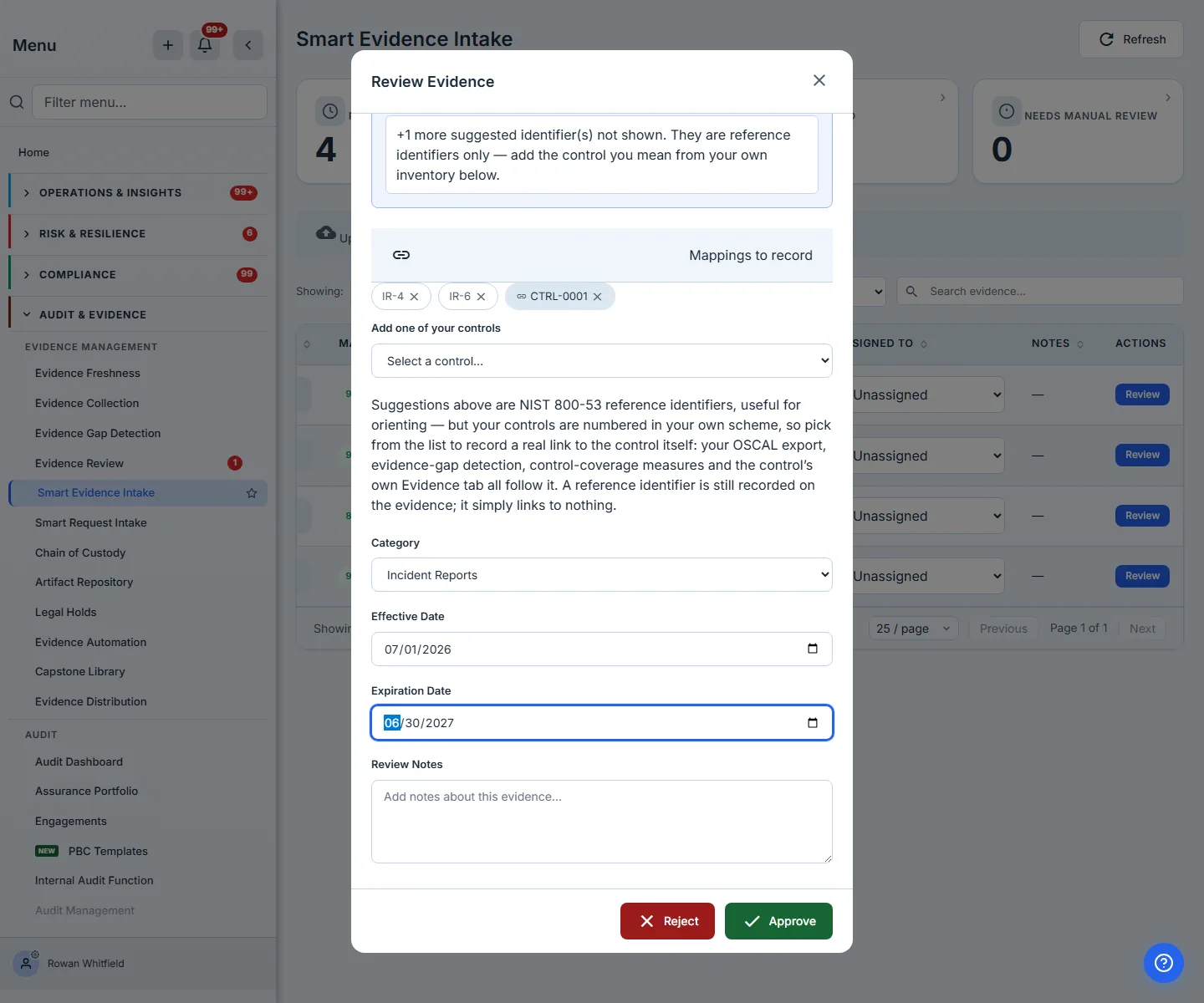
Where no dates were recorded, the page says No dates recorded rather than guessing. That state is common and it is not a failure; it is the difference between evidence you can rely on at audit and evidence you merely possess.
At scale
The queue pages through your backlog rather than showing a first screen and stopping. Category and review-status filters run at the server, so they reach the whole queue and not just the rows already loaded — and so does free-text search, over file names and descriptions. That matters past the first page: a search that only narrowed the rows already fetched would answer “no such file” about a file that exists, which is the most confident wrong answer an interface can give. It is also what the page itself tells you, in as many words, above the Load more button.
The tiles above the queue count your whole organisation. The filters below scope only the list. Those are different questions, and conflating them is how a dashboard ends up reassuring you about a number it is not actually measuring. All four tiles are also buttons. Needs manual review filters the queue to the low-confidence subset — the items where the classifier said, in effect, that it was guessing — which is the right place to start a session if you are triaging rather than working through in order.
The queue itself shows what is awaiting review. A selector above it switches to rejected items, which is the only route to a rejection and the reason it was refused; without it a rejected file would leave no trace on the page that rejected it. Assignment has its own filter — anyone, assigned to me, unassigned — and unassigned is the useful one: it is the list of work nobody has picked up, which is the thing a shared queue is worst at showing you.
Before you submit, a queued file can still be corrected: each row has an edit control for its tags, and the category select is editable in place. After submission the queue row is gone and the record belongs to the review step, so that is the moment to fix a wrong tag rather than after.
The Approved shelf has its own search, and it also asks the server. That is worth stating because the shelf shows one page of the most recent hundred by arrival: a search that narrowed only those hundred would be the same confident wrong answer described above, one tab over.
The categories, and why they are fixed
The category list is not something you configure. It is a fixed vocabulary — policy, procedure, screenshot, configuration, audit report, training record, access review, risk assessment, incident report, vendor document, BCP/DR, and a handful more — and that is deliberate. A per-organisation taxonomy would make the classifier untrainable and every cross-organisation comparison meaningless. What varies between organisations is which controls the evidence maps to, not what kind of artefact a screenshot is.
Each category carries its own freshness window. A screenshot or an access review ages faster than a policy document, because what it proves is a moment rather than a rule. The category you confirm at review is therefore not just a label — it decides how long the evidence counts for.
You can read those windows rather than infer them. The Categories tab lists the whole vocabulary — each with its description, the reference identifiers it typically maps to, and the number of days it counts as current before it starts ageing. It is a reference surface, not a settings page: nothing on it is editable, which is the point of the section you are reading.
The trail the review leaves
Every intake record keeps who submitted it and when, who decided and when, and the note they left. That trail is the part an auditor actually tests: not whether you have a document, but whether a named person looked at it, on a date, and said it was the right document.
This is why a decision carries its reason forward, and why both the queue and the approved shelf show it in a Notes column rather than only storing it. The column is narrow — it shows that a note was recorded and its opening words, with the full text on hover — but it is the difference between a justification that exists and one that can be found. Approvals used to have neither: the note was written to the record and displayed on no surface in the product. A rejected file that says nothing about why it was rejected forces the next person to repeat the same judgement from scratch — and, more often, to re-upload the same wrong artefact. Requiring someone to type a justification and then giving them nowhere to read it back is the worst of both: the cost of the ceremony without the benefit.
Where the evidence goes next
Approved evidence is not confined to this page. It becomes an ordinary record in your evidence library, carrying its own freshness grade and its place in a version chain, and — for every control you mapped — it is joined to that control in the platform’s link graph rather than merely labelled with its name.
That link is what downstream surfaces read, and more of them than you might expect. The control’s own detail page lists the evidence attached to it. Your OSCAL export carries the evidence against the control it supports. The risk register shows evidence coverage for the controls beneath a risk. Evidence-gap detection and the “controls without evidence” measures on the auditor and CISO dashboards are computed from the same edges.
The mapping is real and widely traversed. It is worth knowing that this took work to make true: several readers each recognised only one of the two shapes a link can take, so the same approved record could be counted by one surface and missed by another — the “Used In” panel went as far as offering the file as safe to delete while it was linked to a control. Those readers now agree.
One boundary is worth naming precisely, because it follows from the two-identifier problem above. Evidence-gap detection reads your organisation’s own control table and matches on EITHER identifier, so a control you authored yourself appears there and the link you recorded is seen.
The rule to carry, rather than a list: a coverage report that measures the shared catalogue cannot see a control you invented. Several do — the Control Library’s own coverage figures, the catalogue gap scan that raises work items, requirement-level compliance rollups, the coverage banner on the control inventory page itself. Each narrows to controls carrying a catalogue identifier BEFORE it looks for evidence, so a self-authored control is absent from the denominator, not scored zero in it. Your evidence is still linked, still exported, still listed on that control’s own Evidence tab, and still counted by the “used in” guard that stops you deleting it — it simply is not part of a measurement about the catalogue.
Other freshness surfaces answer overlapping questions, so expect the numbers to differ. The freshness dashboard reports both on evidence attached to remediation work and on artifact expiry across the whole active library — approved intake records included.
Be aware of one real divergence rather than a difference of scope: this tab grades against fixed per-category windows and does not read your organisation’s freshness configuration. Evidence Freshness Settings resolves a threshold through a precedence chain — a policy on the evidence itself, then the control, then configured rules at control, framework, type and global scope. Set stale to 30 days there and the gap surfaces will honour it; this tab will still grade a policy document on its 365-day category window. If the two disagree, that is why.
That connection is what an audit-readiness question actually depends on. “Do we have evidence for this control” is not answerable from a folder; it is answerable from a graph. Intake is where documents enter that graph.
What it does not do yet
Several limits are worth knowing before you plan around this page, because none of them is obvious from using it.
The control picker stops at five hundred. The dialog’s control list is a single ordered read capped at five hundred entries, presented as a plain dropdown with no search box. Five hundred sounds generous until you count a real library — the NIST 800-53 Rev 5 high baseline alone is around 370 controls, so an organisation tracking two frameworks passes the ceiling routinely. Past it, controls beyond the cap simply are not offered here, and the dialog says so and points you at the control’s own page to record the link from that side instead. That path exists — the Manual evidence card on any control offers Link Existing — but it is not the same link. The card above it, CCL-linked evidence, only appears for a control that carries a catalogue id, and a control your organisation authored never does; a link made from the manual card is read by the control page and not by the catalogue-keyed readers. So past five hundred controls you can still record the relationship, on a different screen, in a form that some coverage views will not count. This is the one limit on the list you would not discover until the control you wanted was missing.
Review is one item at a time. You can drop fifty files in one go, and the queue will take them — but each decision is its own dialog. There is no select-all, no bulk approve. A quarter’s worth of access reviews is a quarter’s worth of clicks.
Nothing can be deleted from this page. A file uploaded by mistake, or one you rejected, stays in the record here. Decisions are final by design and this page offers no removal path — so treat submission as the commitment, not approval. An approved record becomes an ordinary library artifact and can be deleted from the library like any other, subject to the usual in-use and retention checks; it is this queue that has no delete, not the platform.
Nothing chases you about a backlog. Submitting raises an in-app notice to whoever your organisation has configured for compliance notifications — org admins by default, rather than specifically the people who hold review rights — and deciding notifies whoever submitted. Assigning an item to somebody else notifies them too, which is what makes the ownership step above worth doing: the assignee is told, rather than having to be told out of band. There is no email on any of these paths; they are all in-app. What does not exist is a reminder for an item that has simply been sitting: nothing escalates after a week, and the sidebar item carries no count. There is a nav popup that reports the pending-review total, with the low-confidence subset called out beneath — but do not plan around it. It only opens when the badge beside Evidence Review is showing a number, and that badge counts something else entirely: evidence collection runs that failed in the last thirty days. So an organisation with a fifty-item review backlog and healthy connectors never sees the popup at all, while one with a broken connector and an empty queue gets a popup reading zero. Your standing prompt is the Smart intakes to triage card in My Work, or the page itself.
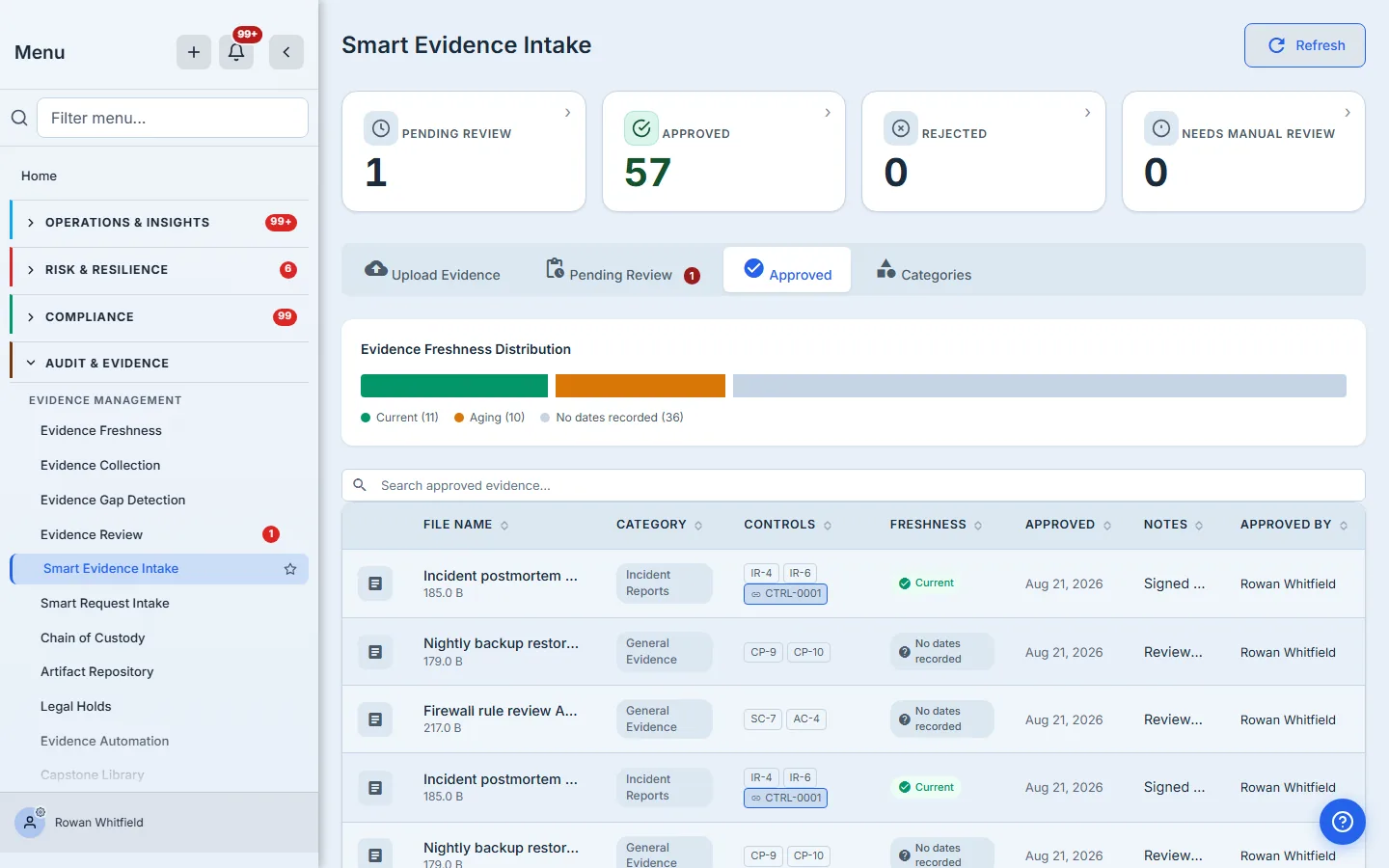
The Approved tab shows the hundred most recently submitted items — ordered by when the evidence arrived, not by when it was approved, which matters if a backlog was cleared out of order. Older evidence is in the evidence library, which pages through the whole archive; this tab is a working shelf, not the register.
There is no file-size limit here, and intake bytes are counted against your storage quota — just not on the day they land. The absent size cap is a real gap: nothing on this page stops a very large upload. The quota, though, is enforced — the upload URL is refused outright if the organisation is already over it, and the nightly storage walk sums the same bucket prefix intake writes to, so the bytes are counted from the following day. What intake skips is only the same-day running total, so a large batch can leave today’s figure understating what you have stored until the overnight recount catches up.
A parent organisation cannot review a child’s queue from here. The evidence library reader resolves linked-child records; this one does not, so a parent-org reviewer sees an empty queue where the library would show whatever that child has released to the parent through a cross-org process or a retained share. Neither surface shows a child’s library wholesale; the difference is that one resolves released rows and this one resolves none. Review in the child org.
This page has no export button, though the trail does leave the platform. Every decision here is recorded — who decided, when, against which controls, with what note — and none of it is downloadable from this page. Here is the rule that matters more than any list of destinations: the decision is stored as ordinary columns on the evidence record, plus events in the audit log — so anything that exports evidence rows or audit events carries it with them. The evidence-artifact reporting dataset is one such surface (review status, decision date, reviewer and rejection reason are all columns you can select); the audit-log export is another, carrying both the submission and the decision as events. What this page is missing is a button, not the data. A rejection’s note travels with it: the same sentence is stored a second time as the rejection reason, and that column is in the exported dataset. An approval’s note is the one that stays behind — it is written to the record, shown in the Notes column here, and carried by no export and no audit-log entry. For a surface whose argument is that the trail is the point, that asymmetry is worth knowing: you can hand an auditor every reason you said no, and none of the reasons you said yes.
Submitting is one file at a time under the surface. The queue accepts a batch and the button says Submit All, but each file is uploaded and recorded on its own round trip — so a large batch is slow rather than parallel, and a failure part-way leaves the successes submitted and the failures in the queue to retry. A batched submit path exists in the backend and this page does not yet use it, so this is a wiring gap rather than a missing capability.
None of these stops the loop working. They decide how big a batch you should take on at once, and whether this page or My Work is where you go looking for what is waiting.
Where to start
Upload one batch of something you already have — last quarter’s access reviews are usually the easiest, because they arrive as a set and map to a small number of controls. Review them with the dates filled in rather than skipped: the dates are what make freshness mean anything, and evidence with no dates recorded is the one case the platform cannot grade for you.
Then check the Approved tab: the evidence should be listed with its category, its control chips, its freshness grade, and the name of whoever approved it. That is the loop closed — the documents are now records the platform can reason about, and everything after it is repetition.
The controls you mapped are recorded on each record, carried into your OSCAL export, and listed on the control’s own detail page — so you can confirm the mapping took from either end.
What you walk away with
A folder of documents becomes a set of reviewed, dated, control-linked evidence records — with a visible trail of who submitted each one, who decided, and why anything was turned down.