Most governance work does not arrive as a ticket. It arrives as a sentence.
“We need the vendor security policy updated before the SOC 2 audit.” “Someone in finance still has admin on the old billing system.” “Can we get the firewall rule review done this quarter?” Each one is a real obligation, and each one is currently sitting in a message thread that will be forgotten by Thursday.
The gap is not that people fail to report things. It is that reporting them properly — choosing the right register, the right priority, the right owner — takes more knowledge of your GRC programme than most of the people raising them have. So they send a message instead, and the work falls to whoever happens to remember it.
Smart Request Intake closes that gap from the other end. Anyone can describe what they need in plain language. The page classifies it, proposes where it belongs, and hands a human the decision about what it becomes.
Where it lives
Smart Request Intake is not its own sidebar row. It is the Request Intake tab on the Artifact Repository page, beside Repository, Evidence Intake and Legal Holds. (Chain of Custody looks like a neighbour but lives on a different hub.) One thing to plan around before you roll it out: the page is scoped to organisation admins, so the colleagues whose messages this feature exists to replace cannot reach it themselves today. It is a triage surface first.
Every screenshot below is cropped to the card being discussed rather than the whole page, so you will not see that tab bar in any of them — look for it above the page heading when you open the hub.
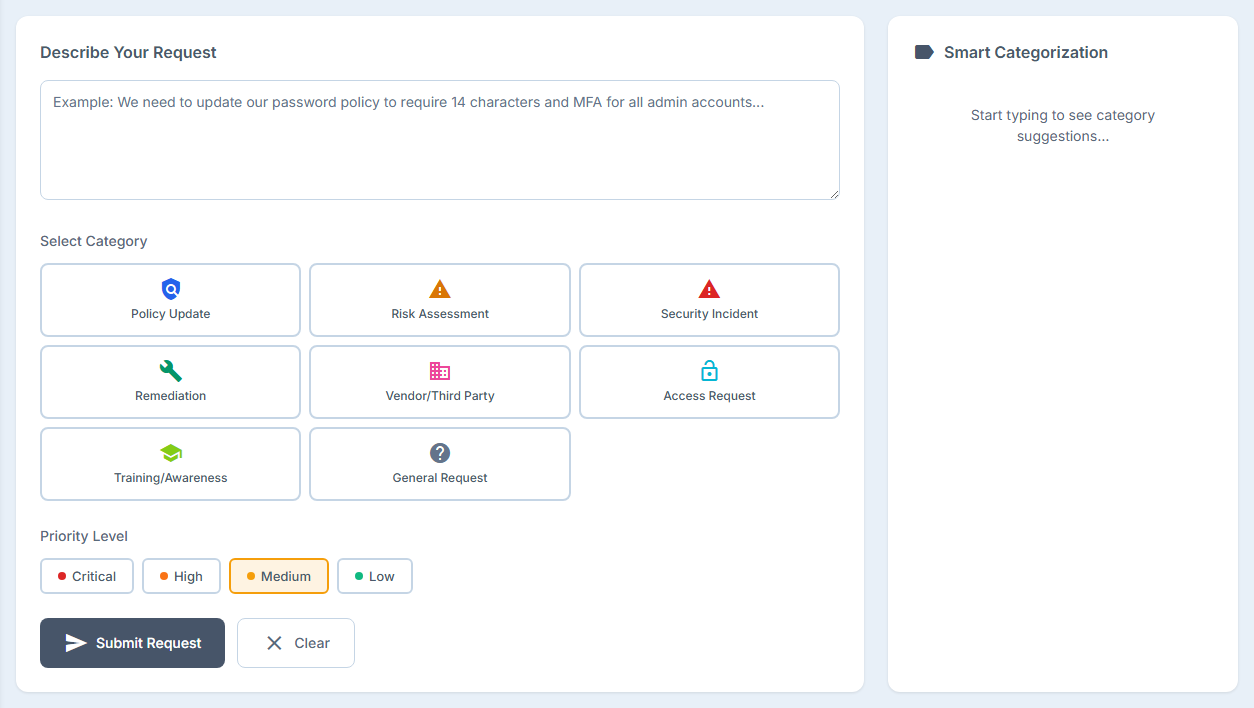
Step 1 — Describe the request in your own words
There is no form to learn. You type what you need.
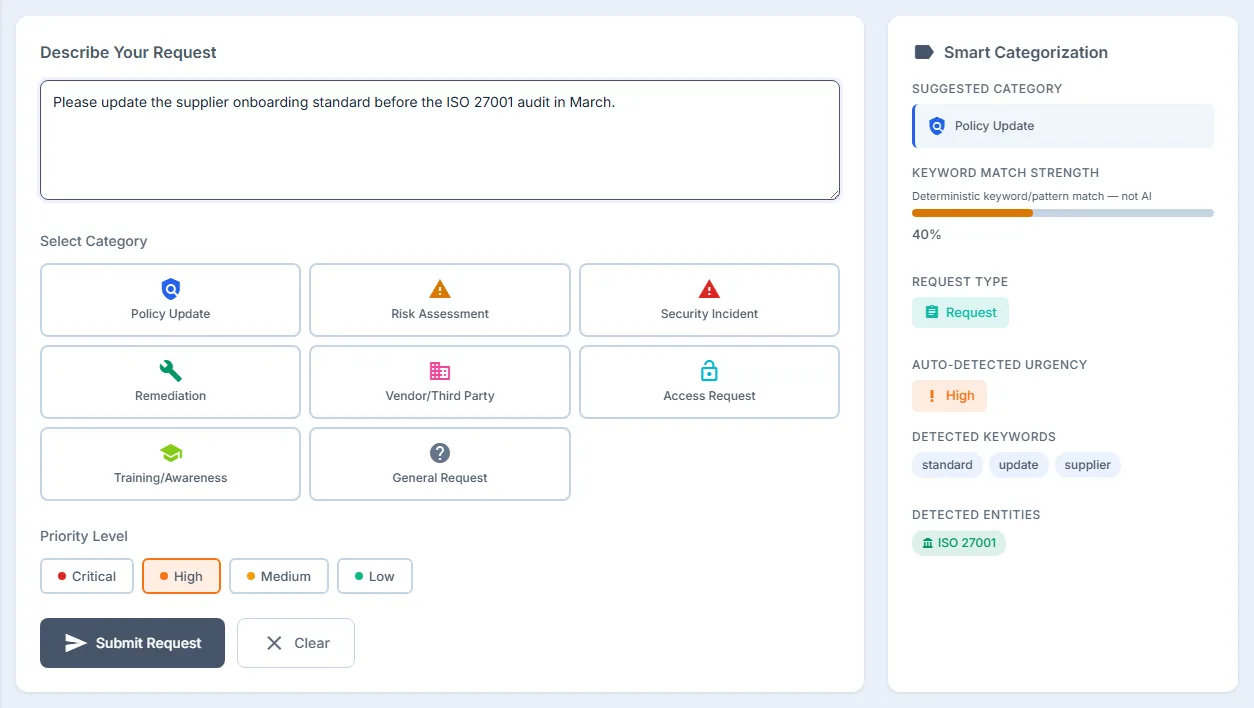
As you type, the page reads what you have written and shows what it found: a suggested category, the keywords it matched, the request type, any urgency it detected, and any systems, frameworks or timeframes it recognised.
Step 2 — Read what it actually detected
This is where being precise matters more than sounding clever, so here is exactly what the page is doing.
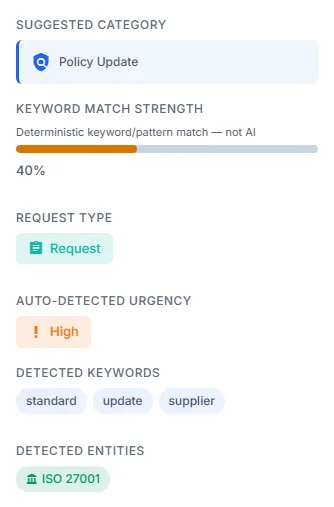
The classification is keyword matching, and it runs in your browser. Each category carries a vocabulary — Vendor knows supplier, third party, contractor; Access knows permission, privilege, role — and the category whose vocabulary your text hits hardest is the one suggested.
The number beside it is labelled keyword match strength, not confidence, and that wording is deliberate. It is arithmetic you can check: twenty-five points for each word of a keyword matching the suggested category — so a two-word phrase like third party is worth fifty — ten more if the request reads as a statement rather than a question, five for each detected entity, to a maximum of a hundred. A question earns no bonus at all, which is worth knowing because “Can we get the firewall rule review done this quarter?” is a question, and scores ten points lower than the same request phrased as an instruction.
Worth reading carefully, because the keyword list underneath is not the same thing. It shows every keyword your text matched across all categories — in the example above, standard belongs to Policy Update, supplier to Vendor/Third Party and update to Remediation. Three categories scored one apiece, Policy Update took the tie, and the strength is 25 for that single matching keyword, plus 10 for the request type, plus 5 for the one entity it recognised — ISO 27001 — which is 40%. A score in the middle usually means what it looks like: your wording pointed at more than one place at once, and 40% is the page telling you it is not confident enough to choose for you. It leaves the tile unselected and waits.
None of that is a model’s probability that the answer is right, and Talarity does not present it as one.
Urgency works the same way — from words, not judgement. Breach, urgent and asap read as critical; deadline, overdue, expiring and audit read as high; no rush and when convenient read as low. That is why the example above sits at High without anyone touching the priority buttons: the word audit is in the high band.
Two things about that are worth knowing, because they are the difference between a helpful default and a wrong one. It describes the sentence you have now, not the one you started with — delete the urgent words while you are editing and the priority comes back down, rather than leaving a Critical behind that nothing on screen still justifies. And the moment you set a priority yourself, it stops, for the rest of that request. Choosing Medium counts as choosing: the detector defers to the person, not to the value, so a deliberate Medium is not mistaken for an untouched default.
Step 3 — Know where it is going before you send it
Just above the submit button is one sentence telling you what this request will become.
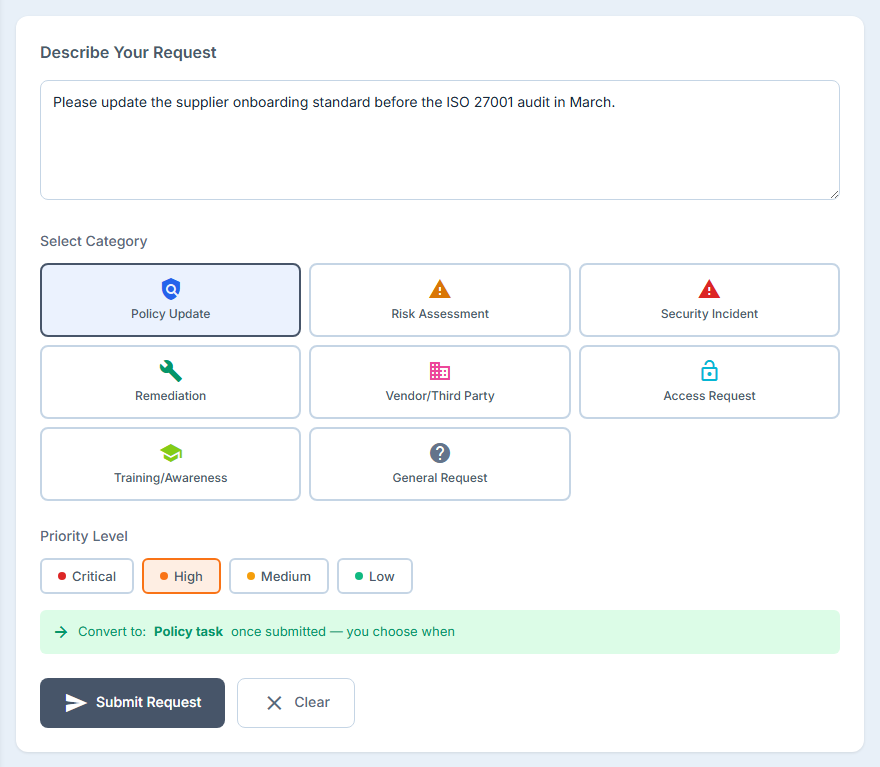
By default, nothing is routed automatically. The request is filed; a person converts it into tracked work when they are ready. The note says exactly that, and it reads the same map the conversion itself uses — so the promise on screen and the behaviour behind it cannot drift apart.
An administrator can change that. Turning on Auto-create Items and turning off Require Approval in Smart Intake Settings lets a strong enough match be filed the moment it is submitted, with no triage step. That is a deliberate pair of switches rather than one, because unattended filing is a decision worth making twice — and when an org has made it, this same note changes to say so, rather than promising a triage step that is no longer going to happen.
The audit entry for an automatic conversion records that it was your organisation’s standing policy that filed the item, rather than a person — so an auditor reading the log can tell which records somebody exercised judgement over and which the rule produced on its own. Without that mark the two are indistinguishable, because an automatic conversion is still attributed to the person who filed the request.
Step 4 — The queue, and what it tells you about itself
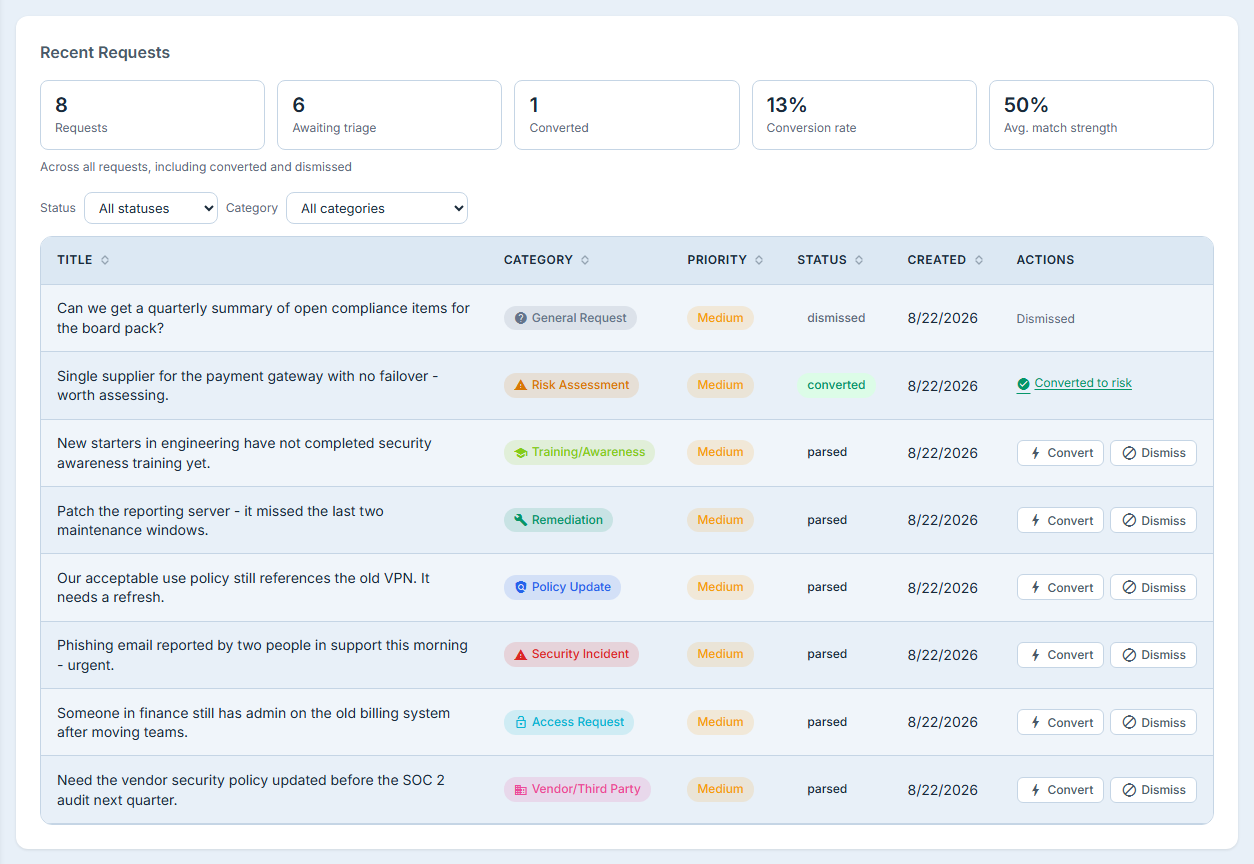
Submitted requests land in the queue, beneath a summary of the whole register.
A submitted request is also visible to the person who raised it, under My Items → Requests, so they can follow it without being given access to the triage queue.
Those counters describe every request the organisation holds, not the rows on screen - and the strip says so underneath itself, because a summary that counts a different population from the list below it has to admit that on screen rather than in an article. That distinction is the difference between a number you can put in a board pack and a number that changes when you filter.
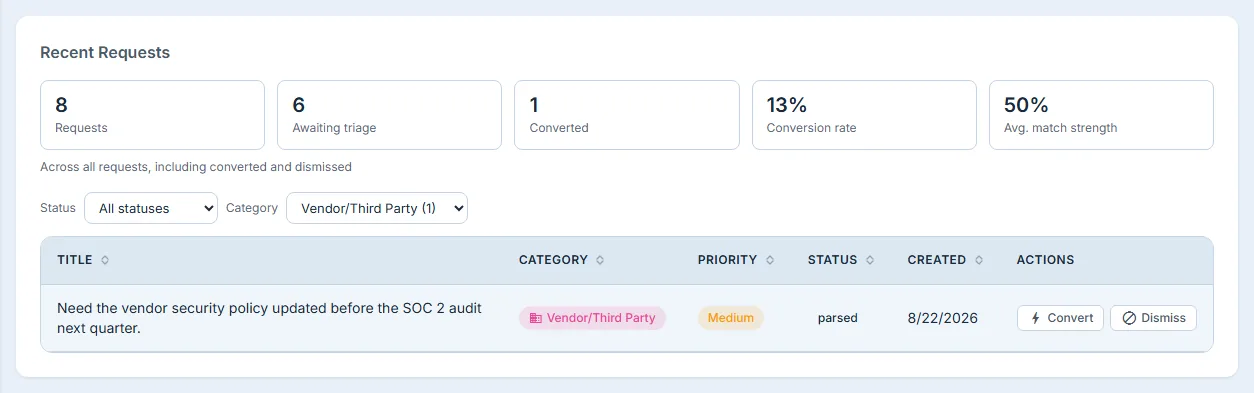
Filtering by status or category narrows the query itself rather than hiding rows already fetched, so a filter finds requests that were never on your screen to begin with. And when the queue is showing only its most recent page, it says so underneath rather than simply stopping.
The counters keep counting the whole register while you do it. A filter changes which rows you are looking at, never which rows are being counted — so converting something out of a filtered queue moves the numbers above it in the same breath, instead of leaving them describing the register as it was before you clicked.
Step 5 — Convert it into something somebody owns
This is the step that makes the whole page worth having.
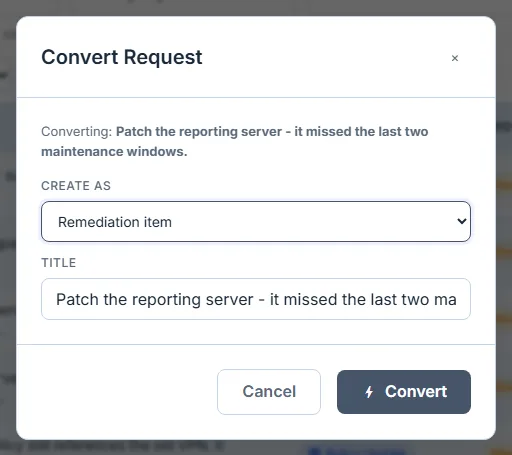
The classification chose a destination; you confirm or change it, and you can edit the title before anything is created. What comes out the other side is a real record in the right register — a risk scored on your own scale, an incident carrying a severity from your own vocabulary, or a work item on somebody’s list.
Both of those details matter more than they sound. A risk created here is scored through the same routine every other risk in your register goes through, so it lands in the right band of the heat map even if you have moved off the default five-point scale — and an incident is given a severity your organisation actually uses, rather than a name your filters and rollups would not recognise.
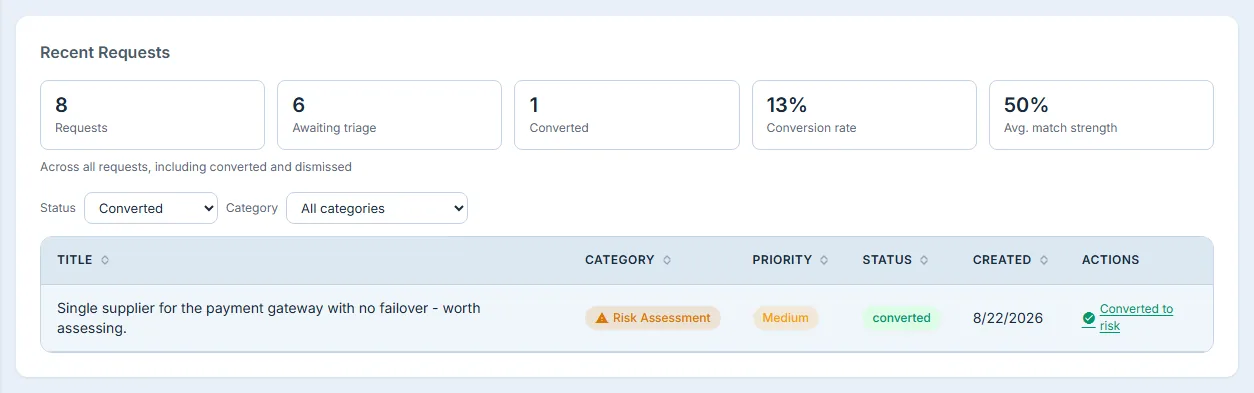
The request keeps a record of what it turned into and links directly to it, the created item records that it came from intake, and the conversion is written to the organisation’s audit log naming both rows.
Step 6 — Dismiss the ones that are not work
Not every request should become a record, and closing one is a deliberate act.
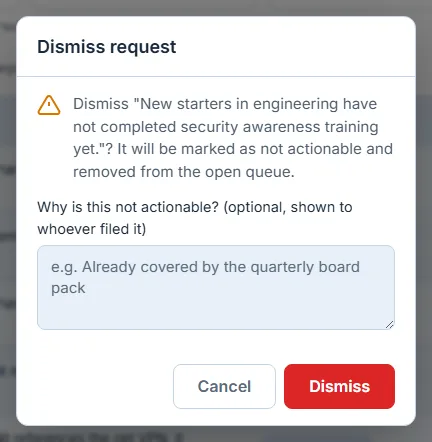
Dismissal asks first. If the confirmation cannot be shown for any reason, the page refuses to dismiss rather than proceeding unconfirmed — the safer failure, and the right one for an action you cannot undo from this screen.
Step 7 — Teach it your vocabulary
The built-in keyword lists are a starting point, not the whole answer. Your organisation has words of its own: a purchase order, a change window, the name everybody uses for the system its vendor calls something else.
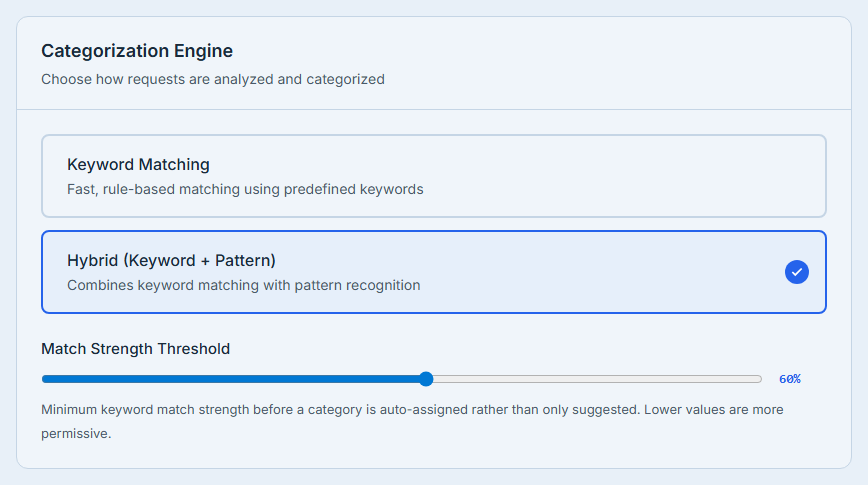
Add them per category in Smart Intake Settings and the intake page uses them. The same screen carries a Match Strength Threshold: the score at which a category stops being merely suggested and is selected for the person typing. Lower it if your team writes tersely, raise it if you would rather people chose deliberately. The matching engine itself is a real choice between two deterministic modes — which is why the threshold is a match score and not a probability. Keyword Matching scores your vocabulary and nothing else. Hybrid, the default, adds what the wording implies: a recognised intent, and named things it can pick out of the sentence. Hybrid scores higher on the same text, so the two modes are worth a moment’s thought about your threshold rather than a shrug — the narrower mode is for teams who want the score to be traceable to words they can point at.
Above all of it sits Enable Smart Intake. Turn it off and the suggestions stop: no category is chosen for anyone, no priority is raised, and the request form becomes a plain form that people fill in themselves. The queue, the conversions and everything downstream carry on working.
What it does not do
Being clear about the edges is part of being useful:
- It does not act on your behalf unless you tell it to. Out of the box, every request becomes tracked work because a person decided it should. Unattended filing exists, but it is off, and it takes two switches in Smart Intake Settings to turn on.
- It has no bulk actions and no export. Requests are handled one at a time.
- A misclassified request is corrected at conversion, not in the queue. You change the target type when you convert it; there is no re-classify control on the row itself.
- It is not on a dashboard, in global search, or behind a nav badge. You go to the queue; it does not come to you. The one exception is the submitter’s own view: filing a request also materialises it into the platform request inbox, so it appears under My Items → Requests for the person who raised it. That write is best-effort — if it fails the request is still filed, and the failure is logged rather than surfaced.
- The queue does not show who filed each request. It sorts by category, priority and status — the things a triager acts on. Who asked is recorded on the request and in the audit log; it is simply not a column.
What you walk away with
The sentence somebody typed on Tuesday is a risk with an owner by Wednesday, and the path between those two things stays visible: what was written, which words matched, who decided what it became, and what it turned into. Not because anything guessed well — because the guessing was small, honest, clearly labelled, and a person made every decision that mattered.