Every framework that audits you produces a list of things to fix. SOC 2 hands you exceptions across the CC-series; ISO 27001:2022 leaves you nonconformities against Annex A; a pen test lands a PDF of findings ranked critical-to-low. The audit is only half the job — the half auditors actually re-check is whether you closed them, on time, before the window.
Most teams track that in a spreadsheet: one tab per audit, a column for status, a column for owner, and a weekly meeting to read it out. The spreadsheet drifts the moment work moves in the real system. Talarity already tracks every fix as a work item — assigned, dated, transitioned through a real lifecycle — so the remediation status is already live. Work Item Groups is the lens that turns that live data into the one number an audit sponsor asks for: are we going to make it?
A group is a named collection of existing work items — the SOC 2 findings, the Q3 hardening sprint, the items a single control owner is on the hook for. It carries an owner and a target date, an item can belong to several groups at once, and every number on its dashboard is derived live from the underlying work items. There is nothing to keep in sync.
Who’s involved
- Compliance lead — creates the group after an audit, sets the target date to the remediation deadline, and reads the dashboard in the weekly readout.
- Remediation owners — the engineers and managers assigned the individual findings. Their work moving through its normal lifecycle is the group’s progress; they never touch the group itself.
- Audit sponsor / CISO — owns the group, watches the completion percentage and the overdue count, and knows at a glance whether to escalate.
- Auditor — at re-test, pulls the group and sees every finding, its owner, its status, and its closure — the receipt that the exceptions were remediated.
Step 1 — Create the group
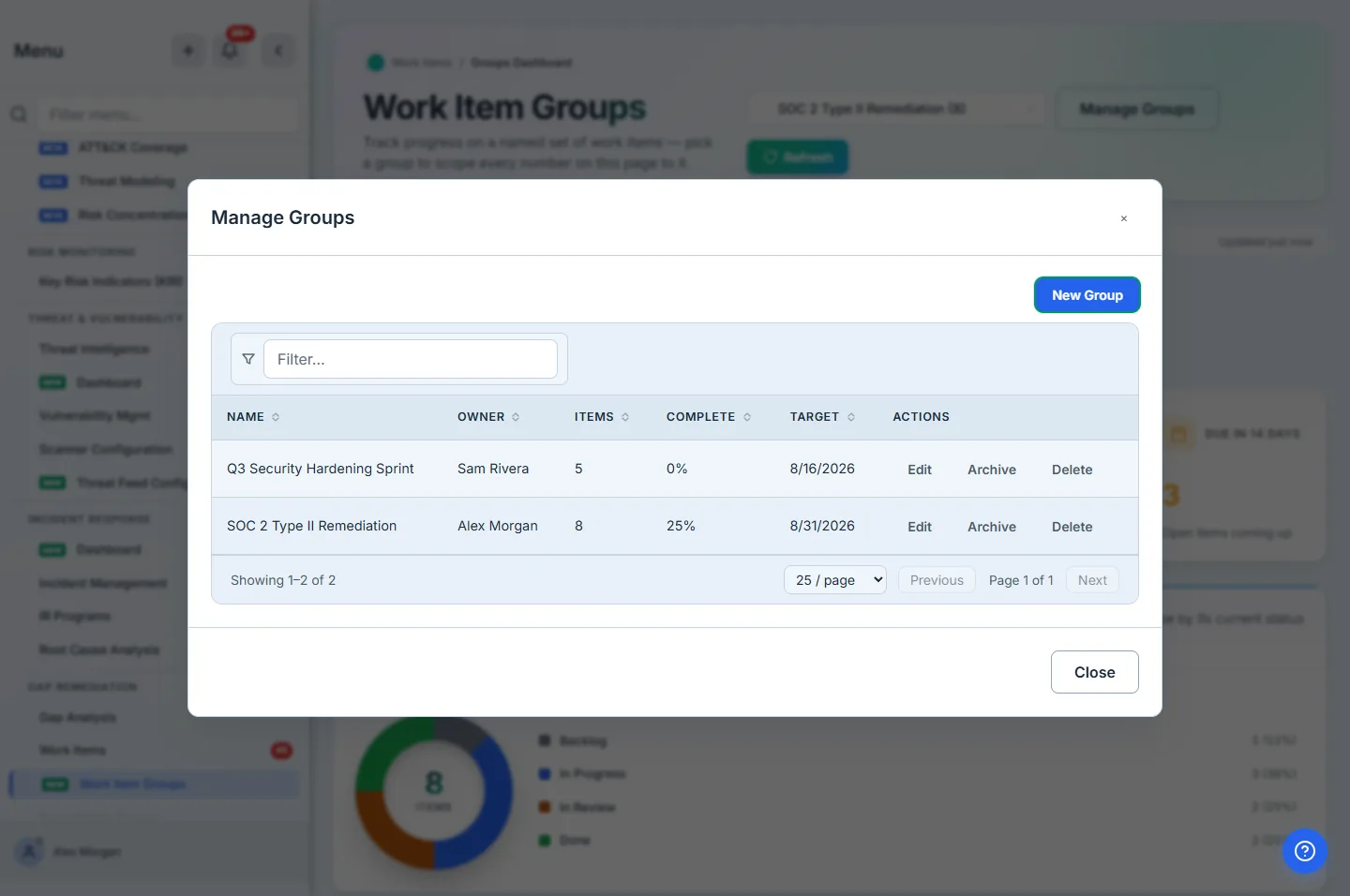
Open Work Item Groups under Gap Remediation, click Manage Groups, then New Group. Name it after the thing it tracks — “SOC 2 Type II Remediation”, “Q3 Security Hardening Sprint” — and set the two fields that make it a tracking unit rather than a bag:
- Owner — the person accountable for the whole body of work, not any single finding. This is who the audit sponsor asks. Pick them deliberately; it defaults to no one.
- Target date — the remediation deadline. The dashboard reads days-remaining against it, so the group turns from “in progress” to “at risk” against a real date, not a vibe.
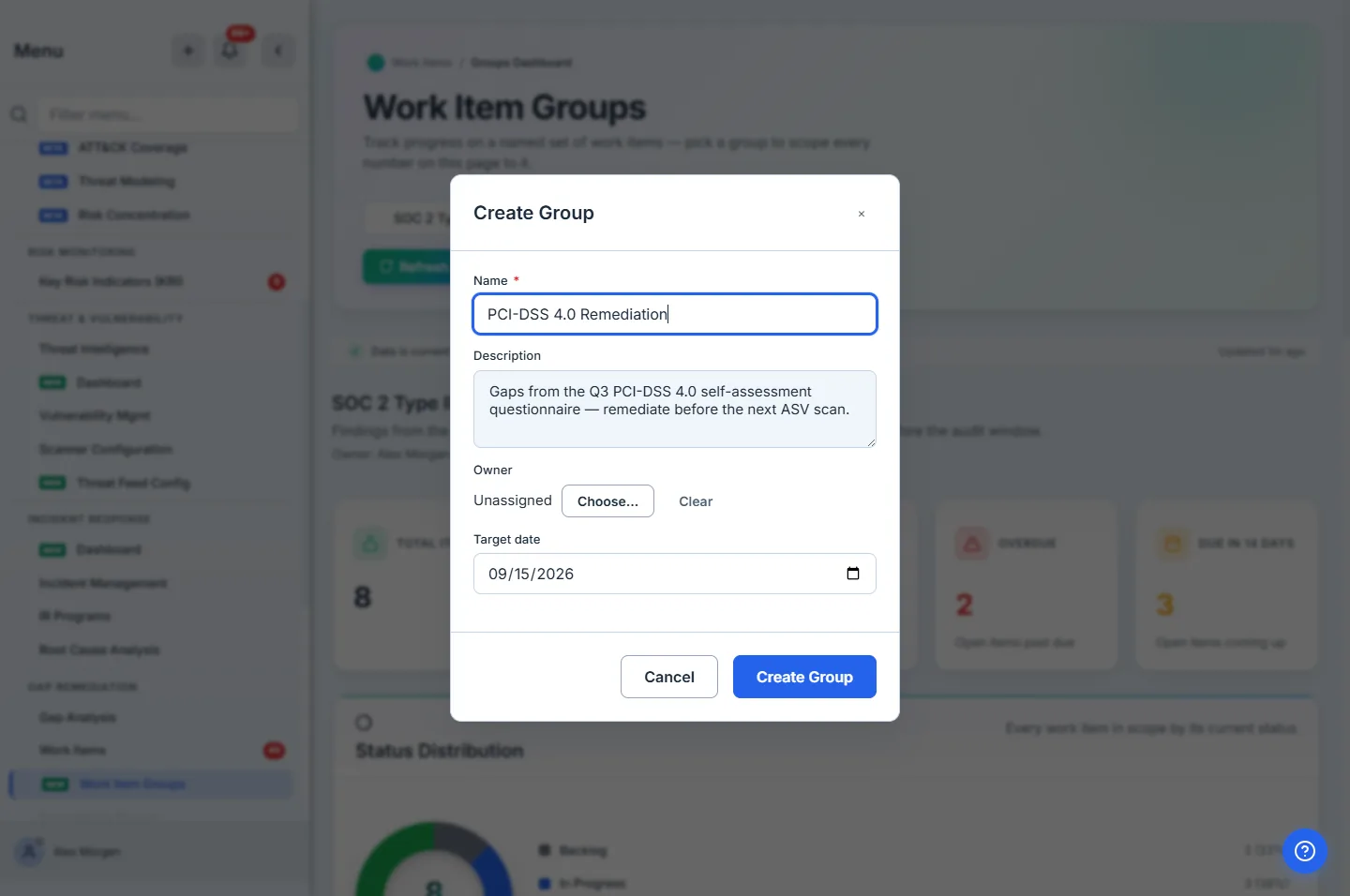
Behind the scenes Talarity writes one work_item_groups row scoped to your org, with the owner and target date on it. Nothing about the work items changes — the group is a lens, not a container.
Step 2 — Add the findings
A group starts empty. Populate it from wherever the work items already live: on the Work Items list, select the findings and click Add to Group; or from any work item’s detail page, use its Groups row. The picker lets you drop items into several groups at once, or type a name to spin up a brand-new group and seed it in one action.
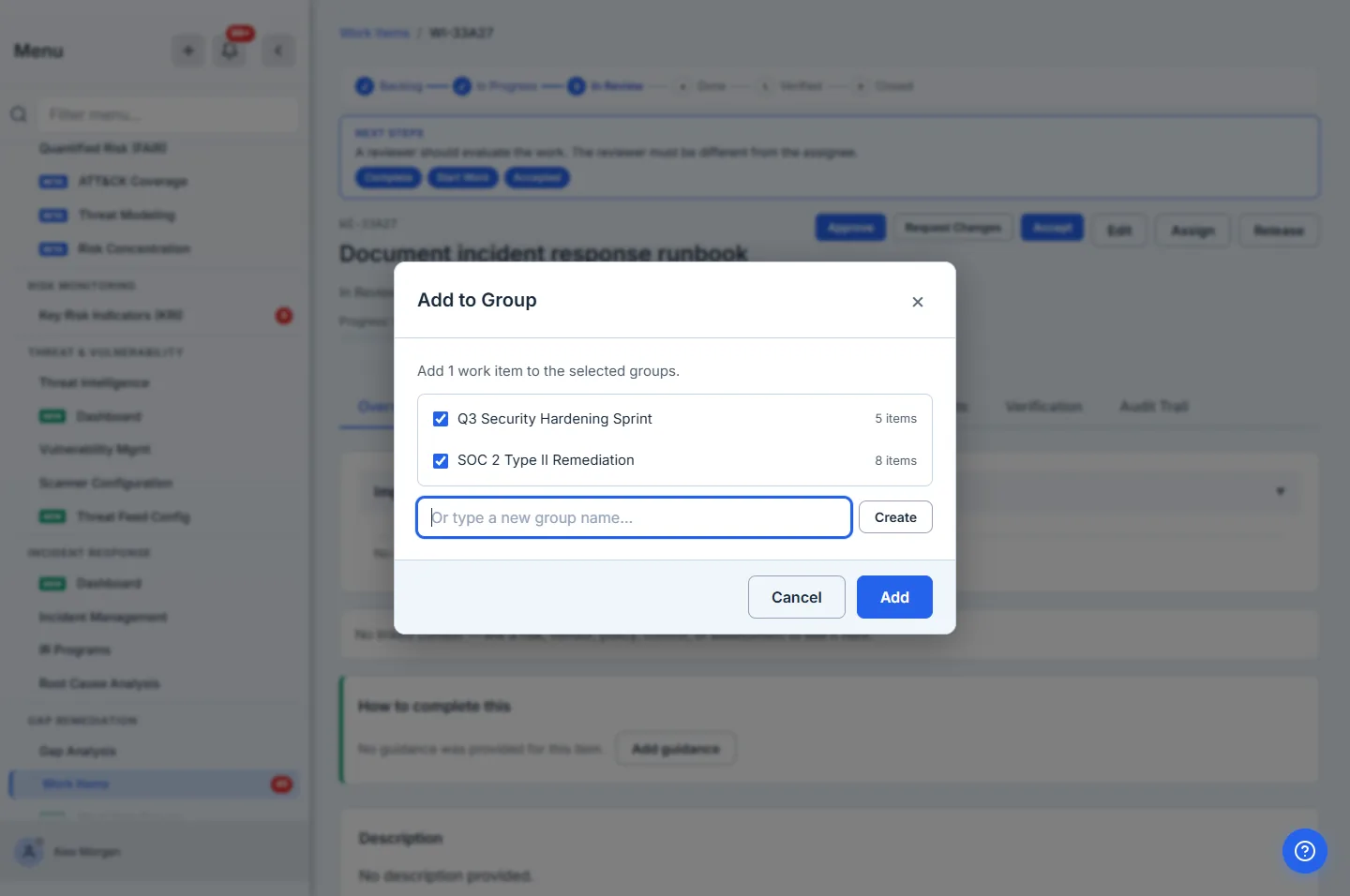
Membership is a link, not a move. The same finding can sit in “SOC 2 Type II Remediation” and “Q3 Security Hardening Sprint” without being duplicated — Talarity records one membership row per (group, work item) pair, and a work item deleted or reassigned elsewhere simply drops out of the group’s numbers. Adding 500 items is one database write, not five hundred.
Step 3 — Read the group as one dashboard
Back on Work Item Groups, pick the group from the dropdown in the header. Every number on the page now describes that group — and the URL carries ?group=…, so the scoped view is a link you can paste into the audit-readiness channel.
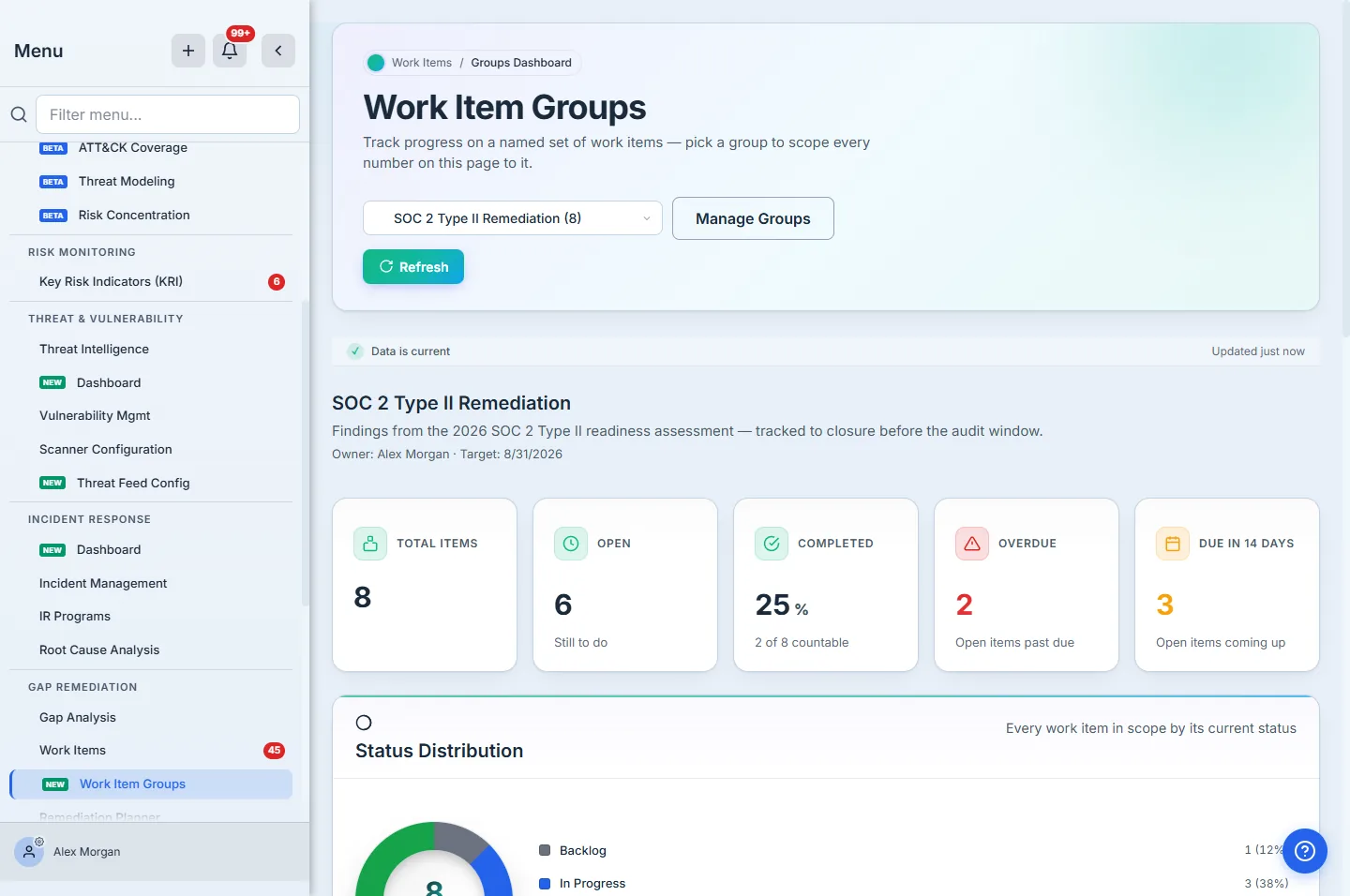
The KPI strip is the readout, and each number is computed the way an auditor would want it defended:
- Completed % counts work that is genuinely finished — done, verified, or closed — over the countable total. Cancelled and risk-accepted items are excluded from the denominator, so a group where two findings were formally accepted doesn’t read as permanently stuck at 75%. The card shows “2 of 8 countable” so the math is legible.
- Overdue counts open items past their due date only. A finding that was closed late is finished, not an outstanding obligation, so it never inflates the number that drives escalation.
- Due in 14 days is the same discipline forward — open items about to come due.
Step 4 — See the shape of the work
Below the KPIs, the Status Distribution donut and the Priority & Type bars show what the group is made of: how many findings sit in each lifecycle stage, and how the open work skews by urgency.
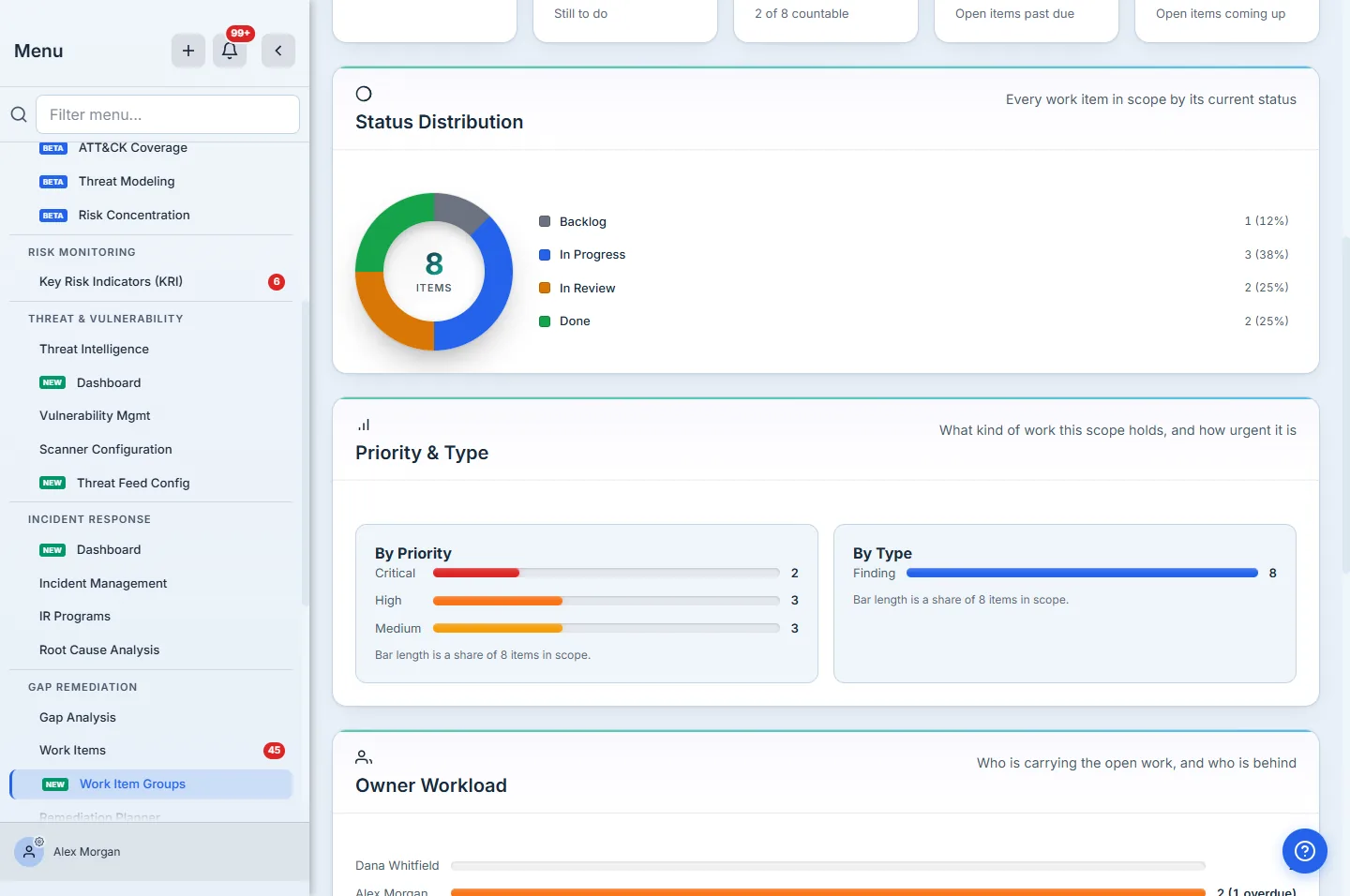
This is where a weekly readout gets its narrative. Three criticals still In Progress with two of them overdue is a very different conversation from eight items evenly spread toward Done — and both are one glance, not a spreadsheet pivot.
Step 5 — Find who’s behind
Owner Workload ranks the people carrying the group’s open work, and flags how many of each person’s items are overdue. It answers the question the completion percentage can’t: not just how much is left, but who to talk to.
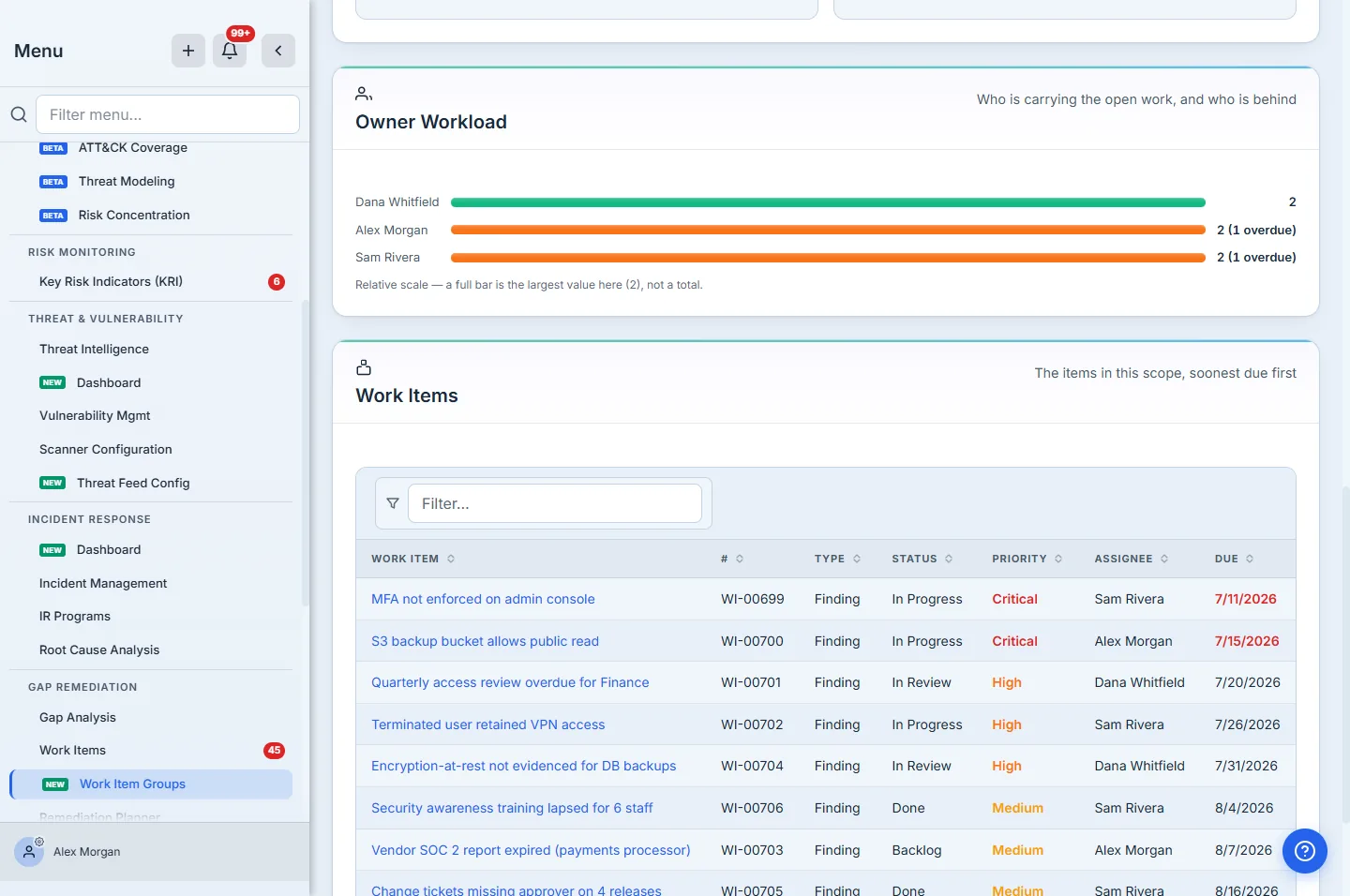
Underneath sits the group’s work items, sorted soonest-due-first, with overdue dates in red. Every title links straight to the work item, so the readout goes from “who’s behind” to the actual finding in one click — no hunting.
Step 6 — Watch every group at once
Clear the dropdown back to All work items and the page adds an All Groups panel: one progress card per active group, each with its owner, target date, completion bar, and overdue count. It’s the portfolio view — the audit remediation, the quarterly sprint, and whatever else you’re tracking, side by side.
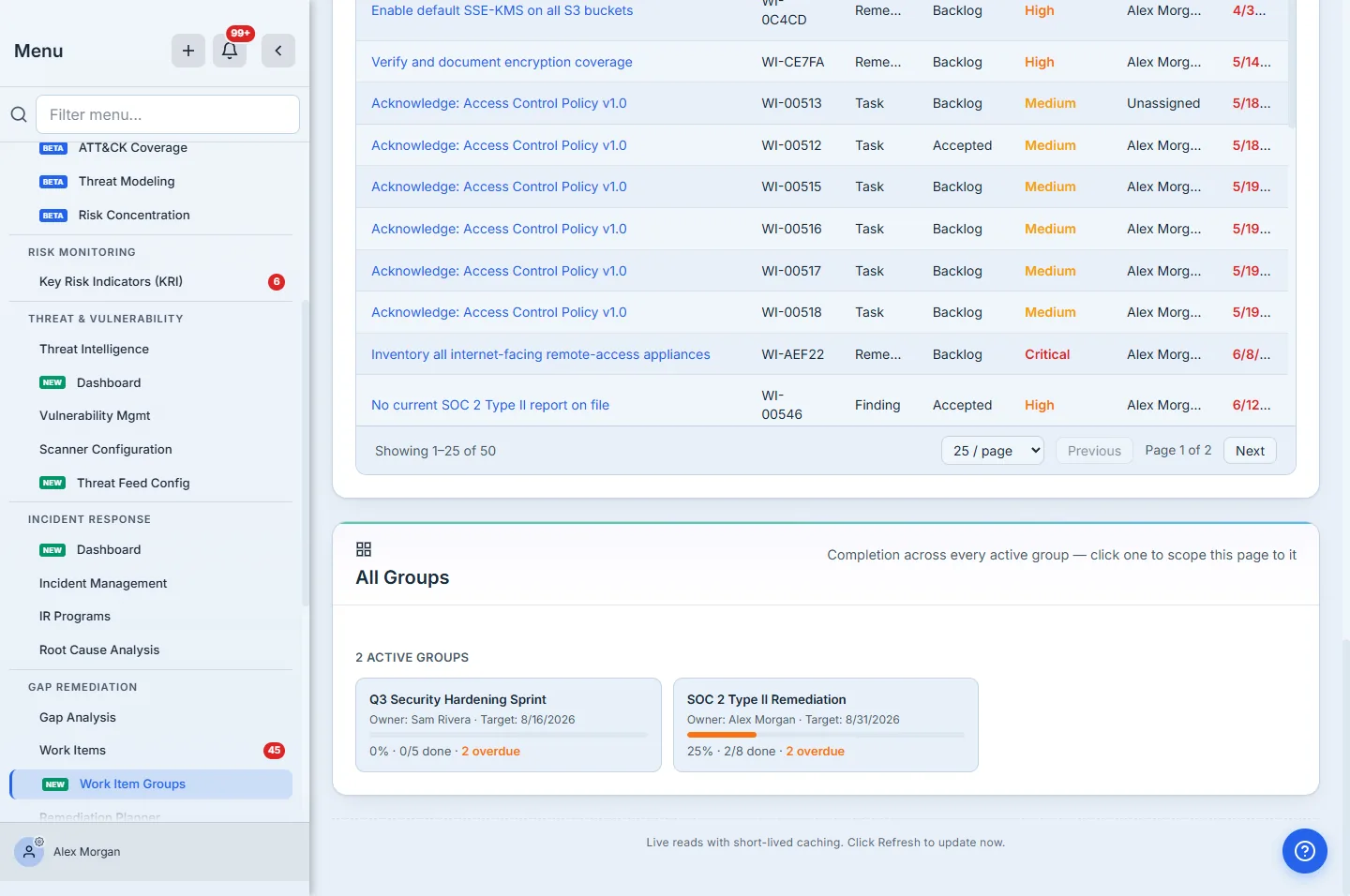
Click any card to scope the dashboard to that group; it’s the same ?group=… view, reached the way a manager scanning the portfolio would actually reach it.
Step 7 — Manage groups as the work evolves
Manage Groups is the admin surface: rename a group, reassign its owner, push the target date, and — when an audit cycle closes — archive it. Archiving keeps the group and its full history but stops it accepting new items and moves it out of the main dropdown, so last year’s SOC 2 remediation doesn’t clutter this year’s. Deleting a group removes only the grouping; the work items are never touched.
Step 8 — The cross-reference works from the item, too
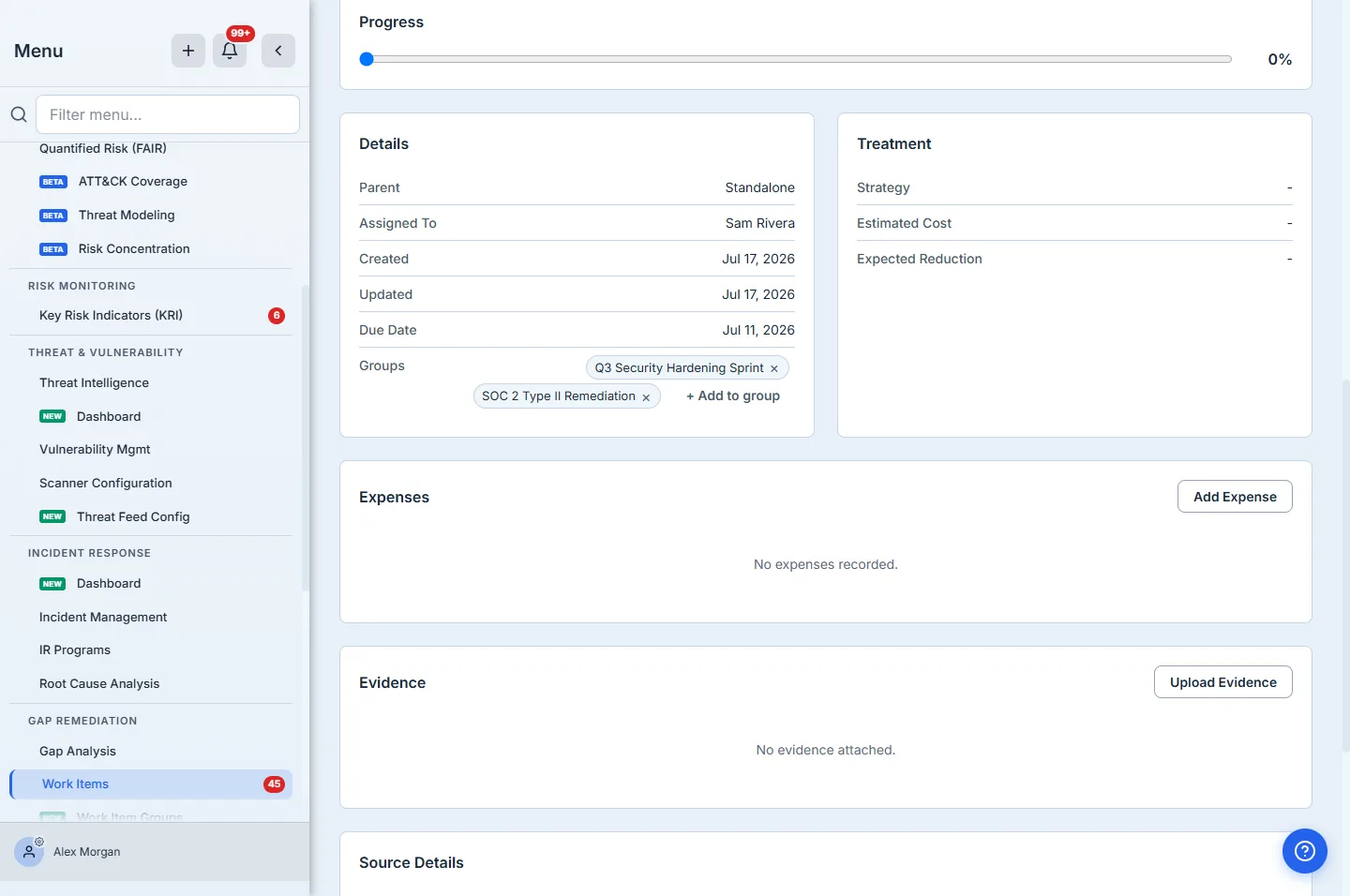
The dashboard reads a group top-down; membership also shows up bottom-up. On any individual finding, the Groups row lists every group it belongs to as a chip, links each to that group’s scoped dashboard, and lets an owner add or remove memberships inline. Here the same finding sits in both the SOC 2 remediation group and the Q3 hardening sprint — one item, two lenses, no duplicate.
The tracking dashboard is for reading; the Work Items list is for doing. Its Group filter narrows the full list to a single group’s items, where every existing control — status transitions, bulk assign, the workflow tabs — still applies, so you can scope the list to the SOC 2 group on Monday and work exactly that queue.
What you walk away with
- One named group per audit, pen test, or sprint — owner and target date attached, created in under a minute.
- A live completion percentage that counts only finished work and excludes cancelled/accepted items — the number an audit sponsor can defend.
- An overdue count that flags only open, past-due work, and an owner workload that names who’s behind.
- Many-to-many membership — one finding can count toward an audit and a sprint, never duplicated.
- A portfolio view across every group, and a shareable
?group=link for each scoped dashboard. - An archive that retires a closed cycle without deleting its history — and never touches the underlying work items.
Run yours the next time an audit hands you a findings list. Open Work Item Groups, create one named for the audit, select the findings on the Work Items list, and Add to Group. From then on the weekly “are we going to make it?” is a dropdown, not a spreadsheet.