Every framework that asks you to manage a third party, a process or a control assumes you have a set of questions you ask about it, and that you can show which version of those questions you asked. PCI DSS v4.0 requirement 12.8.4 wants the PCI DSS compliance status of every third-party service provider monitored at least once every twelve months. ISO 27001:2022 A.5.19 to A.5.22 cover information security in supplier relationships from agreement to monitoring and review, SOC 2 CC9.2 asks how vendor risk is assessed and managed, and NIST CSF 2.0 GV.SC-07 expects supplier risk to be assessed and monitored over the whole relationship.
Most teams keep those questions in a spreadsheet. It gets copied, edited for one vendor and not the next, scored by hand, and the version that was actually sent is whatever was attached to the email. Talarity’s assessment builder treats the questionnaire as a governed record: each save keeps a version, each question carries its own weight and evidence rule, and every run freezes the exact definition it was answered against.
This article walks one example end to end — a payment-processor security review that starts life as a spreadsheet. Answering an assessment and the Question Pool itself are covered in their own articles.
Who’s involved
- Compliance lead — builds the assessment, decides what is scored and what needs evidence, and publishes it.
- Assessment owner — the person reminded when the assessment is due for review, and who records that review.
- The person answering — a colleague or a linked account who fills it in and attaches the evidence it asks for.
- Auditor — reads which version was asked, who changed what and when, and the evidence behind each answer.
What’s on the page
- Custom Assessments (
/app/custom-assessments/hub) — every assessment your organization owns or inherits, with its status, owner, question count, the runs in progress and the completed runs. - The builder (
/app/assessment-builder) — name and description, sections, questions, and the actions that matter: Save draft, Import CSV, Export CSV and Publish. - Details on each assessment — owner and review schedule, linked records, saved versions and history.
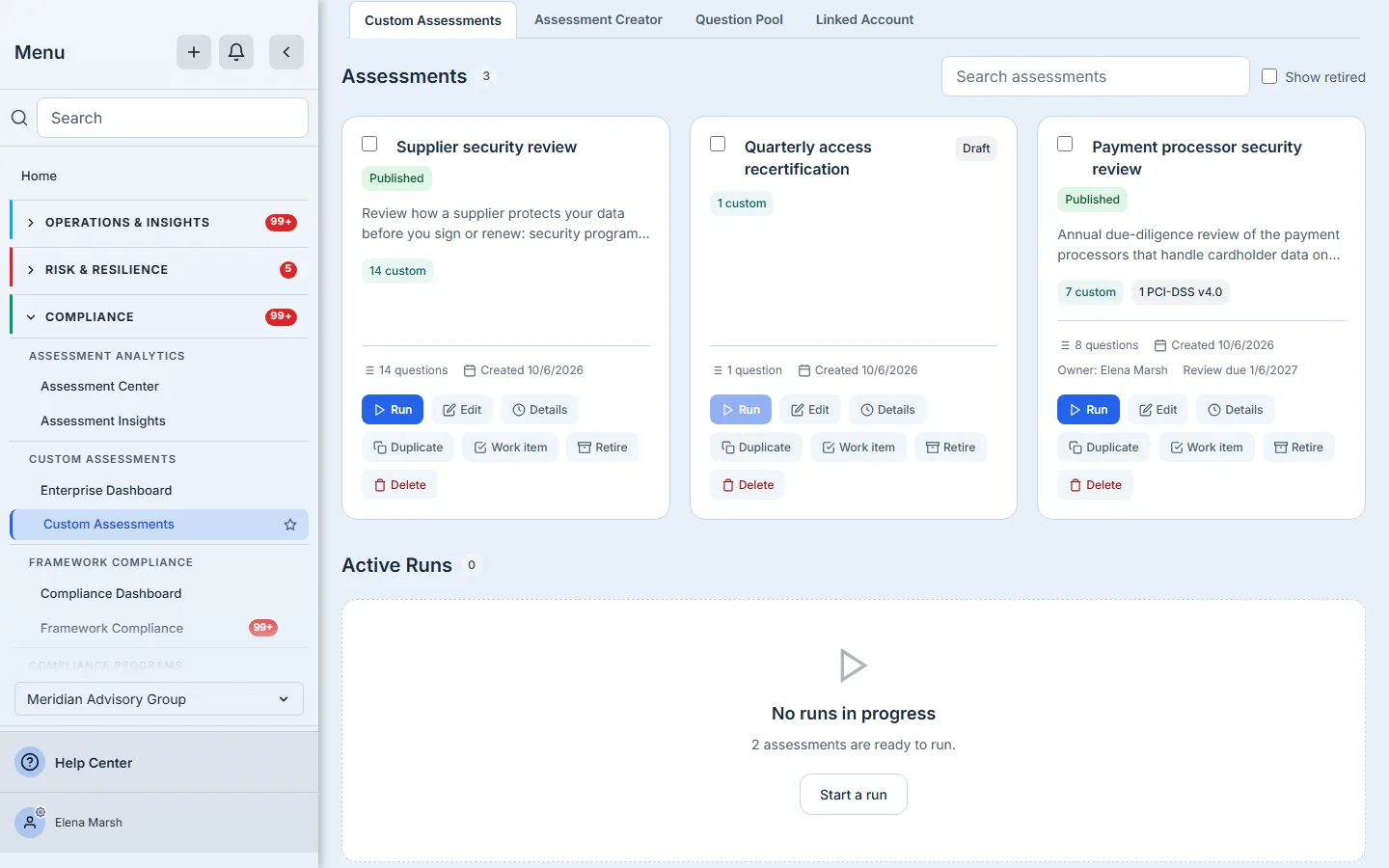
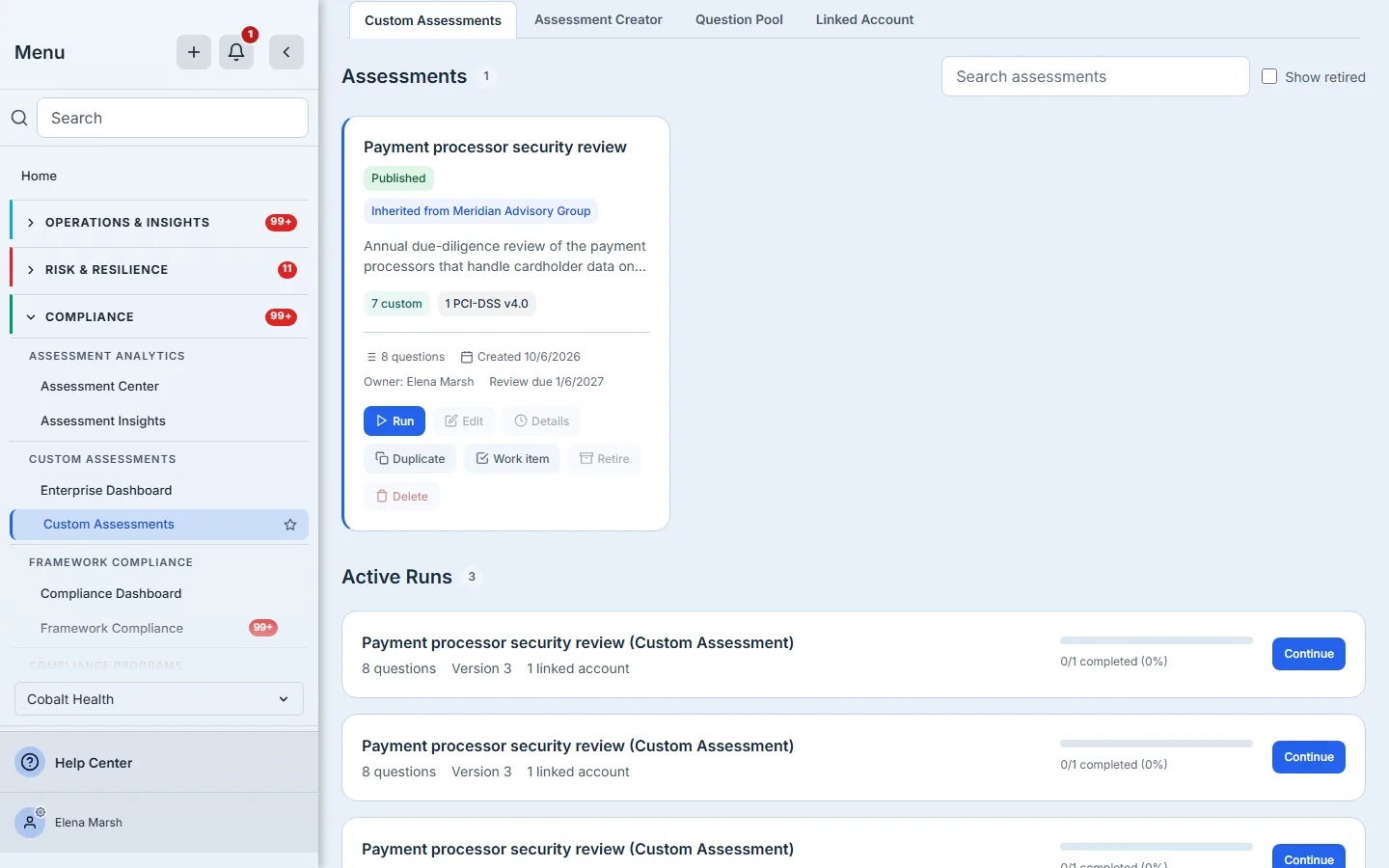
Each card says whether the assessment is published or a draft, where its questions came from, who owns it and when it is next due for review once an owner is set, and carries the actions you will use below — Run, Edit, Details, Duplicate, Work item, Retire and Delete. Selecting cards gives the same verbs in bulk: retire or restore several at once, assign an owner, or set a review schedule. Delete removes an assessment with its versions, evidence rules and links, and is refused while a run of it is in progress; only an administrator or the assessment’s creator can delete, retire or change one, and for anyone else those actions are disabled with that reason. A retired assessment leaves the list and stops being runnable; Show retired brings it back into view, where Restore returns it.
Step 1 — Start from a template, a spreadsheet or nothing
From Custom Assessments, Create assessment opens a blank builder. A new assessment offers starting templates — a vendor security review, a user access review and a policy attestation. Starting from one makes a copy you own; nothing you change affects anyone else’s.
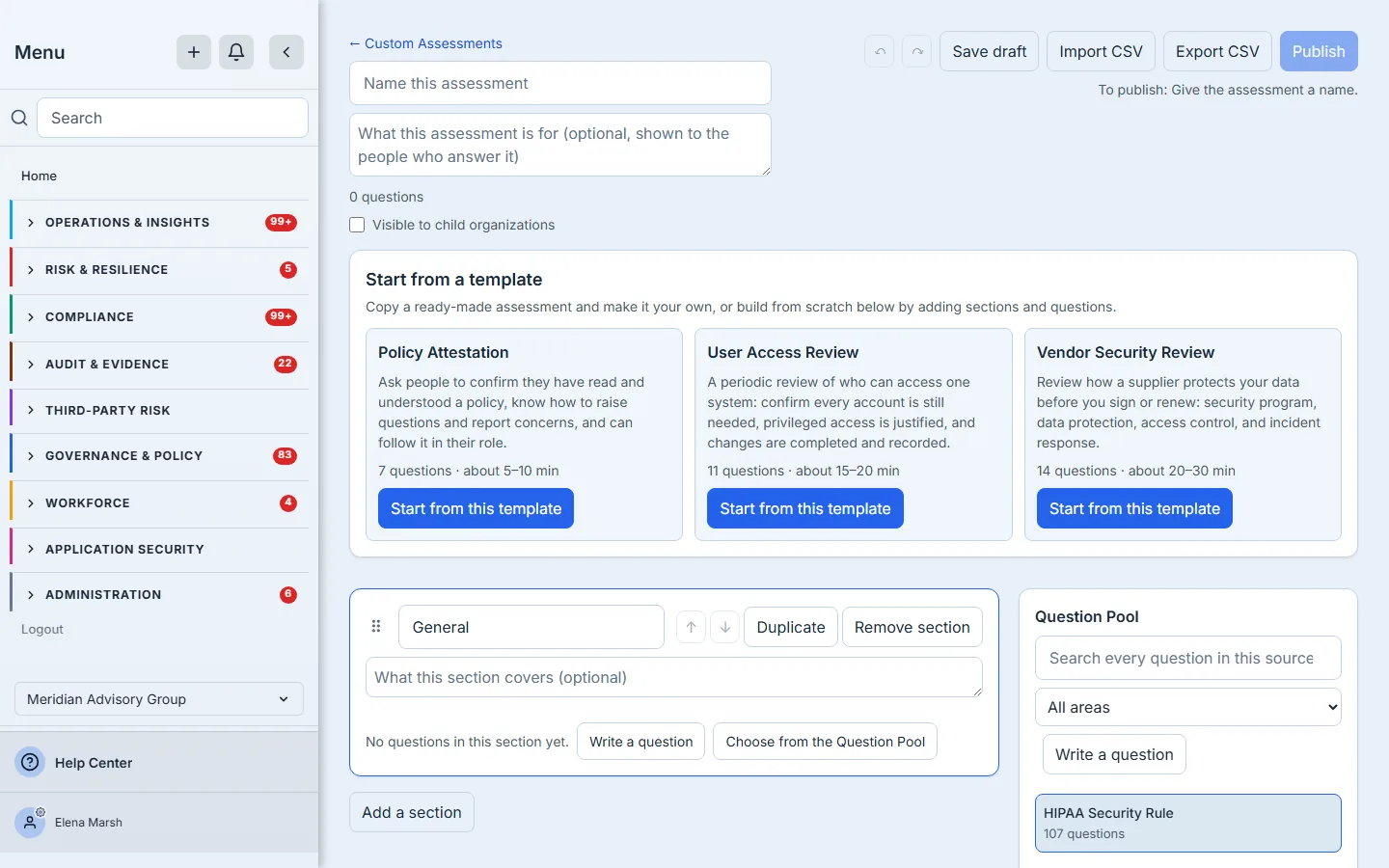
If the questionnaire already exists in a spreadsheet, Import CSV reads it. The columns are Section, Question, Help text, Response type, Answer options, Weight, Criticality and Required, and a Response type is one of the builder’s own six (maturity-level, ypn, boolean, numeric-score, multiple-choice, select-multiple). The quickest way to get the layout right is Export CSV on a starting template and paste your questions into it. A row’s Section creates the section if the assessment does not have one by that name yet.
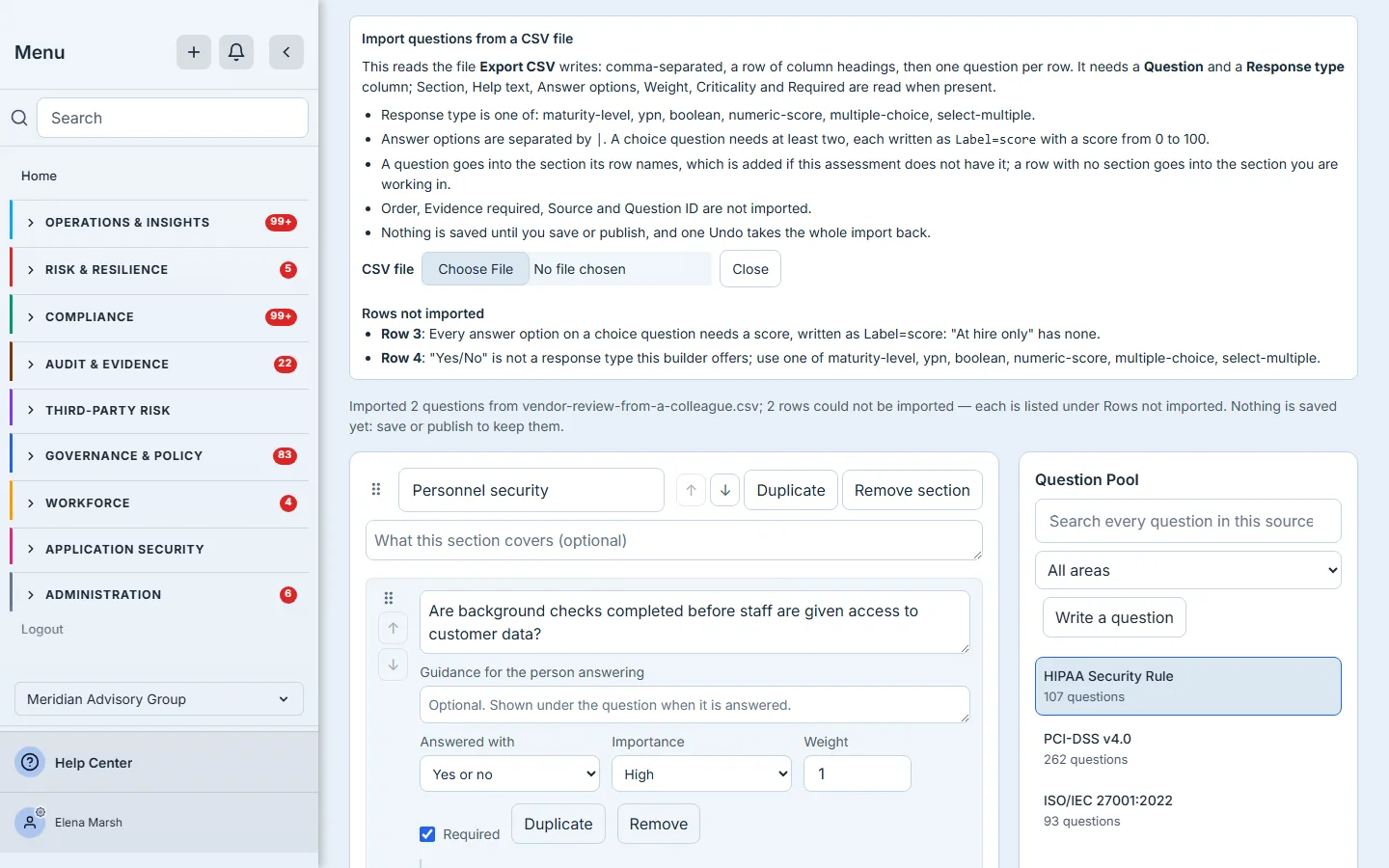
A row with a problem never stops the rest. Every row that cannot be imported is listed with the row number your spreadsheet shows and every reason it was refused — an answer option with no score, a response type the builder does not offer — and the other rows still come in. Only a file that cannot be read as a questionnaire at all is refused whole: no Question or Response type column, or more rows than your plan allows in one assessment. The import is one step, so a single Undo takes it back.
A Professional plan holds 5 custom assessments of up to 50 questions each; Enterprise holds 100 of up to 200.
Step 2 — Shape each question
Write a question adds one in the section you are working in. Answered with sets its scale: a maturity level, yes / partial / no, yes or no, a score out of 100, choose one, or choose any that apply. A choice question carries a score on every answer you add to it, which is what makes the answers comparable across runs — Publish stays disabled until every option has one.
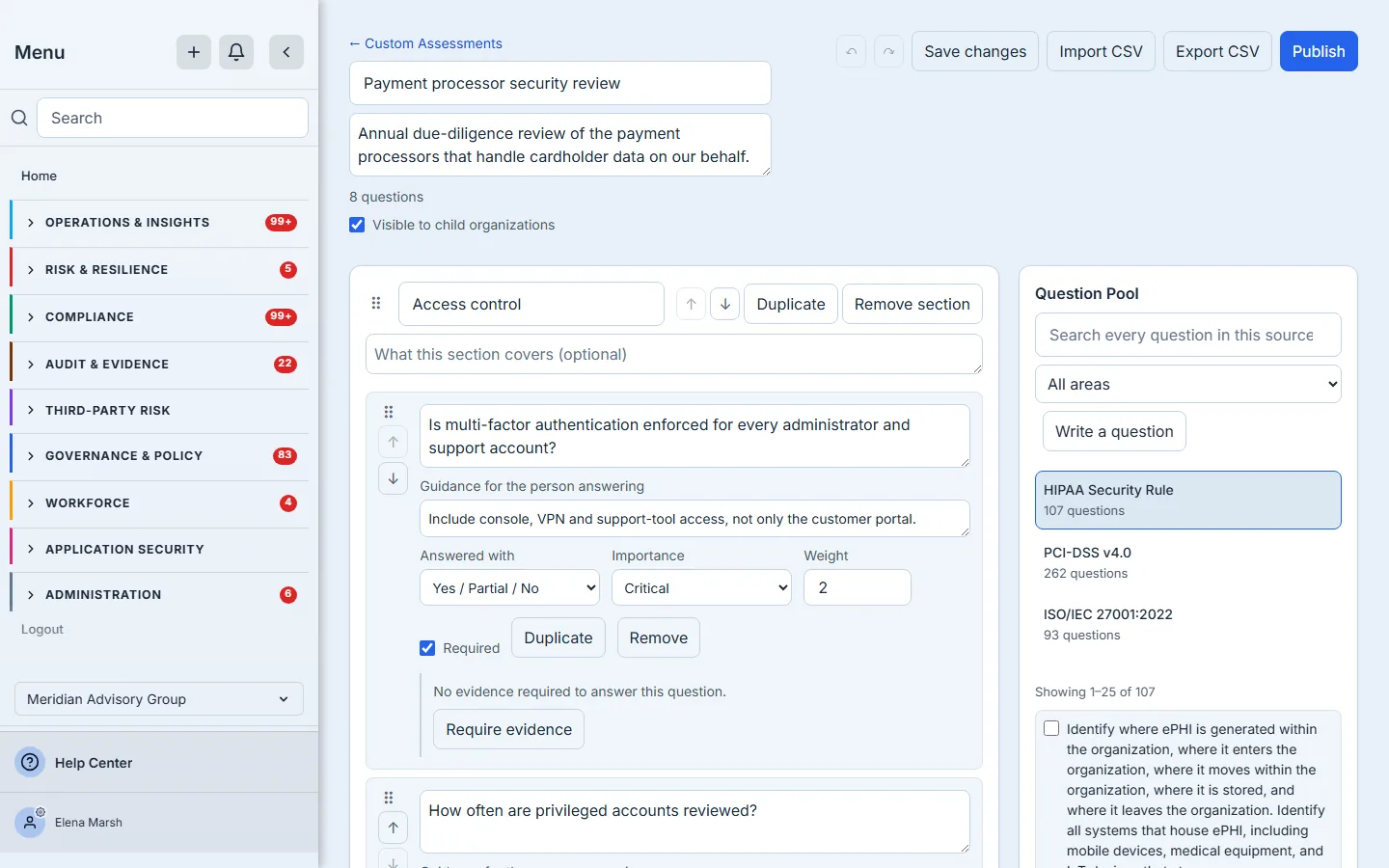
- Importance — critical, high, medium or low, or not set (which counts as low). It multiplies the question’s contribution to the score (3, 2, 1.5 and 1); the spreadsheet column is called Criticality.
- Weight — a second, per-question multiplier on top of criticality. A weight of zero means the question is asked but not scored.
- Required — whether the assessment can be completed without an answer.
- Guidance for the person answering — shown under the question when it is answered, so the people filling it in are told what you mean by “every administrator account”.
Sections and questions can be duplicated and reordered with the arrow buttons or by dragging. A duplicate is an independent copy — editing it never changes the original.
Step 3 — Add framework questions from the Question Pool
Some questions should not be reworded per assessment. The Question Pool beside the canvas (below it, in a narrower window) holds your organization’s questions and the framework questions you are licensed for; search it, tick the ones you want and press Add to section.
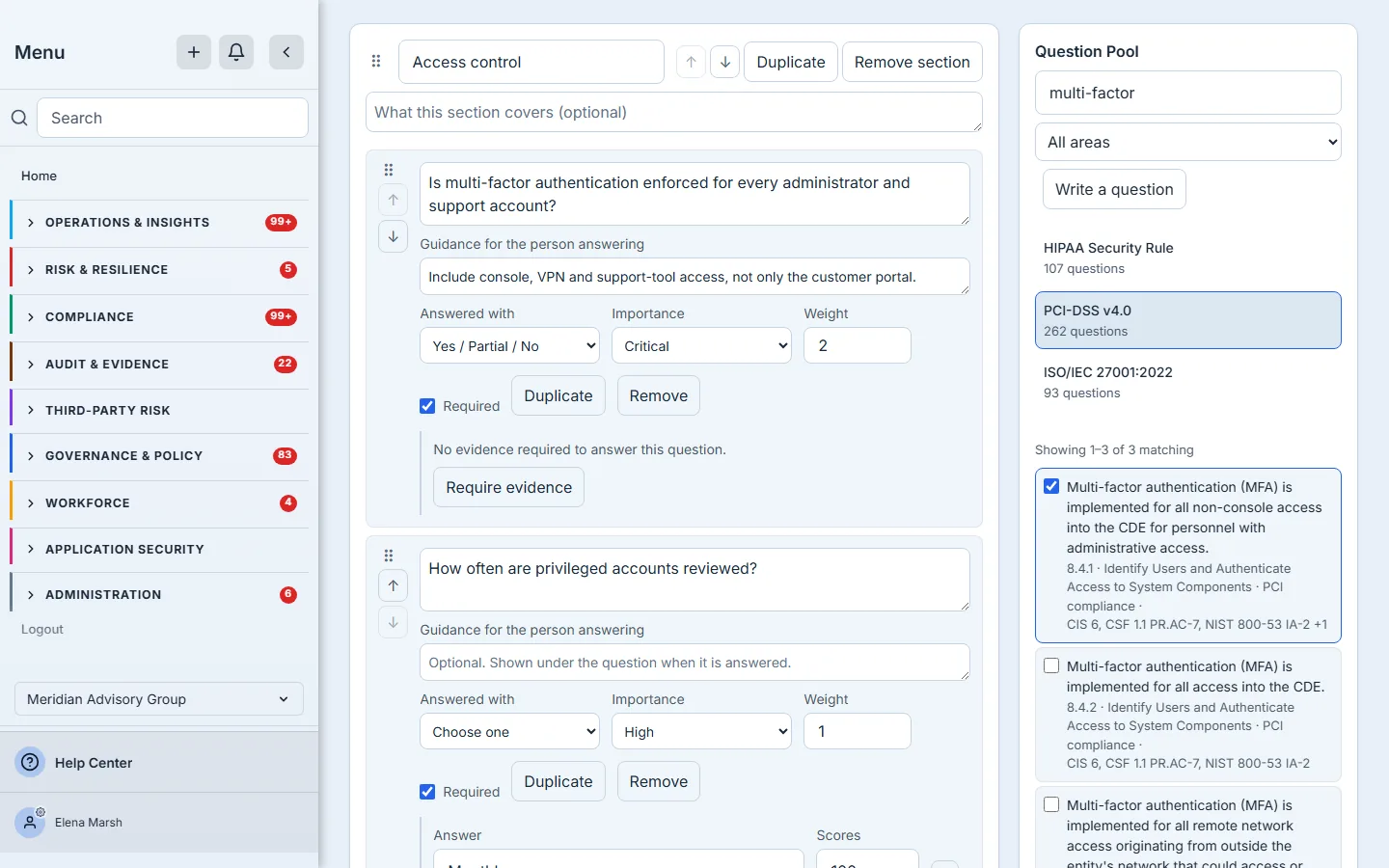
This example adds PCI DSS requirement 8.4.1, which is why the assessment ends up with seven of its own questions and one from PCI-DSS v4.0. A question added from the pool keeps its link back. If the pool’s wording is later changed, the builder tells you which questions are now behind and shows the new wording — and changes nothing until you choose to take it, as one step you can undo.
Step 4 — Require evidence where an answer needs proof
Require evidence turns a question into a gate. For the key-management question in this example, a documented procedure no older than 365 days is required to claim maturity level 3.
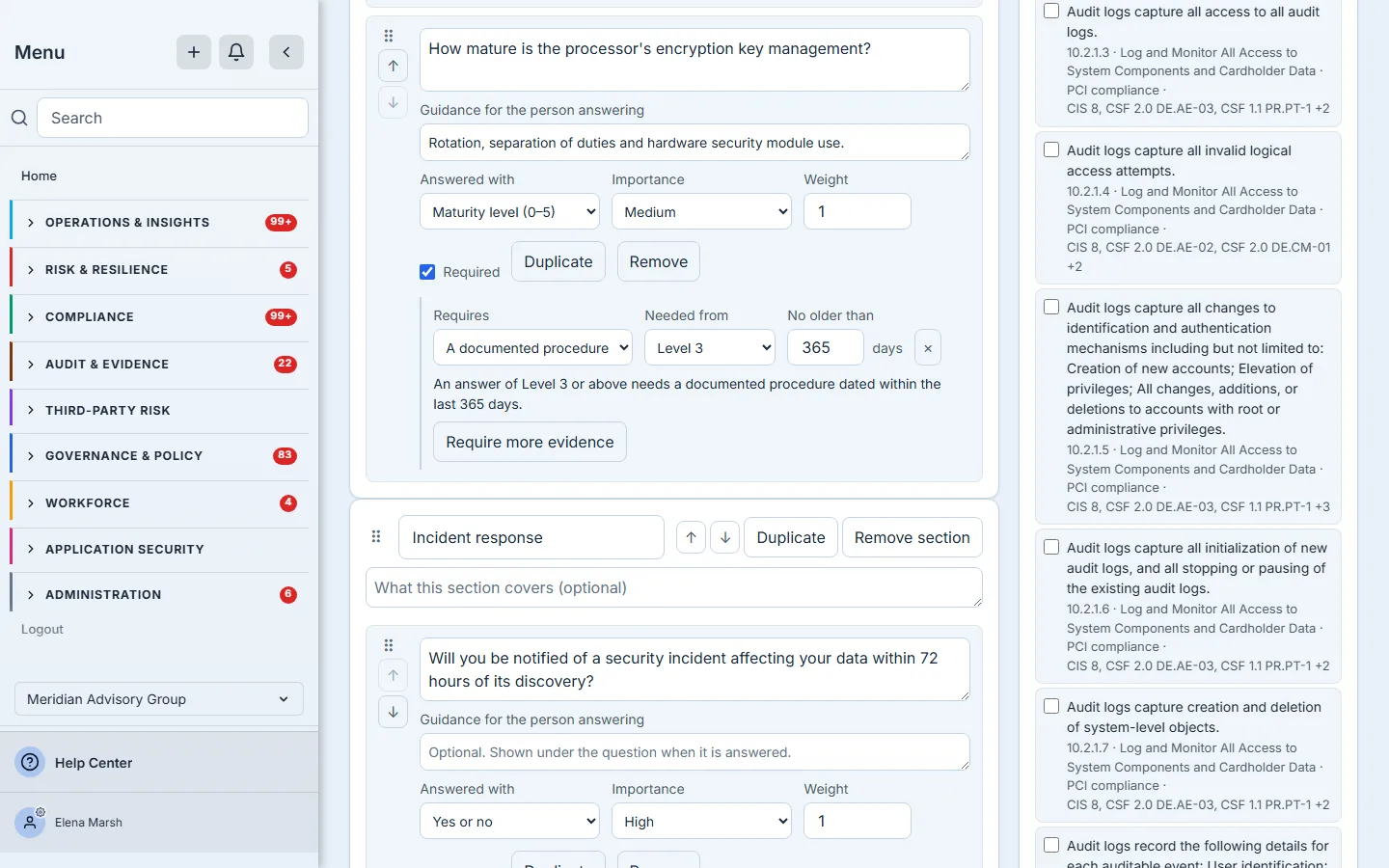
Evidence gates apply when your organization has evidence gating switched on (it is on unless an administrator has turned it off), and each run keeps the setting it started with. On a maturity question each requirement names the level it is needed from; on a yes / partial / no question it gates both yes and partial, and on a yes-or-no question it gates yes. Evidence can only be required on those three scales. If a requirement cannot be saved, the save says so by name instead of reporting success, because a gate that silently disappears is worse than none.
Step 5 — Publish
Save draft keeps a new assessment’s work without making it runnable. Publish is the decision to let people run it — and when something is missing it is disabled with the reason beside it, rather than failing after you press it. Once an assessment is published there is no separate draft: the button becomes Save changes, the next run started uses what you save, and every save must leave the assessment ready to run, so an unscored answer or an empty question is refused with the reason rather than reaching a run.
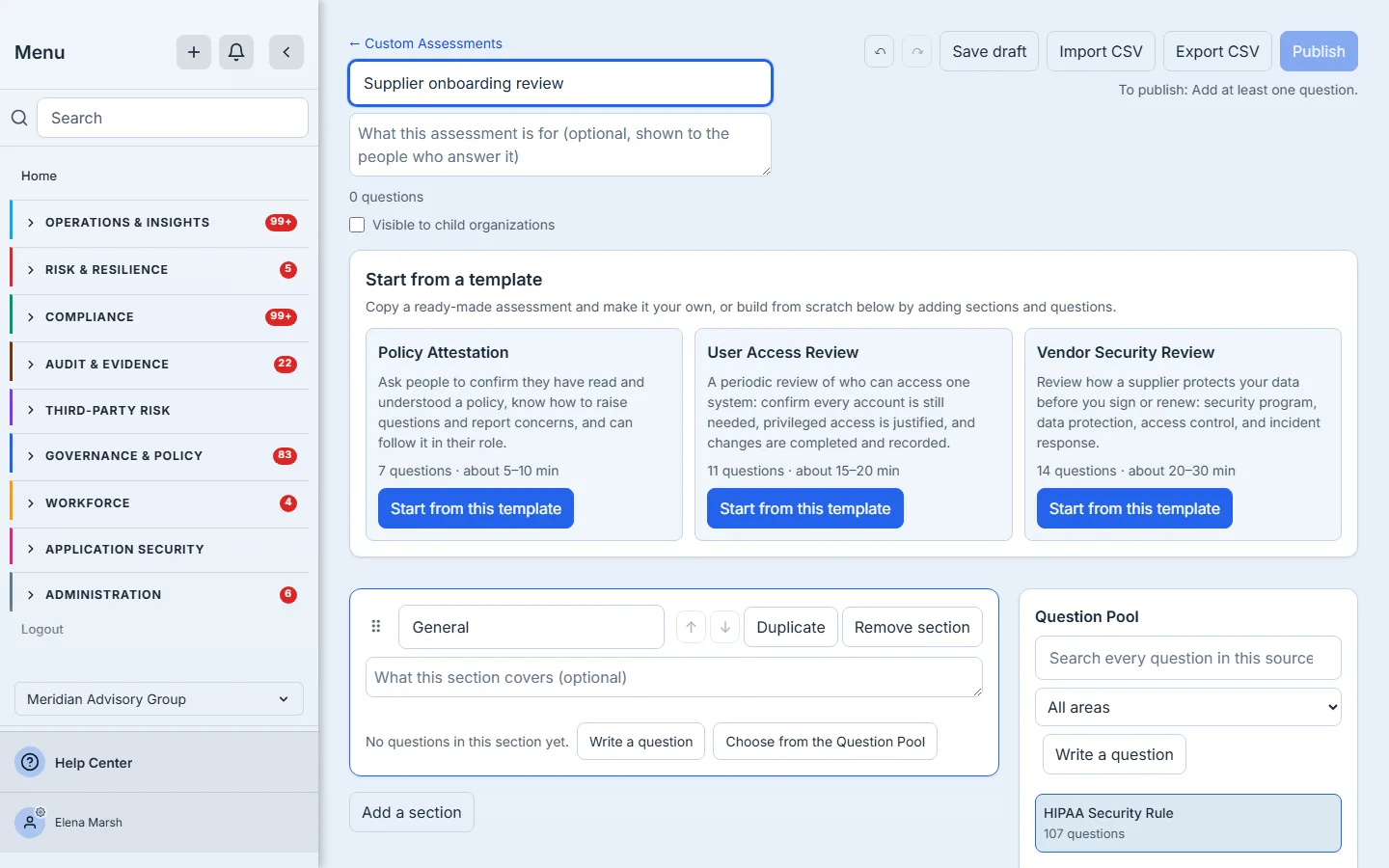
Visible to child organizations, under the description, shares the assessment with the organizations under yours once it is published. They see it in their own Custom Assessments and can run it; they cannot change your definition, and a run in a child organization freezes your definition as it stood when the run began. Sharing is part of the Enterprise plan, and a save that asks for it on any other plan is refused with that reason.
Step 6 — Give it an owner, a review date and its links
An assessment nobody owns stops being reviewed. Details on the hub carries the governance a questionnaire usually lacks.
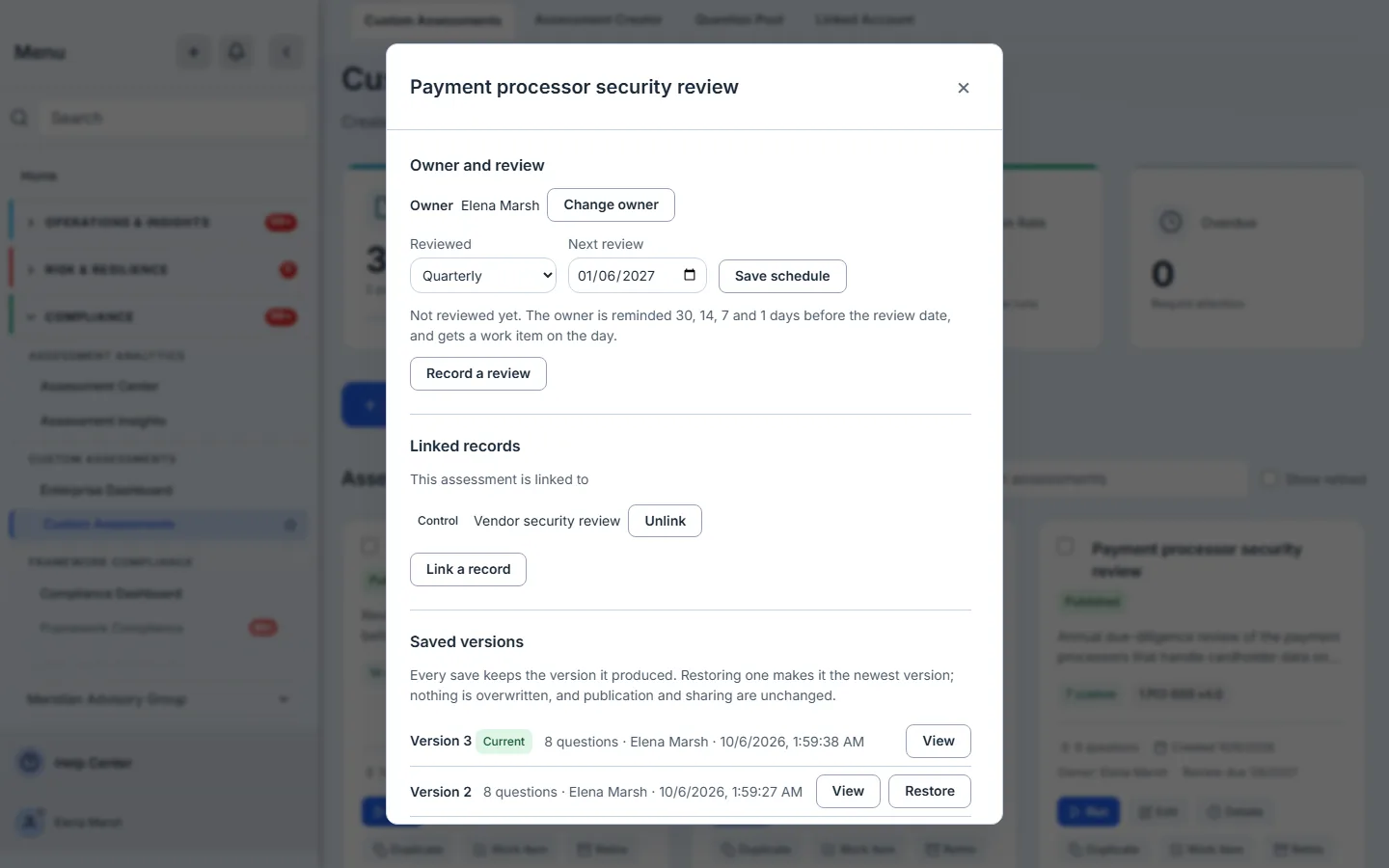
- Owner — reminded 30, 14, 7 and 1 days before the review date, and given a work item on the day.
- Review schedule — monthly to every two years; Record a review moves the next date on.
- Linked records — the controls, risks, policies, procedures, obligations, vendors and assets this assessment tests. The link works in both directions: the control lists this assessment too.
Step 7 — Read the history an auditor asks for
Every save keeps the version it produced. You can view any earlier version, and restoring one makes it the newest version — nothing is overwritten. The history beside it says, in words, who did what and which parts each save changed: publication, the questions, the owner or the review schedule.
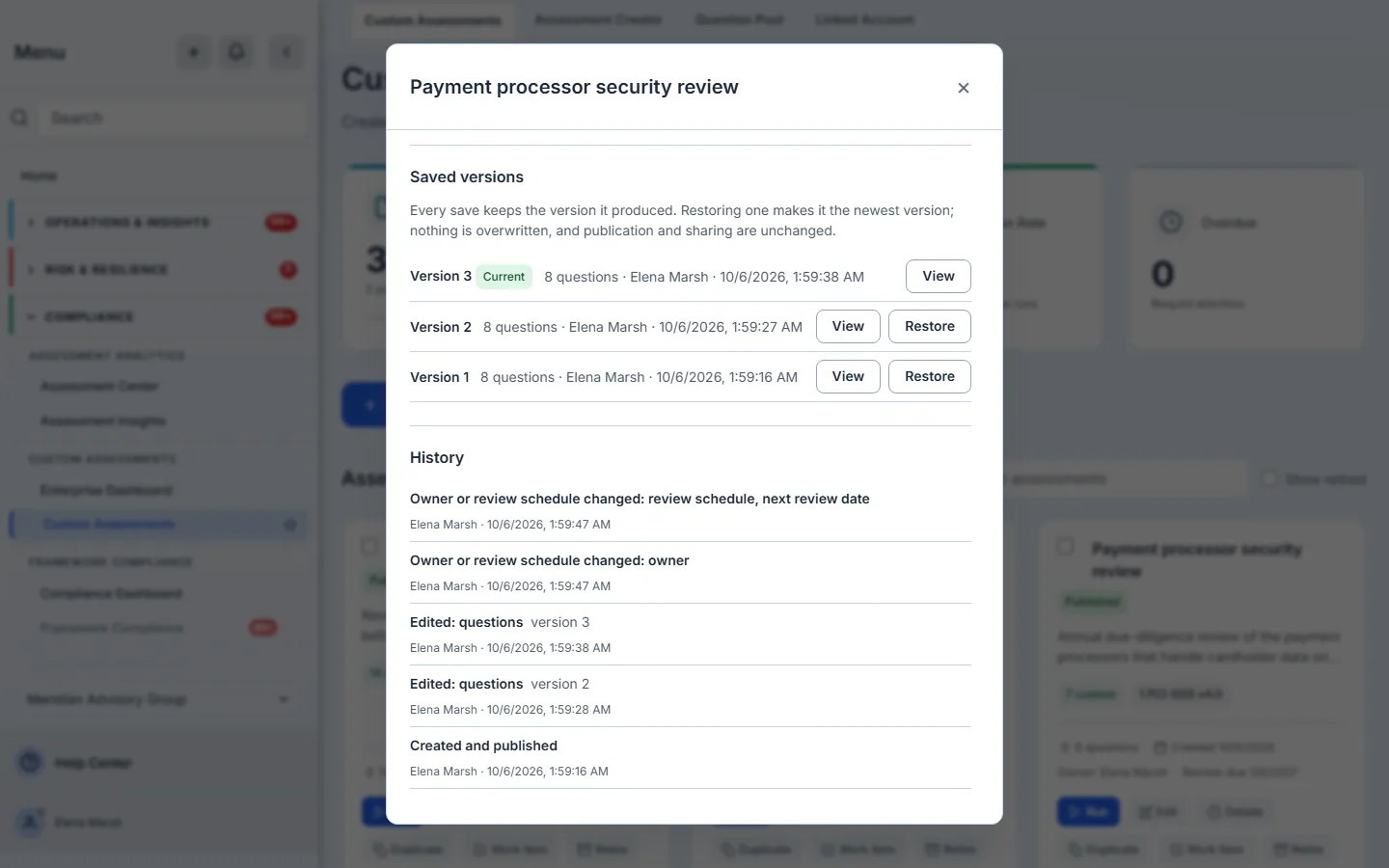
The version is the thing an auditor asks about. “Which questions did you send this processor last March?” has one answer here: every run shows the version it was started from, in Active Runs and Completed Runs, and that version is still readable here.
Step 8 — Run it
Run on the hub starts a run for one linked account — the processor, the business unit or the client the answers are about. When your organization has more than one, it asks which.
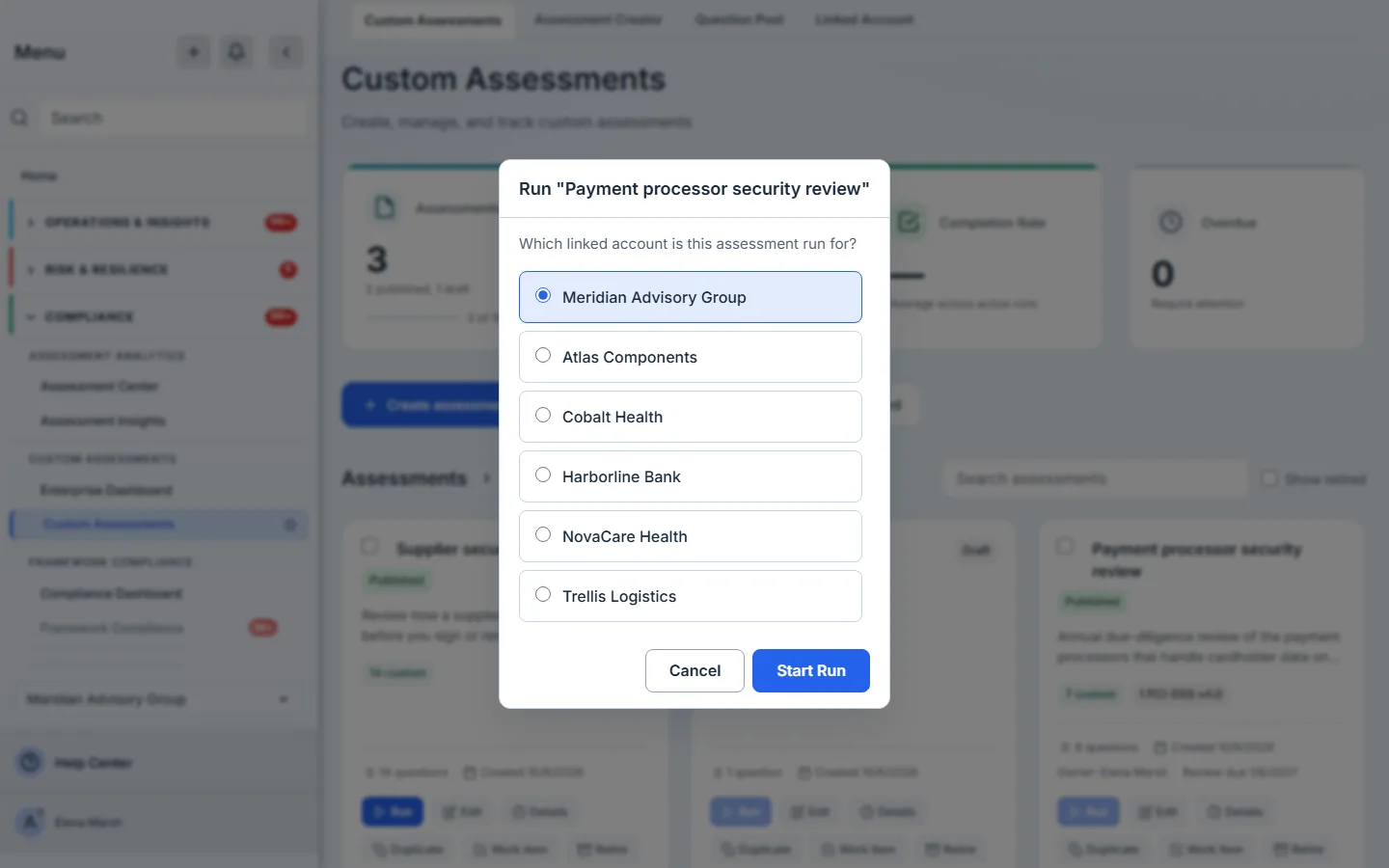
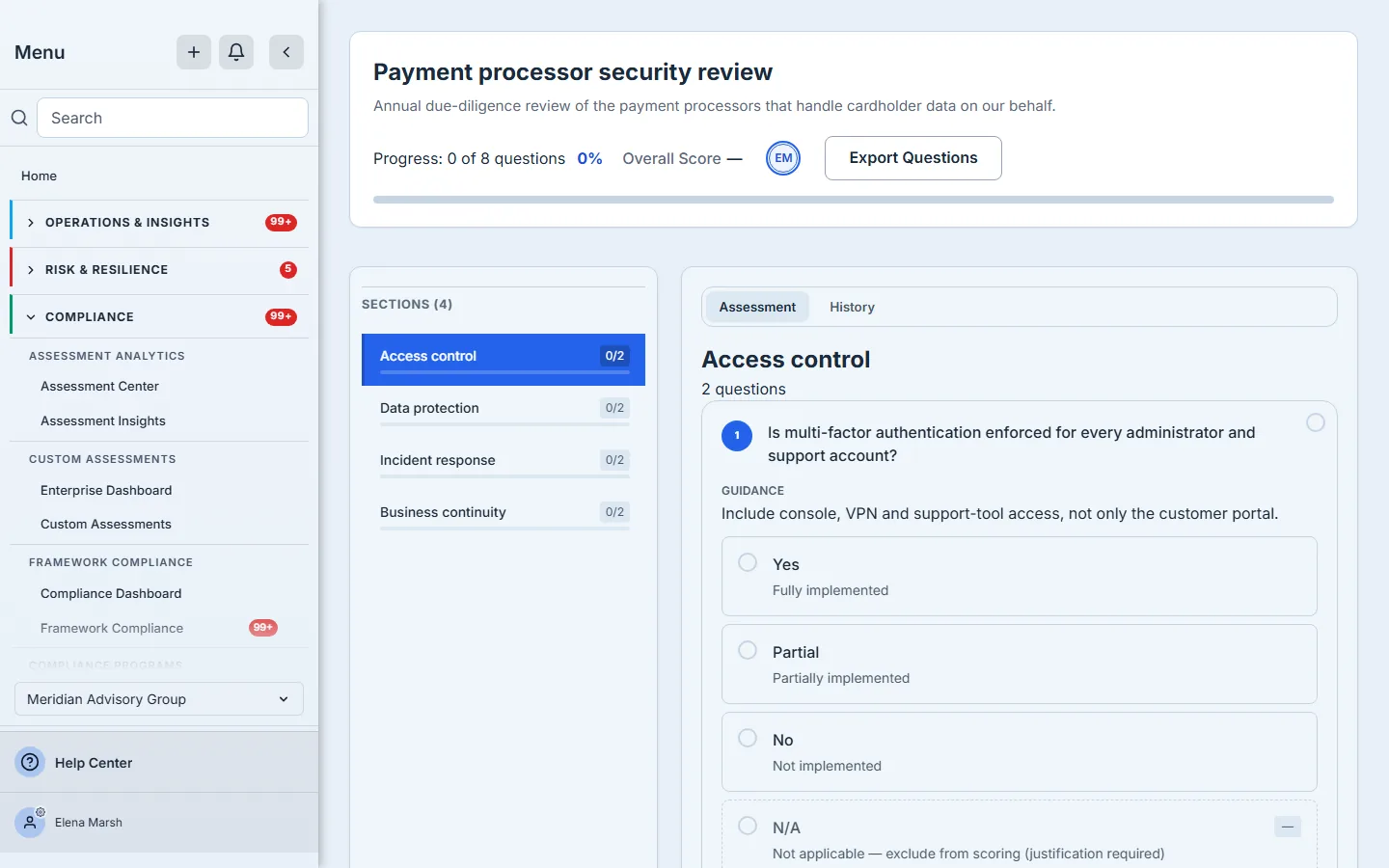
The run opens straight onto the answering page, and stays in Active Runs on the hub, where anyone with access to custom assessments picks it up with Continue; there is no separate send step. The person answering sees the assessment under its own name and description, a section at a time, with your guidance under each question and an evidence panel that names what each gated question needs. An answer that claims more than the attached evidence supports is not saved, and the run cannot be completed while one stands.
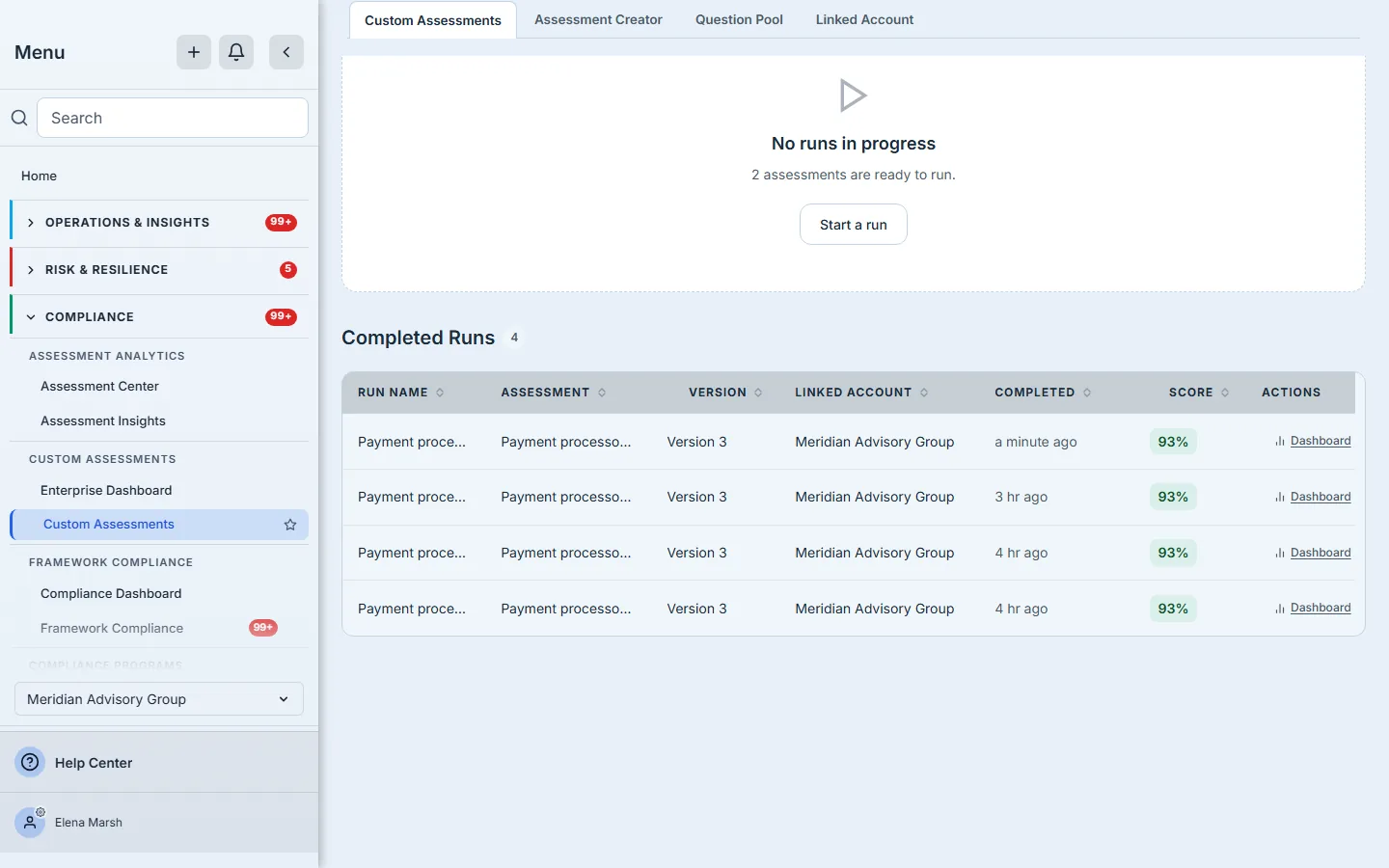
Runs in progress are listed under Active Runs with Continue; Manage Runs holds every run, older ones included, and is where a run in progress is deleted. Complete submits it. The run is scored by your importance and weights — the same arithmetic the page showed while it was being answered — and appears in Completed Runs with the linked account it was for, the version it froze and its score; its Dashboard link opens the answers behind the score. In this example every answer is at its best except the key-management question, answered at Level 2, and one choose-any question worth 40: with importance and weight applied that comes to 93%, where a plain average would read 85%.
Step 9 — Change it without disturbing a run
A run freezes the definition it started with, so editing the assessment never changes answers already given. While a run is in progress the assessment itself cannot be saved, and the builder says so the moment you open it, before any change is made: Save changes, Publish and Import CSV are disabled, and the notice says why.
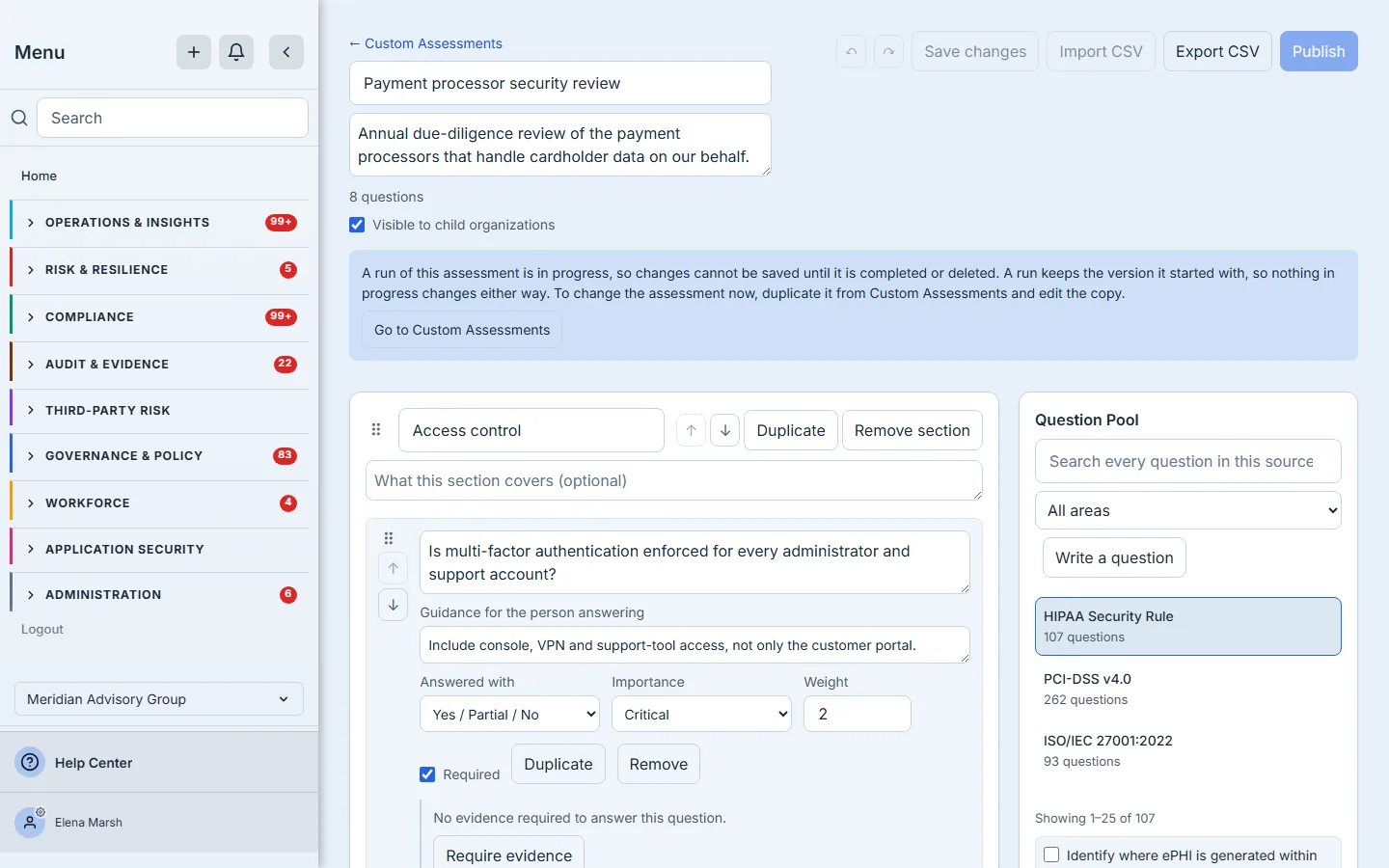
To change it now, duplicate it from Custom Assessments and edit the copy. Export CSV writes the questions in the columns the import reads, which is the simplest way to hand them to a colleague for review — though evidence requirements and Question Pool links stay in Talarity, and an import adds questions rather than replacing them.
Step 10 — The same assessment, from a child organization
A child organization sees the shared assessment in its own Custom Assessments, marked with the organization it came from, and runs it against its own linked accounts. Editing, retiring and its history stay with the organization that shares it.
What you walk away with
- One governed definition per questionnaire — sections, scored answer scales, criticality and weight — instead of a spreadsheet per vendor.
- Evidence rules on the questions that need them, with the freshness an auditor expects.
- A saved version on every save, readable and restorable, and a history in words of who changed what.
- An owner and a review date, with reminders and a work item, so the questionnaire itself is reviewed.
- Runs that freeze what they asked, scored the same way every time, per linked account.
- The same assessment across your organizations, shared once and run by each child.
Build yours this afternoon. Open Custom Assessments, choose Create assessment, export a starting template to get the columns, and paste in the questions you already ask. Every review after that starts from the version you published.