An assessment is only as good as the questions in it, and every framework that asks you to evaluate your own controls assumes those questions are managed. ISO 27001:2022 clause 9.2 wants an internal audit programme with defined criteria, SOC 2 CC4.1 asks for ongoing and separate evaluations of whether controls are present and functioning, and NIST CSF 2.0 GV.SC-07 expects supplier risk to be assessed and monitored over the whole relationship. Each of those is a set of questions that somebody wrote, scored and will have to explain.
Most teams keep those questions in spreadsheets: one per questionnaire, copied forward each year, with the same “Is MFA required?” worded four ways and scored three different ways. Talarity keeps them in one library, the Question Pool, which every custom assessment and risk model draws from. This walkthrough builds one: writing questions on shared answer scales, importing an existing spreadsheet, drafting with AI, keeping the pool tidy in bulk, and tracing each question to the assessments that ask it.
Who’s involved
- Assessment owner — curates the pool: writes questions, maintains the answer scales, imports what already exists, retires what is out of date.
- Assessment author — builds custom assessments from the pool rather than retyping questions into each one.
- Contributor — can read the pool and use it; which of create, edit and delete they see depends on the permissions their group grants, and the server enforces the same rule.
- Auditor — asks where a question came from, who changed it and which assessments asked it. Each answer is on the page or in the audit log.
Step 1 — Open the pool
The Question Pool sits beside Custom Assessments and Assessment Creator in the custom-assessments tab strip. The source filter switches between your organization’s own questions (Custom) and the framework questions your licence includes, which are read-only. Category narrows either; status and type apply to your own questions and step aside when a framework is chosen. Every one of your questions is a card with its category, its response type and, for a multiple-choice question, the answer set it scores against.
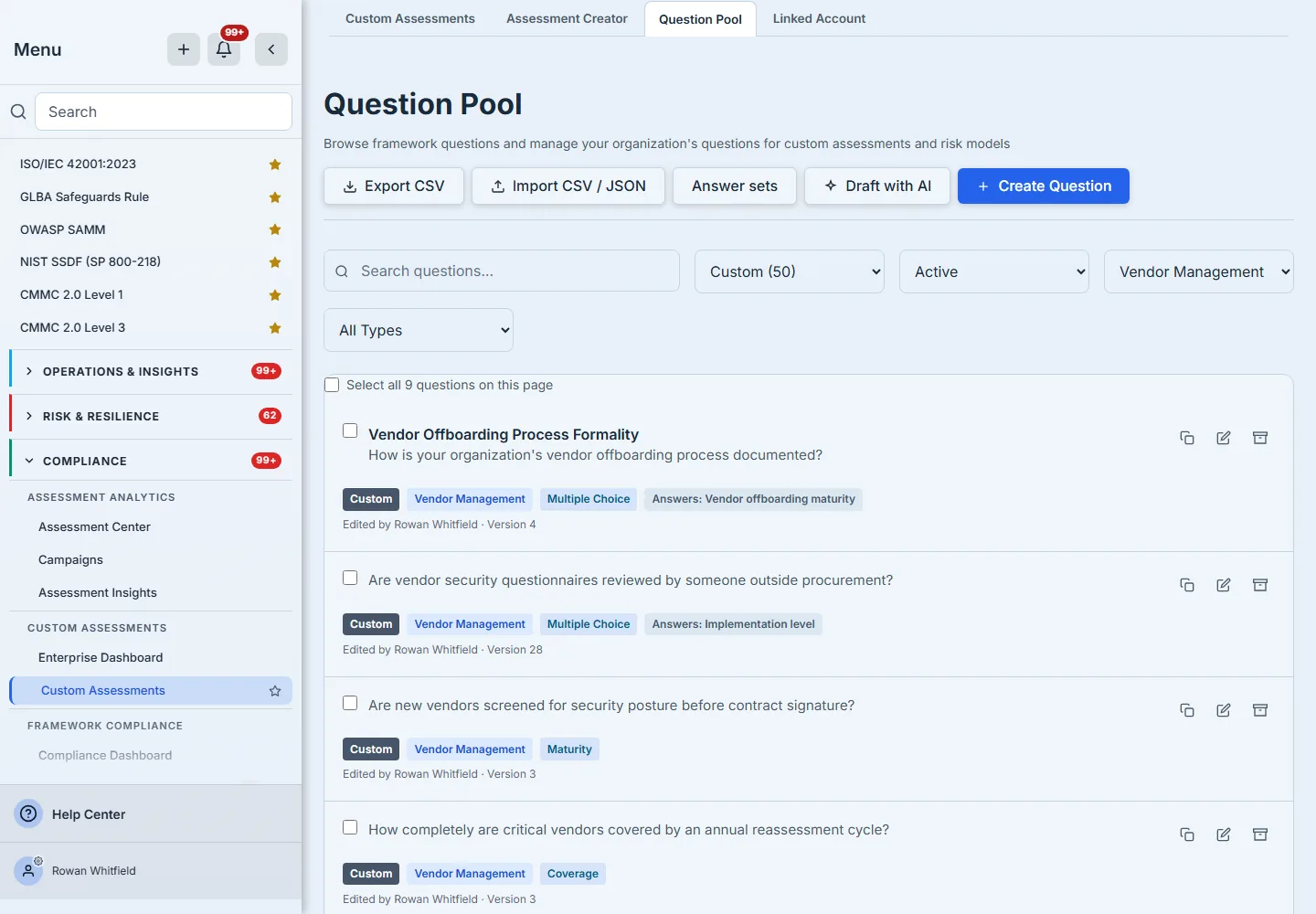
Categories are yours. They start as whatever you type, and the pool resolves each new spelling to the one your organization already uses, so “vendor management” files under “Vendor Management” rather than starting a second category beside it.
Step 2 — Write a question on a shared answer scale
Create Question asks for the question text, a short title, a category and a response type. Maturity, Yes/No, Likelihood, Impact and Coverage each come with their scale, and Numeric takes a number. Multiple Choice does not let you type answers into the question at all: it asks you to choose an answer set, and previews its answers with the score each one earns.
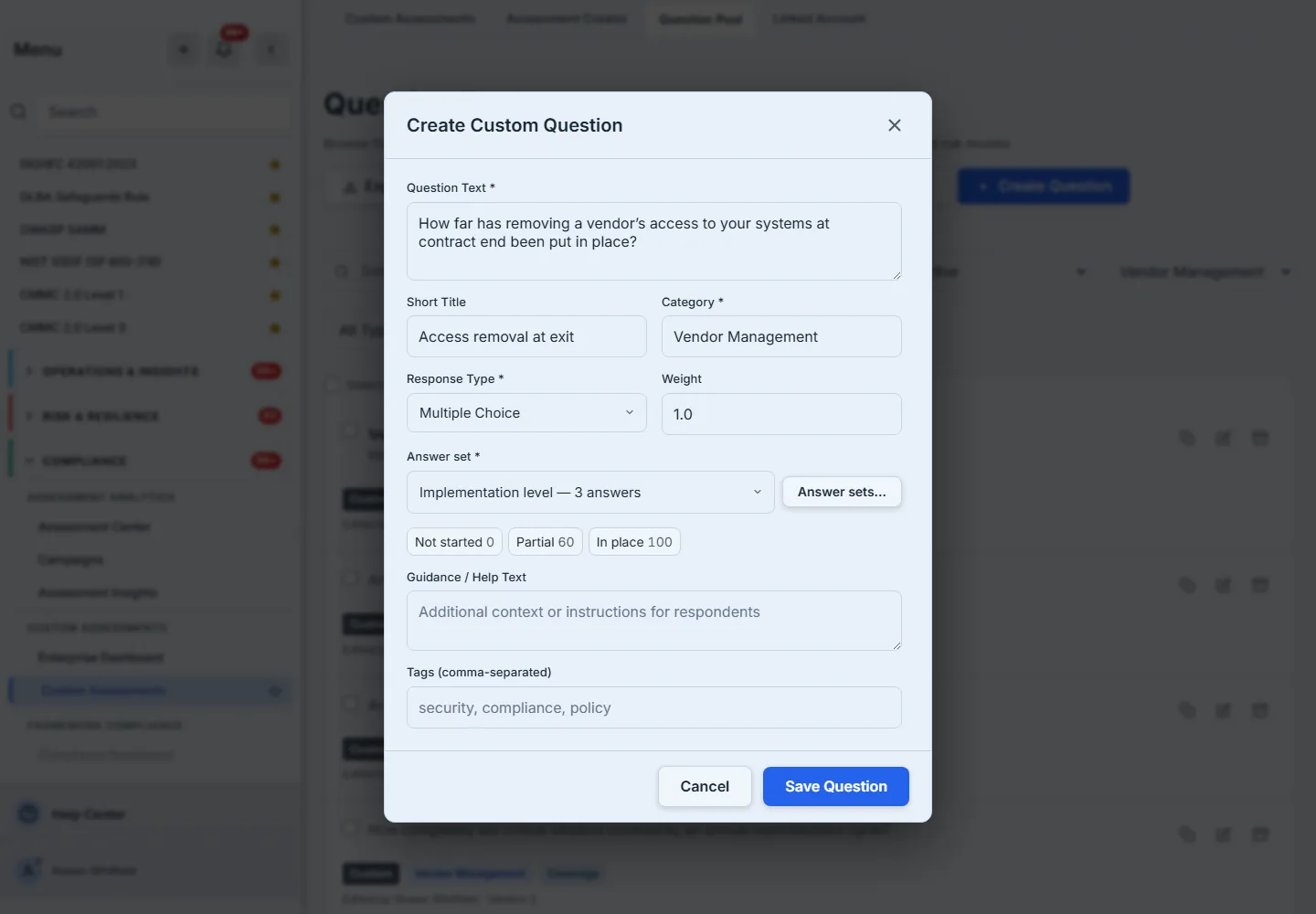
That is the point of the design. A closed list of answers typed separately into forty questions becomes forty slightly different lists, scored inconsistently, and no report can compare them. Choosing a set means the scale is written once and every question on it is scored the same way. On day one there are no sets yet, and the form says so and offers to create the first — the next step shows what one looks like.
Change, copy and retire a question
Each card carries Duplicate, Edit and Archive. Duplicate opens the copy for editing, so a variant starts from the original rather than from a blank form. Every edit advances the question’s version, and the card’s byline says who last changed it and which version it is on. If somebody else saved the question while you had it open, your save is refused and names both versions rather than overwriting their change.
Step 3 — Keep answer scales as a controlled vocabulary
Answer sets lists every scale with its answers, the score each earns, and how many questions use it — live questions counted apart from archived ones, which still carry the set. An answer set is a named list of answers, each scored from 0 to 100; a set you no longer want can be archived, after which it is not offered to new questions while the questions that already use it keep their answers.
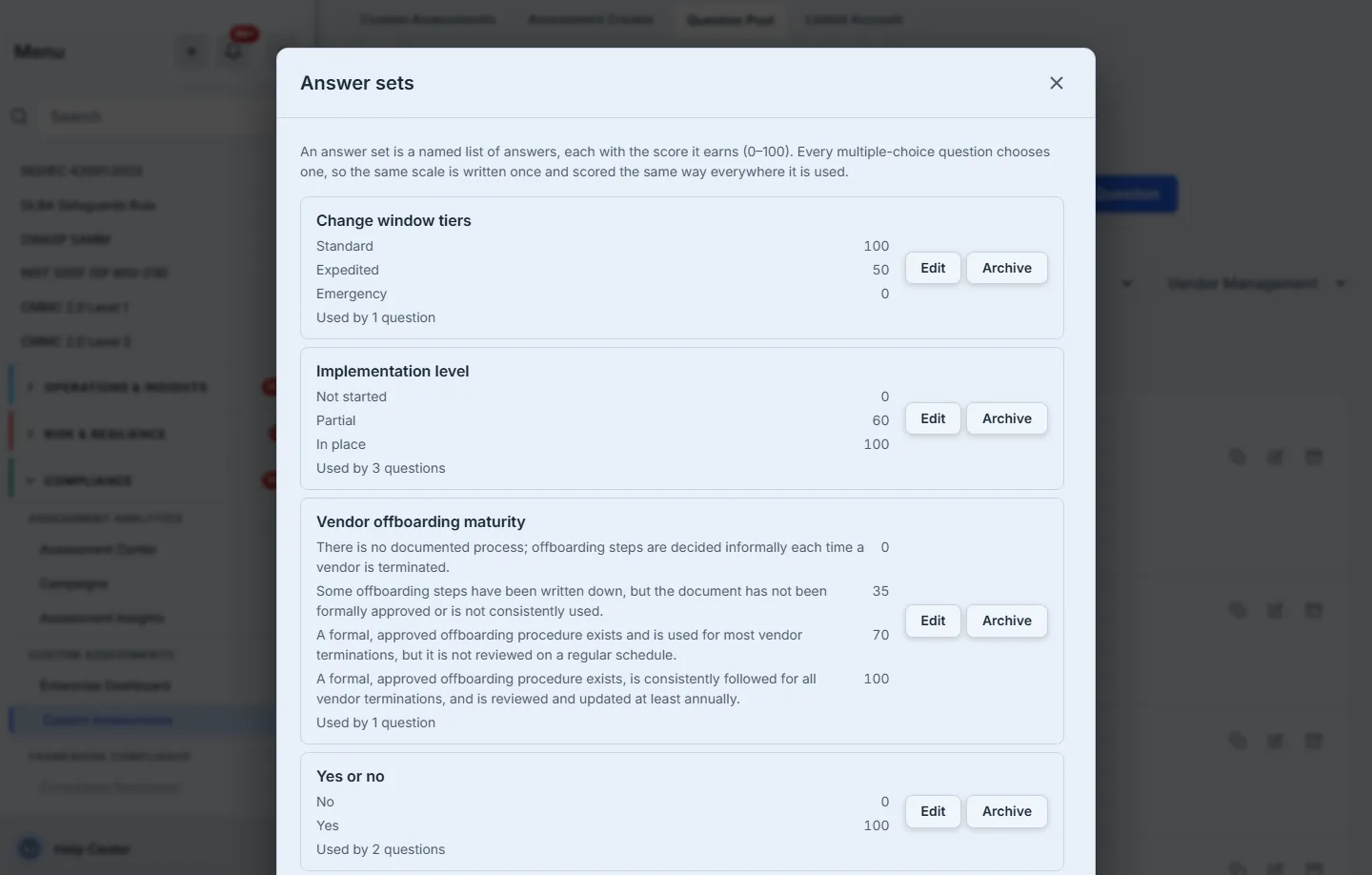
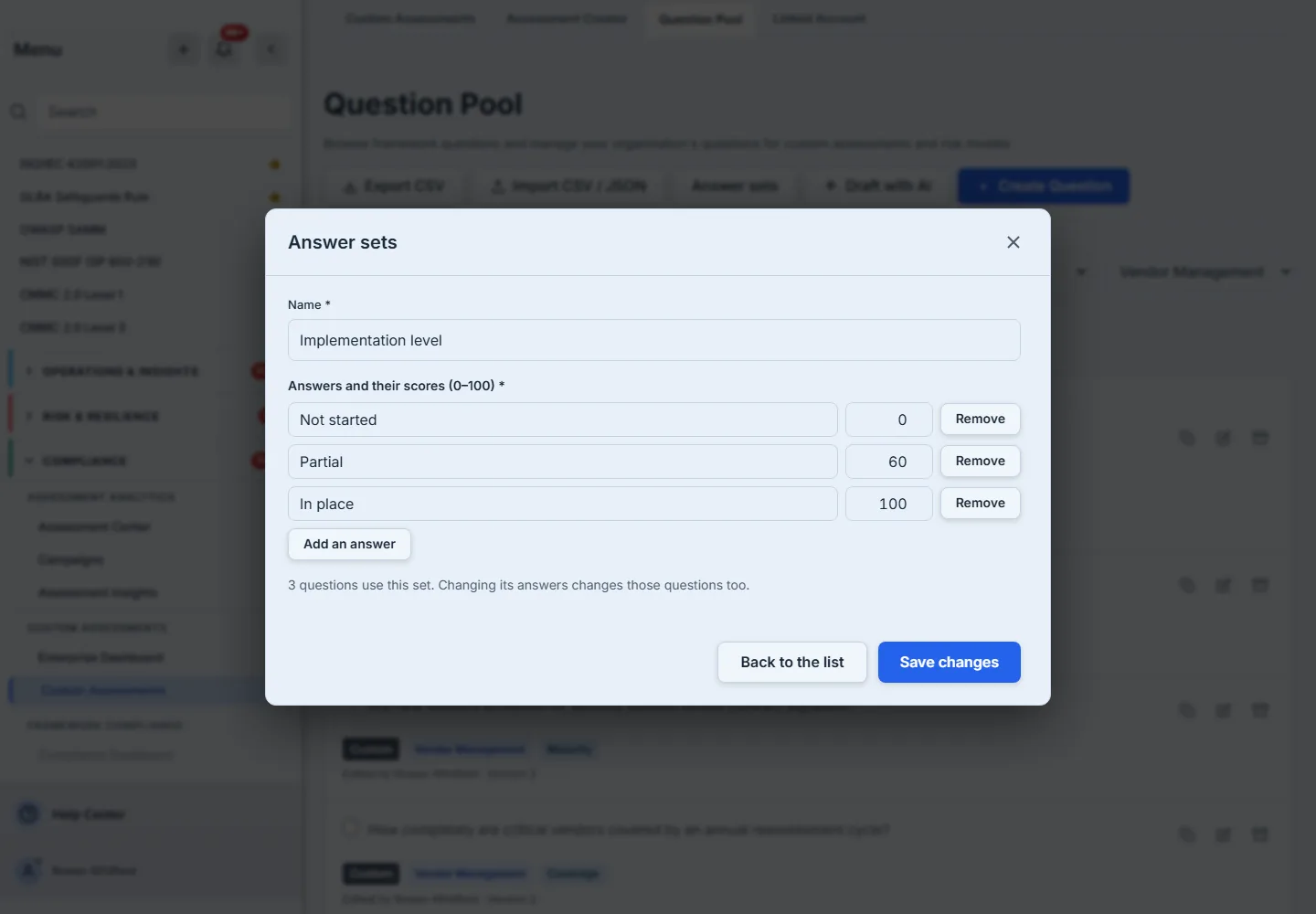
Editing a set that questions already use says so before you change anything — how many questions use it, and that changing its answers changes those questions too. Saving asks once more, naming the count. Each of those questions then moves to a new version, so an assessment built on the old wording shows that the question it holds has changed rather than silently scoring against a scale nobody agreed to.
Step 4 — Import a spreadsheet, with a dry run first
Import CSV / JSON takes a file in the layout Export CSV writes, up to 500 rows at a time; columns it does not read, such as usage counts, are listed as not read rather than silently ignored. A multiple-choice row must name, or carry the same answers as, an answer set you already have, so create the scales first; a row that matches none is refused with that reason. Nothing is added when you choose the file. The pool reads it first and shows what would happen: how many rows it holds, how many questions will be imported, and every row that will not, with the row number, each column at fault and why — no rejected row summarised away.
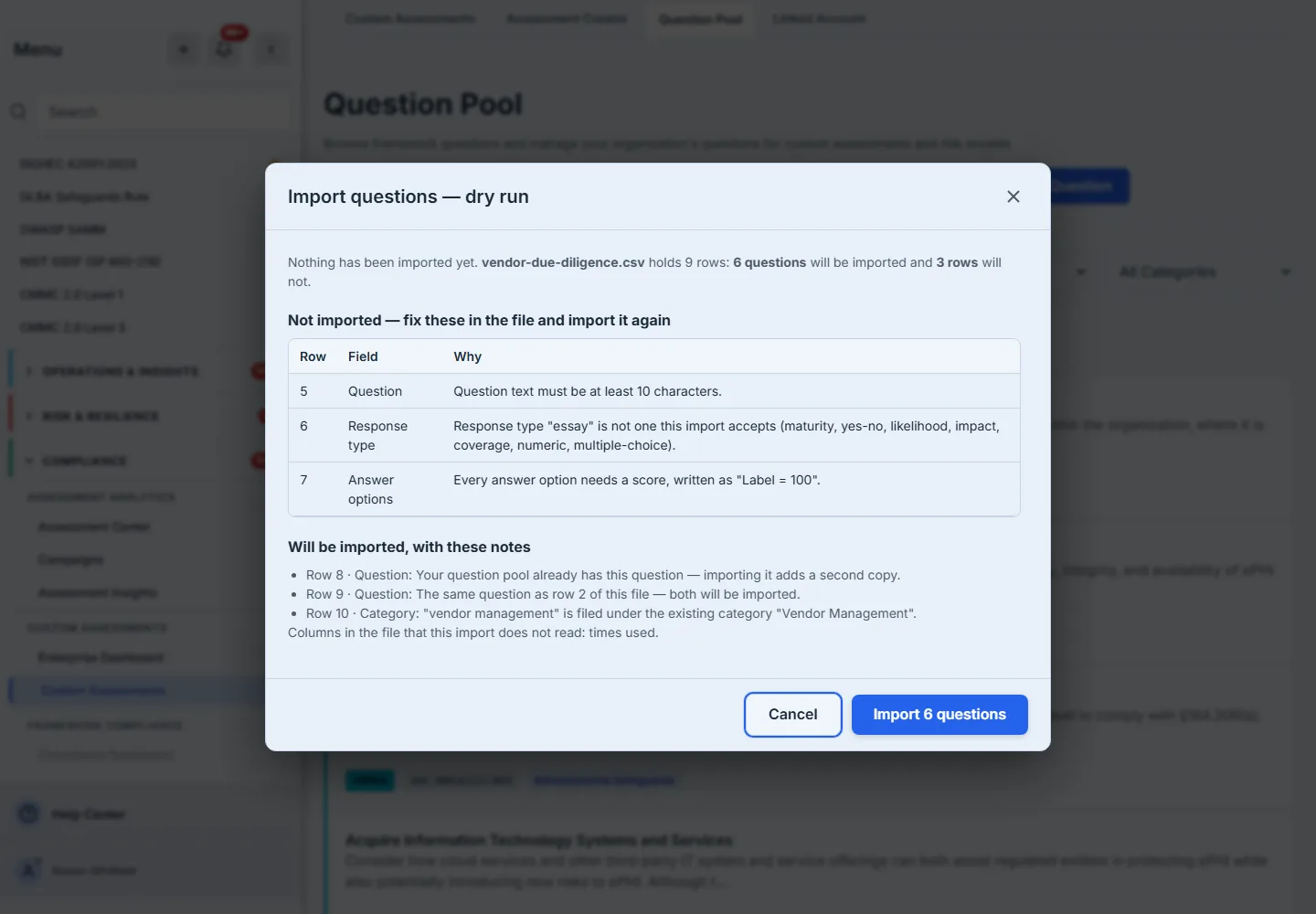
Below the rejected rows are notes on rows that will go in but that you may want to look at: a question the pool already holds, the same question twice in one file, a category that will be filed under the spelling you already use. Nothing is silently merged or dropped. The dialog does not skip rows for you: to leave one out, remove it from the file and choose the file again. Row numbers are the spreadsheet’s own, so the heading is row 1.
Import N questions re-checks the file you previewed by the same rules and writes exactly those rows in one step, or none. If the pool changed in the meantime so that a different number of rows would now go in, the import is refused and offers to check the file again. A problem with the file as a whole — a missing Question or Response type column, too many rows, JSON that does not parse — is reported as one sentence naming it; fix the file and choose it again.
Step 5 — Draft with AI, and review before anything is added
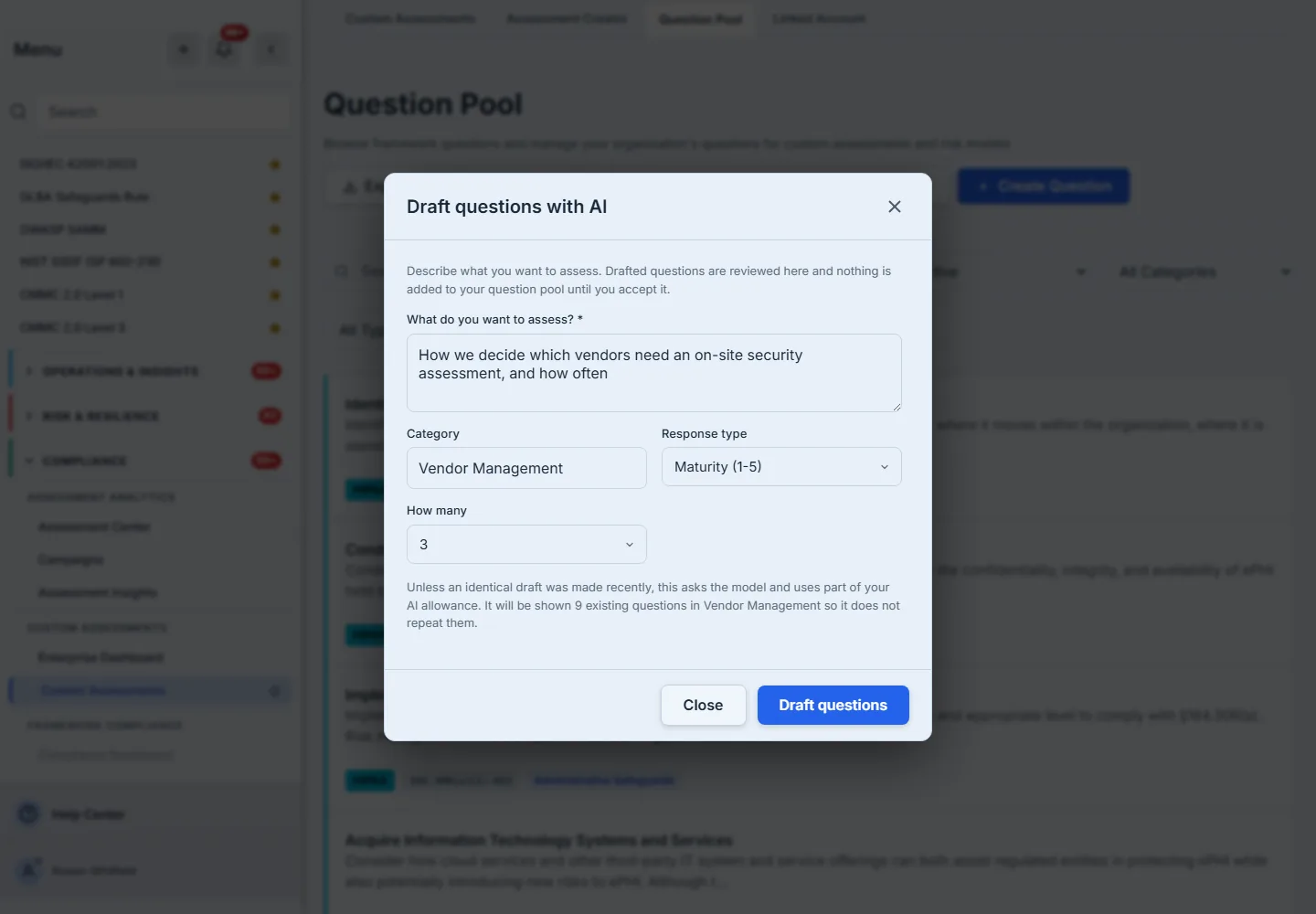
Draft with AI takes what you want to assess in a sentence, a category, a response type and how many drafts you want. Before anything runs it tells you what will happen: that unless an identical draft was made recently the request asks the model and uses part of your AI allowance, and how many of your existing questions in that category the model will be shown so it does not repeat them.
The drafts come back as cards marked AI draft · unreviewed. Nothing is in your pool yet: Accept adds that one question, Edit first opens it in the question form so you can change it before it is saved, and Discard throws it away. A multiple-choice draft whose answers match none of your answer sets opens in the form either way, so its answers become a set before the question is saved. Asking again with nothing changed reuses the last drafts rather than spending allowance on the same answer.
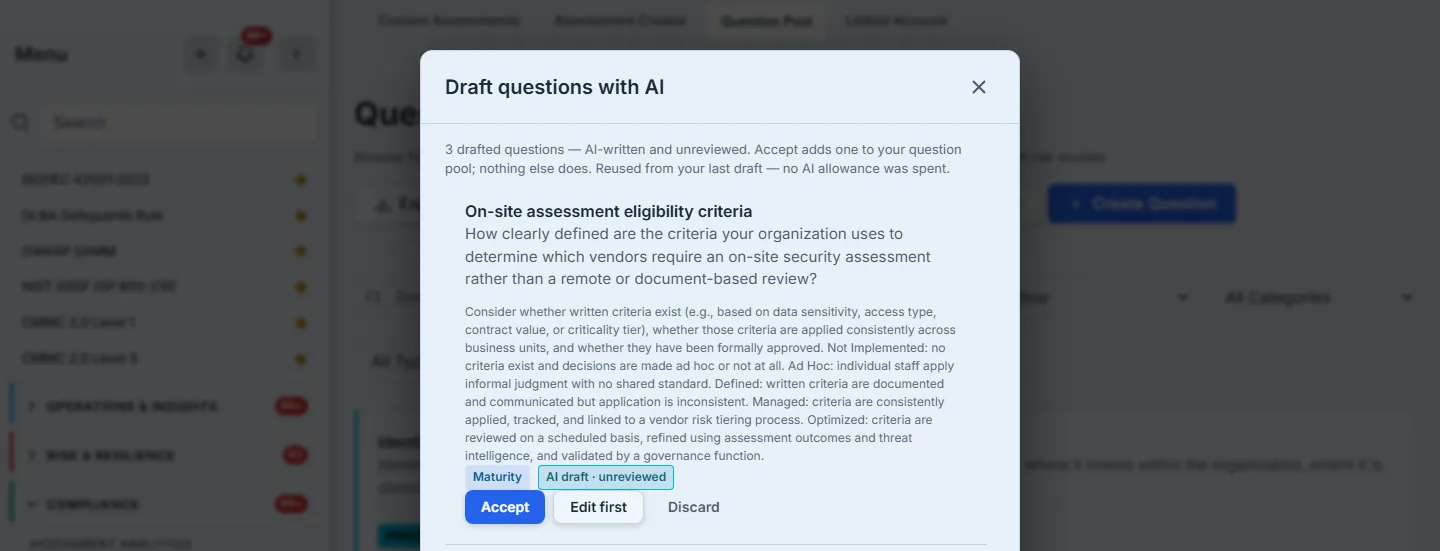
A multiple-choice draft is scored out of 100, like every answer set; a draft whose answers do not run from 0 to 100 is dropped, and the dialog says how many were. Each question banked from a draft gets its own entry in the audit log, made by the person who accepted it and marked as an AI draft, with whether they changed it first — so a question a model wrote is never in the pool without a named person having put it there.
Step 6 — Keep the pool tidy in bulk
Tick questions to act on several at once. Select all on this page is followed by Select all matching questions, which reaches every question your filters match across every page — up to 500 at once, and the bar says so when a filter matches more. From there you can Archive, Restore or Move to category; the bar only offers what applies, so Restore stays unavailable while nothing selected is archived.
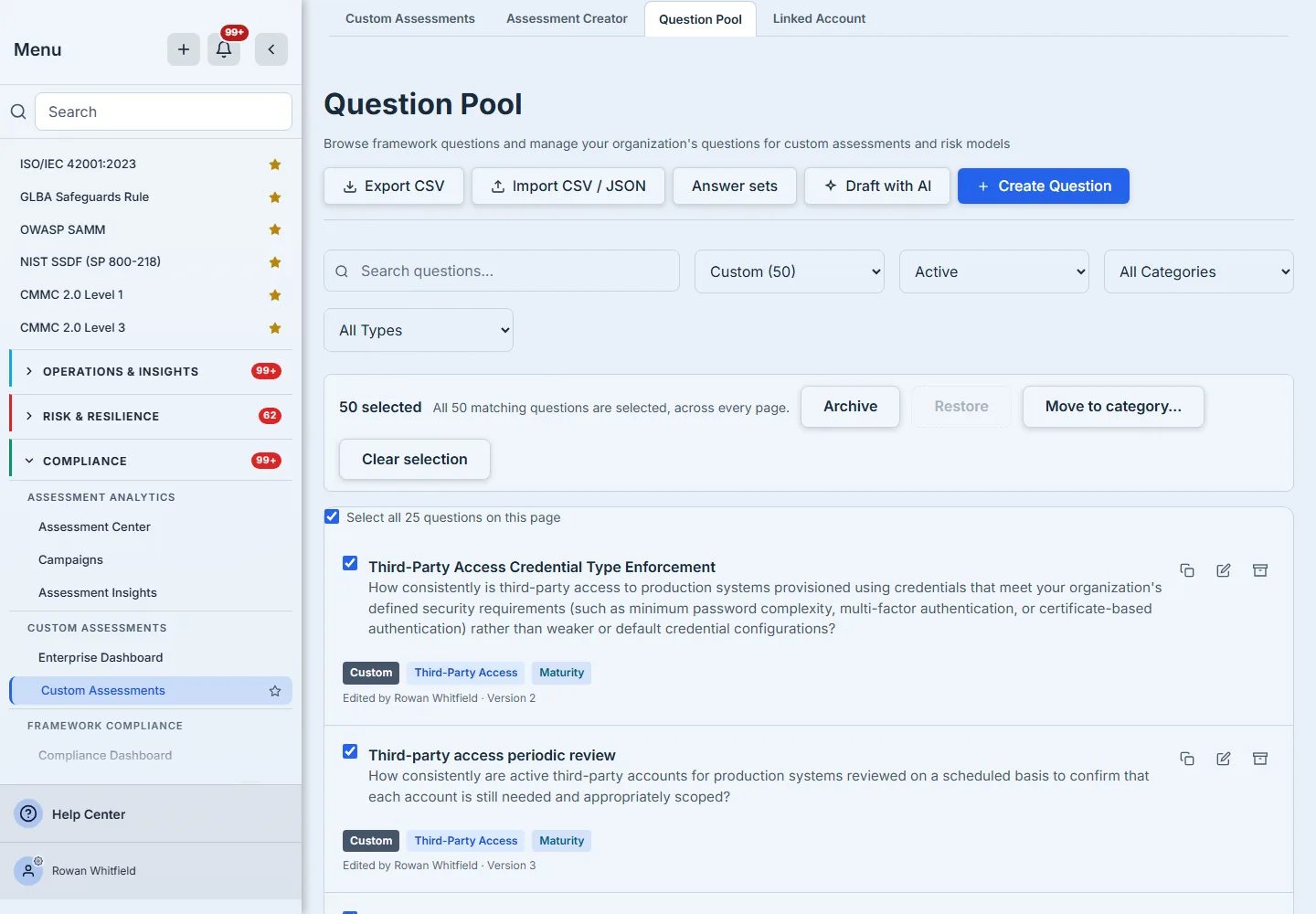
Move to category files the selected questions under one of your categories or a new one, and says plainly that it replaces the category they have now. It chooses nothing for you — the Move is refused until you pick. Renaming a category is the same move: filter to it, select every question, and move them into the new name.
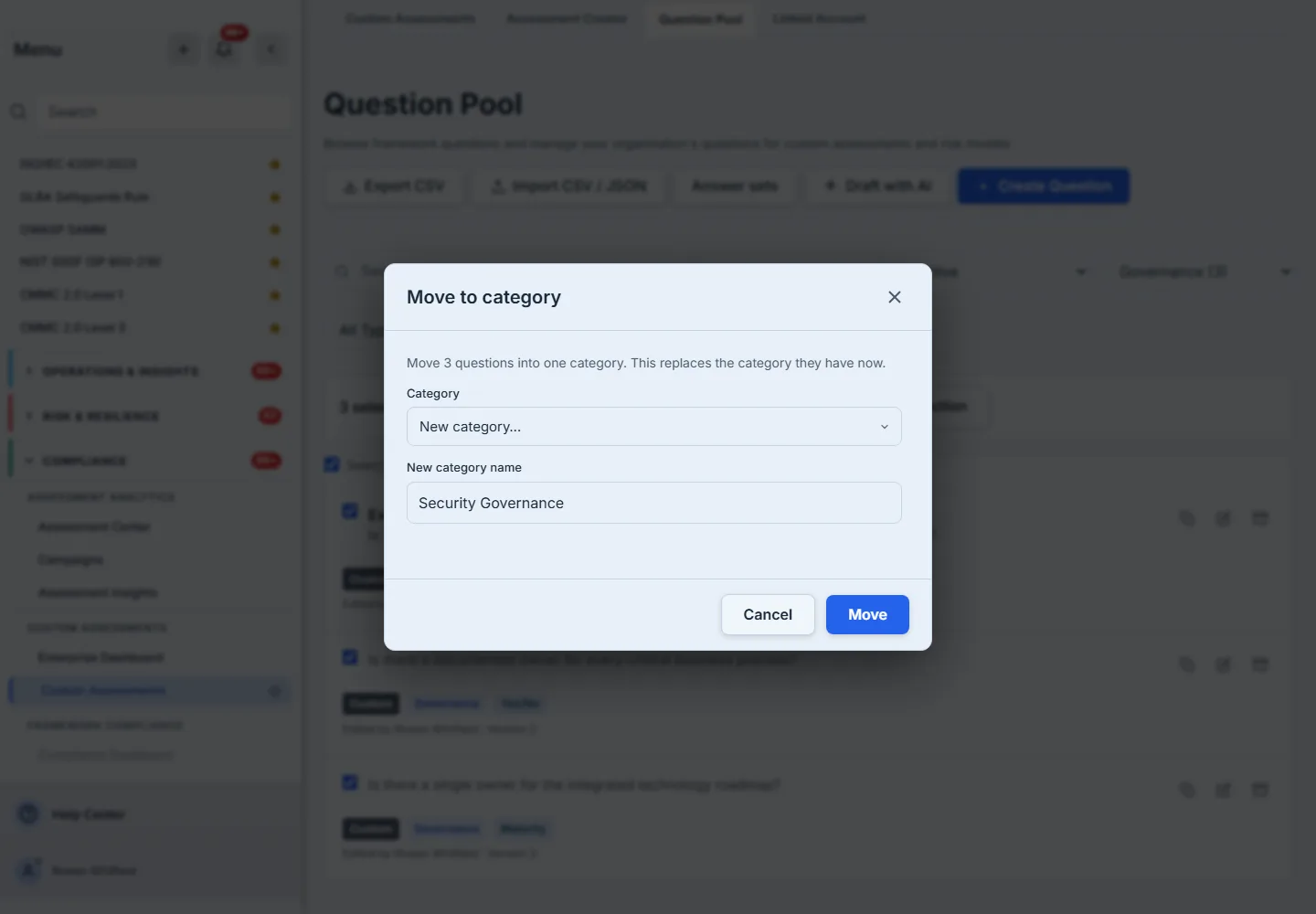
The two operations are versioned differently, on purpose. Re-filing changes a question, so each moved question advances a version. Archiving only retires it from new assessments — assessments that already ask it keep asking it — so its version does not change. Every question touched gets its own entry in the audit log, not one entry for the batch. The audit log (Administration → Users & Access → Audit Logs) filters to Question Pool entries, and the entry for a question added from the assessment builder, or drafted by AI and accepted by a named person, states that origin.
Step 7 — See where a question is used
A question an assessment or risk model uses says so on its card, and the badge opens the list: each assessment by name, linked to the assessment itself, and each risk model by name, linked to the risk-model settings where it is edited.
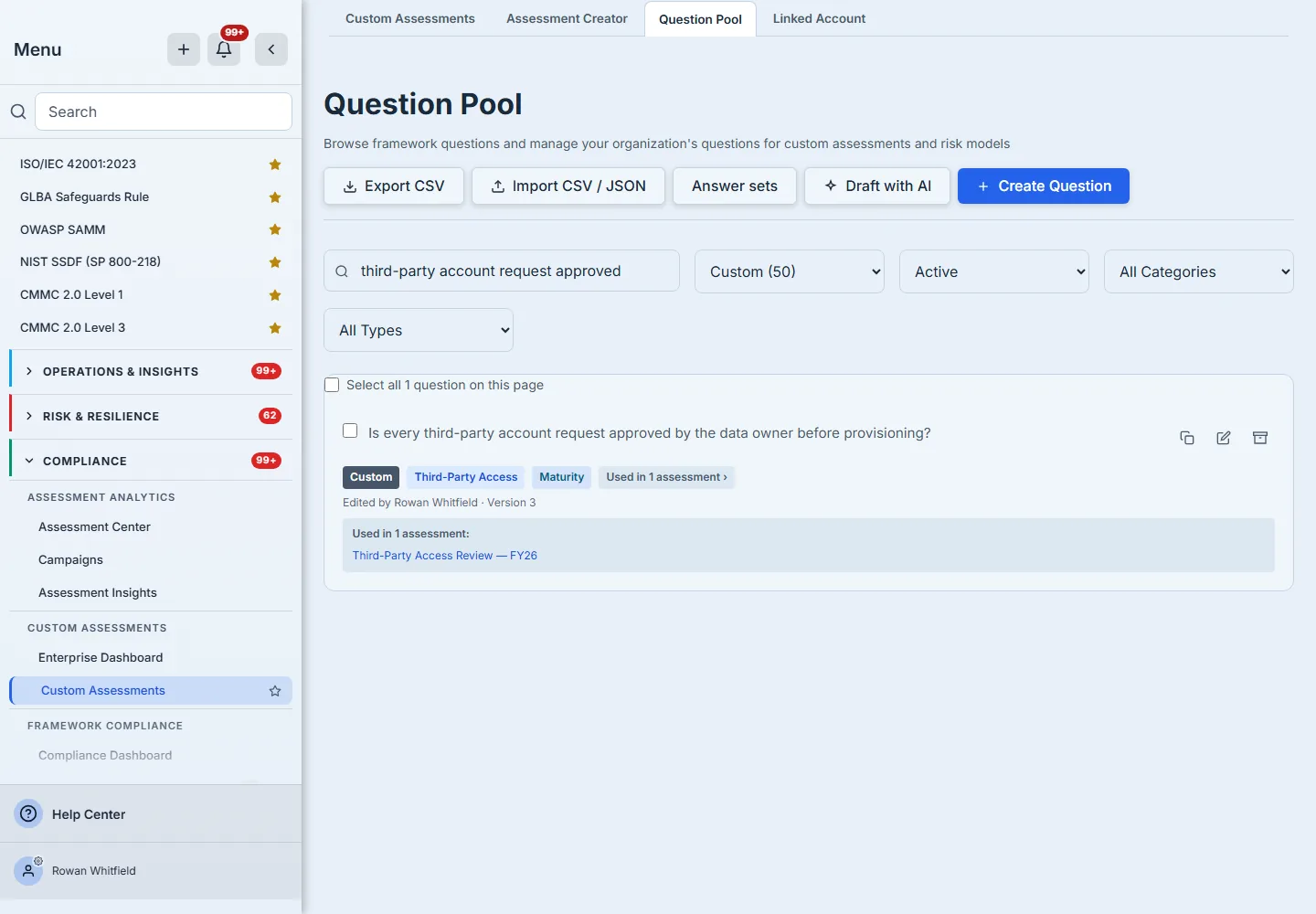
This is also what makes deletion safe. The pool offers Delete only on an archived question. Deleting one that assessments still use asks a second time, naming them and saying the question will be removed from them; one that a risk model uses cannot be deleted until it is taken out of the model, because a model’s questions carry its weights and only its owner should change them. Archive is the everyday verb; delete is for mistakes.
Step 8 — Find a question from anywhere
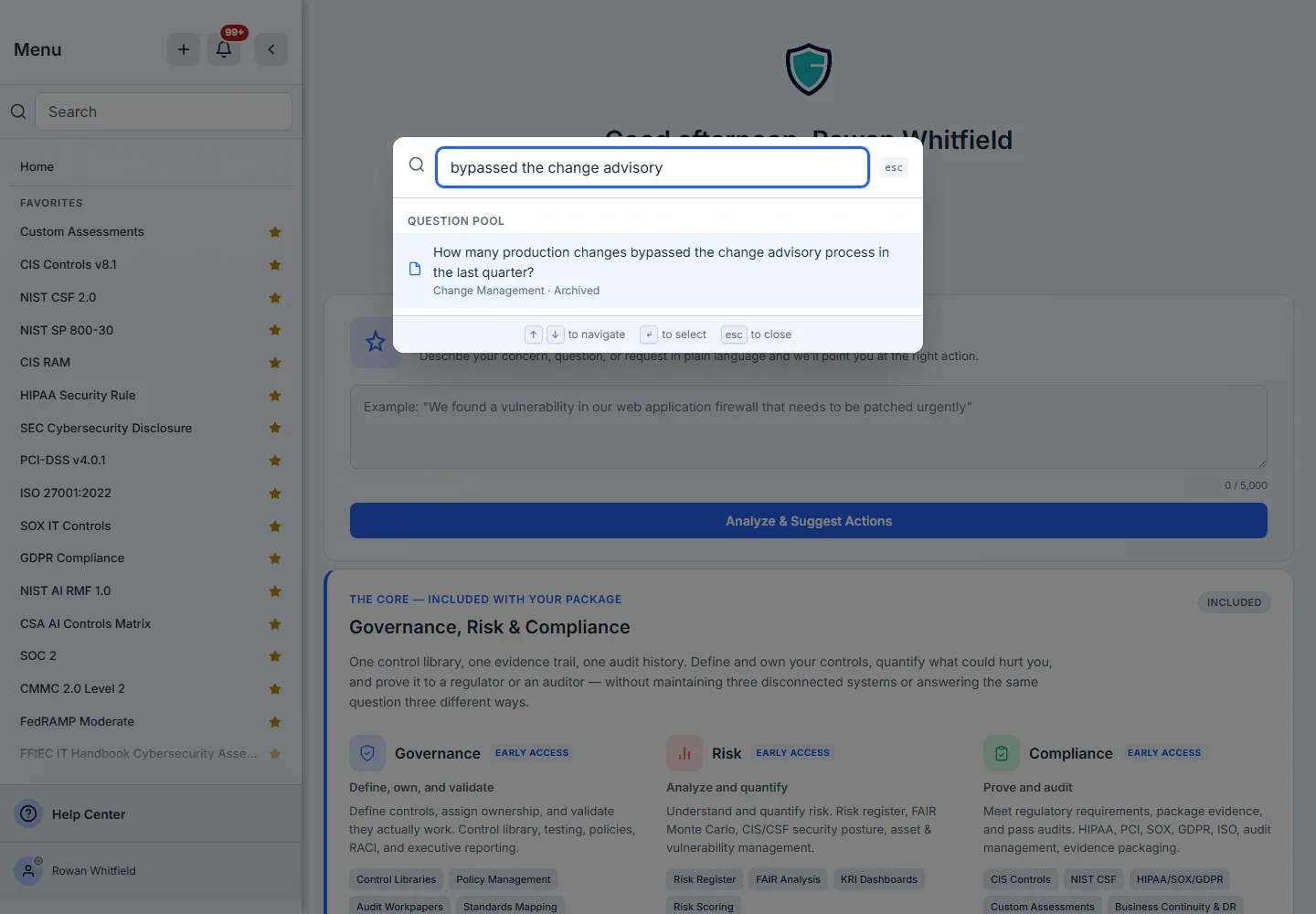
Global search (Ctrl+K, or ⌘K on a Mac) finds questions in your pool alongside risks, controls and work items. Choosing one opens the Question Pool on the page that holds it and highlights the card. An archived question is found too, and marked as archived — “where did that question go?” is exactly when somebody searches.
Step 9 — Read it next to the frameworks
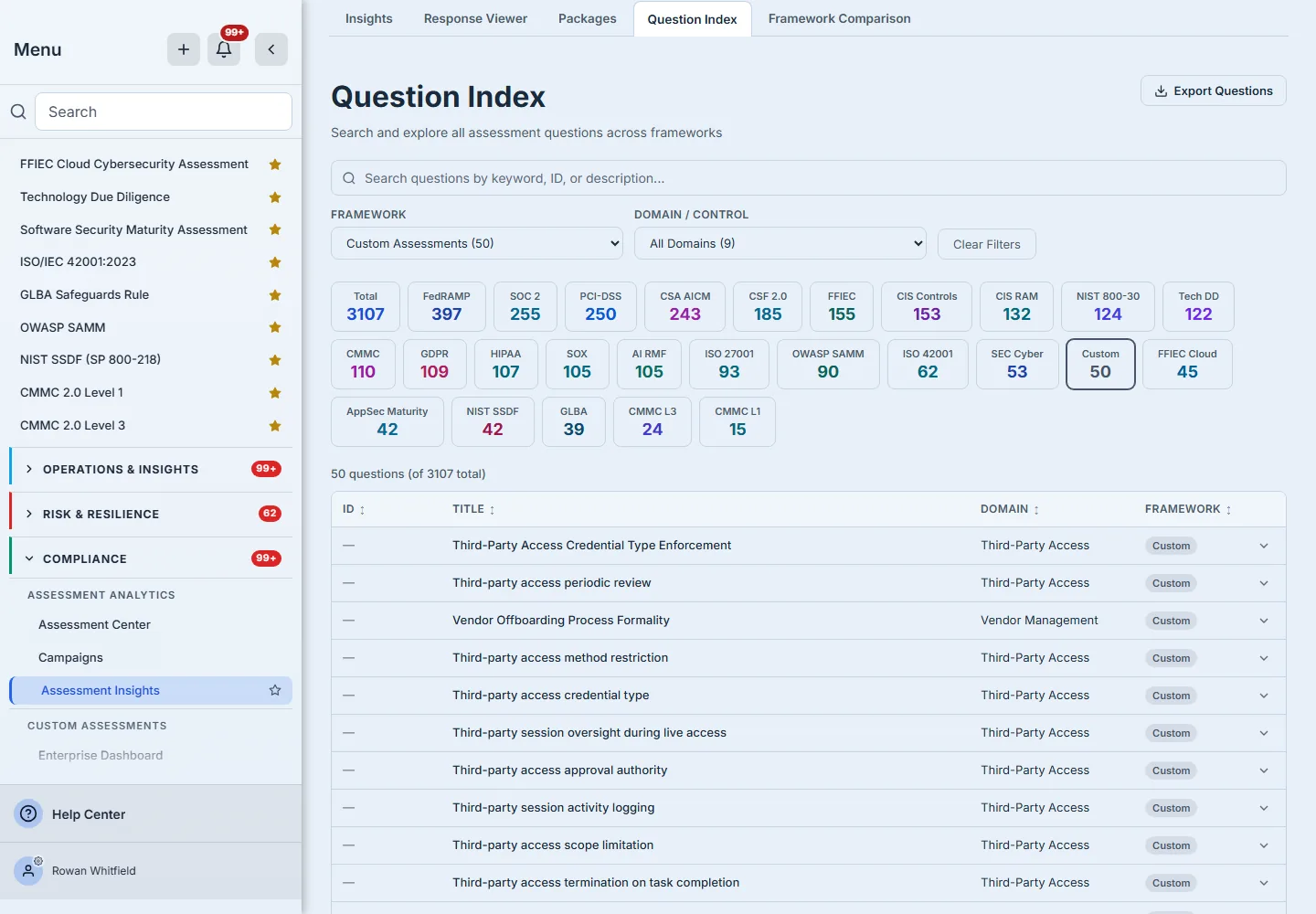
The Question Index, under assessment insights, lists every question you can assess against — each licensed framework’s and your own — in one searchable table. Filtered to Custom, it shows your active questions as a read-only index, alongside the framework questions you might be duplicating; for a very large pool it lists the first page and links to the Question Pool for the rest.
The pool belongs to one organization. A parent organization’s questions are not shared with its linked accounts; each keeps its own pool, and a questionnaire moves between them by export and import.
What you walk away with
- One question pool that every custom assessment and risk model draws from, instead of a spreadsheet per questionnaire.
- Answer sets as a controlled vocabulary — each scale written once, scored from 0 to 100, and changed in one place with the questions that use it versioned.
- Imports you can read before they happen — every rejected row named with its column and reason, and a commit that writes exactly what the dry run showed.
- AI drafts with a person in the loop — nothing a model writes reaches the pool until somebody accepts it, and the acceptance is recorded.
- Bulk re-filing and retirement across every matching question, with one audit entry per question.
- Usage you can trace — from a question to the assessments that ask it, and from anywhere in the app back to the question.
Build yours this week. Open Custom Assessments → Question Pool, choose Export CSV to see the layout the import reads, and bring in the questionnaire you already have. The dry run will tell you which rows need fixing before a single question is added — and every assessment you write after that starts from the pool.