Every framework that scores you eventually asks the same follow-up question: and then what? NIST CSF 2.0 puts it in ID.RA-06 — risk responses are chosen, prioritized, planned, tracked, and communicated. ISO 27001:2022 spends clause 10.2 entirely on nonconformity and corrective action, and wants the action, the outcome and the review of the outcome. SOC 2’s CC4.2 asks you to evaluate deficiencies and communicate them to the people responsible for correcting them. CIS Controls v8.1 is built on the distance between where you are and where your Implementation Group says you should be. None of them are satisfied by a scored assessment. They are satisfied by a tracked backlog with names and dates on it.
Most teams keep that backlog in a spreadsheet exported from whatever produced the finding. It has no owner column that anyone believes, no due date that anything enforces, and no record of why a row was deleted. Talarity keeps it as a first-class register: /app/gaps holds every identified control or compliance gap in the organisation, each one openable as a case file with its own lifecycle, its own linked work, and a close gate that will not let you mark something done while the remediation attached to it is still outstanding.
Who’s involved
- Compliance lead — reads the register weekly, assigns owners, sets due dates, and decides which gaps get closed this quarter.
- Control owner — receives the gap, does the remediation, and closes it with a justification that becomes part of the permanent record.
- Program owner / vCISO — files gaps found outside an assessment (a walkthrough, a customer questionnaire, an incident post-mortem) and sets the organisation’s close policy.
- Auditor — asks for “the gap register” and gets a CSV with owner, due date, status and the closing justification on every row, plus a per-gap close history naming who closed it and why.
What’s on the page
/app/gaps is the Gap Register tab of the Gap Analysis hub. Gap Analysis produces gaps by scoring you against a framework; the register is where they are worked. The two are deliberately separate pages: one is a measurement, the other is a backlog.
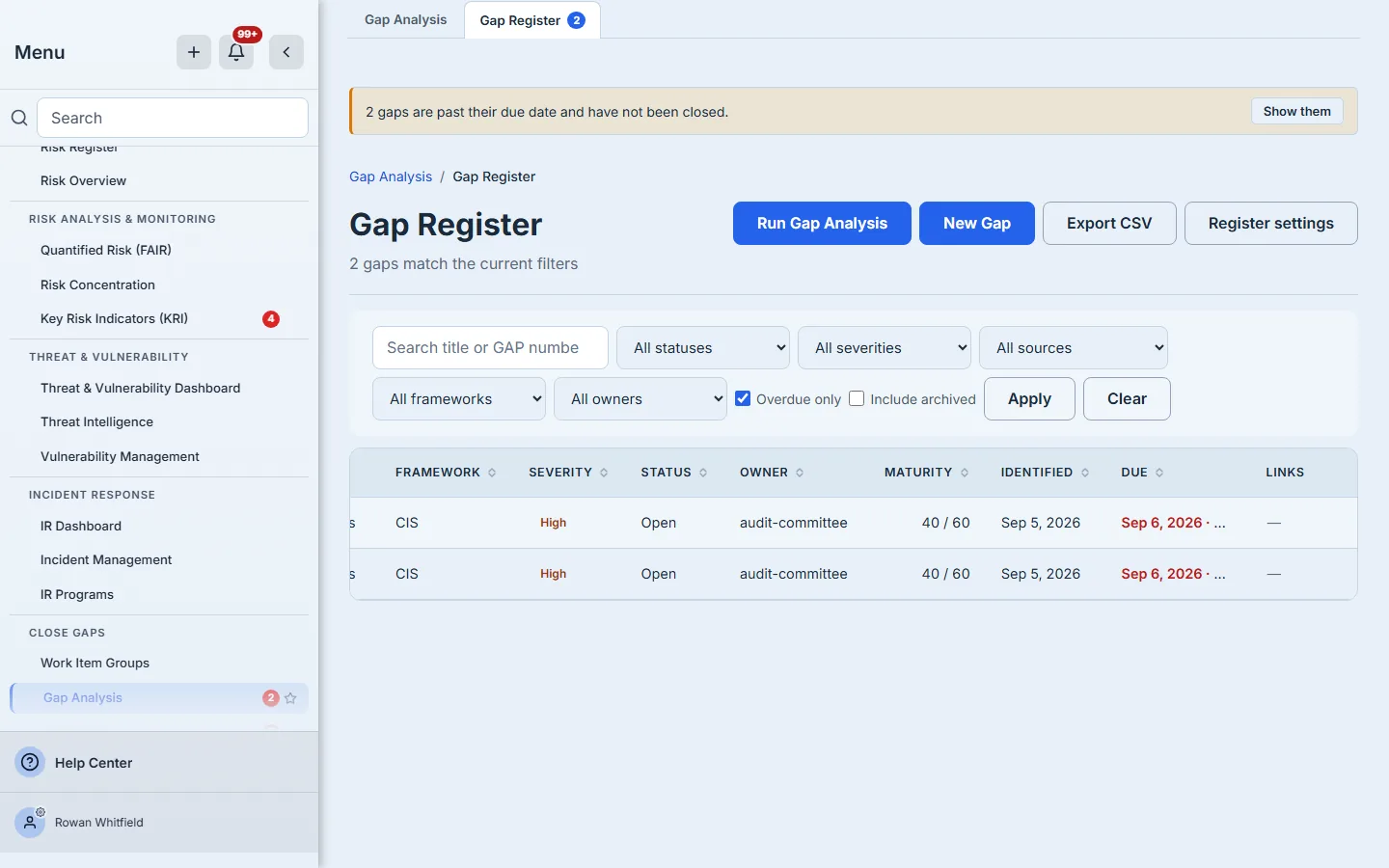
The register renders eleven columns — Gap #, Title, Source, Framework, Severity, Status, Owner, Maturity, Identified, Due, Links — plus a selection column if you hold the permission to act on gaps in bulk. On a laptop screen about seven of them fit; the table scrolls sideways to reach Maturity, Identified, Due and Links, which is what the screenshot in Step 4 is doing. Above them sits a filter bar with a free-text search box, five pickers and two toggles. It is the only surface in the product from which you can file a gap by hand or export the register, and the door to the organisation’s close policy.
Step 1 — Read the register, and read the count line carefully
Open /app/gaps. The header line above the table tells you how many gaps match the filters currently applied, and it is explicit about the difference between what is on the page and what is in the organisation.
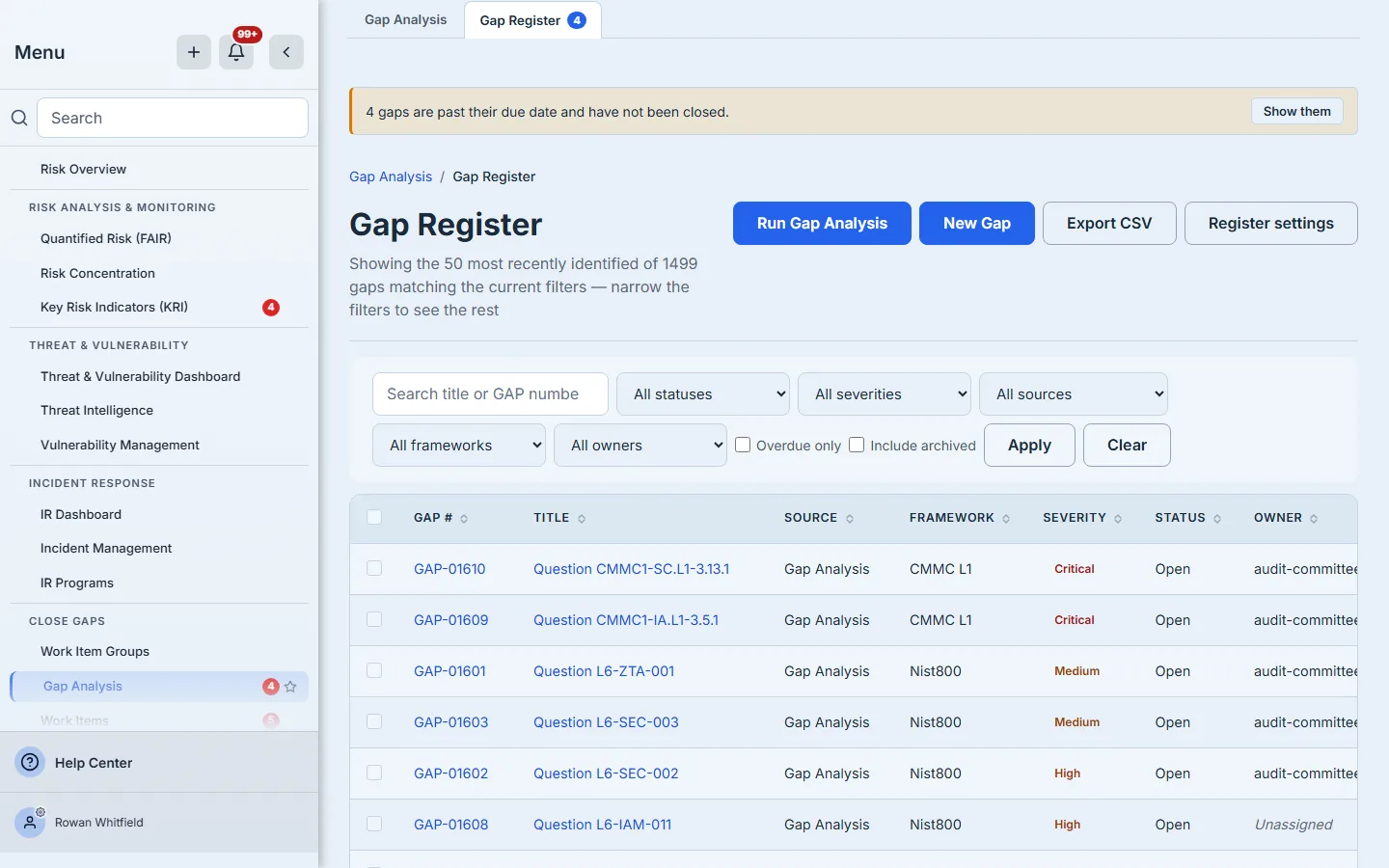
That distinction is load-bearing. The list handler serves a page, not the population, and the count line says which number it is quoting. The Links column makes the same distinction about a different thing: an em dash means this gap has no linked risks or plans, and the word Unknown means the link query failed and the number is a question rather than a zero. Two different facts never get the same glyph.
Maturity is a current score against a target, not a severity score — a lower number is a larger gap. The column is named Maturity rather than Score for that reason, and hovering a cell spells out the direction, because “Critical · 20 / 60” reads backwards to anyone who assumes bigger is worse.
Gaps are also findable from the command palette and from universal search, by gap number (GAP-00042) or by a phrase from the title.
The register is not the only place these numbers surface. A Gap Register widget is available on the Controls & Gaps dashboard, where it is configured like any other widget — that is a dashboards question, and the dashboards article covers it. The AI assistant can also answer questions about your open gaps, drawing on the same register; how that assistant is set up and scoped belongs to its own feature. This article stays on the register itself.
Step 2 — Narrow it with the filters, and trust the empty state
The filter bar opens with a search box and then carries Status, Severity, Source, Framework, Owner, and — for organisations with more than one linked account — a linked-account picker. Two checkboxes sit beside them: Overdue only and Include archived.
Search is the one control that answers where is that gap. Everything else on the bar is a category; the search box takes a phrase from the title or a GAP- number and narrows on both at once. It runs on the server, over your whole register rather than over the fifty rows currently loaded, so a gap on page four is one search away rather than three clicks of Load more — and the same term reaches the CSV, so an export taken from a searched screen contains what the screen showed.
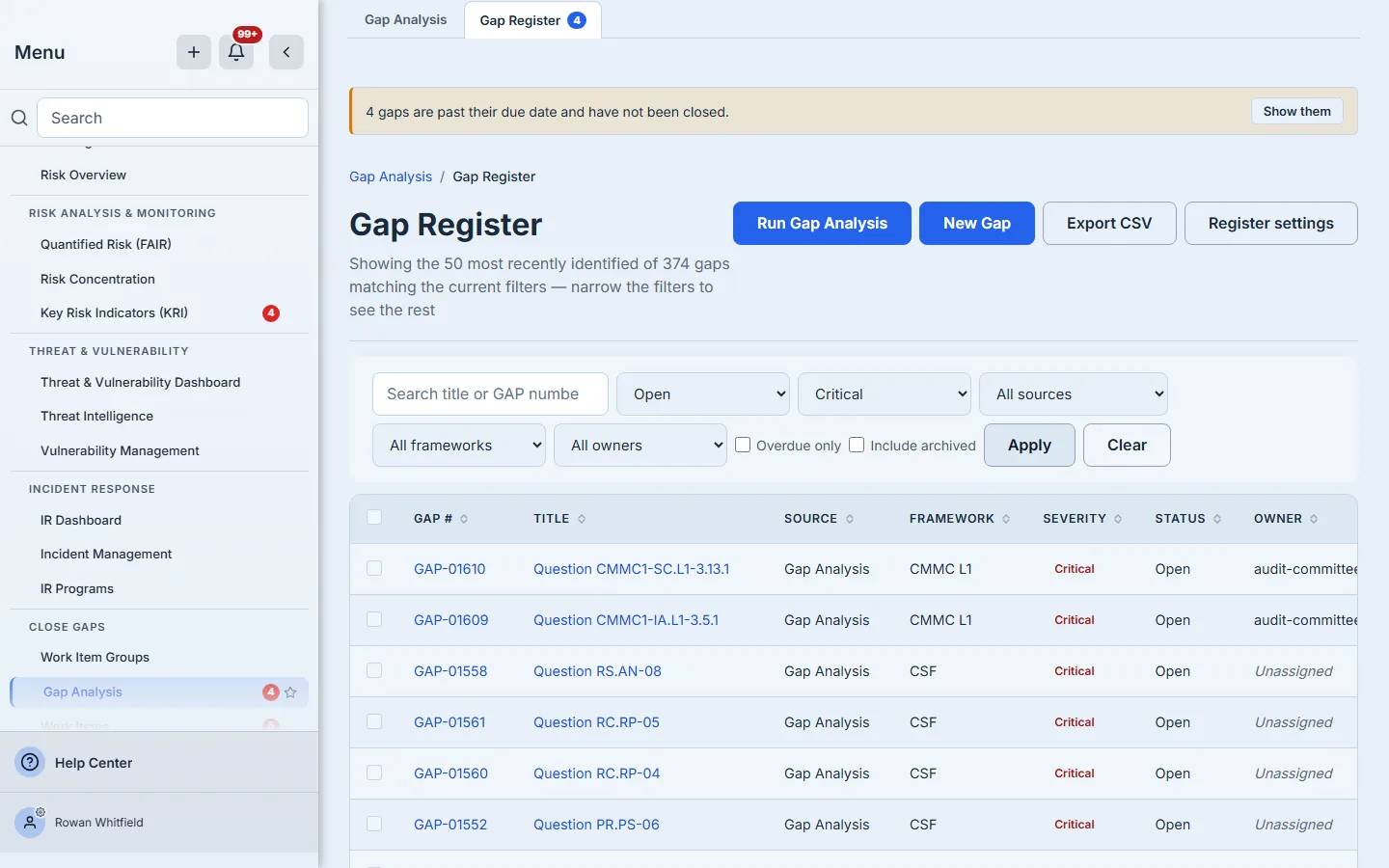
Source and Framework are both served from your own register rather than from a hardcoded list — the Source picker offers exactly the populations the query can return, and the Framework picker offers every framework key present on a gap in your organisation, computed over the whole register and not over the fifty rows currently on screen. That matters more than it sounds: a filter that offers values nothing matches teaches the reader the register is empty when it is only mis-queried, and a filter that quietly omits a value teaches them the opposite.
Status and Severity are the product’s own vocabularies, so they list states this feature defines rather than states your data happens to contain. Three of the statuses — In Progress, Mitigated and Accepted — are reached only by gaps raised from evidence coverage, so on a register built purely from a framework assessment they will return nothing. That is the picker being complete, not the filter being broken.
The register distinguishes three screens that look superficially similar. A populated read shows rows. A filtered-empty read says “No gaps match the current filters” and offers Clear filters — it never claims no gaps have been identified. A failed read says the register could not be loaded and offers Try again. If the read fails you get an error, not a confident zero.
Step 3 — File a gap nobody’s assessment found
Not every gap arrives from a scored assessment. A walkthrough turns one up, a customer questionnaire exposes one, an incident post-mortem names three. New Gap puts them in the same register as the machine-generated ones.
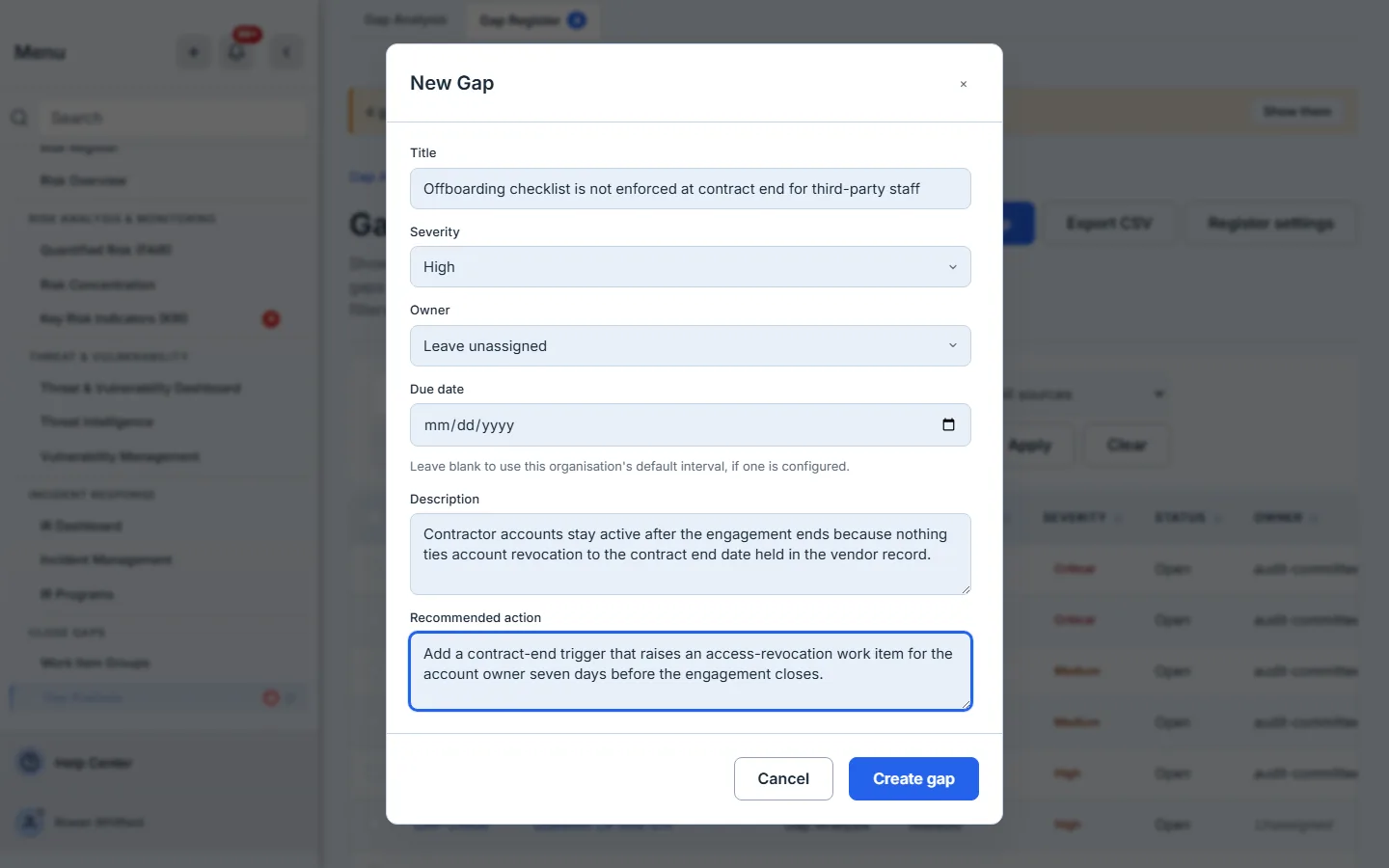
- Title — what is short, in the words you would use in a meeting. This is the string the register, the search index and the CSV all show.
- Severity — critical, high, medium or low. It drives the badge, the sort rank, and how the gap ranks in reporting.
- Owner — a member of your organisation. Setting it here notifies them, unless you assign the gap to yourself, in which case Talarity sends nothing. Leaving it blank puts the gap in the unassigned pile, which the register renders as the word Unassigned rather than an empty cell.
- Due date — optional. Leave it blank and Talarity applies your organisation’s default interval if you have configured one (Step 12); the field itself starts empty and says so.
- Description and Recommended action — the two free-text fields an owner reads before starting work.
Behind the scenes, Talarity mints the next GAP-nnnnn number for your organisation atomically, so two people filing at the same moment never collide, and writes the gap into the same findings table as every machine-generated gap. From this point on it is indistinguishable from one — same filters, same case file, same close gate, same export.
Filing the gap is not the point. Owning it is. A register full of unowned rows is the spreadsheet you were trying to leave. Sorting the Owner column ascending groups the named people first and leaves the unassigned pile at the bottom, so it is also the fastest way to see how much of the loaded page nobody has agreed to do.
Step 4 — Give it an owner and a date, and let Talarity do the chasing
An owner and a due date are what turn a gap from a record into work. Once a gap carries both, three things start happening without anyone opening the page.
- The owner is notified when someone else assigns them, in the app and by email, against the gap-assigned template.
- A scheduled job runs daily, walking gaps approaching or past their due date and reminding the owner.
- The nav badge on the Gap Register counts the organisation’s overdue gaps — every seat sees the same number, whether or not the gaps have owners — so the size of the slipped pile is visible from anywhere in the product without opening the page.
The Due column carries the word Overdue in the cell as well as the colour, because colour alone is not a signal a screen reader can use — it is read out with the date. At narrow column widths the word is visually shortened to an ellipsis, as it is in the screenshot above, so the colour is what carries it on screen. An undated gap prints “No due date” rather than a dash — a gap with no deadline is a different fact from a gap due tomorrow, and it can never be reported as overdue, which is exactly the thing the sentence is warning you about.
Step 5 — Work the backlog in bulk
Assigning ninety gaps one at a time is how a register stops being maintained. Select rows with the checkbox column and the bulk action bar appears.
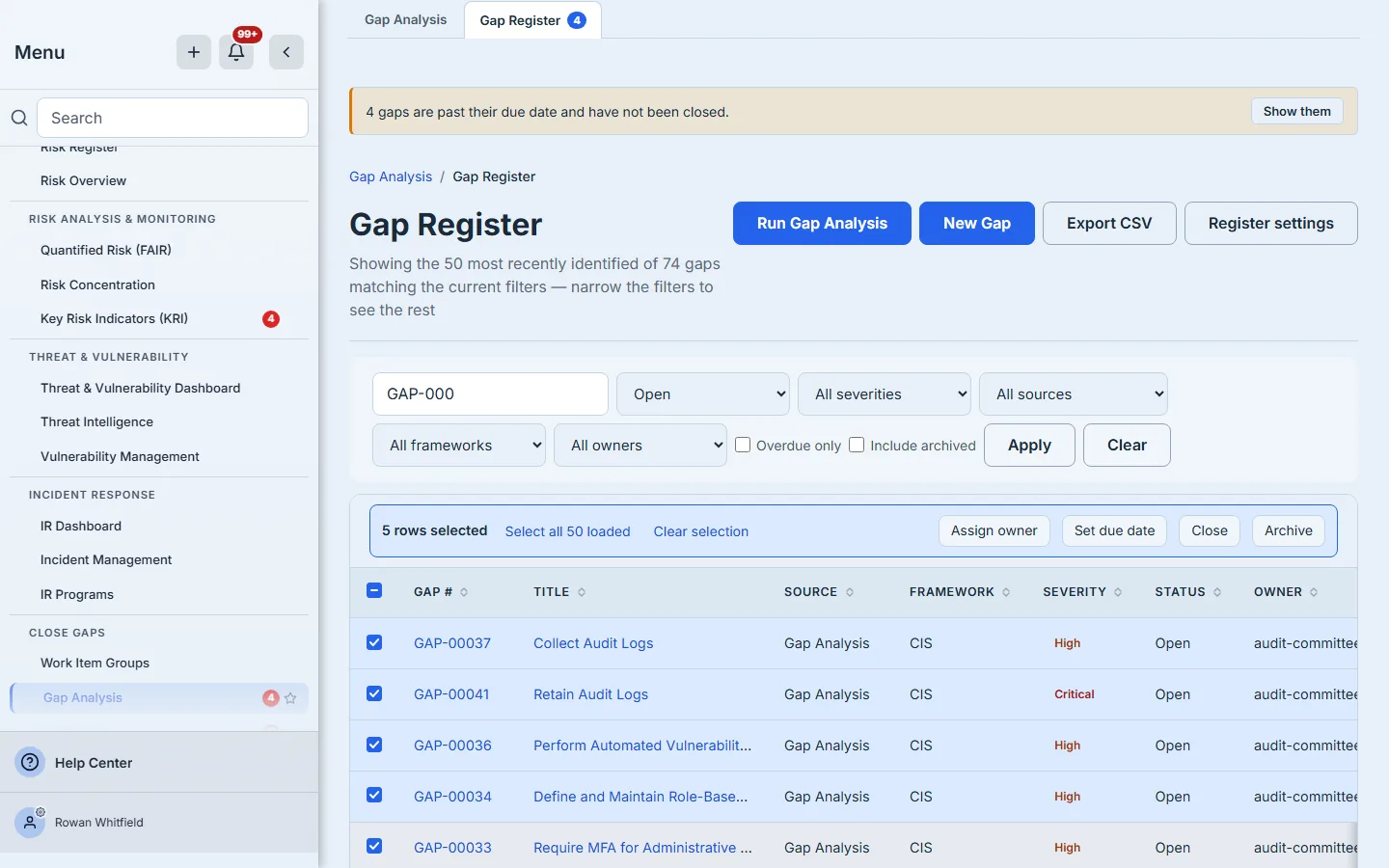
Assign owner takes one person and applies them to the whole selection. The same picker carries Remove the owner (leave unassigned) as its first entry, for the opposite operation — handing a batch of gaps back to the unassigned pile when a team changes hands is as real an action as assigning them, and it is one control rather than two.
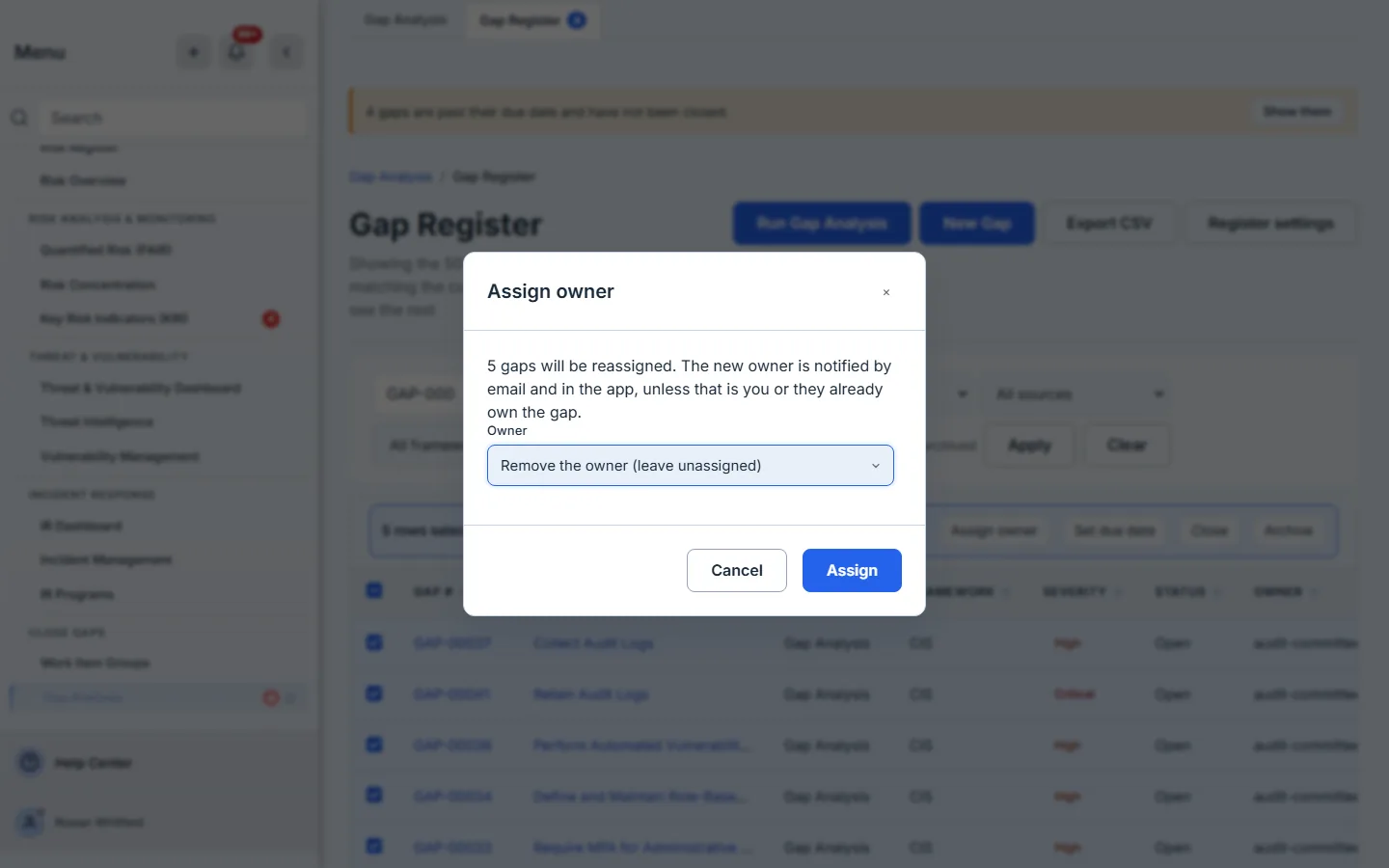
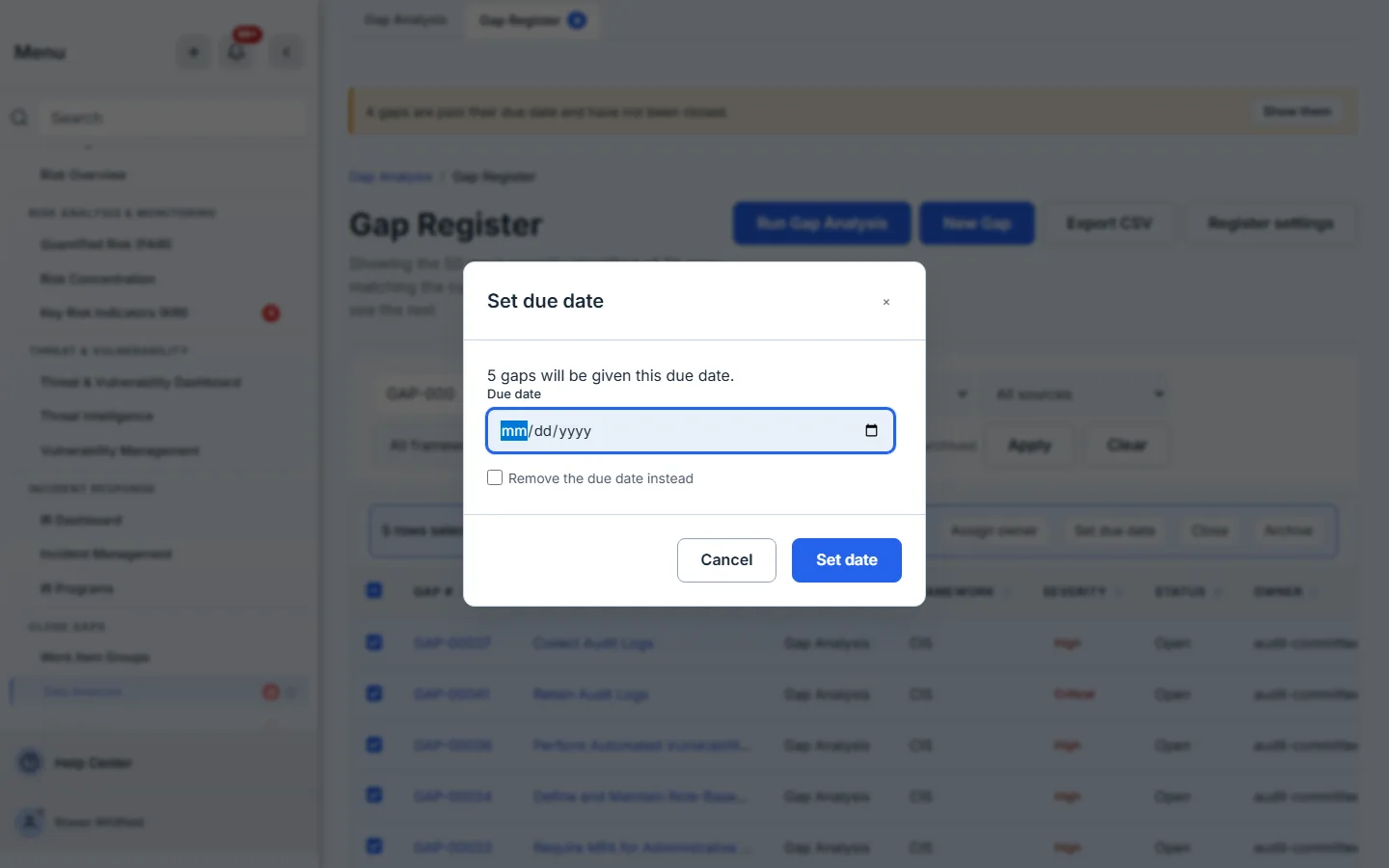
Set due date takes one date, and carries a clear the due date checkbox for the opposite operation — removing a deadline you set too optimistically is as much a real action as setting one.
Close and Archive are also available in bulk, and this is where the design decision worth knowing about lives: bulk close runs the full single-gap close for every gap in the selection — both gates, the justification minimum, the concurrency check and the close-history entry. It does not re-implement any of that. A selection of ten will routinely contain two gaps with outstanding work items, so partial failure is the normal case: the result modal names the gaps that refused and why, and closes the rest.
All four bulk actions refuse archived rows, and say so rather than silently skipping them — the row is not selectable, and selecting only archived rows produces a message naming the reason. An archived gap is one the organisation has deliberately stopped tracking; giving it an owner would send someone a notification about work nobody is chasing, and giving it a due date would put an Overdue marker on a record that is not in the backlog. The refusal is enforced twice on every one of the four: once by the affordance, and once by the handler behind it. Those are not the same thing and neither substitutes for the other.
Step 6 — Export the register
Export CSV hands over what an auditor actually asked for. It sits in the page actions row at the top of the register — visible in the first screenshot, alongside New Gap and Register settings; all three appear only for a seat that can manage gaps.
The export honours every filter and both toggles currently applied, so “the overdue critical gaps” is an export rather than a spreadsheet edit. Its nineteen columns carry more than the screen does — gap number, title, description, severity, status, source, framework, control reference, domain, current and target score, recommended action, owner, owner email, due date, work item, identified date, closed date, and the closing justification. Severity, status and source are written as words rather than as stored values, so the artefact that leaves the platform reads the way the screen does. Framework is the deliberate exception: the file carries the raw key, because the key is what you type back into the framework filter. The owner column prints a name, never an internal identifier, and where a name cannot be resolved it says so in words instead.
Two limits are worth knowing rather than discovering. The export stops at ten thousand rows and tells you when it has truncated. And Load more is how you get past the fifty-row page without a filter — the register pages rather than scrolling infinitely, so the count line always describes something you can point at.
Step 7 — Open the case file
Click a gap number or title. The case file at /app/gaps/:gapId is the whole record: a header strip carrying status, severity, source and framework, and eight tabs, six of which carry a count.
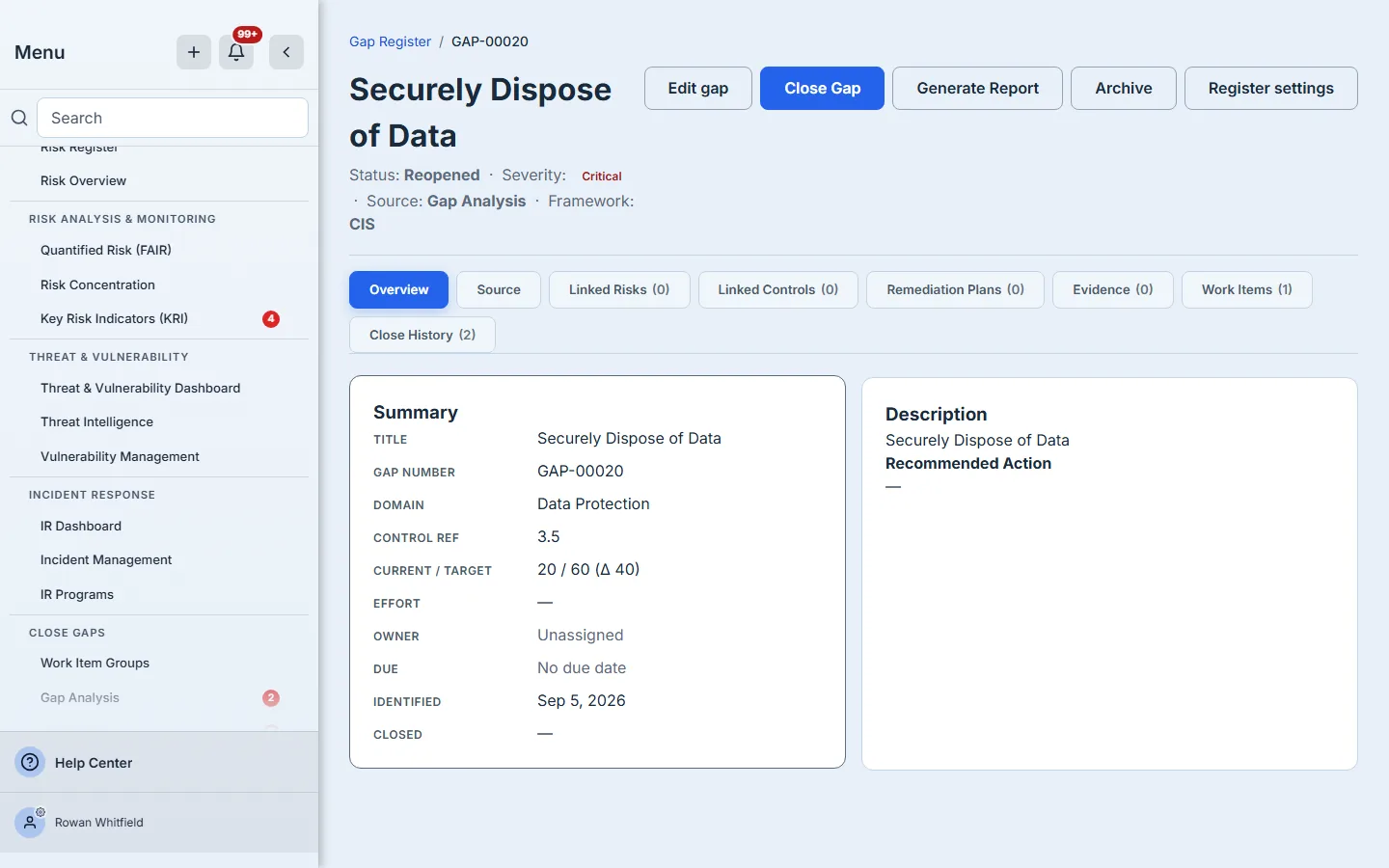
A gap raised by an assessment inherits its description from the question that produced it, and on frameworks whose questions are named after the control itself — CIS is one — that description reads the same as the title, as it does here. Recommended action is empty for the same reason: the assessment supplied none, and the field prints an em dash rather than inventing advice. Both are worth filling in from Edit before you hand the gap to an owner; a gap you file by hand starts with whatever you type in Step 3.
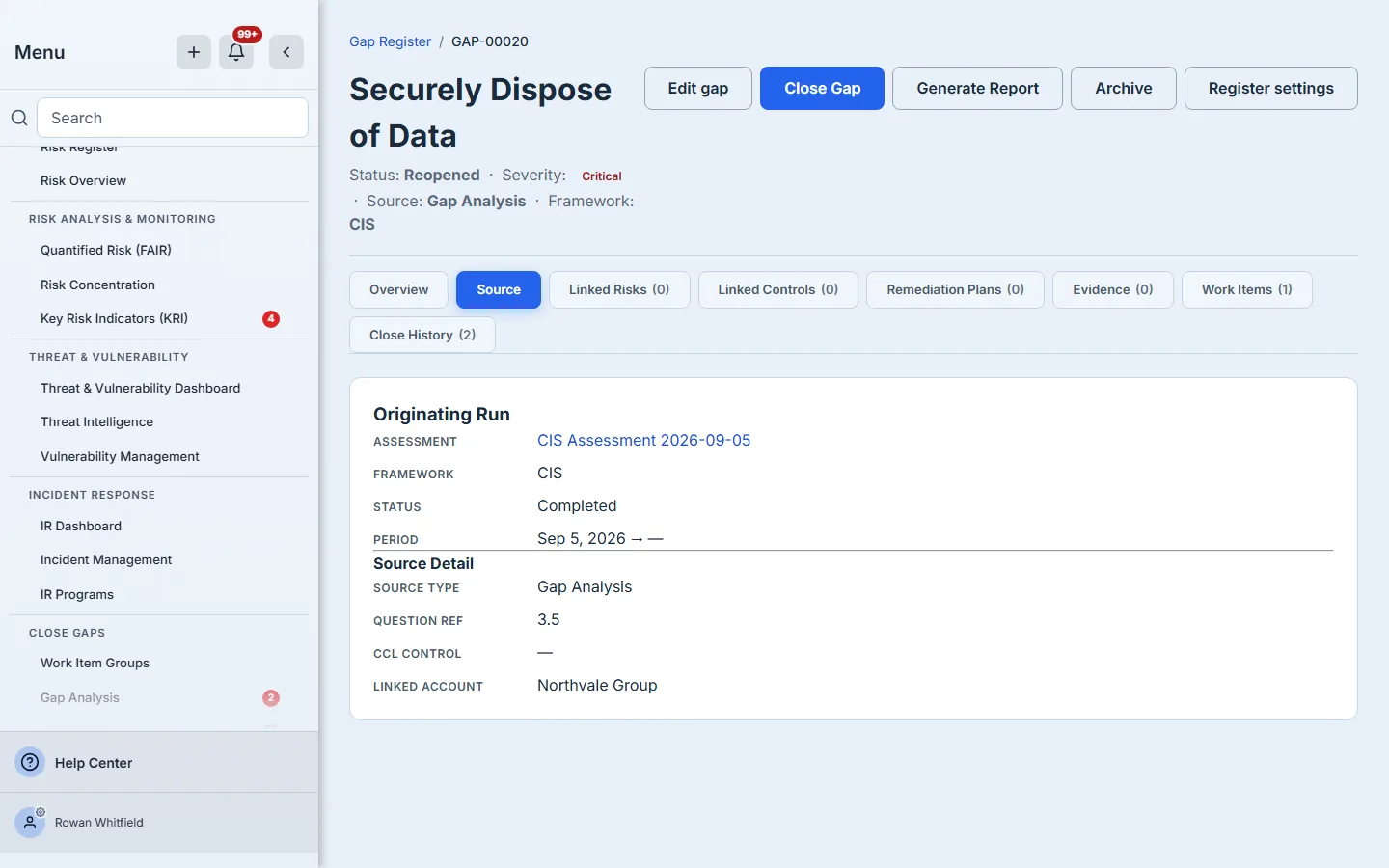
The tabs are Overview, Source, Linked Risks, Linked Controls, Remediation Plans, Evidence, Work Items and Close History. The six relationship tabs carry a count; Overview and Source do not, because neither is a list of anything. Every count arrives on the single call that loads the page rather than one call per tab, and each tab that failed to load says so — in words, with a retry — rather than rendering as empty. A failed relationship read and a genuinely empty relationship are not the same screen, and the Source tab makes the same distinction about the assessment run that produced the gap.
The Source tab links back to the assessment run that produced the gap, which is the boundary between this feature and gap analysis proper. A gap you filed by hand has no run, and the tab says that rather than looking broken. Create plan from this gap on the Remediation Plans tab creates a remediation plan and links it in both directions, so the plan shows the gap and the gap shows the plan. Generate Report produces the Gap Analysis capstone for the run the gap came from; on a gap that did not come from an assessment run it is disabled, and its tooltip says why.
Every tab is deep-linkable with ?tab=, so a link you paste into a ticket opens on the tab you were looking at.
Work Items is the tab the close gate reads
The Work Items tab lists the remediation work attached to this gap, and Create work item from this gap is how you attach more.
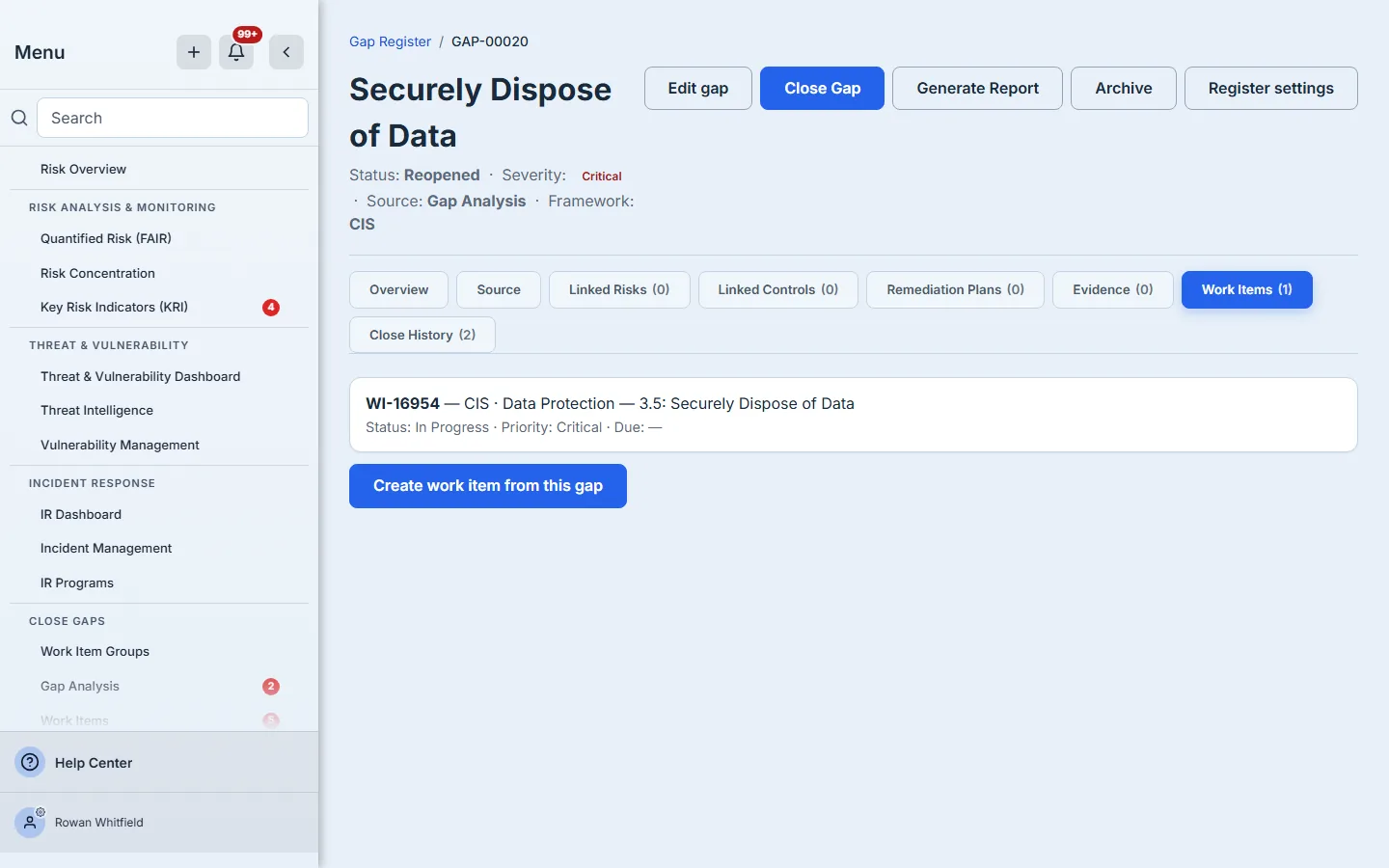
It is worth understanding this tab before Step 9, because it is the tab the close gate is looking at. A gap with an open work item on this tab cannot be closed normally — the refusal in Step 9 is this list, read back.
Two things on the case file belong to neighbouring features rather than to the register, and this article stops at their edge. Marking a work item done — and the Release confirmation that goes with it — happens in Work Items, and only the person the item is assigned to sees it; the register reads the result rather than driving it. And the Evidence tab’s empty state offers Open the evidence library, which is the door to a different feature: attaching evidence is done there, and the gap simply counts what is linked.
Step 8 — Correct what is wrong
A severity set at triage is a guess. Edit on the case file lets you change it — along with the title, description, owner, due date, domain, effort, impact if resolved, and recommended action: nine fields in all.
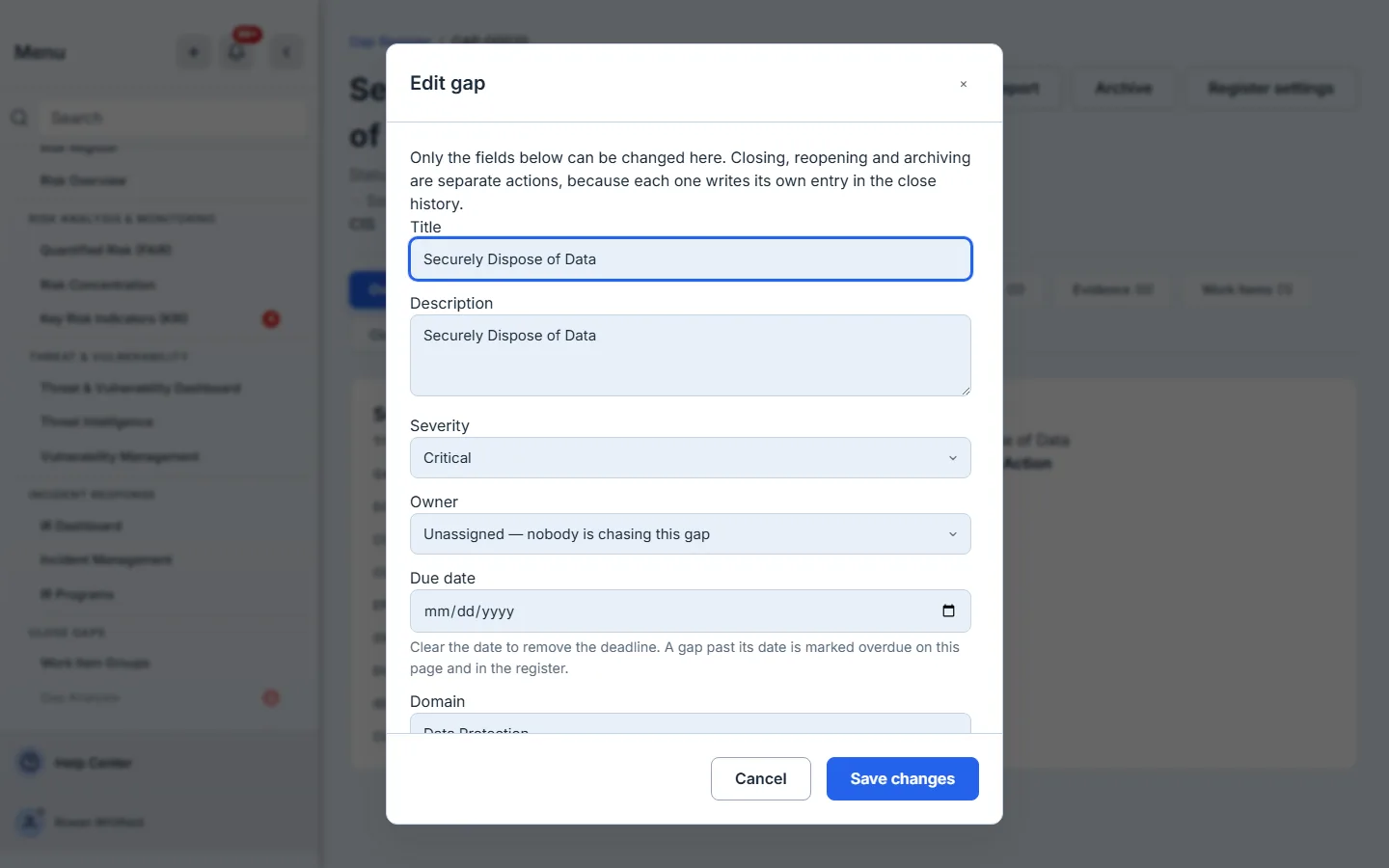
Editing is gated on the Gap Analysis manage permission, and it is refused on an archived gap: a record the organisation has stopped tracking is not one you silently amend. Changing the owner from here fires the same assignment notification as setting one at creation.
Step 9 — Close it, and be refused if it isn’t done
Close gap is not a status dropdown. It is a gate.
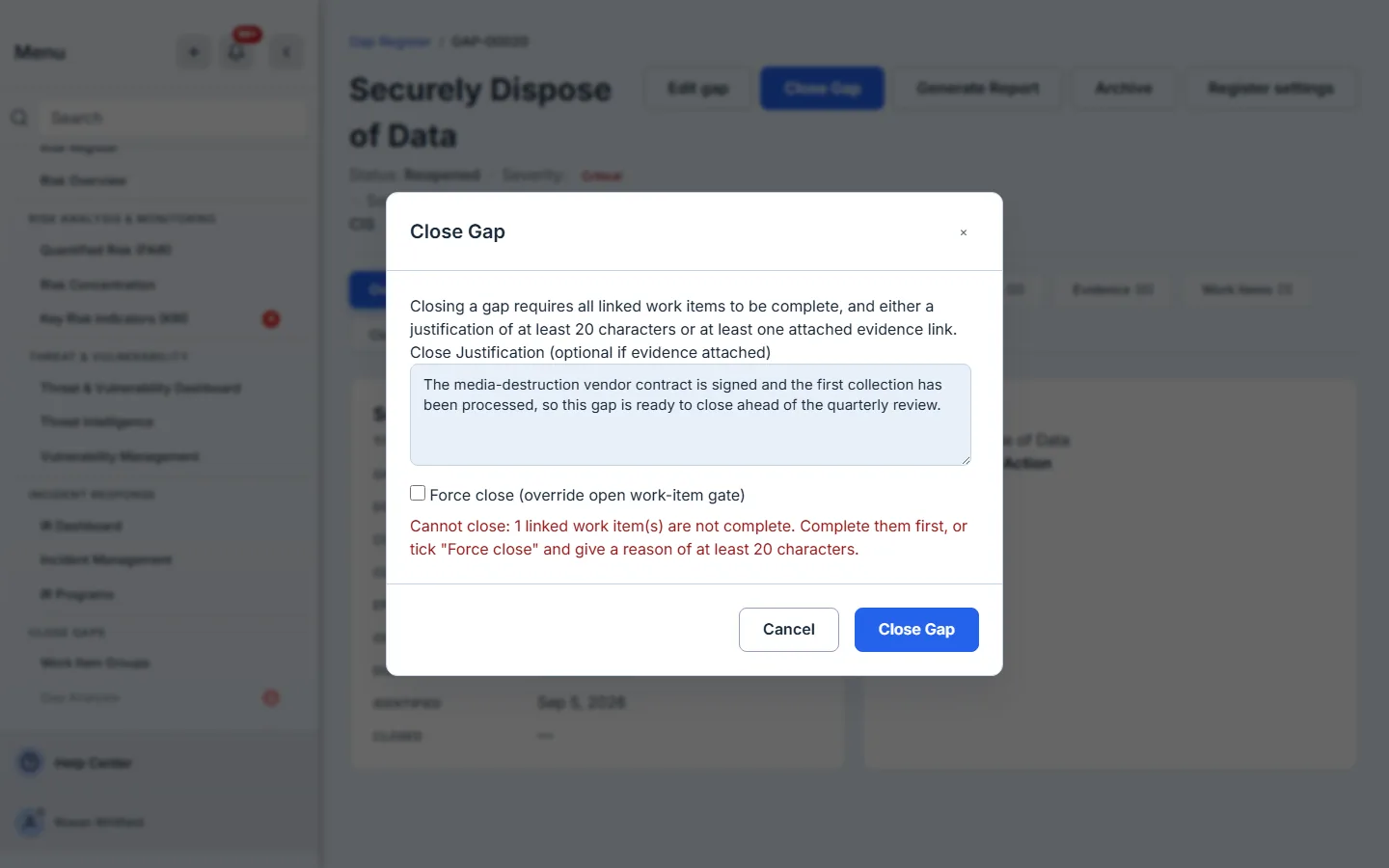
Try to close a gap whose remediation is still outstanding and you get this. The refusal names the condition, counts the work items holding it, and says what to do instead — it is not a generic failure toast, and nothing is written.
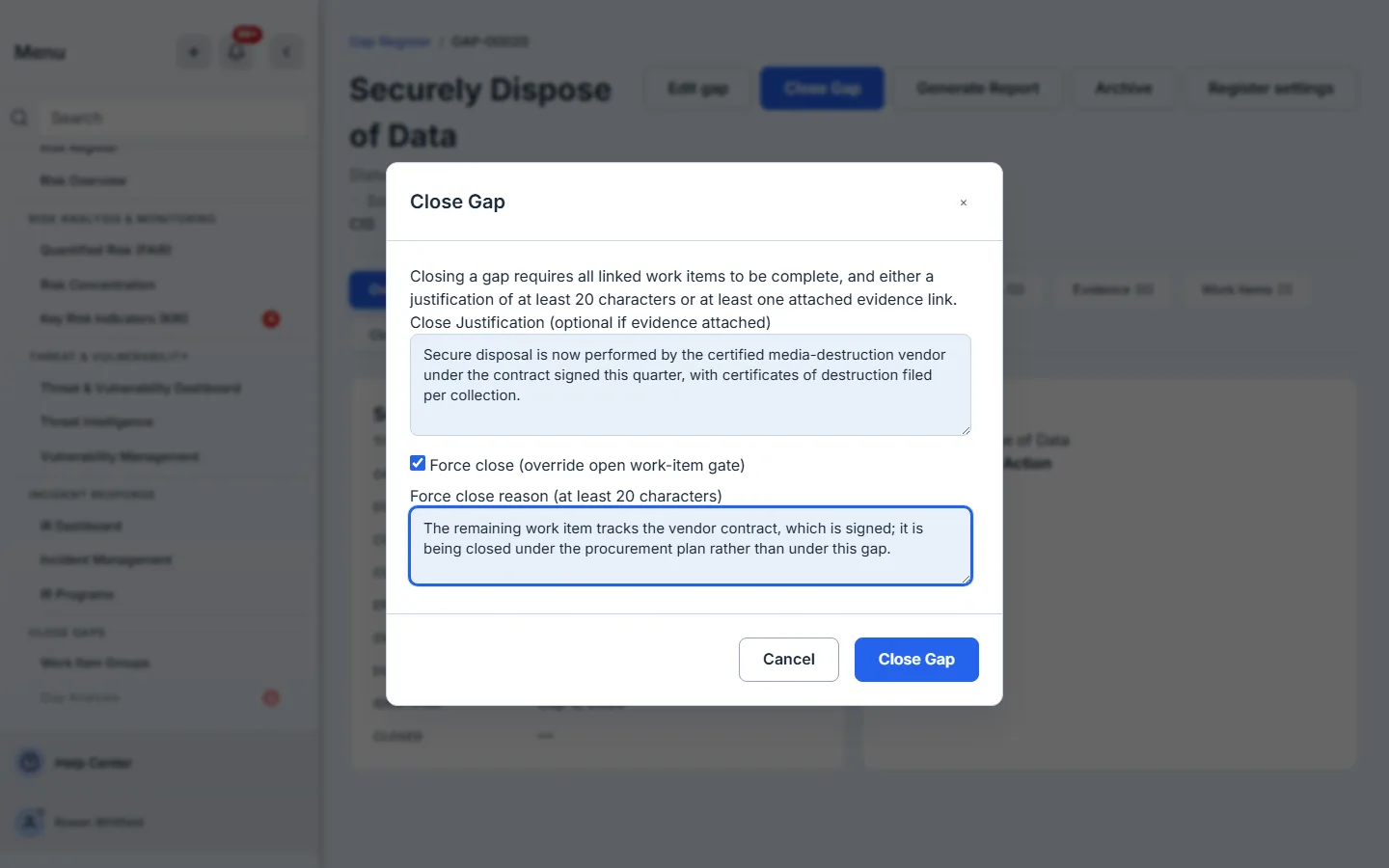
Two conditions have to hold. Every linked work item must be complete — if remediation is still outstanding, the close is refused and the modal says which condition failed. And a closing justification must be supplied, at or above your organisation’s configured minimum length, unless evidence is attached to the gap.
If you genuinely need to close a gap over an outstanding work item — the work moved to a different plan, the control was retired, the finding was superseded — Force close does it, and demands its own separate reason. The distinction is the whole point: a normal close asserts the work is done, a force close asserts a judgement about work that is not. They are stored differently and they read differently in the history.
Neither gate guesses. If the work-item read fails, or comes back saturated so the handler cannot prove the gate, the close is refused rather than allowed — a gap closure is not urgent enough to guess at, and a permanent record that attests “no linked work items” because a query timed out is worse than a refusal.
One thing happens after a close that is worth expecting. If the gap you just closed was the last outstanding gap from its assessment run, Talarity drafts the Gap Analysis Report for that run and tells you so on the page, with a link straight to the draft. Closing the last gap of a cycle is the moment the report becomes writable, so the product writes it rather than waiting to be asked.
Step 10 — The close history is the receipt
The Close History tab is the trail an auditor reads.
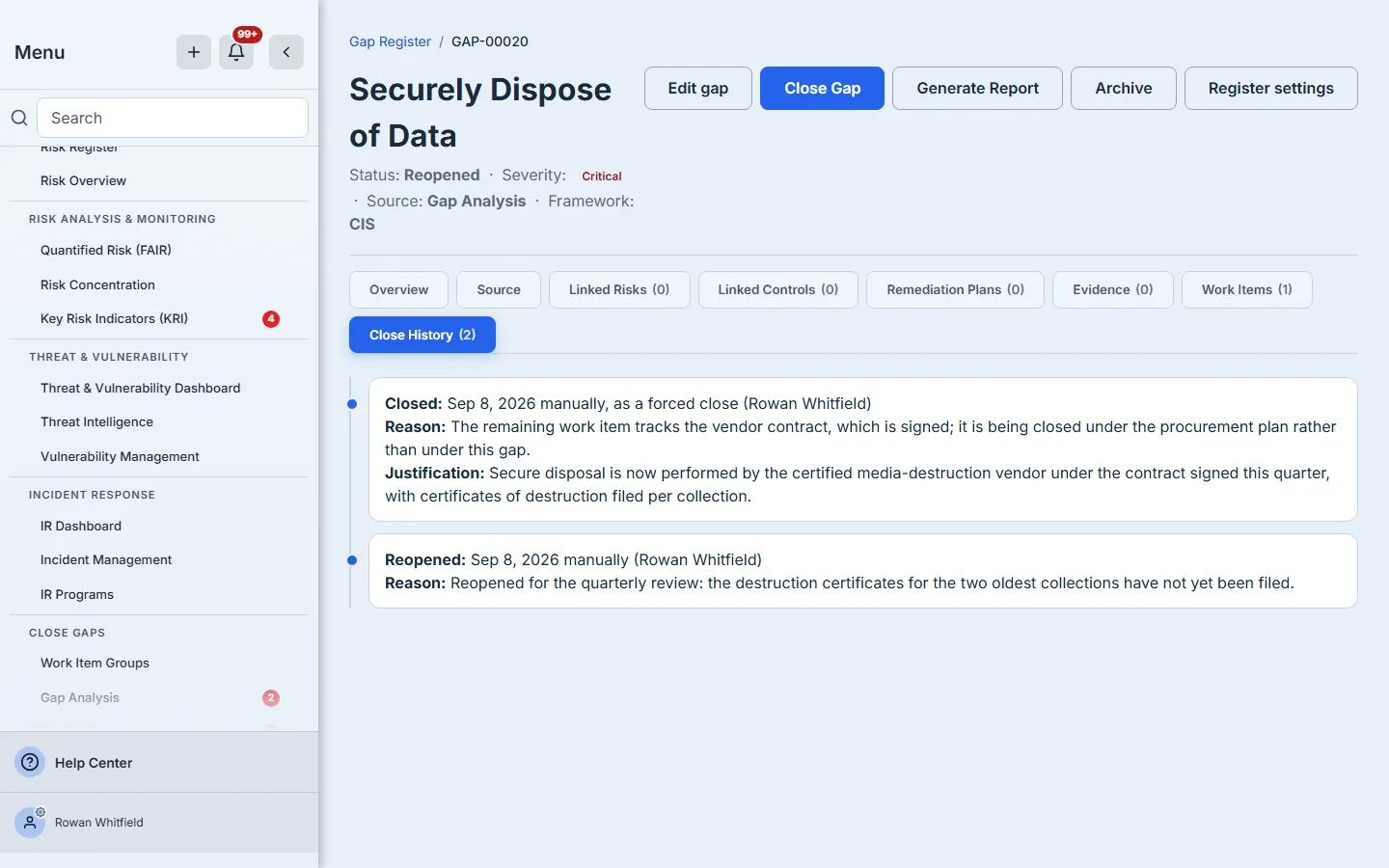
The trail reads in chronological order, oldest entry first, so it is read top to bottom the way the gap actually moved: in this screenshot the forced close comes first and the reopen that followed it sits beneath. Each entry carries the actor’s name, the date, and the reason given. The gap here has been closed and then reopened, which is why its header reads Reopened and why no Reopen button is on screen: it is already open, and the button appears on a closed gap.
Every close, force close, reopen, edit and archive appends an entry carrying who, when, what and why — the tab is the record’s whole lifecycle, not only its closures, and an edit names the fields that changed in the words the form uses for them. The actor is resolved to a person’s name in one batched read, and the internal user identifier is removed from the response rather than merely supplemented, so the renderer has no id to fall back to. Long histories are capped at fifty entries with a visible truncation notice rather than silently trimmed.
Reopen is available on a closed gap within your organisation’s configured reopen window — the platform default is ninety days, and the organisation in these screenshots has raised it to 120, which is what the settings page further down shows — and demands its own reason. Past the window the button is withdrawn and a sentence takes its place saying the window has passed, rather than the button accepting a reason and then rejecting it. The server enforces the same rule independently.
Step 11 — Archive, don’t delete
The register has no delete. A gap that is no longer relevant — the system was decommissioned, the framework was un-adopted, the finding was a duplicate — is archived, with a reason.
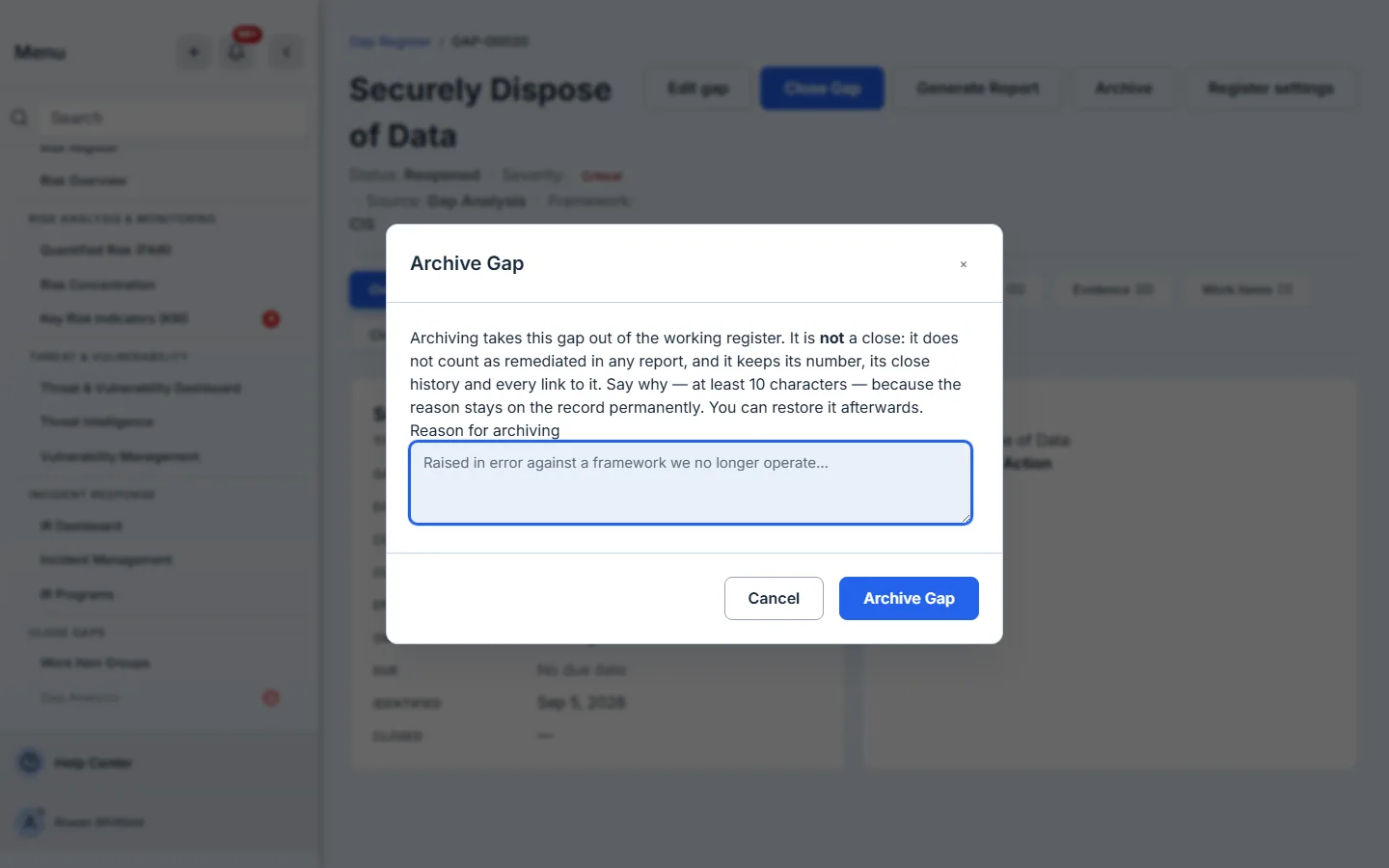
Archived gaps leave the default register view and come back with the Include archived toggle, so the record survives without cluttering the backlog. Archiving records who archived it and when, and the case file shows the reason, the person and the date at the top, along with the status the gap will return to if you restore it. The archive reason has a ten-character floor, which unlike the close and reopen minimums in Step 12 is a platform constant rather than something your organisation sets. And because an archived gap is out of the backlog rather than out of existence, the bulk actions that would put work back on it are refused rather than quietly applied.
Step 12 — Set the policy once, in Register settings
The close and reopen gates are not platform constants. Register settings — reachable from the page actions row on the register, and from any case file — holds them. Both doors are offered only to a seat that can actually change them.
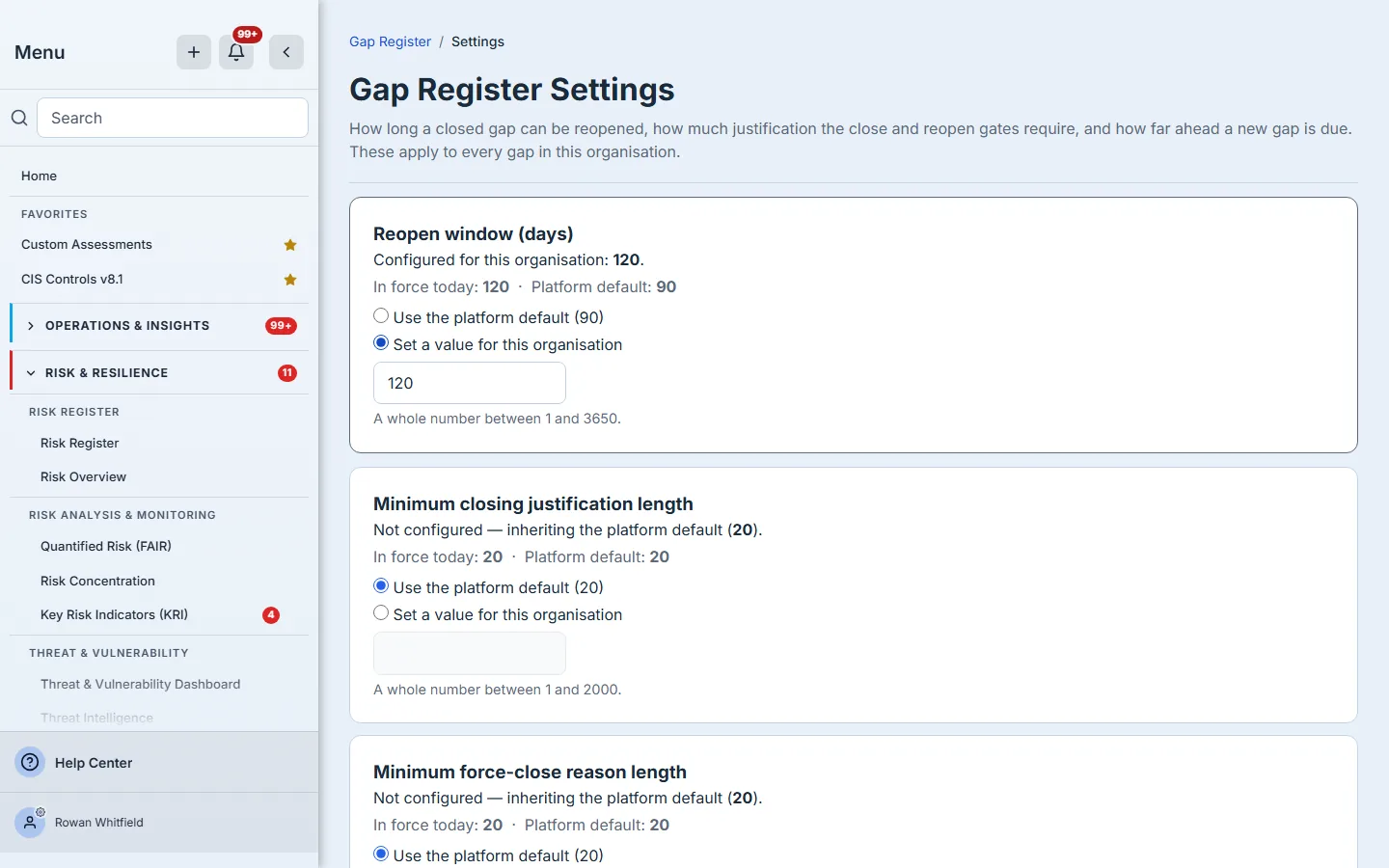
- Reopen window (days) — how long after closing a gap can be reopened. Platform default 90.
- Minimum closing justification length — how much rationale a normal close requires. Platform default 20 characters.
- Minimum force-close reason length — the same, for a force close. Platform default 20.
- Minimum reopen reason length — platform default 10.
- Default due date (days from creation) — pre-fills the due date on a new gap. No platform default; set it and every gap you file arrives with a deadline.
Each field shows whether it is running on the platform default or on a value your organisation has set, alongside the number in force today — and reverting to the default is a distinct radio choice, not typing the default’s number in. That distinction matters: the first clears your setting so a future change to the platform default reaches you, the second pins it. An organisation with no configuration row behaves exactly as it did before this table existed, and if the settings cannot be read the handlers fall back to the platform defaults rather than to no policy at all.
These are the values the handlers actually read. Change the closing justification minimum and the next close on the next gap enforces the new number.
What you walk away with
- One register holding every identified gap in the organisation, whether a machine found it or a person filed it.
- An owner and a due date on every gap that matters, with the notification, the reminder job and the nav badge that make those two fields do work rather than sit there.
- A close gate that refuses while linked remediation is outstanding — and refuses rather than guesses when it cannot read the evidence for itself.
- A close history per gap naming the actor, the action and the reason, with no internal identifiers on screen.
- A CSV with owner, due date, status, framework and closing justification per row, filtered exactly as the screen was.
- An organisation-level policy for the reopen window, the three text minimums and the default due date, applied by the handlers rather than by convention.
Open /app/gaps this afternoon and do two things: sort by Owner to see how much of your backlog nobody has agreed to do, and tick Overdue only to see how much of it has already slipped. Assign the first screen in bulk. The first pass takes about ten minutes; after that the register chases the dates for you.