Every prospect security review, every customer due-diligence request, every vendor questionnaire ends with the same ask: “Send us your SOC 2, your latest pen test, and your security policies.” You assembled exactly that set last month for a different prospect — and the month before that — and each time you rebuilt it by hand, hunted down the current version of each document, and hoped you didn’t attach last year’s report by mistake. ISO 27001:2022 puts supplier and customer information-security relationships under A.5.19–A.5.20; SOC 2 expects you to evidence the same controls to anyone who asks. The work isn’t producing the evidence — you already have it. The work is assembling the same curated set, correctly and current, over and over.
Package Templates close that gap. You define the set once — pin the specific artifacts that never change, add rules like “every current SOC 2 report” for the ones that do — and Talarity resolves it fresh every time you send, always to the latest version. From that saved definition you either instantiate a draft to review before it goes out, or, for a template you trust, send it in one click. Each recipient still gets a redacted, watermarked copy behind a login link that expires on a date you choose, and every send is recorded. You build the package once; you send it as many times as you need, on your terms.
Who’s involved
- Compliance / GRC lead — defines the template, decides what’s pinned and what’s a rule, and sets the send defaults.
- Security team — produces the artifacts the template draws on (the SOC 2 report, the pen test, the published security policies) and re-runs a template when a new prospect asks.
- Prospect, customer, or auditor — receives a redacted, watermarked copy through a secure, time-limited link. No Talarity account to provision, no raw files in an inbox.
Step 1 — Open the Templates workspace
Package Templates live alongside your Evidence Distribution Packages — in the sidebar as Evidence Distribution, under Audit & Evidence → Evidence Management. The first time you open them the workspace is empty and tells you plainly what a template is: a reusable definition, not a one-off package.
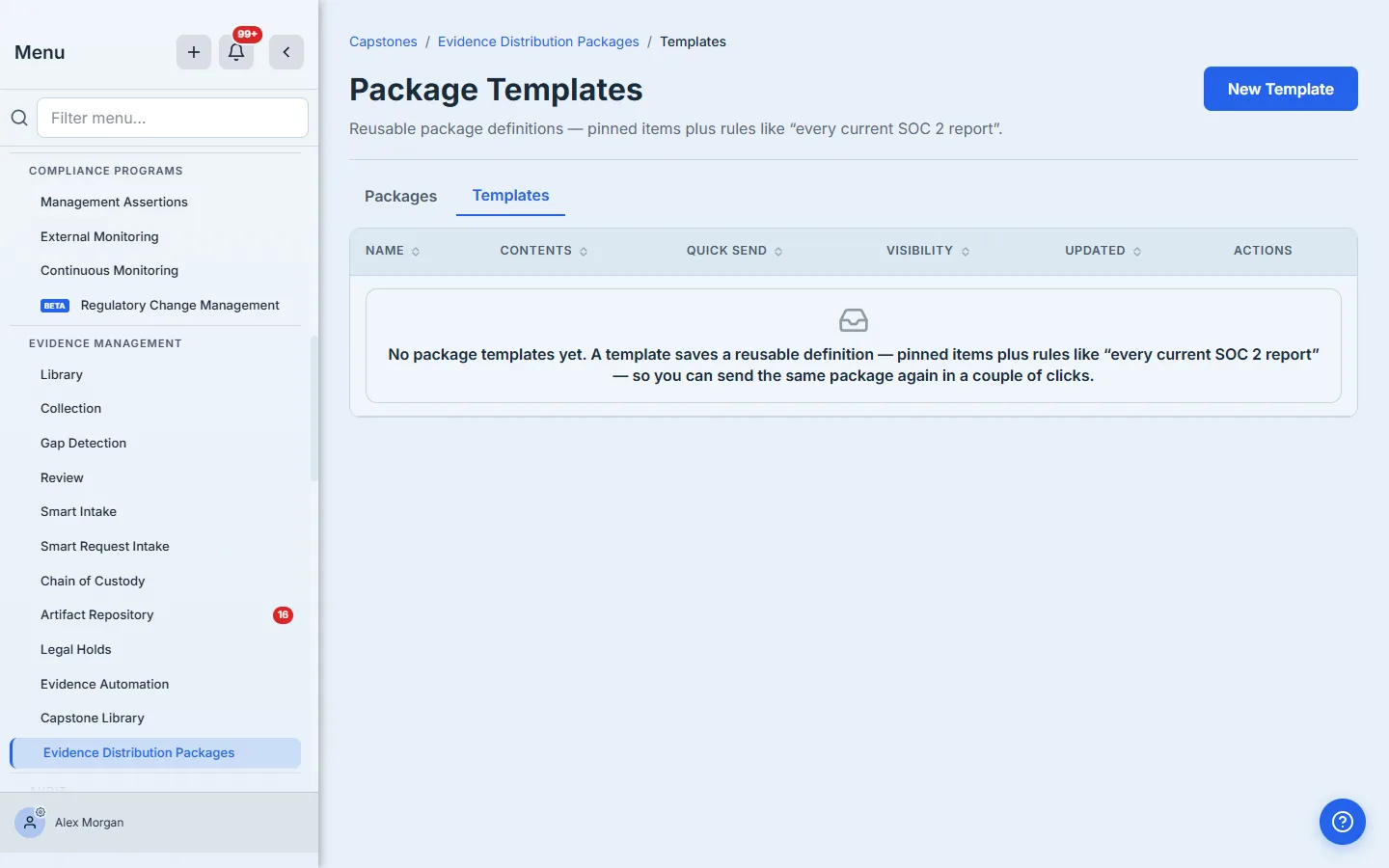
The Packages / Templates pill at the top is the whole mental model in two words: a package is one assembled, sealed thing you send once; a template is the recipe you send from, again and again. Everything below is about building good recipes.
Step 2 — Build the template: pin what’s fixed, add rules for what changes
Click New Template and you land in the builder. It has two halves: on the left you define the contents, on the right a live preview shows exactly what the template resolves to right now. Start with Add items — the picker lists every finalized report, repository document, published policy, and audit finding you have, grouped by domain so it stays navigable whether you have five artifacts or five hundred.
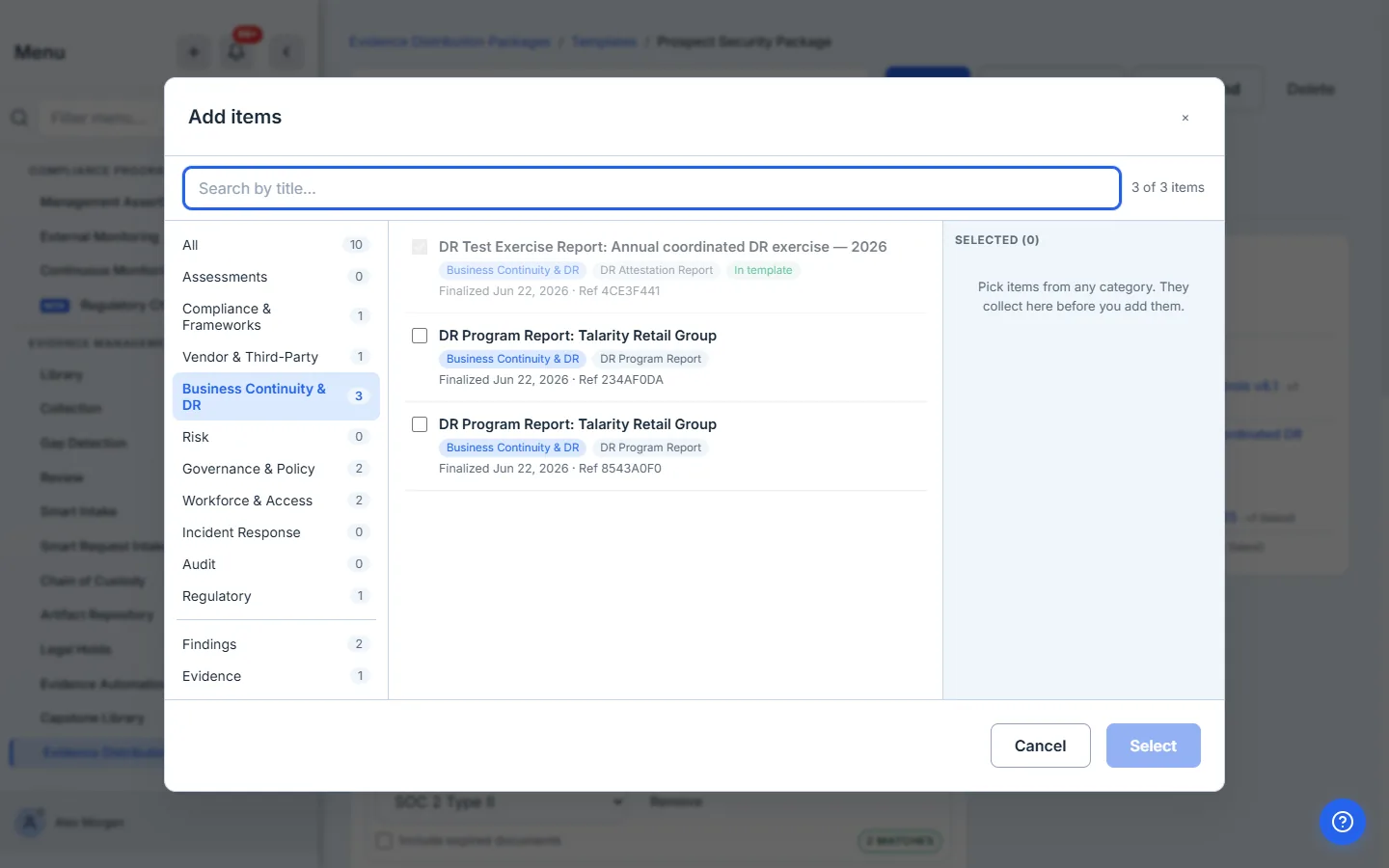
Pinned items are for the artifacts that don’t churn — a specific signed attestation, a particular finding. Everything you pin defaults to Latest version, so when that artifact is superseded the template follows the new one automatically; if you ever need a specific historical version instead, you pin it explicitly. But the real power is the second half of the definition:
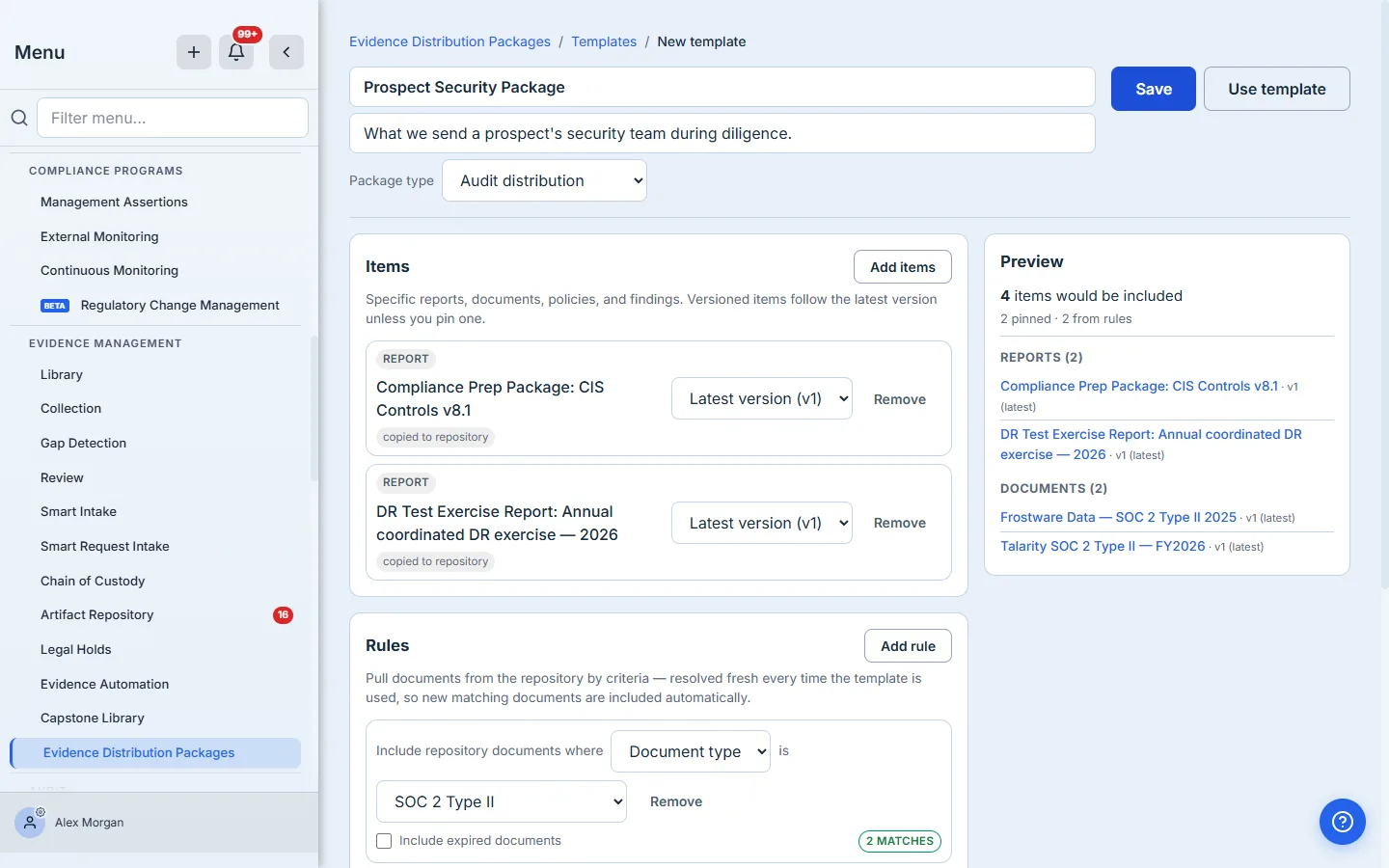
Behind the scenes, a pinned capstone is copied into your artifact repository when the template is used — that’s the “copied to repository” chip — so a repo-centric package really is pulling from one governed source of truth rather than scattering baked copies. The pin stores the artifact’s chain-root, not a frozen file, which is why “Latest version” can keep meaning latest.
Step 3 — Rules resolve fresh every send — and tell you when they match nothing
A rule pulls documents from your repository by criteria — document type, category, classification, review status, or title — and it re-runs every single time the template is used. Add a rule for “every current SOC 2 report” and next quarter’s SOC 2, uploaded after you built the template, is included automatically. No one has to remember to swap it in.
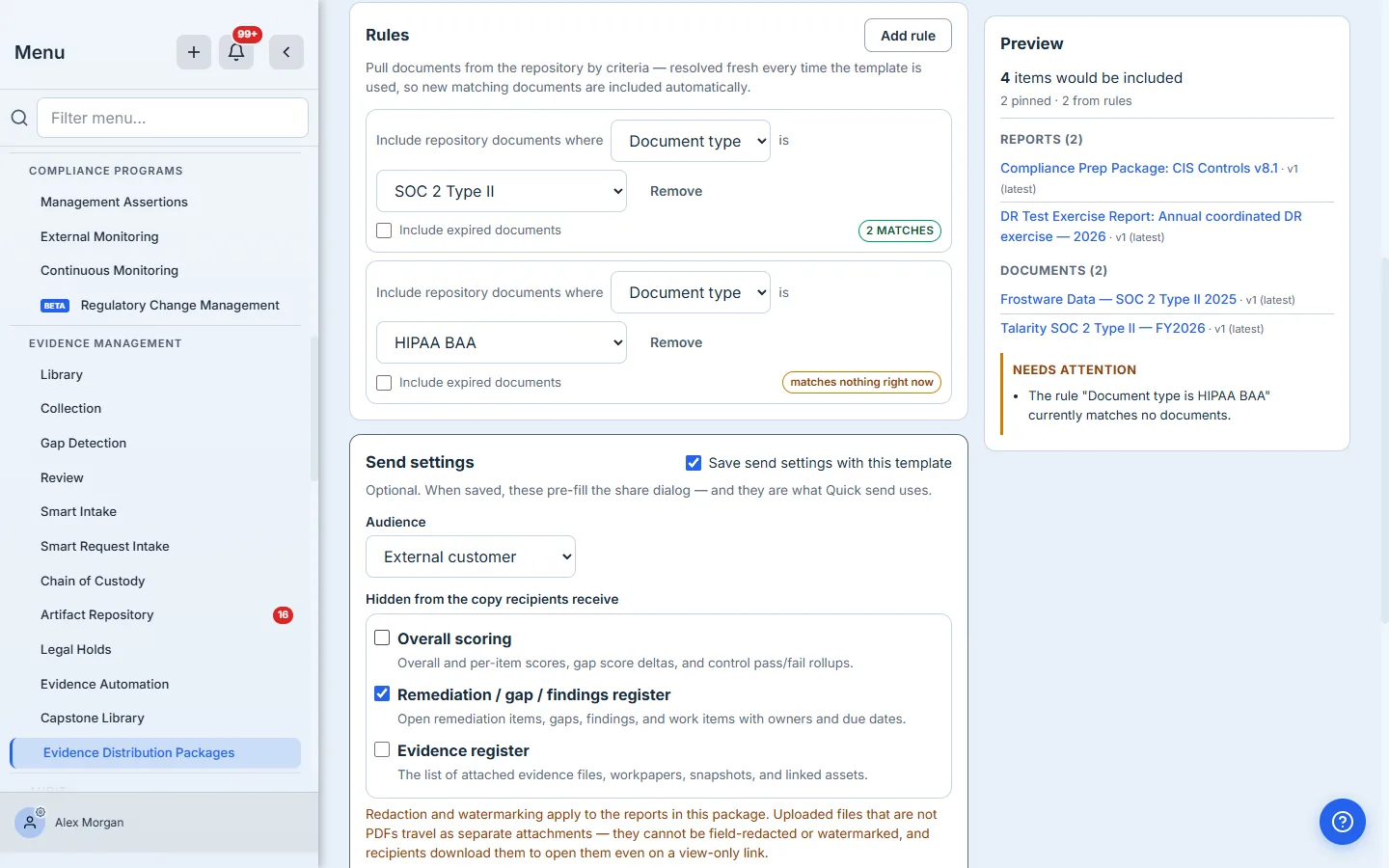
This is the part that makes a resolve-fresh rule trustworthy: the builder counts the matches as you type and tells you the truth before anything is ever sent. A rule that matches documents shows a green count; a rule that matches nothing shows an amber warning and names itself in the preview’s Needs attention block. You find out that your “HIPAA BAA” rule is empty while you’re building the template — not when a customer opens a package and wonders where the document is.
Step 4 — Save the send settings once (optional)
A template can carry its own send profile, so the share dialog is pre-filled every time and there’s nothing to re-decide under deadline. Open Send settings and set the audience, what to hide, how long access lasts, and a cover message.
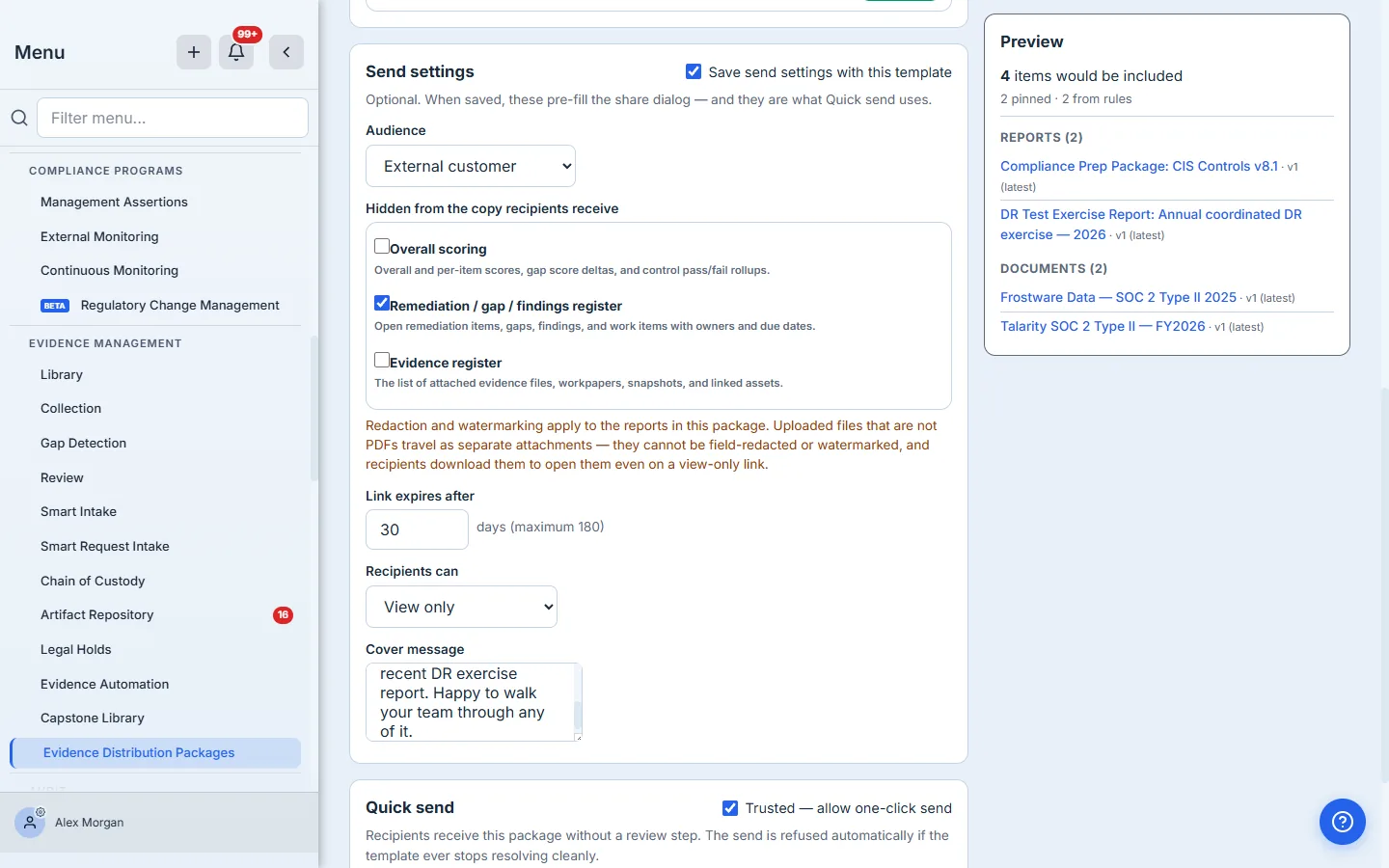
The audience preset seeds the redaction checklist beneath it — pick External customer and the fields a customer shouldn’t see are checked for you — and you adjust from there. The checklist only ever offers the sensitive field groups that actually exist in this package’s reports, with a live count of how many are hidden, so you’re never offered a redaction that would mask nothing. One honest caveat the card states plainly: redaction and watermarking apply to the PDF reports in the bundle; a spreadsheet or image has no fields to mask and no page to watermark, so those travel as separate attachments exactly as you uploaded them.
Step 5 — Trust a template for one-click Quick Send
Most templates you’ll want to review before each send. But for a package you send constantly — the standard prospect security pack — you can mark it Trusted and enable Quick Send.
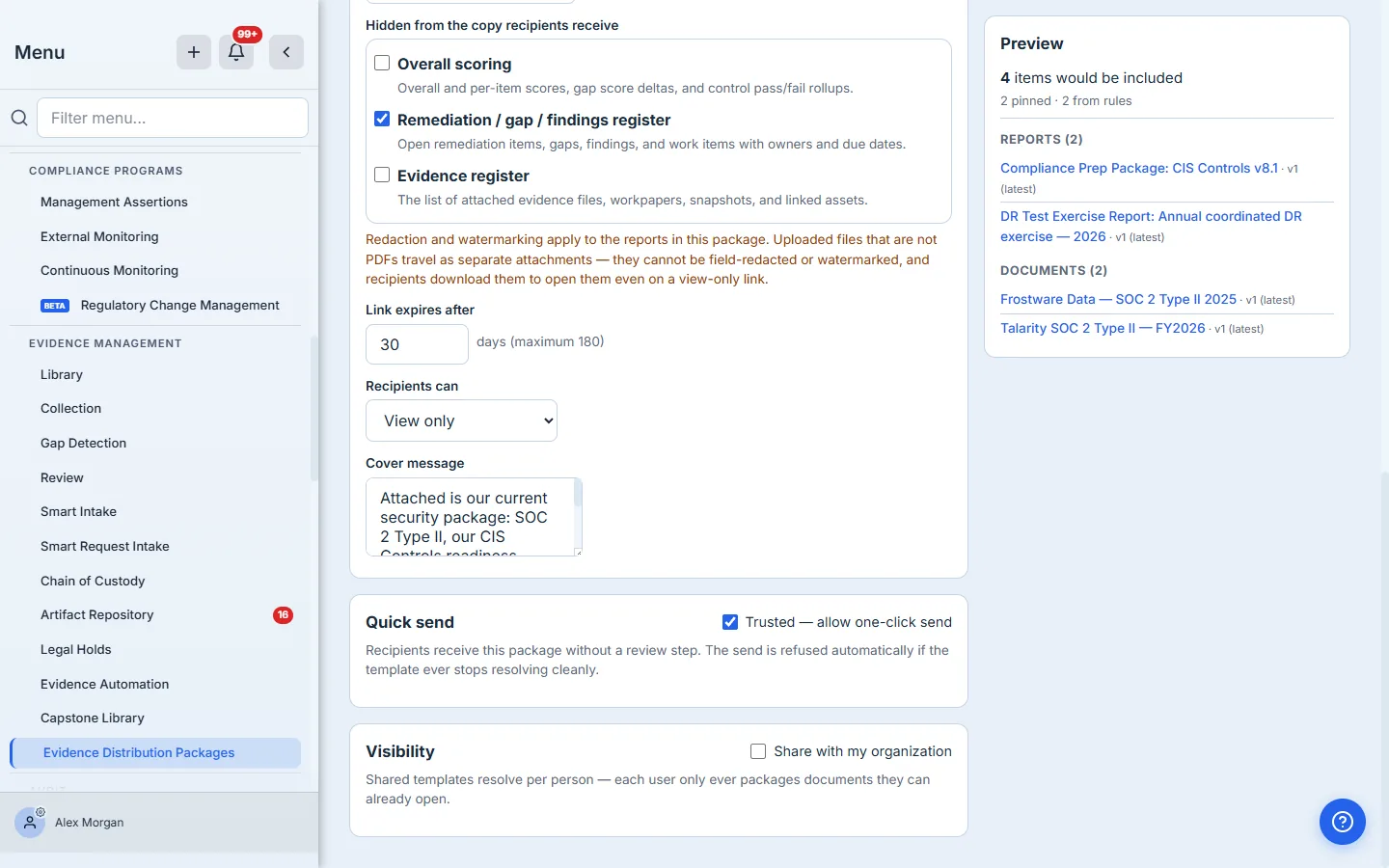
Quick Send trades the review step for speed, and it’s deliberately guarded: it’s only available once the template has a saved send profile and resolves to at least one item, and the send is refused automatically the moment the template stops resolving cleanly — an empty rule that should have matched, a pinned artifact that’s gone, an access rule that would exclude a document. Trust the template, not blind luck: if anything is off, Quick Send stops and tells you to review it as a draft instead. The Share with my organization toggle below lets colleagues send from the same template — and because a shared template resolves per person, each teammate only ever packages documents they’re already allowed to open.
Step 6 — Your template library
Saved templates collect in the register, each showing what it contains, whether Quick Send is on, and who can see it.
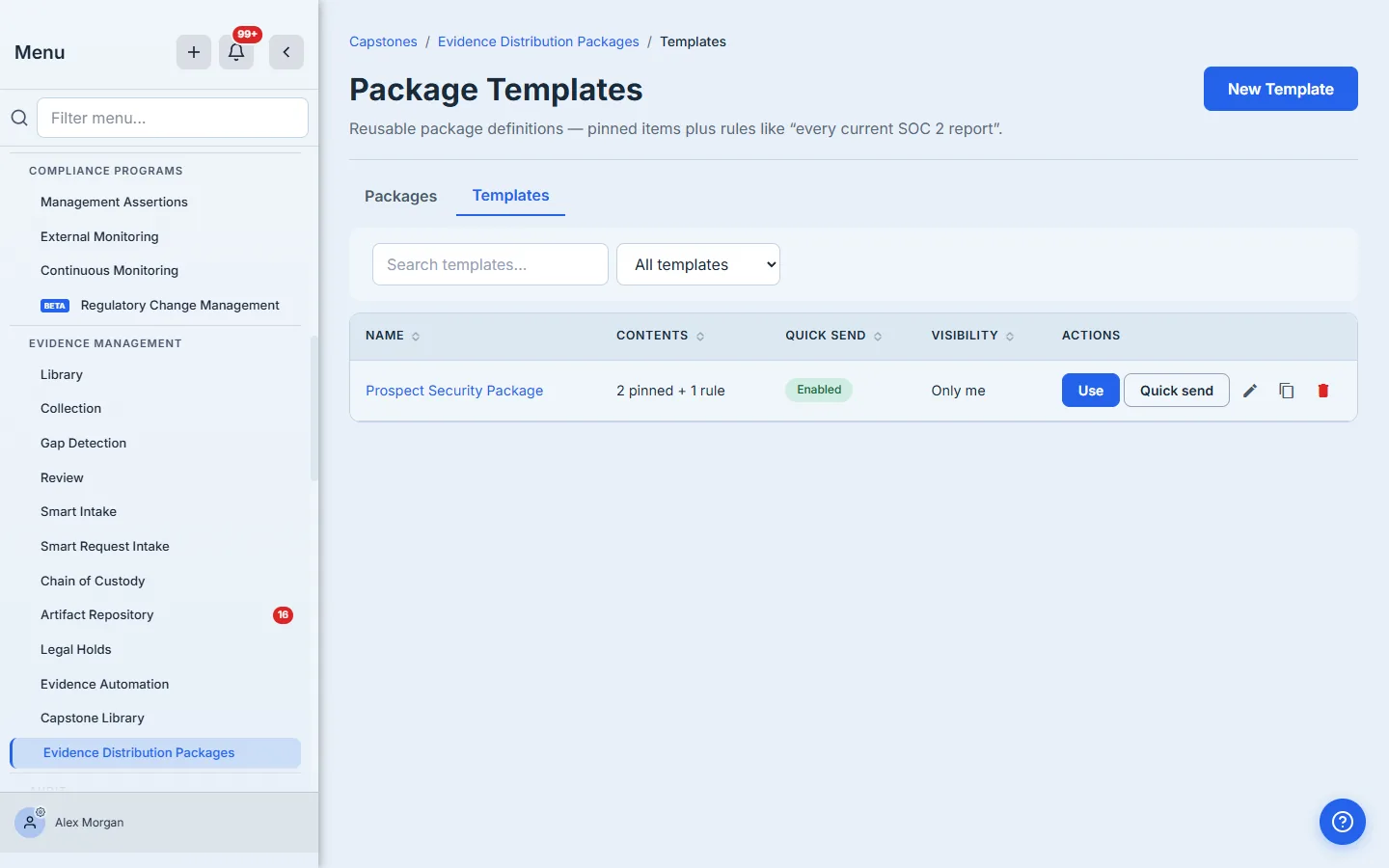
Each row is a recipe you can Use (instantiate a draft to review), Quick send (if trusted), Edit, Duplicate (a copy always starts un-trusted, so you re-decide Quick Send deliberately), or Delete. The Contents column — “2 pinned + 1 rule” — is the honest summary of the definition, not a snapshot count that drifts.
Step 7 — Use a template: a reviewable draft with its provenance attached
The default flow is Use template. It resolves the template right now, copies any non-repository artifacts into your repository, and creates a normal draft Evidence Distribution Package — one you review, adjust, finalize, and share exactly like any other. What’s different is the banner at the top.
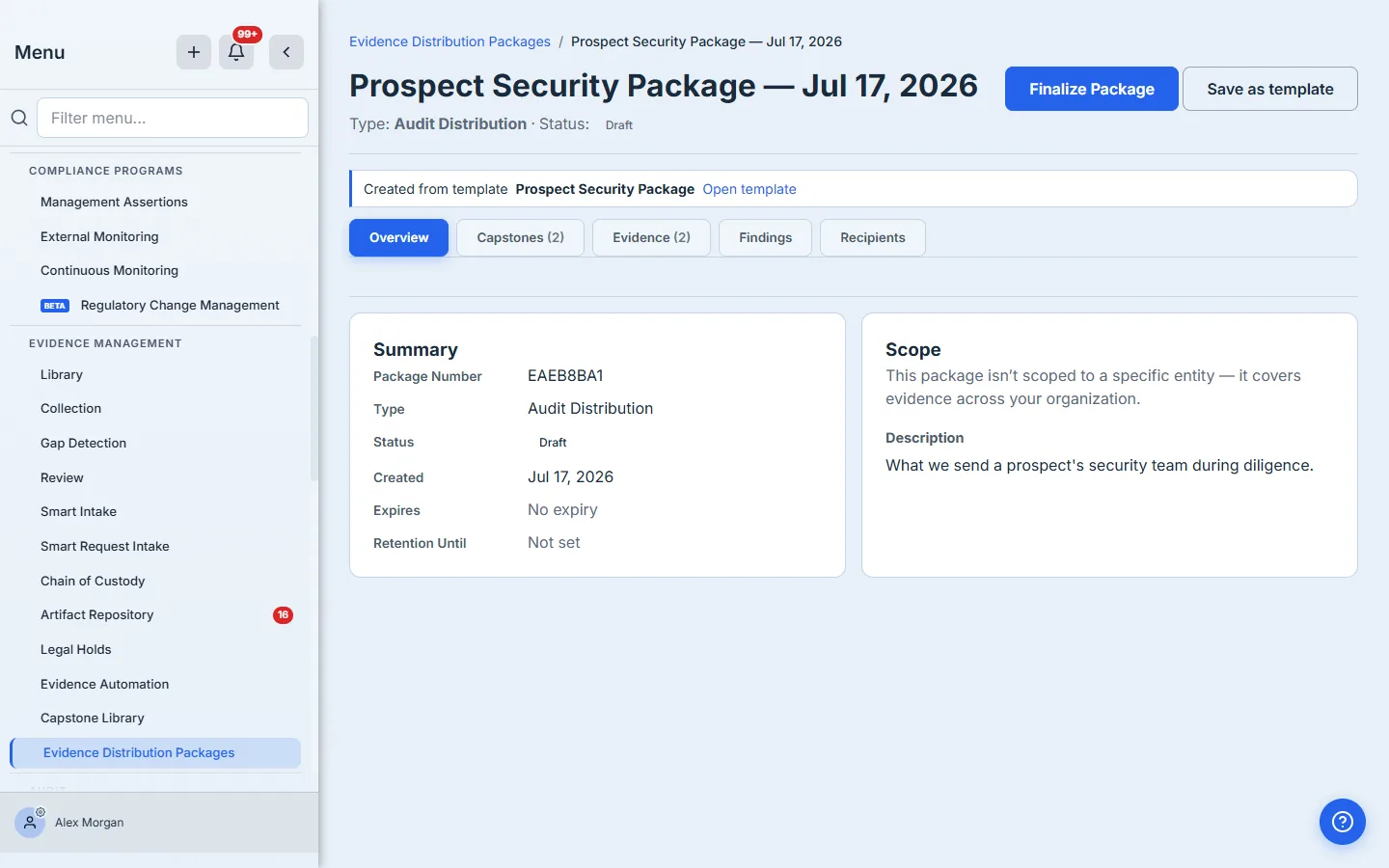
That Created from template banner is what makes the draft-review flow meaningful: you can see where the package came from, open the template that produced it, and — when a rule resolved to fewer items than you expected — the resolution warnings surface right here, before you finalize. The template is a starting point you can always trust and always override.
Step 8 — Or send it in one action
For a trusted template, Quick send skips the draft entirely.
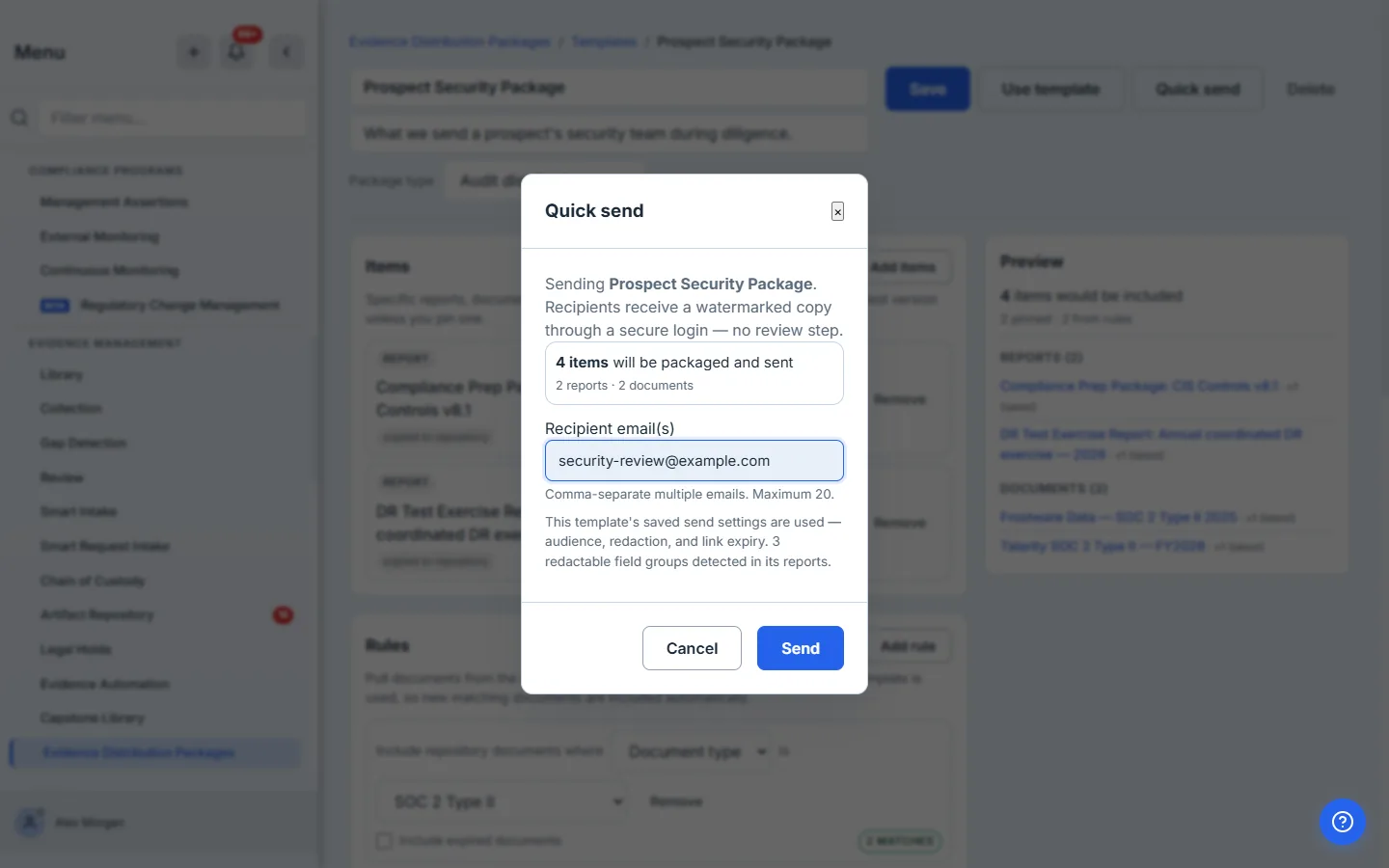
The modal shows exactly what’s about to go out — how many items, to whom, under which send profile — and its Send button will not enable at zero items or on a blocking warning. Under the hood Quick Send does the whole sequence you’d otherwise do by hand: resolves the template, copies artifacts into the repository, assembles and finalizes the package, generates a plain-language transmittal cover, and shares to each recipient — as one action, with a factual (never unreviewed-AI) narrative, so an unattended send is still one you’d be comfortable putting your name on.
Step 9 — Build templates from where you already work
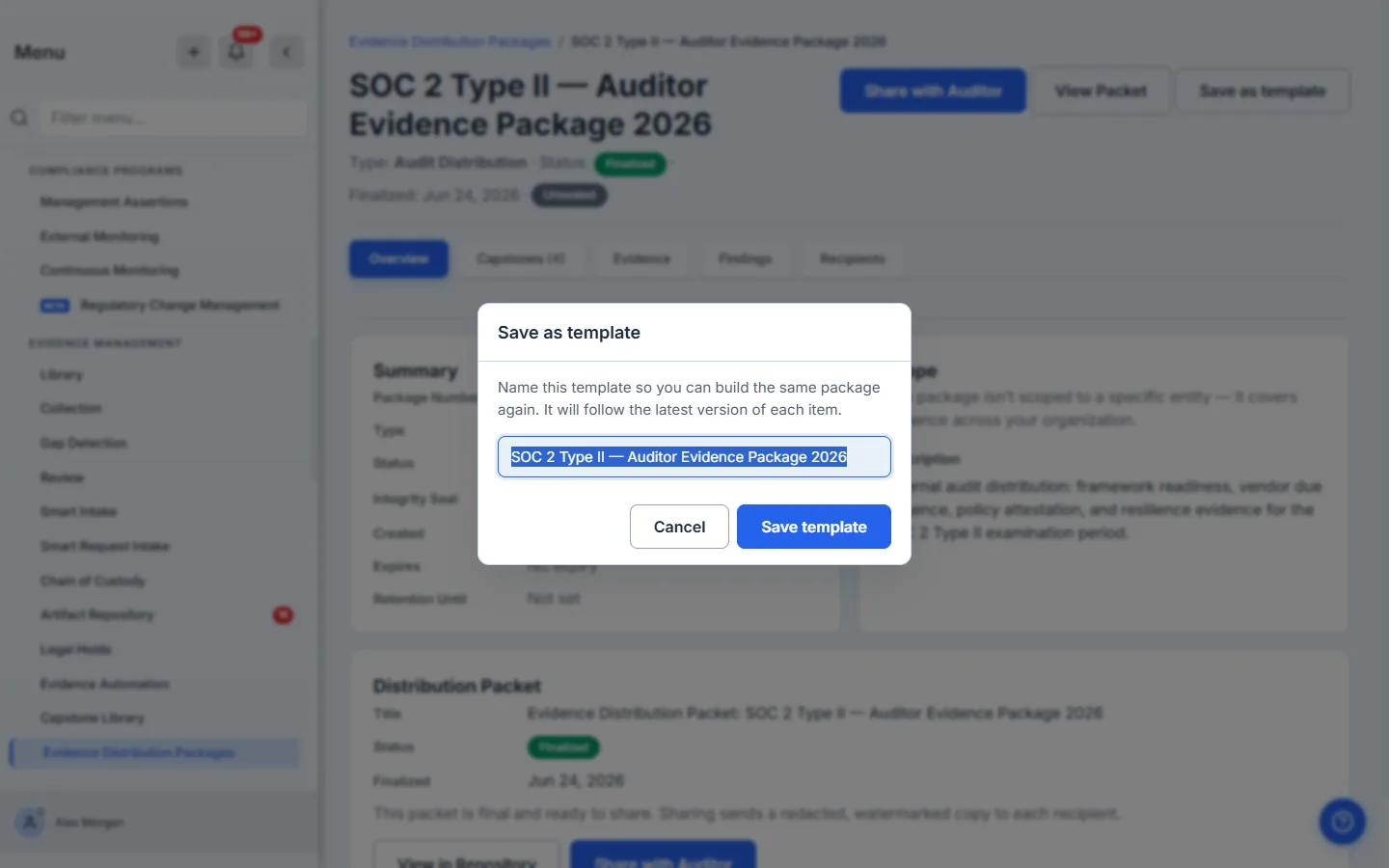
You don’t have to start in the builder. Any package you’ve already assembled can become a template: on a package’s detail page, Save as template captures its contents as a reusable definition that follows the latest version of each item.
And from the artifact repository, any document offers Add to a package or template — drop a freshly uploaded pen test straight into a draft package, into an existing template, or into a brand-new template, without leaving the repository.
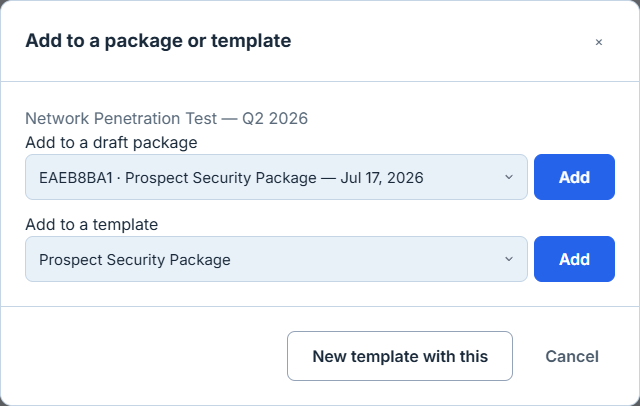
The package picker leads each option with its package number, so two packages created from the same template on the same day are never indistinguishable at the moment you pick one — a small thing that matters exactly when you’re moving fast.
Step 10 — What the recipient receives
However you send it, the recipient’s experience is the same clean, single-purpose view. They don’t land in your account — they land on the packet you shared, with the date their access expires stated plainly, the watermarked PDF bundle rendered inline, and any non-PDF files listed separately.
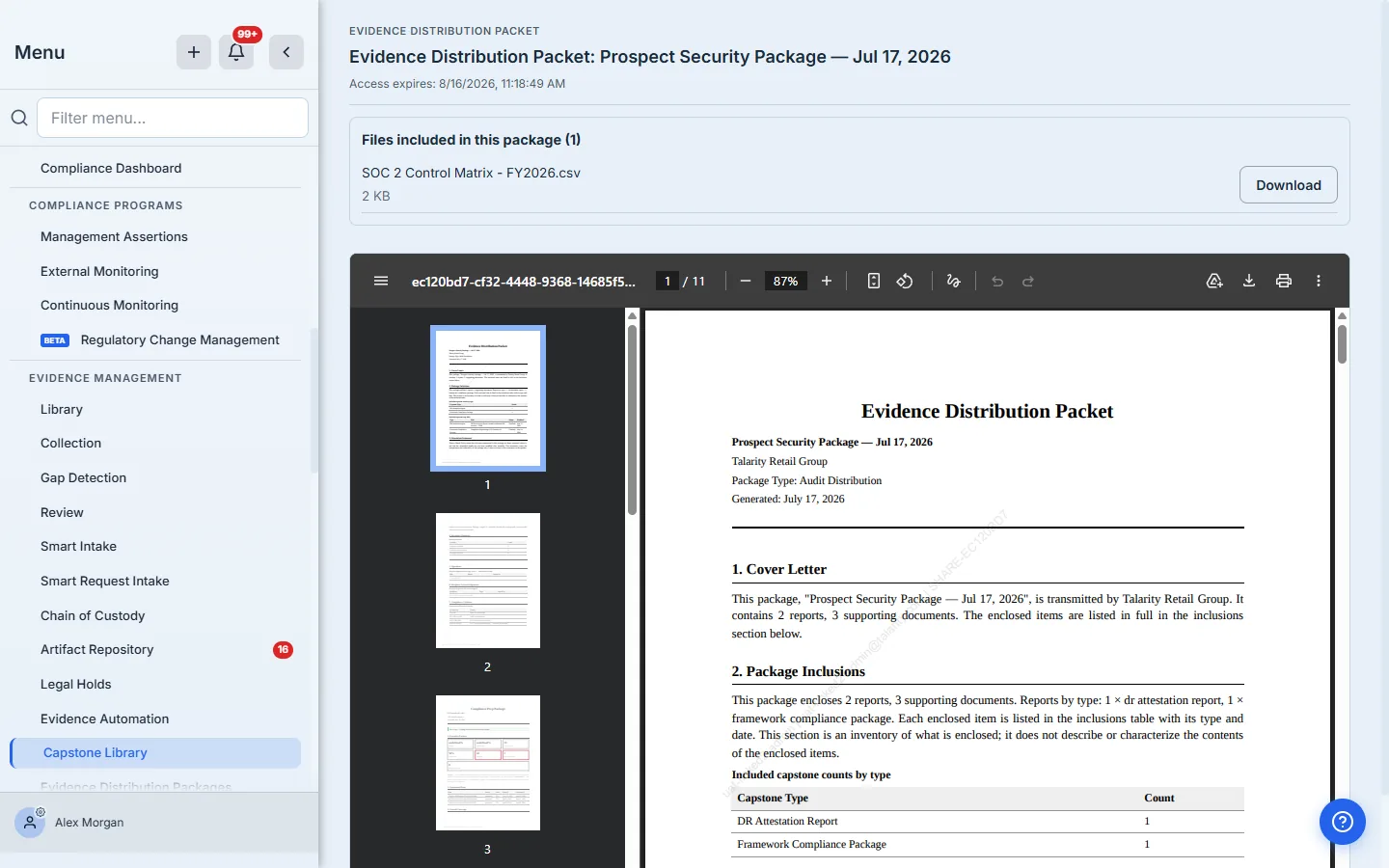
The bundle is the cover plus the reports plus every PDF you included, merged into one watermarked file, redacted to the audience you chose. Anything that isn’t a PDF — a control matrix in a spreadsheet, a signed certificate image — is listed underneath as Files included in this package, each on its own link with the same expiry, delivered under the name you gave it rather than a storage id. When the link expires, the whole thing returns “access expired” instead of the document.
Step 11 — The delivery record: who got what, redacted how, until when
Every send is recorded on the package’s Recipients tab — not just the people who acknowledged receipt, but everyone the package was sent to, with the terms they were sent under.
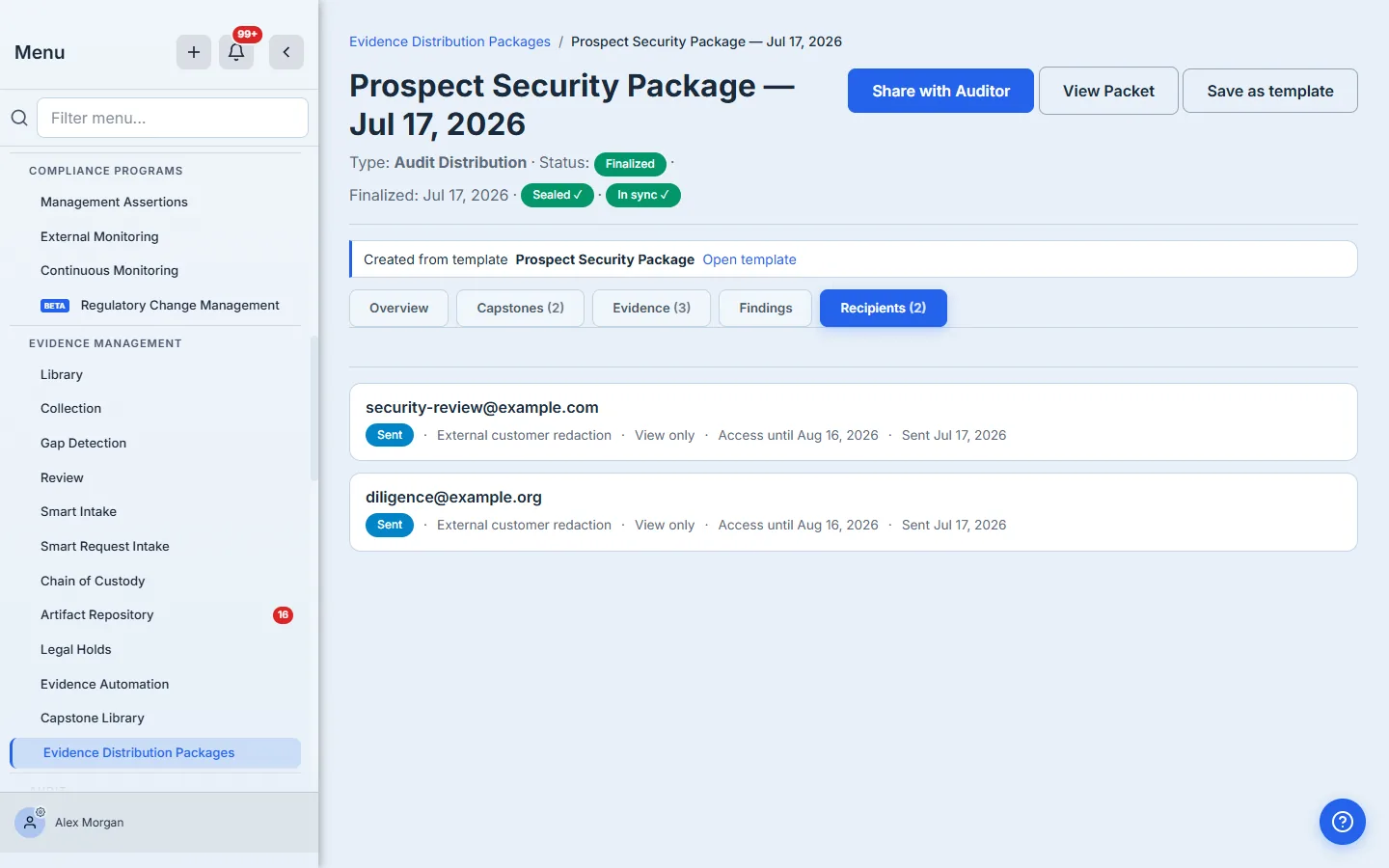
This is the defensible answer to “who has our evidence?” Each row names the recipient, what was redacted from their copy, whether they can view or download, and when their access ends — and it updates as a link is viewed, expires, or is revoked. A record that only listed the people who signed wouldn’t be a record of who received what; this one is.
What you walk away with
- One saved definition, not a monthly rebuild — pin what’s fixed, rule what changes, and Talarity assembles the same curated set correctly every time.
- Always the current version — a rule for “every current SOC 2 report” pulls this quarter’s report the moment it’s finalized, with no one to remember the swap.
- A recipe you can trust or review — Quick Send for the standard pack, a provenance-tagged draft for everything that needs a second look.
- A copy per audience from one source — auditor, customer, regulator, or vendor, each redacted and watermarked to its own profile, non-PDF files delivered under real names.
- A delivery record that holds up — every recipient logged with what they got, redacted how, and until when.
Build yours this afternoon. Open Evidence Distribution Packages, switch to Templates, and hit New Template — pin your signed SOC 2 and pen test, add a rule for your published security policies, and save. The first prospect request takes about five minutes to answer. Every one after that is a click.