Ask anyone who has stood up a compliance program where the time goes, and “writing the policies” is near the top. A blank document is the enemy: every policy needs the same scaffolding — purpose, scope, roles, the framework controls it satisfies, an attestation cadence — and reinventing that twenty times means twenty chances to be inconsistent. Talarity’s Policy Templates library is the antidote: 50 pre-built, framework-mapped policies you preview, customize once, and adopt in bulk.
Who’s involved
- Compliance / GRC lead — picks the templates the organization needs and customizes the org-specific fields.
- Policy owners — the named approvers (CISO, CAE, executive sponsor) the template wires in.
- Auditors — see policies that already cite the frameworks and controls they map to.
What’s on the page
Open Policy Templates (/app/policy-templates):
- Category chips — All 50 plus per-category counts (Security 15, Operational 9, HR 5, Privacy 5, Compliance 4, Risk 4, Vendor 4, Incident 3, AI 1), computed live, next to a search box.
- Template cards — one per template (“Canonical v1”), each with a plain-language description, a category badge, the frameworks it maps to, and Preview / Use Template actions.
- The Preview — the real policy content (purpose, review cadence, attestation flag, section count, mapped controls/frameworks) plus the Fill in template values editor (your approvers, effective date, role titles — entered once, org-scoped).
- Bulk Create — a selection mode that flips the cards into multi-select, with Create Selected Policies turning the whole set into tailored drafts.
Step 1 — A curated library, organized the way you think
Open Policy Templates (/app/policy-templates). The library ships 50 templates across nine categories — Security (15), Operational (9), HR (5), Privacy (5), Compliance (4), Risk (4), Vendor (4), Incident (3), and AI (1) — each browsable by category, searchable, and tagged with the control families it covers.
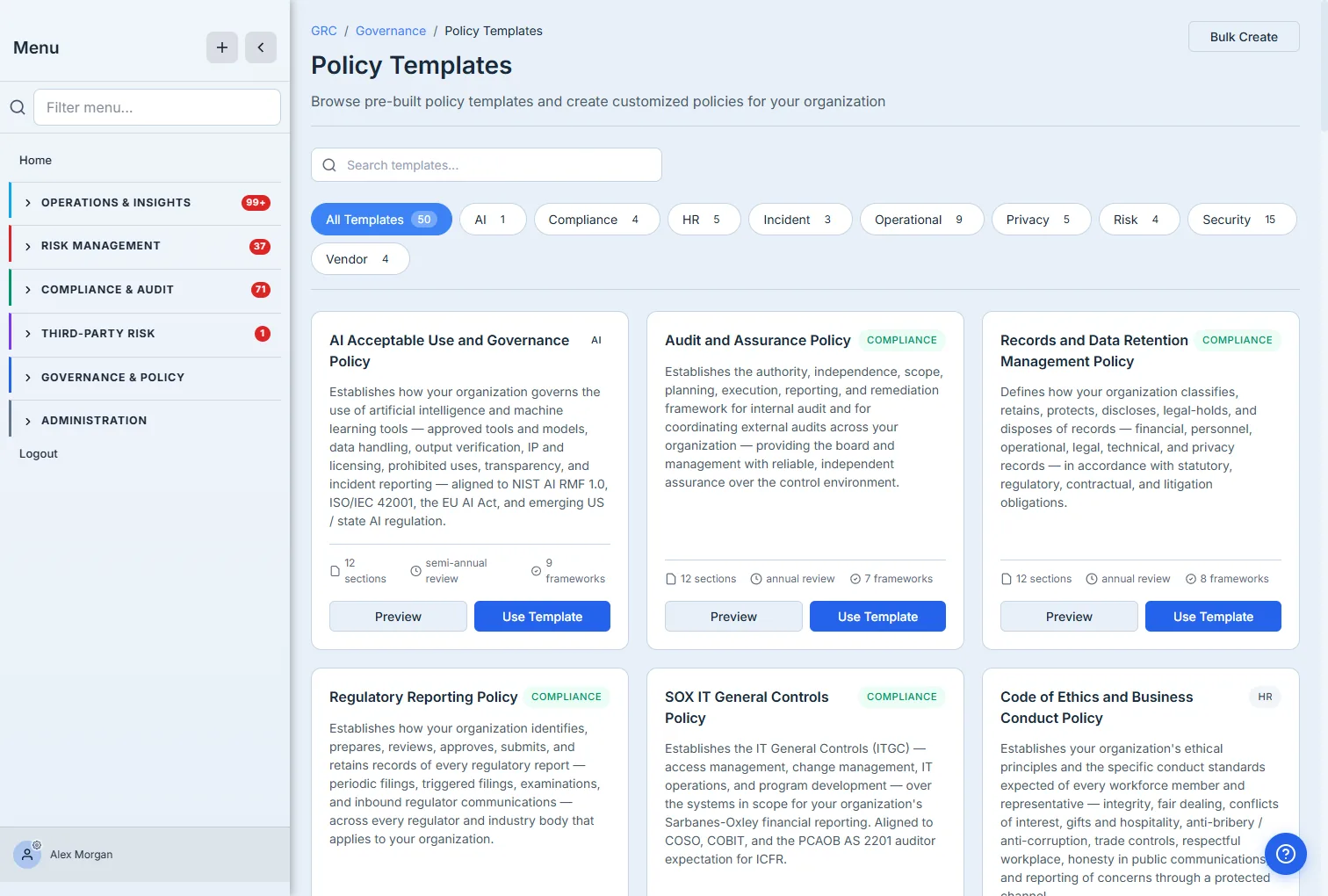
This isn’t a folder of Word files. Each card is a structured, versioned template (“Canonical v1”) with a category, a section count, and the frameworks it maps to — so the library scales to a real catalog instead of becoming an unsearchable wall.
Step 2 — Preview the real content, and fill your specifics once
Templates aren’t placeholders for policies — they are the policy, minus your organization’s particulars. Preview any template and you see the genuine article: the full purpose statement, the review cadence, whether it requires attestation, the number of sections, the controls it binds to, and — the part auditors care about — the frameworks it maps to.
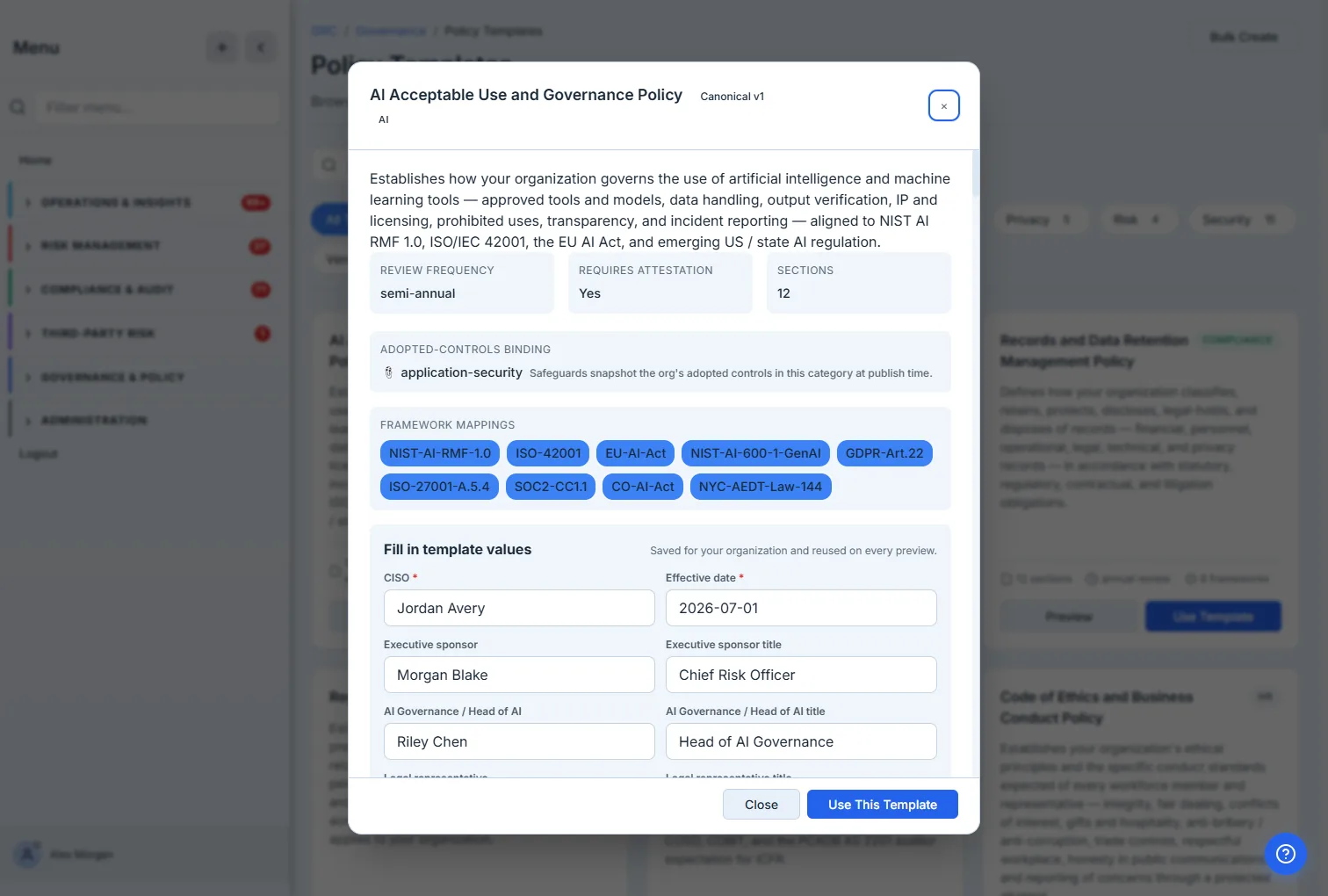
The Fill in template values editor is the clever part: you enter your organization’s specifics — the CISO, the executive sponsor, the effective date, the named role titles — once, and they’re saved for your organization and reused across every template you adopt. The org name itself resolves automatically. You’re customizing a policy, not find-and-replacing a document.
Step 3 — Adopt your whole starter set in one pass
You rarely need just one policy. Bulk Create lets you select templates across categories and create them all at once — your compliance baseline in a single pass instead of one document at a time.
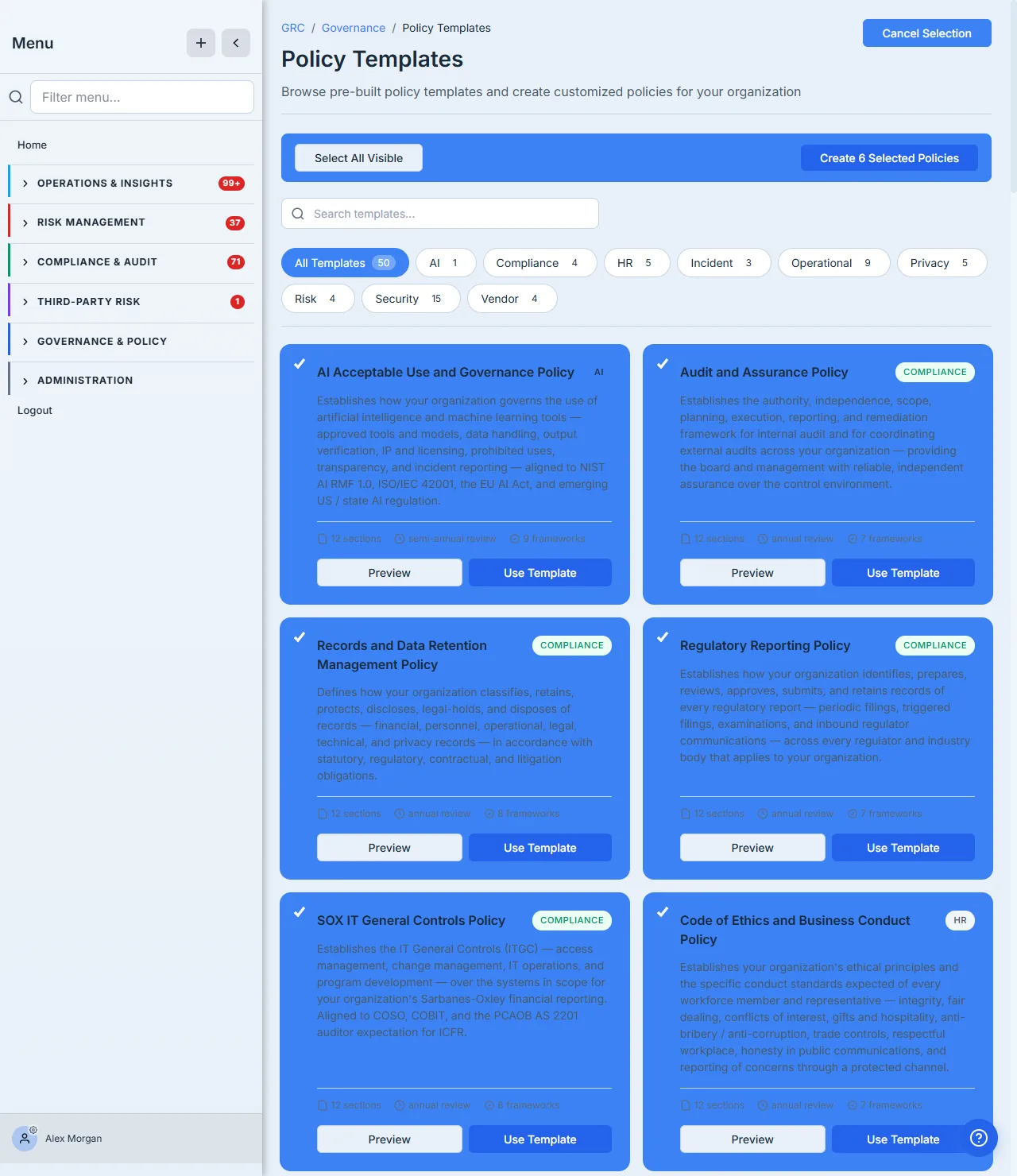
Each selected template becomes a tailored draft in your governance library — your saved values already applied, the framework mappings carried over, the sections intact — ready for you to review, fill any remaining specifics, and submit for approval through your normal policy workflow. The template gives you the 90% that’s the same for everyone; you supply the 10% that’s yours, and the approval chain does the rest.
How the page works
A few mechanics behind the library are worth knowing:
- The category counts are live, not hard-coded. The chips (All 50, Security 15, Operational 9…) are computed from the template set itself — the page tallies templates per category on load, so “Security 15” is always the true count, and the search box filters the same set by name and content.
- Bulk Create is a selection mode, not a separate screen. Toggling Bulk Create flips the cards into multi-select; each card you pick joins a selection set that spans categories, and Create Selected Policies turns the whole set into drafts in one call. Toggle it off (Cancel Selection) and you’re back to single-template browsing.
- “Fill in template values” is org-scoped, entered once. The preview editor holds your organization’s specifics — approvers, effective date, role titles — and the org name resolves automatically; those values are what get stamped into every draft you create, which is why you don’t re-type them per template.
- Adoption produces drafts, not published policies. Bulk Create writes tailored drafts into your governance library — values applied, framework mappings and sections carried over — and then hands them to your normal policy approval workflow. Nothing is published behind your back; the template gets you to a complete draft, and your approval chain still runs.
What you walk away with
- A starting library, not a blank page — 50 framework-mapped templates across nine categories, browsable and searchable.
- Customize once, reuse everywhere — enter your approvers and specifics a single time; they apply across every template you adopt.
- Framework-mapped from day one — each policy cites the controls and frameworks it satisfies, so the audit story is built in.
- Adopt in bulk — create your whole policy baseline as tailored drafts in one pass, then run them through approval.
Open /app/policy-templates, preview the ones you need, fill your specifics once, and bulk-create your baseline. The blank-page problem is the thing you never have to solve again.