Every enterprise deal now comes with a security review. Your prospect’s InfoSec team wants your SOC 2 report, your ISO certificate, your pen-test summary, your subprocessor list — and they want them before they’ll sign. Handled over email, this is a slow, repetitive, and risky drip of confidential PDFs to inboxes you don’t control.
Talarity’s Trust Center turns that scramble into a self-serve asset. You publish your security and compliance posture once, at a branded public URL, and let prospects help themselves: public documents download instantly, and sensitive ones (your SOC 2, your pen test) sit behind an access request and an NDA that you approve with one click. Every request, approval, and download is tracked.
What your prospects see
Your Trust Center lives at a public /trust/<your-slug> URL — no login, brand-colored, and safe to link from your sales deck or security questionnaire responses. It leads with your headline and the sections that matter to a reviewer: your compliance certifications, security program, privacy practices, and subprocessors.
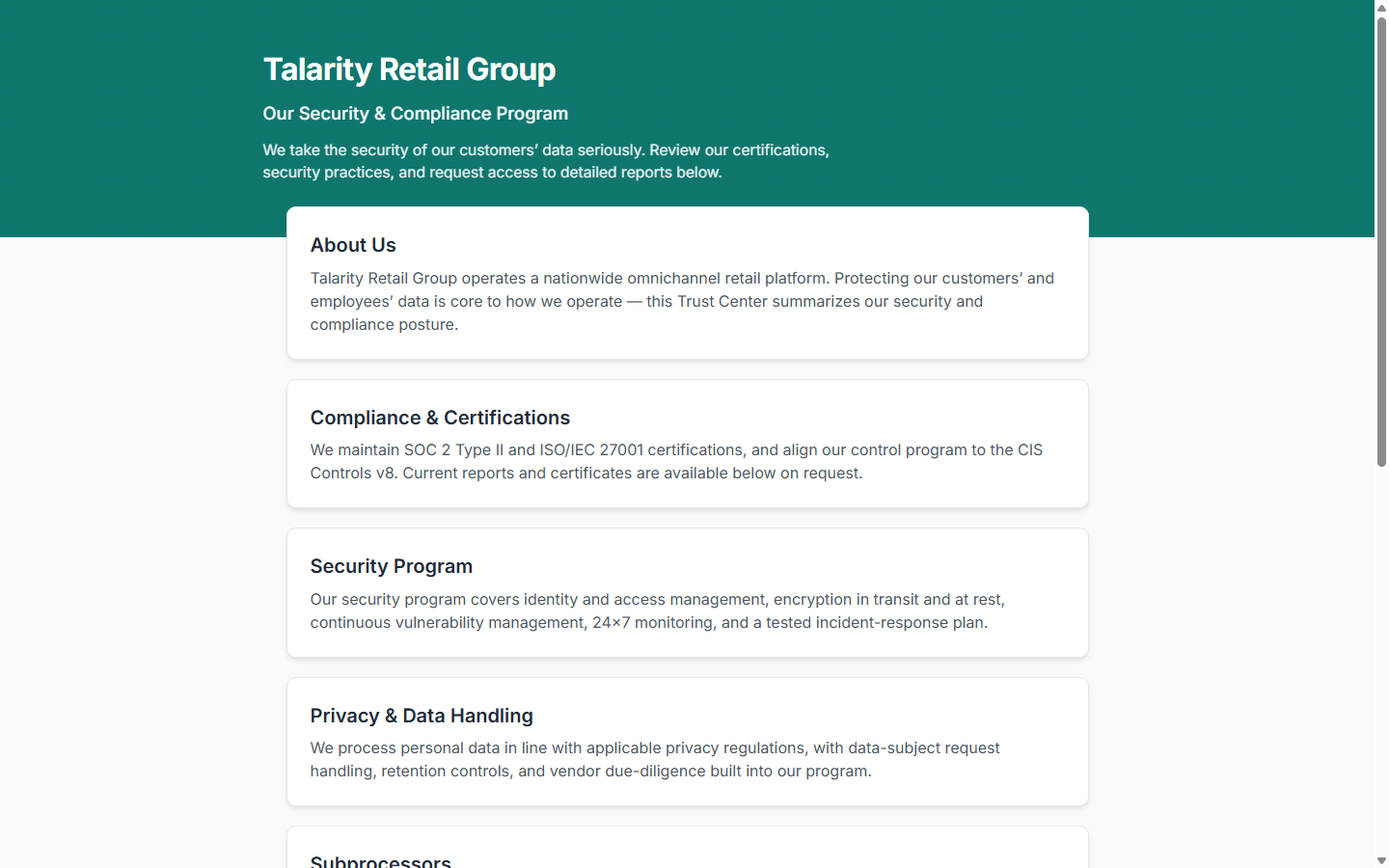
Public documents download; sensitive ones are gated
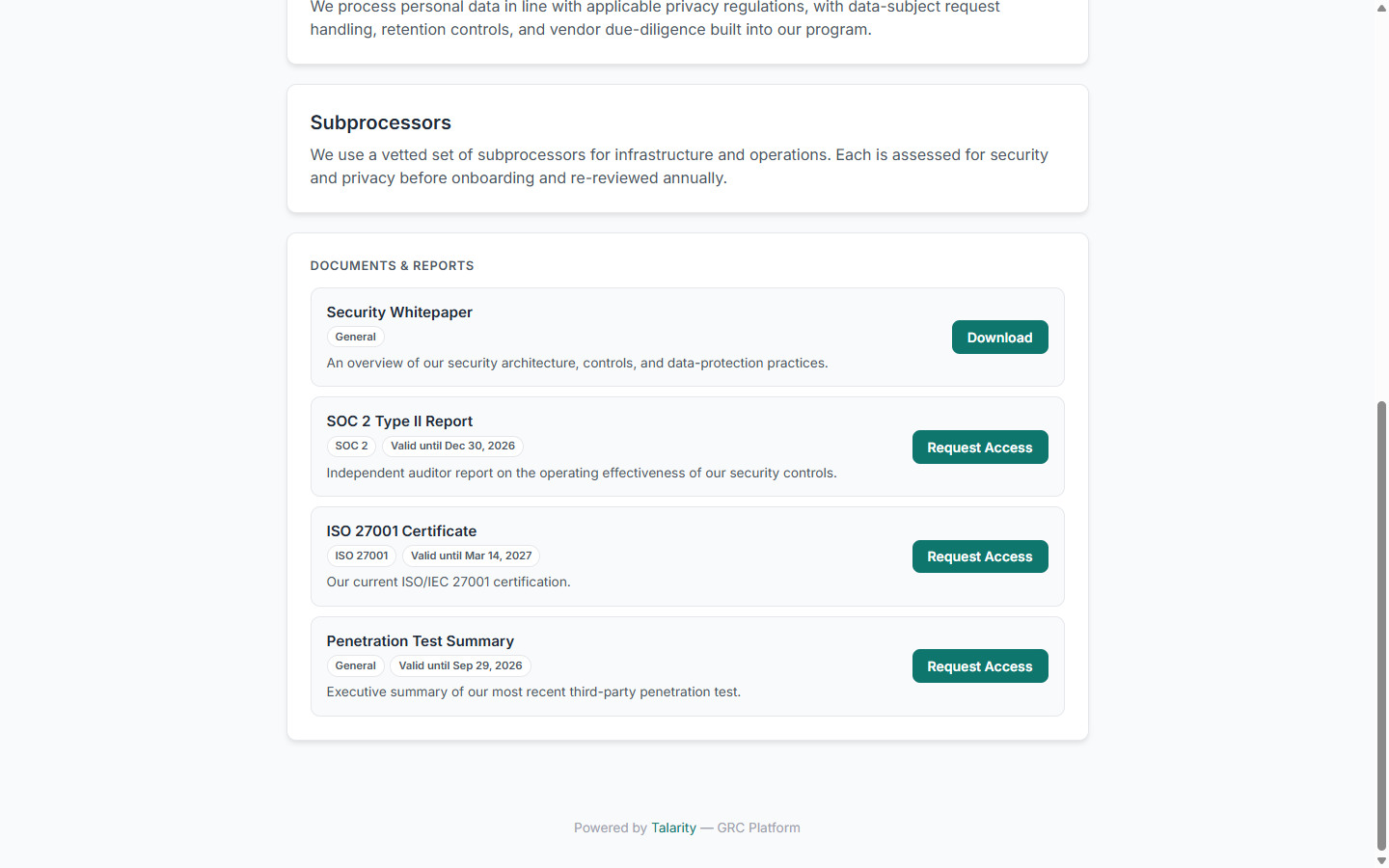
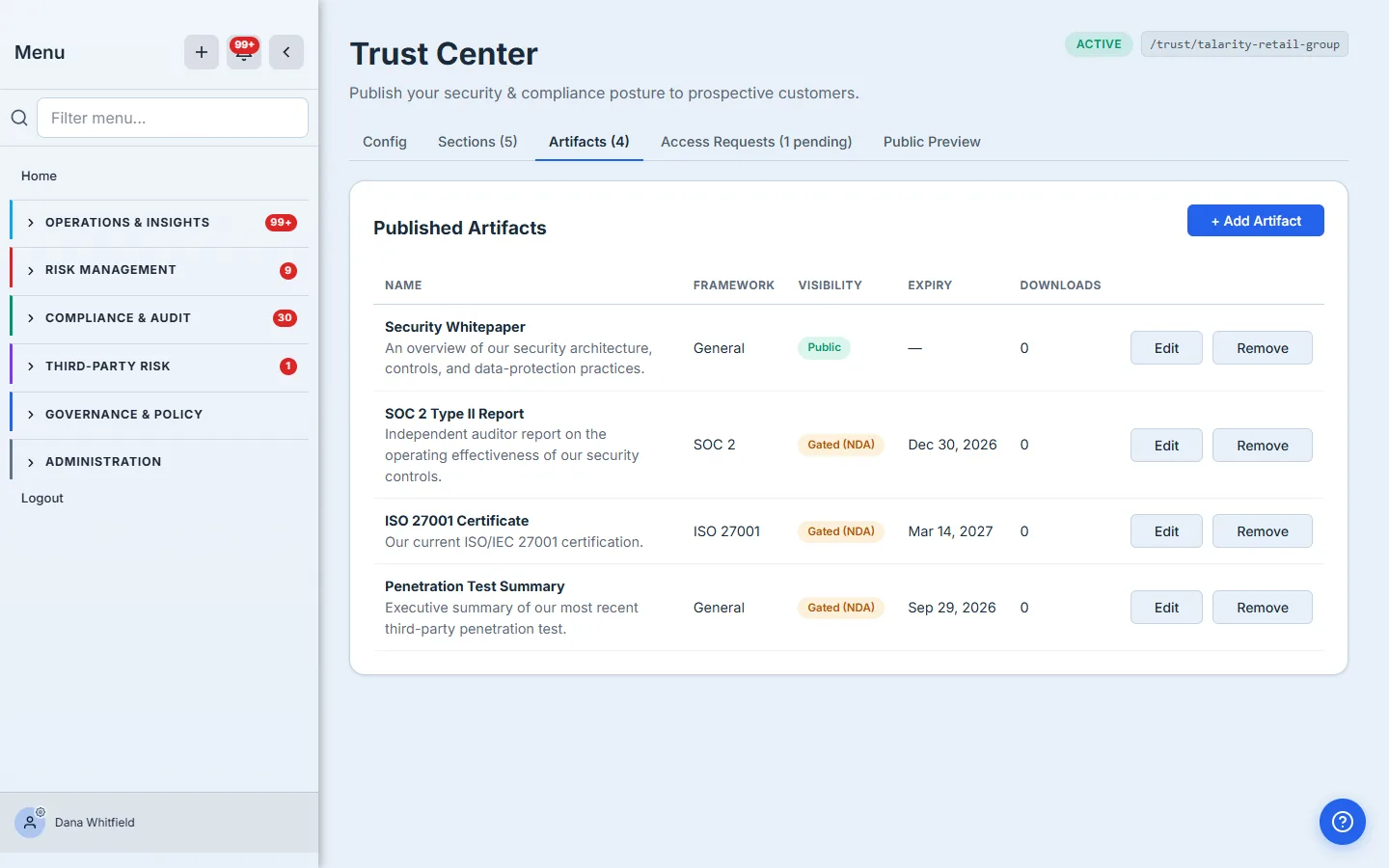
Under Documents & Reports, each artifact carries its framework and validity date. The access model is per-document:
- Public documents (a security whitepaper, say) show a Download button — a prospect gets them instantly, no request needed.
- Gated documents (SOC 2 Type II, ISO 27001 certificate, penetration test summary) show Request Access — they’re never downloadable straight from the page.
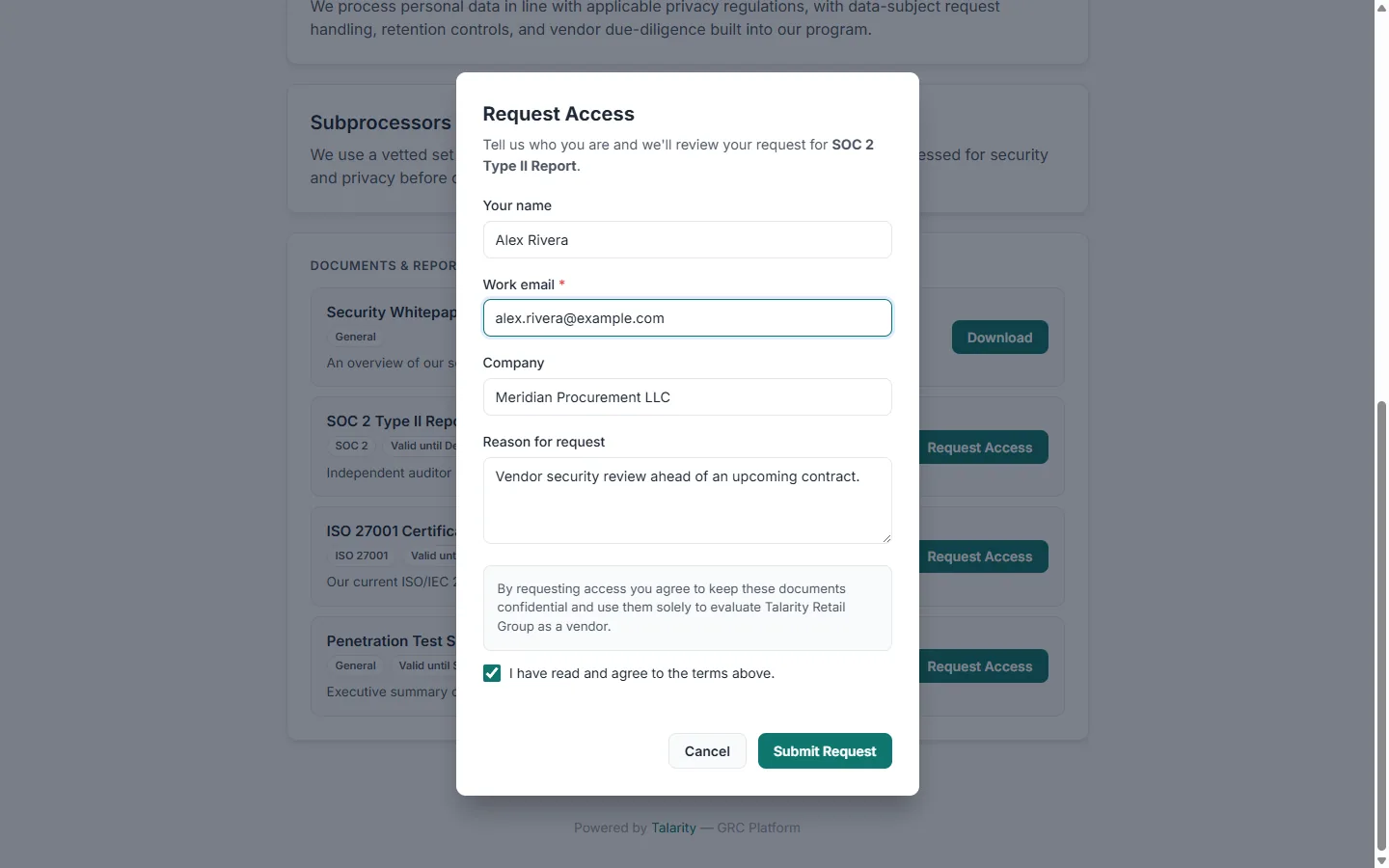
When a prospect requests a gated document, they tell you who they are and — if you require it — accept your NDA before the request is even submitted. The confidentiality terms are captured with the request, so approval isn’t a leap of faith.
Setting it up
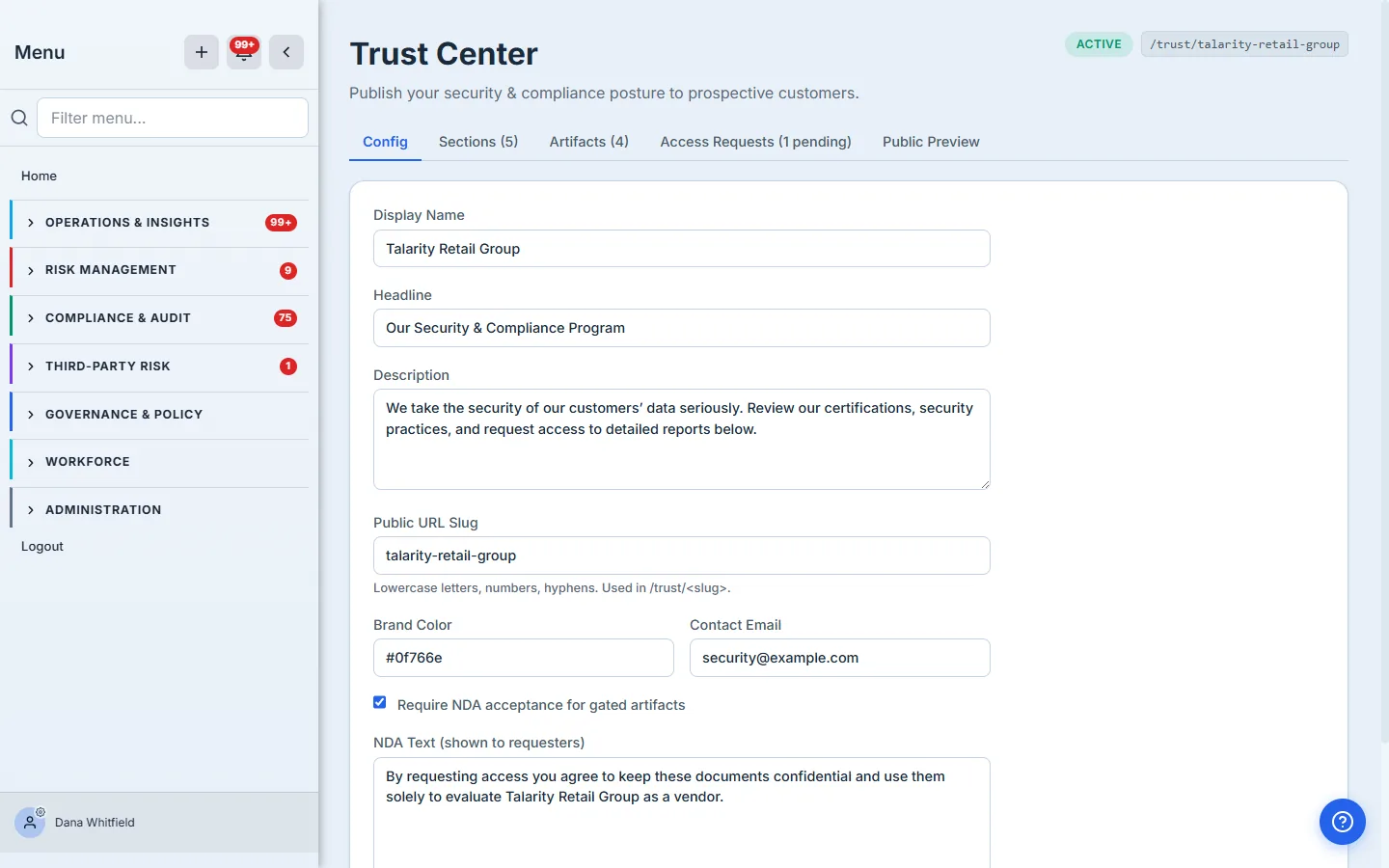
From /app/trust-center, the Config tab is where you set your display name, headline, description, public URL slug, brand color, and contact email — and toggle Require NDA acceptance for gated artifacts with the NDA text prospects will see. When you’re ready, you publish, and the page goes live at your slug.
On the Artifacts tab you publish the documents themselves. Each one links to a file from your evidence library and gets a visibility — Public, Gated (NDA), or On Request — plus its framework and expiry. That per-document visibility is exactly what drives the Download-vs-Request behavior your prospects see.
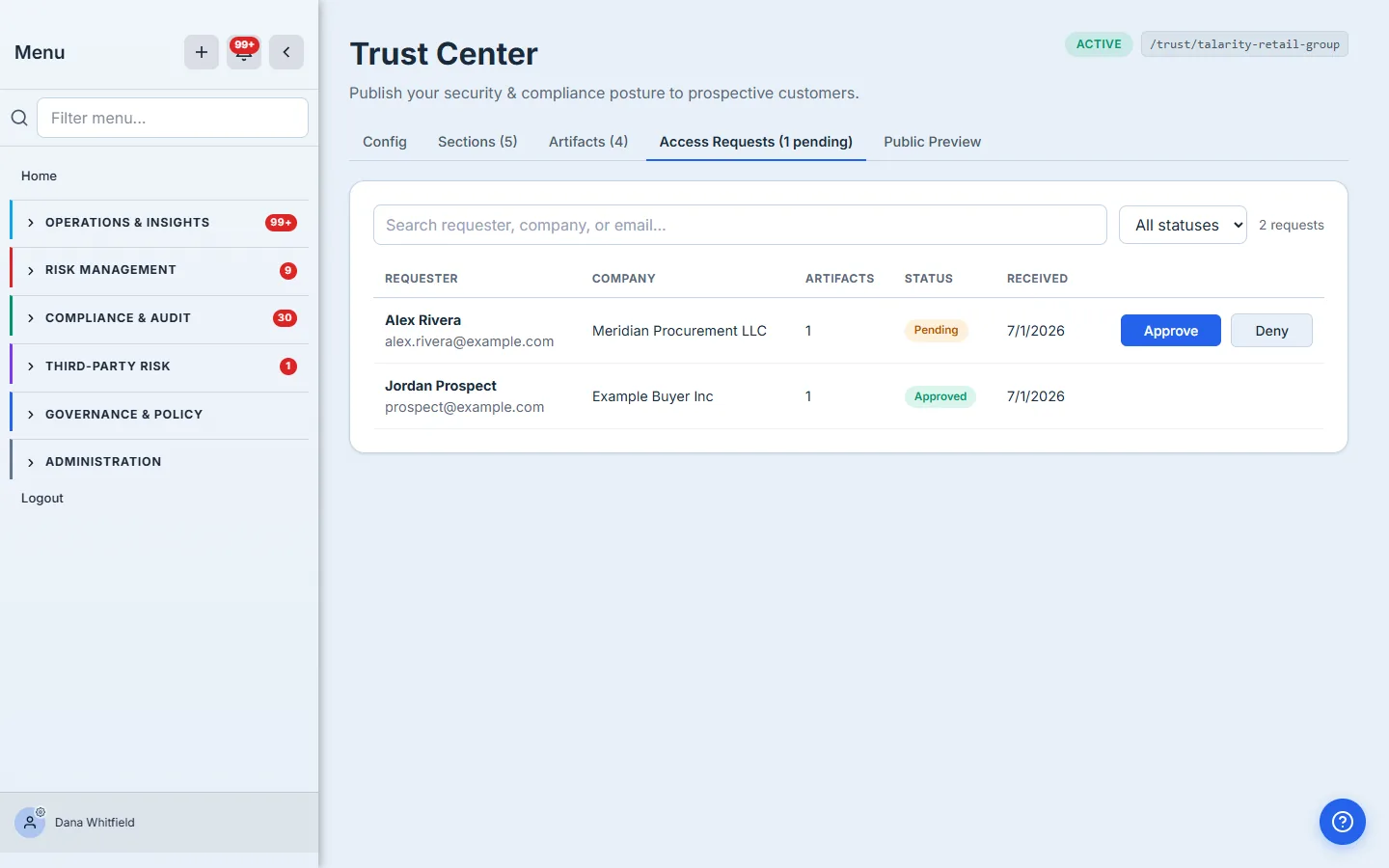
Approving access — one click, tracked
Every access request lands on the Access Requests tab with the requester, their company, what they asked for, and whether they signed the NDA. Approve issues a time-limited access token and emails the requester a download link automatically; Deny sends a courteous decline. Nothing sits in an inbox waiting to be noticed.
Knowing it’s working
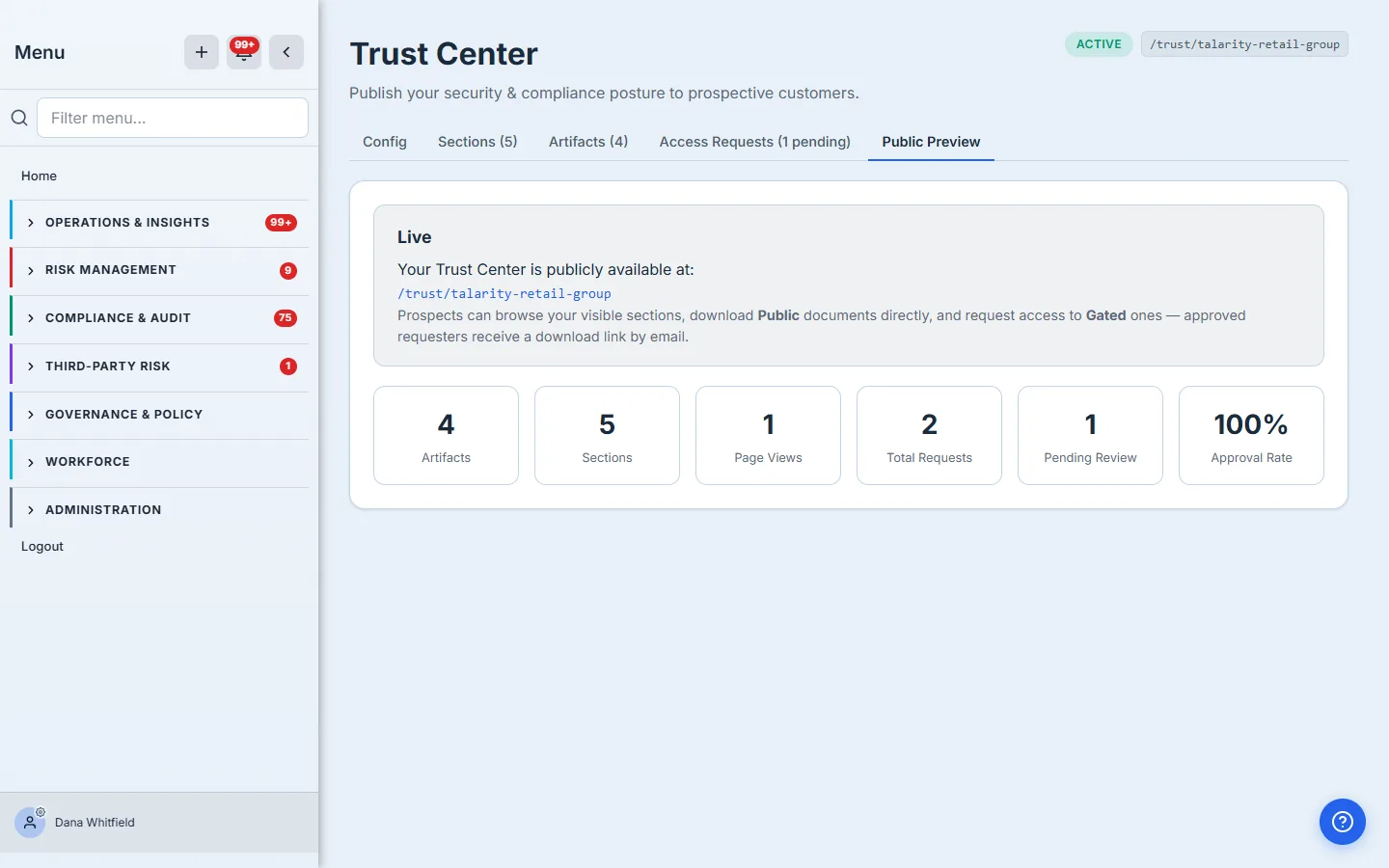
The Public Preview tab links straight to your live page and surfaces the metrics that tell you the Trust Center is pulling its weight: artifacts and sections published, page views, total access requests, how many are pending your review, and your approval rate.
What you walk away with
- A branded public page you can hand to any prospect’s security team instead of a PDF email thread.
- Self-serve for public documents, and NDA-gated, approve-with-one-click access for the sensitive ones.
- Approved requesters get a time-limited download link by email — you never attach the file yourself.
- A running record of who asked, what you approved, and what got downloaded — the audit trail a manual process never leaves.
Your security program is one of your best sales assets. The Trust Center makes it work like one.