A paragraph a model wrote is only as good as two things: what it was shown, and whether anyone read it before it reached a board. Most tools answer the first vaguely and skip the second.
Talarity’s AI commentary block is built around both. It writes one section of a report from the rows that section is given — never a query of its own — and the report will not publish until a person has read every AI-drafted section and put their name to it. This walkthrough sets one up, generates it, and follows it through review, printing and the next reporting period.
Who’s involved
- Report author — adds the commentary block, chooses what it reads and what it is told.
- Reviewer — reads the drafted sections in the finished report and accepts, rewrites or re-drafts each one.
- Approver — publishes the report once every section has someone standing behind it.
Step 1 — Add a commentary block
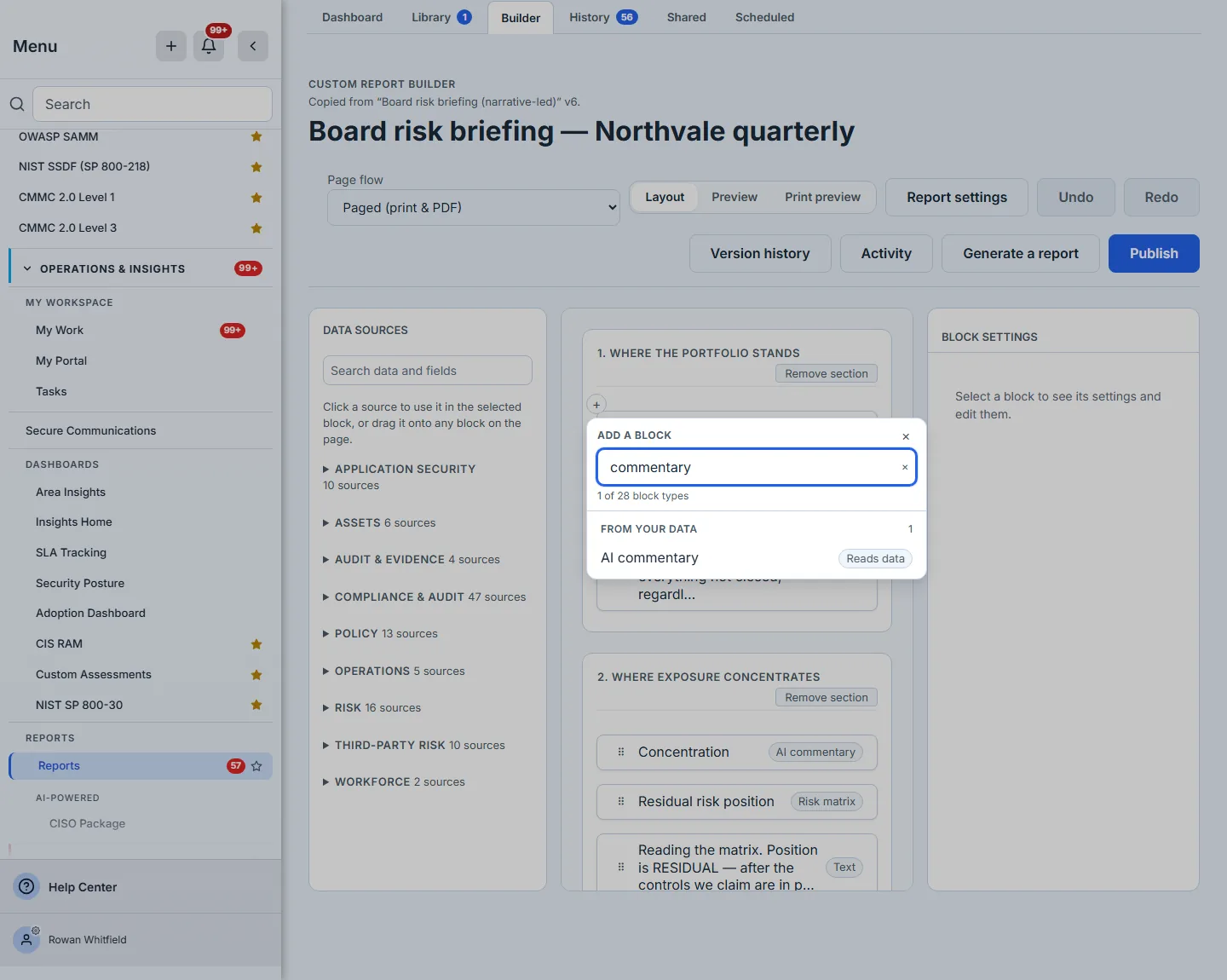
AI commentary is placed like any other block: the + between two blocks opens the picker, and it sits under From your data with a Reads data chip. That chip matters — a block that reads data cannot exist without a source, so choosing it opens a second step, AI commentary — choose data, and the block arrives already bound.
Step 2 — What it reads
The block’s settings say what it reads — Reads and the source’s name — and, under Which rows it covers, the same filter every data block has. The model is handed the rows that survive that filter — and, if the section has a row limit, only the rows inside it — resolved by the report before the model is called. It never runs a query, never reaches another source, and never sees a row the filter or the limit excluded.
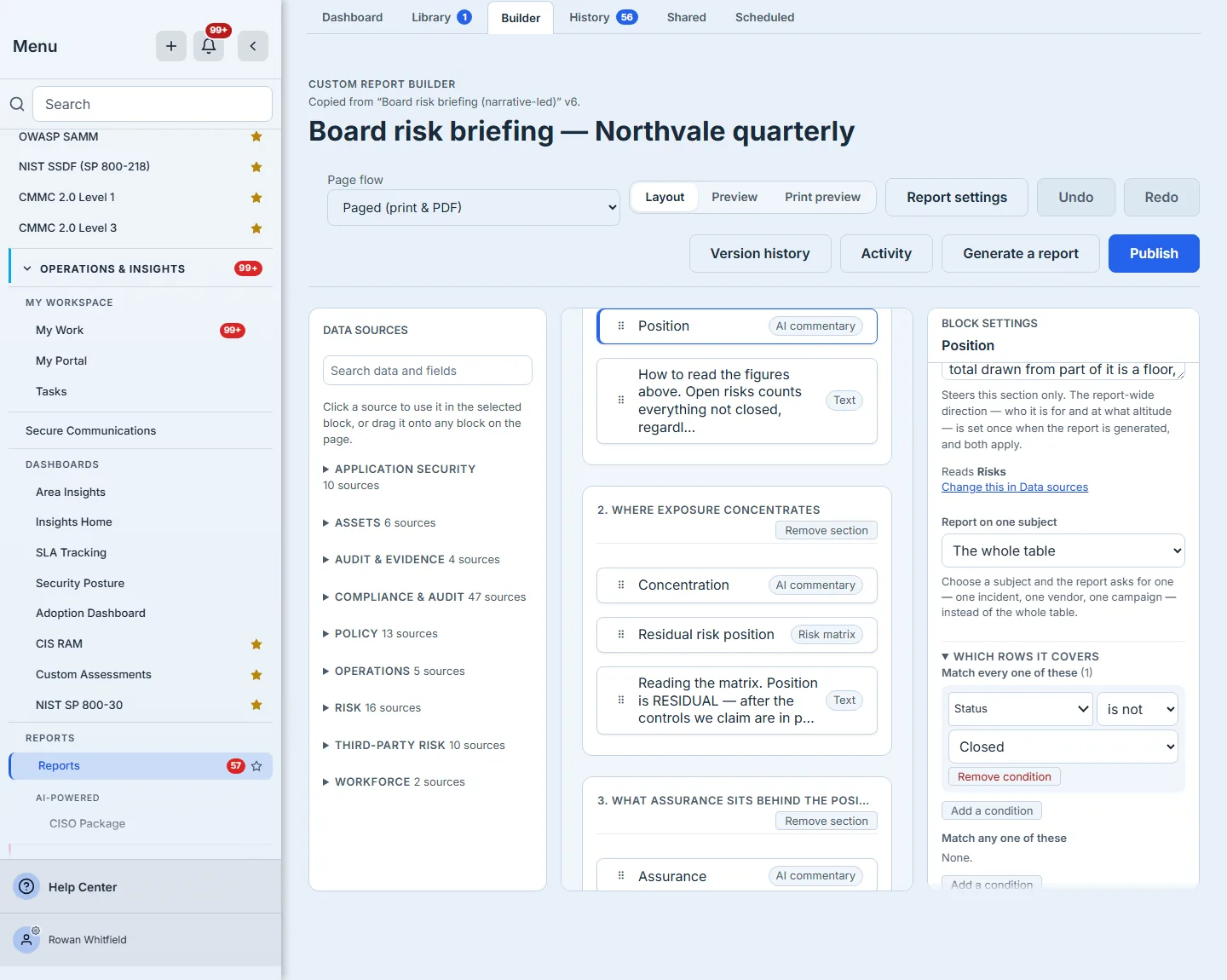
That makes the filter the most important thing on the pane. A commentary block over “every open risk” and one over “open risks with no treatment recorded” will write different paragraphs about different populations, and the difference is visible here rather than buried in a prompt.
Step 3 — What it is told
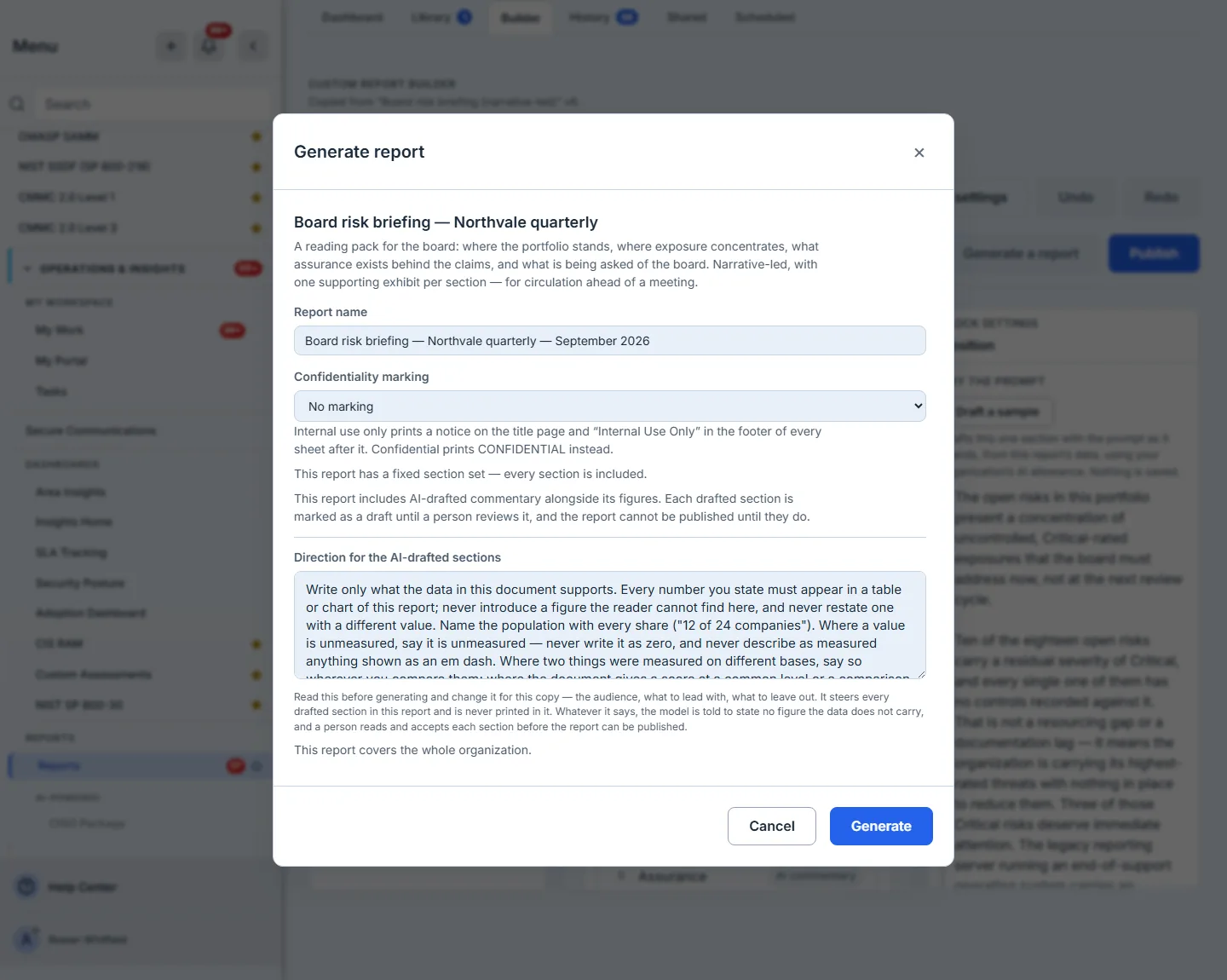
The block’s prompt is what this paragraph should do. Its hint, at the top of the previous frame, states the rule that governs it: it steers this section only, while a report-wide direction — who the report is for, and at what altitude — is set once when the report is generated, and both apply.
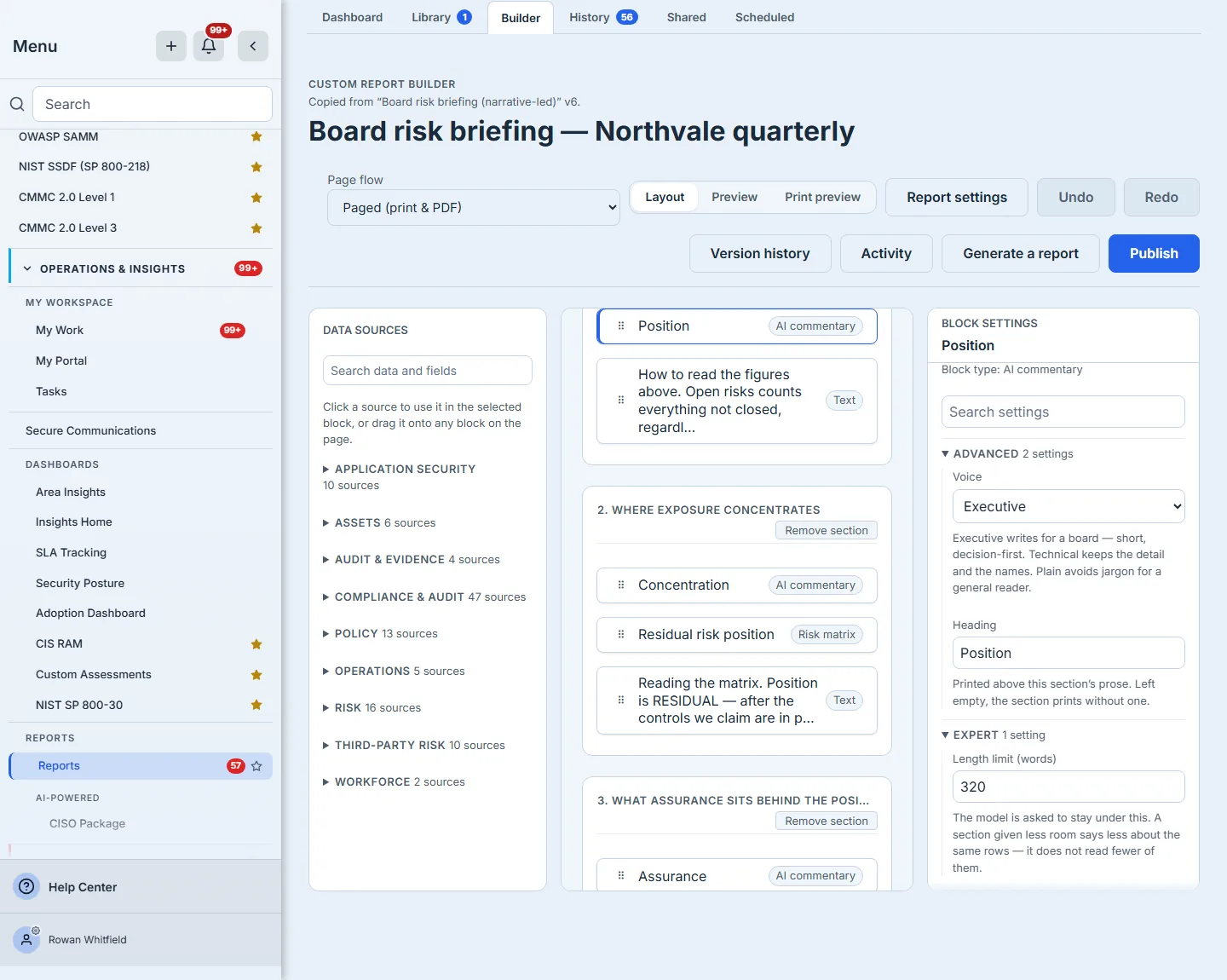
Two settings shape the prose rather than its subject. Voice — Executive, Technical or Plain, each described below it — and Length limit (words), which the model is asked to stay under. A shorter limit makes the section say less about the same rows; it does not make the model read fewer of them, and the pane says so beneath the limit.
Step 4 — See a draft before you generate
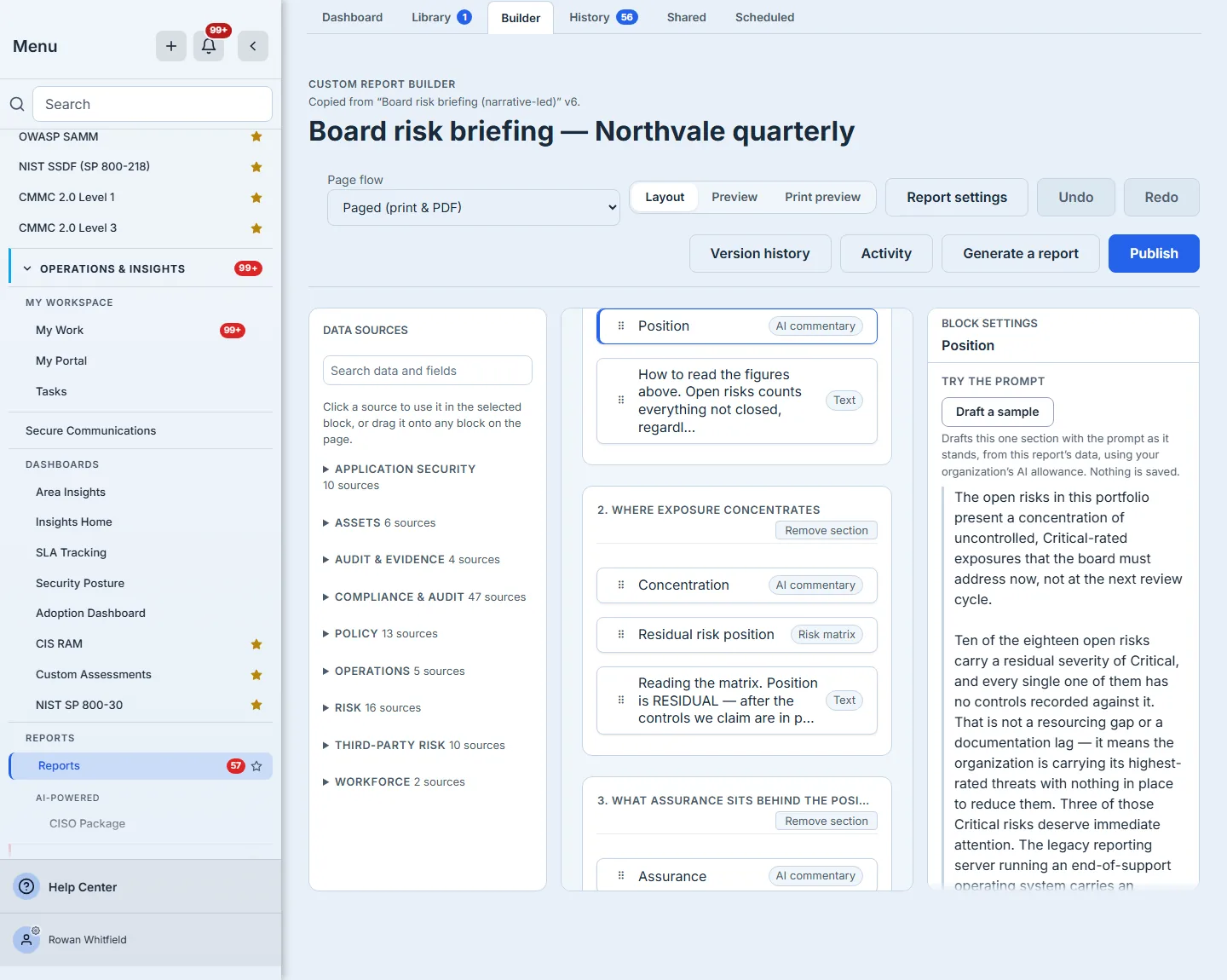
Draft a sample writes this one section with the prompt as it stands, from this report’s data, using your organisation’s AI allowance — and saves nothing. It is how an author finds out whether a prompt produces the paragraph they meant, without generating a report and without leaving anything behind.
Step 5 — The direction for the whole report
When a report is generated, the dialog asks for a direction for the AI-drafted sections — one per report, because who the report is for cannot differ between two of its sections. It combines with each section’s own prompt rather than replacing it.
If AI drafting is not available when you generate, the dialog says so before anything runs, and names the reason: the organisation does not have the AI module enabled, its AI allowance is used up, or its own provider key was rejected. In every case the drafted sections will state that the commentary is absent, and “every figure and table is unaffected” — the report still generates; it just does not pretend to have prose it could not write. Where the fix is an administrator’s, the message says it is under Settings → AI.
Step 6 — Generated, and visibly unread
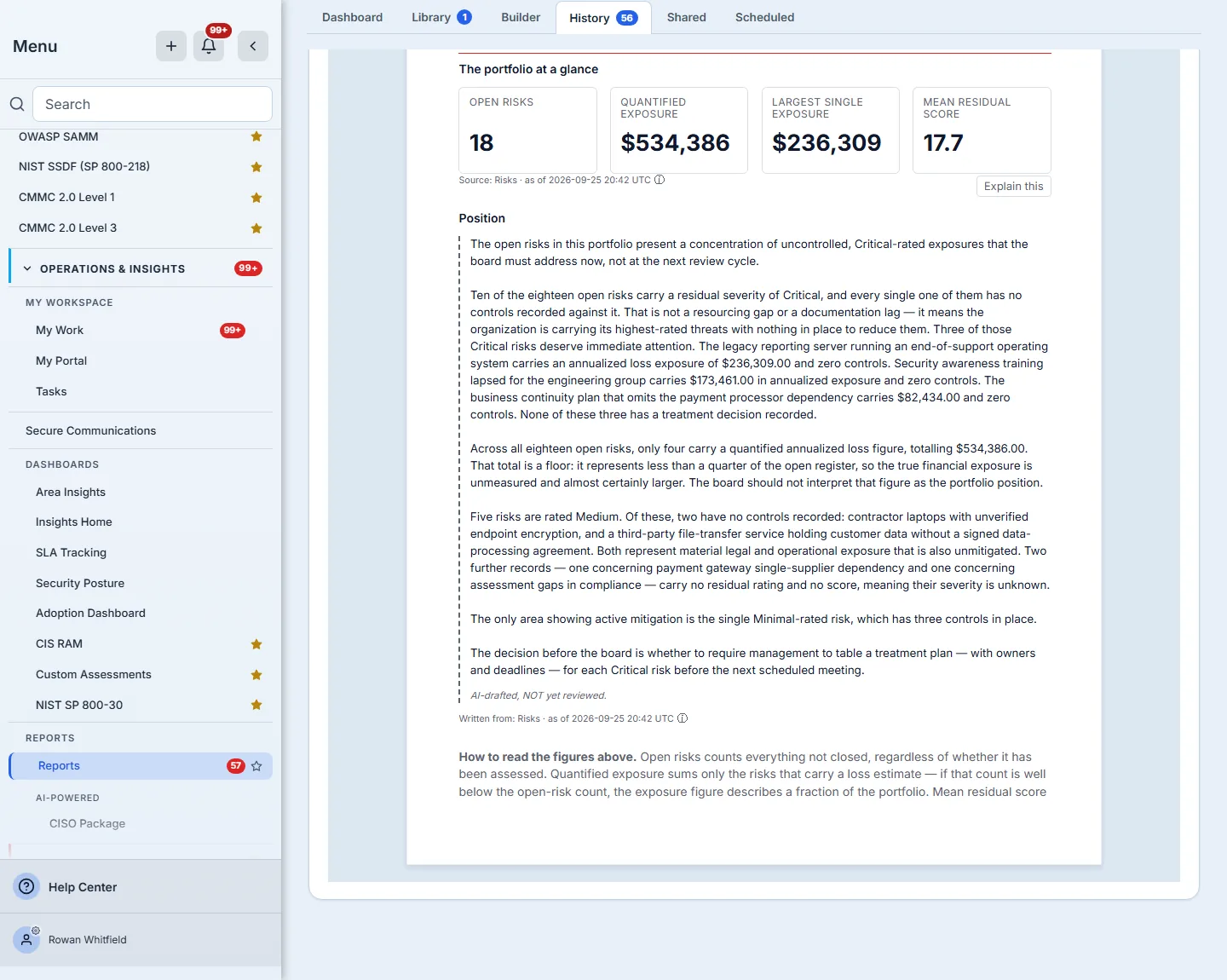
Every AI-drafted section of the finished report is marked AI-drafted, NOT yet reviewed, with a dashed rule in its margin. The mark is in the printed page as well as on screen: a reader skimming a board pack can see which paragraphs nobody has read yet, without reading any of them.
Step 7 — Review is a step, not a formality
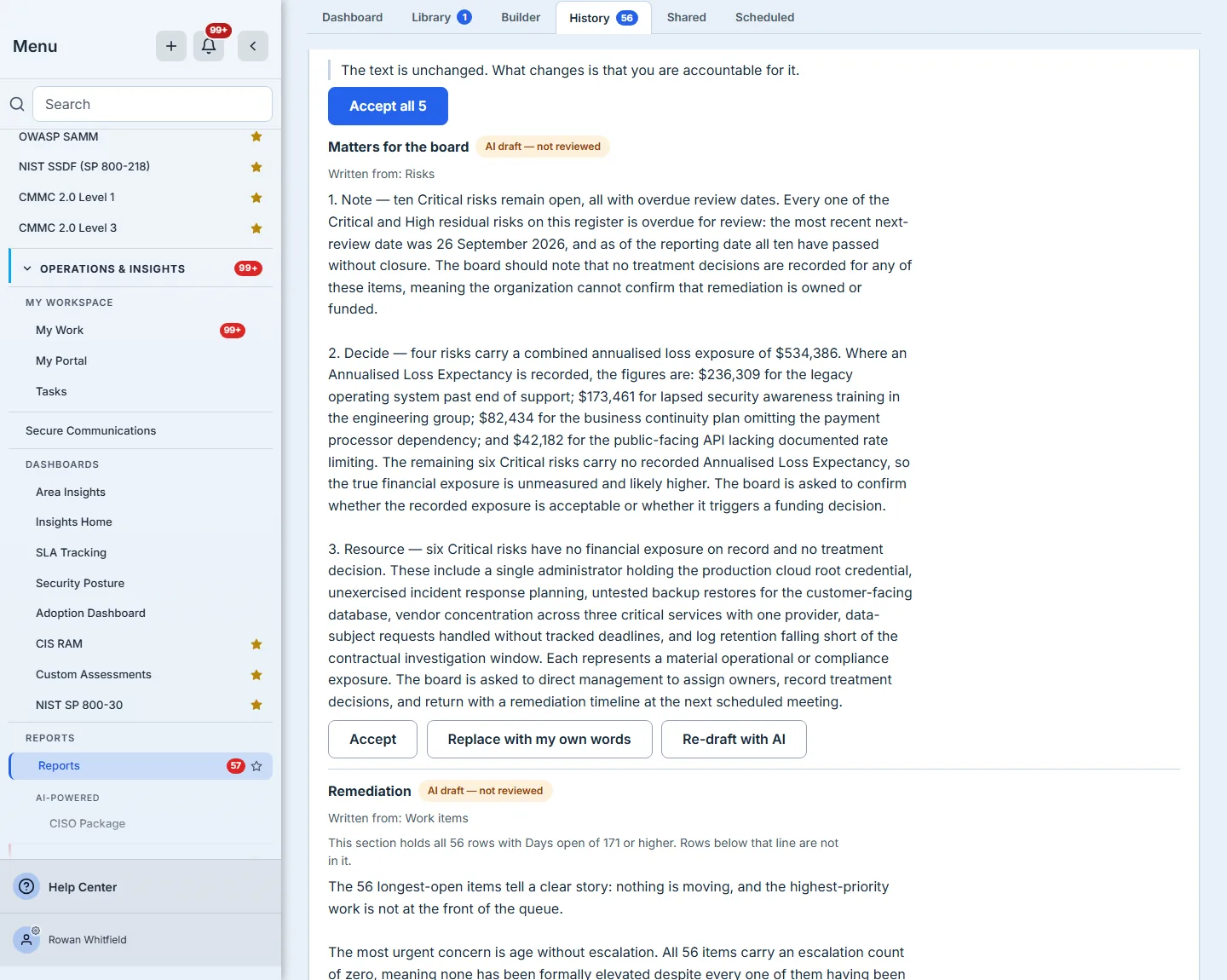
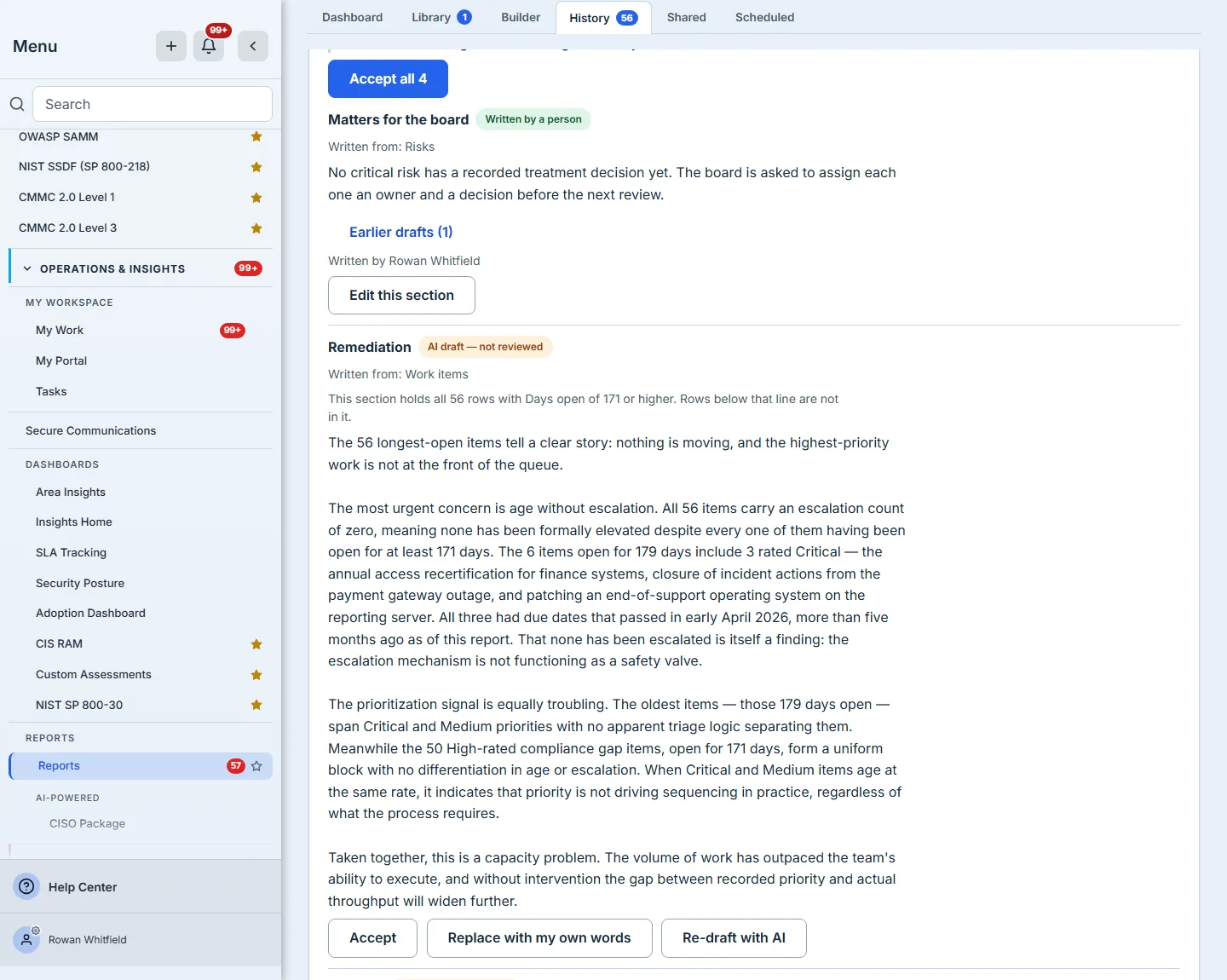
The commentary card lists every drafted section with what it was Written from. When several are waiting, Accept all is offered as the card’s one primary action, and each section keeps its own Accept, Replace with my own words and Re-draft with AI.
Step 8 — Accepting one section
Each section has its own Accept, Replace with my own words and Re-draft with AI. What Accept does is the sentence at the top of the card in Step 7: “The text is unchanged. What changes is that you are accountable for it.” Accepting records your name and the date against that one section. It is not a confirmation that the text is correct — it is you taking responsibility for it being so. Read a draft against the figures and rows beside it, as you would an analyst’s: a model can call a date overdue that has not yet passed, or name the wrong two of three items. Accepting is the moment such a slip would become yours; Replace with my own words is how you keep it out.
Step 9 — Your words instead
Replace with my own words opens the drafted text for you to rewrite, and from then on the section reads Written by you. Re-draft with AI writes a new version and keeps the previous one under Earlier drafts, from where it can be restored.
If the report has already been signed, any of these asks first — This changes a signed report — because changing the words under a signature is a different act from editing a draft.
Step 10 — Publishing waits for it
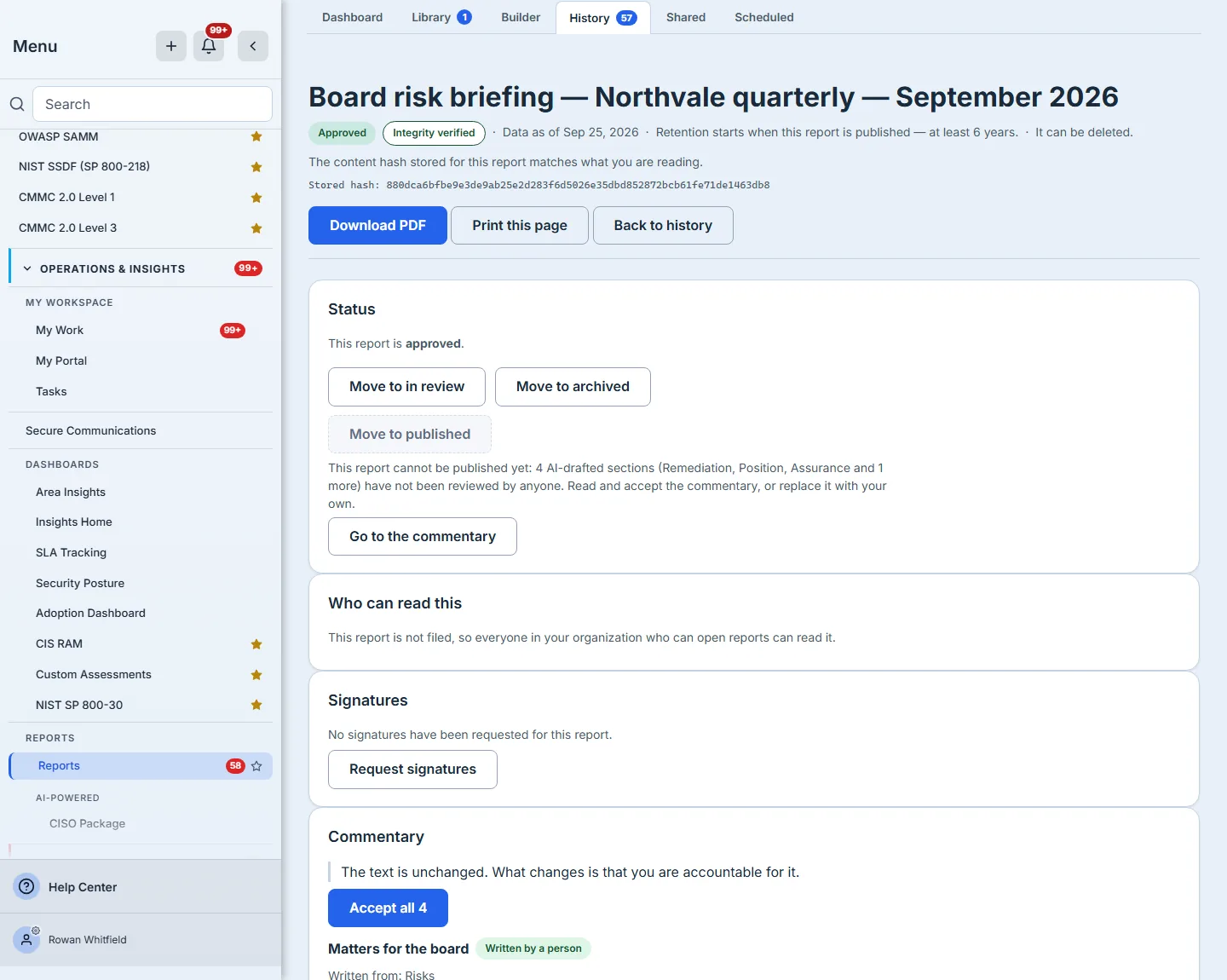
A report with an AI-drafted section nobody has accepted cannot be published. Move to published is disabled with the reason beside it, and Go to the commentary takes you straight to the sections still waiting.
Step 11 — Printed with who stands behind it
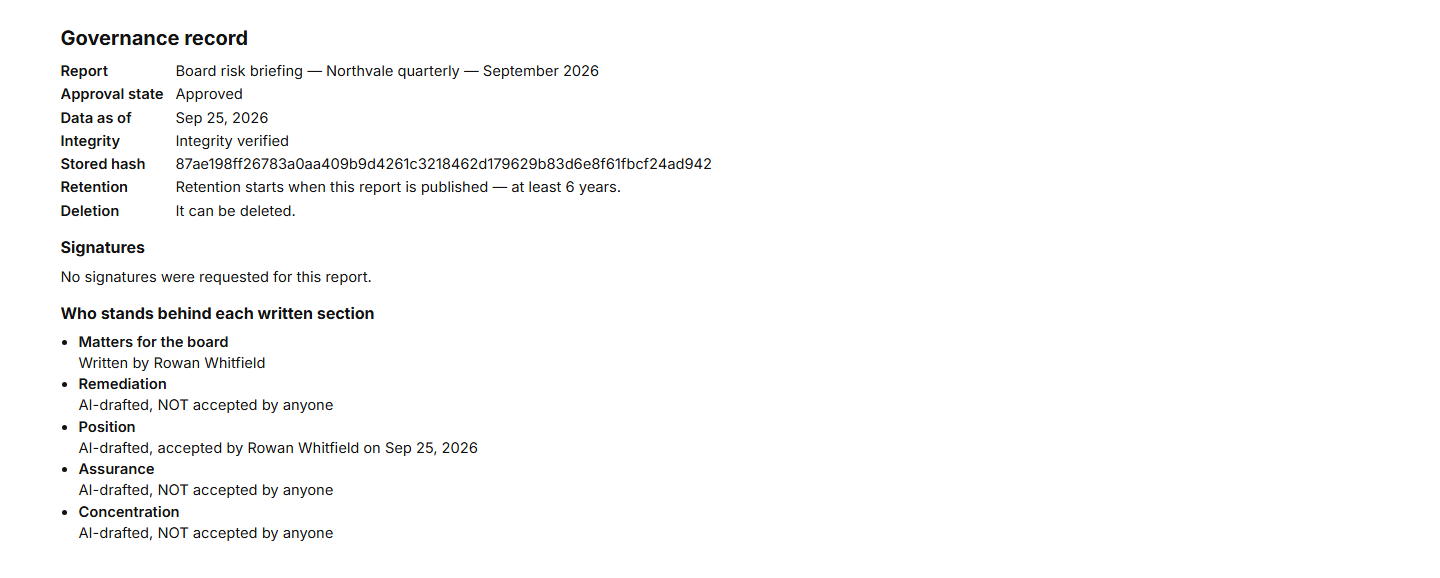
The printed report carries a record headed Who stands behind each written section: every commentary section, whether a model or a person wrote it, and for each drafted section who accepted it and when — or that nobody has. It is complete — every section is listed, none collapsed — because a governance record printed short is a claim missing its own evidence.
Step 12 — The next version
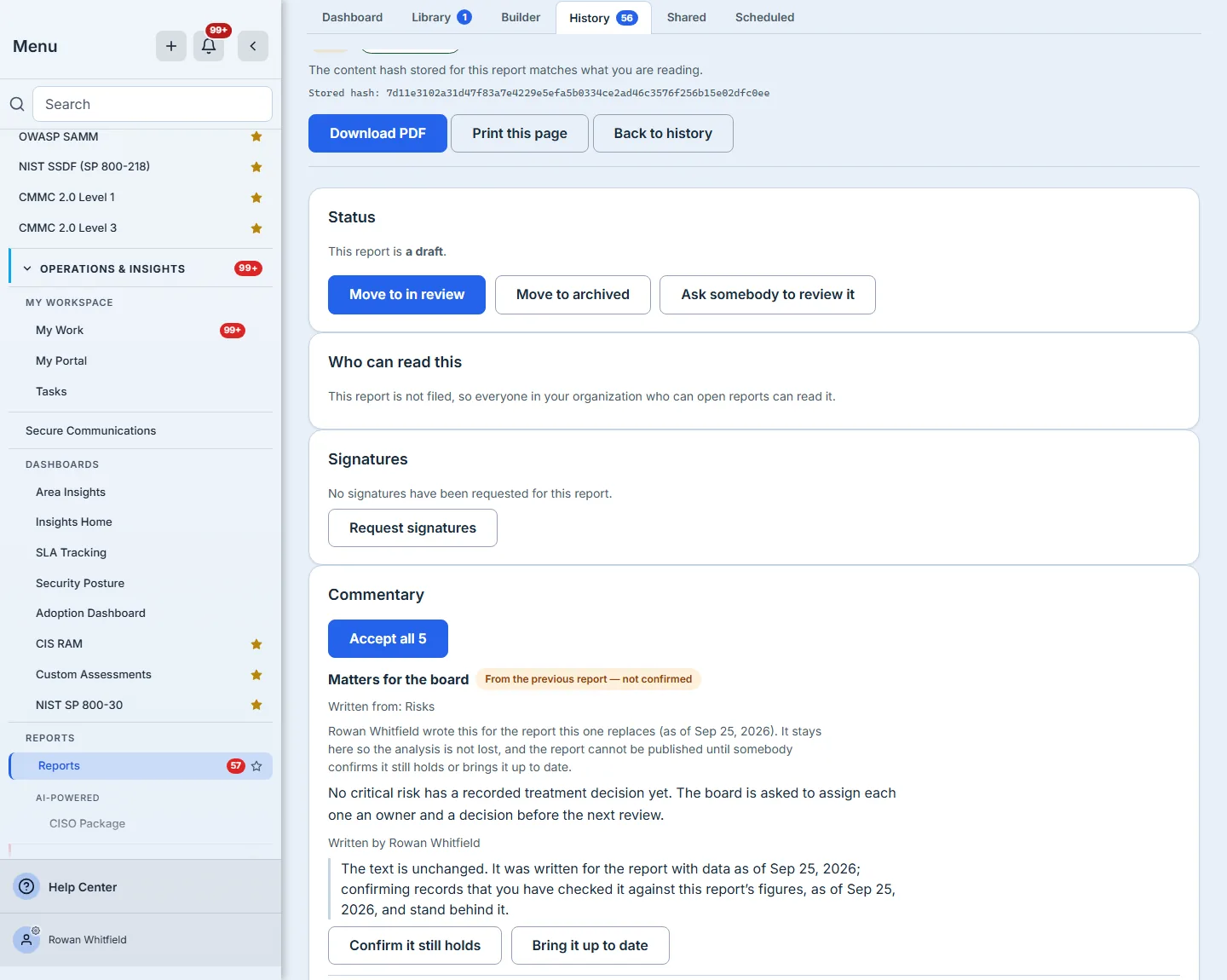
When the next version of the report is generated and a section’s inputs have not changed, its text is carried forward instead of being re-drafted — and marked From the previous report — not confirmed. The previous report’s words never pass silently as the new report’s: someone has to choose Confirm it still holds or Bring it up to date.
Step 13 — When the evidence is long
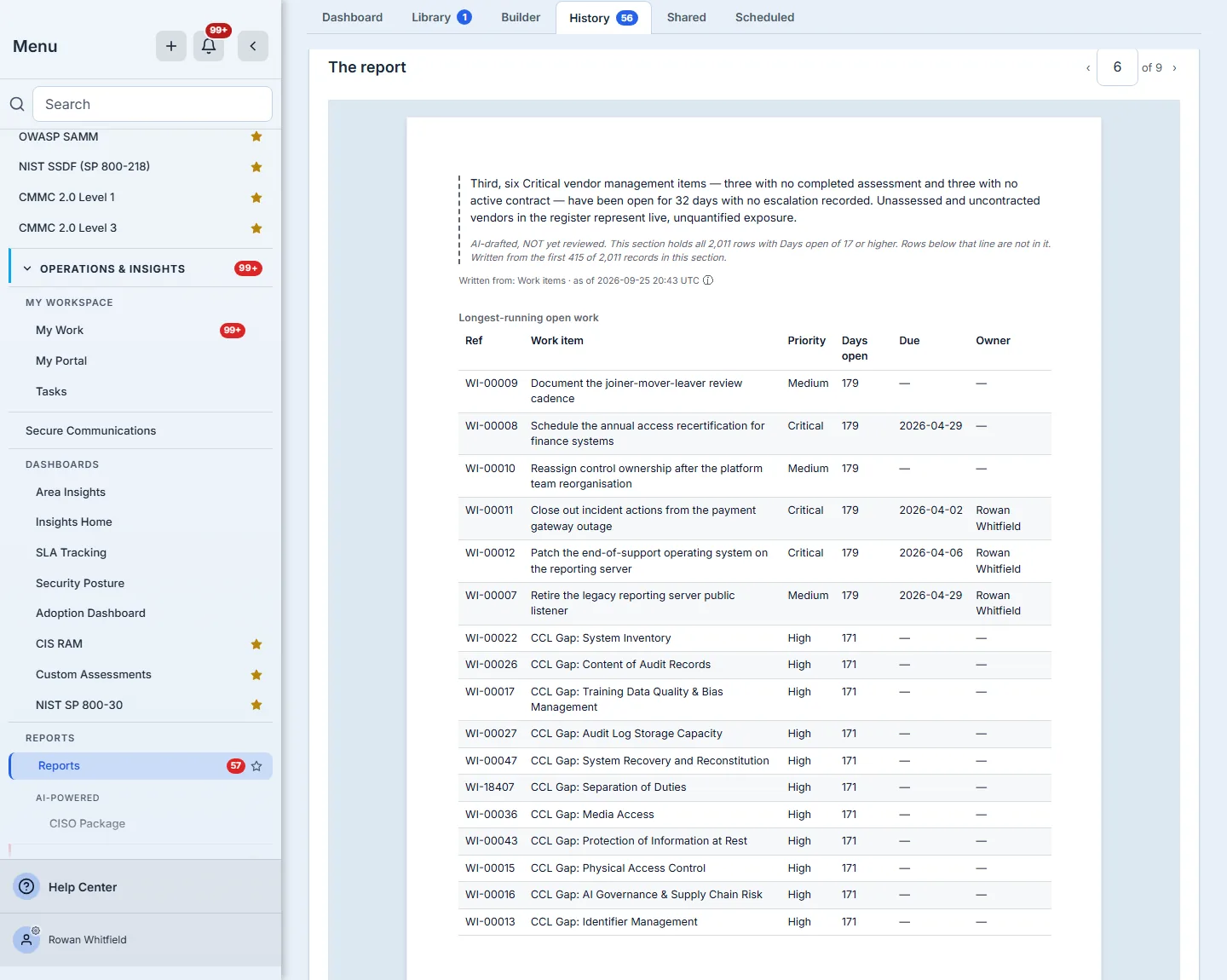
There is a limit to how much of a data source one section’s model call can be given. When the rows exceed it, the model is shown the first whole records that fit, in the same order the block’s own table uses, and is told how many it was not shown, and to say “the first N of M” rather than describe a population it never saw. The section does not rely on the model to admit it: the report adds its own line, “Written from the first N of M records in this section”, whatever the prose says.
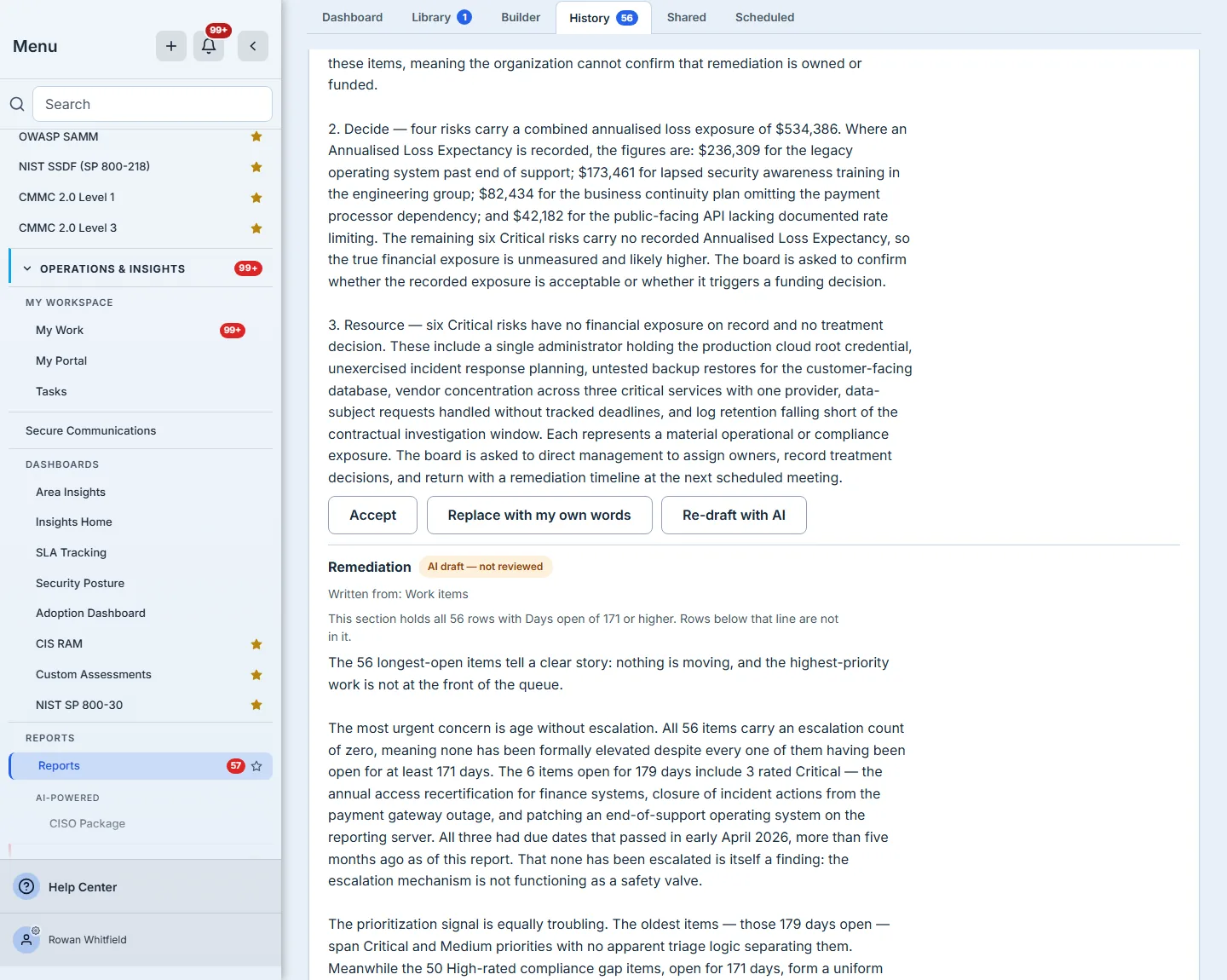
A section’s own row limit is a cut too, and it is said the same way. The briefing’s Remediation section lists the longest-open work, so under its prose the report adds a line such as “This section holds all 56 rows with Days open of 171 or higher. Rows below that line are not in it.” — the same sentence a limited table prints beneath itself, on the review card as well as the page.
In the example below, the Remediation section’s row limit has been raised to 2,000 open work items — 2,011 once the items tied at the line are kept — which is more than one call can be given.
What you walk away with
A section of prose a model drafted from rows you chose, under a filter you can see, that nobody can publish until a person has read it and put their name to it — with that name printed in the report, and the next version’s copy marked until someone confirms it still holds.
For the builder itself — the picker, sections, filters and printing — see Building a report.