Every organization has people who need some access but not a full seat: a contractor filing equipment requests, a candidate completing pre-hire documents, a soon-to-be vendor answering a questionnaire. The usual answers are all bad — a shared login nobody can audit, a full paid seat for someone who’ll submit three forms, or a pile of email threads with no record. ISO 27001:2022 A.5.16 (identity management) and A.5.18 (access rights) don’t carve out an exception for “external but temporary” — every identity needs to be provisioned, governed, and de-provisioned, guests included. SOC 2 CC6.1–CC6.3 say the same.
Talarity gives each guest exactly one thing: a portal identity. One email, one magic-link sign-in, one place they see their requests and documents — and one admin surface where you grant access, watch what they’re doing, and promote or revoke in a click. This article is that surface: /app/guests.
Who’s involved
- Org admin — invites guests, controls portal access, reviews self-service access requests, and promotes guests to full users. Everything here needs the guest-management permission.
- Guest — an external person with a guest license and portal access. Signs in by magic link, never holds a password or a standard seat.
- The seat ledger — guests draw from a separate guest-seat pool, not your standard seats. Promotion moves a person from one pool to the other atomically.
What’s on the page
/app/guests has two tabs:
- Guests — everyone with a guest identity, their portal access, last sign-in, and open request count, with per-row actions.
- Portal Settings — the portal itself: its URL, how guests get in, and the welcome copy on the sign-in screen.
Step 1 — Invite a guest
Invite guest takes an email and a name and creates the guest identity: a guest-license account with portal access on, and a single-use invitation link emailed to them (valid seven days). No password, no seat negotiation — they click the link and they’re in their portal.
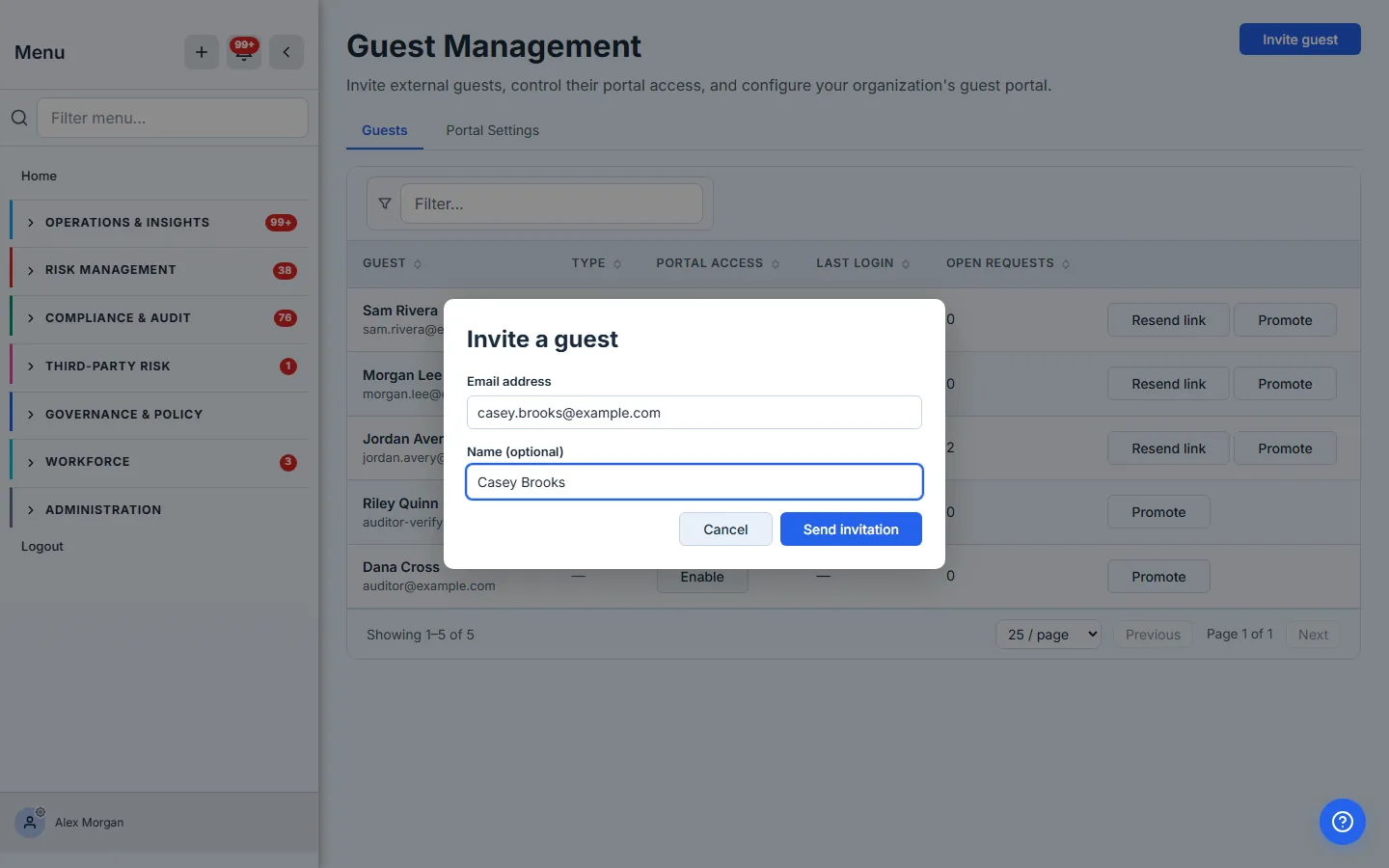
If your guest-seat pool is full, the invite is refused with a clear message — “Guest seat limit reached — this organization has no guest seats left” — not a silent failure. Guests are governed by the same seat discipline as everyone else; you always know your count.
Step 2 — See every guest at a glance
The Guests tab is a searchable, filterable table (the same component the rest of the app uses, so it scales from three guests to three hundred). Each row shows the guest’s name and email, a portal-access toggle, their last portal sign-in, and how many open requests they have in flight — so a guest who’s mid-request is obvious, and a dormant one is too.
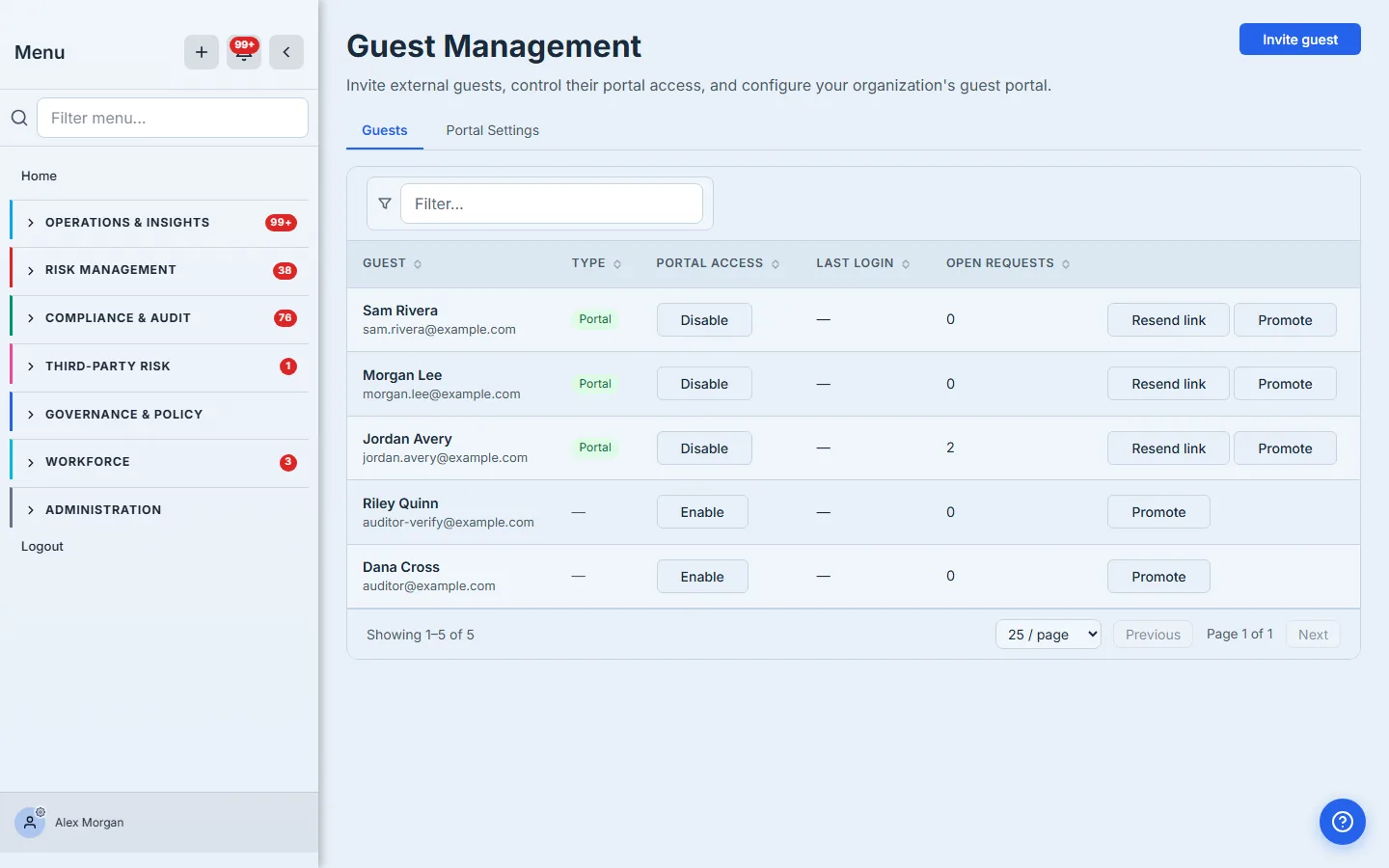
Per row, you can:
- Resend link — email a fresh one-time sign-in link on demand (a guest who lost theirs doesn’t need to wait for anything).
- Toggle portal access — flip access off and the guest is locked out on their very next action; flip it on to restore. Revocation is immediate and enforced on every portal call, not just at the door.
- Promote — turn the guest into a full standard user (Step 3).
Revocation is real, not cosmetic. Turning off portal access rebuilds the guest’s session claims and invalidates their tokens — the next thing they try in the portal fails closed. You’re not hiding a button; you’re removing the access.
Step 3 — Promote a guest to a full user
This is the step that makes guests worth using instead of avoiding: when a contractor is hired or a candidate becomes an employee, you don’t re-create them. Promote converts the guest in place.
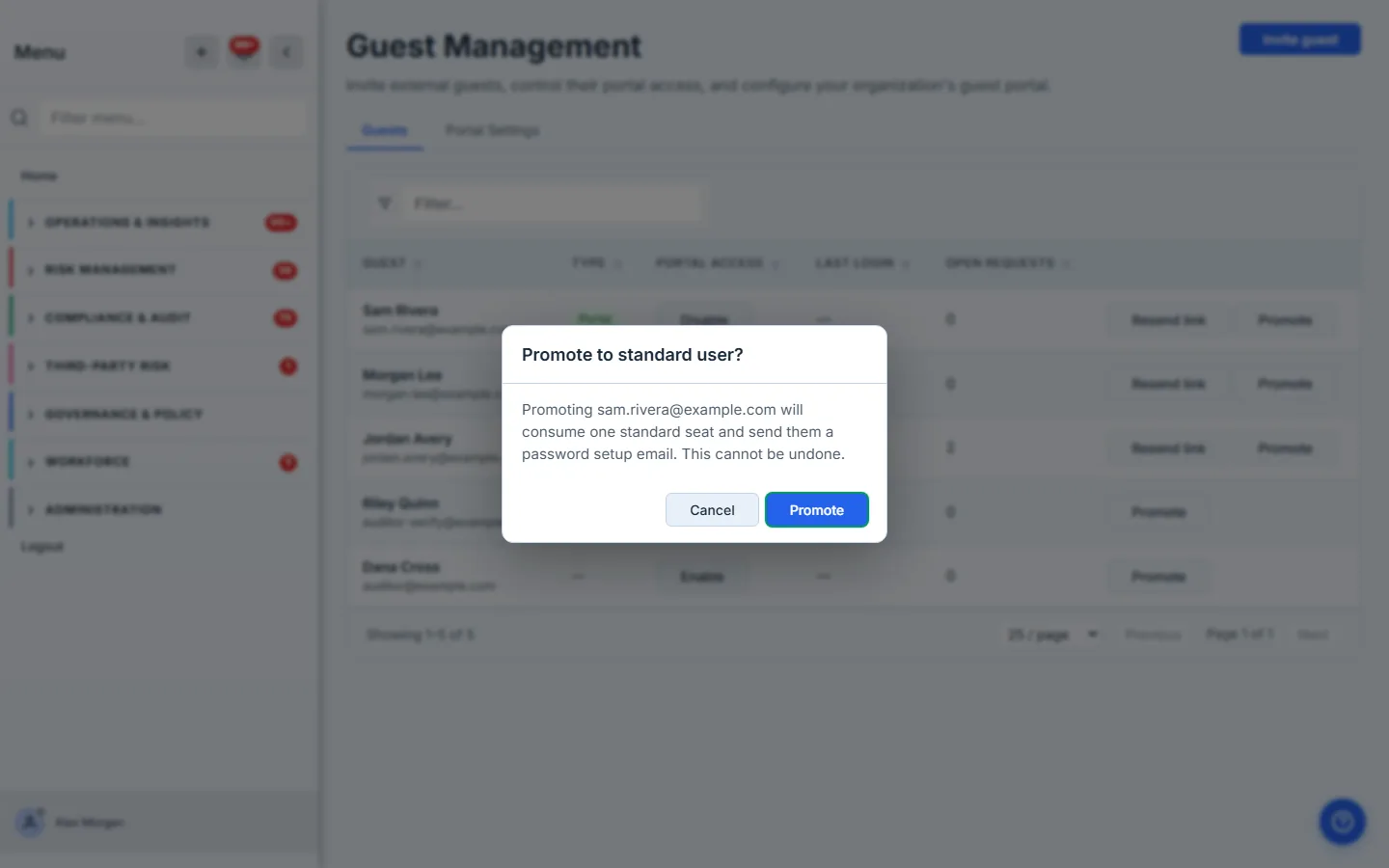
On confirm, Talarity:
- changes the license from guest to standard — the guest seat is freed and a standard seat is consumed, atomically (if no standard seat is available, the promotion is refused, not half-done);
- puts them in the default standard-user group so they get normal app access governed by your groups;
- rebuilds their claims and emails them a set-password link so they can sign in the full way.
Their history comes with them — the same identity, now upgraded. No second onboarding, no orphaned guest record.
Step 4 — Configure the portal itself
The Portal Settings tab is where the portal comes to life. At the top is your portal URL — the sign-in address you hand out — with a Copy button. Below it:
- Enabled — the master switch. Off, and the URL returns a neutral “not available” page (a disabled portal and a nonexistent one look identical from outside — no information leaks).
- How guests get in — invite (admins add every guest by email) or domain (anyone with an email on an allowed domain is auto-provisioned as a guest, seat-checked, the first time they request a link). Either way, the everyday sign-in is a one-time magic link — or your organization’s single sign-on, when it’s configured, which surfaces a “Sign in with single sign-on” option on the portal automatically. SSO is only a sign-in method, never a membership grant: someone who authenticates but hasn’t been granted portal access still sees a clear no-access message and is never issued a seat.
- Allowed domains — for domain mode, the domains that may self-provision.
- Welcome title & message and a contact email — the copy that greets a guest on the sign-in screen, in your words.
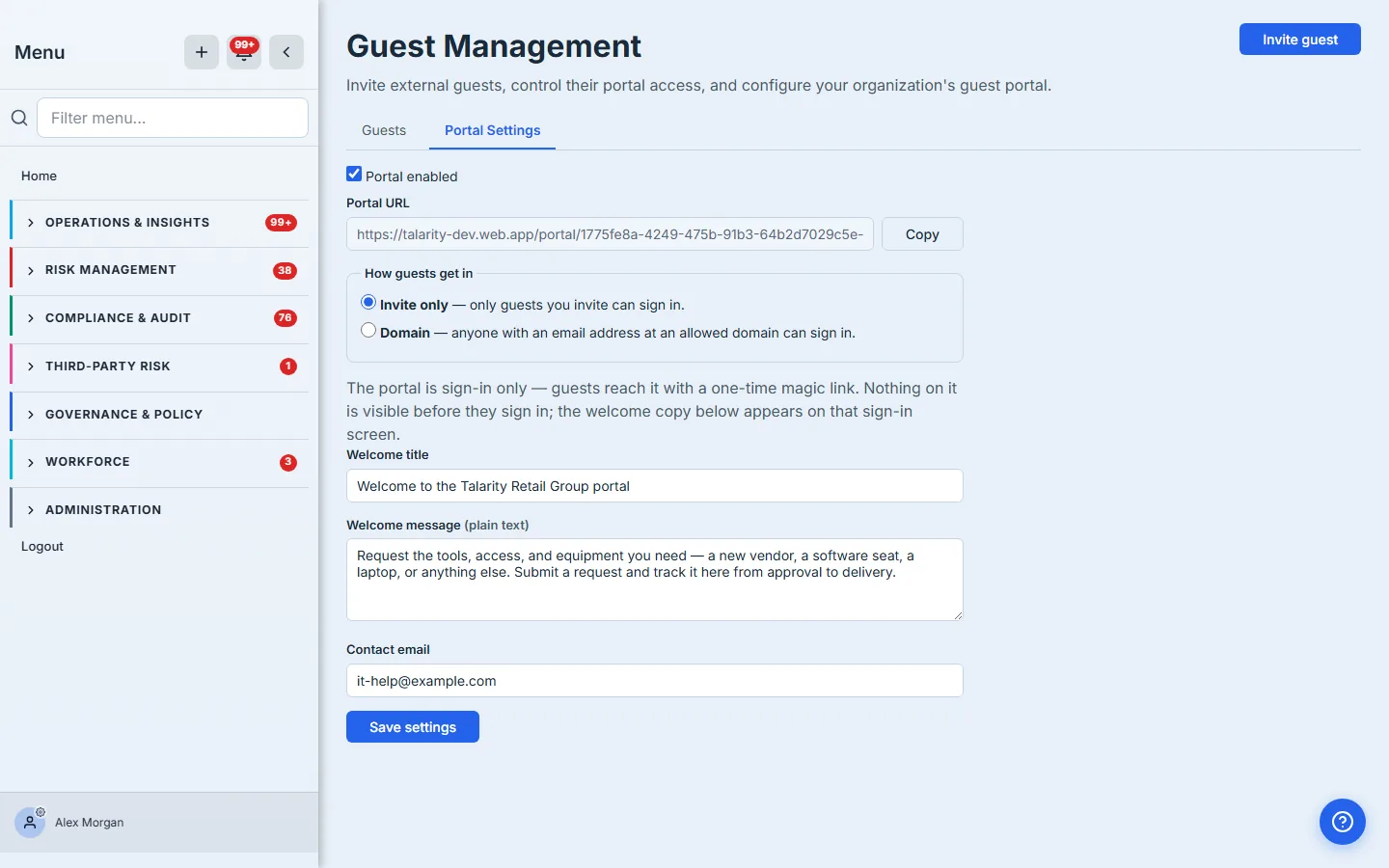
The portal is sign-in only — that’s not configurable, and that’s the point. There is no “make the catalog public” switch: a guest’s requests, their documents, the catalog, and the submit action all live behind the login. The only thing an unauthenticated visitor ever sees is your branding and the welcome copy on the sign-in screen.
What you walk away with
- One identity per guest — invited by email, signing in by magic link, never holding a password or a standard seat.
- Governed access — a portal-access toggle that revokes for real on the next action, last-login visibility, and open-request counts, all in a table that scales.
- Two clean ways in — invite each guest by email, or open an allowed domain for hands-off self-provisioning; the sign-in is a one-time magic link (or your SSO, when configured), never a public page.
- In-place promotion — hire a guest and they become a full user atomically: guest seat freed, standard seat consumed, set-password email sent, history intact.
- A login-gated portal you configure — URL, how guests get in, allowed domains, and the sign-in welcome copy, with nothing sensitive ever exposed before sign-in.
Open /app/guests, invite your first guest or open an allowed domain, and hand out the URL. If you’re setting the portal up from scratch, Stand up your request portal is the ten-minute zero-to-live walkthrough, and Design your request catalog is how you shape what guests can request. The guest request portal is what they’ll see; from request to reality is what happens when they ask for something.