Every request for a new vendor, a software seat, or a company laptop is an access-and-procurement event your auditors care about — SOC 2 leans on it in CC6.1 and CC6.2 (how access is requested, approved, and provisioned) and CC9.2 (how new vendors enter the program); ISO 27001:2022 covers it in A.5.16 (identity management), A.5.18 (access rights), and A.5.19 (supplier relationships). The control isn’t “did someone get a laptop” — it’s “was it requested, approved by the right person, and recorded, with the resulting vendor or license under management from day one.”
Most teams run this over Slack messages, email threads, and a ticket queue that never links back to anything. The request for “a Figma seat” never touches the license ledger; the “can we use this new vendor” never becomes a tiered vendor record; the laptop request lives in an inbox. Talarity gives your extended team — contractors, new hires, anyone you grant access to — a single guest portal where they submit against a catalog, and every approved request fulfills itself into the vendor register, the license pool, or the provisioning queue, with a complete audit trail attached.
Who’s involved
- Requester (a guest) — a contractor, a new hire before day one, or any teammate you’ve given portal access. Signs in with a one-time link, submits a request, and tracks it.
- Approver — the admin or manager whose queue the request routes to. Approves or declines with a note.
- The platform — on approval, creates the vendor record, allocates the license seat, or queues the equipment automatically; anything it can’t finish becomes a staff work item, never a dropped request.
- Auditor — pulls the request trail: who asked, what they asked for, who approved it, and the record it produced.
What’s on the page
The whole requester experience lives on one page — your organization’s portal at /portal/<your-org>. It’s sign-in only: the front door is a login, and nothing beyond your branding and welcome message is visible until the guest authenticates.
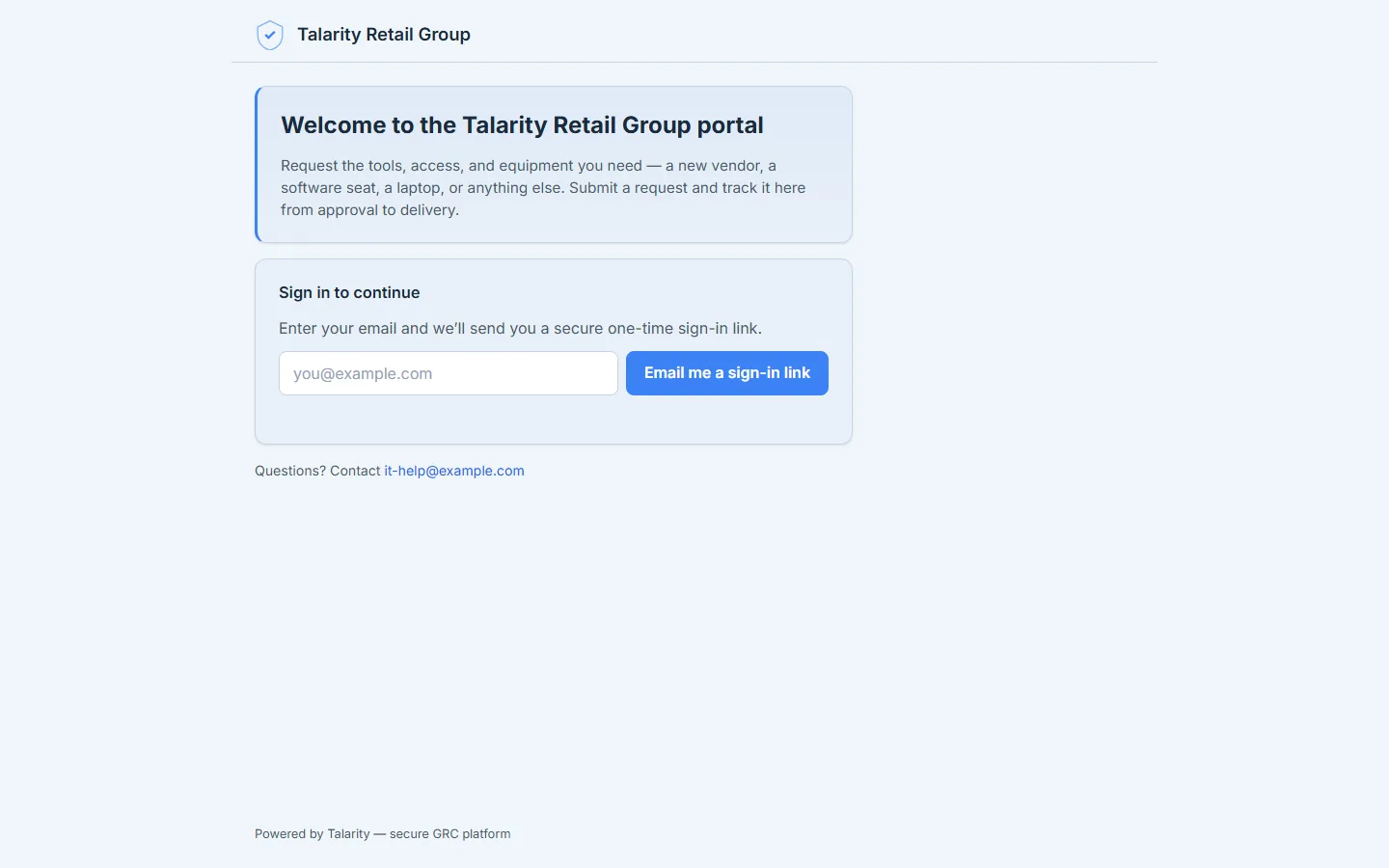
- The sign-in screen — your branding, a welcome message, and the one-time-link sign-in. This is all an unauthenticated visitor ever sees.
- Sign in — a one-time email link (a magic link); no password to manage.
- Request catalog — once signed in, the menu of what your team can ask for.
- My Requests — every request the signed-in guest has filed, with a live status timeline.
- My Documents — signature requests, policy acknowledgements, and onboarding tasks, in the same place.
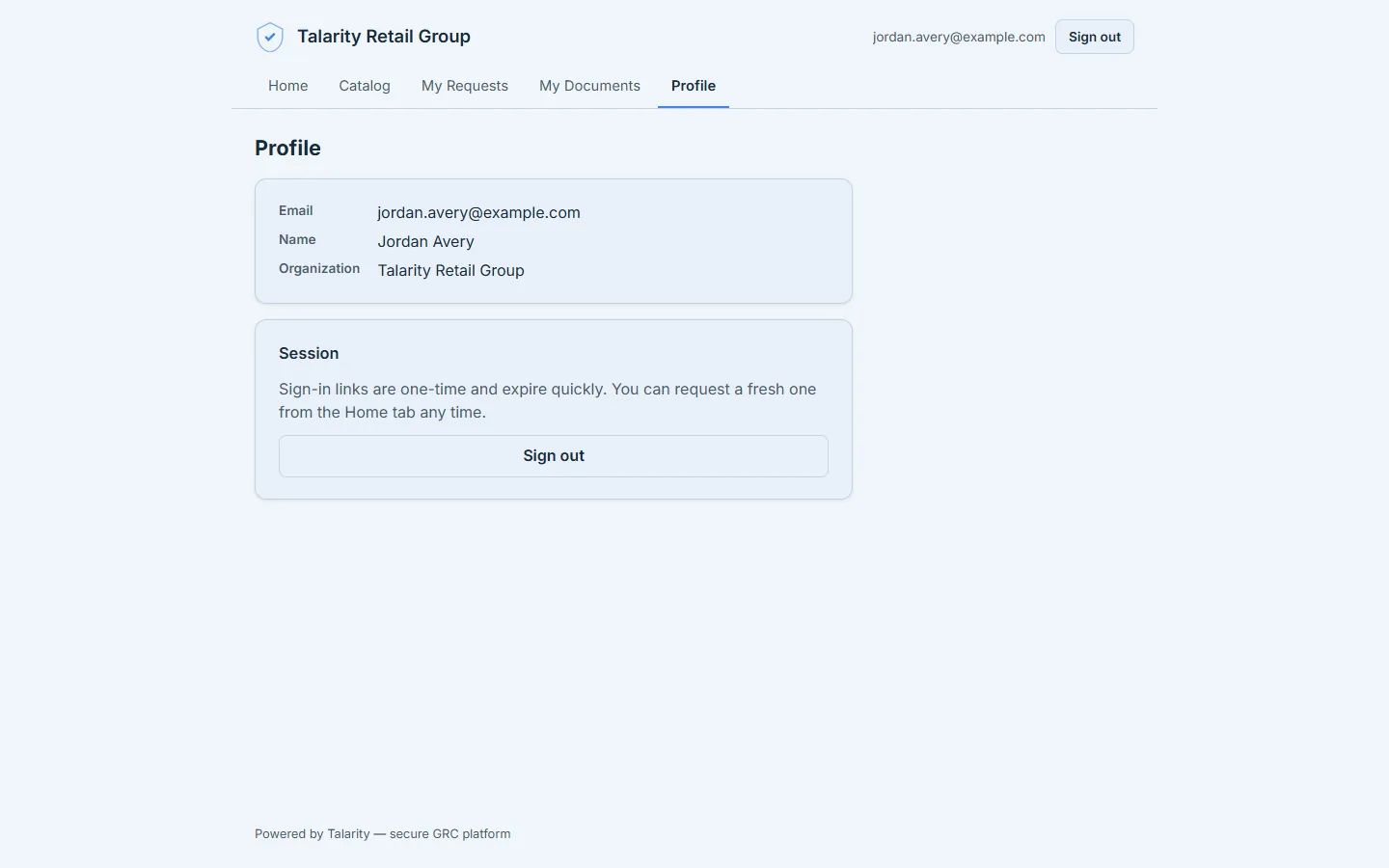
- Profile — the guest’s own name and email, and where they sign out.
Step 1 — Arrive at your organization’s portal
The portal is a page your organization owns — /portal/<your-org> — branded with your name and a welcome message you write. It is a sign-in screen, not a shop window: a visitor with the link sees your branding, your welcome copy, and a way to sign in — and nothing else. The request catalog, your team’s requests, and their documents are all behind the login, because the catalog itself (the vendors, the licenses, the request types your org uses) is internal information, not marketing.
Who’s allowed in is up to you. In Guest Management → Portal Settings you choose how guests get an account: invite only (an admin invites each guest by email) or allowed-domain (anyone with an email address on a domain you list is provisioned automatically the first time they request a link). Either way, the way in is always the same one-time link.
Step 2 — Sign in with a one-time link
There’s no password. On the Sign in to continue card, the requester types their email, and Talarity emails them a single-use sign-in link that’s good for fifteen minutes. Clicking it exchanges the link for a real session and drops them straight into their portal home. Behind the scenes the link is a 256-bit single-use token — used once, it’s spent — so a forwarded email can’t be replayed, and turning a guest’s access off takes effect on their very next click, not whenever a token would have expired. The confirmation is deliberately neutral (“if that email has access, a link is on its way”) so the page never reveals who does or doesn’t have an account.
Why a magic link and not a password? Your extended team shouldn’t have to manage another credential — and you shouldn’t have to manage their resets. The emailed link is the credential. When a contractor rolls off, an admin flips their portal access off and the next link they click simply stops working.
And if your organization uses single sign-on, the sign-in screen offers that too — a “Sign in with single sign-on” option appears whenever your org has SSO configured, running the same SSO flow your team already uses. Either way, signing in is only the door: a guest’s access to the portal is still governed by the portal-access grant an admin controls. Someone who authenticates — even through your own identity provider — but hasn’t been granted portal access lands on a plain “no access yet” message telling them to contact their administrator, never on someone else’s catalog. Authentication proves who you are; the portal-access grant is what lets you in.
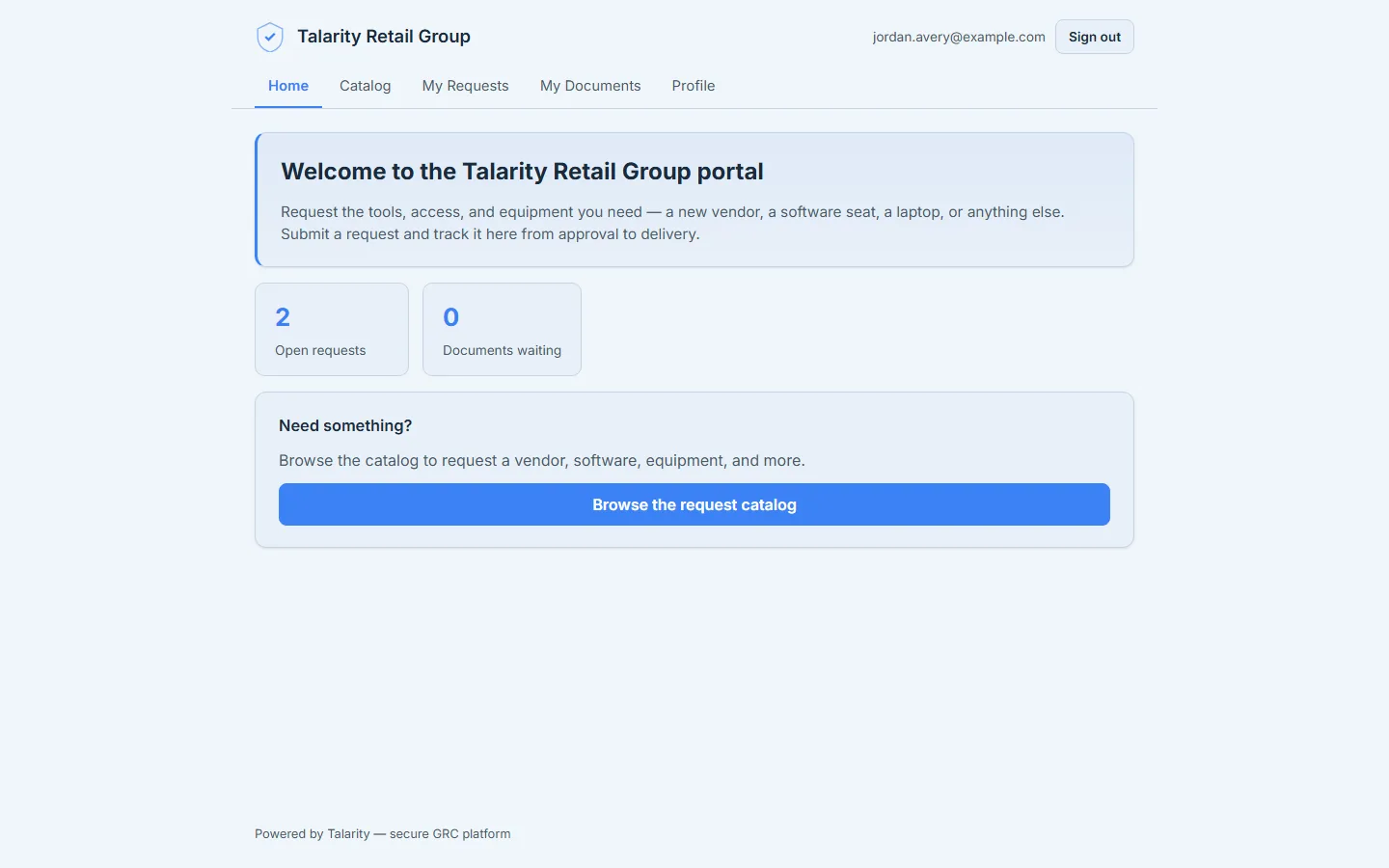
Once signed in, the home page greets the requester with what matters: how many requests they have open, and whether any documents are waiting.
Step 3 — Browse the request catalog
The Catalog tab is the menu of what your team can ask for. Talarity ships seven request types out of the box, and your admins can disable any of them, relabel them, or add fully custom ones:
- New Vendor — a supplier or partner your team wants to work with.
- SaaS Subscription and Cloud Service — a new software application or cloud platform.
- License Seat — a seat on a software license your organization already owns.
- Asset / Equipment — a laptop, monitor, or other physical gear.
- Service Engagement — a consulting, support, or facilities engagement.
- Other Request — anything else; describe it and it routes to the right team.
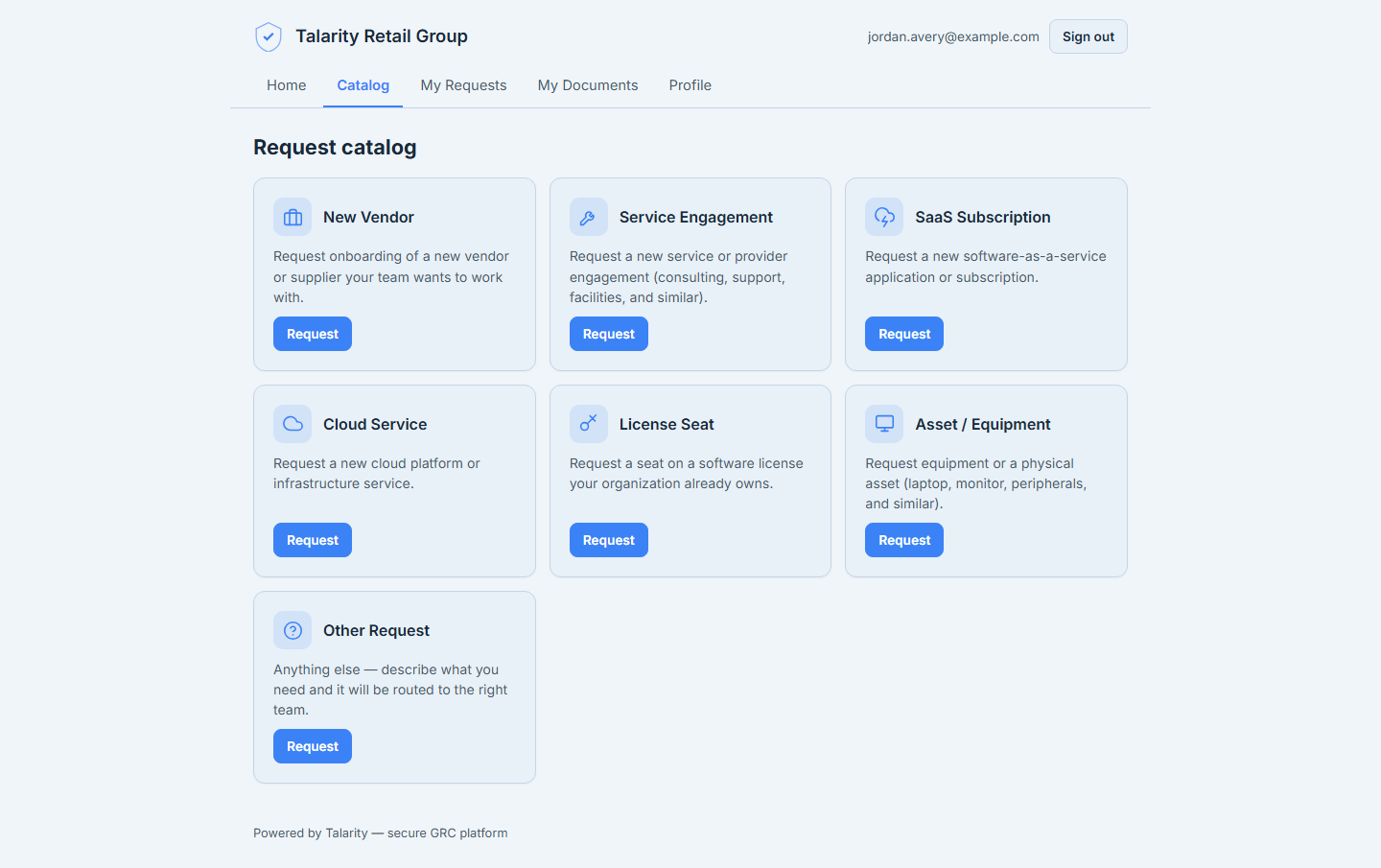
Each type carries its own request form and its own approval routing — so a New Vendor request can go to your vendor-risk lead while a License Seat request goes to IT, and each collects exactly the fields that request needs.
Step 4 — Submit a request
Picking a type opens its form. The fields are specific to what’s being requested — a New Vendor asks for the vendor’s name, website, and a business justification; a License Seat asks which license, and the picker shows the real pools your organization owns with live seat availability so the requester asks for something that actually exists.
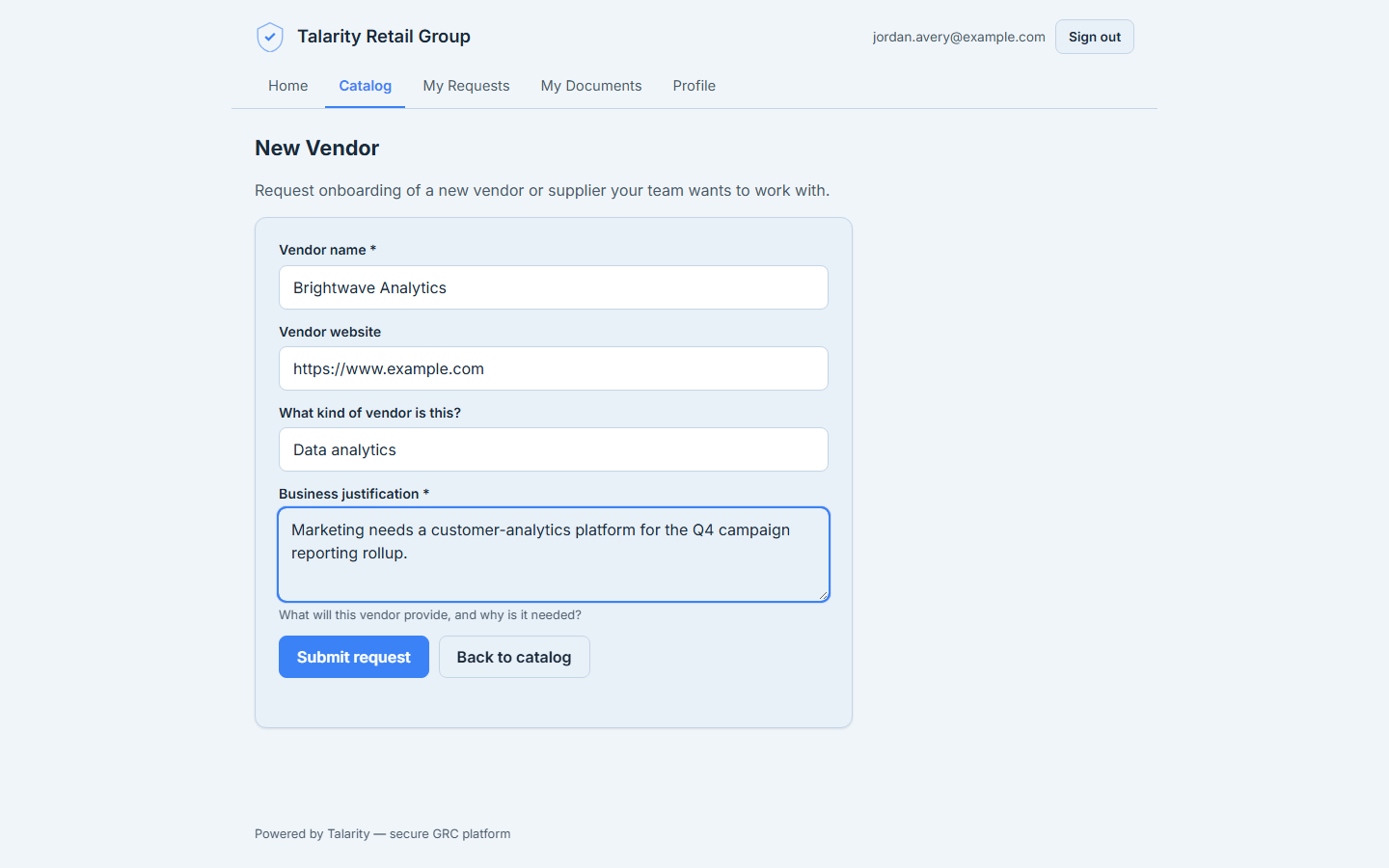
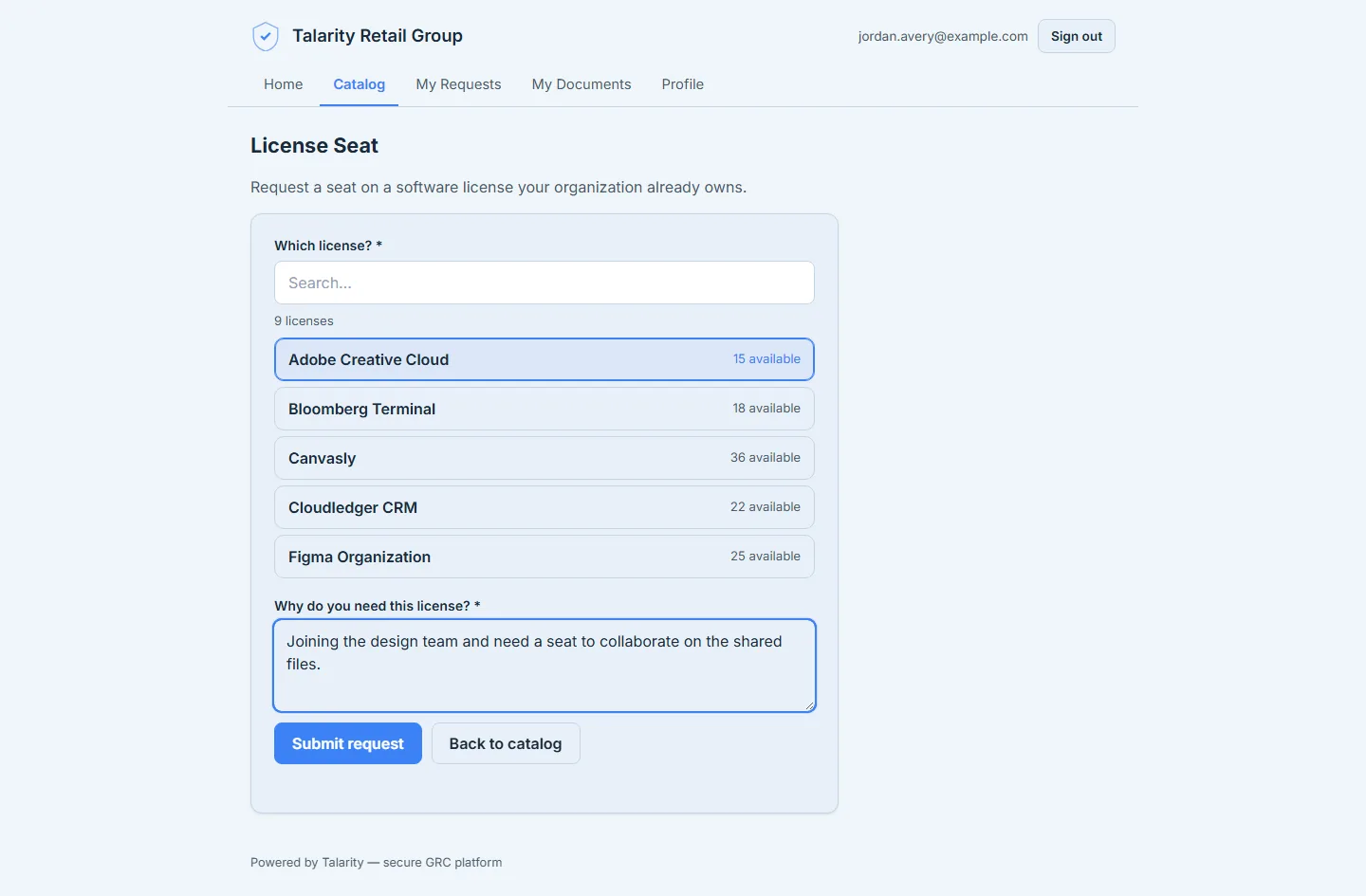
Submitting doesn’t just log a message. Talarity snapshots the request type, the form answers, and the approval routing onto a request record, resolves the current approver pool, and notifies them — their My Work approvals queue picks it up immediately. If the requester already has an identical request pending, the portal says so before it files a duplicate.
Step 5 — Track it from approval to delivery
The My Requests tab is the requester’s window into everything they’ve filed. Each row shows the request and where it stands — awaiting approval, approved, being completed, or done.
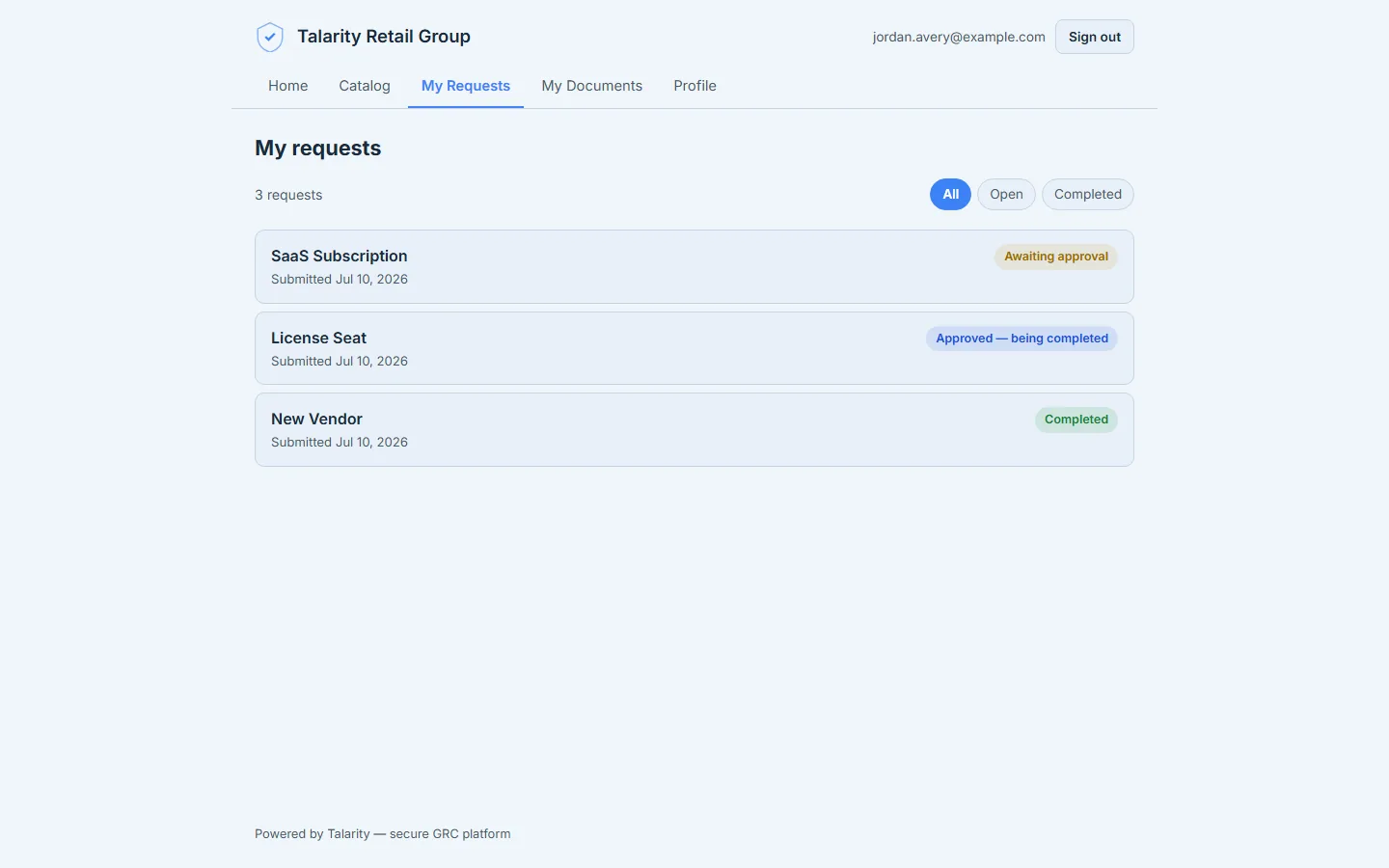
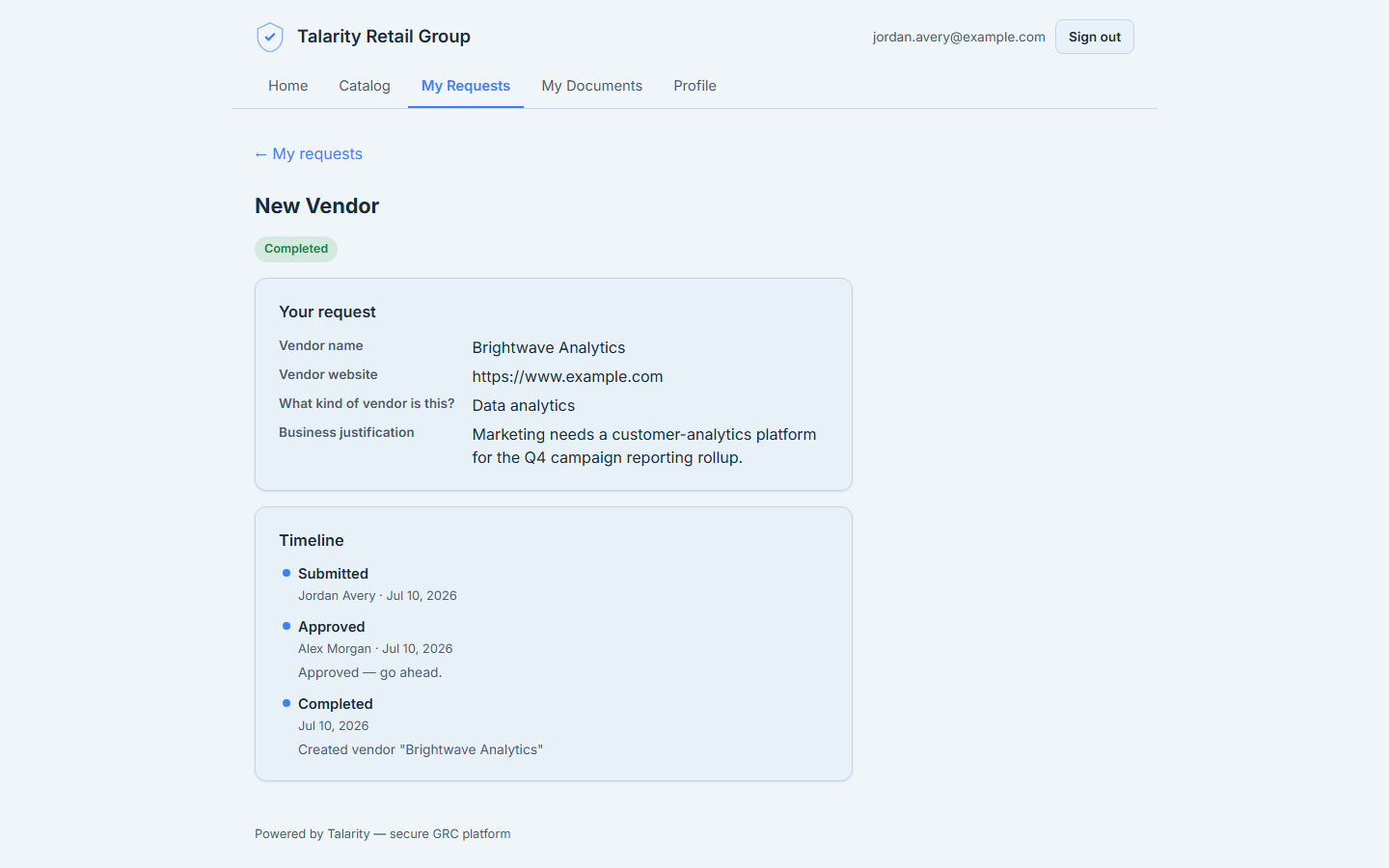
Opening a request shows the full timeline — the honest, dated record of what happened. Submitted, approved (with the approver’s note), and completed. This is the same trail an auditor pulls: who asked, who decided, and what the request produced.
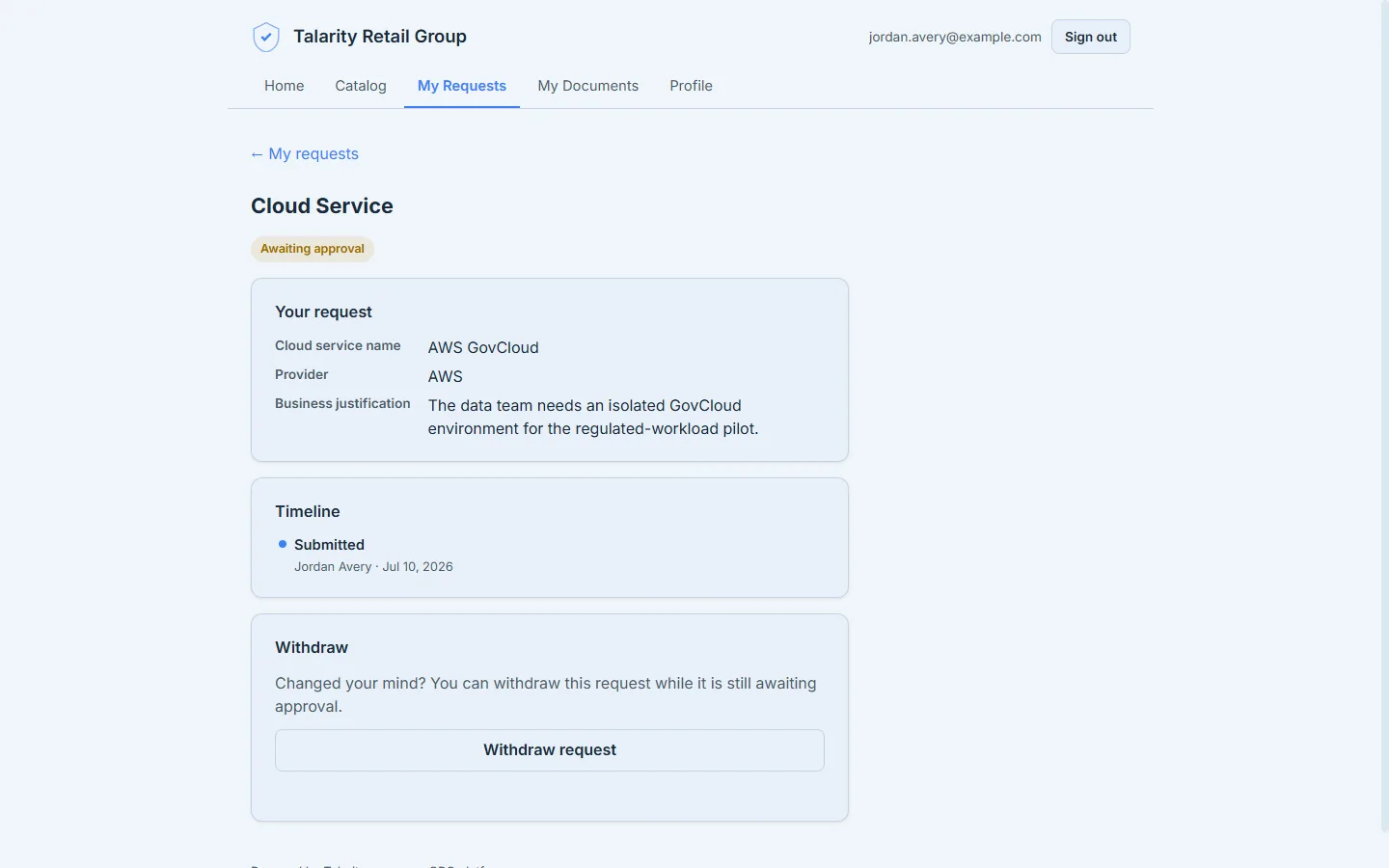
A requester isn’t stuck with a request they filed by mistake or no longer need. While a request is still pending — before anyone has approved it — its detail carries a Withdraw request button that cancels it in one confirm, and the request moves to Cancelled on the same timeline. Once approval has started, withdrawal is closed off (the decision is already in someone’s queue), so the button only appears while it’s genuinely the requester’s to cancel.
Here’s the part that makes the portal more than a suggestion box: on approval, the request fulfills itself. An approved New Vendor becomes a real, tiering-ready vendor record — that’s the Completed row above. An approved License Seat allocates a seat from the pool to the requester when they’re already in your workforce records; when they aren’t yet — a brand-new contractor, say — it routes to a staff member to finish, which is the Being completed row. An approved Asset request enters the equipment provisioning queue. Whatever the platform can’t finish automatically — a free-form “Other” request, or one that needs a person — becomes a staff work item with the full request detail attached, so nothing is ever silently dropped. Either way the requester watches the status move on the same timeline.
The request is the front of a workflow, not the end of one. A New Vendor request that a guest files here lands in the same vendor onboarding funnel covered in Onboarding a vendor; an approved License Seat writes into the seat ledger from Software licenses, tracked like seats; an equipment request joins the equipment custodian’s provisioning queue. The portal is the intake; those workflows are where the request lives out its life.
Your documents live here too
The portal isn’t only for requests. A guest who’s been sent a document to sign, a policy to acknowledge, or an onboarding task finds it under My Documents — the same home, one sign-in. Opening one drops them into Talarity’s secure document experience: the e-signature flow, the policy acknowledgement, or the onboarding stepper, exactly as covered in New-hire onboarding, gated end-to-end and Sending a policy for acknowledgement. The document link those articles describe still works on its own — the portal is simply a persistent second front door where a guest’s requests and documents sit side by side.
A Profile tab rounds out the guest’s home: their name, email, and organization, plus a Session note explaining the one-time-link sign-in and a clear place to sign out. It’s deliberately minimal — a guest identity is one email, one portal, nothing to configure — but it means the person always knows who they’re signed in as and can leave cleanly.
What you walk away with
- One branded portal per organization at
/portal/<your-org>— the single place your extended team asks for what they need. - Passwordless sign-in — a single-use magic link (or your org’s single sign-on, when configured), no credential for you or them to manage, and an instant off-switch.
- A governed request catalog — seven types out of the box, per-type forms, per-type approval routing, and custom types when you need them.
- Auto-fulfillment on approval — an approved request becomes a vendor record, a license seat, or a provisioning task, with a staff work item as the never-dropped fallback.
- A live timeline on every request — the audit trail of who asked, who approved, and what it produced, without anyone assembling it by hand.
Turn yours on this afternoon. In the app, open Guest Management, flip the portal on, set your access mode, and share your /portal/<your-org> link. The first request your team files takes them about a minute — and it arrives in your queue already linked to the record it will become.
Setting it up from the admin side is its own walkthrough: Stand up your request portal (zero to live in ten minutes), Design your request catalog (shape what guests can request), and Guests, without the sprawl (invite, govern, and promote the people who file these requests).