Every assessment, audit and gap analysis ends the same way: a list of things to fix. The list is the easy part. What happens to it over the following quarter is the hard part, and it is where most improvement programmes quietly fail — not because the work was wrong, but because six weeks later nobody can say which items started, who owns them, or which of them has already slipped past a date somebody promised an auditor.
Initiative Management is the page where an identified improvement stops being a line in a report and becomes a piece of work with a name, an owner, a target date and a set of milestones you can tick off. It is deliberately unglamorous. Its job is to make the state of the improvement programme impossible to misremember.
There is a standards reason for it as well as a practical one. ISO 27001’s Clause 6.2 does not simply ask you to set security objectives — it requires you to plan them, and it enumerates what a plan must say: what will be done, what resources are required, who is responsible, when it will be completed, and how the results will be evaluated. That enumeration is, almost field for field, an initiative record. Clause 10.1 then asks the organisation to continually improve the suitability, adequacy and effectiveness of the management system, which is the same list viewed over time.
NIST CSF 2.0 comes at it from the other side. Its Improvement category (ID.IM) requires that improvements are identified from evaluations (ID.IM-01) and from security tests and exercises, including those done in coordination with suppliers and relevant third parties (ID.IM-02). CSF is explicit about identifying them. It is silent on what stops you losing them afterwards. This page is that.
Who’s involved
- The security or GRC lead owns the programme: what is in it, what order it happens in, and what gets escalated when a target date is at risk.
- An initiative owner — usually an engineering or IT manager — owns one initiative and the milestones under it.
- The auditor never touches the page, but reads its output: what you committed to, when, and whether it happened.
The four numbers to read first

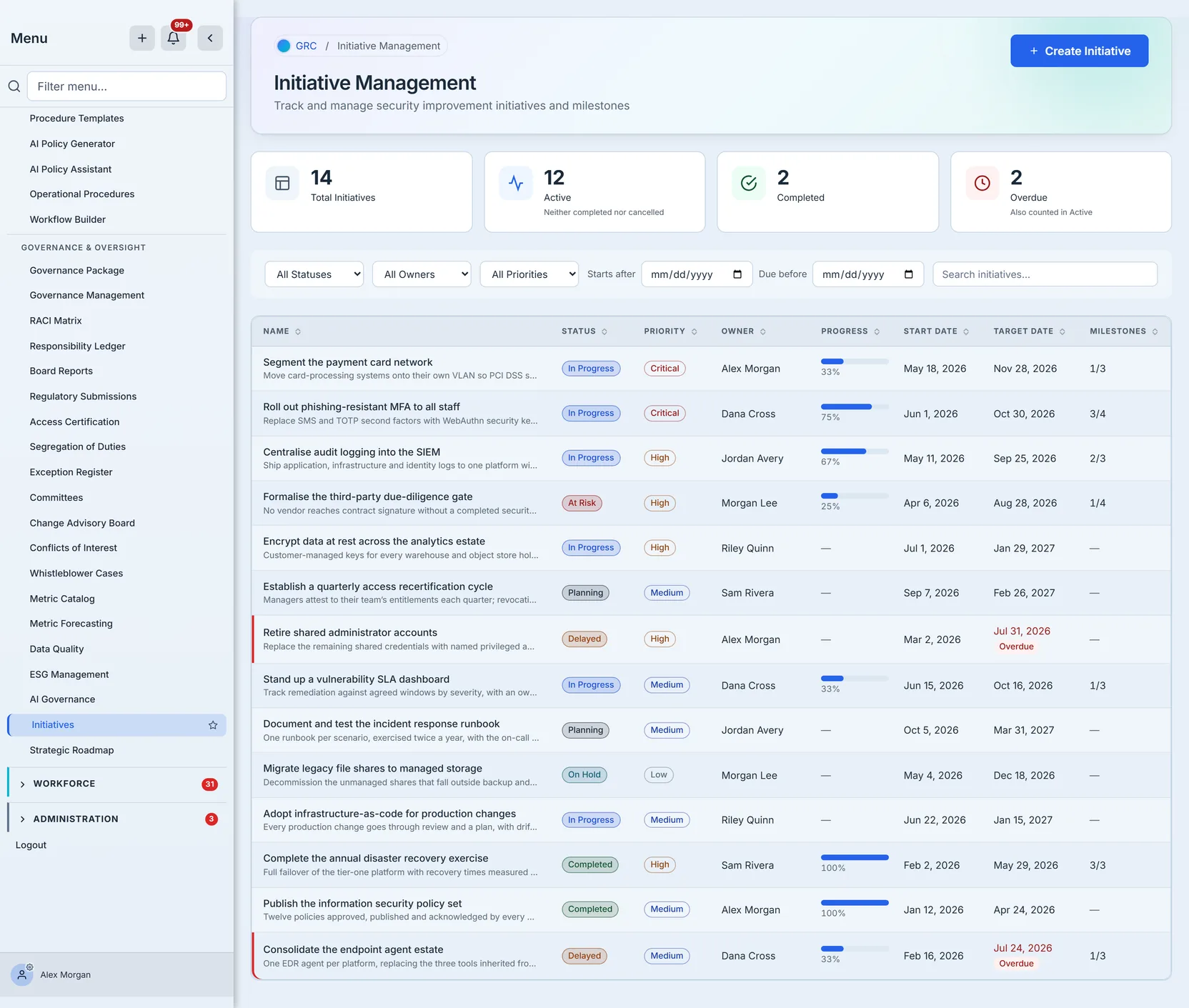
Total, Active, Completed and Overdue. The last one is the only uncomfortable number, and it is the point: it counts initiatives that are still open and whose target date has already passed. A programme with a healthy backlog and an overdue count of zero is being managed. A programme whose overdue count grows every month is a list, not a programme.
Overdue is a slice of Active rather than a fourth bucket — an initiative that is late is still an initiative you are working on — so the four numbers are not meant to add up to Total.
Active means neither completed nor cancelled. That second exclusion is worth knowing: a cancelled initiative is counted in Total and in nothing else, so if you cancel work rather than completing it, Active and Completed will not sum to Total, and the difference is exactly what you abandoned. That is a useful number to notice at a review, and it is the reason the card says what it says rather than “everything still open”.
Each card is also a filter. Clicking one narrows the list below to exactly the initiatives it counts, and clicking it again restores the full list. That matters most for Overdue, which is derived from a date rather than stored as a status: there is no status called “overdue” to pick from a dropdown, so the card is how you get from the number to the initiatives behind it. The card filter stacks with the others, so “overdue, owned by Dana” is two clicks.
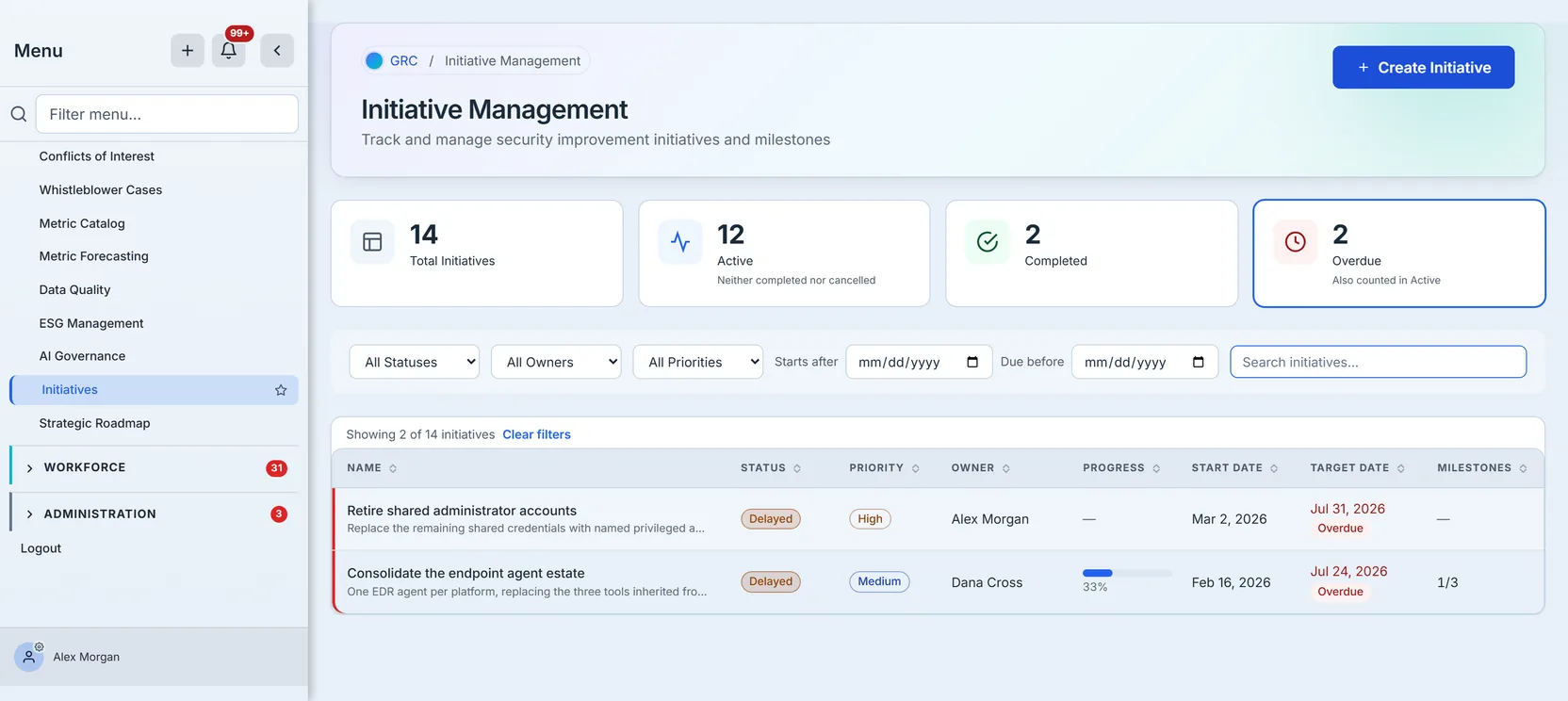
This is the pass to run before a steering meeting, and it is worth running it first: a number nobody has opened is a number nobody has argued with.
Creating an initiative
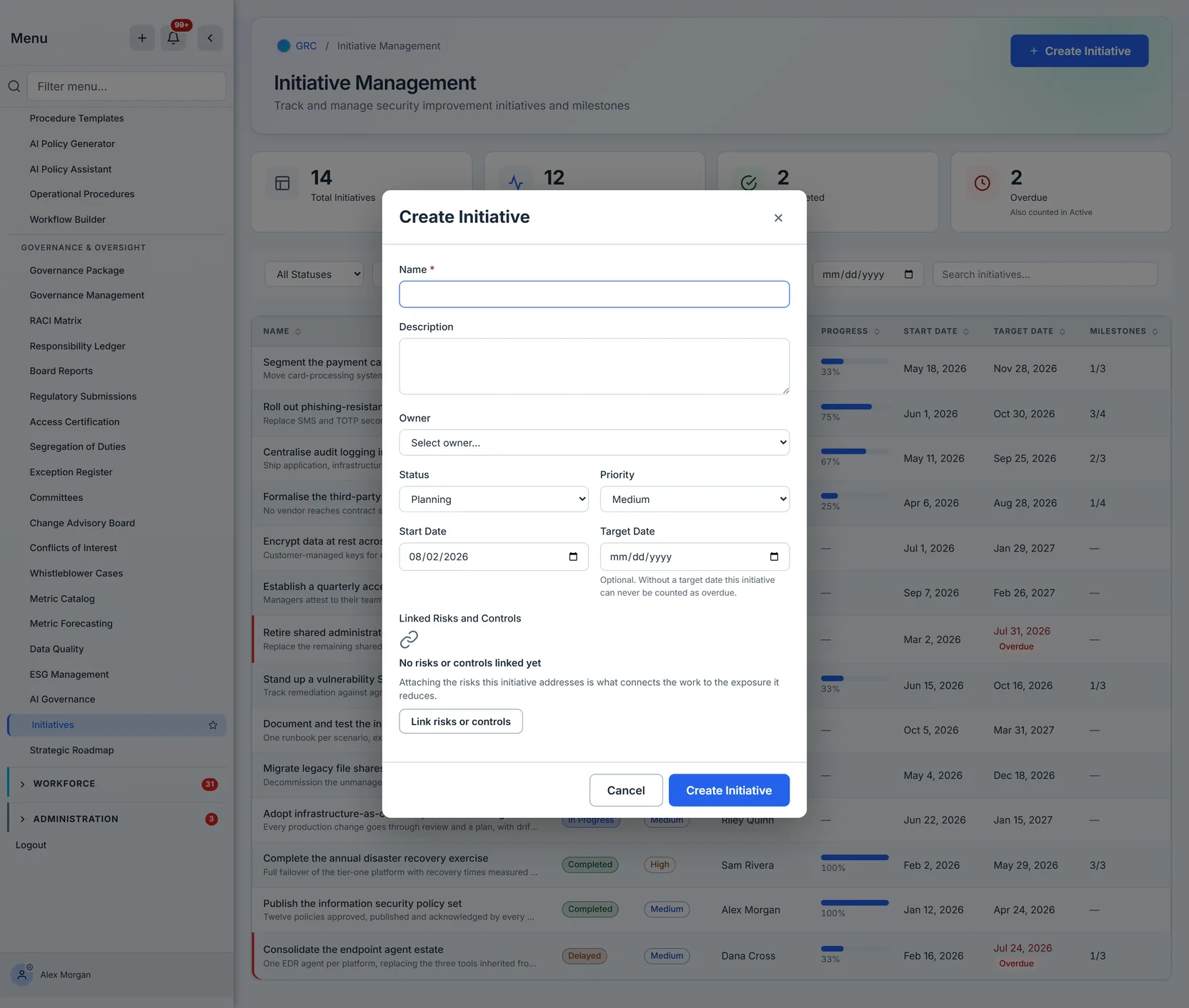
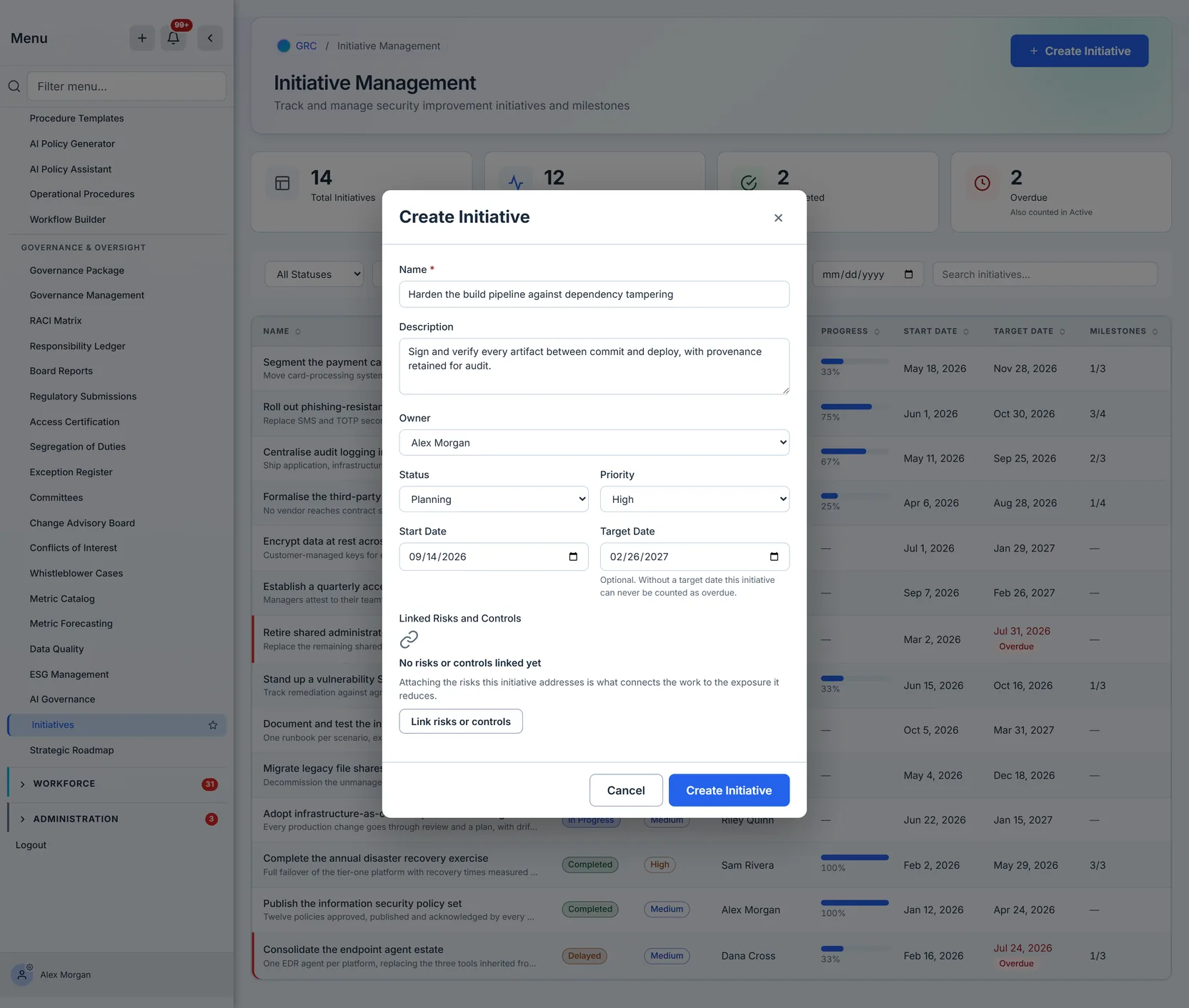
An initiative needs a name and very little else to exist, but the fields it offers are the ones Clause 6.2 asks for, and filling them is what makes the record useful three months later.
Status uses one vocabulary across the whole product — Planning, In Progress, At Risk, Delayed, On Hold, Completed, Cancelled. The same words appear on the Strategic Roadmap, because both pages manage the same records; an initiative created on one is editable on the other without translation.
Priority runs Critical, High, Medium, Low. Critical is worth being disciplined about — a backlog where everything is critical tells you nothing.
Owner is a person chosen from your organisation’s users, not a team name typed into a box. That matters for the same reason Clause 6.2 lists “who will be responsible” as a requirement distinct from “what will be done”.
Start and target dates bracket the work. Only the target date feeds the Overdue card — an initiative with no target date can never be counted late, however long it runs, so leaving it blank is what makes that number under-report.
Attaching the risks it addresses
The create form carries a Link risks or controls button, and so does every initiative you already have — reached from Edit, or from Manage links on its detail panel. The walkthrough below uses an existing initiative, because that is the more common case: the risk you want to attach is often one you only identify halfway through the work.
This is the field that turns an initiative from a task into an argument. Improvement work is easy to justify in the abstract and hard to justify in a budget conversation; attaching the specific risks it reduces gives you the sentence you actually need — this project exists because of these two risks, and finishing it reduces that exposure.
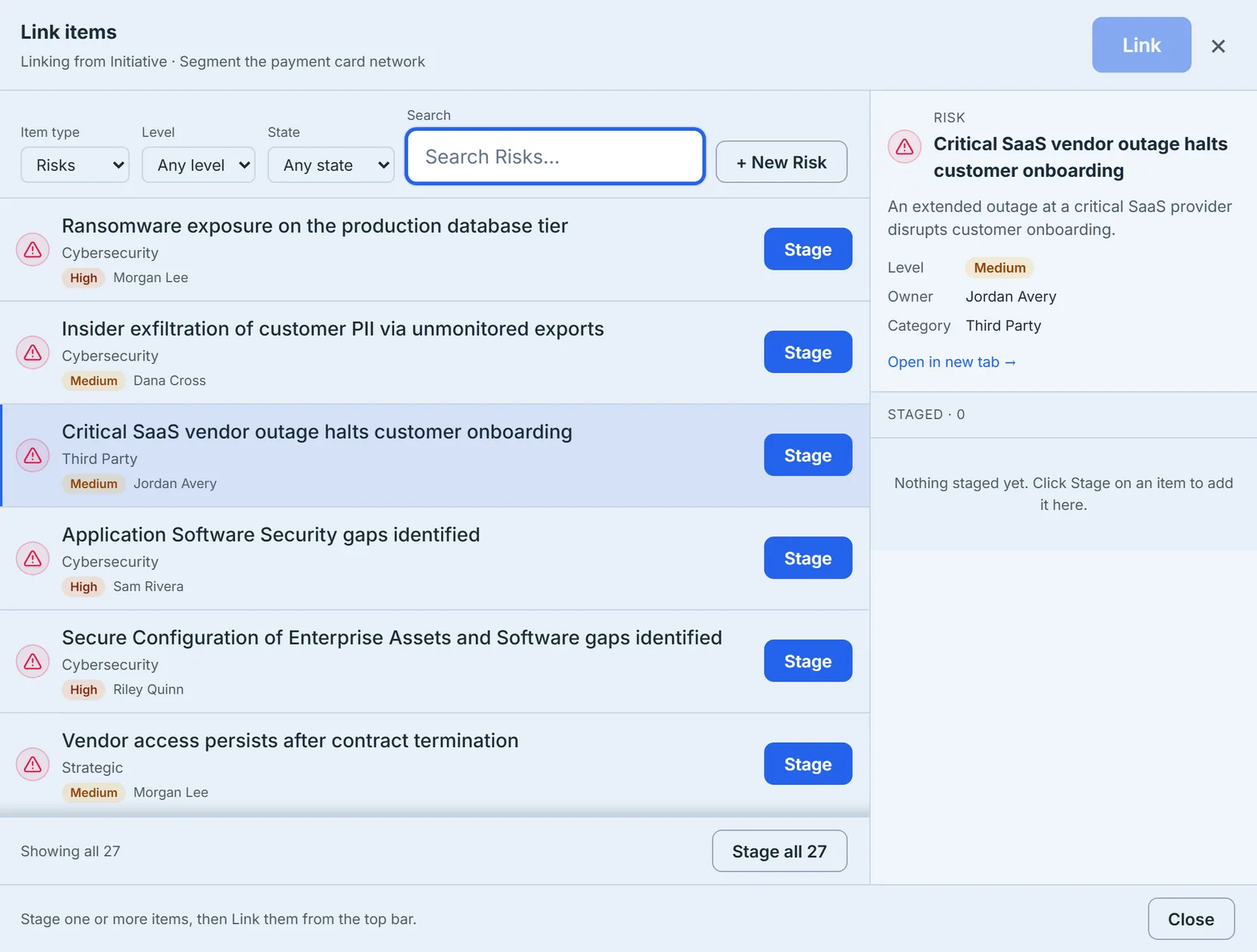
The picker browses by type and searches within it, so it behaves the same whether your register holds five risks or four hundred. Search runs against the register itself rather than filtering rows already on screen, so it reaches risks the first page never loaded; when a register is larger than one page the footer says so and offers to load the rest, rather than implying you are looking at everything.
Each row carries the risk’s severity beside its name, colour-coded by level. That is the field that usually decides the choice — you are looking for the ones bad enough to justify the work — so it is deliberately the one thing on the row you can read without stopping.
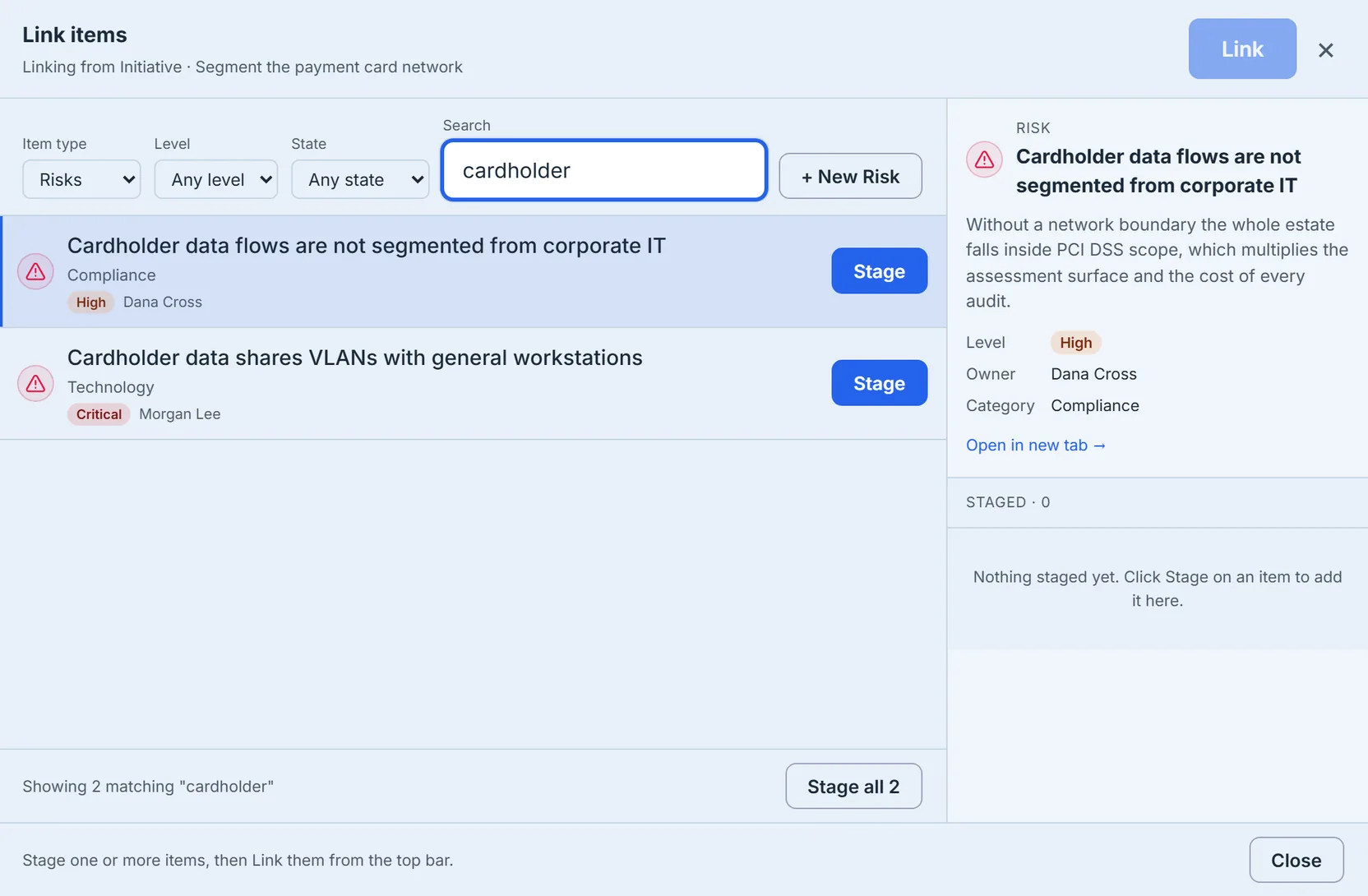
Stage the ones you want, then link them in one action. Where a search has already narrowed the register to the set you want — every risk mentioning “cardholder”, say — Stage all takes the whole filtered list in one click rather than one click per row, and counts only the rows you have not staged already, so the number on it is the number of clicks it saves.
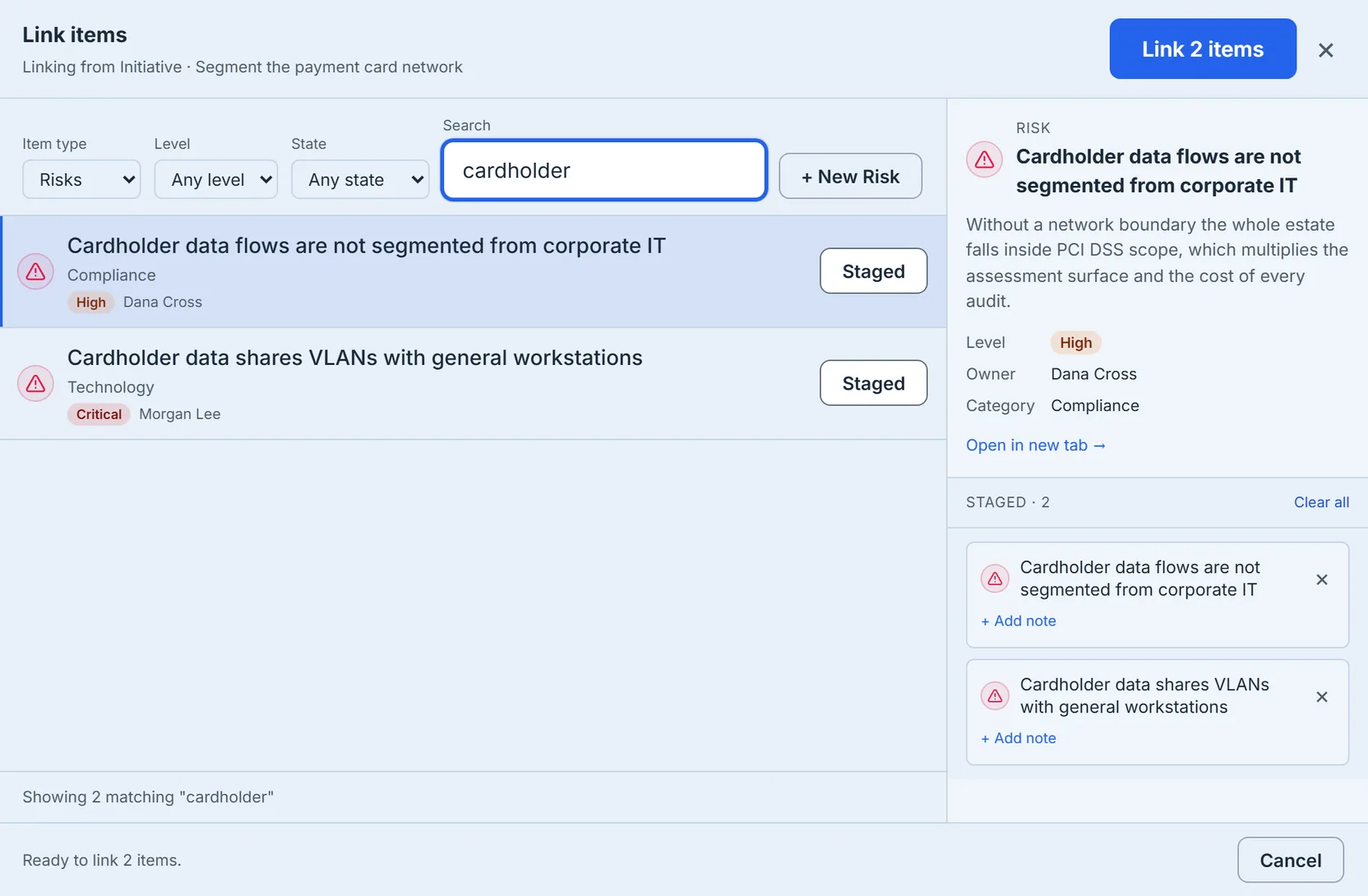
Each staged item can carry a short note before you commit it — useful when the reason a particular risk is attached is not obvious from its title, and worth writing while you still remember why you picked it.
They come back as chips on the form, and nothing is committed until you save — so closing the form without saving leaves the initiative exactly as it was.
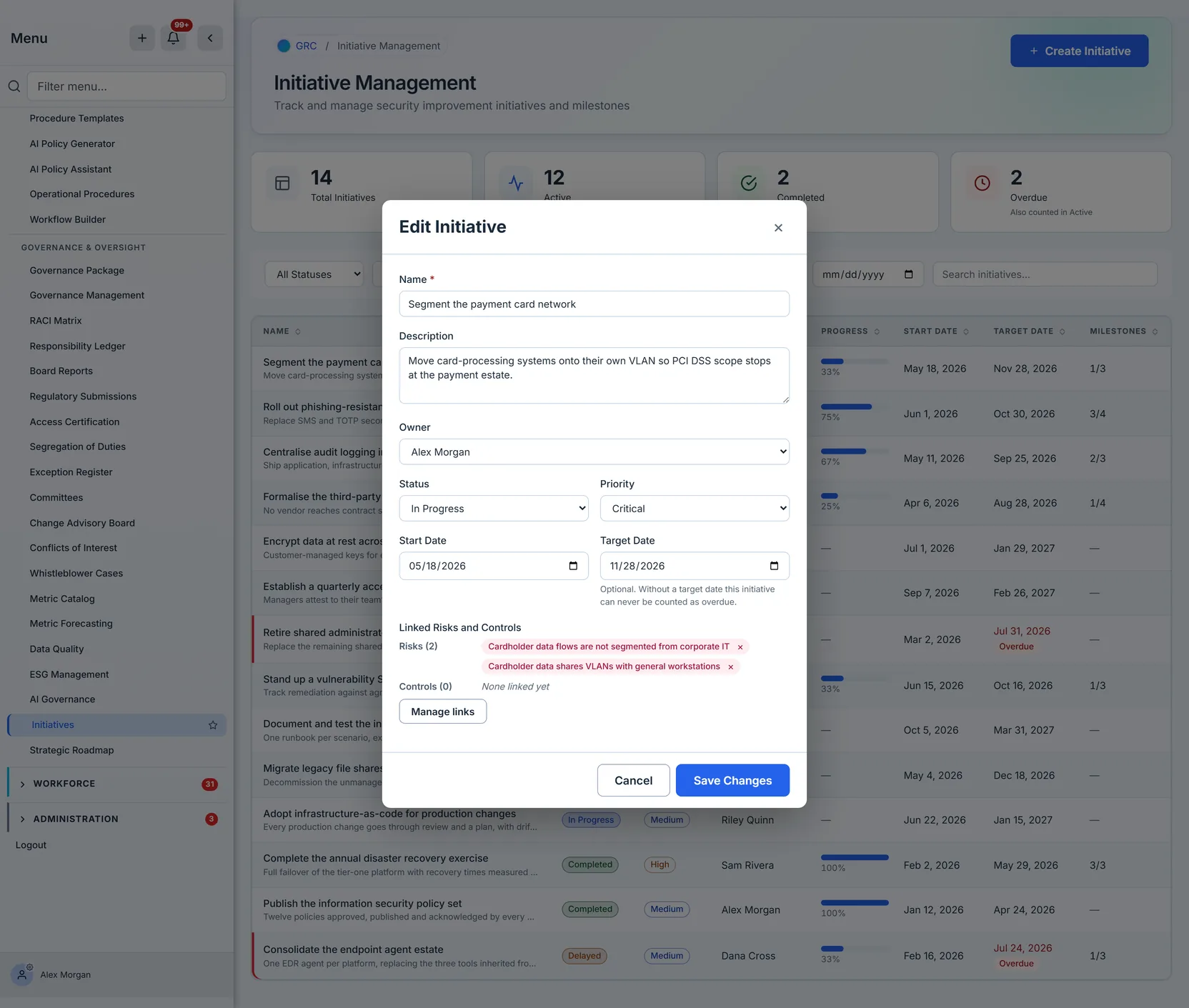
The names are resolved as the form opens, so the chips say what each risk is rather than showing an identifier — and reopening the initiative later brings them back the same way.
Reading the list
One row per initiative: name with a snippet of its description, status, priority, owner, a progress bar, both dates, and the milestone count. Rows whose target date has passed while the work is still open are highlighted and the date itself is labelled Overdue, so the Overdue card above has somewhere to point — and so the state survives a greyscale print or a reader who does not separate red from grey.
The progress column says one of three things, and the distinction is deliberate. A percentage means something measured it — milestones ticked, or a figure recorded against the initiative. An em dash means nothing has, which is not the same as zero and is not drawn as an empty bar. And Complete — which you will not see above, because every finished initiative in this programme was measured — means the work is done but no measurement was ever taken: the status is known, the percentage is not, and inventing a 100% there would be indistinguishable from a genuinely measured one. The two 100% rows in the table are real ratios, three milestones of three and a figure recorded against the initiative.
Every column sorts, and the ones that need it sort on the underlying value rather than the text: progress orders by percentage and keeps initiatives nobody has measured yet separate from the ones genuinely sitting at zero, the two date columns order chronologically, and the milestone column orders by how many milestones exist. Sorting by target date is the fastest way to see what is coming.
Narrowing it
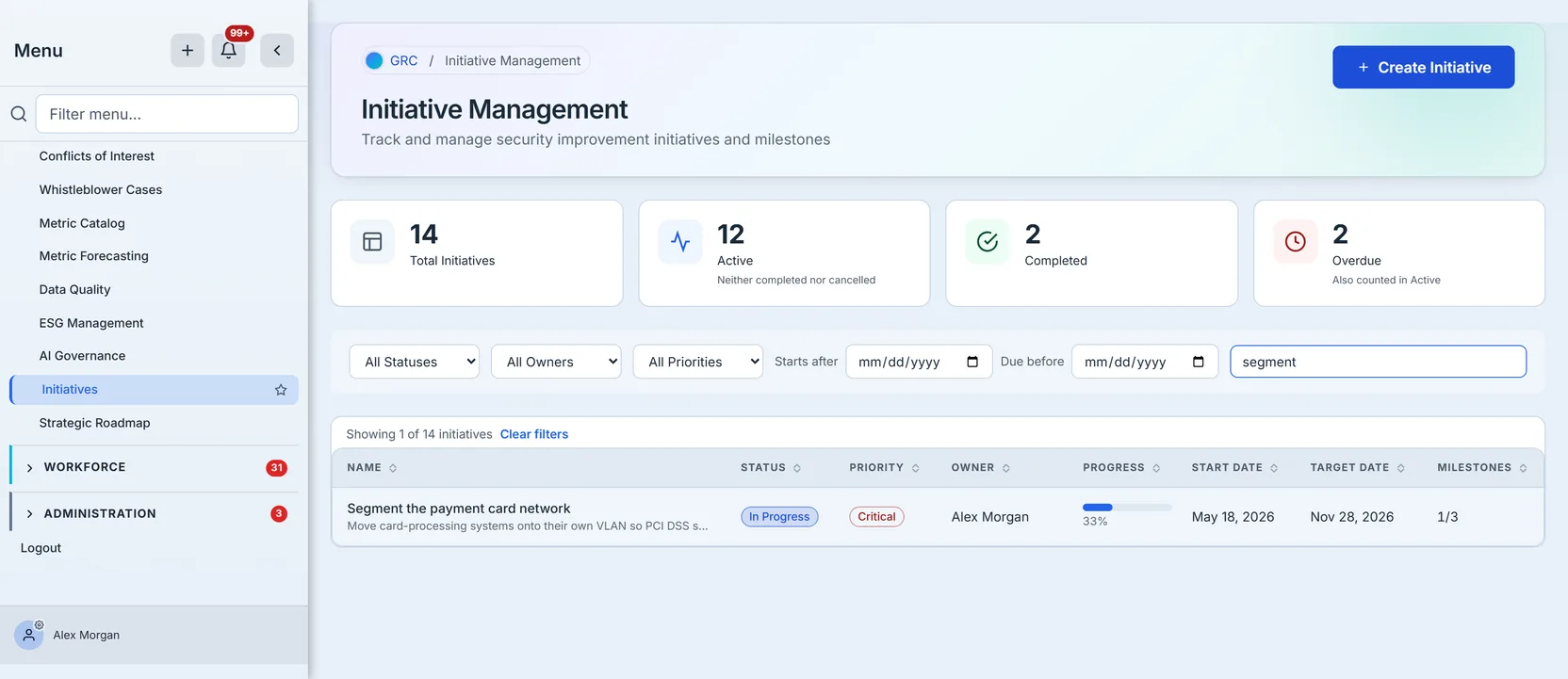
Five filters — status, owner, priority, a search box that matches on name and description, and a pair of date bounds — plus the summary cards above them. Each takes one value at a time and they narrow together. Whenever a filter is hiding something, the list says how many of the total it is showing and offers Clear filters beside the count, so a short list is never mistaken for a small programme. Clearing resets the controls as well as the result — every dropdown, both date bounds, the search box, and the pressed state of whichever summary card was acting as a filter. That matters more than it sounds: a control still showing a selection that is no longer applied is how people end up trusting the wrong number.
Two empty states are worth knowing before you meet them, because they say different things. Before anything exists, the page explains itself rather than showing a blank table: an icon, No Initiatives, and a line about tracking security improvement projects. If you can create, it offers Create Initiative there; if you cannot, it says instead that no initiatives have been recorded yet — the same fact without a button you are not allowed to press, and without copy that implies you should act. The second state is narrower: No initiatives match these filters appears when the programme is not empty but your filters exclude everything, which is a prompt to widen them rather than a statement about the programme. Reading one as the other is the mistake the two wordings exist to prevent.
The programme also exports. The export produces a CSV of the initiative list — name, status, priority, owner, progress, both dates and the completed-of-total milestone counts — and takes its own status filter rather than inheriting the one on screen, so what you export is a decision rather than a side effect of how you happened to leave the page. It is the right artefact for a steering pack or an auditor who wants the programme as of a date; it is not a substitute for the page, because the linked risks and the milestone detail live one level down from what a flat row can carry.
The date pair is worth reading carefully, because the two bounds are not two ends of one range: Starts after filters on the start date and Due before filters on the target date. Together they answer “what did we begin after the last review and commit to finishing before the next one”, which is a more useful question than “what falls inside these dates”.
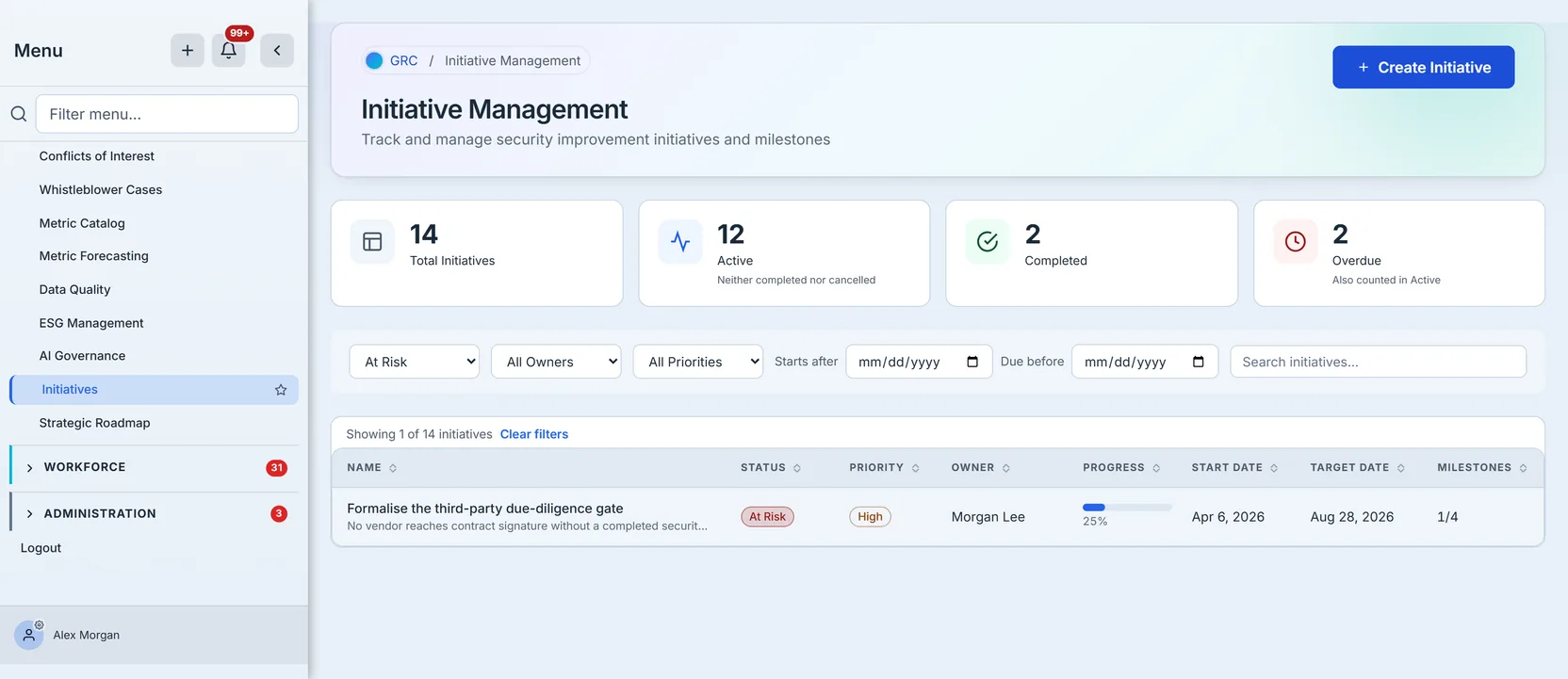
The pass worth doing before a steering meeting is status = At Risk, then the same pass on Delayed. Two short lists of work that is both important and not going well makes a better agenda than one long list of everything open.
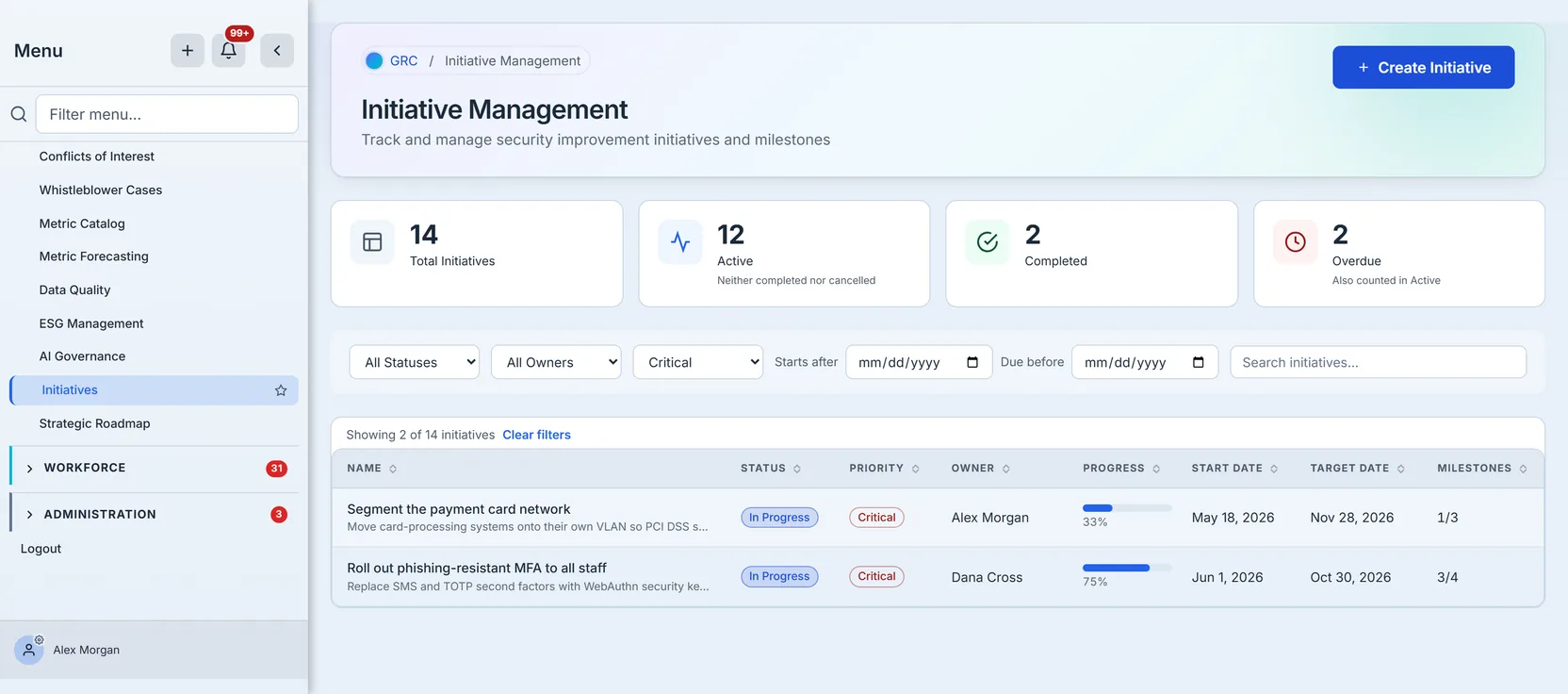
Search is the fastest way back to a specific piece of work when someone asks about it by name.
Working an initiative
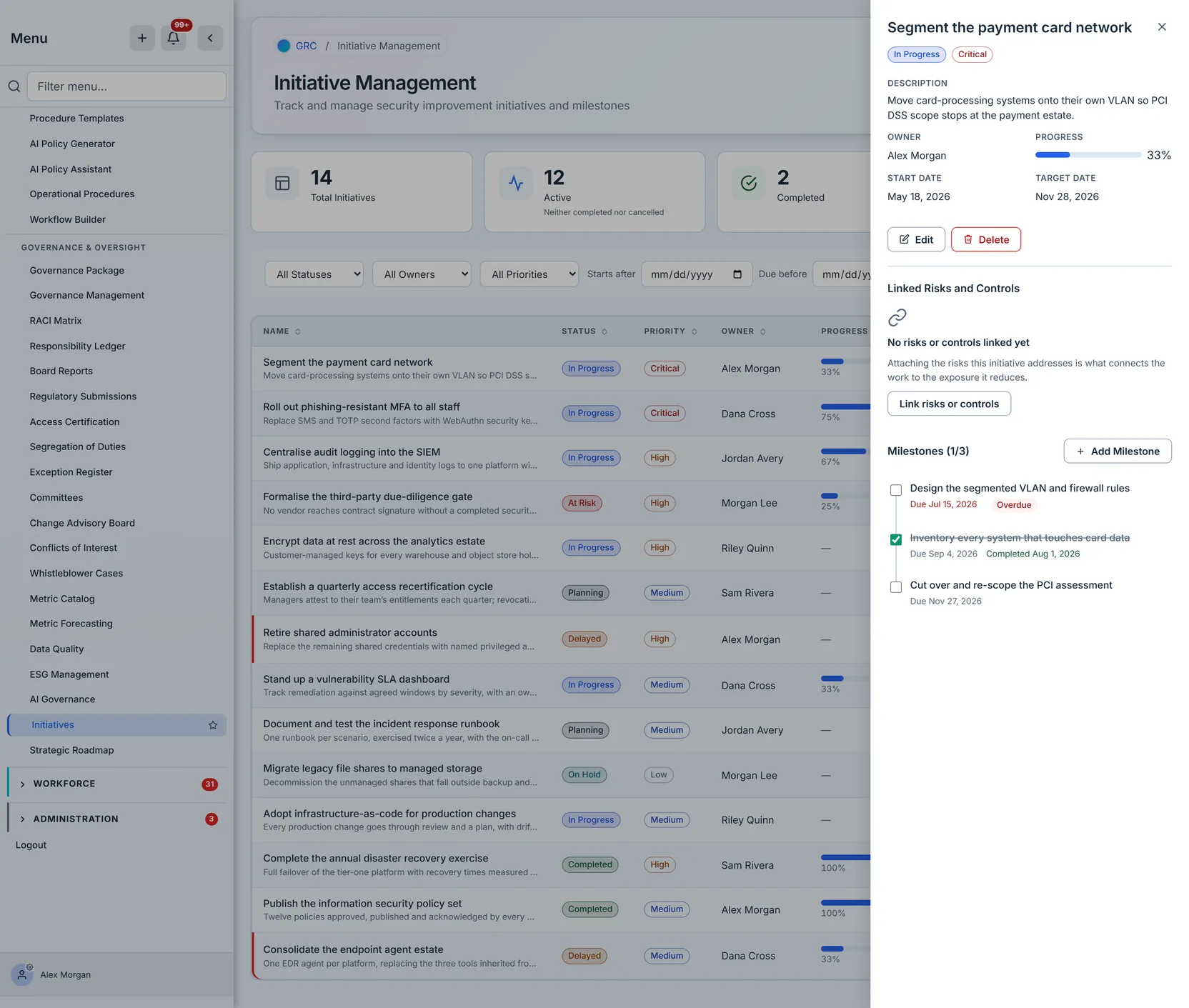
Clicking a row opens the detail panel beside the list, so you keep your place.
Milestones
Milestones are how a six-month initiative stops being a single date that everyone ignores until the week before. Each has a name, an optional description and a due date; the timeline orders them by date and marks the ones that are late — in the same word the list uses for a late initiative, Overdue, rather than in colour alone, so the state survives a greyscale print and a reader who does not distinguish red from grey.
Lateness is judged on calendar days rather than on the moment you happen to be looking, so a milestone due today is not late until today is over — wherever in the world the person reading it sits.
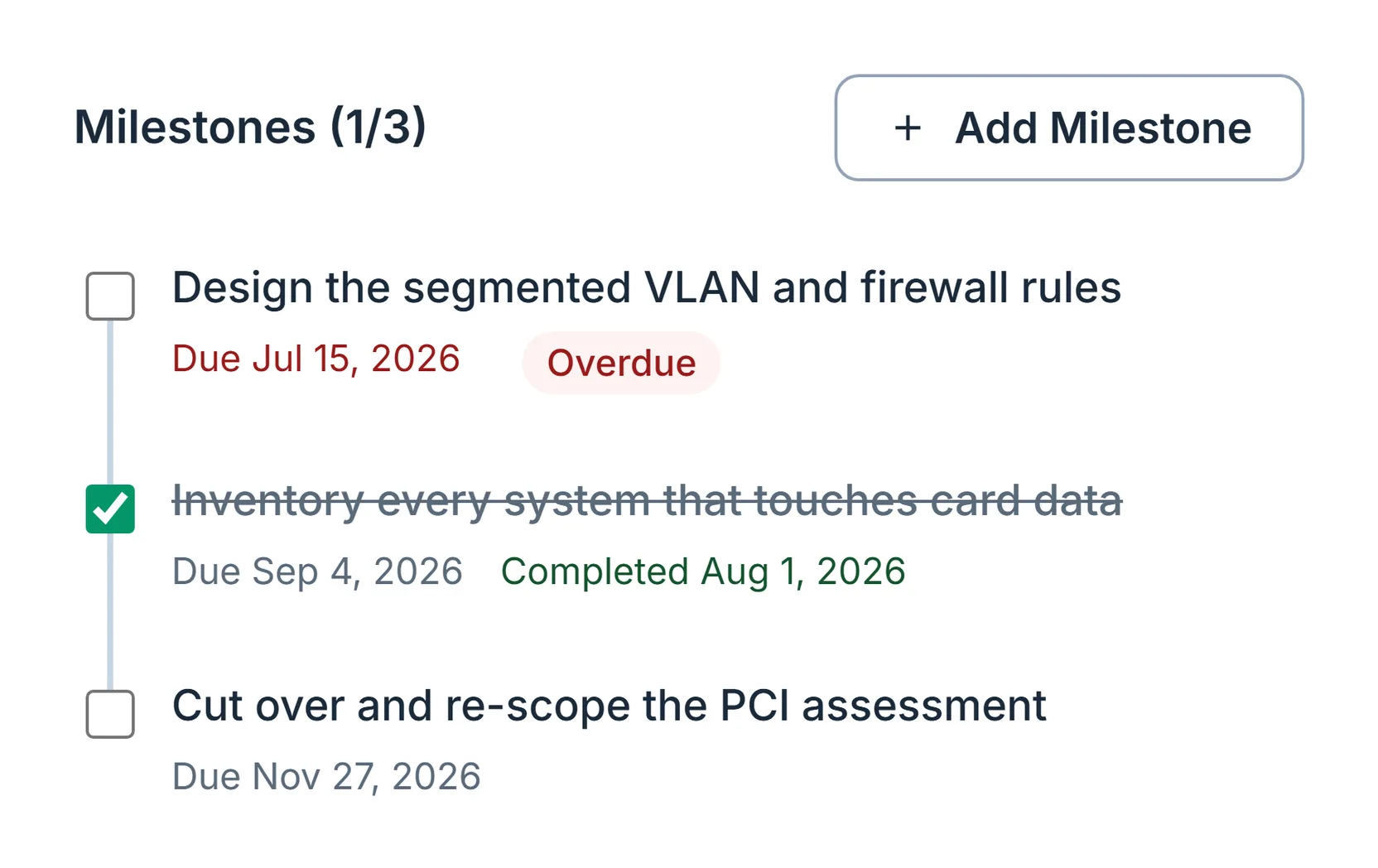
Ticking one off updates the initiative’s milestone count in the list and moves its progress bar — the 1-of-3 above is the 33% on the row. Ticking it does not erase the fact that it was late: a milestone completed after its due date is marked Completed late, so a timeline that was chased into shape still reads as one that was chased, rather than as one that ran to plan.
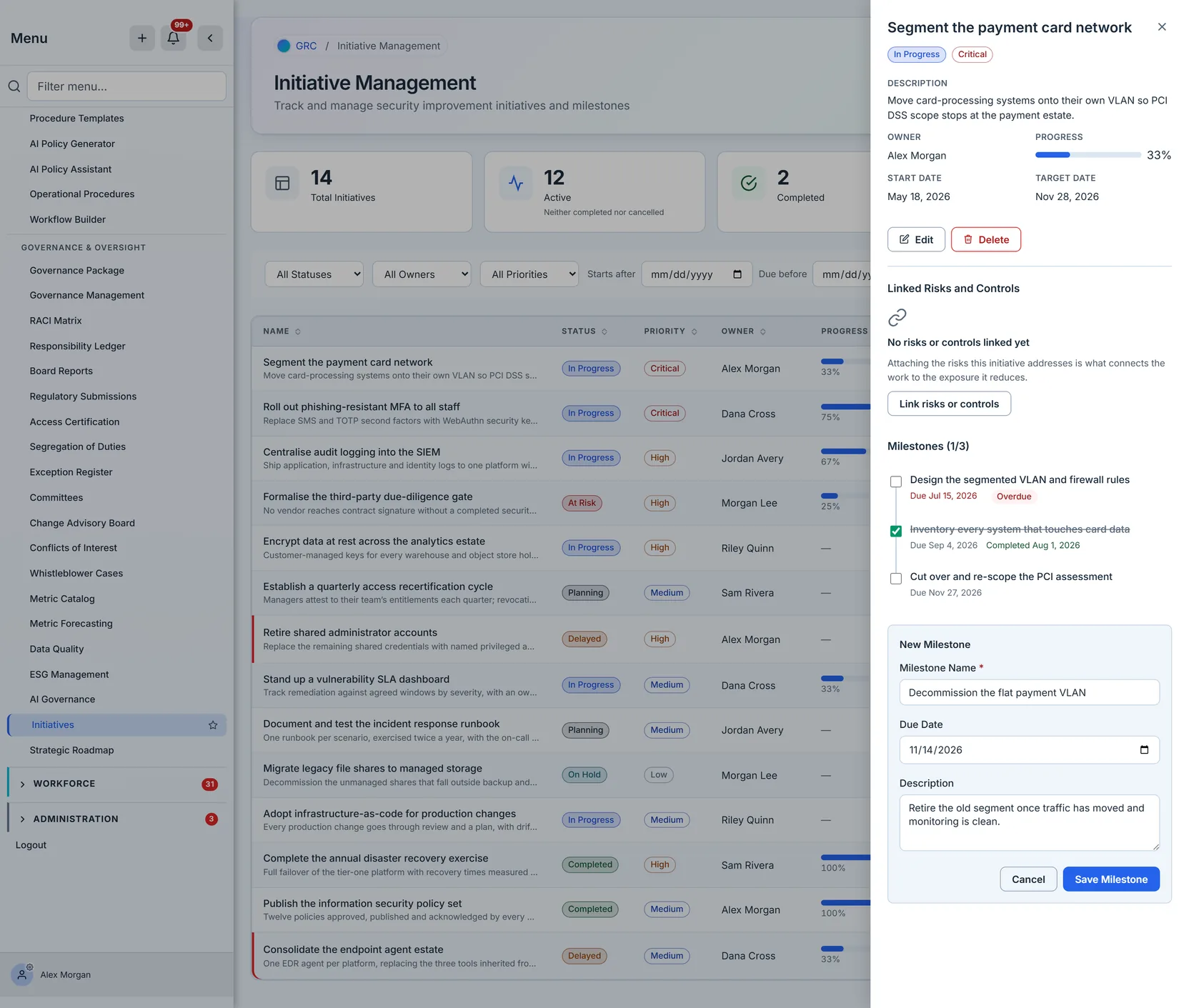
The discipline that makes this work is unglamorous: update the milestone when the work happens, not when someone asks. A milestone list that is only ever updated the day before a steering meeting is a worse signal than no milestone list at all, because it looks like evidence.
Editing
Edit reopens the same form with the record’s stored values already in it — name, description, status, priority, owner and both dates — so changing one field does not mean retyping the rest.
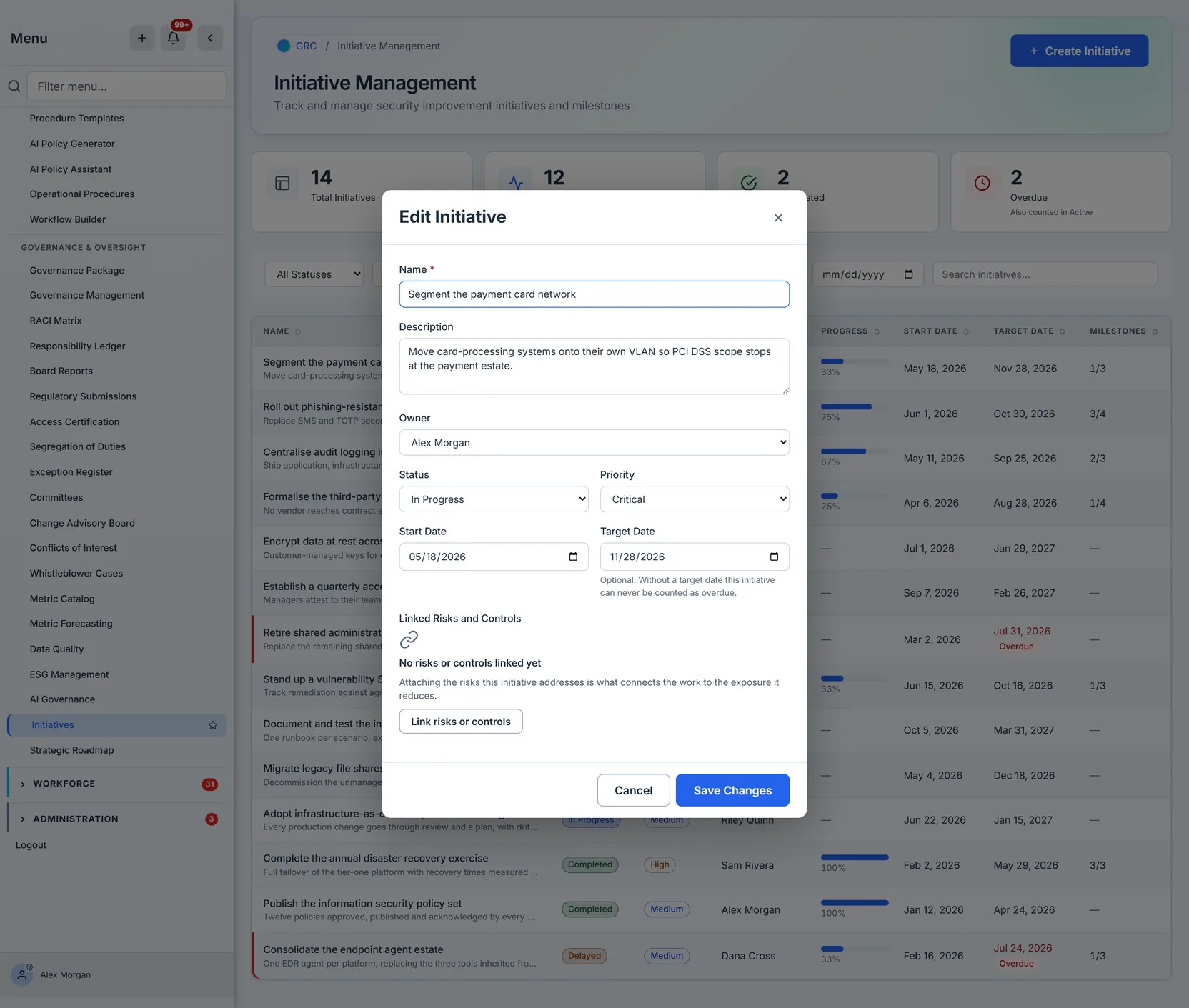
Milestones are deliberately not in this form. They are worked from the detail panel, where the timeline shows what is late and what is next; the edit form is for the initiative’s own fields.
Delete is on the detail panel beside Edit. It removes the initiative and its milestones from the programme, and the record is retained in the audit trail — what it was, what state it was in and what it was addressing at the moment it was removed. That is deliberate: an improvement programme is evidence of what you committed to, and a deletion that erased the commitment would take the evidence with it.
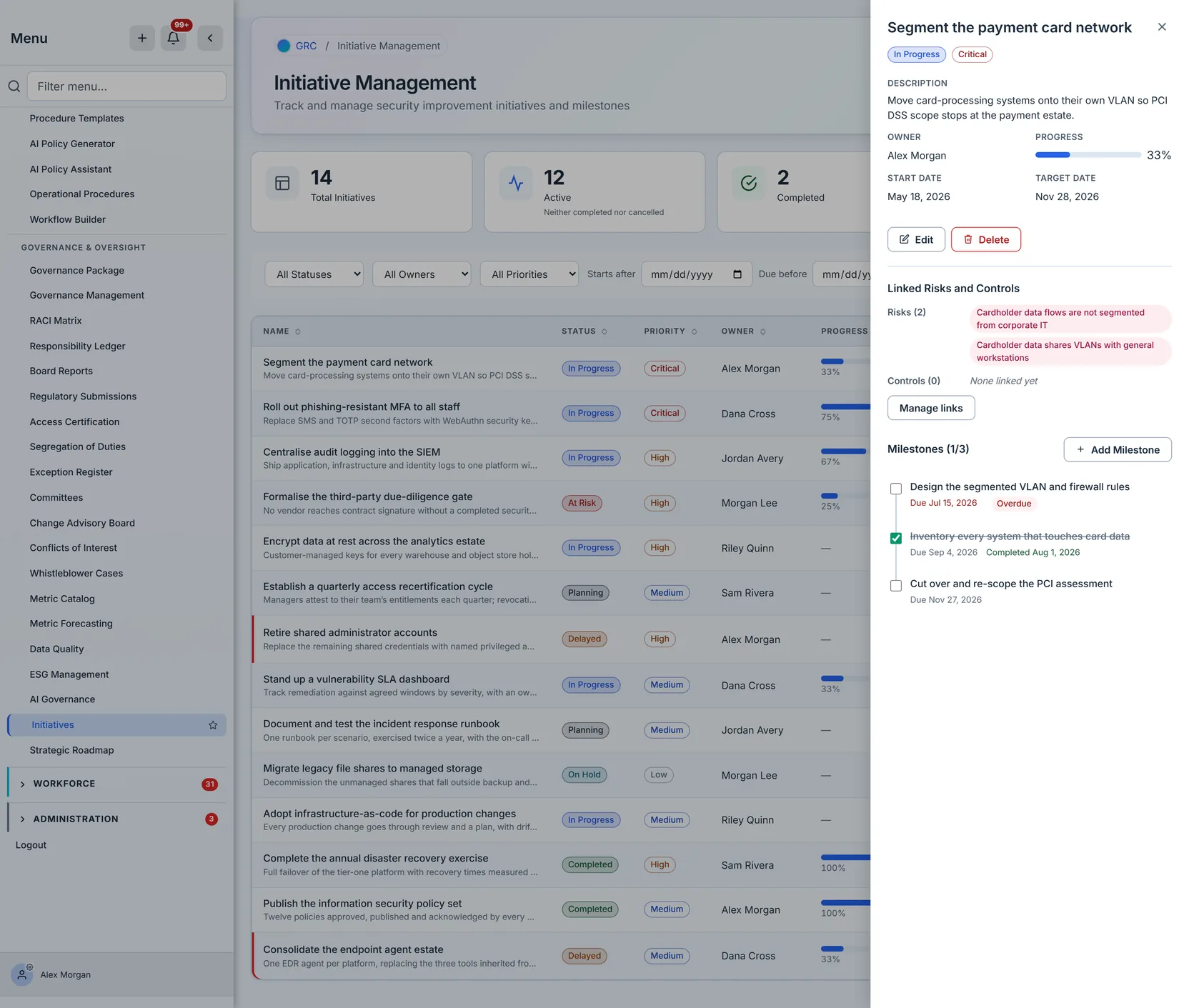
Back on the detail panel, the attached risks appear as a counted list — “Risks (2)” — and each one is a route into the register rather than a label: click it and you land on that risk. That matters in the conversation this page exists for, because “why are we doing this” is usually answered by opening the risk, not by reading its title.
And the finished picture — an initiative with an owner, dates, the risks it addresses and a milestone chain you can see the state of at a glance:
Who can see this page
Initiative Management is part of the Governance module, and appears in the sidebar under Governance & Policy → Board & Oversight. Governance is one of the modules an organisation licenses, so the page is available where that module is licensed; within it, access is granted by org group through the initiative-management feature.
Each group holds a level for the page: undefined, read, write, or an explicit deny. Where someone belongs to several groups those levels merge, and the rule worth knowing before you configure anything is that the two directions are not symmetrical. Read and write combine upward — the strongest allow a person holds through any group is the one that applies. An explicit deny does not combine at all: it overrides every other group’s allow, regardless of what order the groups are evaluated in.
That asymmetry is deliberate — deny is what makes a group usable as a deliberate subtraction rather than only ever adding permissions. It is also the one level to set carefully, because it is the case where adding somebody to a group can take away access they already had through another.
Creating, editing, deleting and changing milestones additionally require the initiative manage permission — which org administrators hold implicitly, so if you are testing what a restricted group can do, test it as a member of that group rather than as an admin who is exempt from the check. A user with read access sees the whole programme and every milestone, but the buttons that would change them — Create, Edit, Delete, Add Milestone, Manage links — are not rendered at all rather than rendered and then failing. The one exception is the milestone tick box, which stays visible but inert: it is how you read whether a milestone is done, so removing it would take information away rather than just permission.
Where this page ends
This guide covers Initiative Management: creating initiatives, attaching the risks they address, and running them through their milestones.
It does not cover the Strategic Roadmap, which presents the same initiative records on a timeline for planning conversations rather than as a worklist for execution — the records are shared, so an initiative created here appears there and stays editable from either page.
It does not cover risk treatment. Deciding whether a risk is mitigated, accepted or transferred happens in the register, and an initiative is what you create once that decision is “mitigate” — Risk lifecycle: identify to quantify walks that decision, and Reading the risk overview covers the register this page’s picker browses.
And it does not cover work items, which are the day-to-day tasks under a control rather than the programme-level projects tracked here — see Claiming and doing your work.